> ## Documentation Index
> Fetch the complete documentation index at: https://user-docs.seaticket.ai/llms.txt
> Use this file to discover all available pages before exploring further.
# Account Setup and Access
## **Creating your account**
Follow these steps to sign up at [cloud.seaticket.ai](http://cloud.seaticket.ai)
1. **Go to the sign-up page** Open [cloud.seaticket.ai](http://cloud.seaticket.ai) in your browser. On the login screen, click the **Sign up** link at the bottom of the card.
2. **Fill in your workspace details** Complete all fields in the sign-up form shown below.
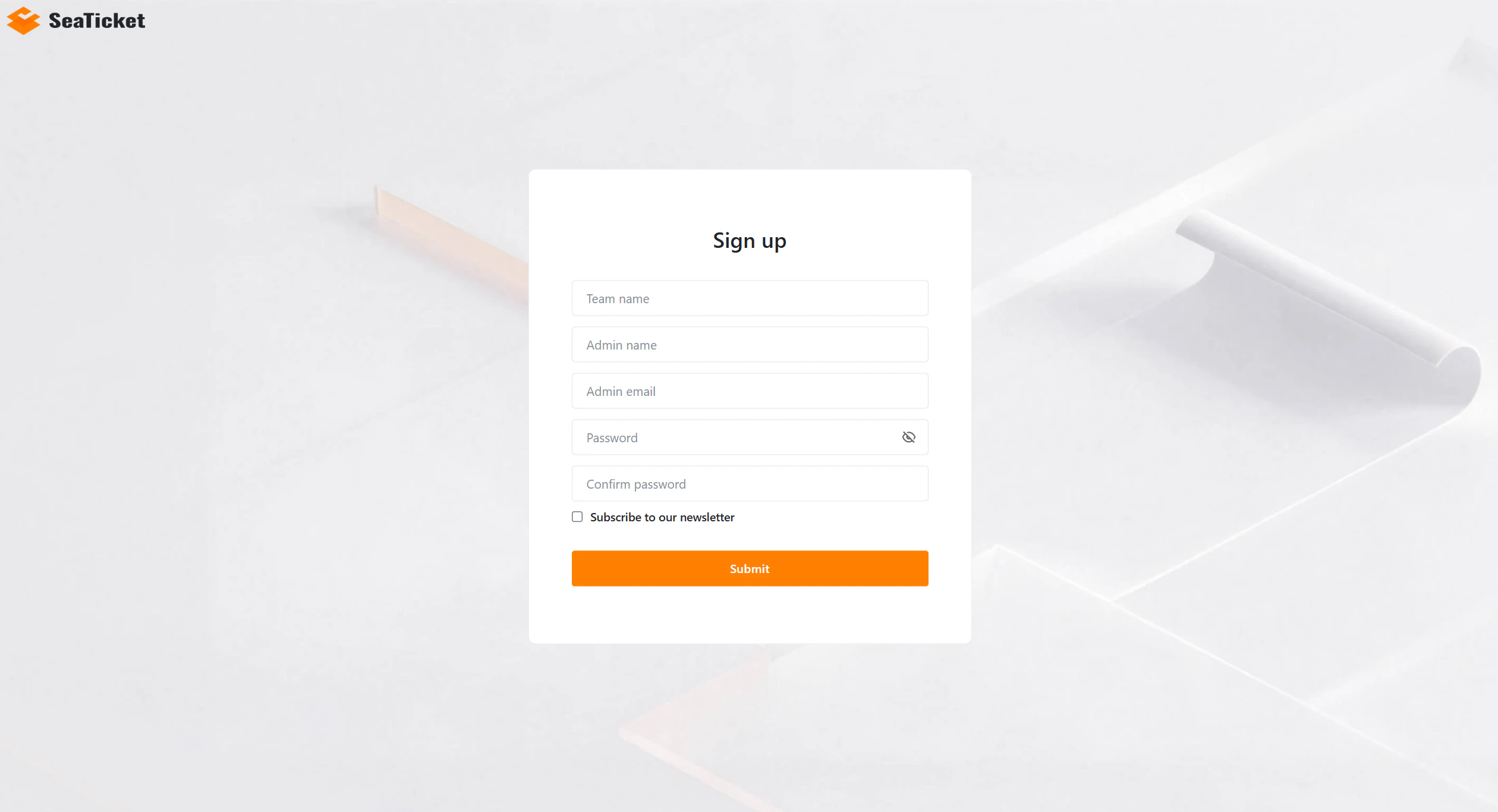 **Team name** is your workspace identifier — choose something that represents your team or organization.
3. **Set a strong password** Enter a secure password and repeat it in the *Confirm password* field. Use the eye icon to toggle visibility. Both fields must match before you can submit.
4. **Subscribe to our newsletter** (optional) Before submitting, you can check the *Subscribe to our newsletter* checkbox to receive product updates, new feature announcements, and tips directly to your inbox.
5. **Submit the form** Click **Submit**. Click **Submit**. SeaTicket will send an activation email to your admin email address. You will see the confirmation screen below. An activation email has been sent. Please check your email and click on the link to activate your account.
An activation email has been sent. Please check your email and click on the link to activate your account.
6. Open your inbox and find the email from **SeaTicket Cloud**. Click the **Sign up** activation link inside. The link is valid for **7 days**
**Team name** is your workspace identifier — choose something that represents your team or organization.
3. **Set a strong password** Enter a secure password and repeat it in the *Confirm password* field. Use the eye icon to toggle visibility. Both fields must match before you can submit.
4. **Subscribe to our newsletter** (optional) Before submitting, you can check the *Subscribe to our newsletter* checkbox to receive product updates, new feature announcements, and tips directly to your inbox.
5. **Submit the form** Click **Submit**. Click **Submit**. SeaTicket will send an activation email to your admin email address. You will see the confirmation screen below. An activation email has been sent. Please check your email and click on the link to activate your account.
An activation email has been sent. Please check your email and click on the link to activate your account.
6. Open your inbox and find the email from **SeaTicket Cloud**. Click the **Sign up** activation link inside. The link is valid for **7 days**
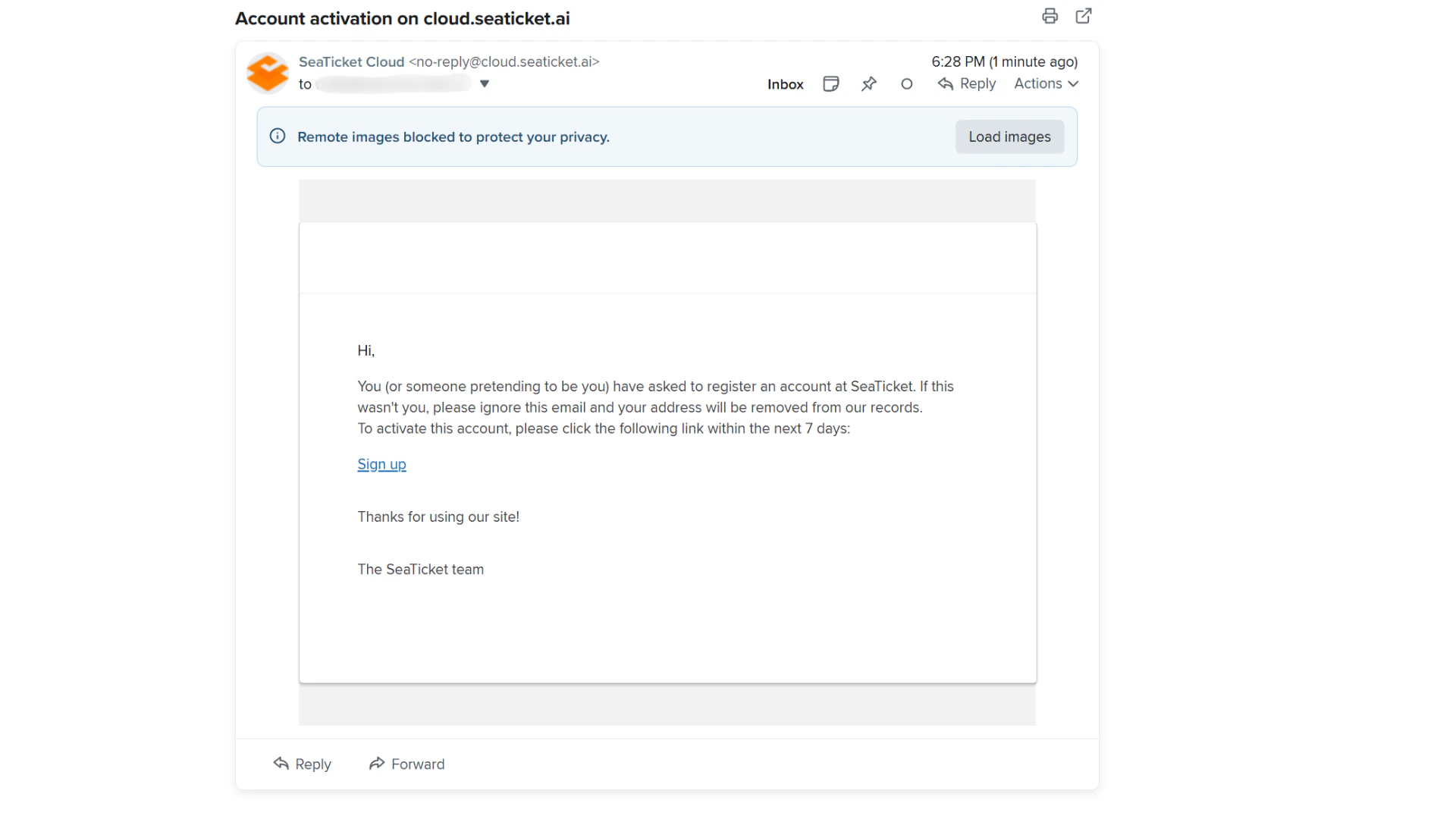 Check your **spam or junk folder** if the email does not arrive within a few minutes.
## **Signing in to your account**
Sign in at [cloud.seaticket.ai](http://cloud.seaticket.ai)
1. **Enter your credentials** On the login page, enter the **admin email** and **password** you used when signing up.
Check your **spam or junk folder** if the email does not arrive within a few minutes.
## **Signing in to your account**
Sign in at [cloud.seaticket.ai](http://cloud.seaticket.ai)
1. **Enter your credentials** On the login page, enter the **admin email** and **password** you used when signing up.
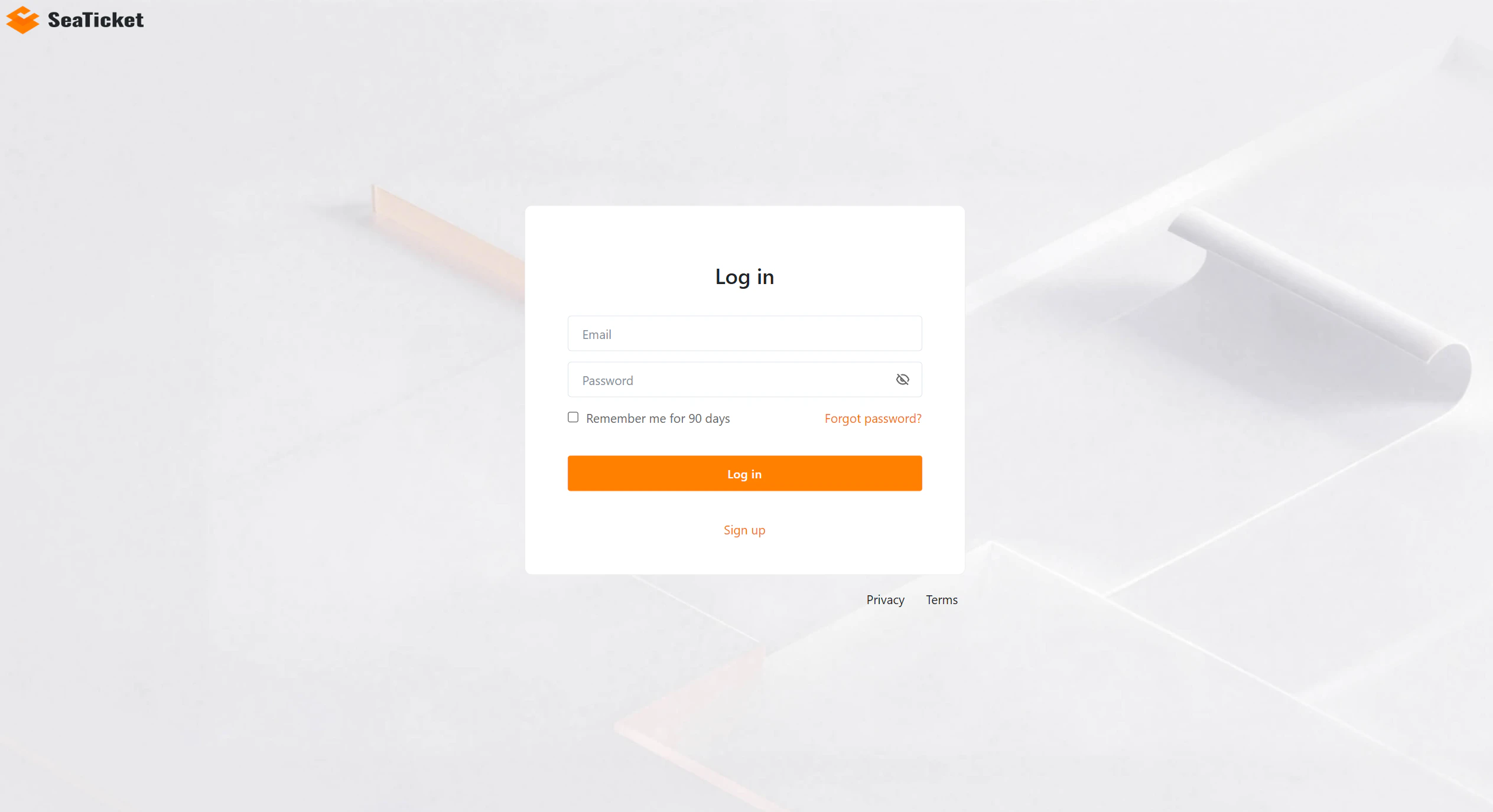 2. **Stay signed in (optional)** Check *Remember me for 90 days* if you are on a trusted personal device. This keeps you signed in without re-entering your password for 90 days.
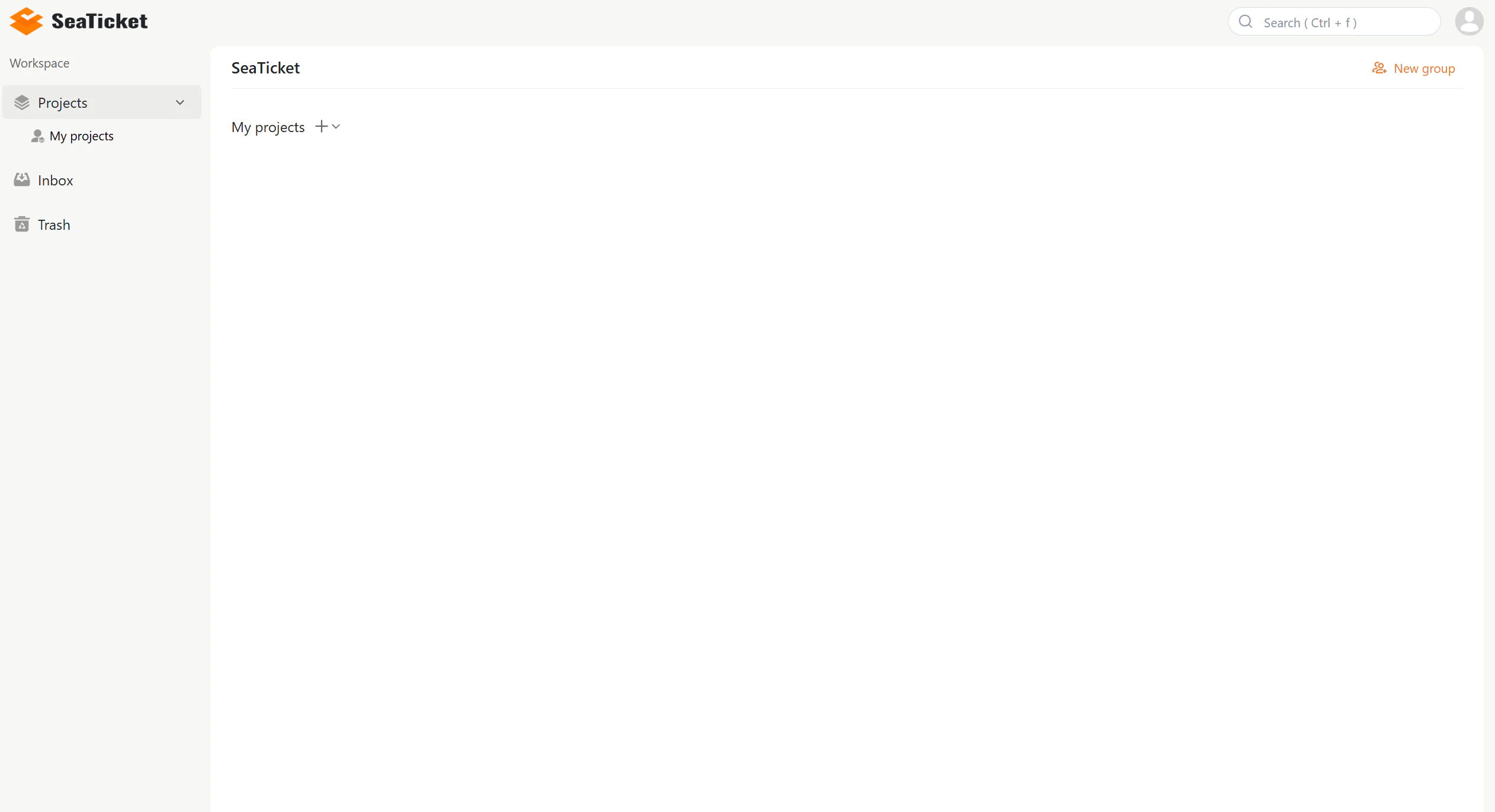
3. **Access your workspace** After clicking **Log in**, you will be taken directly to your SeaTicket workspace dashboard. From here you can manage projects, tickets, connections, and more.
2. **Stay signed in (optional)** Check *Remember me for 90 days* if you are on a trusted personal device. This keeps you signed in without re-entering your password for 90 days.
3. **Access your workspace** After clicking **Log in**, you will be taken directly to your SeaTicket workspace dashboard. From here you can manage projects, tickets, connections, and more.
 **Forgot your password?**
Click **Forgot password?** on the login page. Enter your registered email address and follow the reset instructions sent to your inbox.
**Forgot your password?**
Click **Forgot password?** on the login page. Enter your registered email address and follow the reset instructions sent to your inbox.
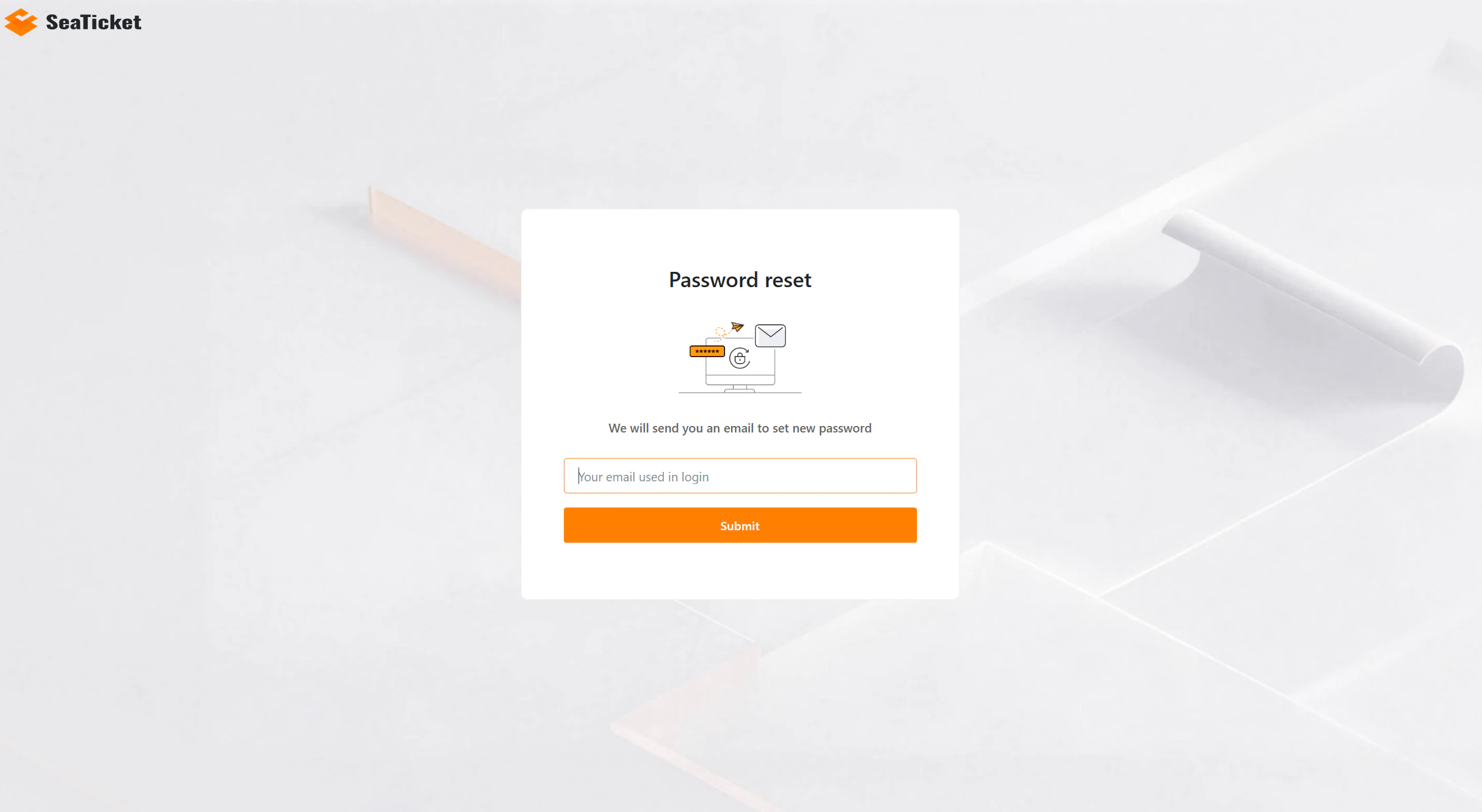 Check your spam folder if the reset email does not arrive within a few minutes.