> ## Documentation Index
> Fetch the complete documentation index at: https://user-docs.seaticket.ai/llms.txt
> Use this file to discover all available pages before exploring further.
# Discord
The **Discord connection** integrates a Discord server with SeaTicket. Once connected, SeaTicket syncs messages from a channel and generates an AI summary for each one.
This makes it easy to turn community discussions, bug reports, and feature requests happening in Discord into a searchable, structured record inside SeaTicket.
## Before you start
Make sure you have:
* **Manage Server** permission for the target Discord server
* Permission to install bots on the Discord server
## Creating a Discord Connection
### Step 1. Select Discord connection
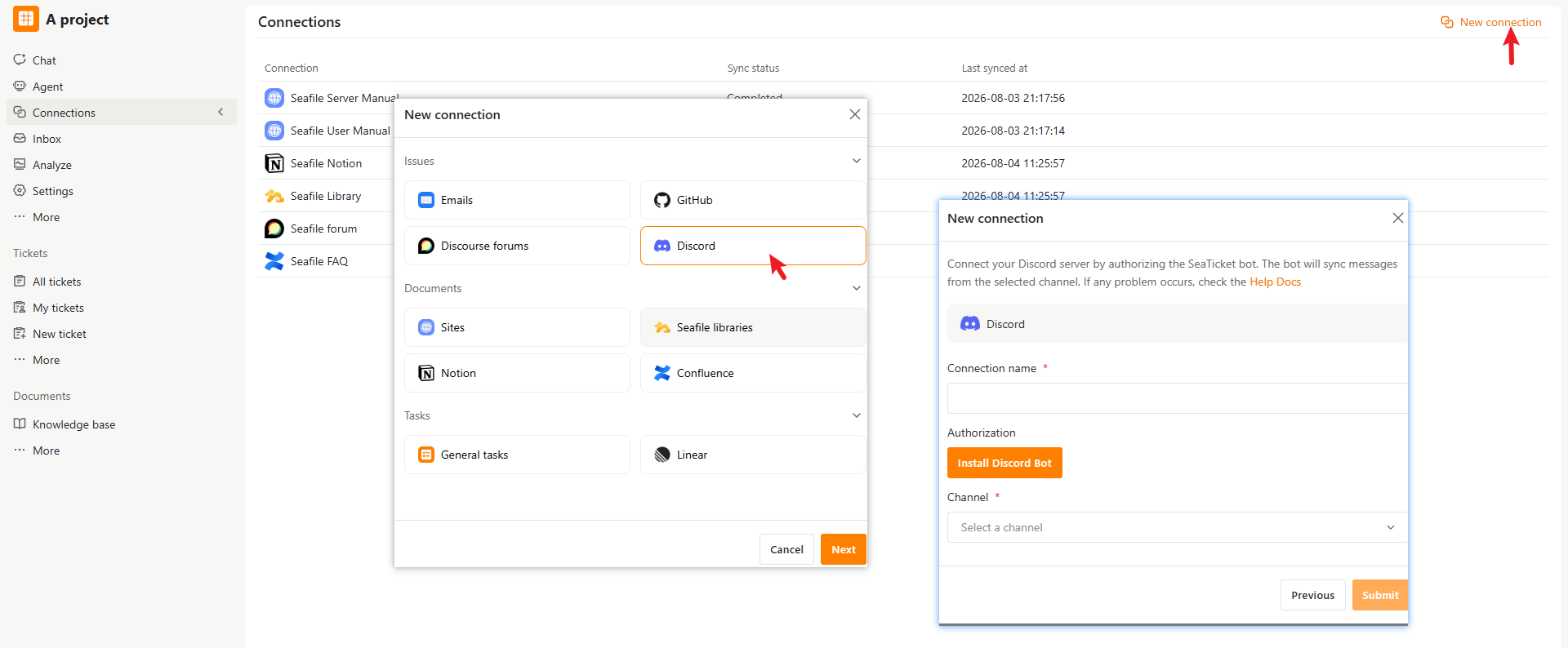
1. Open a project in SeaTicket.
2. Go to **Connections** from the left navigation menu.
3. Click **New connection** in the top-right corner.
4. Select **Discord** under **Issues**, then click **Next**.
 ### Step 2. **Install and** Authorize the SeaTicket bot
1. Click **Install Discord Bot**.
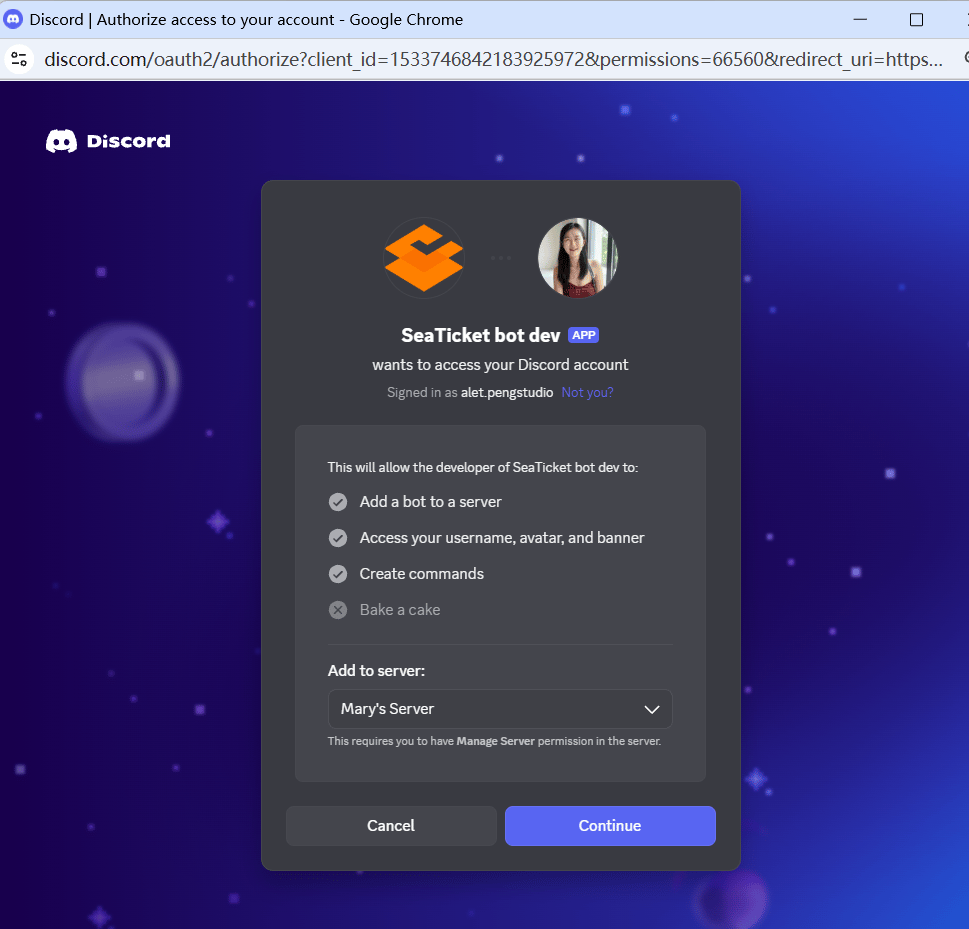
2. You will be redirected to Discord to authorize the SeaTicket bot.
3. Select the Discord server where you want to install the bot.
4. Click **Continue**.
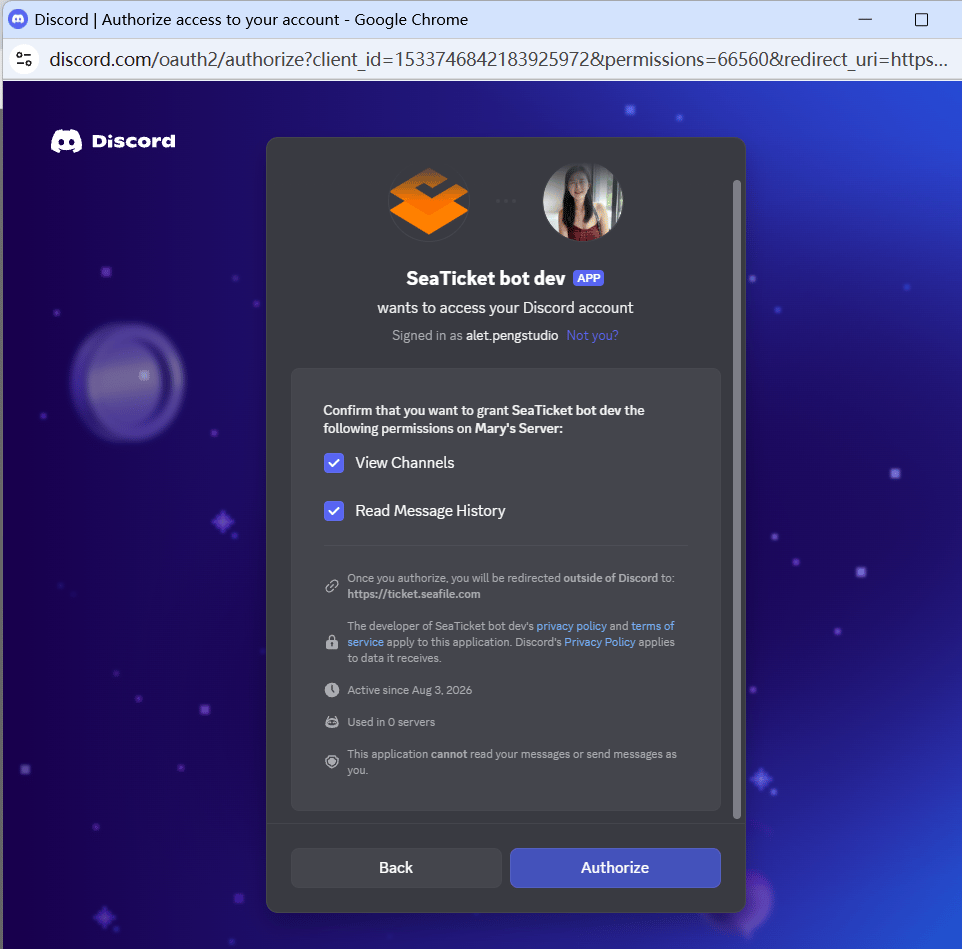
5. Review the permissions and click **Authorize**.
After authorization, you will be redirected back to SeaTicket.
The authorized Discord server will be displayed under **Authorization**. You can then select a channel from this server to sync with SeaTicket.
You need **Manage Server** permission in Discord to install the bot.
### Step 2. **Install and** Authorize the SeaTicket bot
1. Click **Install Discord Bot**.
2. You will be redirected to Discord to authorize the SeaTicket bot.
3. Select the Discord server where you want to install the bot.
4. Click **Continue**.
5. Review the permissions and click **Authorize**.
After authorization, you will be redirected back to SeaTicket.
The authorized Discord server will be displayed under **Authorization**. You can then select a channel from this server to sync with SeaTicket.
You need **Manage Server** permission in Discord to install the bot.
 ### Step 3. Configure the connection in SeaTicket
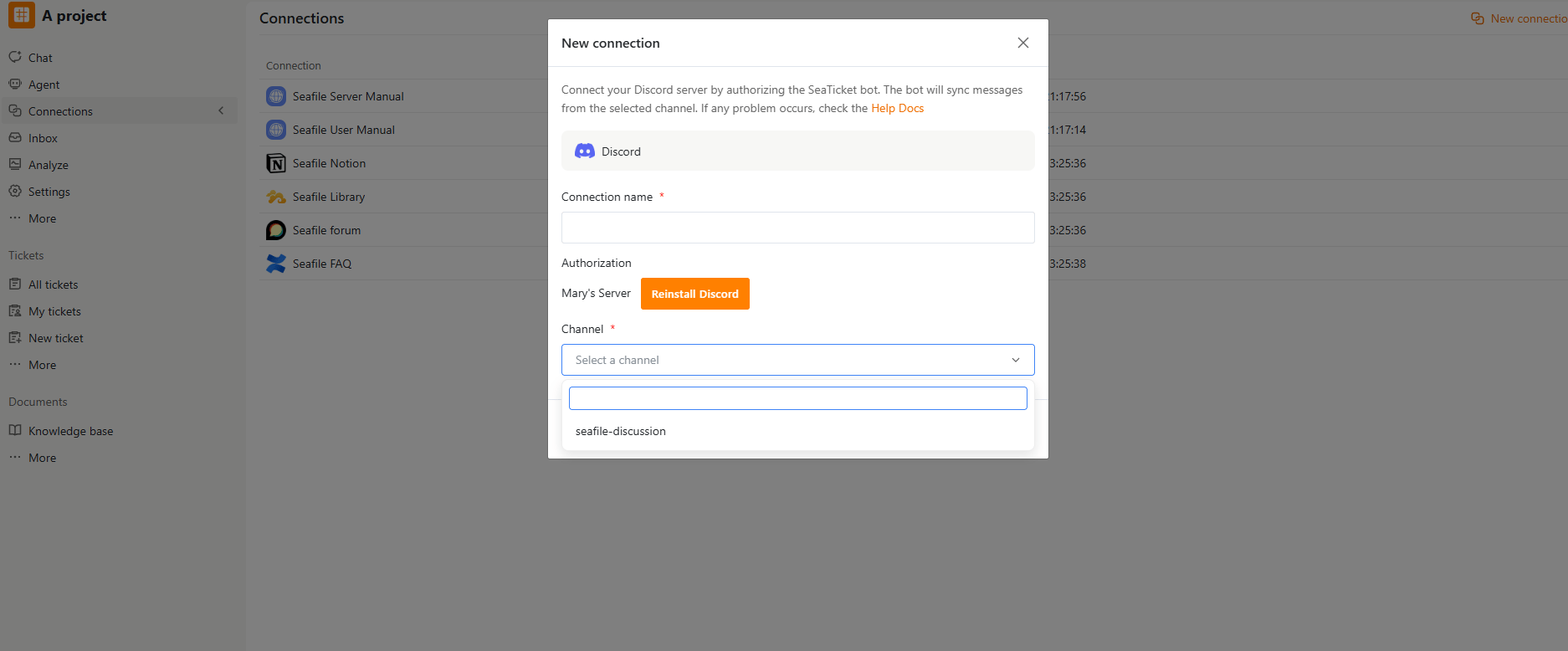
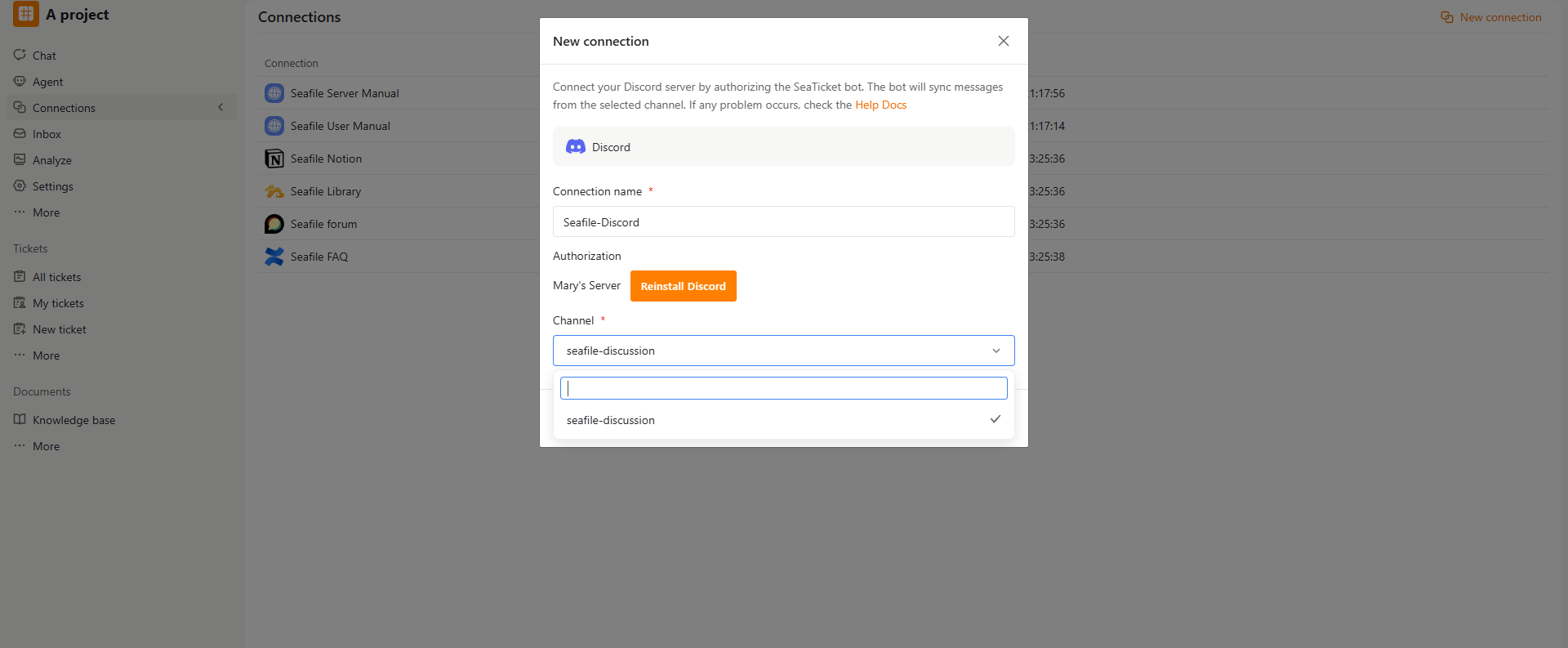
Fill in the connection details:
| Field | Description |
| :-------------- | :--------------------------------- |
| Connection name | Enter a name for this connection |
| Channel | Select the Discord channel to sync |
After selecting the channel, click **Submit** to create the connection.
If no channels are available, check that your Discord server contains a Forum channel. Only Forum channels can be selected for synchronization.
### Step 3. Configure the connection in SeaTicket
Fill in the connection details:
| Field | Description |
| :-------------- | :--------------------------------- |
| Connection name | Enter a name for this connection |
| Channel | Select the Discord channel to sync |
After selecting the channel, click **Submit** to create the connection.
If no channels are available, check that your Discord server contains a Forum channel. Only Forum channels can be selected for synchronization.
 ## After Connection is Created
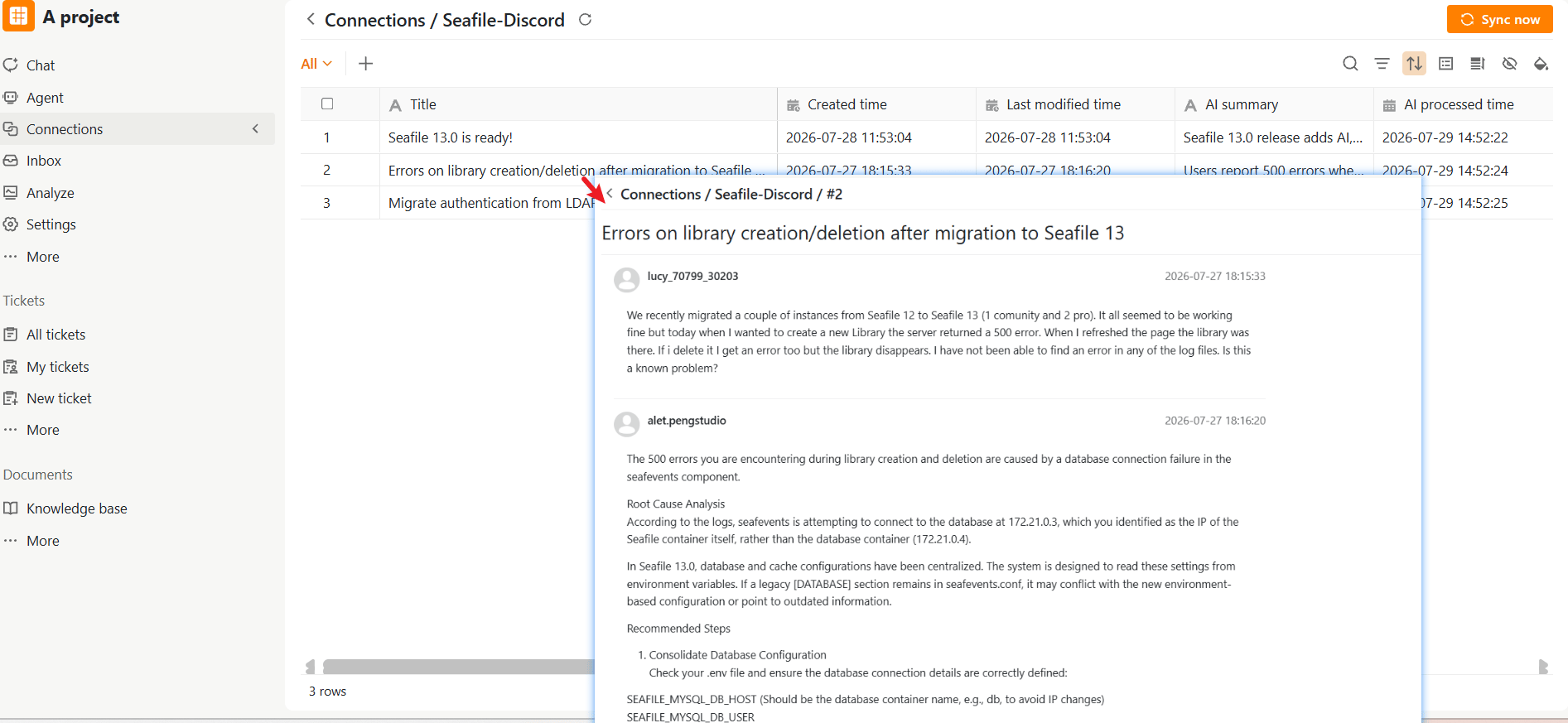
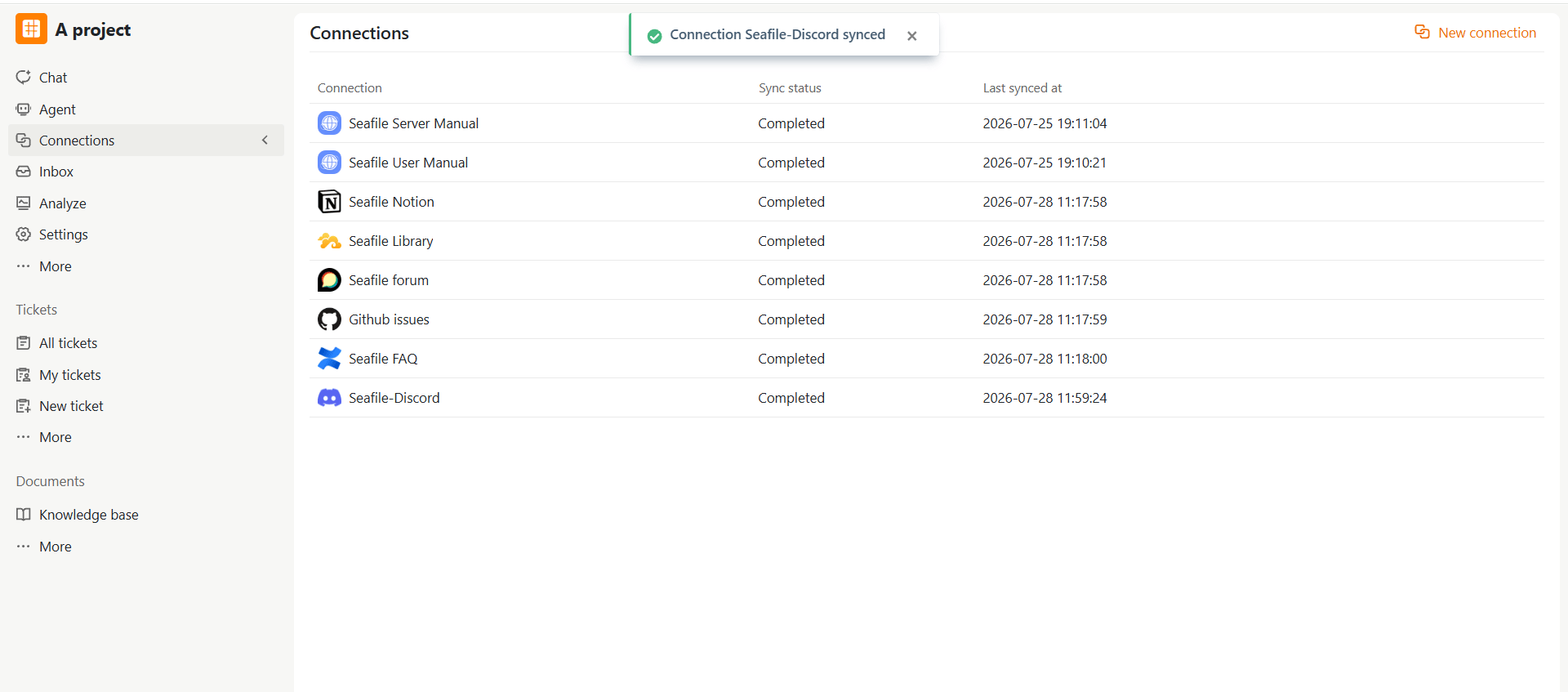
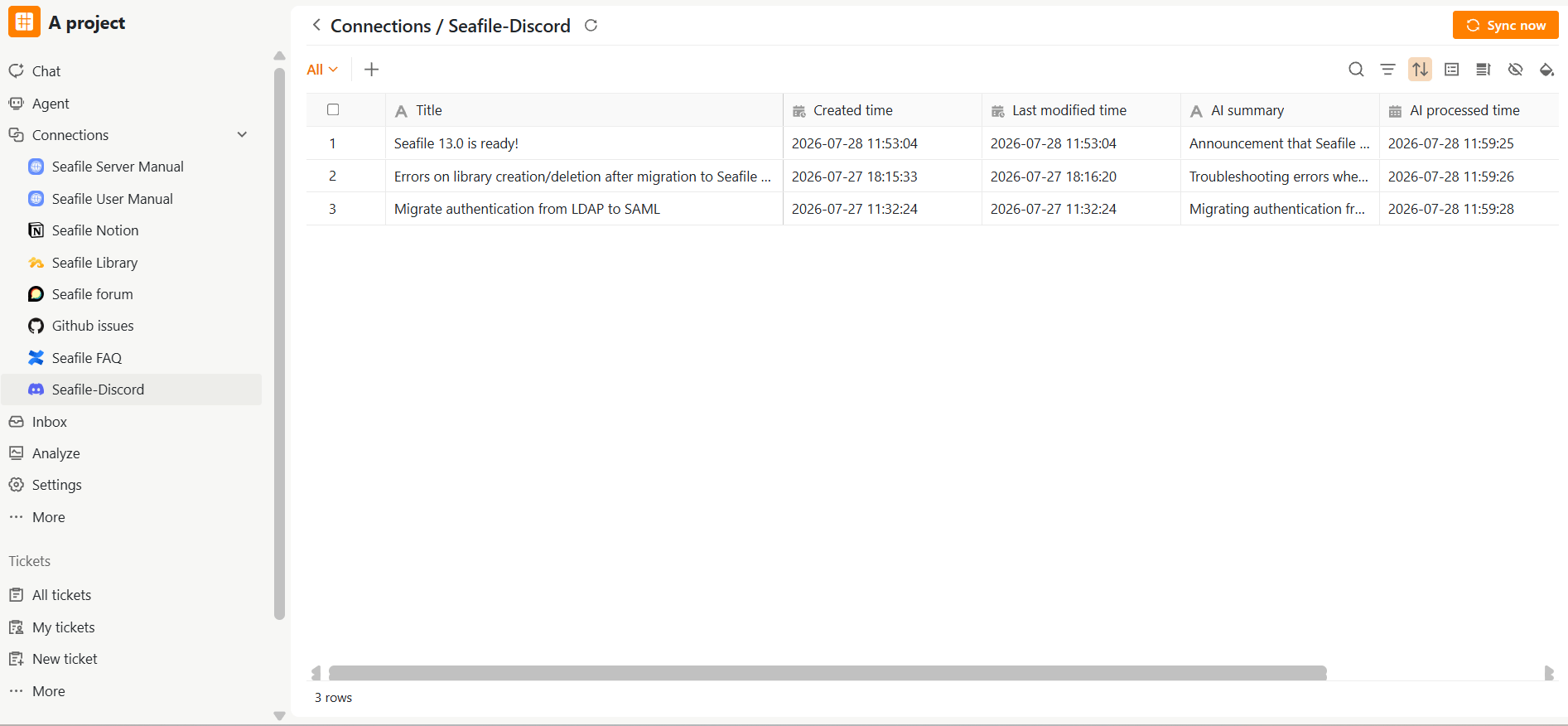
Once connected, SeaTicket automatically syncs topics from the selected Discord Forum channel. Synced topics appear in a list view under the connection in the left sidebar. For each topic, SeaTicket records:
* Title
* Created time and Last modified time
* AI Summary and AI Processed time — automatically generated for each message
To sync new topics on demand, open the connection and click **Sync now**.
## After Connection is Created
Once connected, SeaTicket automatically syncs topics from the selected Discord Forum channel. Synced topics appear in a list view under the connection in the left sidebar. For each topic, SeaTicket records:
* Title
* Created time and Last modified time
* AI Summary and AI Processed time — automatically generated for each message
To sync new topics on demand, open the connection and click **Sync now**.
 ## Viewing Topic Details
After Discord topics have been synced, click any topic title to open the full discussion inside SeaTicket. The topic detail page displays all messages in chronological order, allowing you to review the complete conversation without opening Discord.
## Viewing Topic Details
After Discord topics have been synced, click any topic title to open the full discussion inside SeaTicket. The topic detail page displays all messages in chronological order, allowing you to review the complete conversation without opening Discord.