> ## Documentation Index
> Fetch the complete documentation index at: https://user-docs.seaticket.ai/llms.txt
> Use this file to discover all available pages before exploring further.
# Email
The Email connection allows you to connect external mailboxes and sync emails into SeaTicket as structured items your team can view and act on.
This guide uses Gmail as an example.
## Before You Start
Ensure you have the following:
* An **App Password** generated from your email provider. This is required instead of your regular account password. Refer to official guide of your email provider for instructions on generating an app password.
## Creating an Email Connection
1. Go to **Connections** in the left sidebar.
2. Click **+ New Connection** in the top-right corner.
3. Select **Emails** as the connection type.
4. Click **Next**.
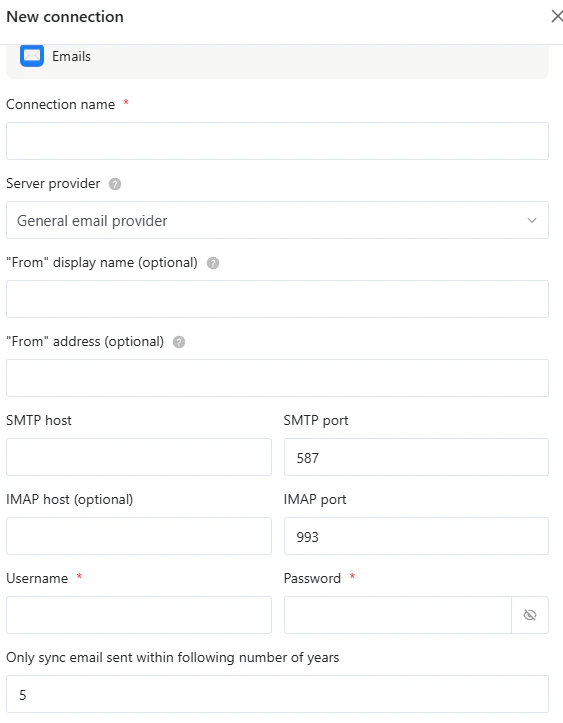
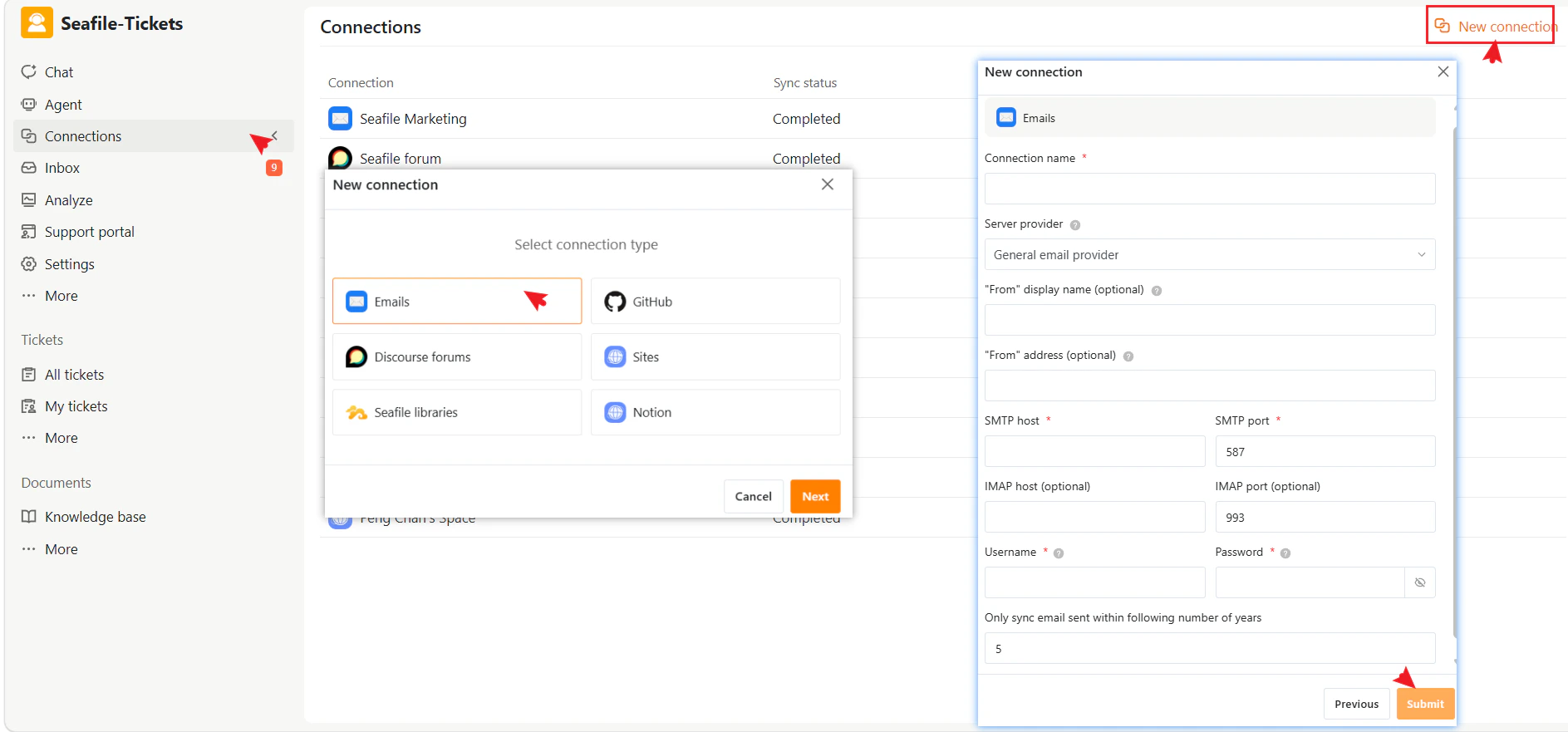 5. Fill in the configuration fields:
**Basic Information**
| Field | Description |
| :--------------------------------- | :------------------------------------------------------------------- |
| **Connection name** | A name to identify this connection (e.g., Gmail
5. Fill in the configuration fields:
**Basic Information**
| Field | Description |
| :--------------------------------- | :------------------------------------------------------------------- |
| **Connection name** | A name to identify this connection (e.g., Gmail
Support Inbox) |
| **Server provider** | Select the authentication mode for your email provider |
| **"From" display name** (optional) | The sender name displayed in outgoing emails |
| **"From" address** (optional) | The email address used as the sender |
**Server Settings**
| Field | Example |
| :----------------------- | :-------------------------------------- |
| **SMTP host** | [smtp.gmail.com](http://smtp.gmail.com) |
| **SMTP port** | 587 |
| **IMAP host** (optional) | [imap.gmail.com](http://imap.gmail.com) |
| **IMAP port** | 993 |
**Authentication**
| Field | Description |
| :----------- | :-------------------------------------------------------------------------------------------------------------------------------------------------------------------------------------------------------------------------------------------------------------------- |
| **Username** | Your full email address |
| **Password** | Your App Password — not your regular email password
[Refer to Google's official guide for instructions on ](https://support.google.com/accounts/answer/185833?hl=en)
[generating an app password](https://support.google.com/accounts/answer/185833?hl=en). |
**Sync Settings**
| Field | Description |
| :----------------------------------------------------------------- | :-------------------------------------------------------------- |
| **Only sync emails within the following**
**number of years** | Limits how far back SeaTicket
retrieves historical emails |
 6. Click **Submit** to complete the setup
## After the Connection is Created
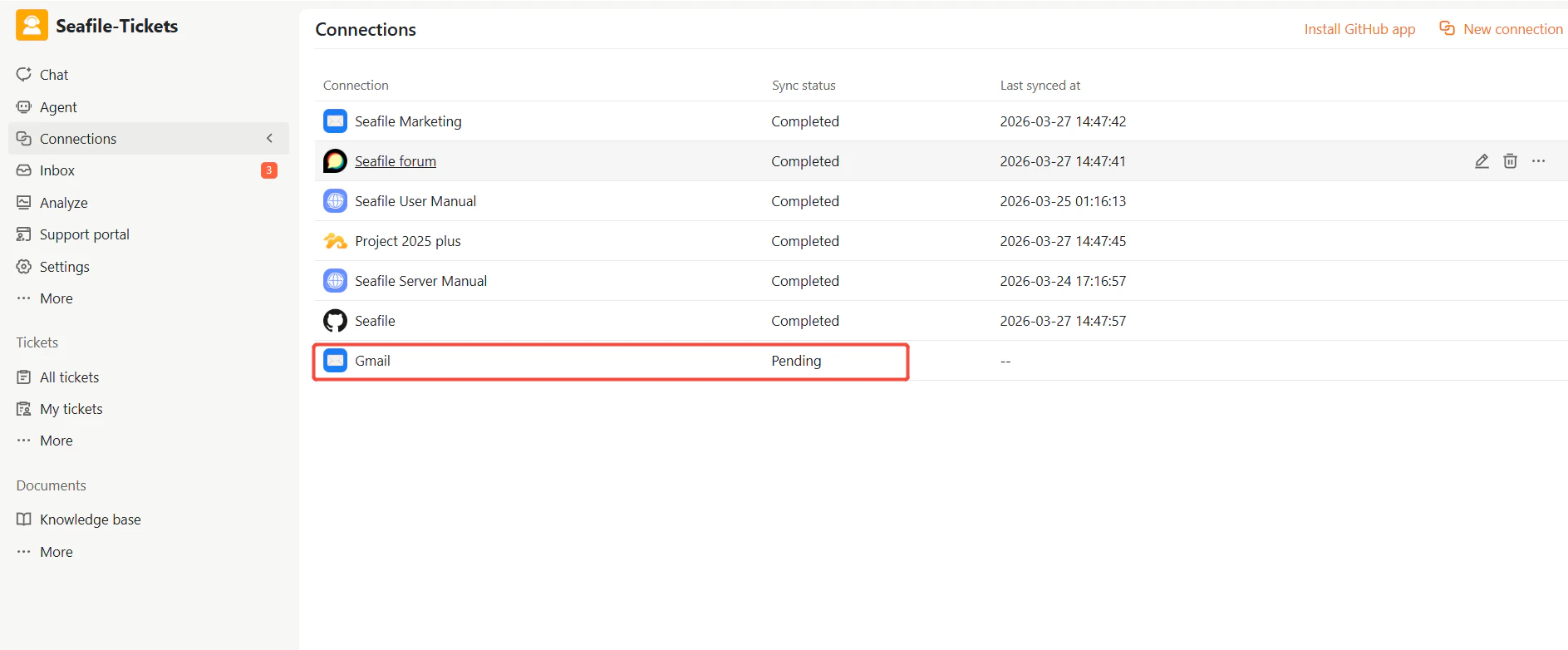
Once created, the connection appears on the Connections page. The sync status will show as **Pending** while SeaTicket performs the initial synchronization. Once complete, the status updates to **Completed** and the last synced time is recorded.
6. Click **Submit** to complete the setup
## After the Connection is Created
Once created, the connection appears on the Connections page. The sync status will show as **Pending** while SeaTicket performs the initial synchronization. Once complete, the status updates to **Completed** and the last synced time is recorded.
 * Emails are automatically synced every 1 hour.
* Initial synchronization may take time depending on mailbox size
* Ensure your email provider allows IMAP/SMTP access
* If synchronization fails, check authentication settings or server configuration
## Viewing Synced Emails
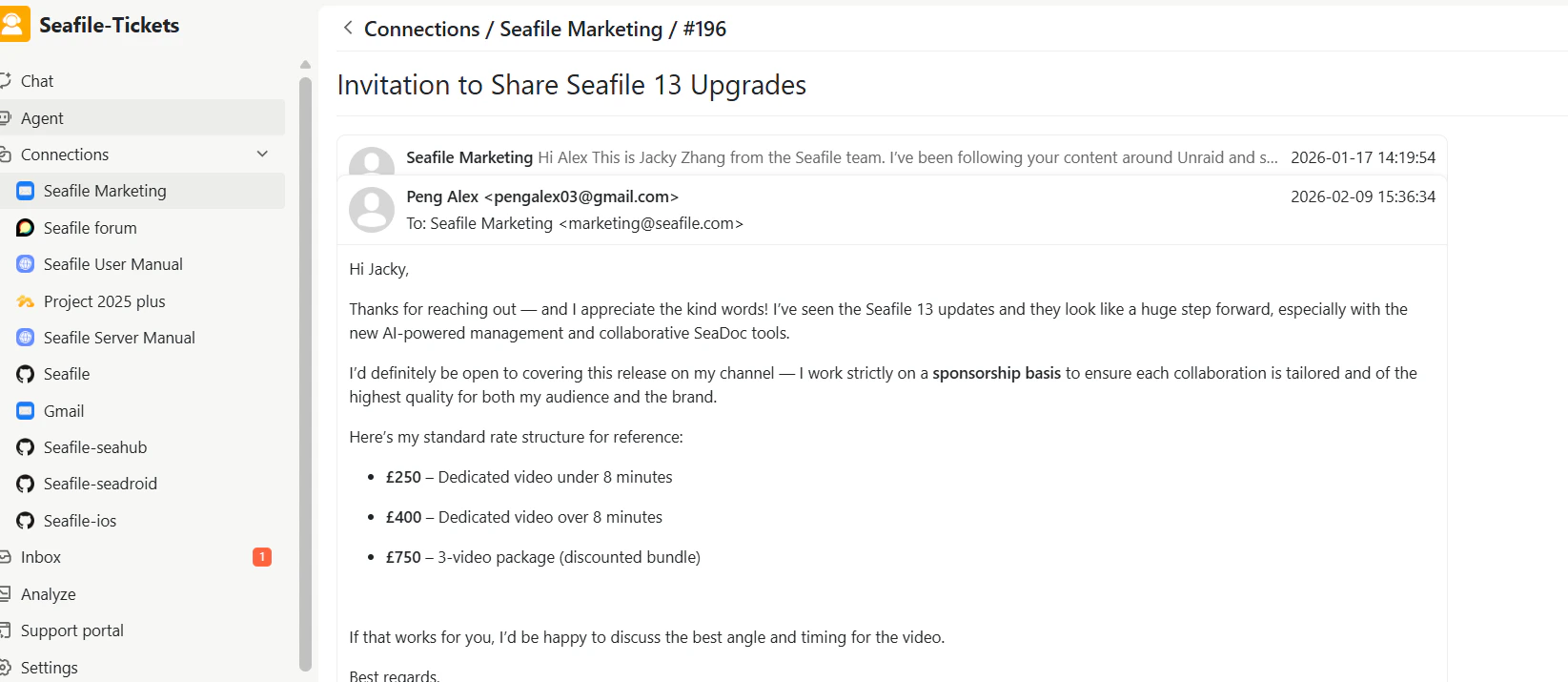
Once synced, emails appear in a list view under the connection. For each email, SeaTicket records the subject, last modified time, and unread status. SeaTicket also automatically generates an AI summary and records when that processing was completed.
* Emails are automatically synced every 1 hour.
* Initial synchronization may take time depending on mailbox size
* Ensure your email provider allows IMAP/SMTP access
* If synchronization fails, check authentication settings or server configuration
## Viewing Synced Emails
Once synced, emails appear in a list view under the connection. For each email, SeaTicket records the subject, last modified time, and unread status. SeaTicket also automatically generates an AI summary and records when that processing was completed.
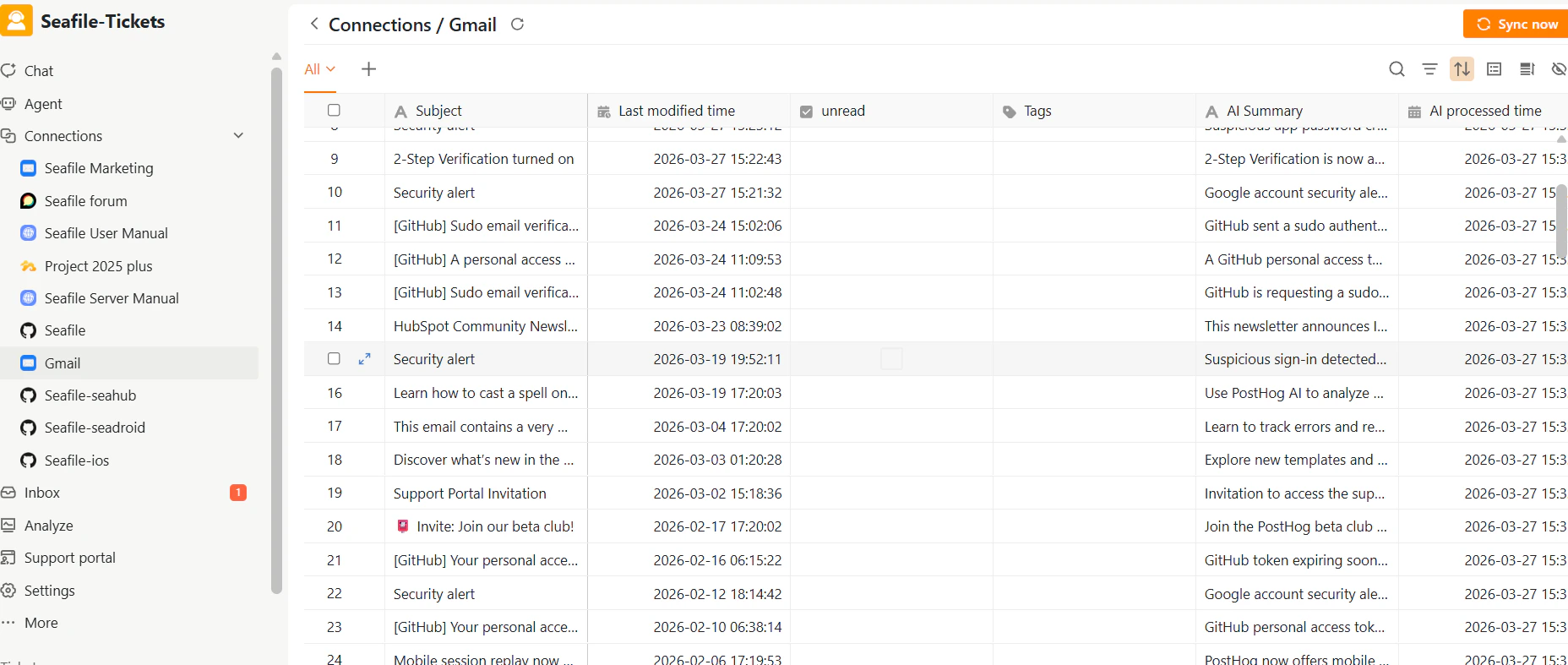 After data has been synced, Click any email title to open the full email thread, including all replies and conversation history.