> ## Documentation Index
> Fetch the complete documentation index at: https://user-docs.seaticket.ai/llms.txt
> Use this file to discover all available pages before exploring further.
# GitHub
The **GitHub connection** lets you integrate external GitHub repositories directly into your SeaTicket workspace. Once connected, SeaTicket automatically syncs GitHub Issues and uses AI to generate summaries for each issue, helping your team manage bugs, feature requests, and tasks alongside other inquiries in a single unified interface.
## Before You Start
Ensure you have:
* A GitHub account with admin or owner permissions for the organization or repository you want to connect.
## Creating a GitHub Connection
### Step 1 — Install the GitHub App
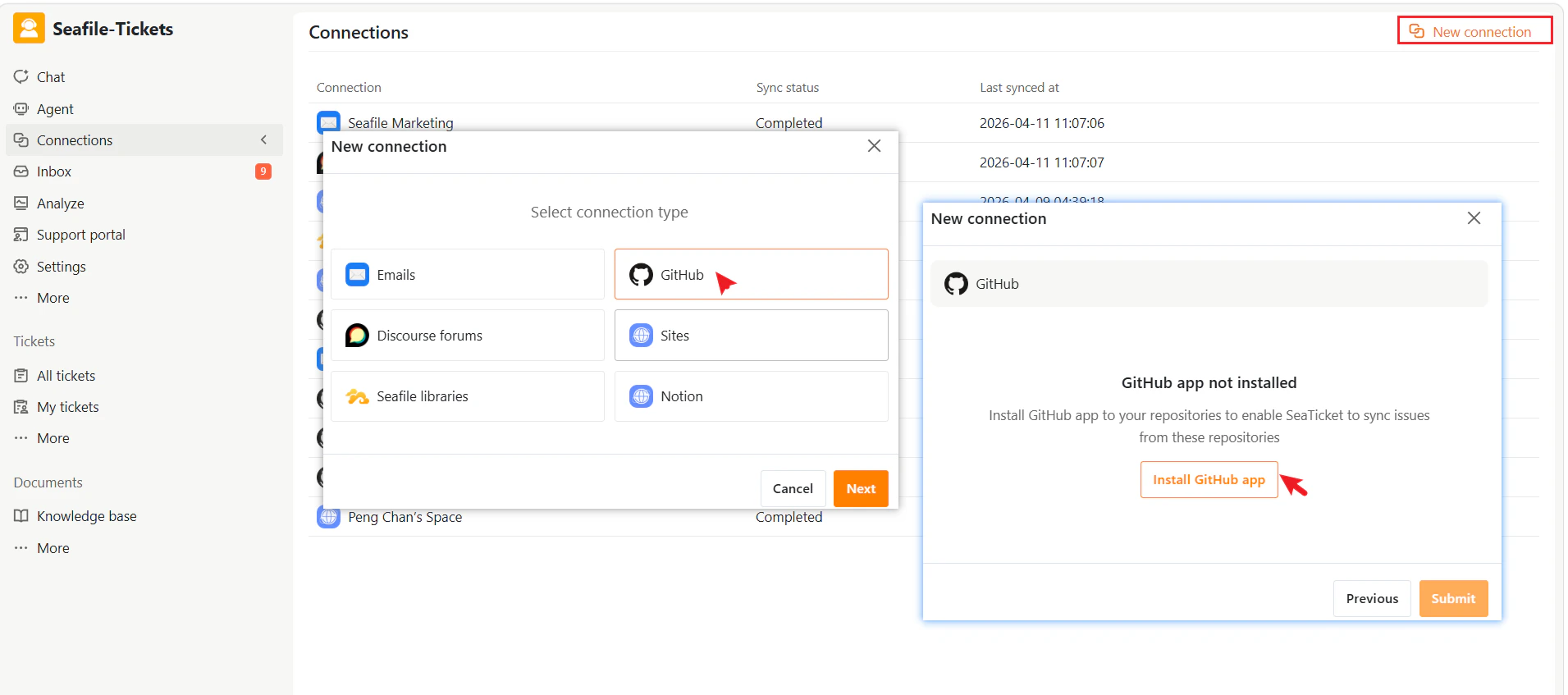
1. Go to **Connections** in the left sidebar.
2. Click **+ New Connection**.
3. Select **GitHub** as the connection type.
4. Click **Install GitHub App**. You'll be redirected to GitHub.
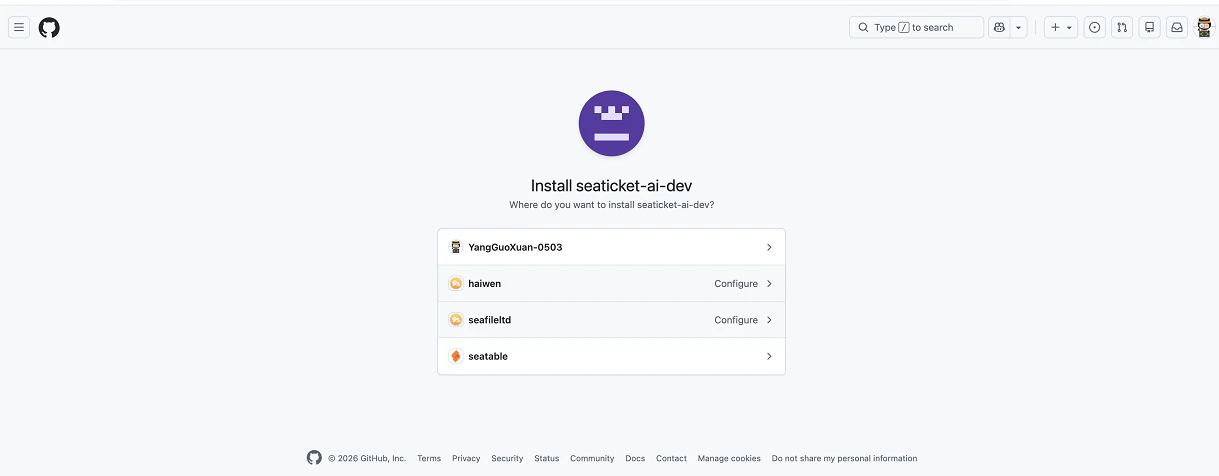
 5. On GitHub, select the organization or personal account that hosts your repository.
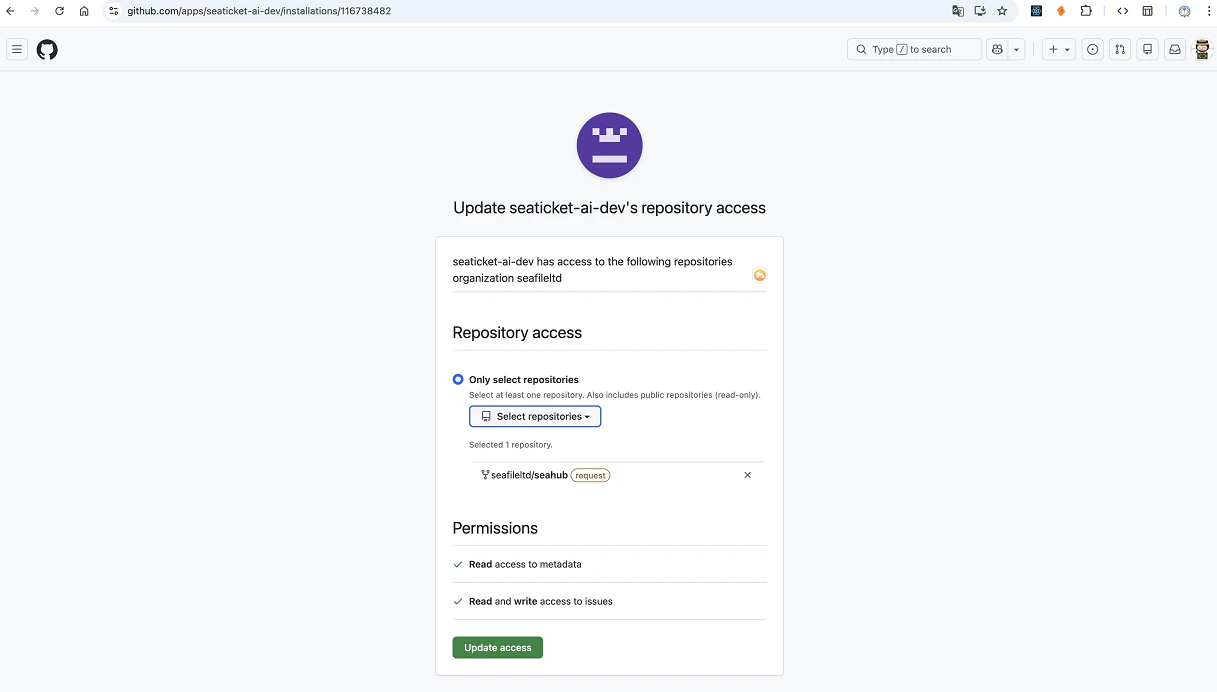
 6. Under **Repository access**, select **Only select repositories** and choose the specific repositories SeaTicket should have access to.
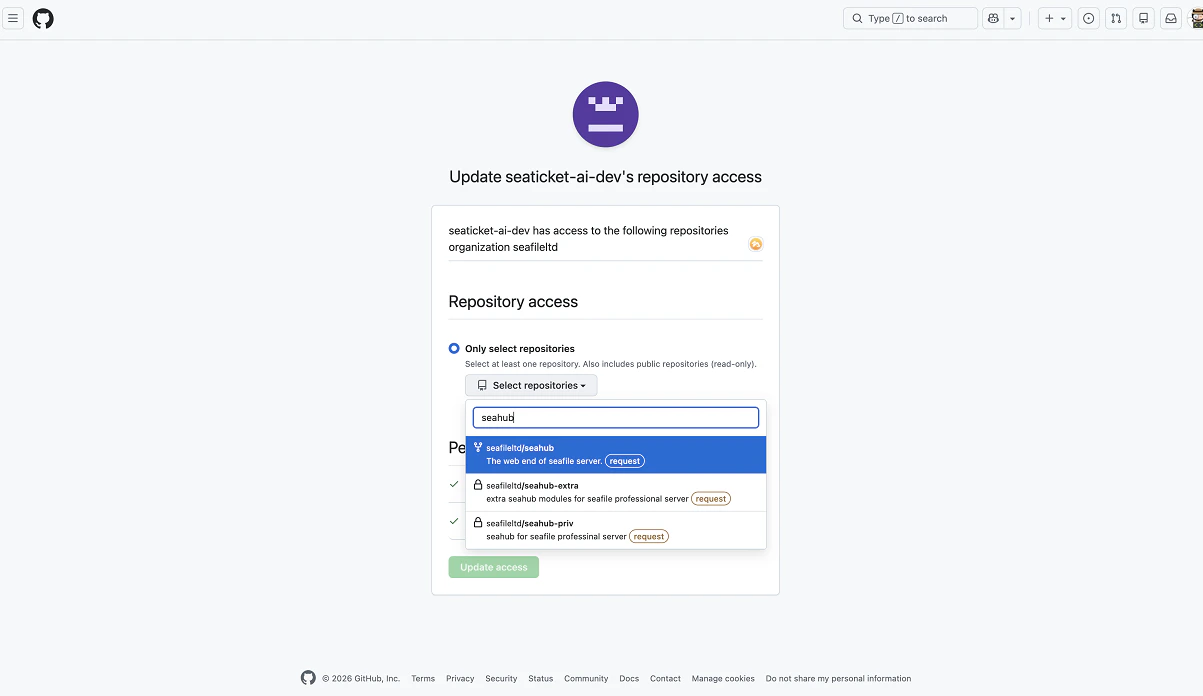 7. Review the requested permissions — SeaTicket requires **Read access to metadata** and **Read and write access to issues**.
8. Click **Update access** to finalize the authorization
7. Review the requested permissions — SeaTicket requires **Read access to metadata** and **Read and write access to issues**.
8. Click **Update access** to finalize the authorization
 ### Step 2 — Configure the Connection in SeaTicket
After authorizing on GitHub, you are returned to SeaTicket automatically.
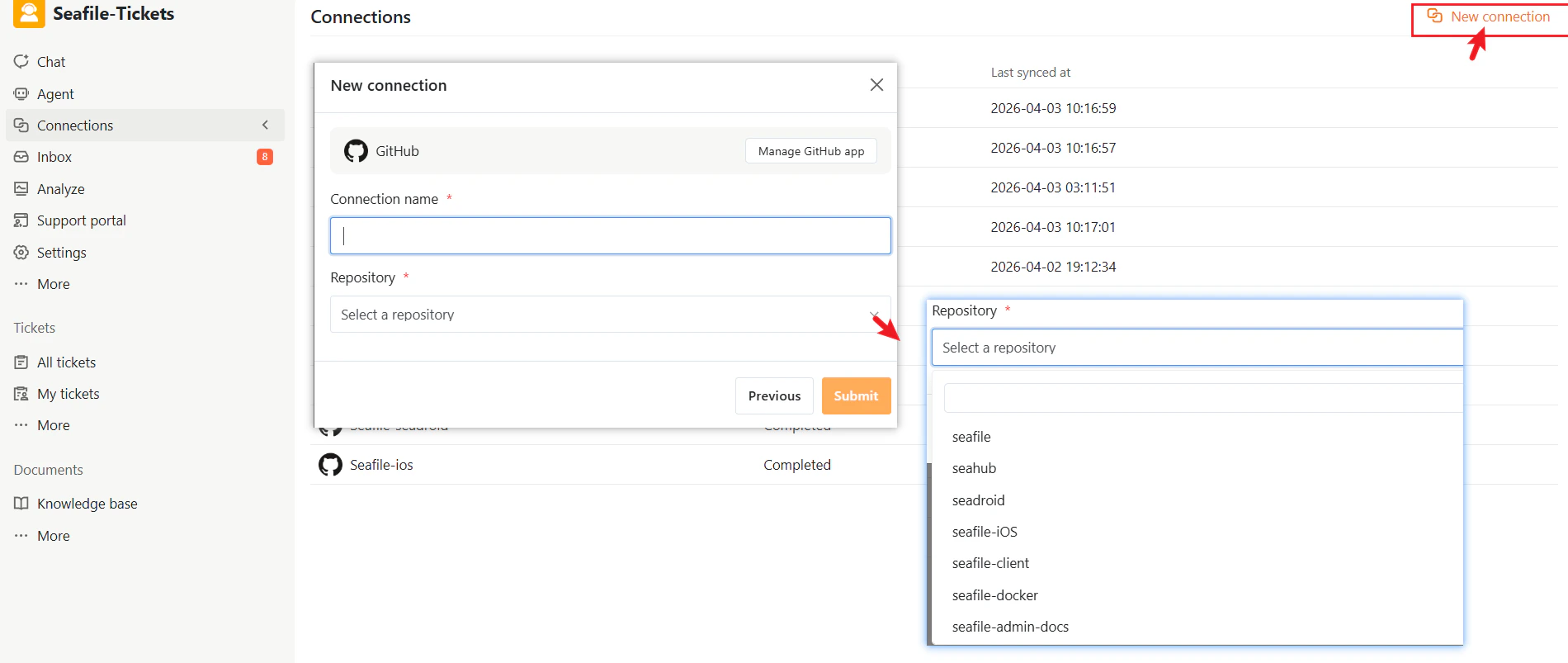
1. Enter a descriptive **Connection name**.
2. Select the **Repository** you just authorized from the dropdown.
3. Click **Submit** to complete the setup.
### Step 2 — Configure the Connection in SeaTicket
After authorizing on GitHub, you are returned to SeaTicket automatically.
1. Enter a descriptive **Connection name**.
2. Select the **Repository** you just authorized from the dropdown.
3. Click **Submit** to complete the setup.
 ### After the Connection is Created
Once connected, SeaTicket automatically syncs GitHub Issues, which appear in a list view under the connection in the left sidebar, organized into **Open** and **Closed** tabs.
* Issues are displayed in a list view
* Updates are synced automatically **every 1 hour**
Updates sync every hour.
### After the Connection is Created
Once connected, SeaTicket automatically syncs GitHub Issues, which appear in a list view under the connection in the left sidebar, organized into **Open** and **Closed** tabs.
* Issues are displayed in a list view
* Updates are synced automatically **every 1 hour**
Updates sync every hour.
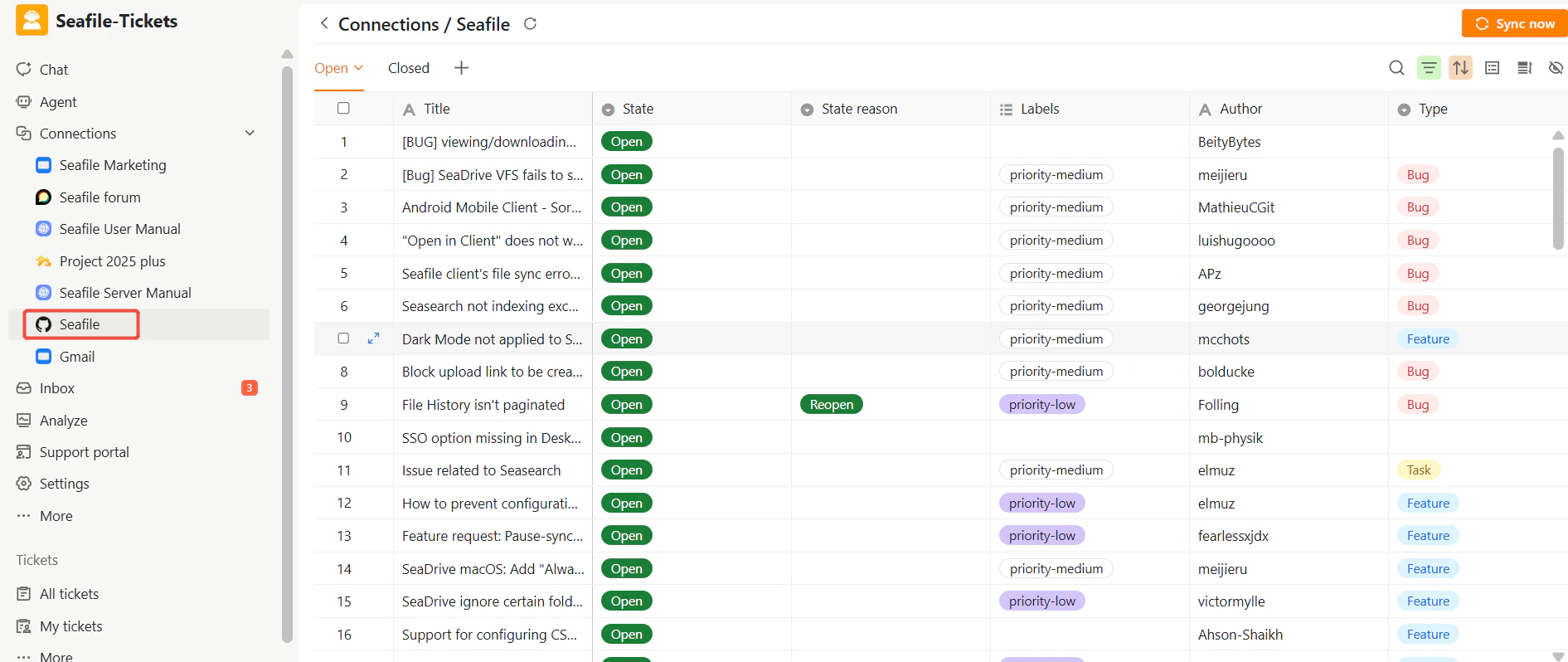 For each issue, SeaTicket records:
* Title
* State (Open / Closed) and State reason
* Labels
* Author
* Created time, Last modified time, and Closed time
* Total comments including all discussion threads
* AI Summary and AI Processed time — automatically generated for each issue
## Viewing Details
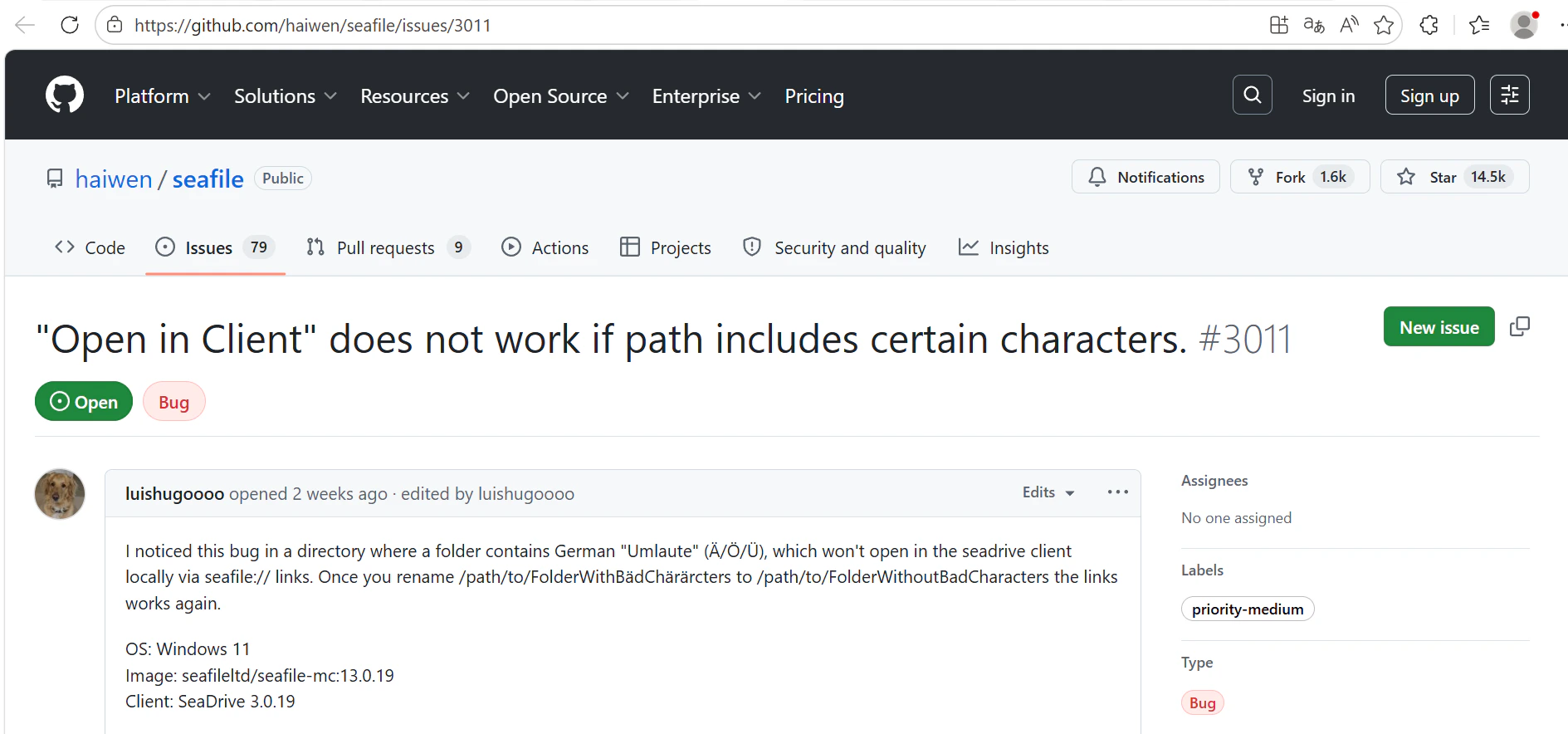
After data has been synced, click any issue title to open the full issue view inside SeaTicket, including all comments and discussion history in chronological order.
For each issue, SeaTicket records:
* Title
* State (Open / Closed) and State reason
* Labels
* Author
* Created time, Last modified time, and Closed time
* Total comments including all discussion threads
* AI Summary and AI Processed time — automatically generated for each issue
## Viewing Details
After data has been synced, click any issue title to open the full issue view inside SeaTicket, including all comments and discussion history in chronological order.
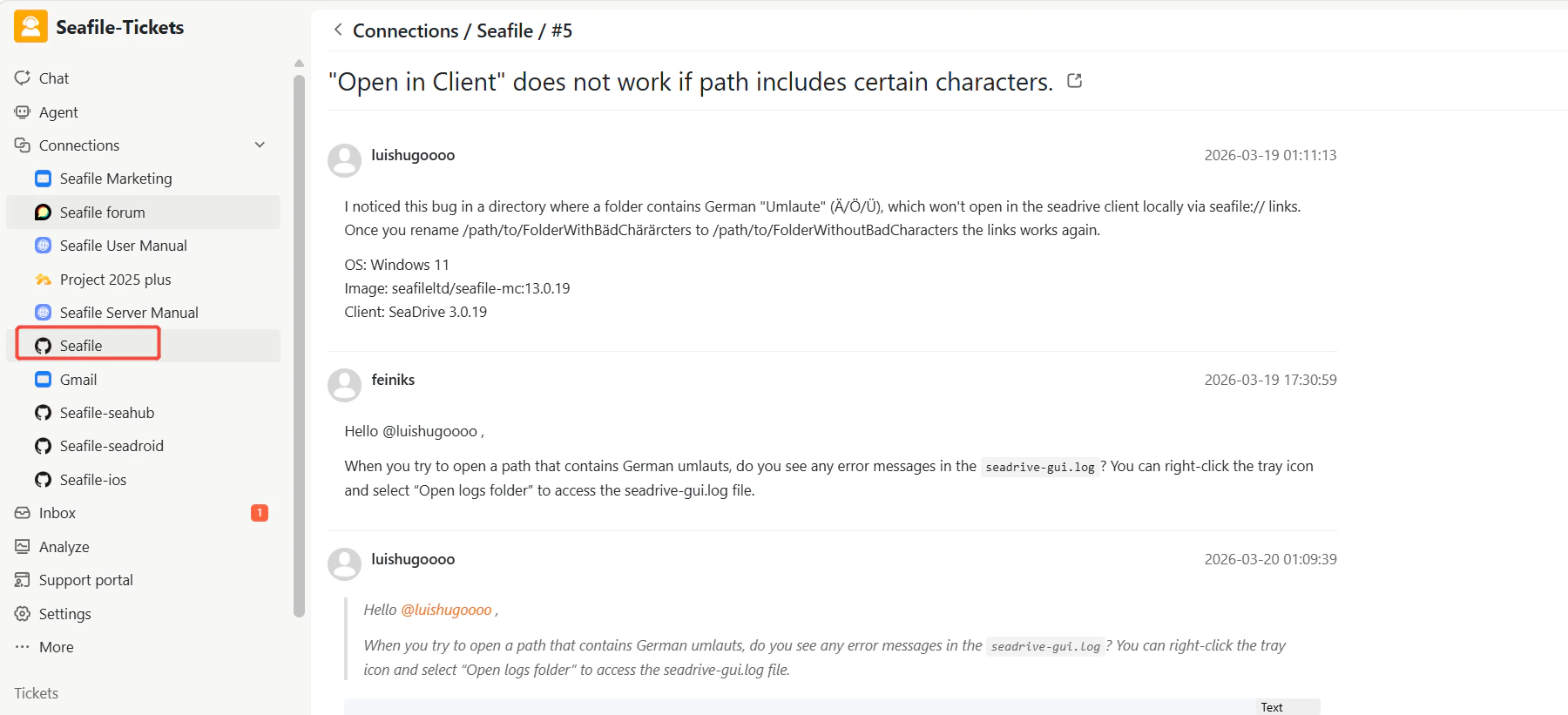 You can also click the external link icon next to the issue title to open it directly on GitHub.