> ## Documentation Index
> Fetch the complete documentation index at: https://user-docs.seaticket.ai/llms.txt
> Use this file to discover all available pages before exploring further.
# Jira
The **Jira connection** lets you integrate Jira projects directly into your SeaTicket workspace. Once connected, SeaTicket automatically syncs Jira issues and generates AI summaries for each issue, so you can manage Jira issues alongside other inquiries in a single workspace.
## Before you start
Make sure you have:
* Access to the Jira site and project you want to connect.
* Permission to authorize SeaTicket to access your Jira account.
## **Creating a Jira connection**
### **Step 1. Select Jira connection**
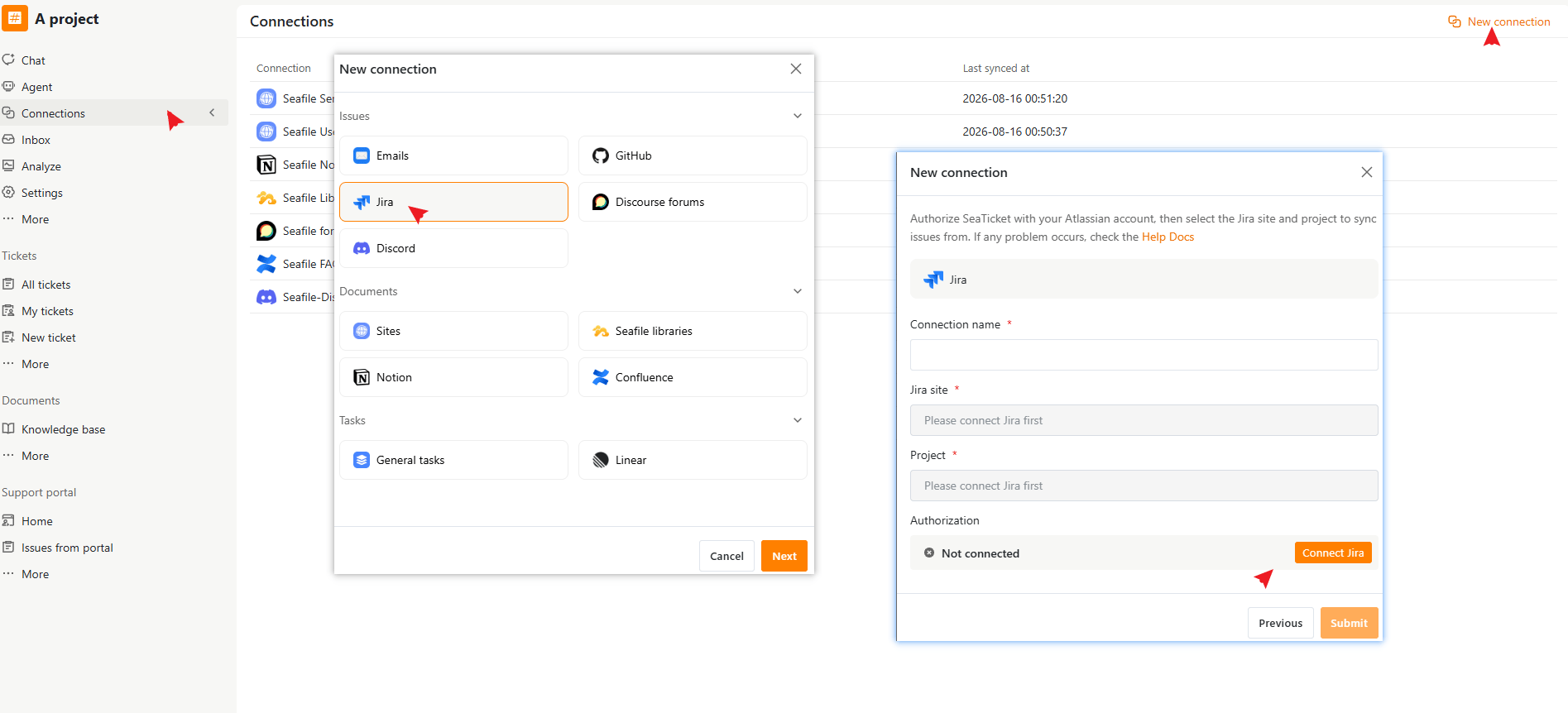
1. Open a project in SeaTicket.
2. Go to **Connections** from the left navigation menu.
3. Click **New connection** in the top-right corner.
4. Select **Jira** under **Issues**, then click **Next**.
 ### **Step 2. Authorize Jira**
Before syncing data, you need to authorize SeaTicket to access your Jira account.
1. Click **Connect Jira**.
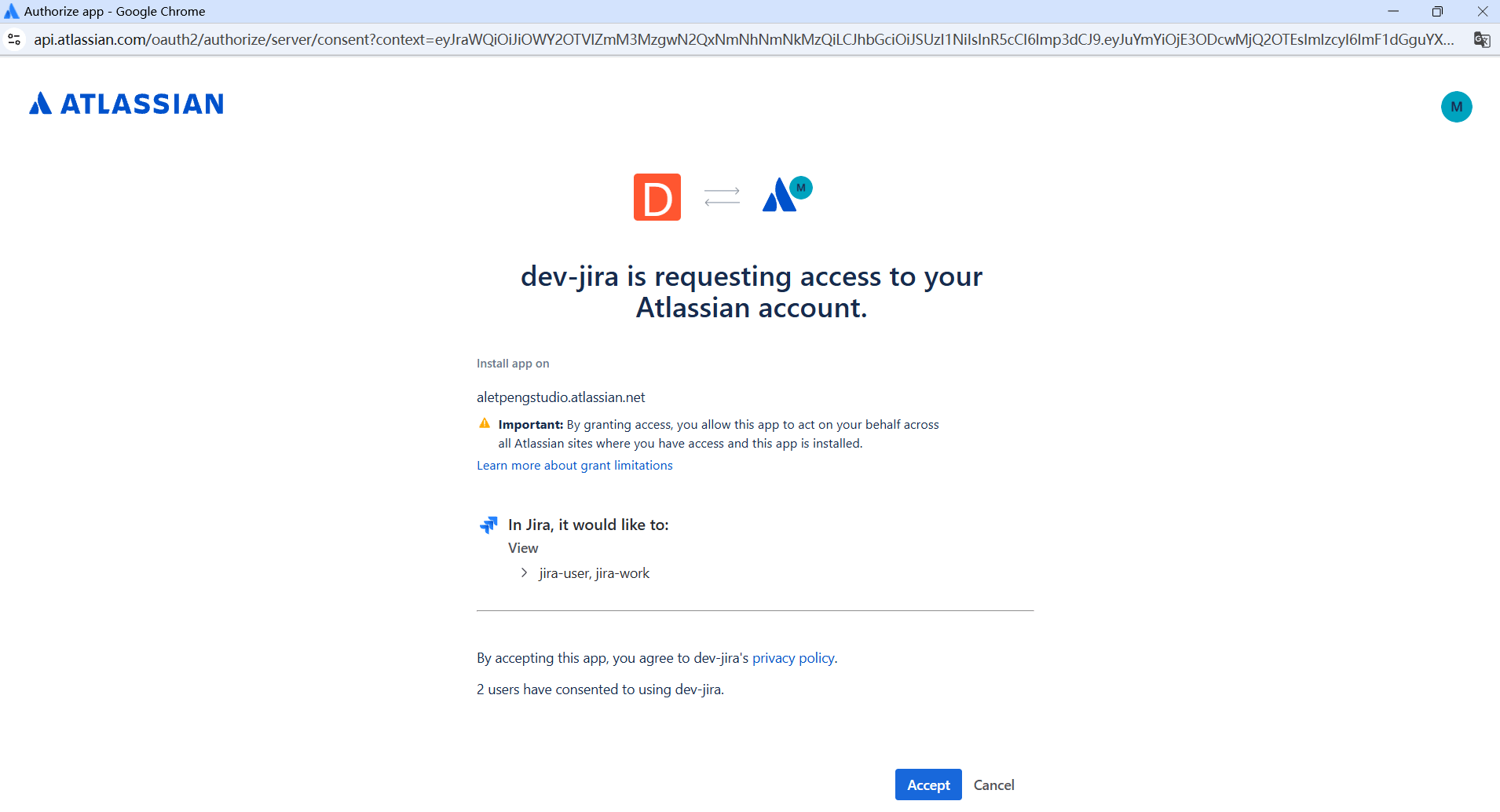
2. You will be redirected to the Atlassian authorization page.
3. Sign in to your Atlassian account if required.
4. Review the requested permissions and click **Accept** to authorize the connection.
After authorization, you will be redirected back to SeaTicket and the status will change to Connected.
### **Step 2. Authorize Jira**
Before syncing data, you need to authorize SeaTicket to access your Jira account.
1. Click **Connect Jira**.
2. You will be redirected to the Atlassian authorization page.
3. Sign in to your Atlassian account if required.
4. Review the requested permissions and click **Accept** to authorize the connection.
After authorization, you will be redirected back to SeaTicket and the status will change to Connected.
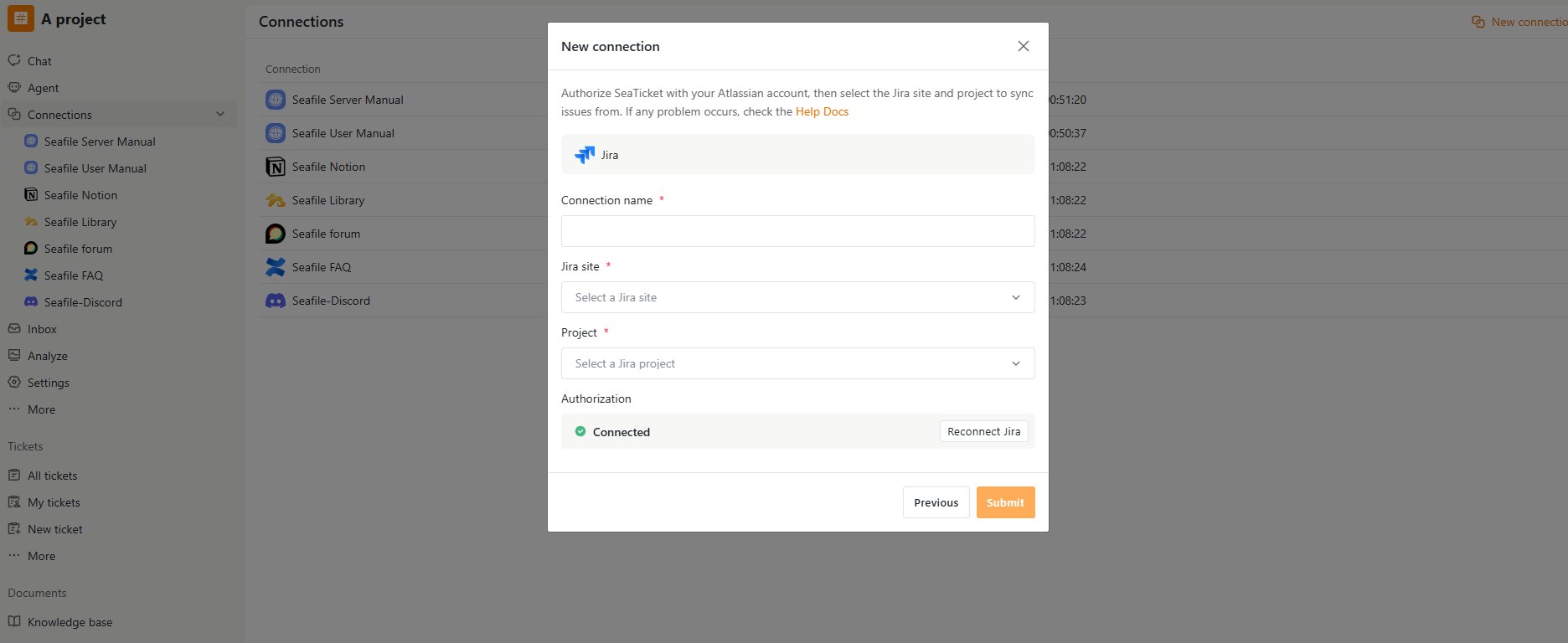 Note: The Jira site and projects shown in SeaTicket depend on the Jira sites and projects your Atlassian account can access.
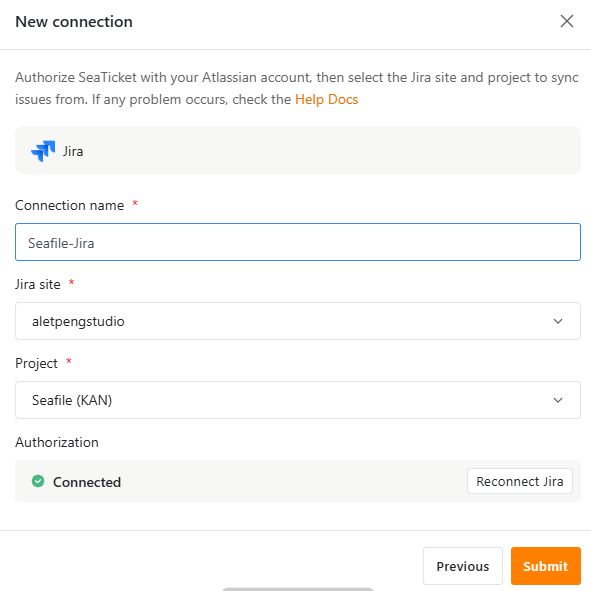
### **Step 3. Configure the connection**
Fill in the connection details:
| **Field** | **Description** |
| :-------------- | :----------------------------------------------------------------- |
| Connection name | A custom name for this connection, for example Seafile Jira. |
| Jira site | Select the Atlassian site containing the project you want to sync. |
| Project | Select the specific Jira project to sync issues from. |
Click Submit to create the connection.
Note: The Jira site and projects shown in SeaTicket depend on the Jira sites and projects your Atlassian account can access.
### **Step 3. Configure the connection**
Fill in the connection details:
| **Field** | **Description** |
| :-------------- | :----------------------------------------------------------------- |
| Connection name | A custom name for this connection, for example Seafile Jira. |
| Jira site | Select the Atlassian site containing the project you want to sync. |
| Project | Select the specific Jira project to sync issues from. |
Click Submit to create the connection.
 ## **After the Connection is Created**
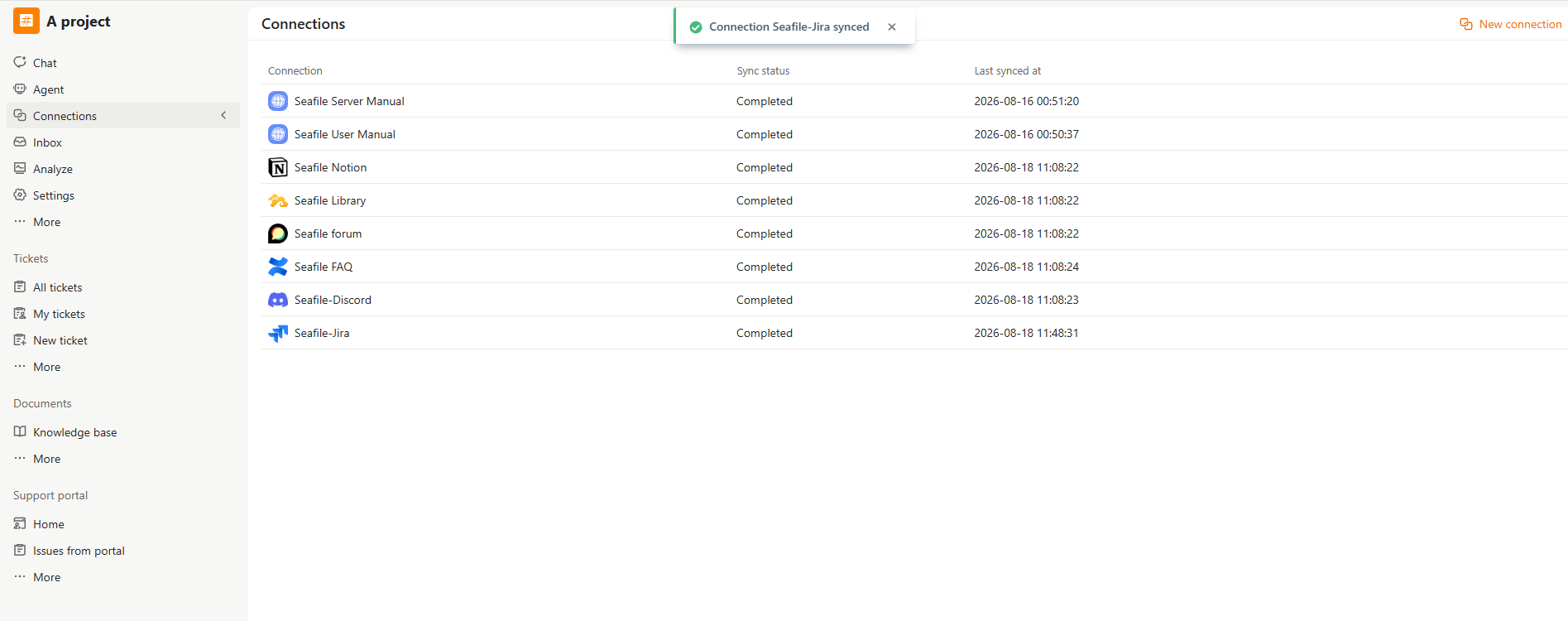
Once connected, SeaTicket automatically syncs issues from the selected Jira project.
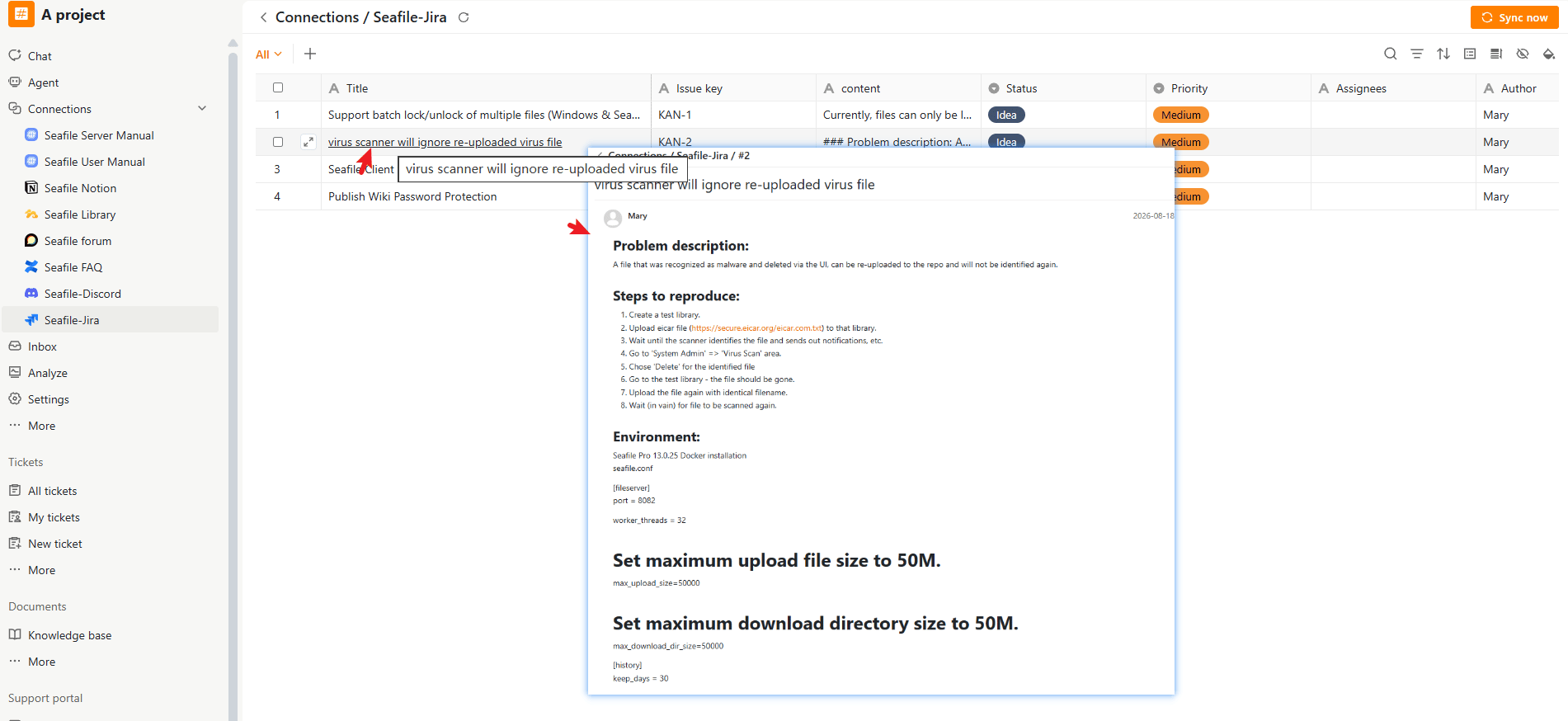
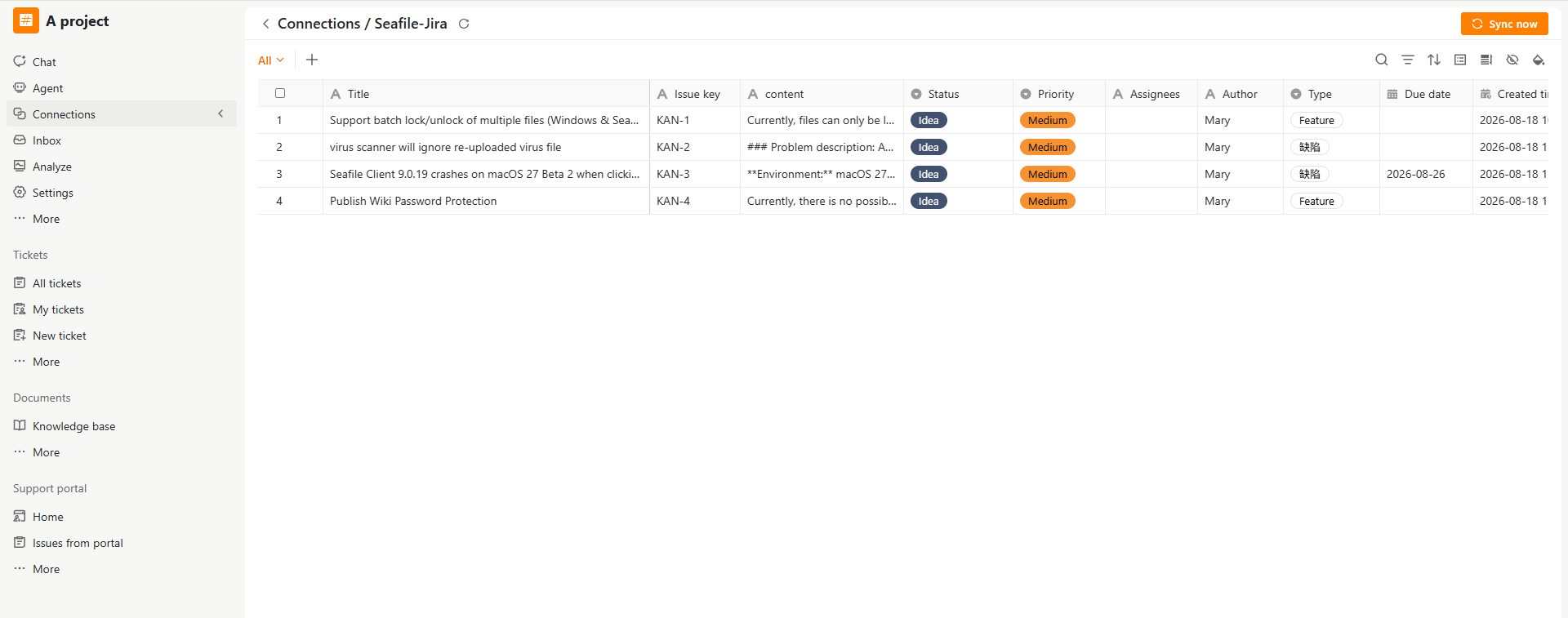
Synced issues appear in a list view under the connection in the left sidebar.
For each issue, SeaTicket records:
* **Title**
* **Issue key**
* **Content**
* **Status**
* **Priority**
* **Assignees**
* **Author**
* **Type**
* **Due date**
* Created time and Last modified time
* AI Summary and AI Processed time — automatically generated for each issue
To sync new issues on demand, open the connection and click**Sync now**.
## **After the Connection is Created**
Once connected, SeaTicket automatically syncs issues from the selected Jira project.
Synced issues appear in a list view under the connection in the left sidebar.
For each issue, SeaTicket records:
* **Title**
* **Issue key**
* **Content**
* **Status**
* **Priority**
* **Assignees**
* **Author**
* **Type**
* **Due date**
* Created time and Last modified time
* AI Summary and AI Processed time — automatically generated for each issue
To sync new issues on demand, open the connection and click**Sync now**.
 ## View issue details
Click an issue title to open its details in SeaTicket.
The issue detail page shows the information synced from Jira, allowing you to review the issue without opening Jira separately.
## View issue details
Click an issue title to open its details in SeaTicket.
The issue detail page shows the information synced from Jira, allowing you to review the issue without opening Jira separately.