> ## Documentation Index
> Fetch the complete documentation index at: https://user-docs.seaticket.ai/llms.txt
> Use this file to discover all available pages before exploring further.
# Linear
**Linear** Connection allows SeaTicket to import and sync issues from your Linear workspace into a SeaTicket project.
Once synced, Linear issues are displayed in a structured table within SeaTicket, making it easier to review project tasks without leaving SeaTicket.
# Before you begin
Before creating a Linear connection, ensure that:
* You have access to the target Linear workspace.
* You have permission to authorize third-party applications in Linear.
## Create a Linear connection
### Step 1. Select Linear connection
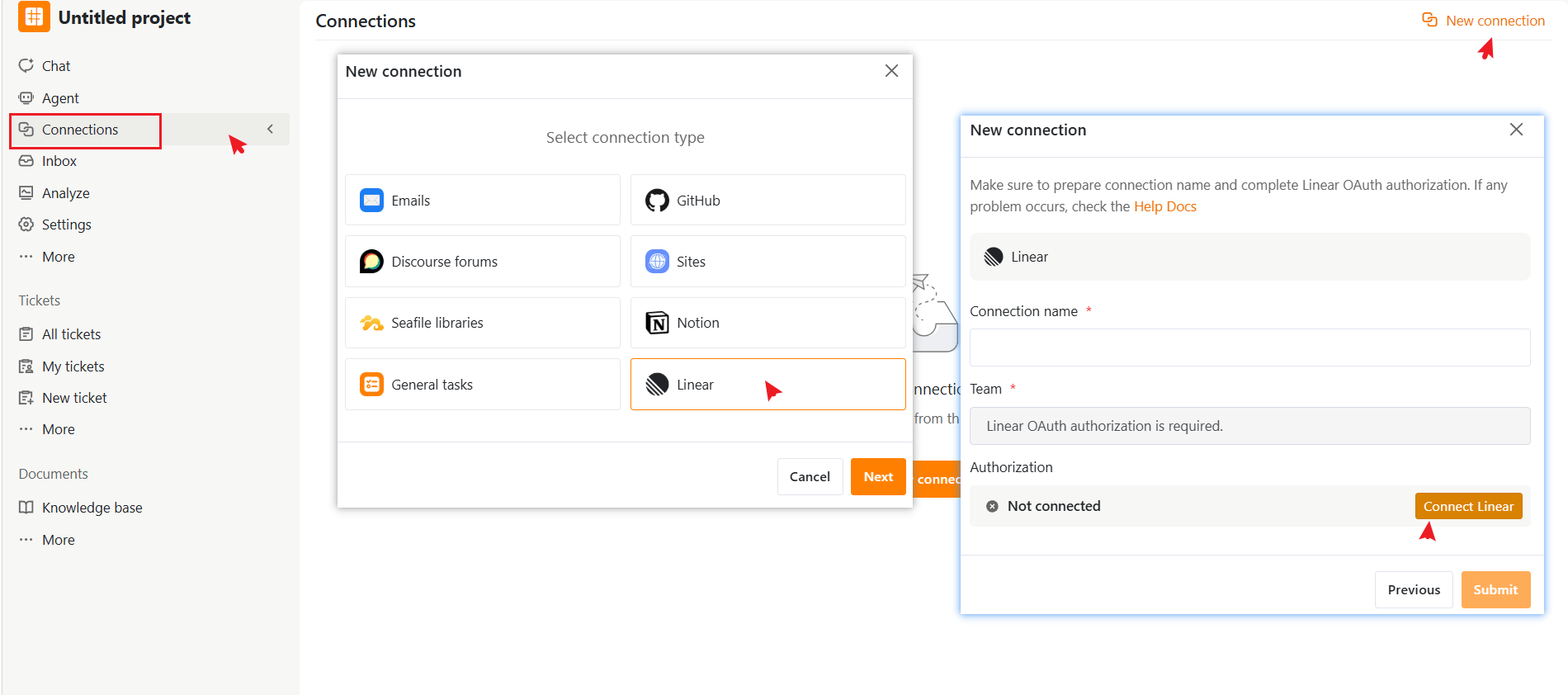
1. In the left navigation menu, select **Connections**.
2. Click **New connection** in the upper-right corner.
3. From the list of available connection types, select **Linear**.
4. Click **Next**.
 ### Step 2. Authorize Linear
1. Click **Connect Linear**.
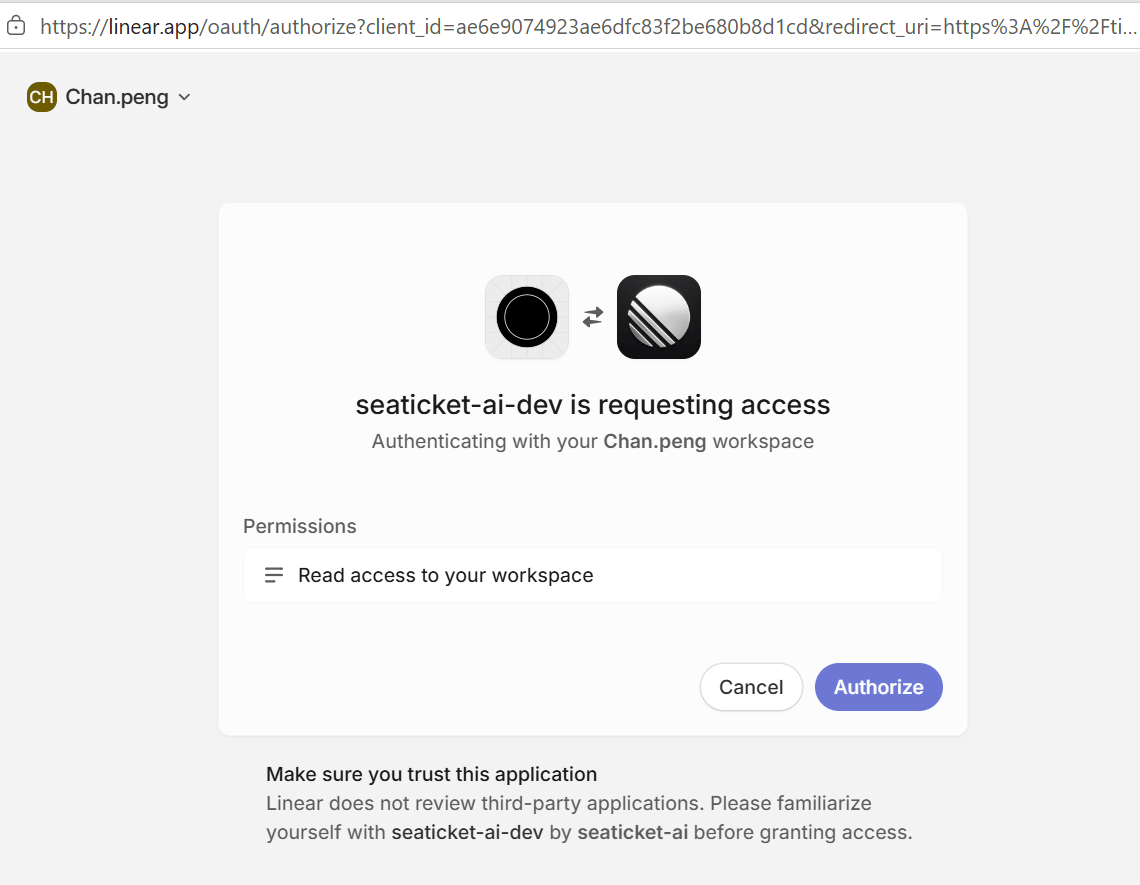
2. You will be redirected to the Linear authorization page.
3. Review the requested permissions,
4. Click **Authorize** to grant SeaTicket access to your Linear workspace
5. After authorization is complete, you will be redirected back to SeaTicket.\
The authorization status should change to **Connected**.
### Step 2. Authorize Linear
1. Click **Connect Linear**.
2. You will be redirected to the Linear authorization page.
3. Review the requested permissions,
4. Click **Authorize** to grant SeaTicket access to your Linear workspace
5. After authorization is complete, you will be redirected back to SeaTicket.\
The authorization status should change to **Connected**.
 ### Step 3. Configure the connection
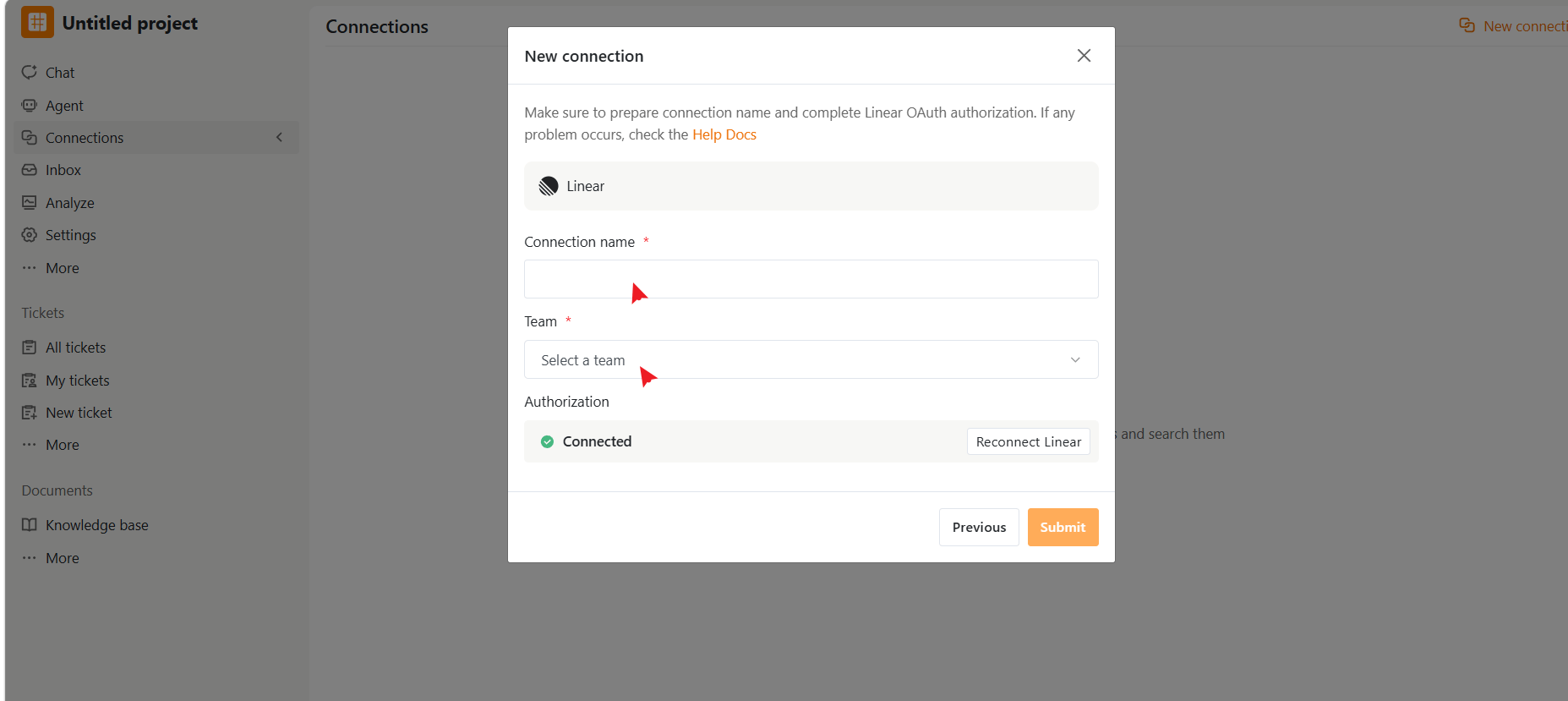
Fill in the required fields.
| Field | Description |
| :-------------- | :---------------------------------------------------- |
| Connection name | A name used to identify this connection in SeaTicket. |
| Team | Select the Linear team to sync issues from |
Click **Submit** to create the connection
### Step 3. Configure the connection
Fill in the required fields.
| Field | Description |
| :-------------- | :---------------------------------------------------- |
| Connection name | A name used to identify this connection in SeaTicket. |
| Team | Select the Linear team to sync issues from |
Click **Submit** to create the connection
 ## After the Connection is Created
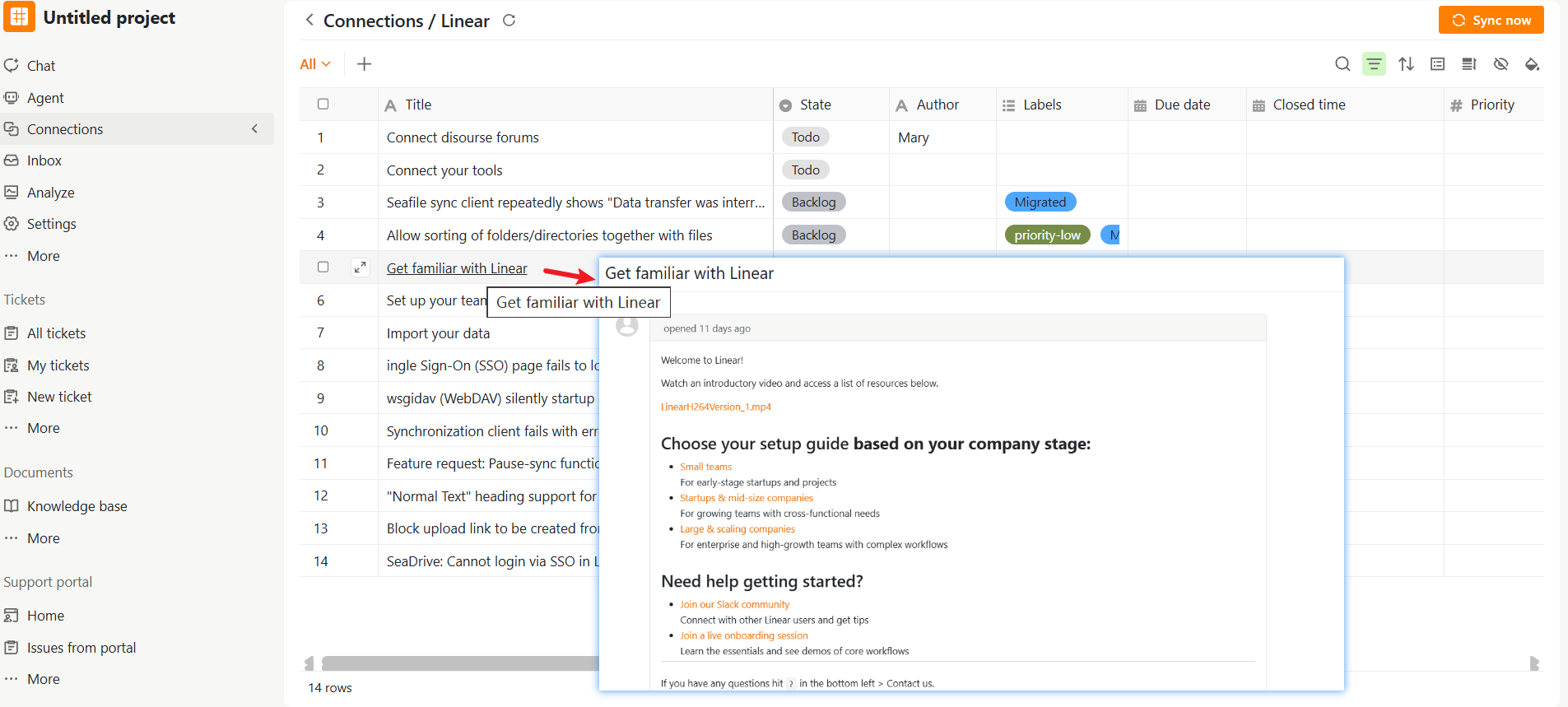
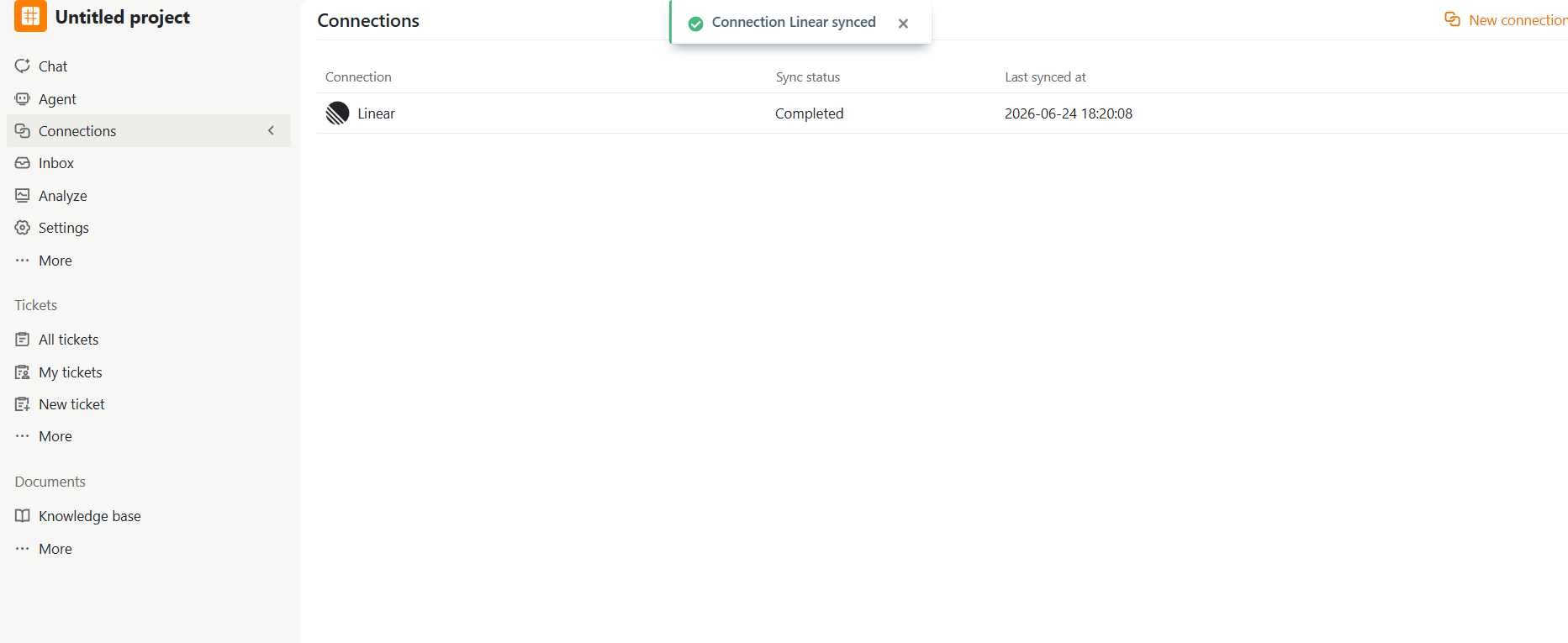
After the connection is created, it appears in the Connections list.
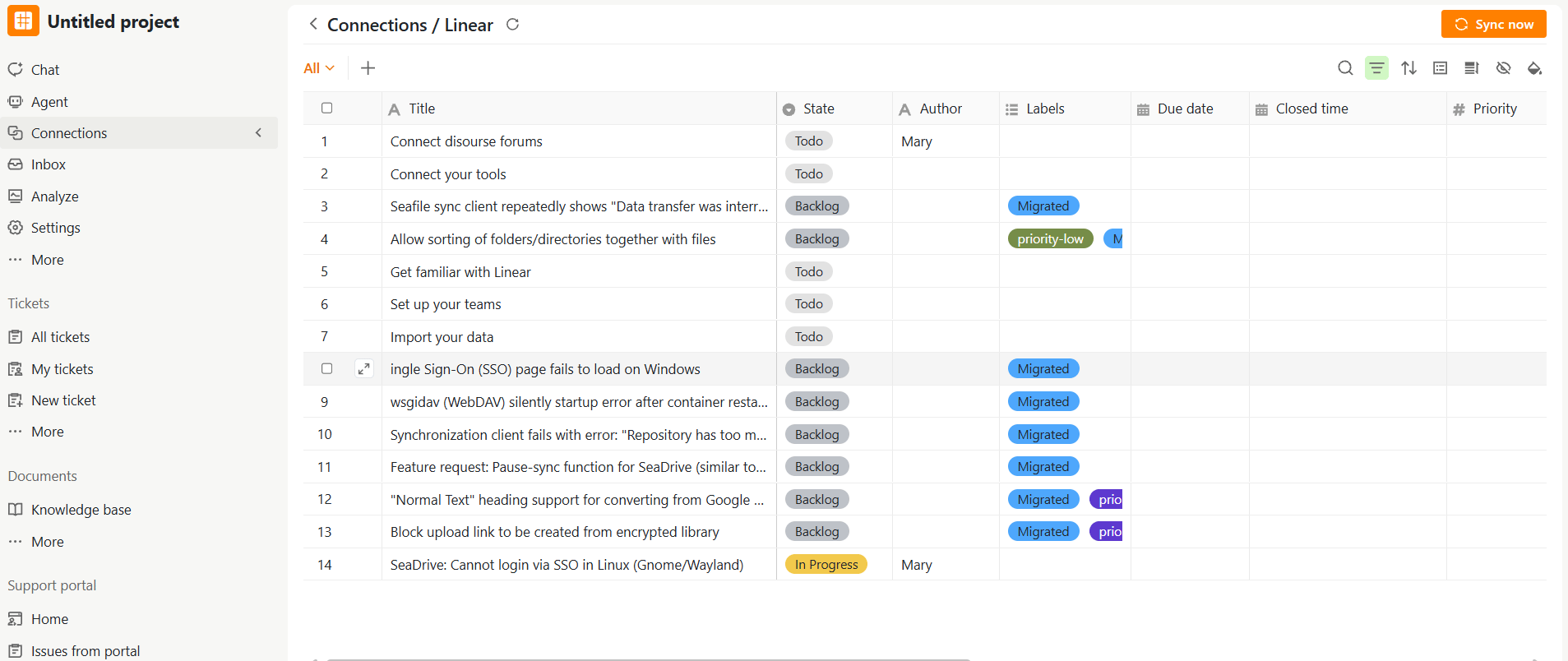
Select the connection to view the synced issues. The synced issues are displayed in a table.
Depending on the available data in Linear, the table includes:
* Title
* State
* Author
* Labels
* Due date
* Created time
* Last modified time
* Closed time
* Priority
## After the Connection is Created
After the connection is created, it appears in the Connections list.
Select the connection to view the synced issues. The synced issues are displayed in a table.
Depending on the available data in Linear, the table includes:
* Title
* State
* Author
* Labels
* Due date
* Created time
* Last modified time
* Closed time
* Priority
 ## Viewing Details
Once synced, click an issue title to view the complete issue in SeaTicket, including all comments.
## Viewing Details
Once synced, click an issue title to view the complete issue in SeaTicket, including all comments.