> ## Documentation Index
> Fetch the complete documentation index at: https://user-docs.seaticket.ai/llms.txt
> Use this file to discover all available pages before exploring further.
# Notion
The Notion connection lets you access and sync content from your Notion workspace, including pages and databases. Once connected, SeaTicket imports this content so you can view and manage it within the platform.
**Typical use cases:**
* Sync internal documentation
* Access team knowledge stored in Notion
* Keep Notion content available inside SeaTicket
## Before You Start
Make sure you have the following before creating a connection:
* A Notion integration token (API key)
* Permission to create integrations (workspace owner or admin)
* Access granted to the pages or databases you want to sync
* Read access to content enabled for the integration
## Create a Connection
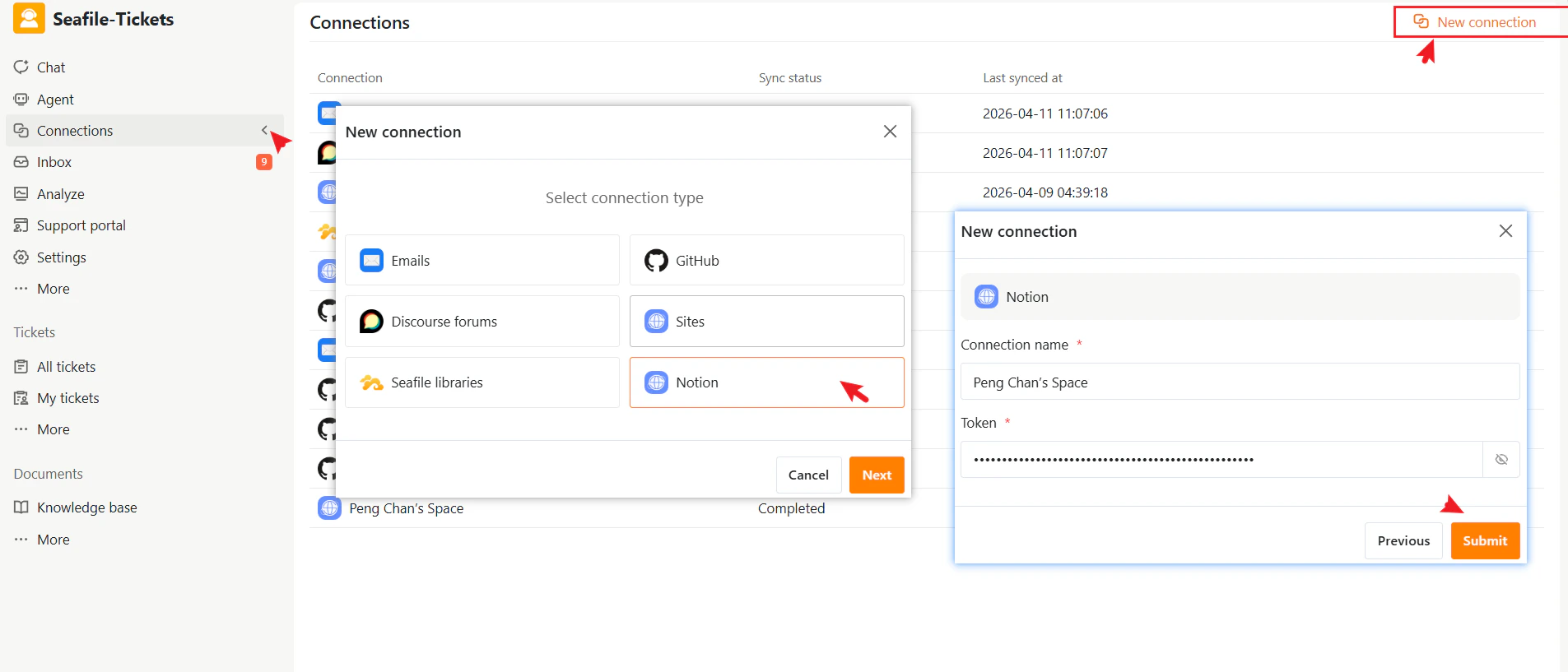
1. Go to **Connections** → **+ New Connection**
2. Select **Notion** as the connection type.
3. Click **Next**
4. Enter the required information:
| Field | Description |
| :------------------ | :----------------------------------------------------------------------------------------------------------------------------------------------------------------------------------------------- |
| **Connection name** | A descriptive name to identify this connection in SeaTicket |
| **Token** | Your Notion integration token
See [Create integrations with the Notion API](https://www.notion.com/help/create-integrations-with-the-notion-api) for instructions on generating your token. |
5. Click **Submit** to complete the setup
 ## After the Connection is Created:
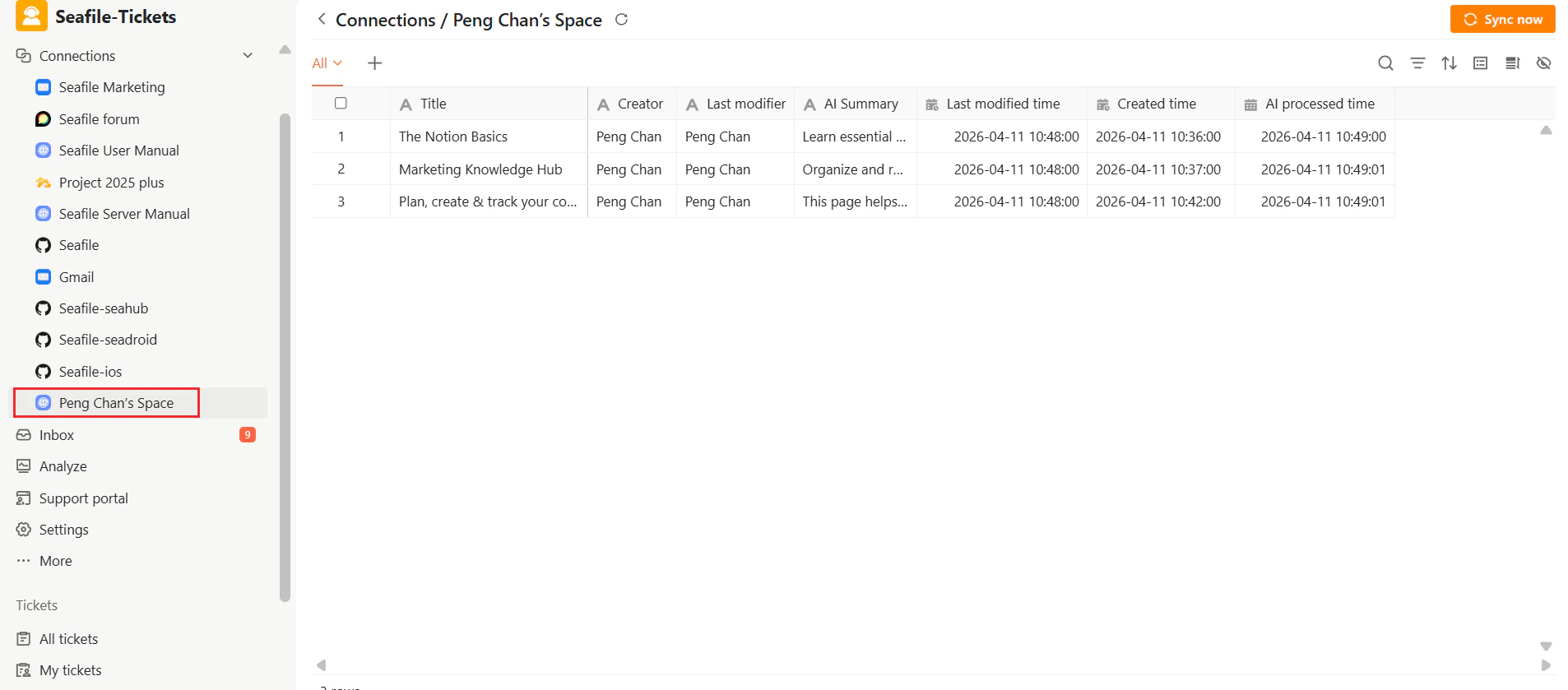
Once connected, SeaTicket syncs content from your Notion workspace, including pages and databases the integration can access.
Synced content appears under the connection in the left sidebar. Updates are automatically synced **once per day**
For each item, Seaticket records:
* Page title
* Last modified time
* AI summary and AI processed time — automatically generated for each page
## After the Connection is Created:
Once connected, SeaTicket syncs content from your Notion workspace, including pages and databases the integration can access.
Synced content appears under the connection in the left sidebar. Updates are automatically synced **once per day**
For each item, Seaticket records:
* Page title
* Last modified time
* AI summary and AI processed time — automatically generated for each page
 ## Viewing Page Details
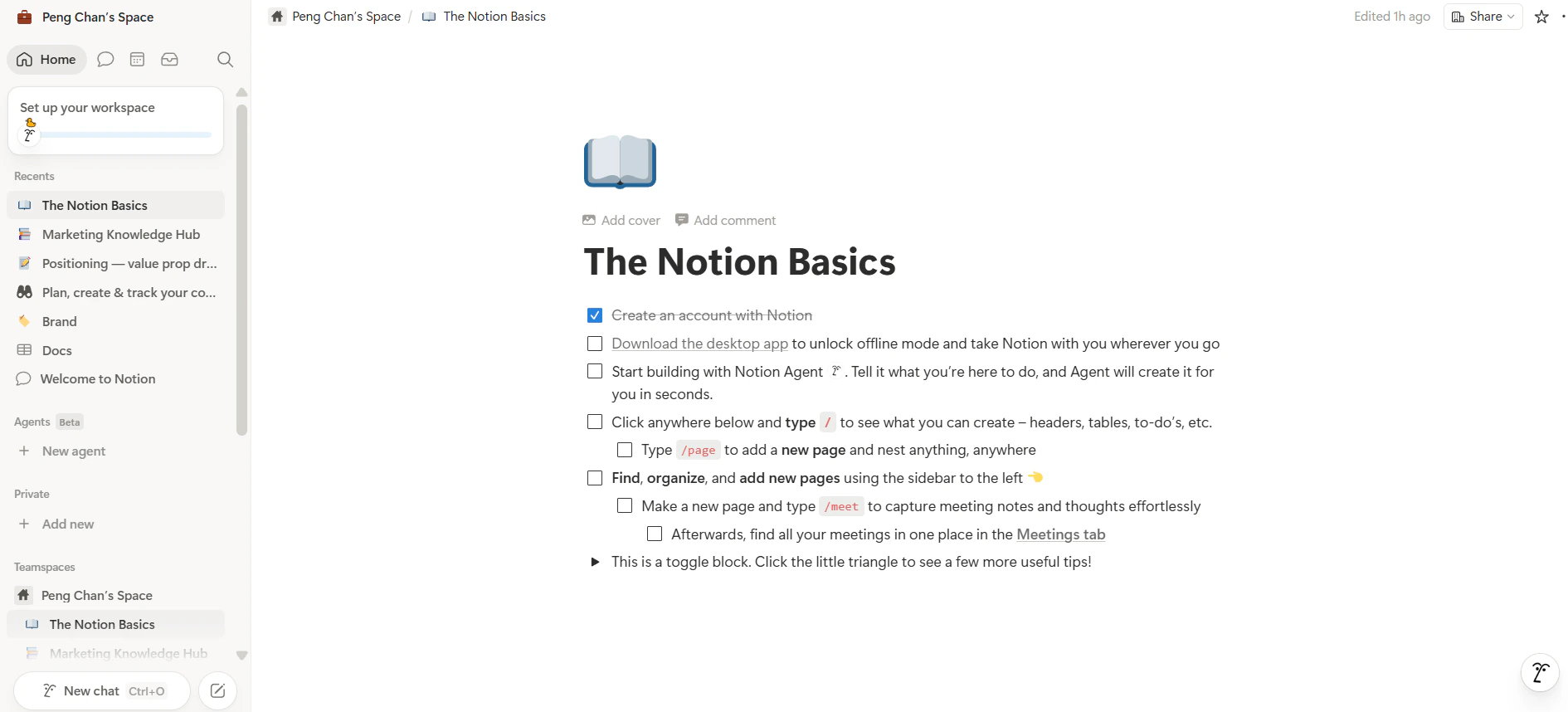
After data has been synced, click any page title to view the full-page content inside SeaTicket.
## Viewing Page Details
After data has been synced, click any page title to view the full-page content inside SeaTicket.
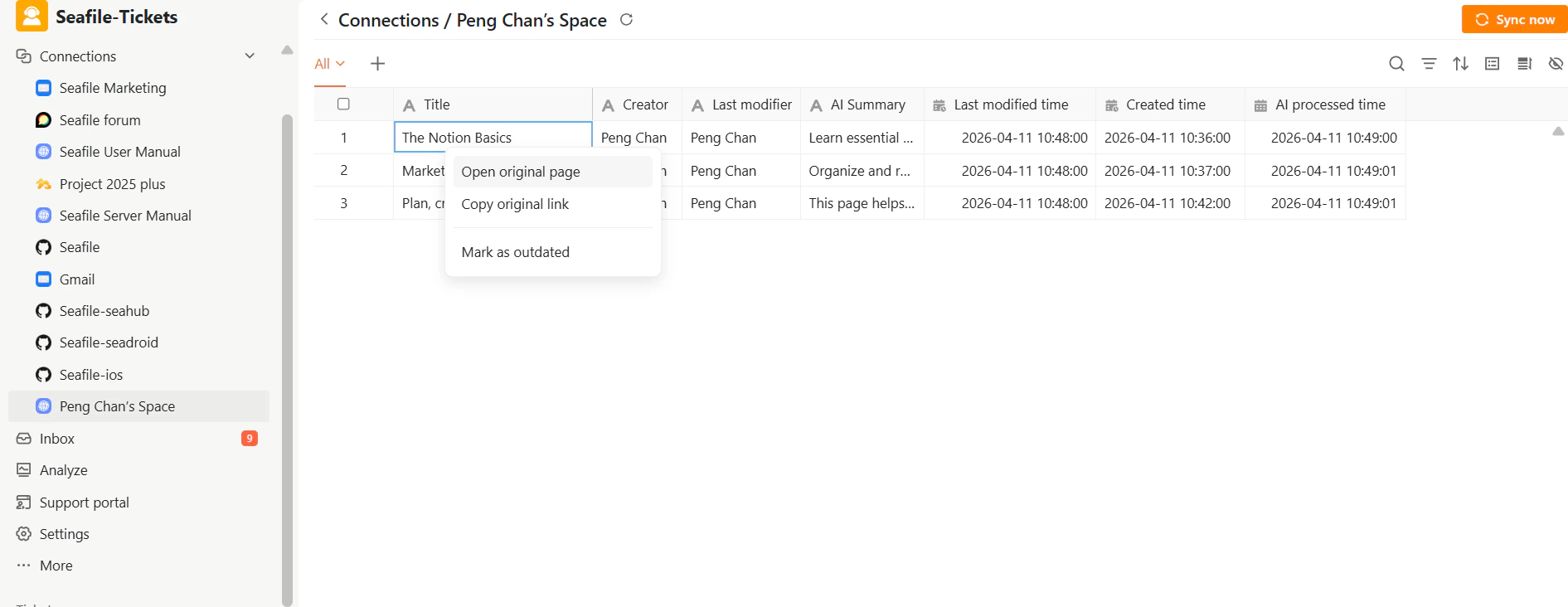
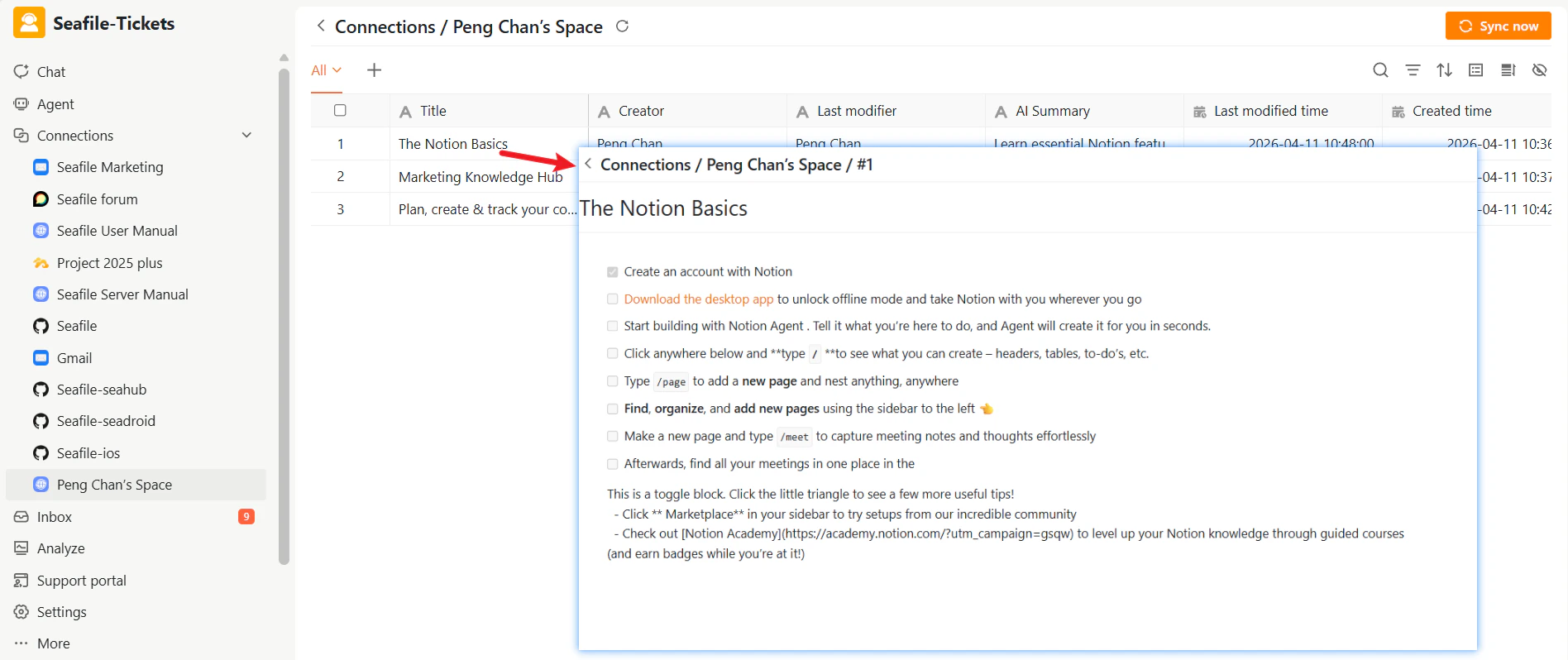 You can also right-click the open original page icon to open the original page directly in your browser.