> ## Documentation Index
> Fetch the complete documentation index at: https://user-docs.seaticket.ai/llms.txt
> Use this file to discover all available pages before exploring further.
# Seafile Libraries
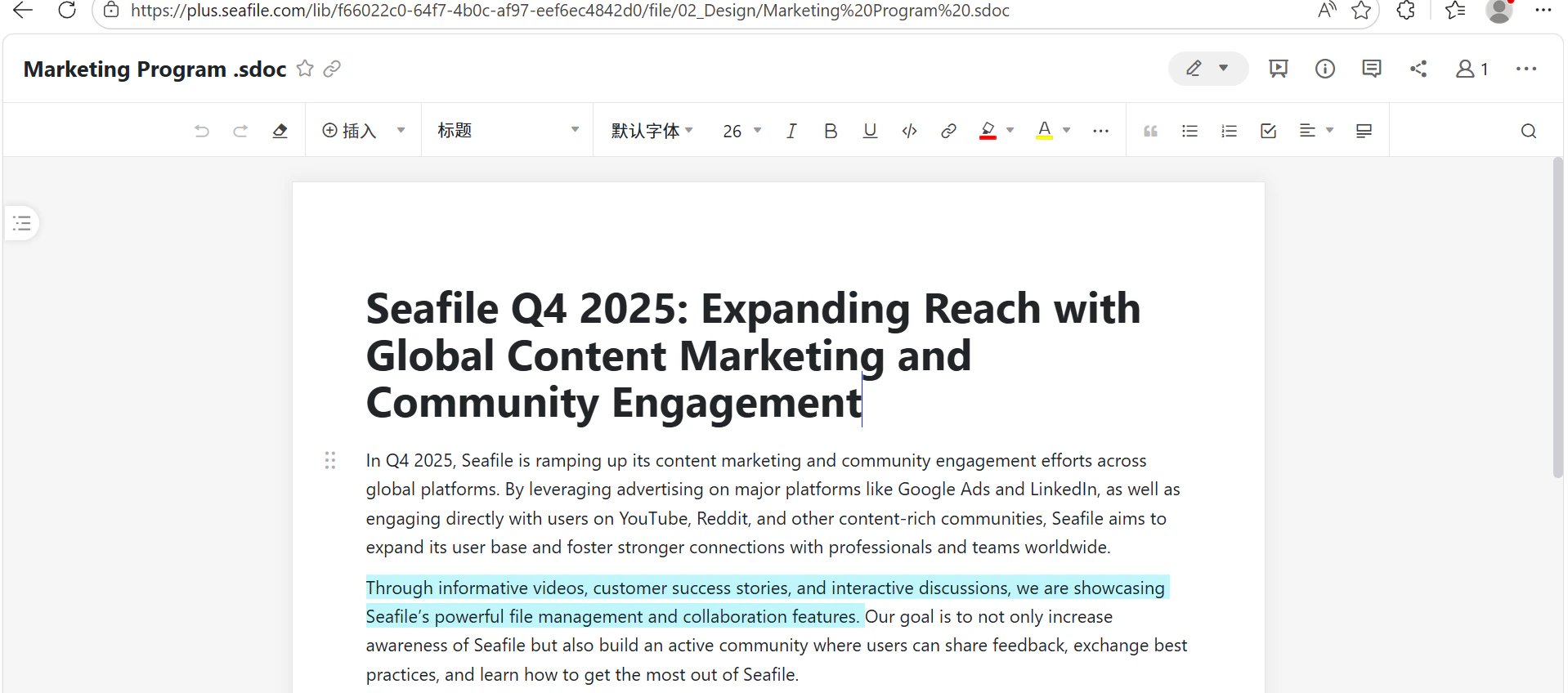
The **Seafile Libraries connection** allows you to integrate file libraries from a Seafile server into SeaTicket. Once connected, SeaTicket syncs documents from the library and makes them searchable and accessible directly inside SeaTicket.
## Before You Start
Make sure you have the following ready:
* The URL of your Seafile server
* A **Library API token** generated from the Seafile library you want to connect
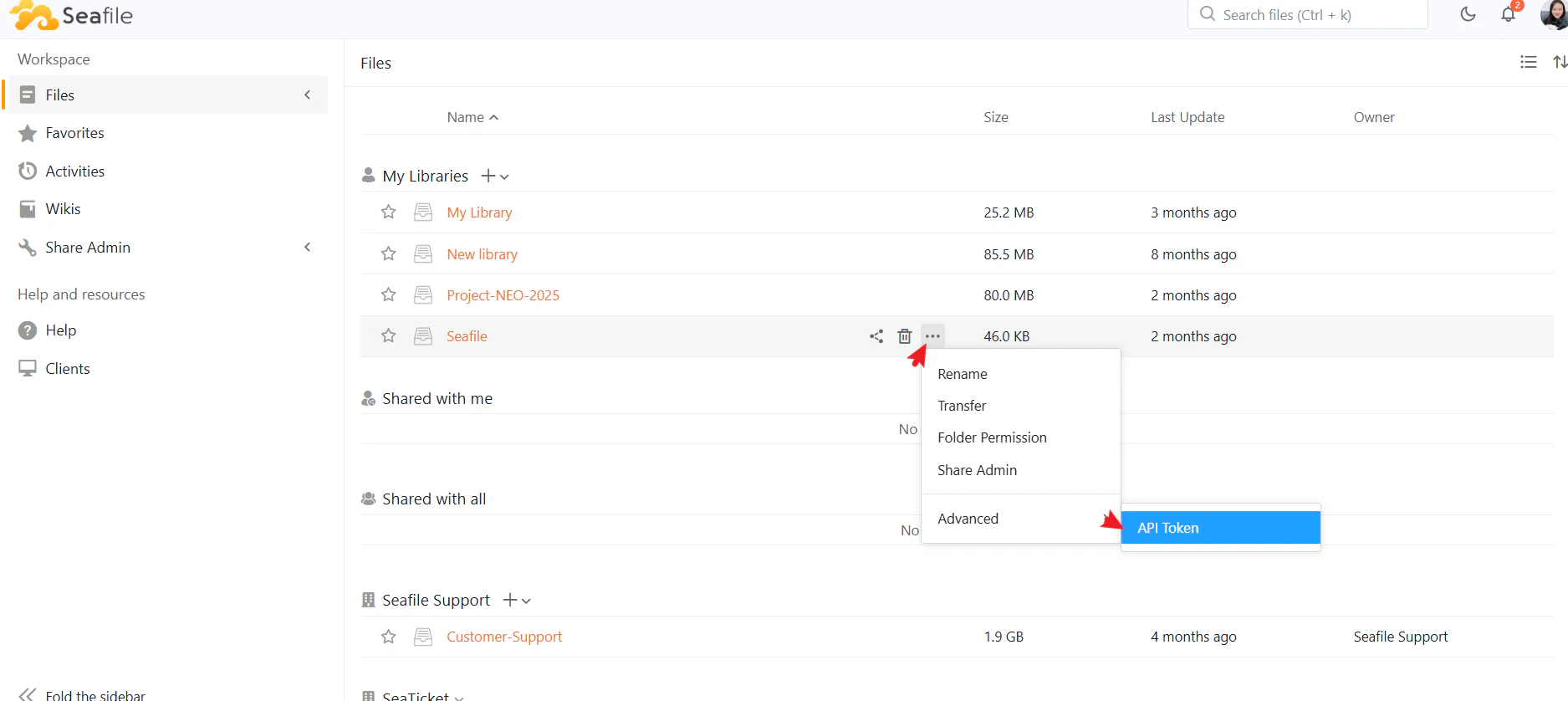
To get the Library API token, open your Seafile library, click the **⋯** menu next to the library name, go to **Advanced**, and select **API Token**.
 ### Creating a Seafile Libraries Connection
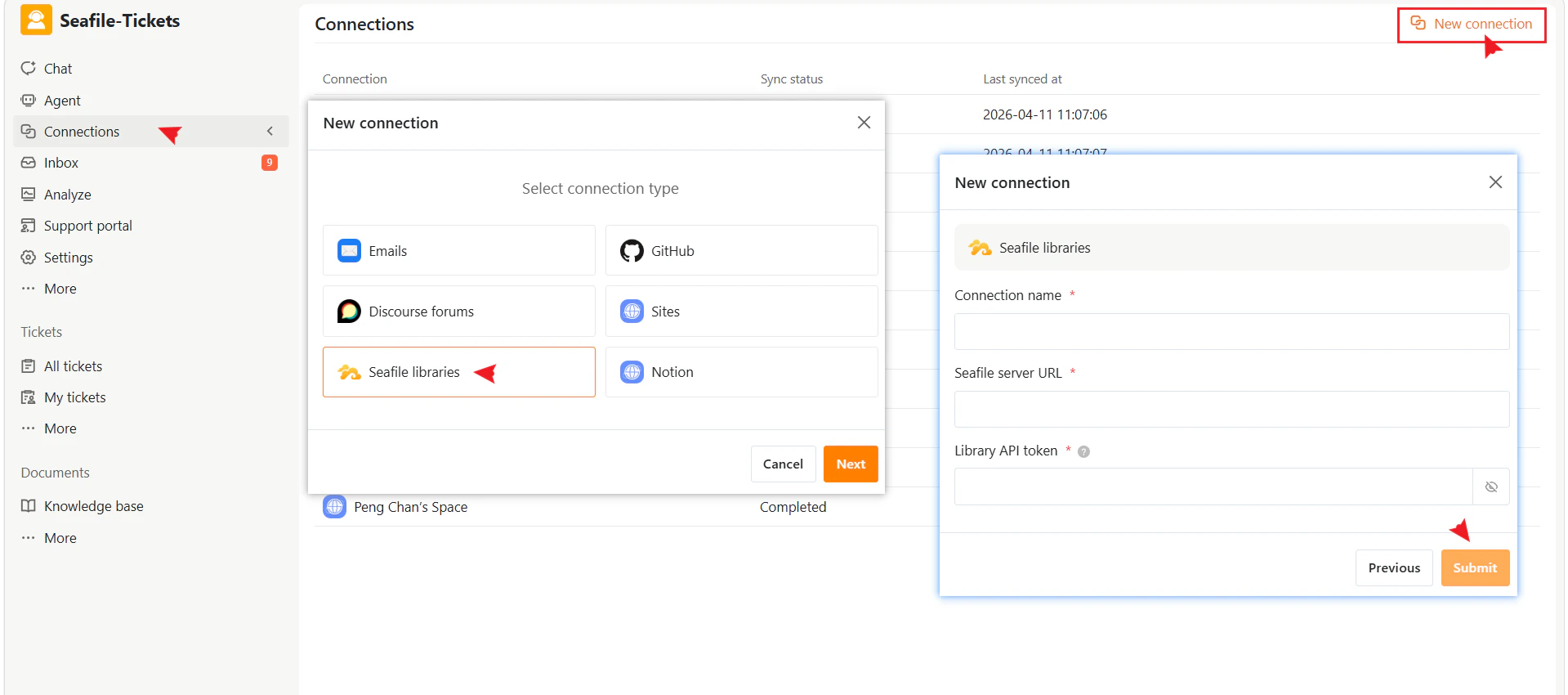
1. Go to **Connections** → **+ New Connection**.
2. Select **Seafile Libraries** as the connection type.
3. Click **Next**
4. Fill in the required fields:
| Field | Description |
| :-------------------- | :---------------------------------------------------------- |
| **Connection name** | A descriptive name to identify this connection in SeaTicket |
| **Server URL** | The address of your Seafile server |
| **Library API token** | The API token generated from the Seafile library |
5. Click **Submit** to complete the setup
### Creating a Seafile Libraries Connection
1. Go to **Connections** → **+ New Connection**.
2. Select **Seafile Libraries** as the connection type.
3. Click **Next**
4. Fill in the required fields:
| Field | Description |
| :-------------------- | :---------------------------------------------------------- |
| **Connection name** | A descriptive name to identify this connection in SeaTicket |
| **Server URL** | The address of your Seafile server |
| **Library API token** | The API token generated from the Seafile library |
5. Click **Submit** to complete the setup
 ## After the Connection is Created
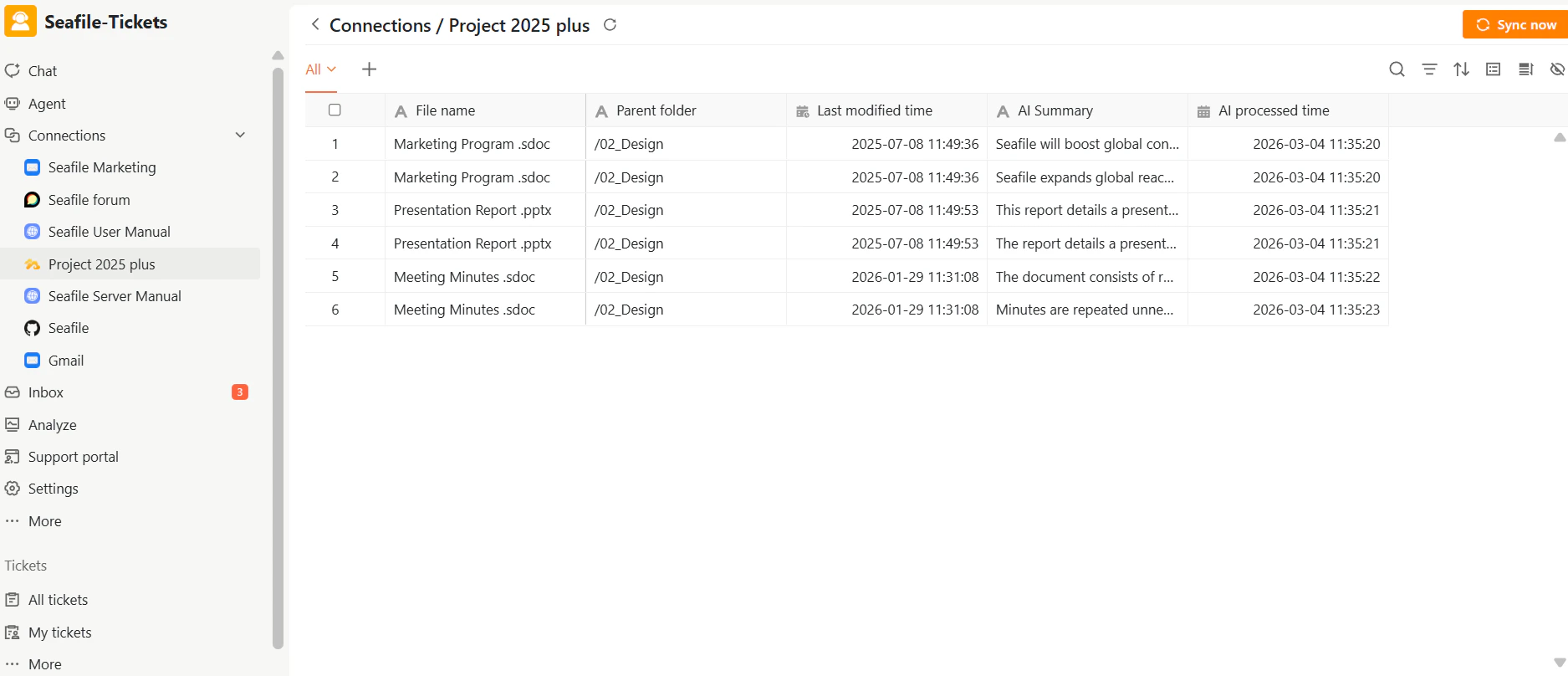
Once connected, SeaTicket automatically syncs documents from the library. All synced documents appear in a list view under the connection in the left sidebar. Updates are synced automatically **every hour**
For each document, SeaTicket records:
* File name
* Parent folder location
* Last modified time
* AI Summary and AI Processed time — automatically generated for each document
## After the Connection is Created
Once connected, SeaTicket automatically syncs documents from the library. All synced documents appear in a list view under the connection in the left sidebar. Updates are synced automatically **every hour**
For each document, SeaTicket records:
* File name
* Parent folder location
* Last modified time
* AI Summary and AI Processed time — automatically generated for each document
 ## Viewing Document Details
Click any file name to open the document content inside SeaTicket.
## Viewing Document Details
Click any file name to open the document content inside SeaTicket.
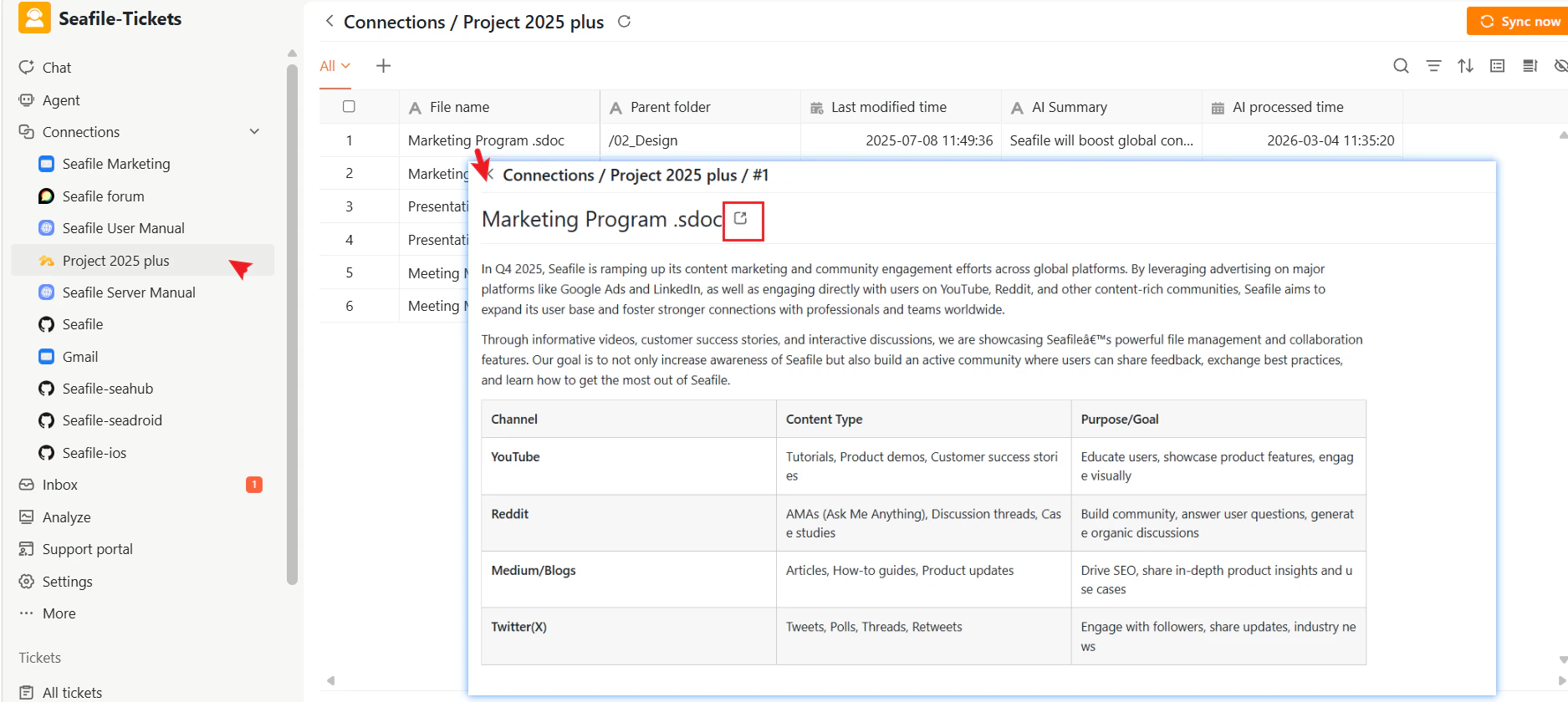 You can also click the external link icon next to the file name to open the document directly in Seafile.