> ## Documentation Index
> Fetch the complete documentation index at: https://user-docs.seaticket.ai/llms.txt
> Use this file to discover all available pages before exploring further.
# Sites
The Sites connection allows you to crawl and sync website content into SeaTicket. It is suitable for syncing technical documentation, product manuals, blogs, and knowledge base websites.
The following example uses the **Seafile User Manual**.
## Before You Start
Make sure you have the following ready:
* The full URL of the website you want to sync (must be publicly accessible)
* The sitemap URL of the website — a sitemap is a file that lists all pages on a site
## Create a Connection
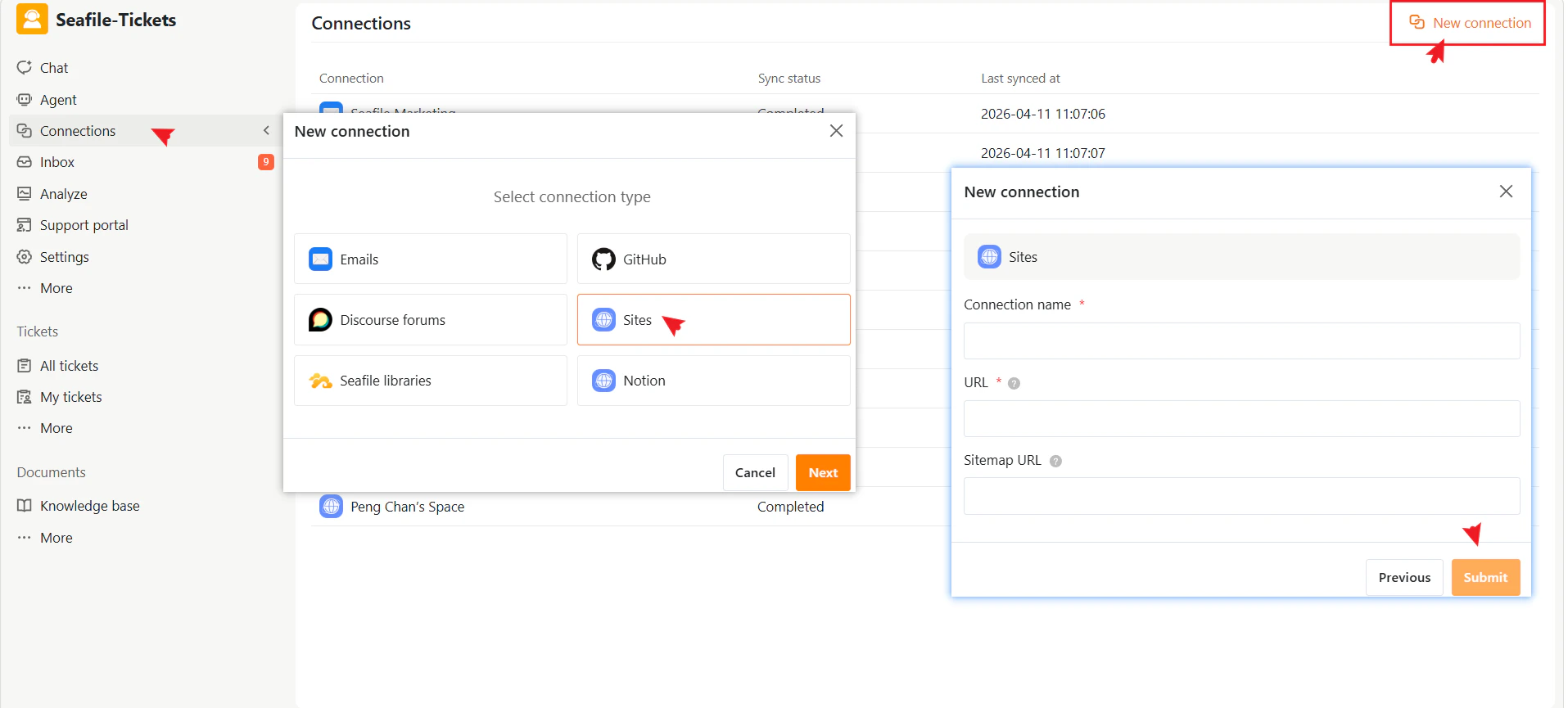
1. Go to **Connections** → **+ New Connection**
2. Select **Sites** as the connection type.
3. Click **Next**
4. Enter the required information:
| Field | Description |
| :------------------ | :------------------------------------------------------------------------------------------------------ |
| **Connection name** | A descriptive name to identify this connection in SeaTicket |
| **URL** | The full website URL including the protocol (e.g., https\://).
Local file paths are not supported. |
| **Sitemap URL** | The sitemap URL of the website |
5. Click **Submit** to complete the setup
 ## After the Connection is Created:
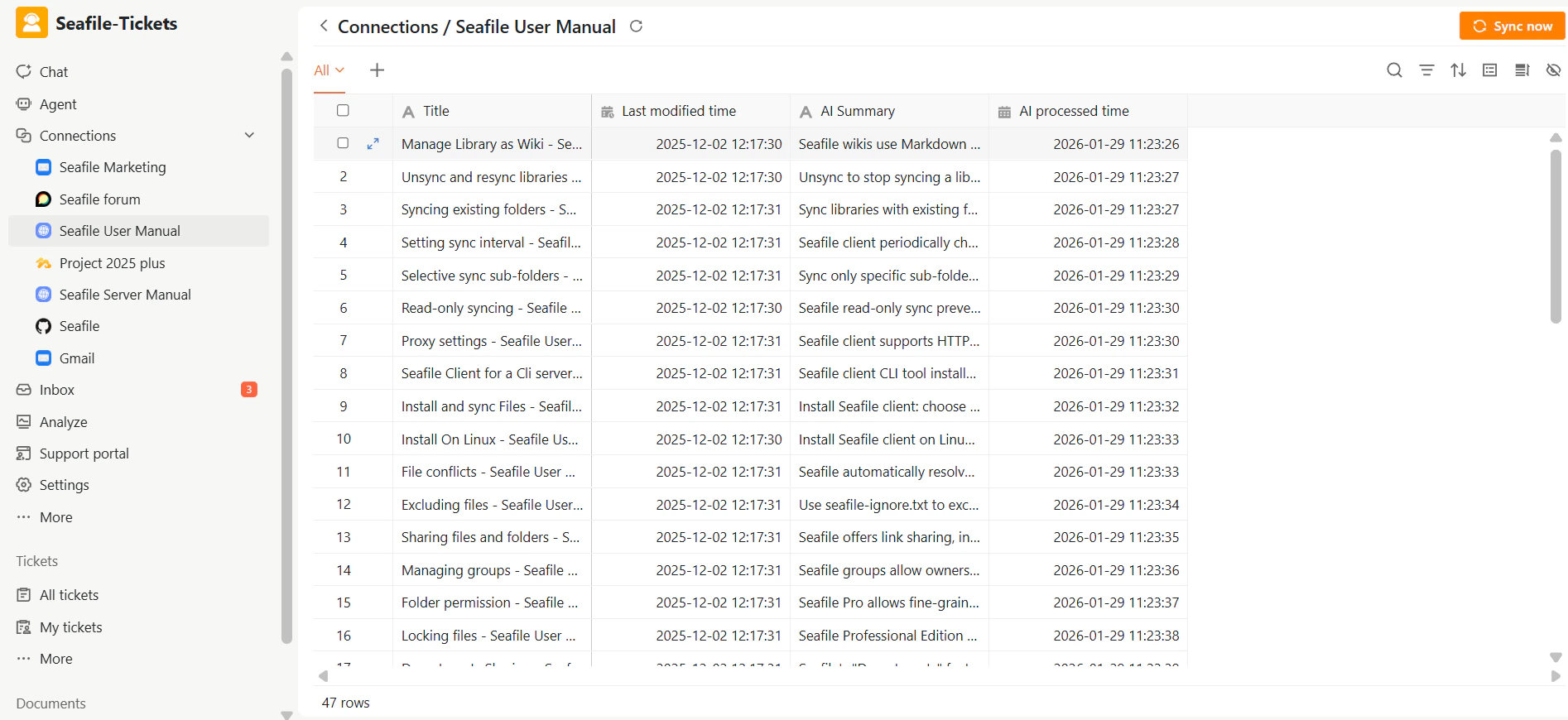
Once connected, SeaTicket automatically crawls the website and syncs all discoverable pages. Synced pages are displayed in a list under the connection in the left sidebar. Updates are automatically synced **every three days**
For each page, SeaTicket records:
* Page title
* Last modified time
* AI Summary and AI Processed time — automatically generated for each page
## After the Connection is Created:
Once connected, SeaTicket automatically crawls the website and syncs all discoverable pages. Synced pages are displayed in a list under the connection in the left sidebar. Updates are automatically synced **every three days**
For each page, SeaTicket records:
* Page title
* Last modified time
* AI Summary and AI Processed time — automatically generated for each page
 ## Viewing Page Details
After data has been synced, click any page title to open the full-page content inside SeaTicket.
## Viewing Page Details
After data has been synced, click any page title to open the full-page content inside SeaTicket.
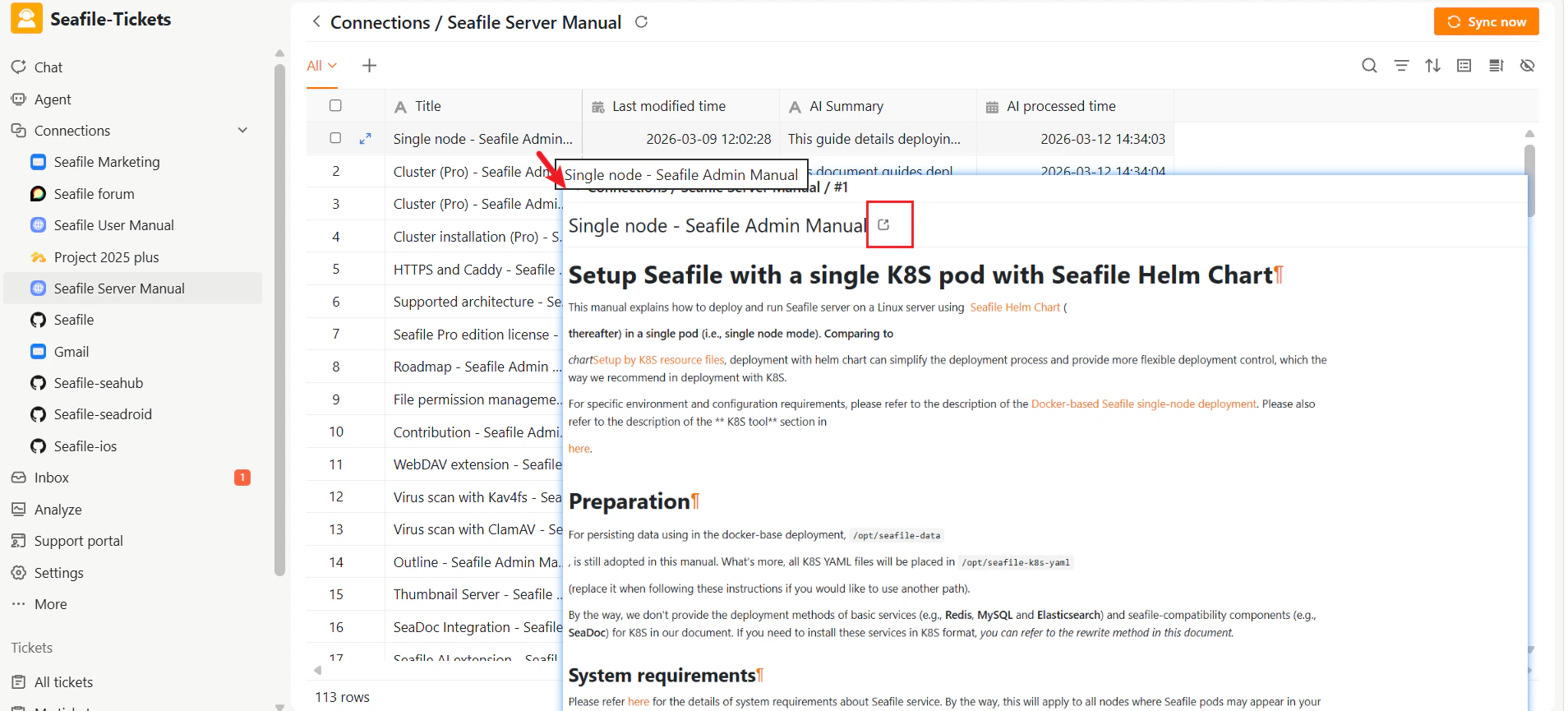 You can also click the external link icon next to the title to open the original page directly in your browser.