> ## Documentation Index
> Fetch the complete documentation index at: https://user-docs.seaticket.ai/llms.txt
> Use this file to discover all available pages before exploring further.
# Creating and Managing Connections
This guide walks you through creating, configuring, and managing **connections** in SeaTicket.
## Accessing Connections
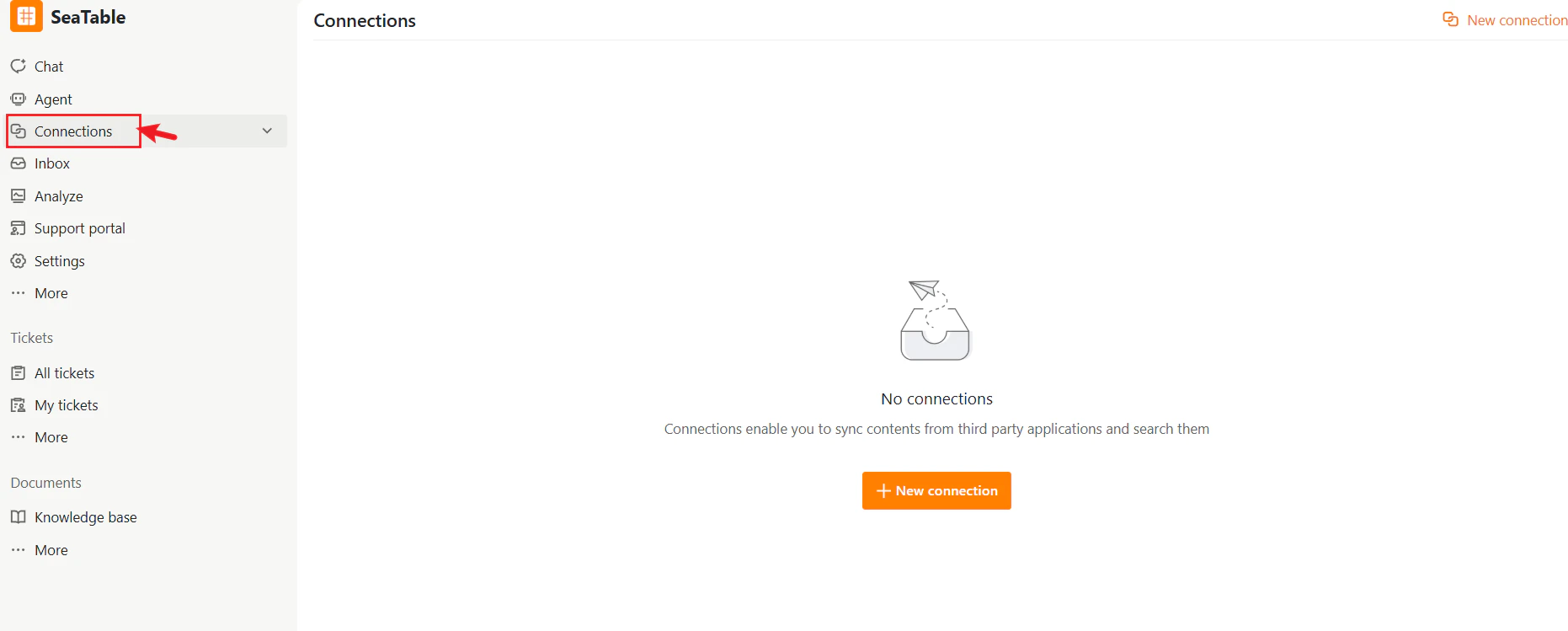
1. Open the desired project in SeaTicket.
2. Click **Connections** in the left sidebar.
From here you can add and configure integrations with external sources.
 ## Creating a New Connection
To add a new integration:
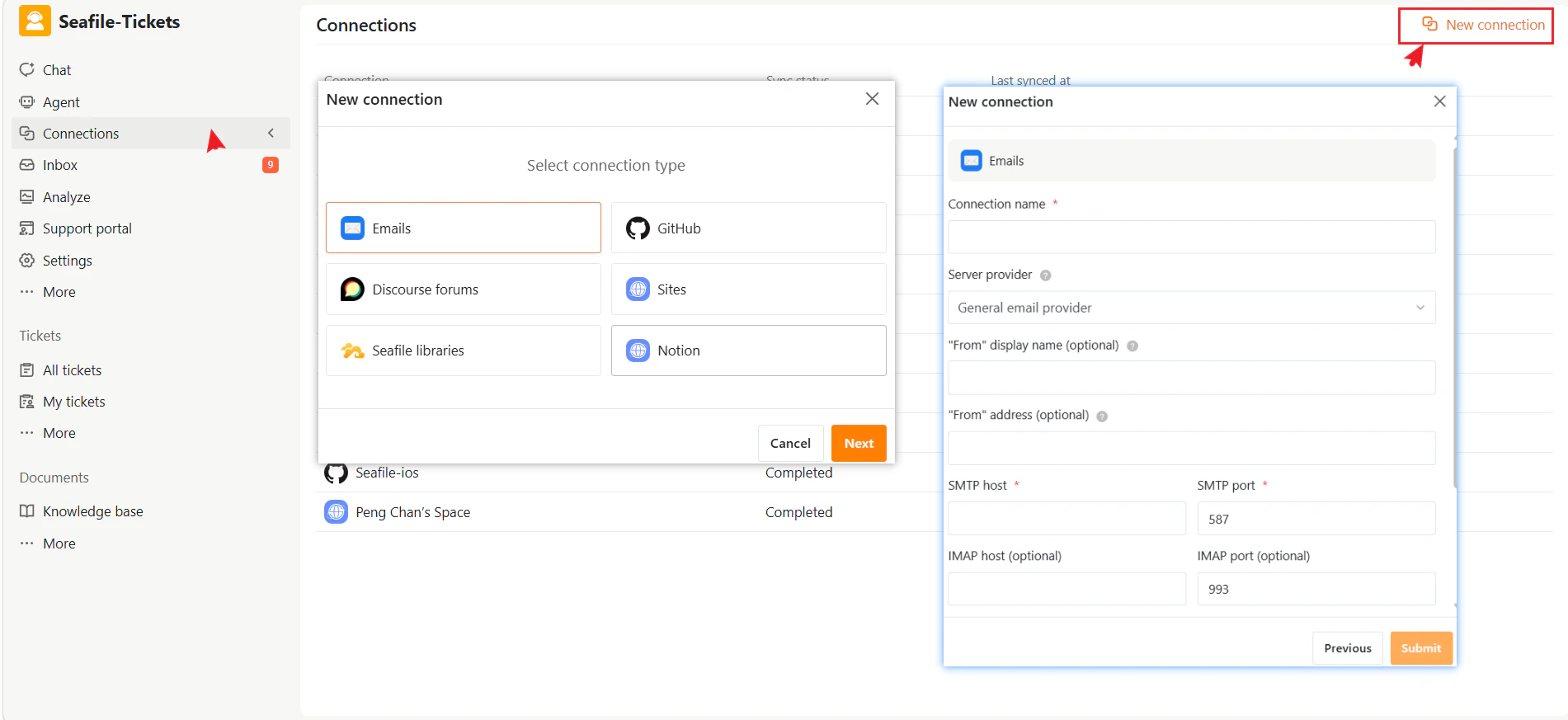
1. Click **New connection** in the top-right corner.
2. Select a connection type from the dialog.
3. Click **Next**.
4. Enter the required configuration details.
5. Click **Confirm** to complete the setup.
After the connection is created, SeaTicket will start synchronizing data automatically.
## Creating a New Connection
To add a new integration:
1. Click **New connection** in the top-right corner.
2. Select a connection type from the dialog.
3. Click **Next**.
4. Enter the required configuration details.
5. Click **Confirm** to complete the setup.
After the connection is created, SeaTicket will start synchronizing data automatically.
 ### Supported Connection Types
SeaTicket supports multiple connection types:
| Connection Type | Description |
| :-------------------- | :---------------------------------------------- |
| **Email** | Sync emails from support mailboxes |
| **GitHub** | Sync issues from GitHub repositories |
| **Discourse Forums** | Sync discussion threads from community forums |
| **Sites** | Crawl and sync web pages |
| **Seafile Libraries** | Sync documents and reference materials |
| Notion | Sync pages and databases from Notion workspaces |
Each connection type requires different configuration settings. [Refer to the corresponding section for detailed instructions.](https://user-docs.seaticket.ai/conncet-email)
### Sync Frequency
* **GitHub, Email, Discourse Forums, and Seafile Libraries** sync automatically **every hour**
* **Notion** syncs automatically **once per day**
* **Sites** connections sync **every 3 days**
You can also trigger a manual sync at any time by clicking **Sync now**.
## Viewing and Managing Connections
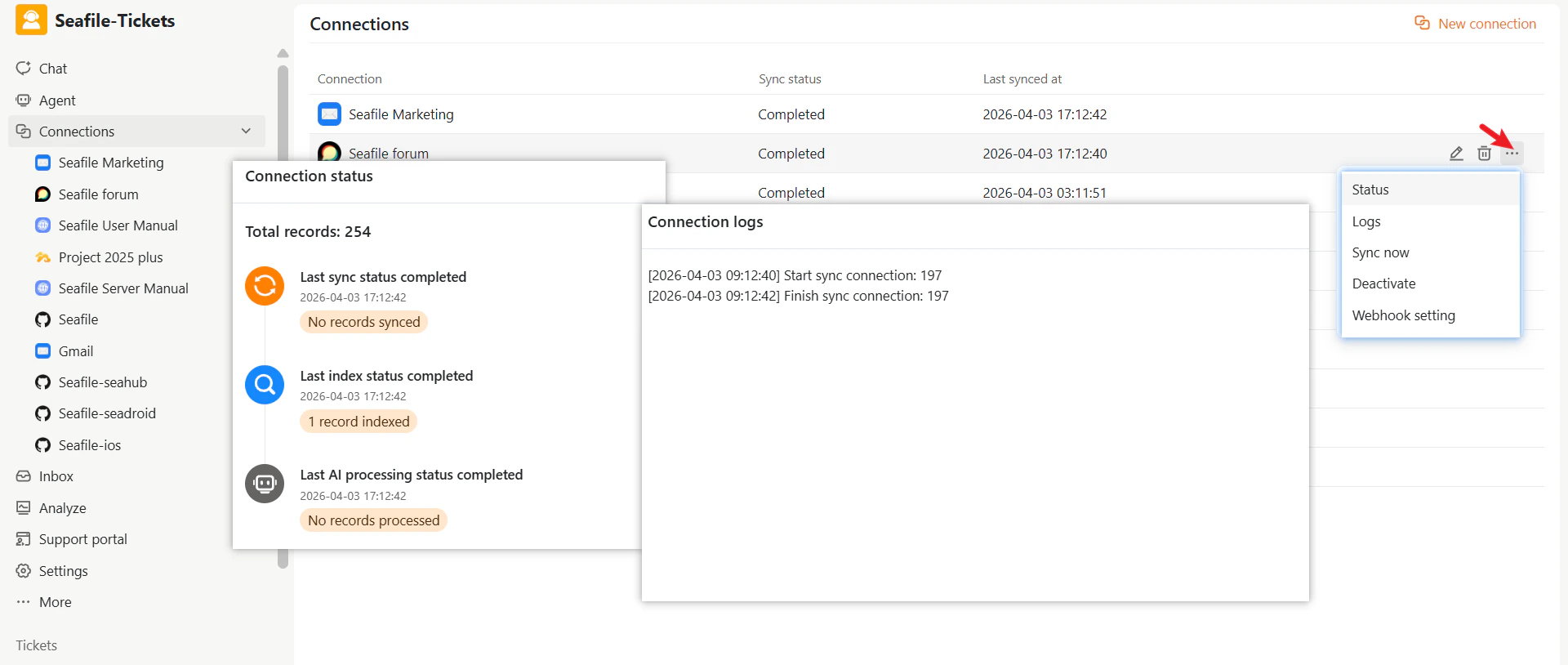
After creating connections, you can view and manage them on the Connections page. Each connection displays its current sync status and the last time it synced data.
The following actions are available for each connection:
| Action | Description |
| :------------------ | :------------------------------------------ |
| **Sync now** | Manually trigger a sync immediately |
| **Deactivate** | Disable the connection without deleting it |
| **Status and logs** | Review sync history and troubleshoot issues |
| **Edit** | Modify the connection settings |
| **Delete** | Remove the connection |
| **Deactivate** | Deactivate the connection |
### Supported Connection Types
SeaTicket supports multiple connection types:
| Connection Type | Description |
| :-------------------- | :---------------------------------------------- |
| **Email** | Sync emails from support mailboxes |
| **GitHub** | Sync issues from GitHub repositories |
| **Discourse Forums** | Sync discussion threads from community forums |
| **Sites** | Crawl and sync web pages |
| **Seafile Libraries** | Sync documents and reference materials |
| Notion | Sync pages and databases from Notion workspaces |
Each connection type requires different configuration settings. [Refer to the corresponding section for detailed instructions.](https://user-docs.seaticket.ai/conncet-email)
### Sync Frequency
* **GitHub, Email, Discourse Forums, and Seafile Libraries** sync automatically **every hour**
* **Notion** syncs automatically **once per day**
* **Sites** connections sync **every 3 days**
You can also trigger a manual sync at any time by clicking **Sync now**.
## Viewing and Managing Connections
After creating connections, you can view and manage them on the Connections page. Each connection displays its current sync status and the last time it synced data.
The following actions are available for each connection:
| Action | Description |
| :------------------ | :------------------------------------------ |
| **Sync now** | Manually trigger a sync immediately |
| **Deactivate** | Disable the connection without deleting it |
| **Status and logs** | Review sync history and troubleshoot issues |
| **Edit** | Modify the connection settings |
| **Delete** | Remove the connection |
| **Deactivate** | Deactivate the connection |
.png?fit=max&auto=format&n=WcHiqSPczPbRTQJs&q=85&s=afd8cbfb1e5ede7c55a86eb0c11895cf) To edit the connection:
To edit the connection:
.png?fit=max&auto=format&n=WcHiqSPczPbRTQJs&q=85&s=4dfac803b5dcf4e8371566c8197cee18) ## Webhook Settings
For supported connection types, you can configure a webhook endpoint so that external systems notify SeaTicket of updates in real time, rather than waiting for a scheduled sync.
To configure a webhook, open the connection settings and navigate to the **Webhook** tab.
## Webhook Settings
For supported connection types, you can configure a webhook endpoint so that external systems notify SeaTicket of updates in real time, rather than waiting for a scheduled sync.
To configure a webhook, open the connection settings and navigate to the **Webhook** tab.
.png?fit=max&auto=format&n=WcHiqSPczPbRTQJs&q=85&s=2c7d1265d6c2bd5b9133fbc2efa97fed) ## If a Sync Fails
If a connection fails to sync, the sync status on the Connections page will reflect the error. You can click **View sync details and logs** to review what went wrong and use **Sync now** to manually retry once the issue is resolved.
## If a Sync Fails
If a connection fails to sync, the sync status on the Connections page will reflect the error. You can click **View sync details and logs** to review what went wrong and use **Sync now** to manually retry once the issue is resolved.