> ## Documentation Index
> Fetch the complete documentation index at: https://user-docs.seaticket.ai/llms.txt
> Use this file to discover all available pages before exploring further.
# Creating and Managing Projects
## Create a Project
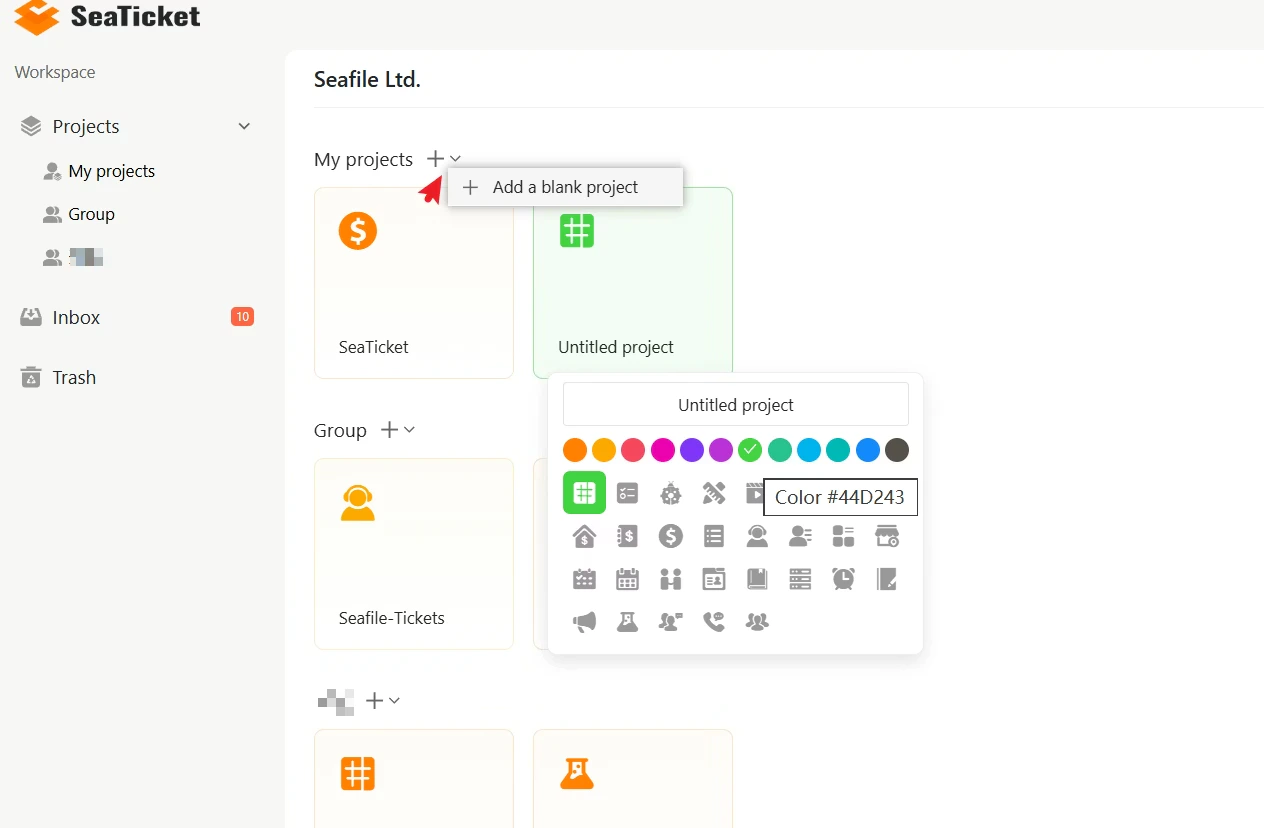
To create a new project:
1. Navigate to the **Projects** section in the main sidebar.
2. Click the **+** button next to **My projects** or a Group name.
3. Enter a unique project name.
4. Select an icon or choose a theme color to visually represent your project.
Your new project appears immediately as a card in your workspace.
 ## Project Actions
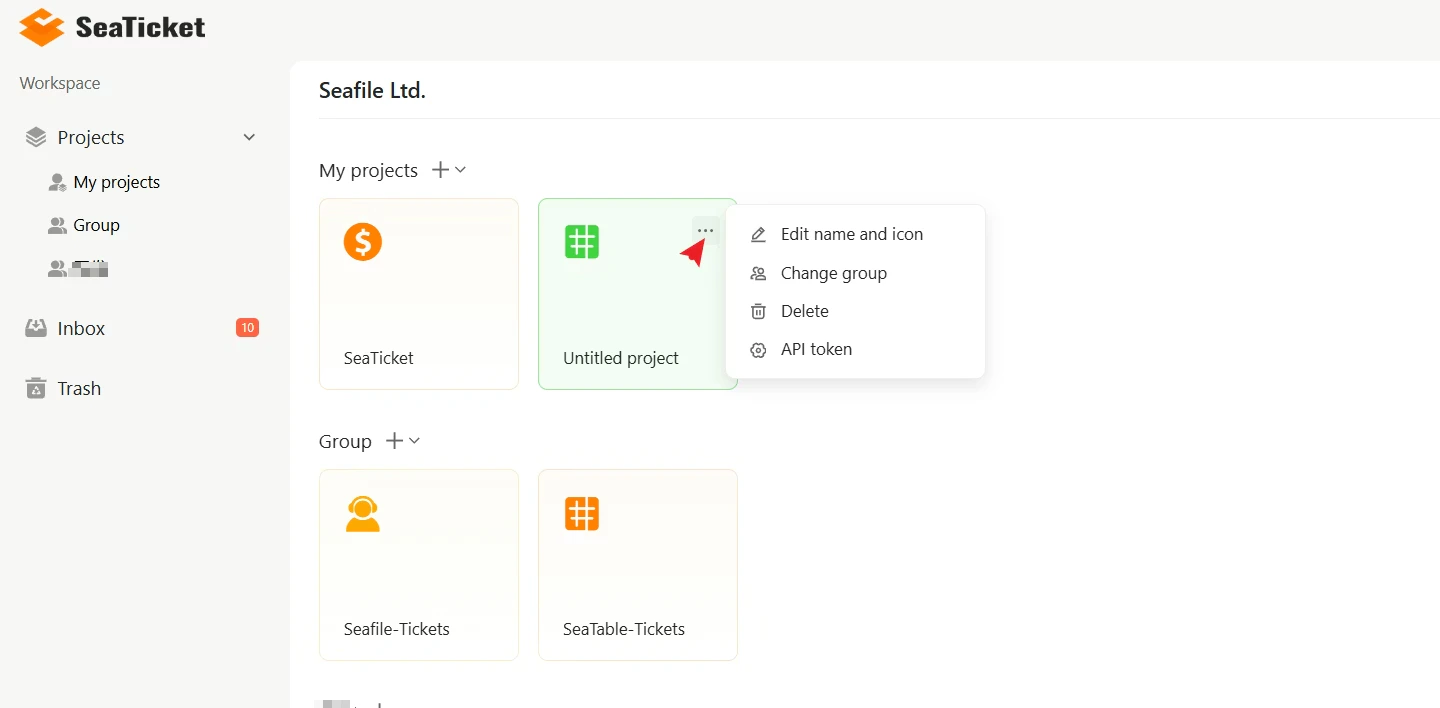
Every project card provides quick access to management actions. To use them:
1. Hover over the project card.
2. Click the **⋯** menu to access the following options:
| Option | Description |
| :--------------------- | :---------------------------------------------------------------- |
| **Edit Name and Icon** | Rename the project or change its icon |
| **Change Group** | Move the project to a different group |
| **Delete** | Remove the project. Deleted projects can be restored from Trash |
| **API Token** | Generate an API token for external integrations or automated sync |
## Project Actions
Every project card provides quick access to management actions. To use them:
1. Hover over the project card.
2. Click the **⋯** menu to access the following options:
| Option | Description |
| :--------------------- | :---------------------------------------------------------------- |
| **Edit Name and Icon** | Rename the project or change its icon |
| **Change Group** | Move the project to a different group |
| **Delete** | Remove the project. Deleted projects can be restored from Trash |
| **API Token** | Generate an API token for external integrations or automated sync |
 ## Trash
When a project is deleted, it is moved to the Trash rather than being permanently removed. You can restore deleted projects from here at any time within 30 days.
> **Note:** Projects that have been in the Trash for more than 30 days are automatically and permanently deleted.
To access the Trash:
1. Click **Trash** in the main sidebar.
2. Select the **Personal** tab to see deleted personal projects, or the **Managed groups** tab to see deleted group projects.
3. Click the **⋯** menu next to the project you want to recover.
4. Click **Restore**.
## Trash
When a project is deleted, it is moved to the Trash rather than being permanently removed. You can restore deleted projects from here at any time within 30 days.
> **Note:** Projects that have been in the Trash for more than 30 days are automatically and permanently deleted.
To access the Trash:
1. Click **Trash** in the main sidebar.
2. Select the **Personal** tab to see deleted personal projects, or the **Managed groups** tab to see deleted group projects.
3. Click the **⋯** menu next to the project you want to recover.
4. Click **Restore**.
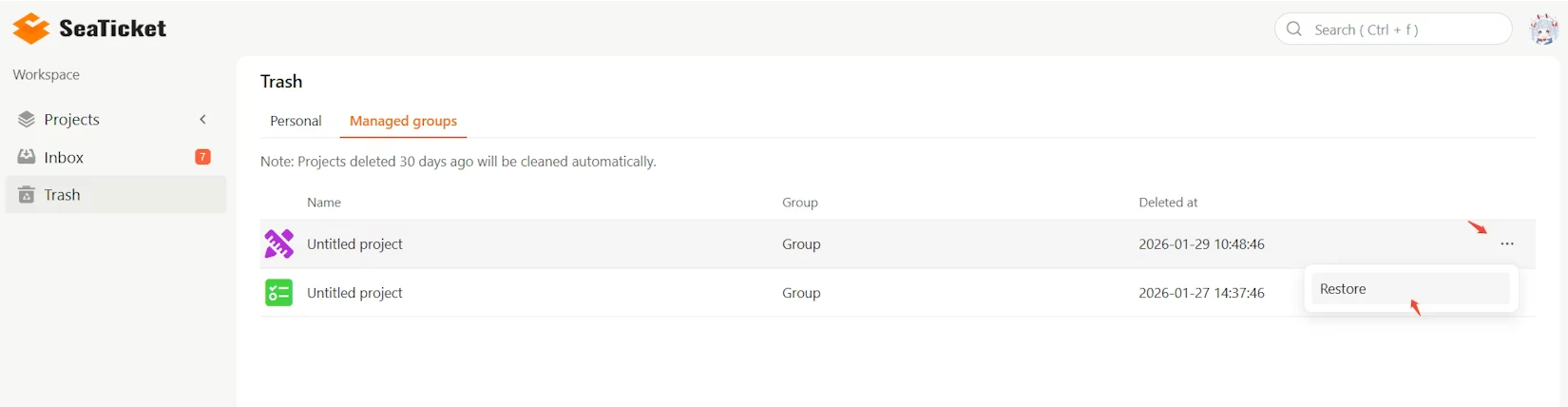 The project is immediately restored to its original location in your workspace.