> ## Documentation Index
> Fetch the complete documentation index at: https://user-docs.seaticket.ai/llms.txt
> Use this file to discover all available pages before exploring further.
# Creating and Viewing Knowledge Record
Knowledge records in SeaTicket can be created in three ways:
* Manual Creation
* Bulk import from Excel
* AI-generated from tickets
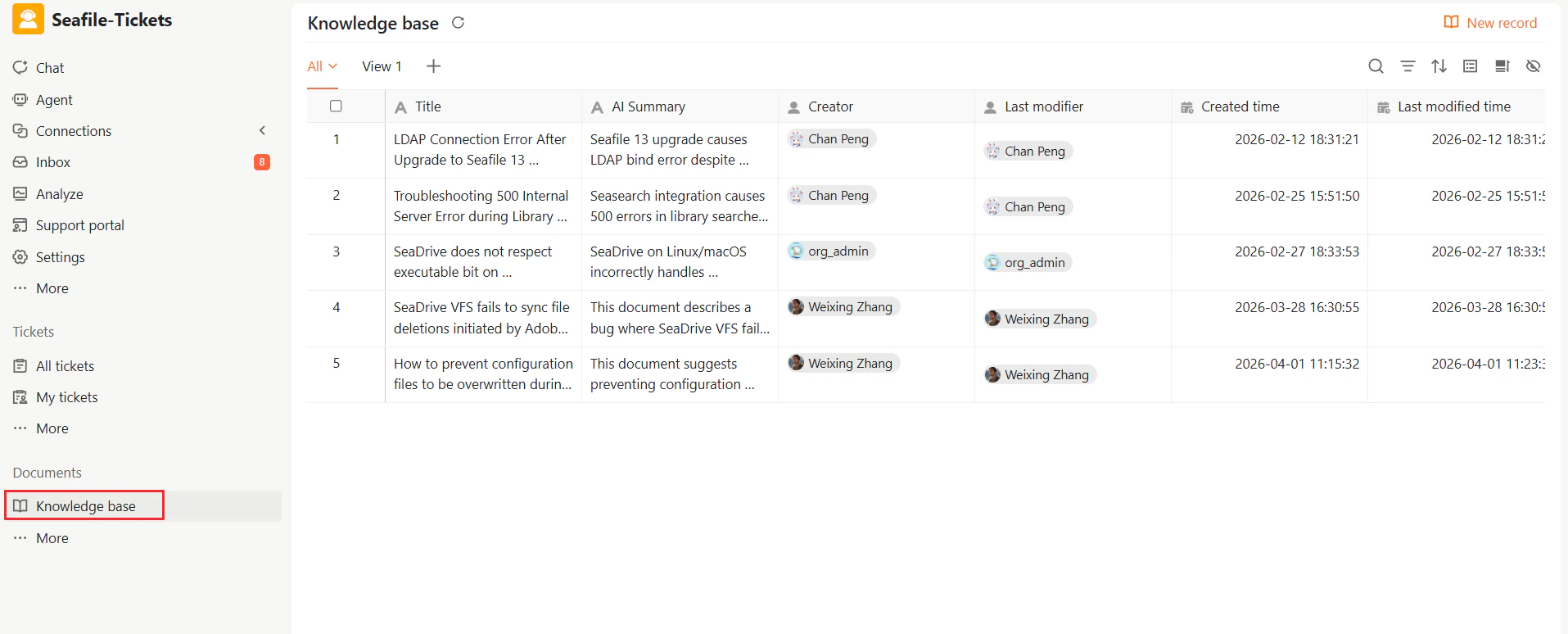
## Accessing the Knowledge Base
To access the Knowledge Base:
1. Log in to the SeaTicket project workspace
2. From the left navigation panel, select **Documents → Knowledge base**
You will see the Knowledge Base main page, which displays all existing records.
 ## Creating a New Knowledge Record
### Manual Creation
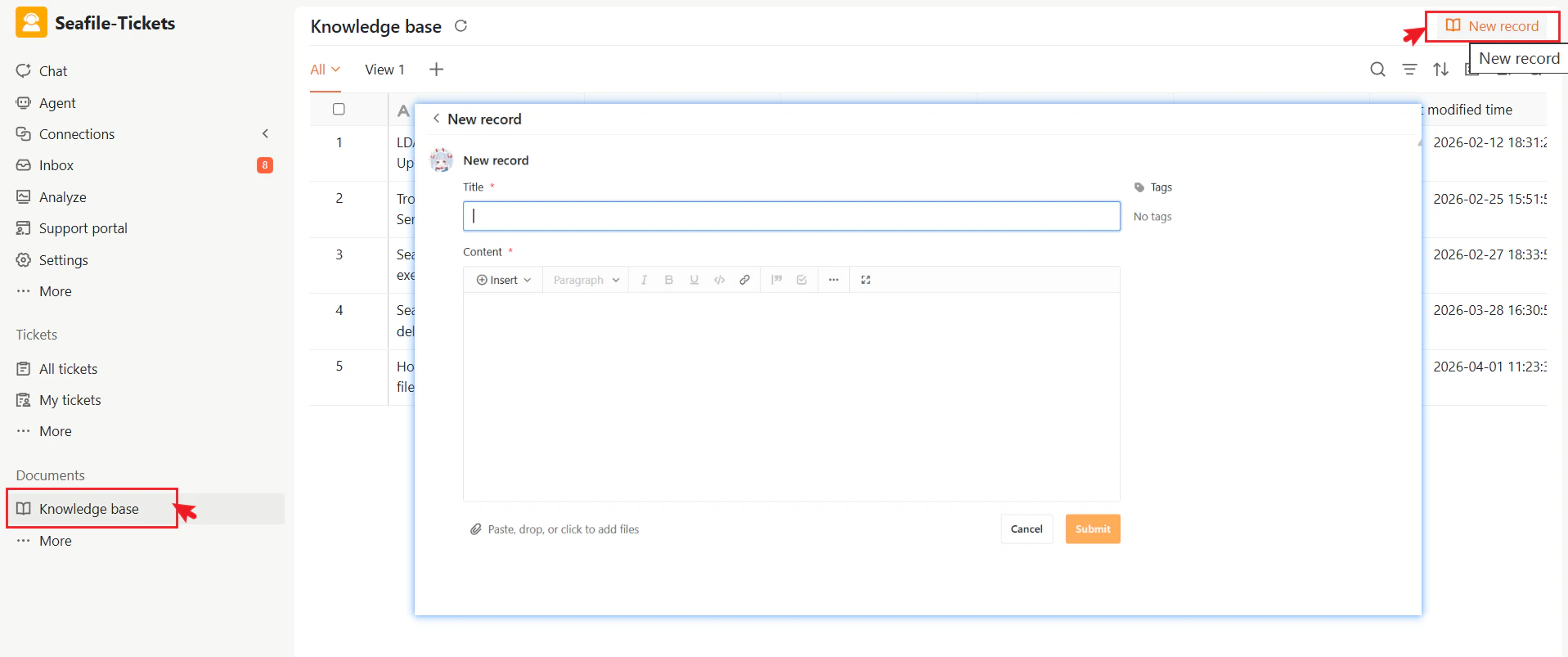
To create a new knowledge record manually:
1. Go to **Documents → Knowledge Base**.
2. Click **+ New record** in the top-right corner.
3. Enter a clear, descriptive title.
4. Add your content in the editor and apply tags to the record.
5. Click **Submit** to save.
Once submitted, your new knowledge record appears in the Knowledge Base list along with its metadata, including creator, timestamps, AI summary, and tags.
## Creating a New Knowledge Record
### Manual Creation
To create a new knowledge record manually:
1. Go to **Documents → Knowledge Base**.
2. Click **+ New record** in the top-right corner.
3. Enter a clear, descriptive title.
4. Add your content in the editor and apply tags to the record.
5. Click **Submit** to save.
Once submitted, your new knowledge record appears in the Knowledge Base list along with its metadata, including creator, timestamps, AI summary, and tags.
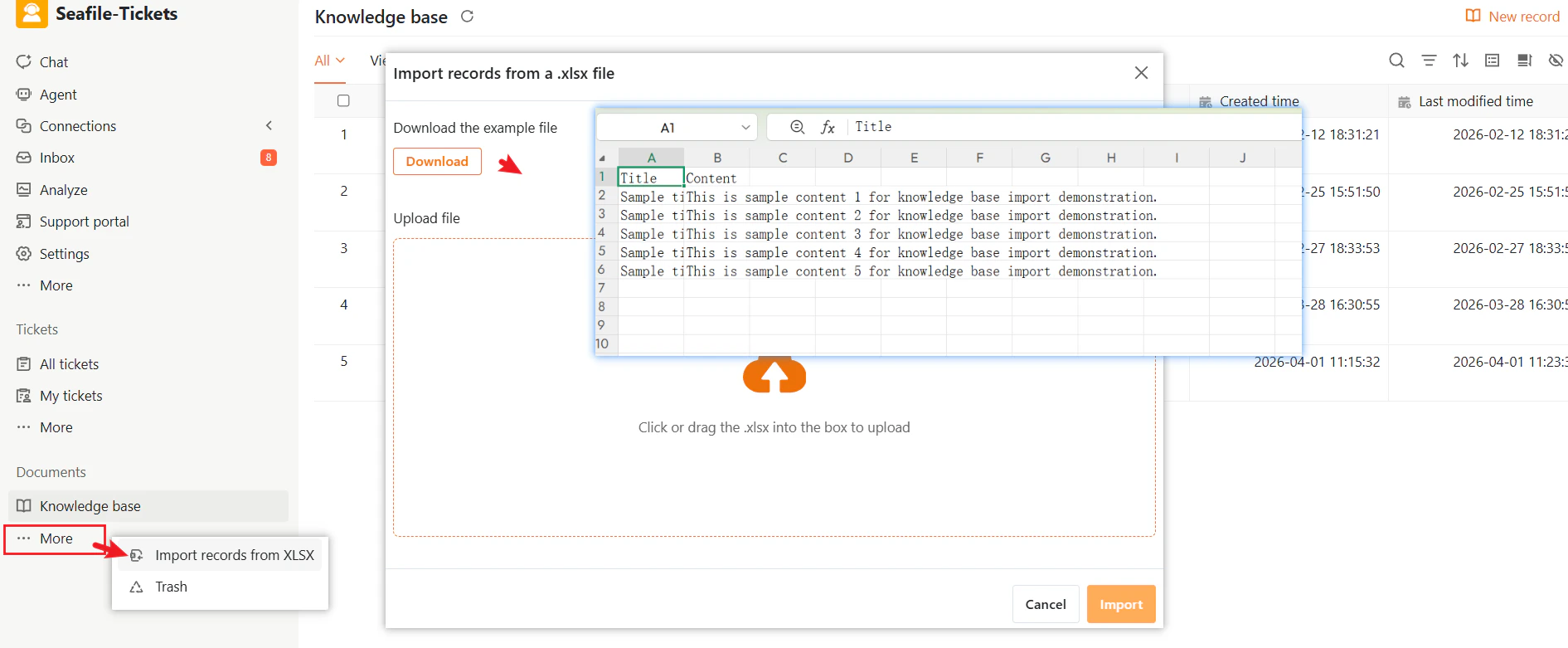
 ### Bulk Import from Excel
To import multiple records at once:
1. Go to the **Knowledge Base** page.
2. Click **More → Import records from XLSX** to open the file upload dialog.
3. Upload your file and map the columns to the corresponding fields. If needed, click **Download** to access an example file with the correct template format.
4. Click **Submit** to start the import process.
After submission, the system processes the file and creates the corresponding knowledge records.
### Bulk Import from Excel
To import multiple records at once:
1. Go to the **Knowledge Base** page.
2. Click **More → Import records from XLSX** to open the file upload dialog.
3. Upload your file and map the columns to the corresponding fields. If needed, click **Download** to access an example file with the correct template format.
4. Click **Submit** to start the import process.
After submission, the system processes the file and creates the corresponding knowledge records.
 ### Generate from Tickets (AI-powered)
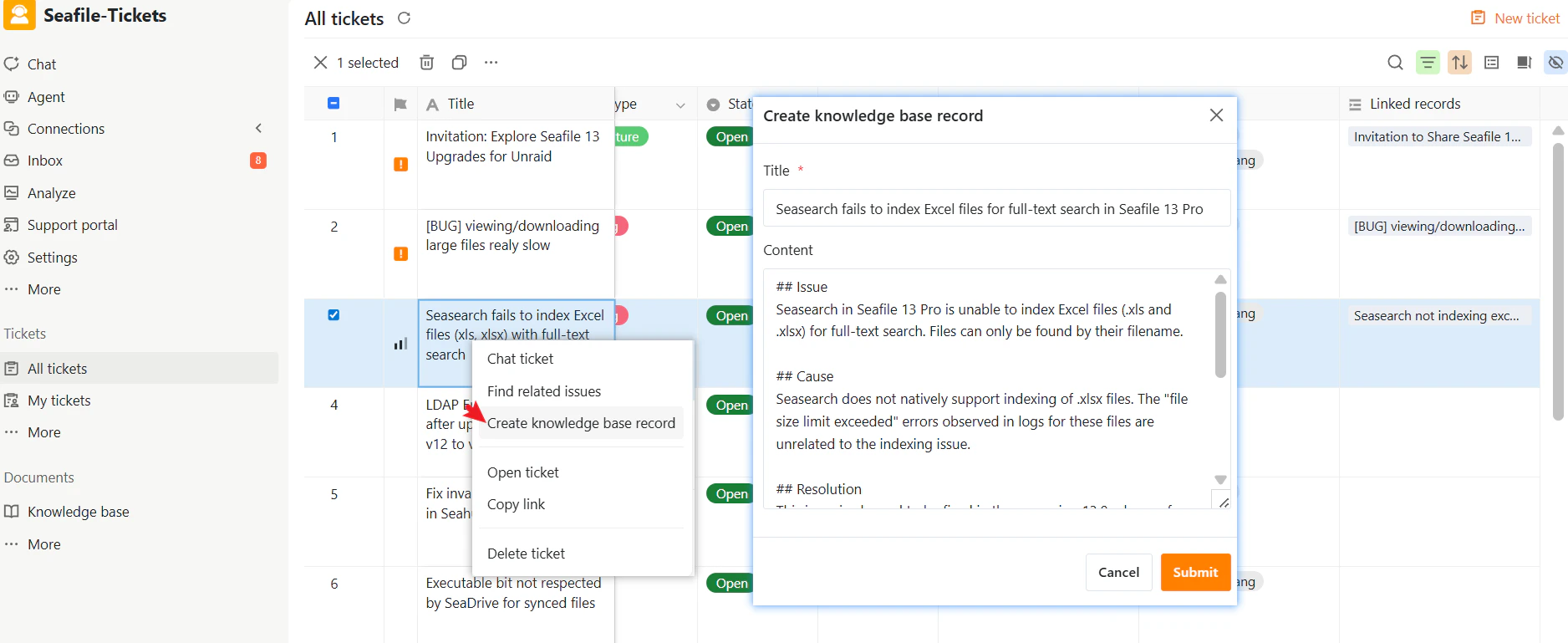
SeaTicket lets you create a knowledge record directly from a ticket. The AI analyzes the ticket content and automatically generates a draft, extracting key details such as the issue description, symptoms, cause, and possible workarounds.
To generate a record from a ticket:
1. Open the ticket list.
2. Right-click a ticket.
3. Choose **Create knowledge base record**. SeaTicket generates a draft Knowledge Record that you can fully edit.
4. Review and edit the generated title and content for accuracy. Add or modify sections such as Issue, Symptoms, Cause, and Workaround as needed.
5. Click **Submit** to publish the new Knowledge Record.
This workflow makes turning ticket solutions into reusable knowledge fast and easy.
### Generate from Tickets (AI-powered)
SeaTicket lets you create a knowledge record directly from a ticket. The AI analyzes the ticket content and automatically generates a draft, extracting key details such as the issue description, symptoms, cause, and possible workarounds.
To generate a record from a ticket:
1. Open the ticket list.
2. Right-click a ticket.
3. Choose **Create knowledge base record**. SeaTicket generates a draft Knowledge Record that you can fully edit.
4. Review and edit the generated title and content for accuracy. Add or modify sections such as Issue, Symptoms, Cause, and Workaround as needed.
5. Click **Submit** to publish the new Knowledge Record.
This workflow makes turning ticket solutions into reusable knowledge fast and easy.
 ## Knowledge Record Page Overview
### Title
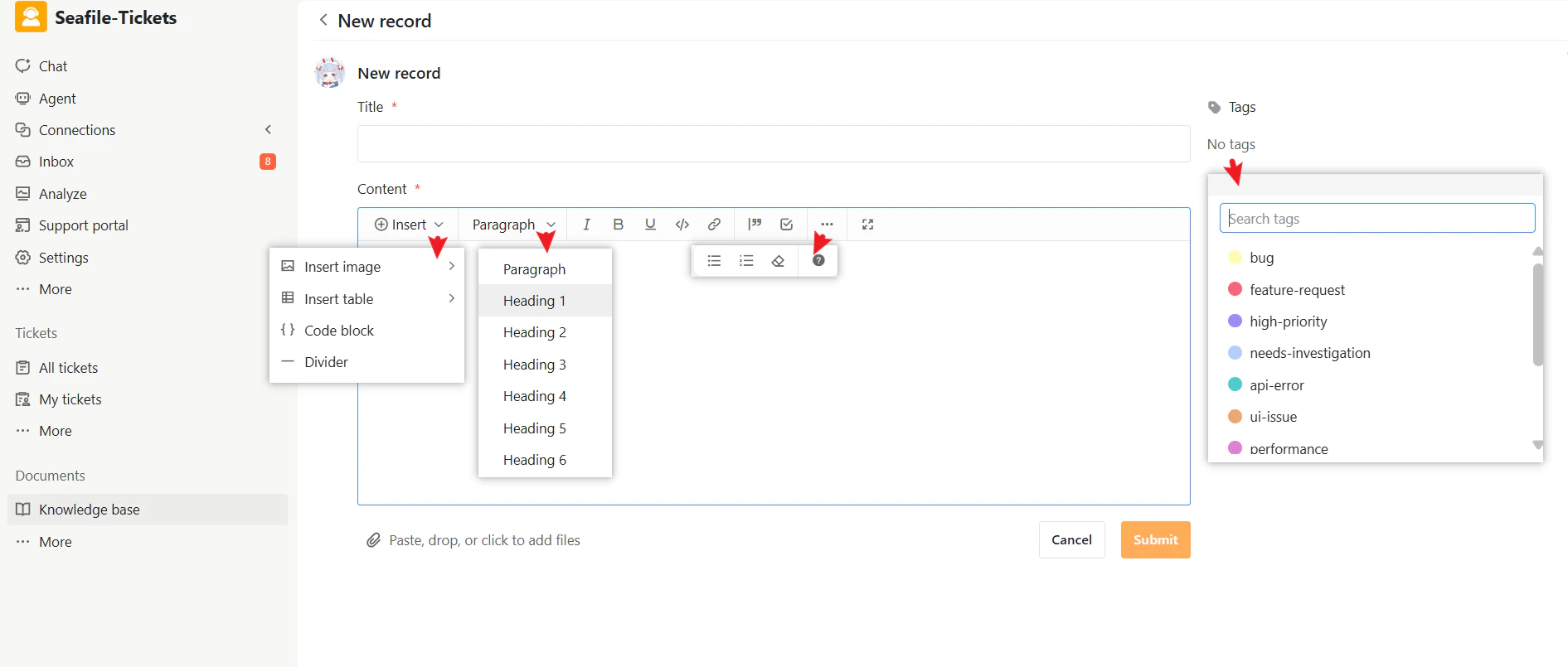
Enter a clear, descriptive title so users can quickly understand and find the record.
If created from a ticket, the title is auto-generated by AI and can be edited anytime.
Click the title to open the full record.
### Content
Add the main information here. The editor supports rich text formatting—headings, lists, links, images, tables, and code blocks—to help you organize content clearly.
You can structure the content into sections such as:
* Issue
* Symptoms
* Root Cause
* Resolution
* Workaround
If created from a ticket, the content is auto-generated by AI and may include related information, such as links to the original issue. You can review and edit it before publishing.
### Tags
Tags are keywords used to categorize and organize knowledge records.
* Select existing tags or create new ones
* Help users quickly search, filter, and manage related records
* Multiple tags can be added to a single record
## Knowledge Record Page Overview
### Title
Enter a clear, descriptive title so users can quickly understand and find the record.
If created from a ticket, the title is auto-generated by AI and can be edited anytime.
Click the title to open the full record.
### Content
Add the main information here. The editor supports rich text formatting—headings, lists, links, images, tables, and code blocks—to help you organize content clearly.
You can structure the content into sections such as:
* Issue
* Symptoms
* Root Cause
* Resolution
* Workaround
If created from a ticket, the content is auto-generated by AI and may include related information, such as links to the original issue. You can review and edit it before publishing.
### Tags
Tags are keywords used to categorize and organize knowledge records.
* Select existing tags or create new ones
* Help users quickly search, filter, and manage related records
* Multiple tags can be added to a single record
 ## Viewing Knowledge Records
### Knowledge Record Fields Overview
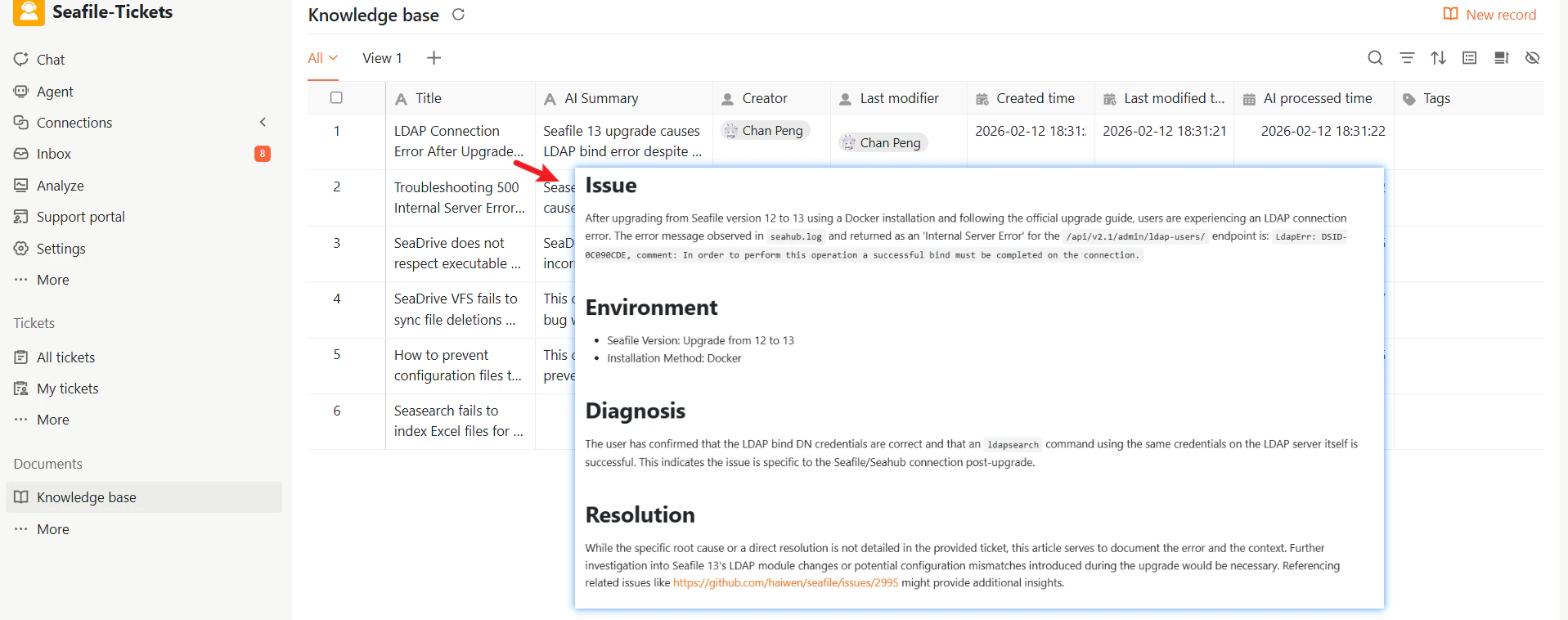
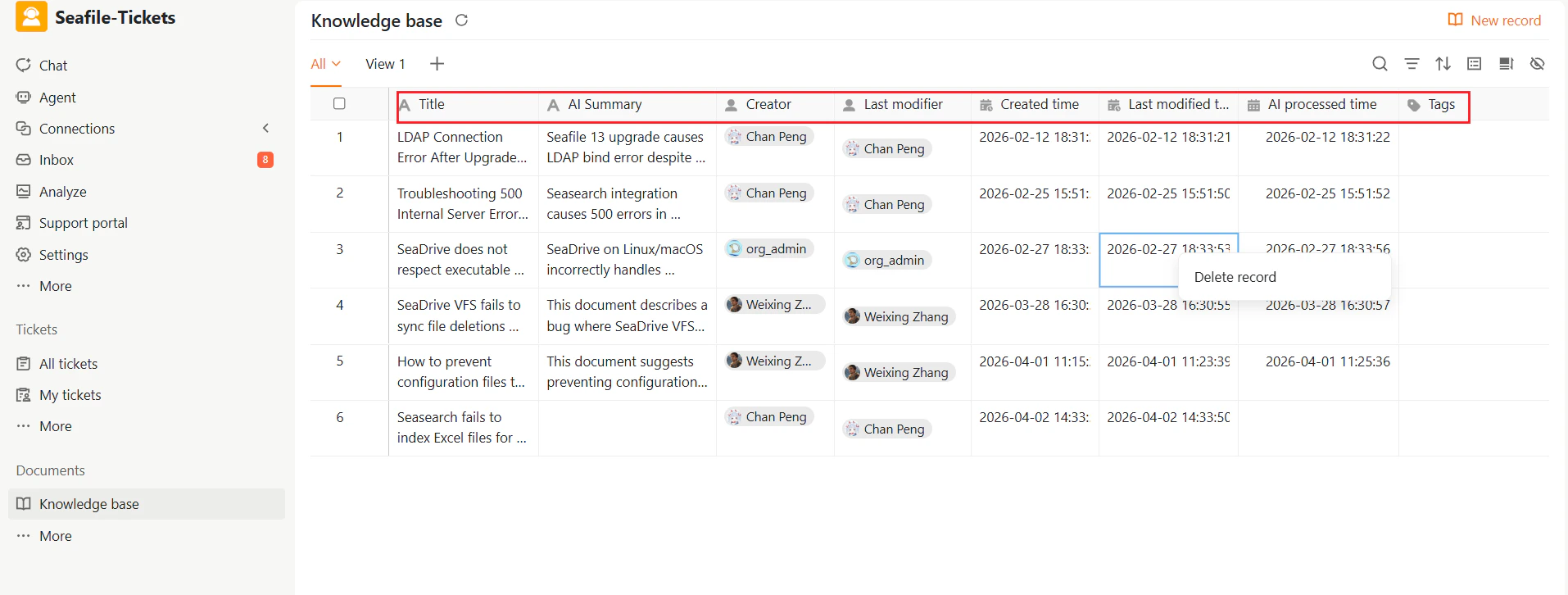
After submission, knowledge records appear in the Knowledge Base table view. Each row represents a record and displays key information:
* **AI Summary**: A short system-generated summary that helps users determine relevance without opening the full record.
* **AI Processed Time**: The time when AI processing was completed.
* **Creator and Last Modifier**: Shows who created and last updated the record.
* **Timestamps**: Includes created time and last modified time.
## Viewing Knowledge Records
### Knowledge Record Fields Overview
After submission, knowledge records appear in the Knowledge Base table view. Each row represents a record and displays key information:
* **AI Summary**: A short system-generated summary that helps users determine relevance without opening the full record.
* **AI Processed Time**: The time when AI processing was completed.
* **Creator and Last Modifier**: Shows who created and last updated the record.
* **Timestamps**: Includes created time and last modified time.
 ### Viewing the Full Knowledge Record
To view the complete knowledge record, either:
* Click the title to open the detail page, or
* Expand the row to preview the content inline.
### Viewing the Full Knowledge Record
To view the complete knowledge record, either:
* Click the title to open the detail page, or
* Expand the row to preview the content inline.