> ## Documentation Index
> Fetch the complete documentation index at: https://user-docs.seaticket.ai/llms.txt
> Use this file to discover all available pages before exploring further.
# Creating and Viewing Tickets
Tickets in SeaTicket come from two sources — they can be created from a synced external issue, or created manually as an internal task.
## Creating a Ticket
### From a Synced External Issue
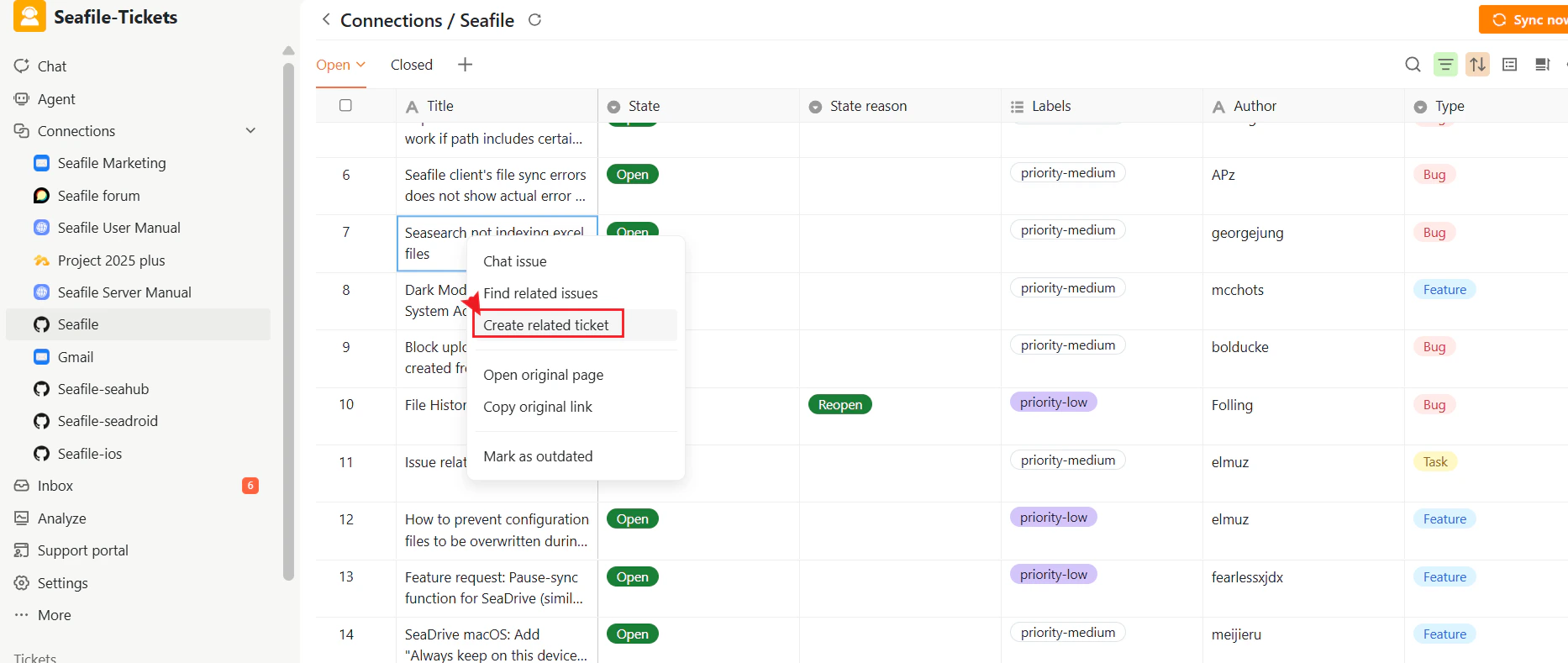
1. Open the desired project and navigate to **Connections** in the left sidebar.
2. Select a synced external issue from the connection panel.
3. Click **Create Related Ticket**.
4. In the popup window, review and complete the ticket title, description, and type.
5. Click **Submit**.
A ticket is created in SeaTicket and automatically linked to the original external issue for full context and follow-up.
 ### Creating a Ticket Manually
You can also create a ticket manually by following these steps:
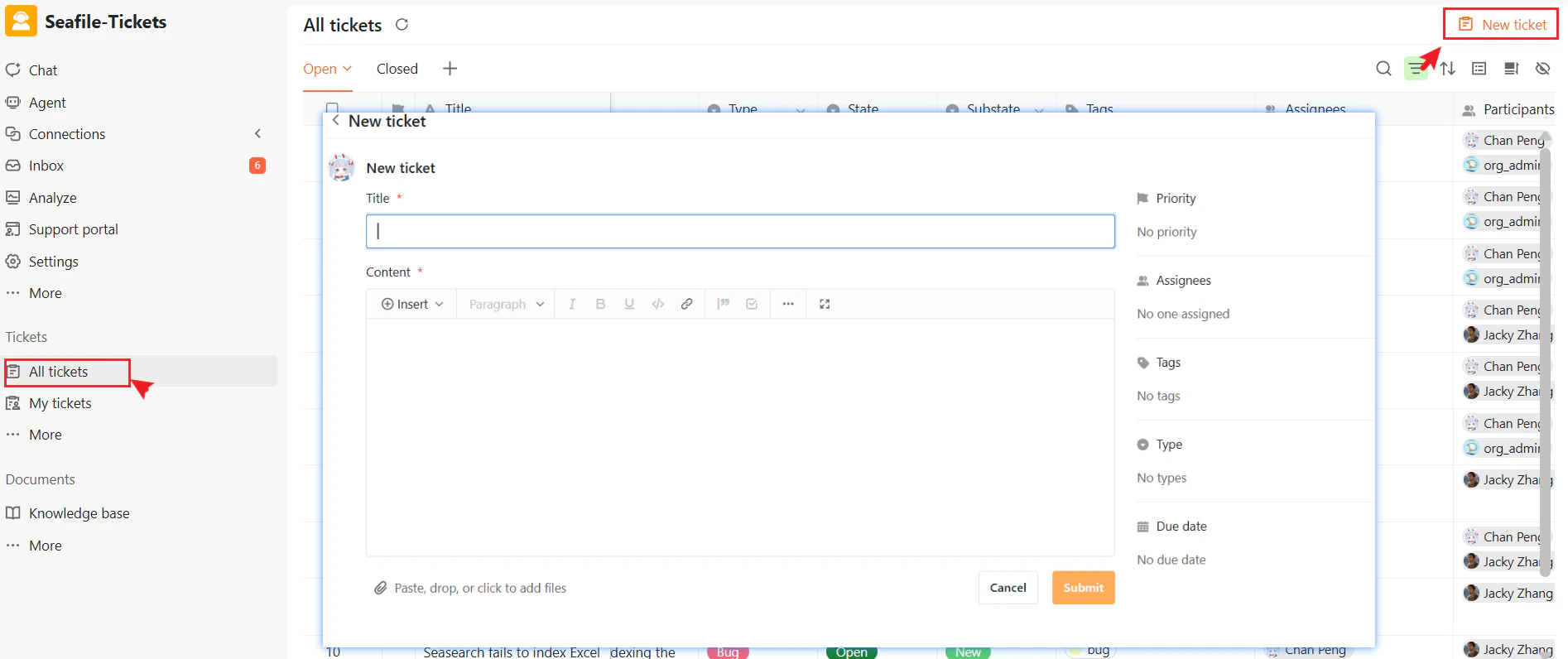
1. Open the desired project and navigate to **Tickets → All Tickets** in the left sidebar.
2. Click **+ New Ticket** in the top-right corner.
3. Fill in the required ticket details and add any attachments if needed.
4. Click **Submit**.
### Creating a Ticket Manually
You can also create a ticket manually by following these steps:
1. Open the desired project and navigate to **Tickets → All Tickets** in the left sidebar.
2. Click **+ New Ticket** in the top-right corner.
3. Fill in the required ticket details and add any attachments if needed.
4. Click **Submit**.
 ## Ticket Page Overview
On the New Ticket page, you can view and configure the main parts of a ticket.
### Title and Content
When a ticket is created from a synced external issue, its title and content are generated by AI based on the issue content and related discussions. The content includes a link to the original issue for full context. Both fields can be edited manually at any time.
When a ticket is created manually, you fill in the title and content yourself
## Ticket Page Overview
On the New Ticket page, you can view and configure the main parts of a ticket.
### Title and Content
When a ticket is created from a synced external issue, its title and content are generated by AI based on the issue content and related discussions. The content includes a link to the original issue for full context. Both fields can be edited manually at any time.
When a ticket is created manually, you fill in the title and content yourself
 ### Ticket Properties Panel
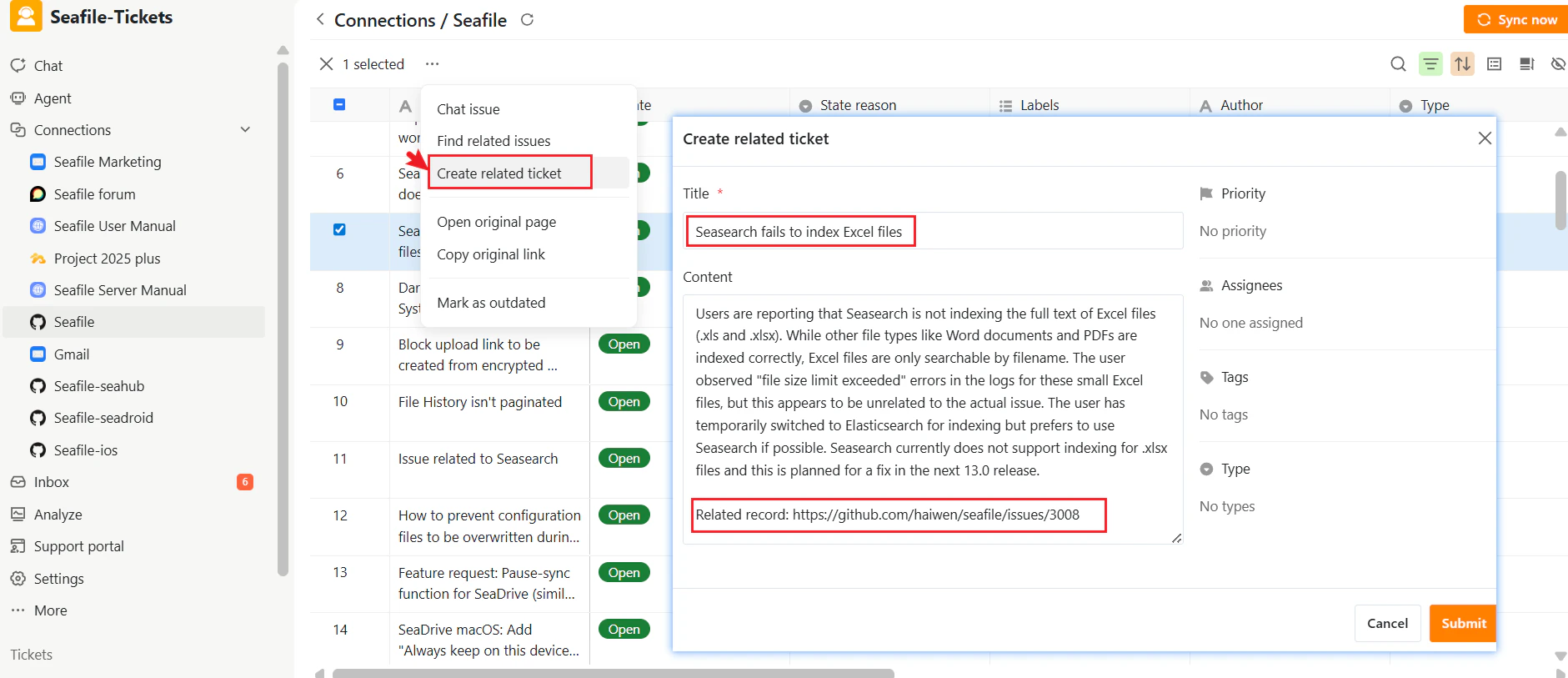
The Ticket Properties panel appears on the right side of the ticket page and contains fields for managing the ticket:
| Property | Description |
| :------------ | :----------------------------------------------------------- |
| **Priority** | Set the urgency level — Urgent, High, Medium, or Low |
| **Assignees** | Select one or more users responsible for handling the ticket |
| **Tags** | Add tags to categorize and filter the ticket |
| **Type** | Choose a ticket type to define the nature of the request |
### Ticket Properties Panel
The Ticket Properties panel appears on the right side of the ticket page and contains fields for managing the ticket:
| Property | Description |
| :------------ | :----------------------------------------------------------- |
| **Priority** | Set the urgency level — Urgent, High, Medium, or Low |
| **Assignees** | Select one or more users responsible for handling the ticket |
| **Tags** | Add tags to categorize and filter the ticket |
| **Type** | Choose a ticket type to define the nature of the request |
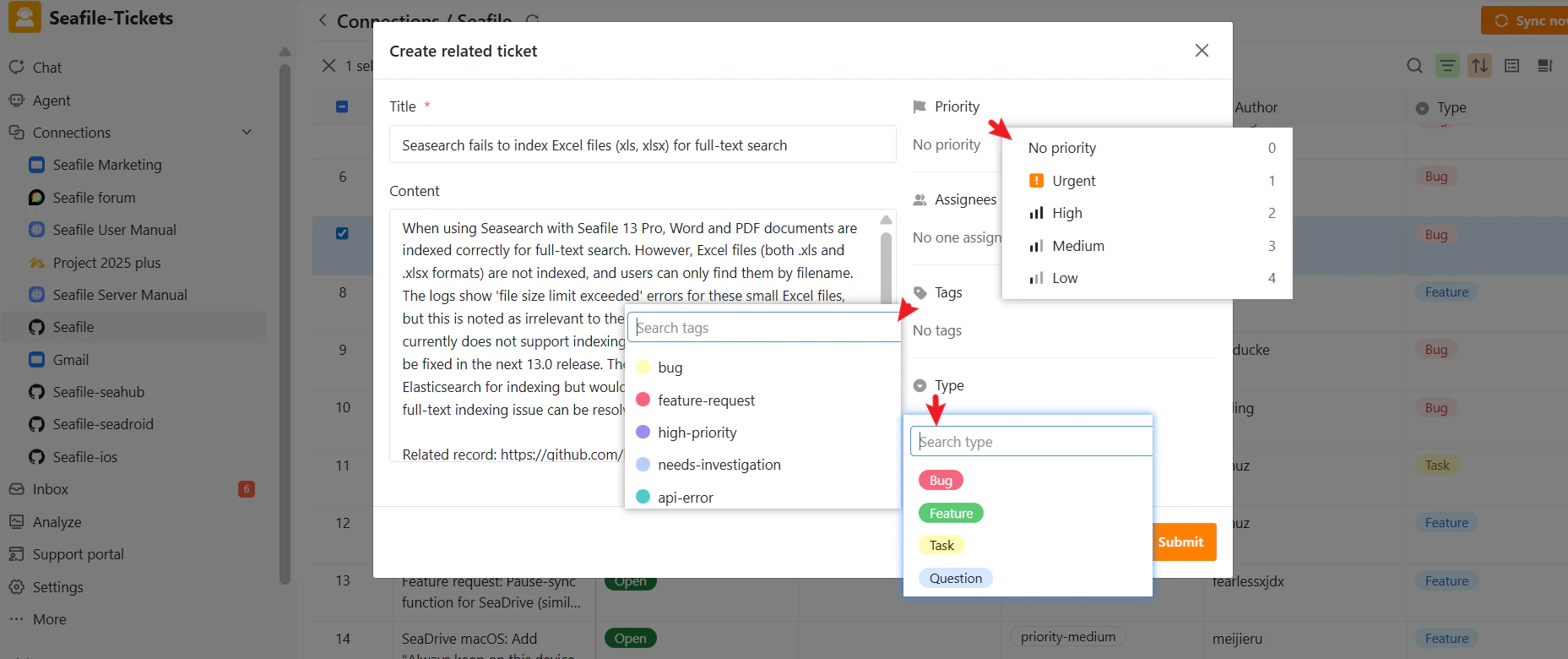 Administrators can preconfigure the available Tags and Types for the project. For configuration details, see [**Ticket Configuration**.](https://user-docs.seaticket.ai/ticket-configuration)
### AI Summary and AI Processed Time
SeaTicket automatically generates a summary for each ticket — whether created manually or from an external issue — and records when the AI processing was completed. These fields are visible in the ticket list and help responders quickly understand a ticket without opening it. For more on AI capabilities, see the [**AI Assistance section**.](https://user-docs.seaticket.ai/ai-assistance-overview)
## Viewing Tickets
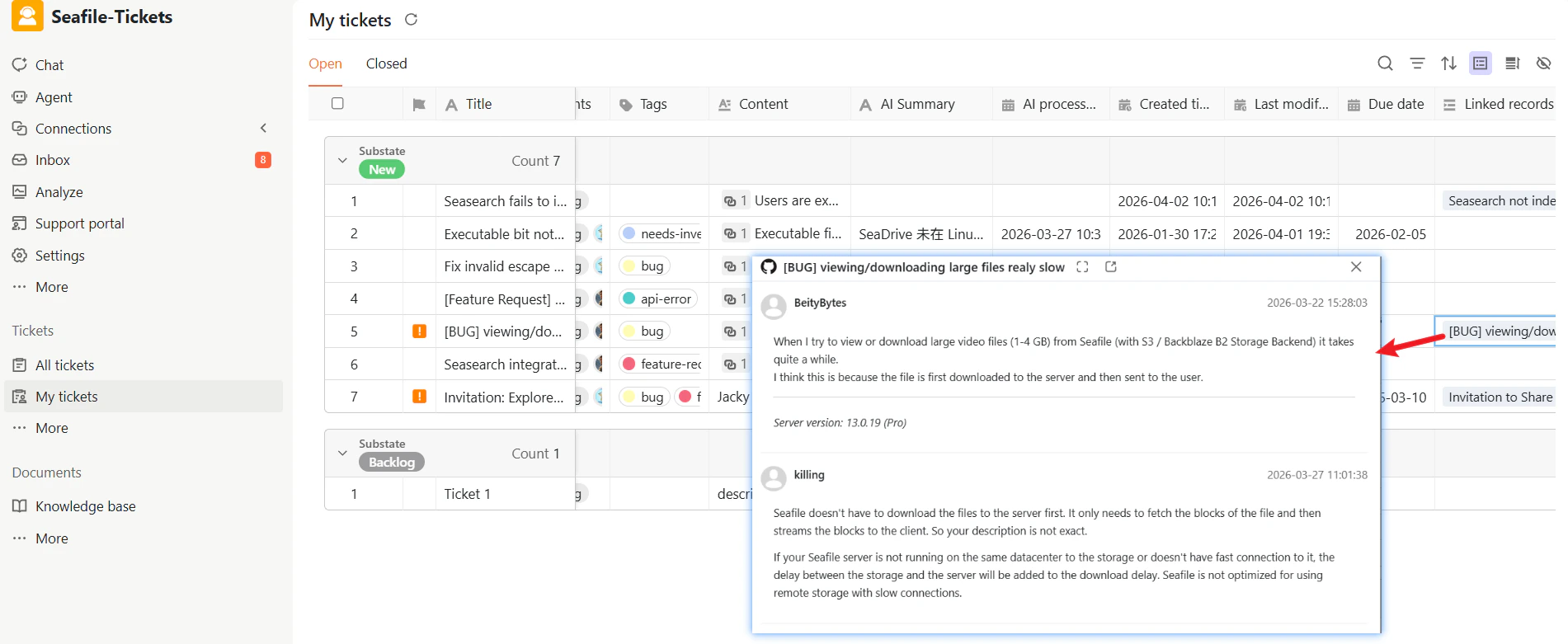
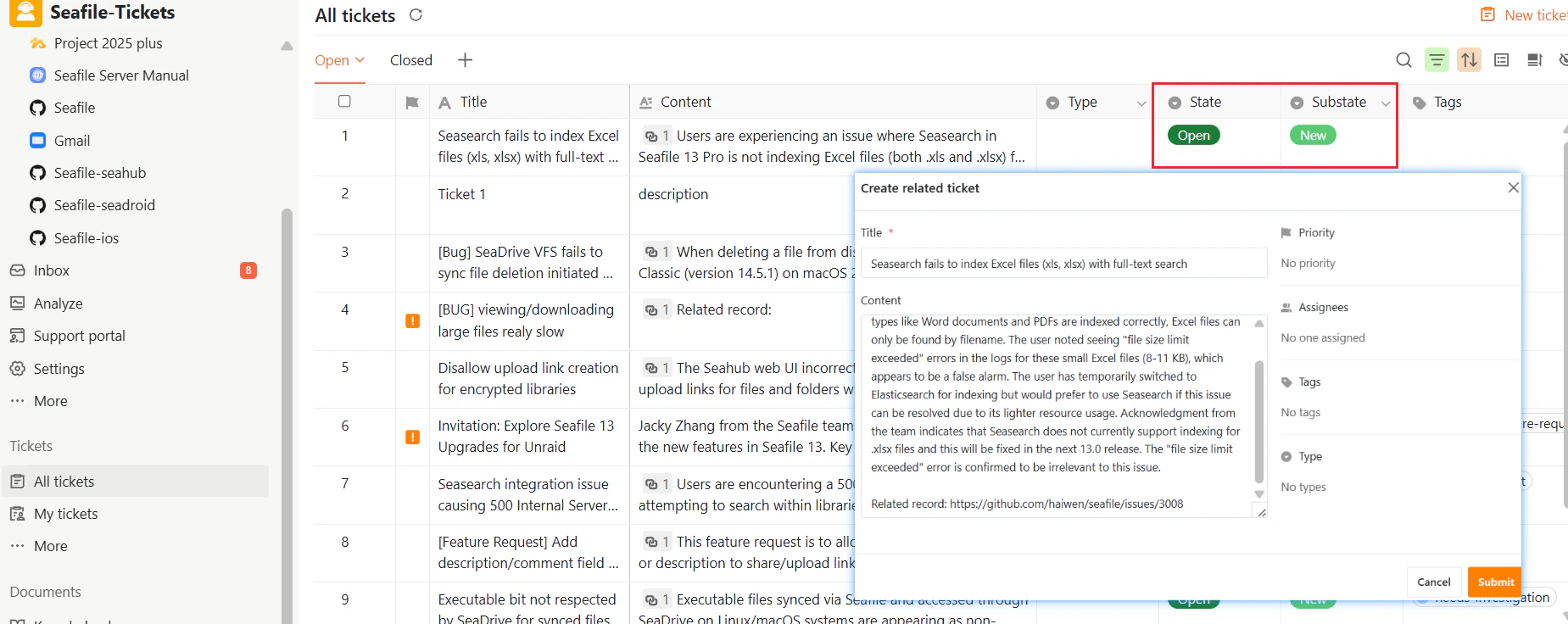
Once submitted, the ticket appears in both the **All Tickets** and **My Tickets** lists with status **Open** and substate **New**.
Administrators can preconfigure the available Tags and Types for the project. For configuration details, see [**Ticket Configuration**.](https://user-docs.seaticket.ai/ticket-configuration)
### AI Summary and AI Processed Time
SeaTicket automatically generates a summary for each ticket — whether created manually or from an external issue — and records when the AI processing was completed. These fields are visible in the ticket list and help responders quickly understand a ticket without opening it. For more on AI capabilities, see the [**AI Assistance section**.](https://user-docs.seaticket.ai/ai-assistance-overview)
## Viewing Tickets
Once submitted, the ticket appears in both the **All Tickets** and **My Tickets** lists with status **Open** and substate **New**.
 ### Ticket Lists
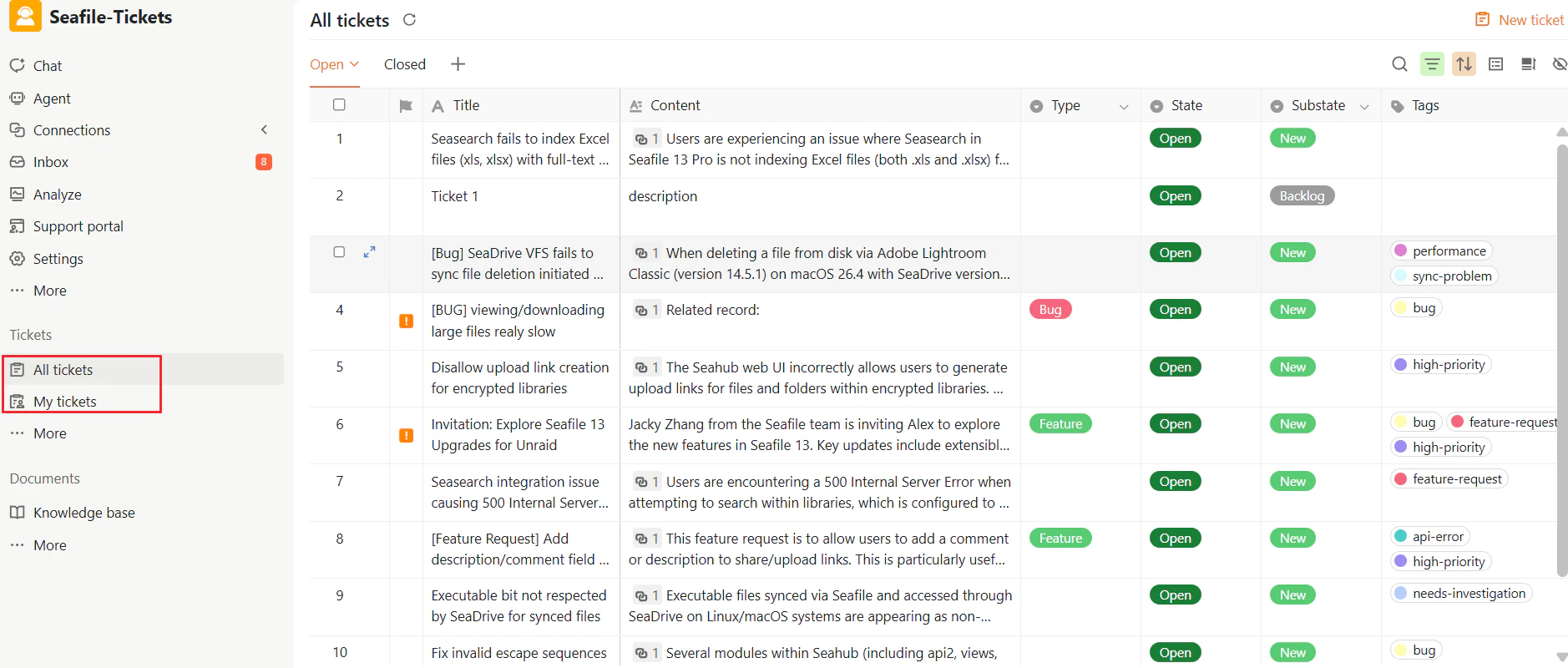
The ticket workspace is organized into two main lists for managing tickets:
| List | Description |
| :-------------- | :------------------------------------------------------------------------------------------------------------------------------------------------------------------------------------ |
| **All Tickets** | Shows all tickets in the project regardless of creator or assignee.
### Ticket Lists
The ticket workspace is organized into two main lists for managing tickets:
| List | Description |
| :-------------- | :------------------------------------------------------------------------------------------------------------------------------------------------------------------------------------ |
| **All Tickets** | Shows all tickets in the project regardless of creator or assignee.
Used for overall visibility and system-wide tracking. |
| **My Tickets** | Shows tickets associated with you — those you’ve created or actively participated in (such as commenting or updating fields).
Used to track personal tasks and responsibilities. |
 ### Ticket List Views
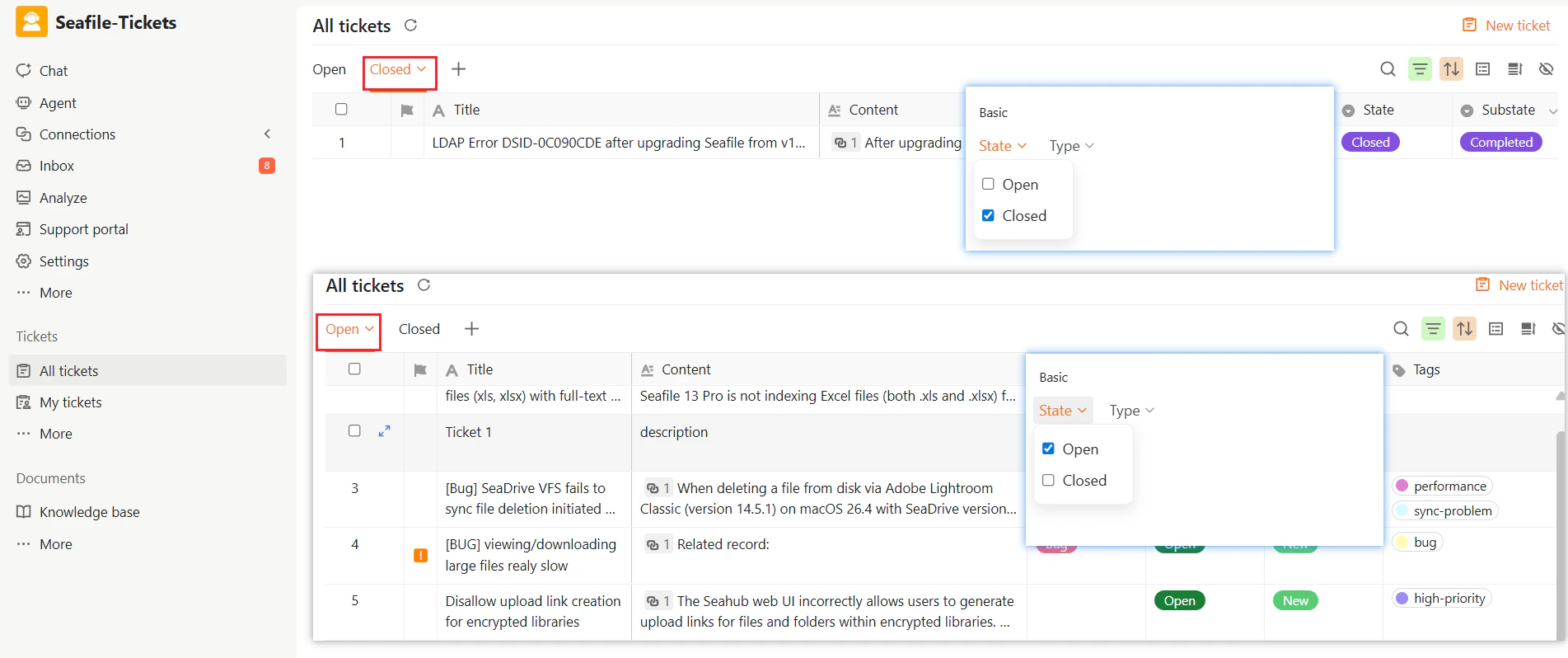
Within both lists, tickets are organized into two default views:
* **Open**: Shows tickets that are not yet resolved.
* **Closed**: Shows tickets that have been completed or closed.
### Ticket List Views
Within both lists, tickets are organized into two default views:
* **Open**: Shows tickets that are not yet resolved.
* **Closed**: Shows tickets that have been completed or closed.
 ### Ticket Fields
In the ticket list you can view key fields at a glance, including Priority, Assignees, Type, Tags, and:
* **Timestamps** — Created time, last modified time, and closed time
* **Due Date** — A manually set deadline for the ticket
* **Linked Records** — For tickets created from external issues, this field links back to the original issue
* **AI Summary and AI Processed Time** — Auto-generated summary and the time AI processing was completed
Click any ticket in the list to open its detail page.
### Ticket Fields
In the ticket list you can view key fields at a glance, including Priority, Assignees, Type, Tags, and:
* **Timestamps** — Created time, last modified time, and closed time
* **Due Date** — A manually set deadline for the ticket
* **Linked Records** — For tickets created from external issues, this field links back to the original issue
* **AI Summary and AI Processed Time** — Auto-generated summary and the time AI processing was completed
Click any ticket in the list to open its detail page.