> ## Documentation Index
> Fetch the complete documentation index at: https://user-docs.seaticket.ai/llms.txt
> Use this file to discover all available pages before exploring further.
# Managing External Issues
## Issues from Portal
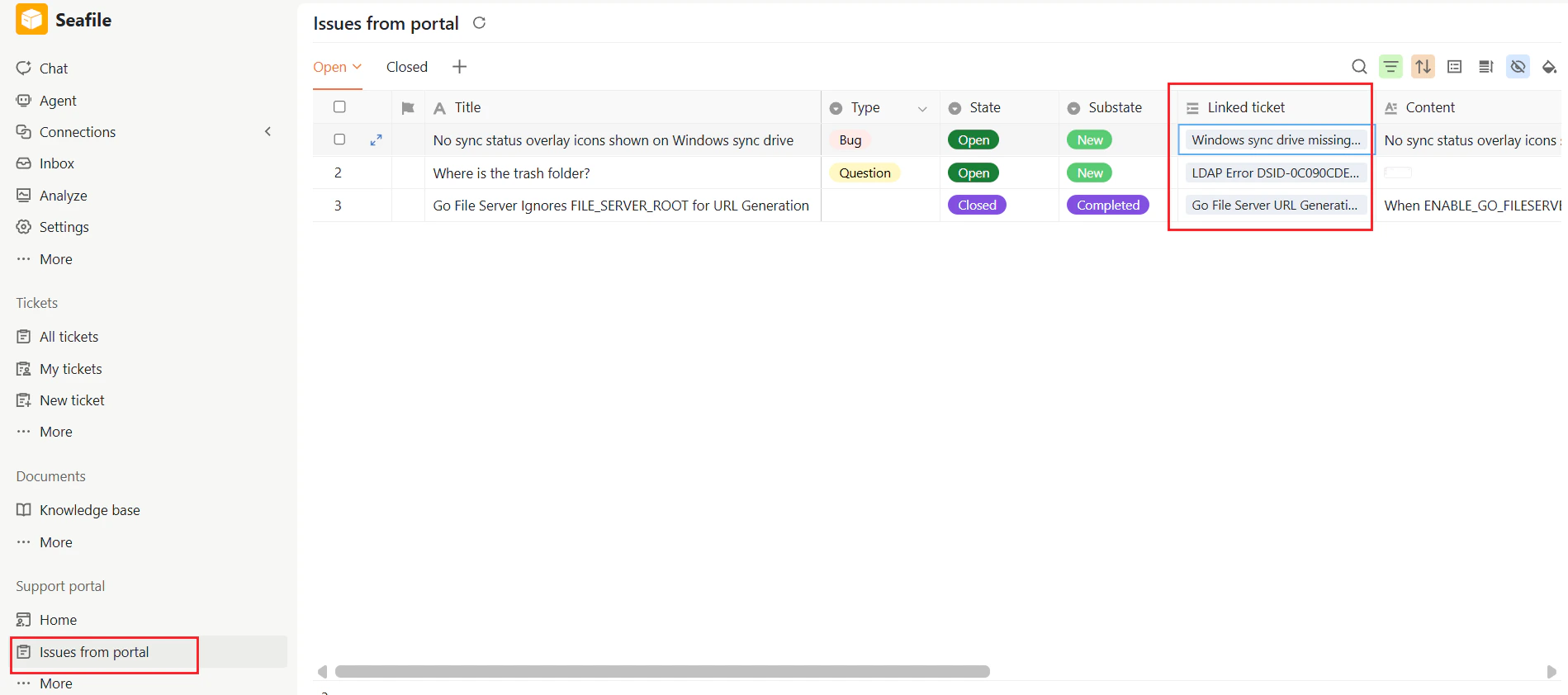
**The Issues from Portal** page is used to manage issues submitted through the External Support Portal. Support members and administrators can review incoming issues, reply to users, track issue status, and link issues to internal tickets for further processing.
### Access Issues from Portal
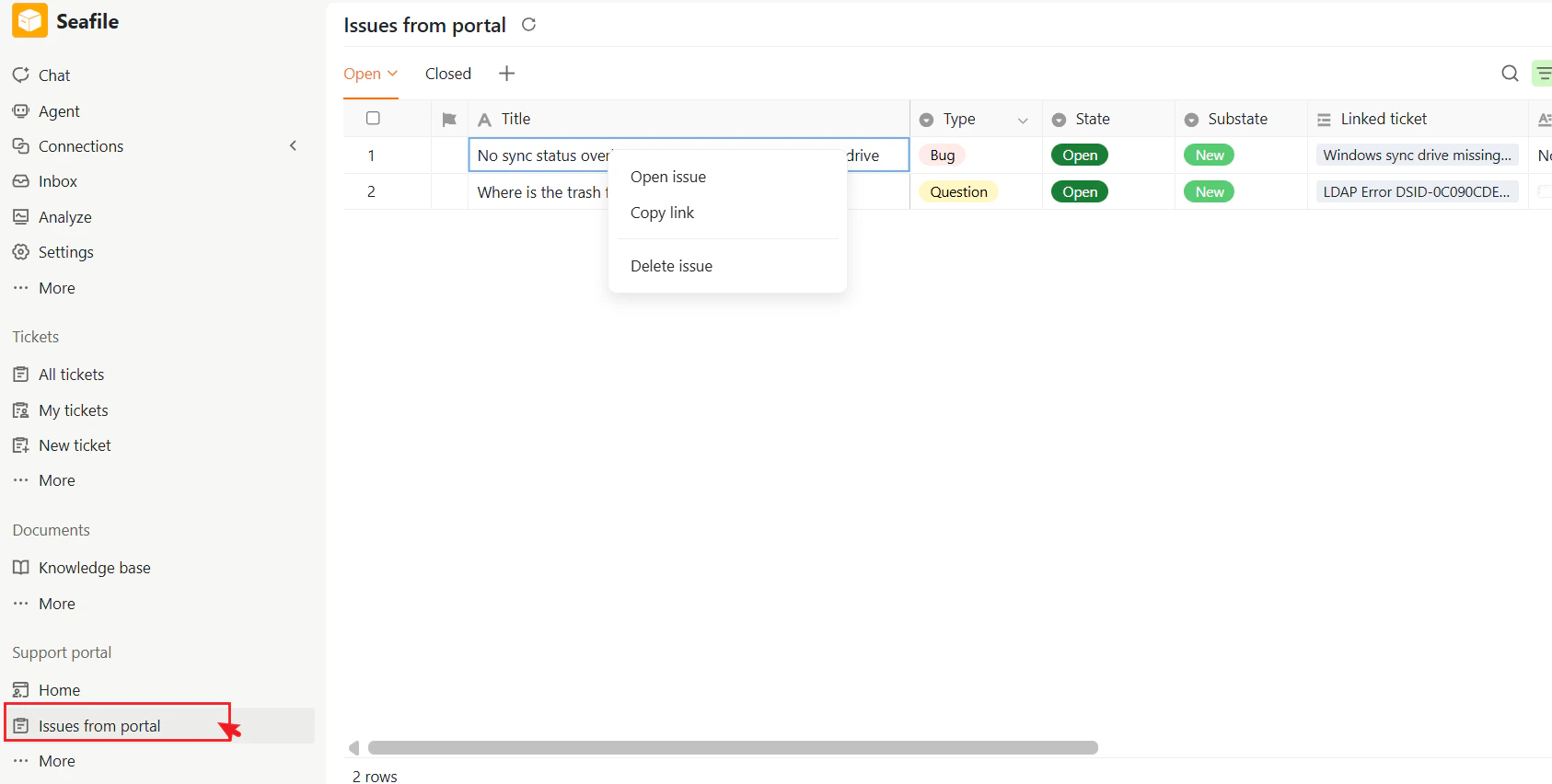
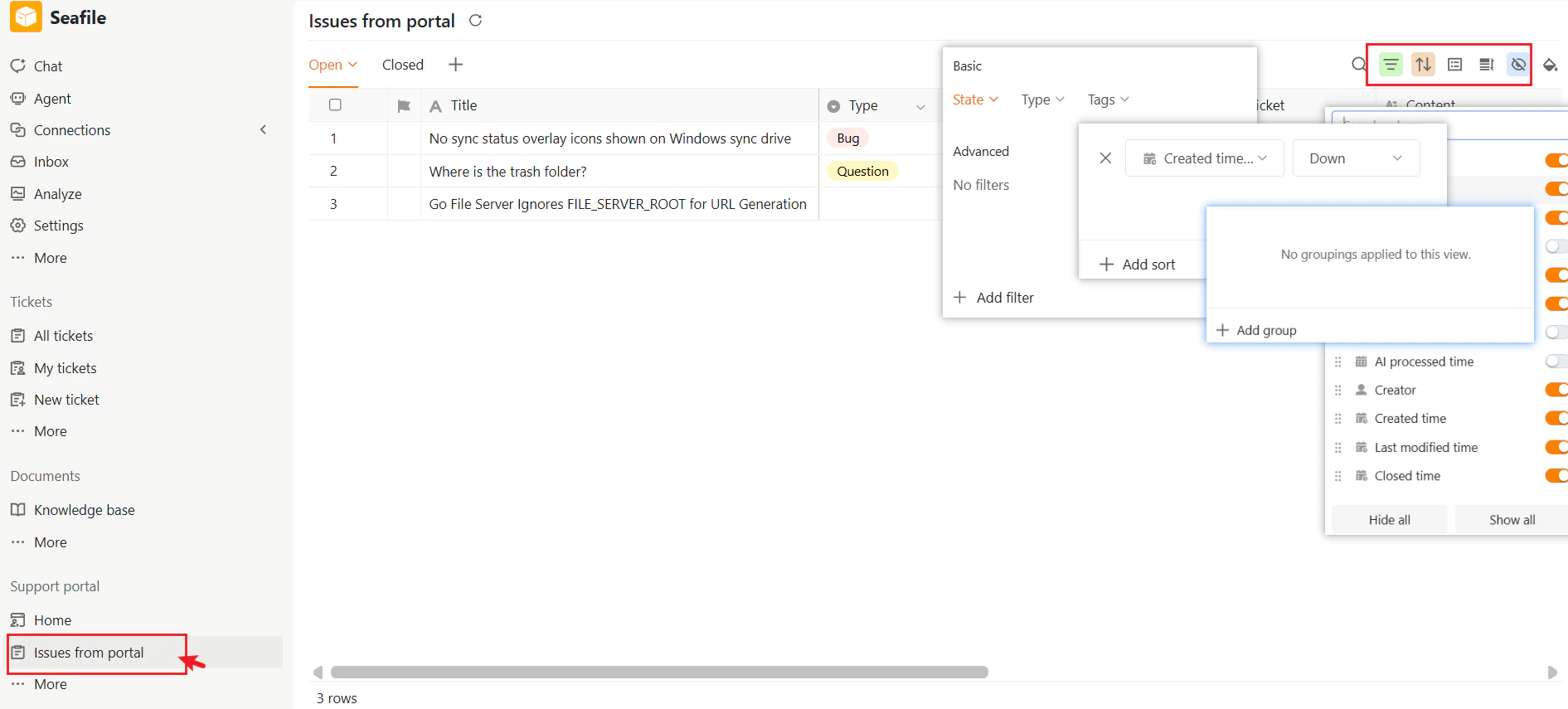
1. Go to **Support portal** in the left navigation panel.
2. Click **Issues from portal**.
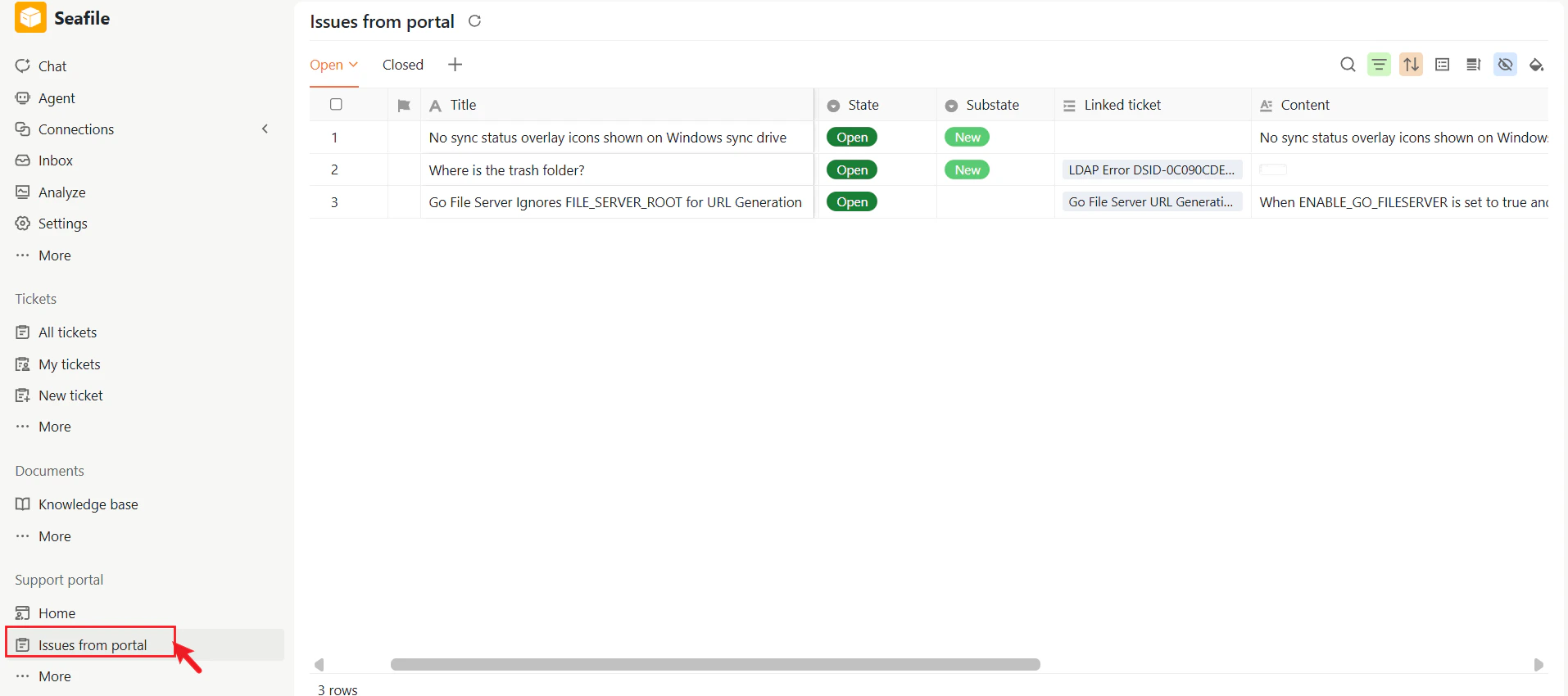
The page displays all issues submitted through the External Support Portal.
 ### Issue List
The issue list provides an overview of all portal issues, including:
* **Title** – The issue subject.
* **Type** – Issue category, such as *Bug* or *Question*.
* **State** – Current issue status (e.g., Open, Closed).
* **Substate** – Detailed workflow status (e.g., New, In Progress).
* **Tags** – Labels added for categorization or workflow tracking
* **Linked ticket** – Internal ticket associated with the issue.
* **Content** – A preview of the issue description.
* **User information** – The issue creator and related user details.
* **Timestamps** – Created time, last modified time, AI processed time, and closed time.
* **AI-generated information** – AI summaries and related processing results
You can switch between:
* **Open** – Active issues.
* **Closed** – Resolved or completed issues.
### Issue List
The issue list provides an overview of all portal issues, including:
* **Title** – The issue subject.
* **Type** – Issue category, such as *Bug* or *Question*.
* **State** – Current issue status (e.g., Open, Closed).
* **Substate** – Detailed workflow status (e.g., New, In Progress).
* **Tags** – Labels added for categorization or workflow tracking
* **Linked ticket** – Internal ticket associated with the issue.
* **Content** – A preview of the issue description.
* **User information** – The issue creator and related user details.
* **Timestamps** – Created time, last modified time, AI processed time, and closed time.
* **AI-generated information** – AI summaries and related processing results
You can switch between:
* **Open** – Active issues.
* **Closed** – Resolved or completed issues.
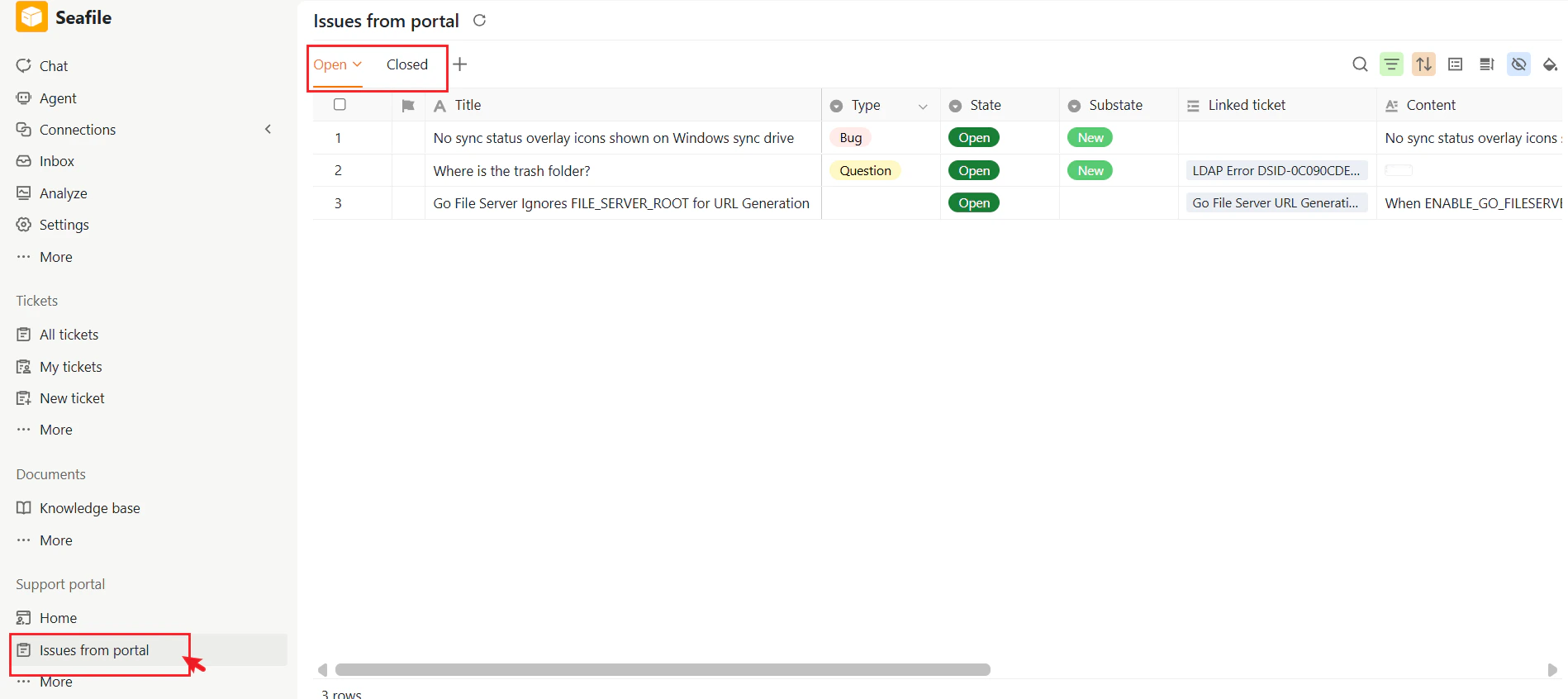 Use the toolbar options to search, sort, filter, or customize the issue list view.
 ### Open an Issue
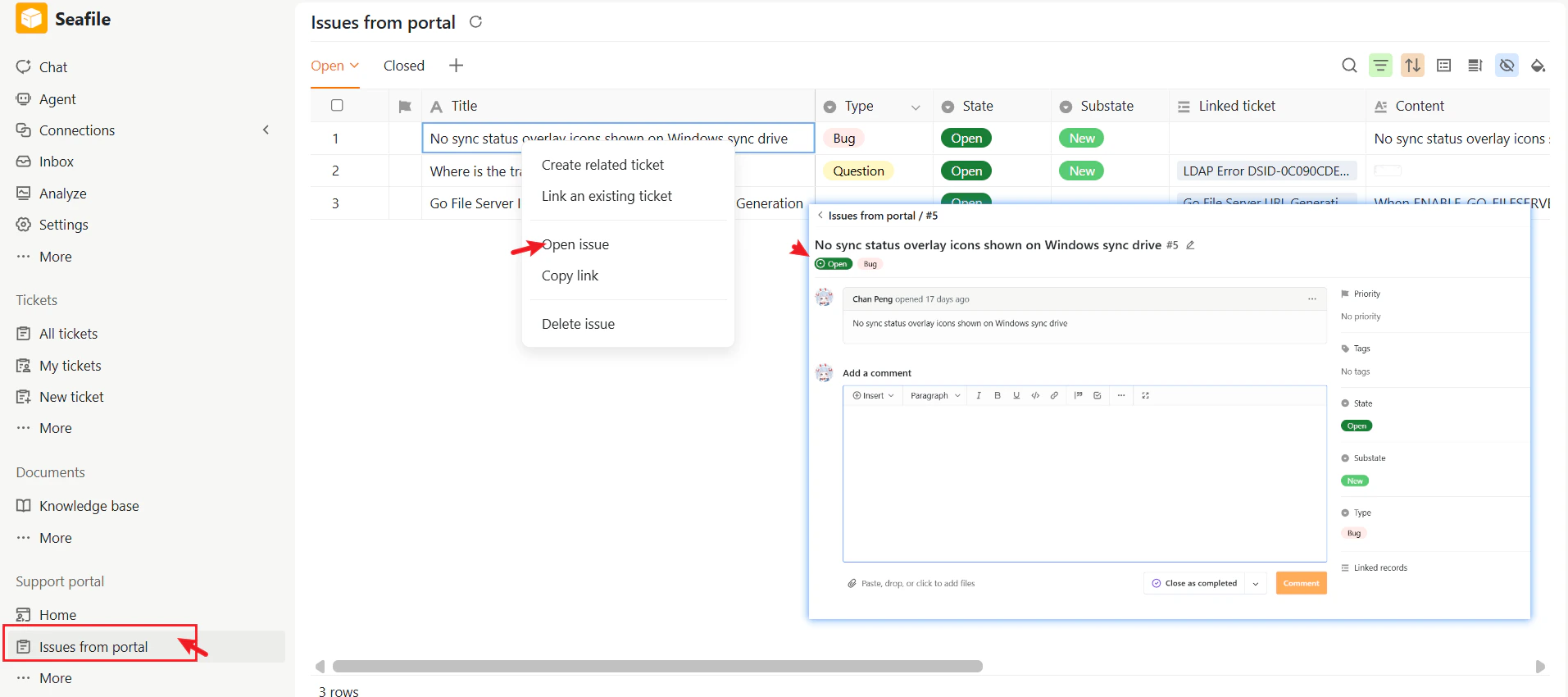
Click the issue title, or right-click the issue and select **Open issue**, to open the issue detail page.
The issue detail page allows you to:
* View the issue title and description
* Review comments and replies
* Add comments and attachments
* Track issue status
* View linked tickets and related records
### Open an Issue
Click the issue title, or right-click the issue and select **Open issue**, to open the issue detail page.
The issue detail page allows you to:
* View the issue title and description
* Review comments and replies
* Add comments and attachments
* Track issue status
* View linked tickets and related records
 ### Reply to an Issue
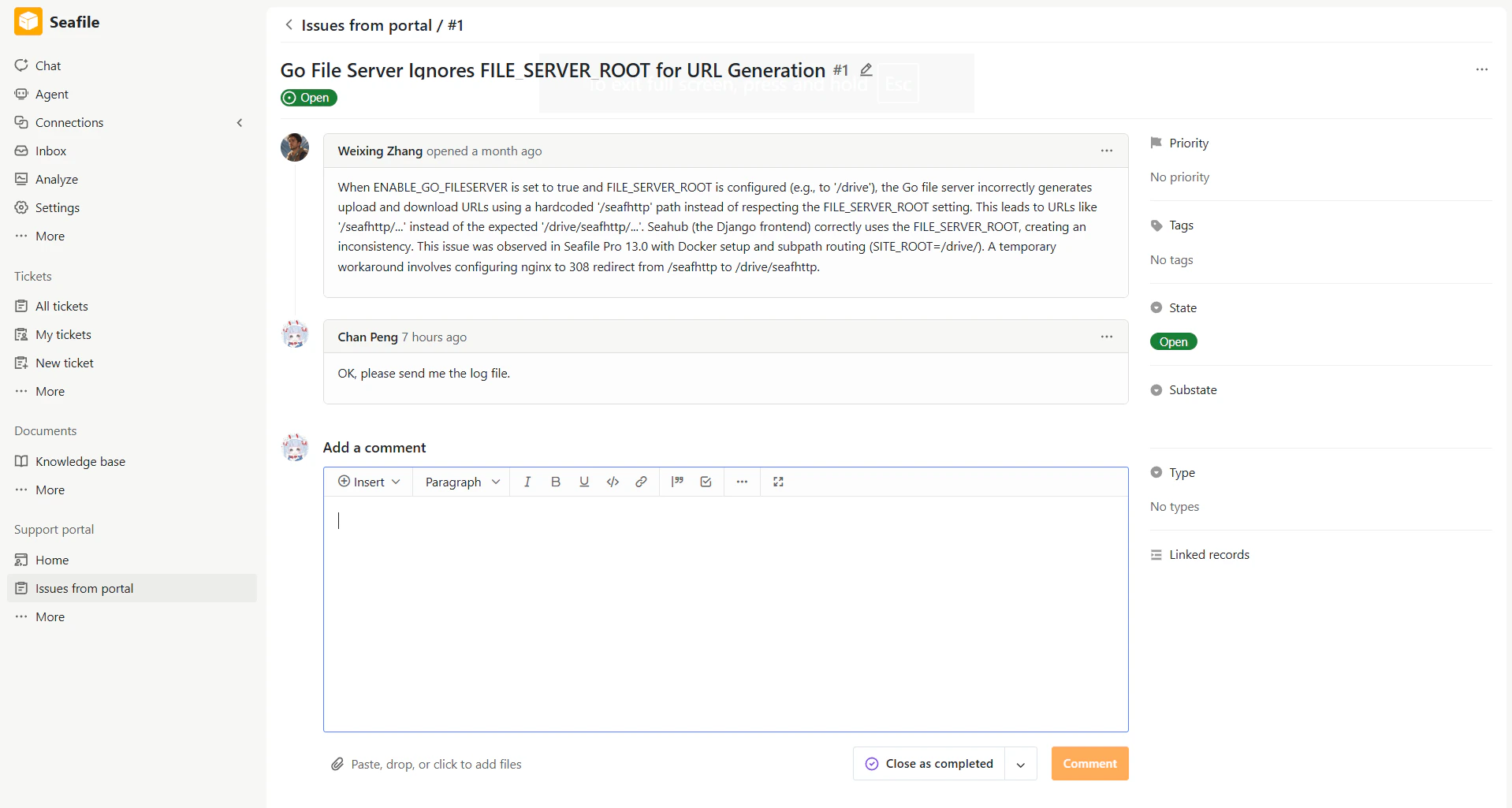
Support members can communicate directly with external users through comments.
To add a reply:
1. Open the issue.
2. Enter your response in the **Add a comment** editor.
3. Optionally attach files.
4. Click **Comment**.
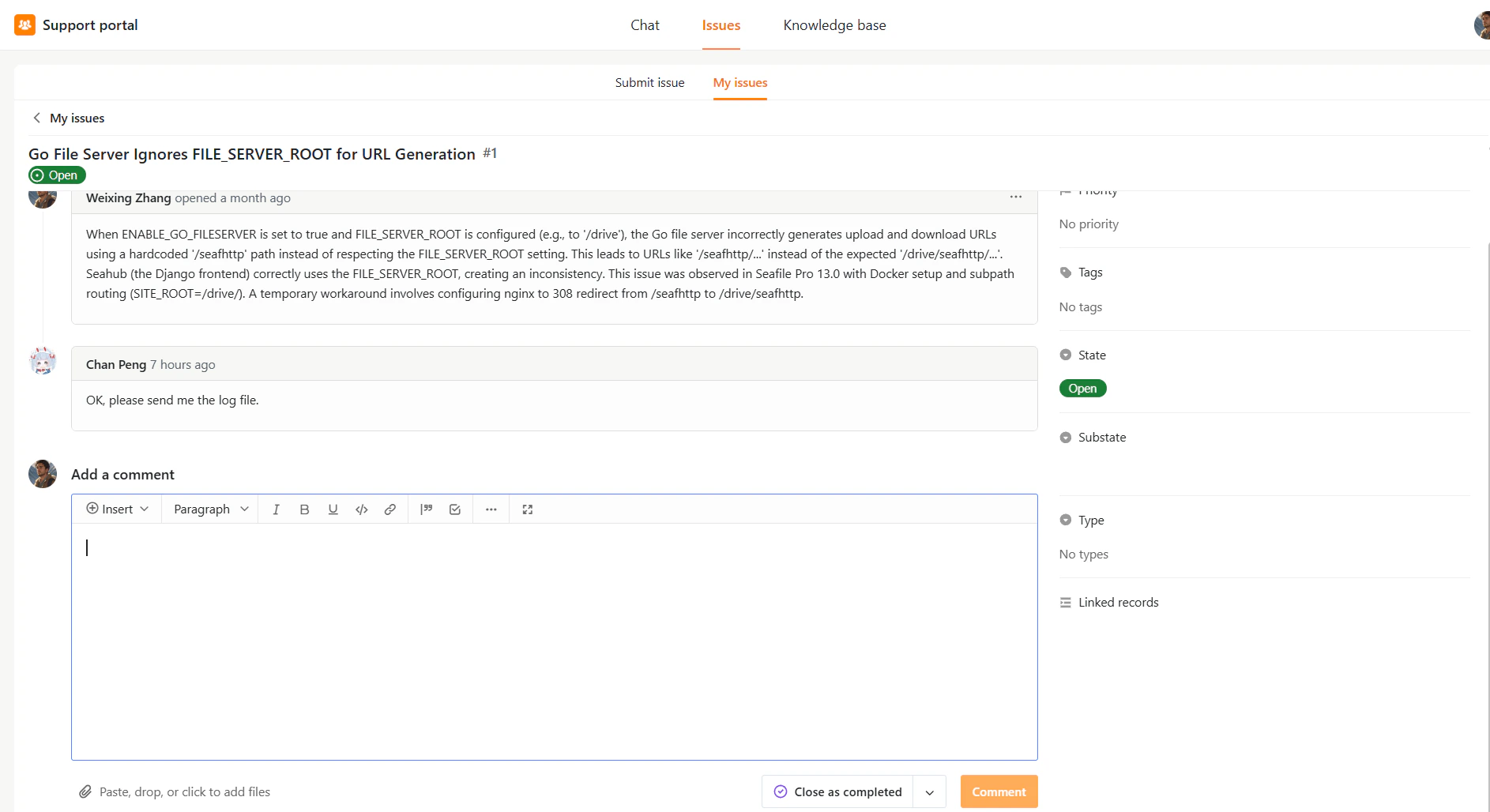
Users can view replies from the External Support Portal.
### Reply to an Issue
Support members can communicate directly with external users through comments.
To add a reply:
1. Open the issue.
2. Enter your response in the **Add a comment** editor.
3. Optionally attach files.
4. Click **Comment**.
Users can view replies from the External Support Portal.
 ### Close an Issue
Issues can be closed in either of the following ways:
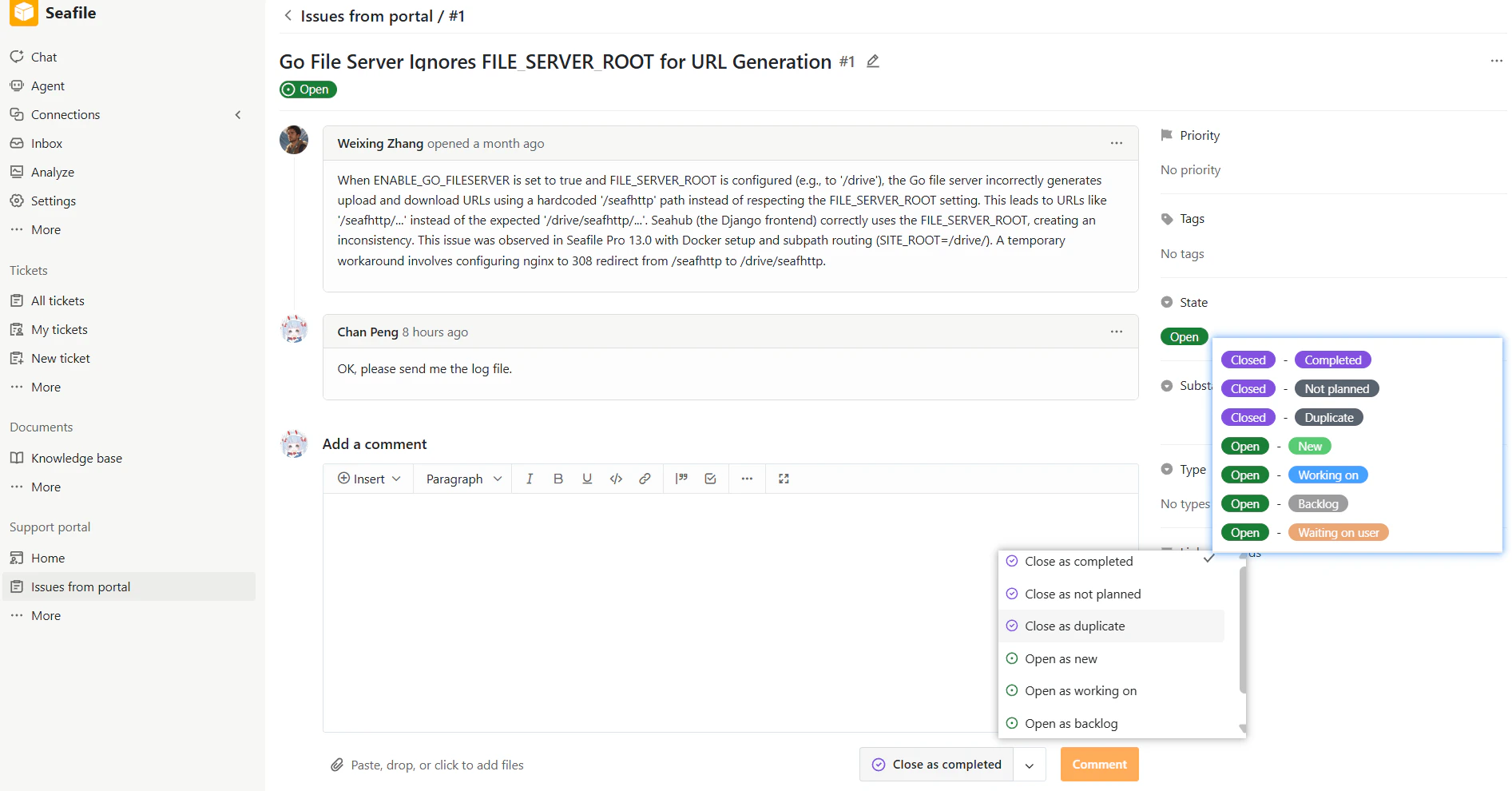
* Click **Close as completed** when adding a comment, or
* Update the issue **State** to **Closed** from the issue detail page.
When closing an issue, you can optionally select a **Substate** to indicate the reason for closure.
### Close an Issue
Issues can be closed in either of the following ways:
* Click **Close as completed** when adding a comment, or
* Update the issue **State** to **Closed** from the issue detail page.
When closing an issue, you can optionally select a **Substate** to indicate the reason for closure.
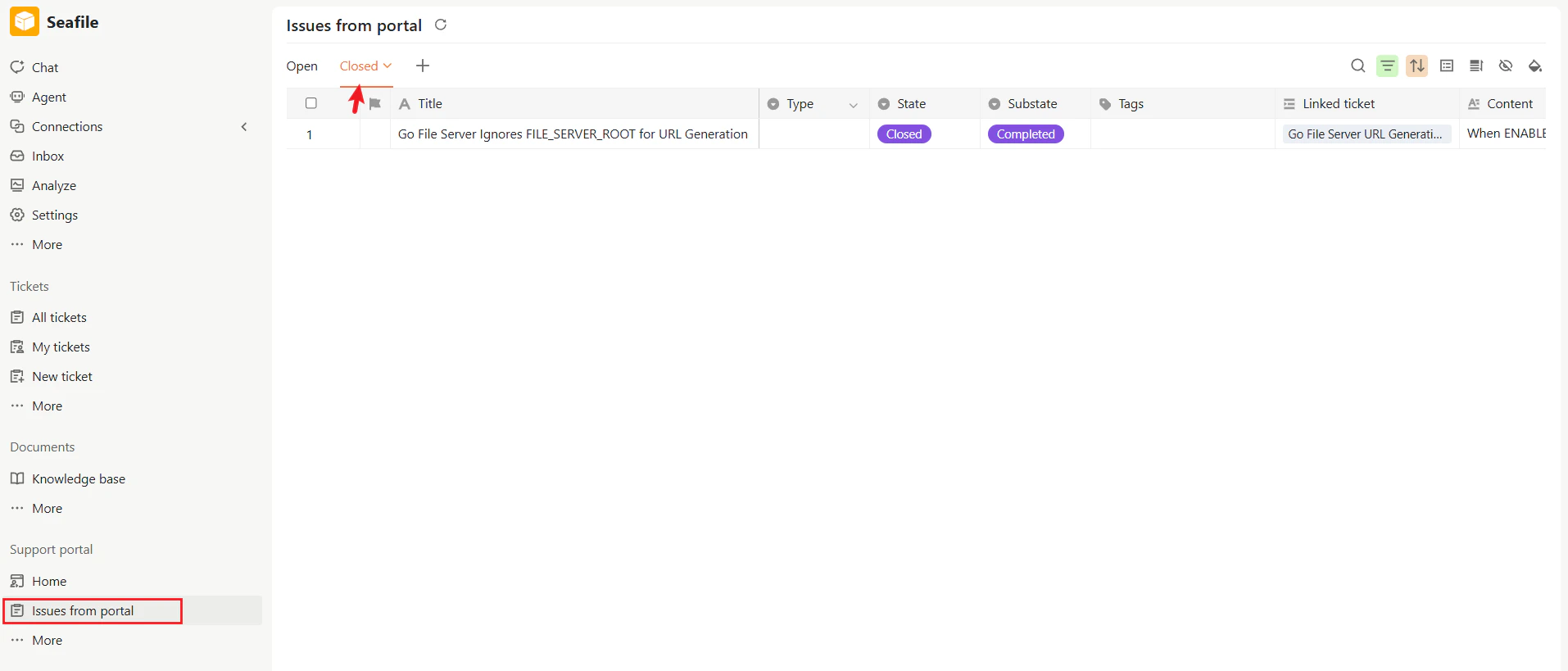
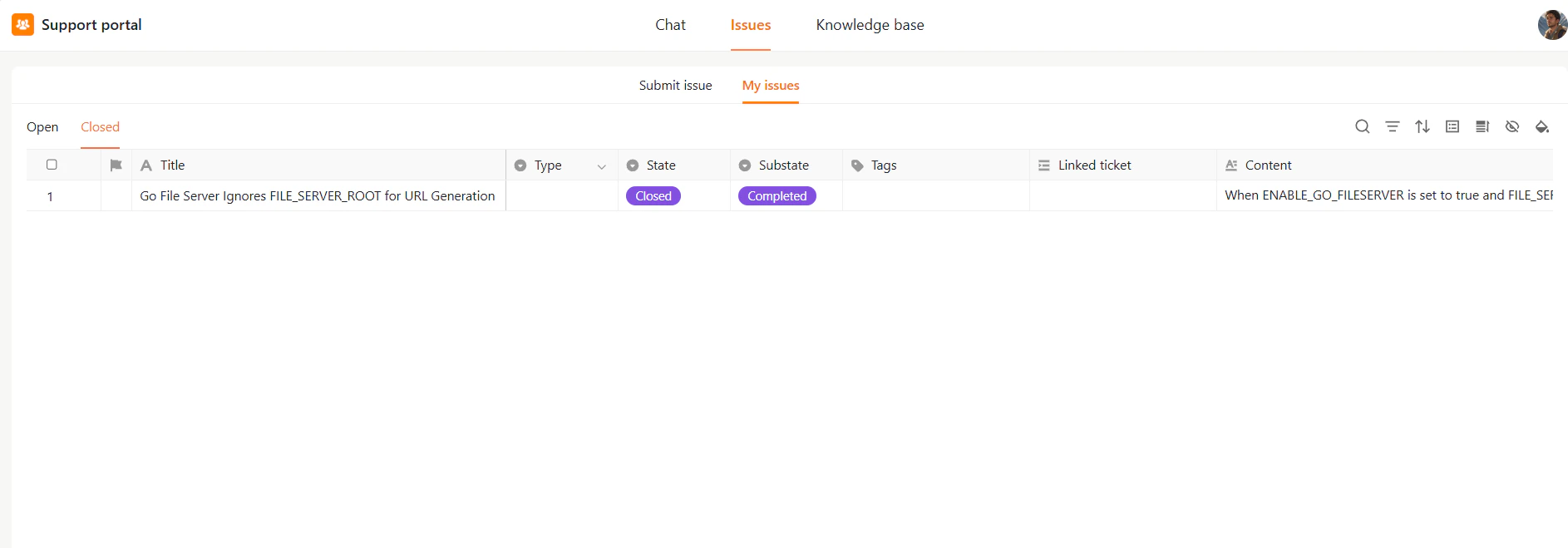
 After an issue is closed:
* Team members can view it in **Issues from Portal → Closed**.
* External users can view it in **My Issues → Closed** in the External Support Portal.
After an issue is closed:
* Team members can view it in **Issues from Portal → Closed**.
* External users can view it in **My Issues → Closed** in the External Support Portal.
 ### Link an Issue to an Internal Ticket
Portal issues can be connected to internal tickets for tracking and escalation.
To link an issue:
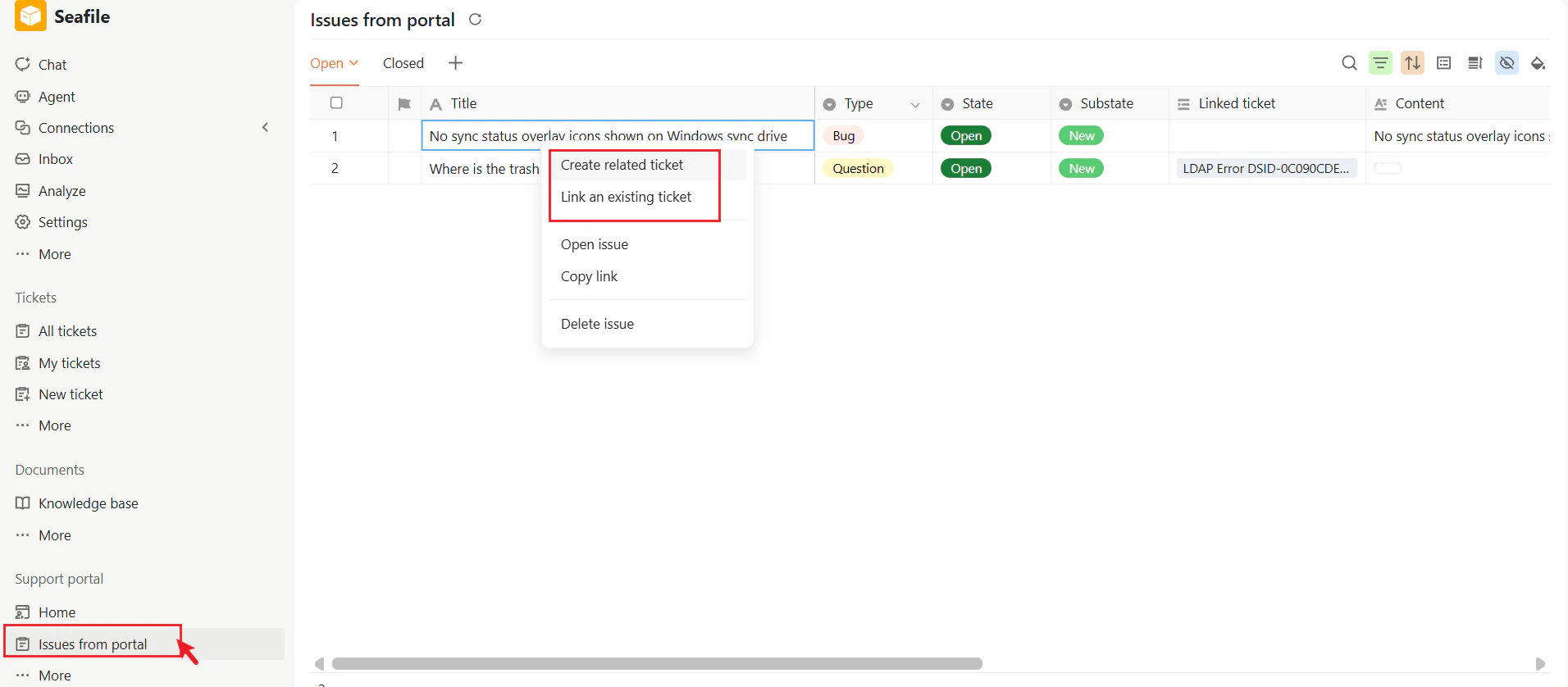
1. Open the issue menu from the issue list.
2. Select one of the following:
* **Create related ticket** – Create a new internal ticket linked to the issue.
* **Link an existing ticket** – Associate the issue with an existing internal ticket.
After linking, the related ticket appears in the **Linked ticket** column.
### Link an Issue to an Internal Ticket
Portal issues can be connected to internal tickets for tracking and escalation.
To link an issue:
1. Open the issue menu from the issue list.
2. Select one of the following:
* **Create related ticket** – Create a new internal ticket linked to the issue.
* **Link an existing ticket** – Associate the issue with an existing internal ticket.
After linking, the related ticket appears in the **Linked ticket** column.
 ### Additional Actions
From the issue action menu, you can also:
* **Copy link** – Copy the issue URL for sharing.
* **Delete issue** – Remove the issue
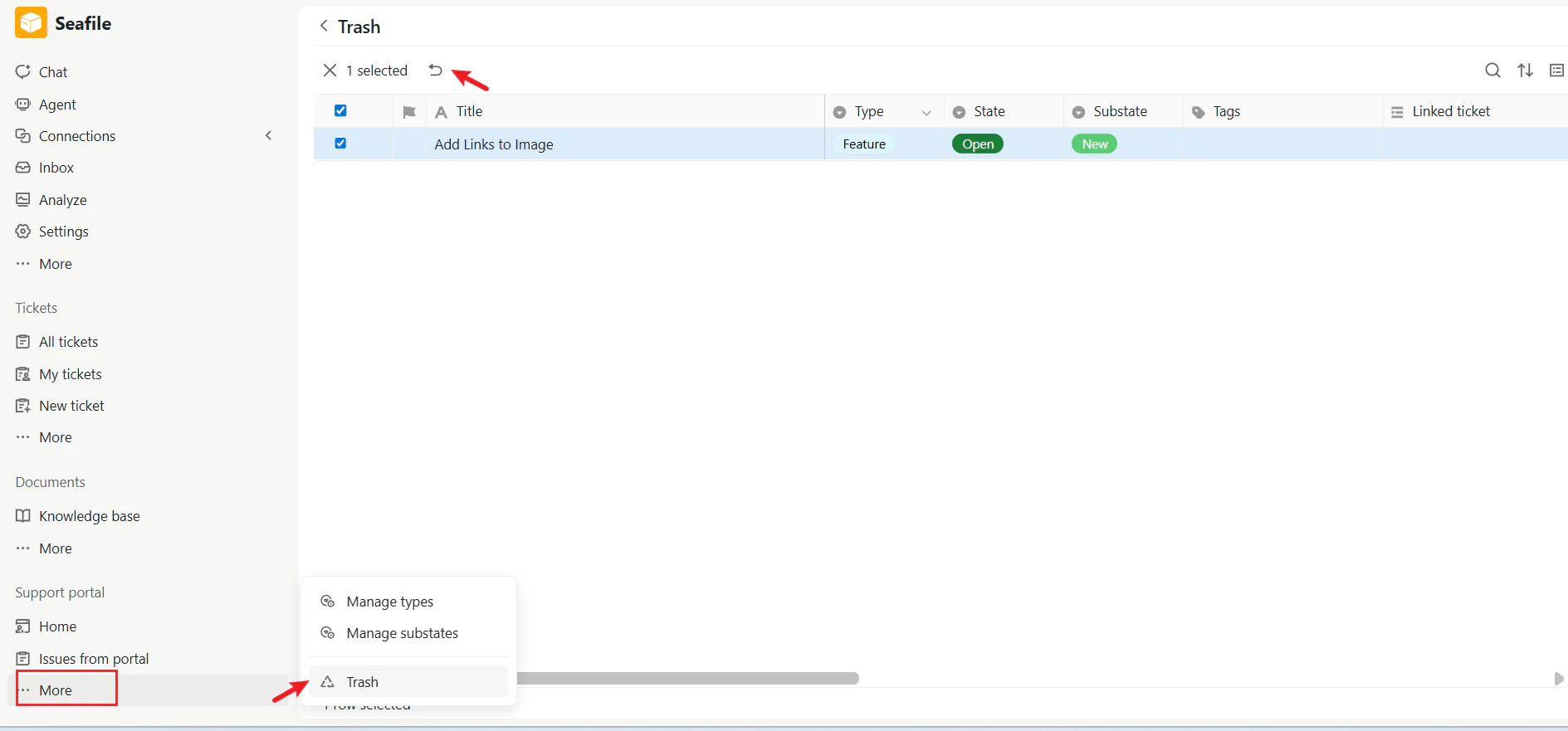
Note: Deleted issues can be restored later from the Trash if needed.
### Additional Actions
From the issue action menu, you can also:
* **Copy link** – Copy the issue URL for sharing.
* **Delete issue** – Remove the issue
Note: Deleted issues can be restored later from the Trash if needed.