> ## Documentation Index
> Fetch the complete documentation index at: https://user-docs.seaticket.ai/llms.txt
> Use this file to discover all available pages before exploring further.
# Managing Issues from Connected Sources
After connecting SeaTicket to GitHub or other sources, issues, emails, forum threads, and documents are synced into your project as structured items with metadata. You can view, manage, and take action on them directly within SeaTicket.
## Viewing Synced Issues
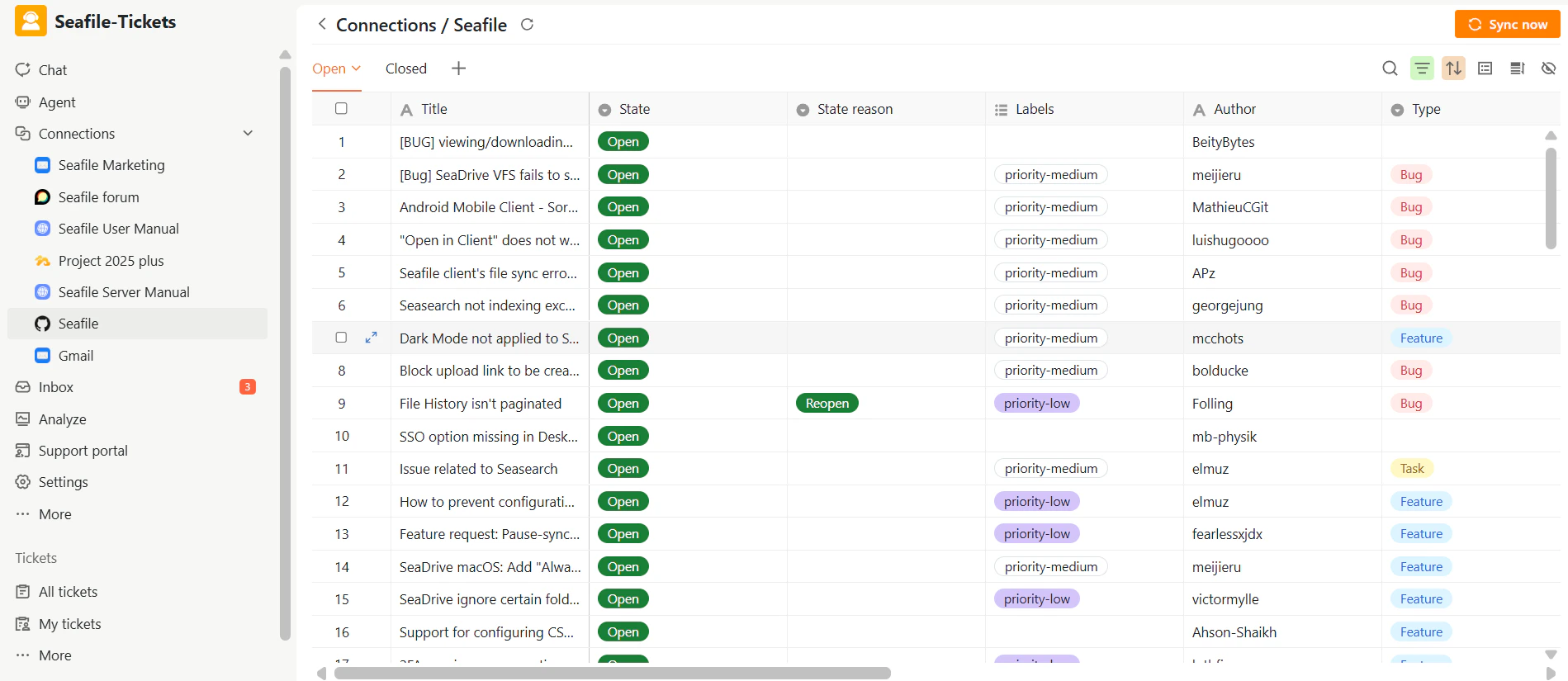
To view synced issues from a connection, select it from the Connections section in the left sidebar. Each issue appears as a structured item with fields such as title, status, labels, author, and timestamps.
 ## Customizing the Issue View
Within the view panel, you can customize how issues are displayed to match your workflow:
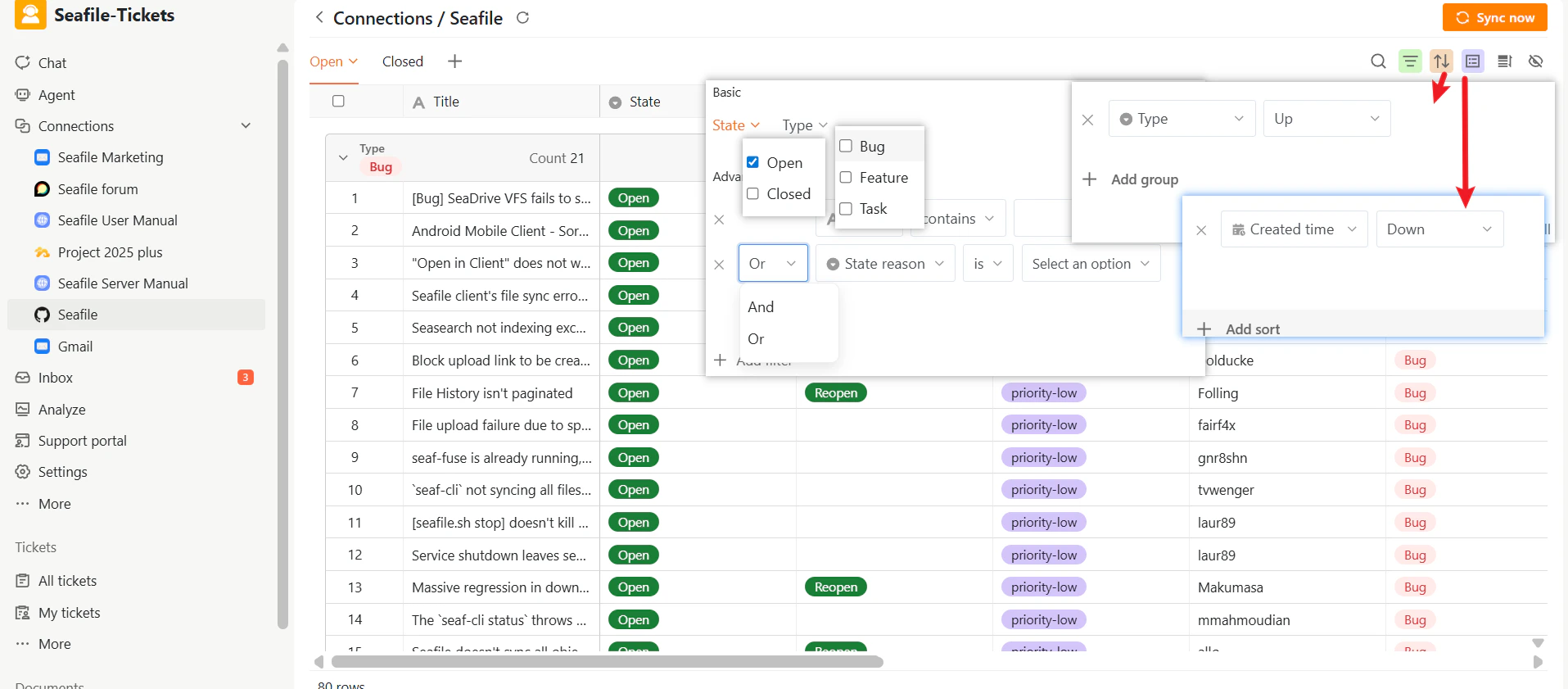
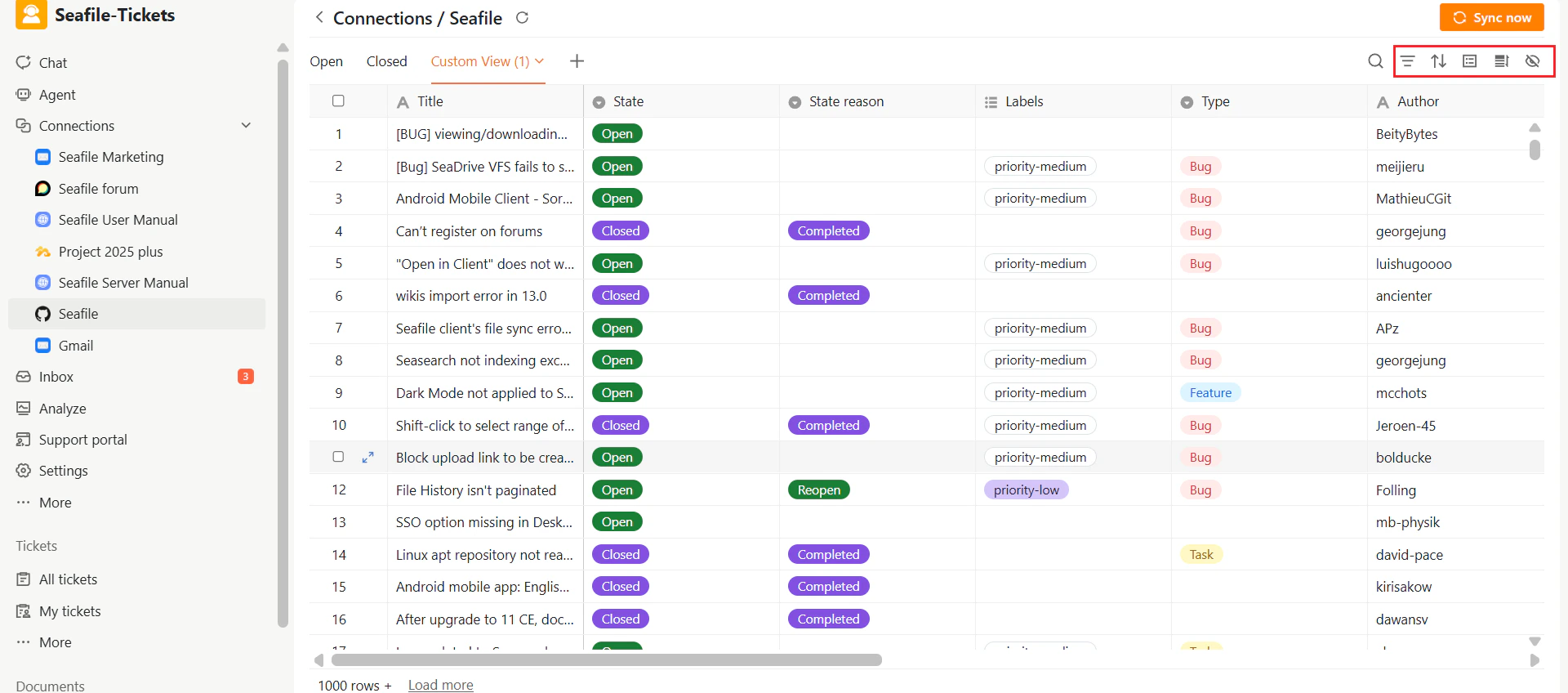
* **Filters** – Narrow down the issue list based on specific conditions.
* Basic filters: Filter by State (Open / Closed) and Type (Bug / Feature / Task).
* Advanced filters: Create custom filters using additional fields.
* Multiple filter conditions can be combined using AND / OR logic.
* **Sorting** – Order issues by fields such as creation time or last modified time.
* **Grouping** – Group issues by attributes like labels or creation date.
* **Column visibility** – Show or hide columns to display only the information you need.
## Customizing the Issue View
Within the view panel, you can customize how issues are displayed to match your workflow:
* **Filters** – Narrow down the issue list based on specific conditions.
* Basic filters: Filter by State (Open / Closed) and Type (Bug / Feature / Task).
* Advanced filters: Create custom filters using additional fields.
* Multiple filter conditions can be combined using AND / OR logic.
* **Sorting** – Order issues by fields such as creation time or last modified time.
* **Grouping** – Group issues by attributes like labels or creation date.
* **Column visibility** – Show or hide columns to display only the information you need.
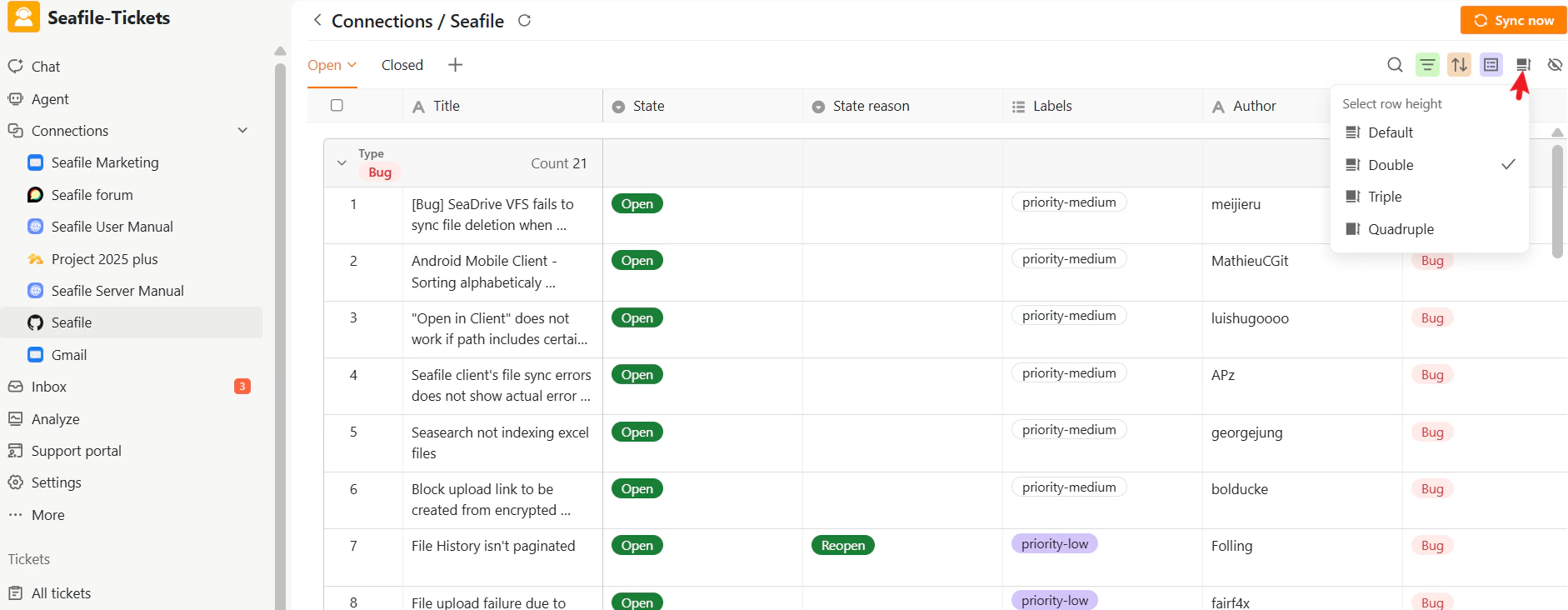
 You can also set the row height in the view panel to adjust how issue entries are displayed.
 ## Creating and Managing Views
SeaTicket allows you to save multiple views so you can switch between different ways of looking at the same issues.
To create a new view:
1. Click the **+** tab in the view panel.
2. Enter a descriptive name in the dialog.
3. Click **Submit**.
## Creating and Managing Views
SeaTicket allows you to save multiple views so you can switch between different ways of looking at the same issues.
To create a new view:
1. Click the **+** tab in the view panel.
2. Enter a descriptive name in the dialog.
3. Click **Submit**.
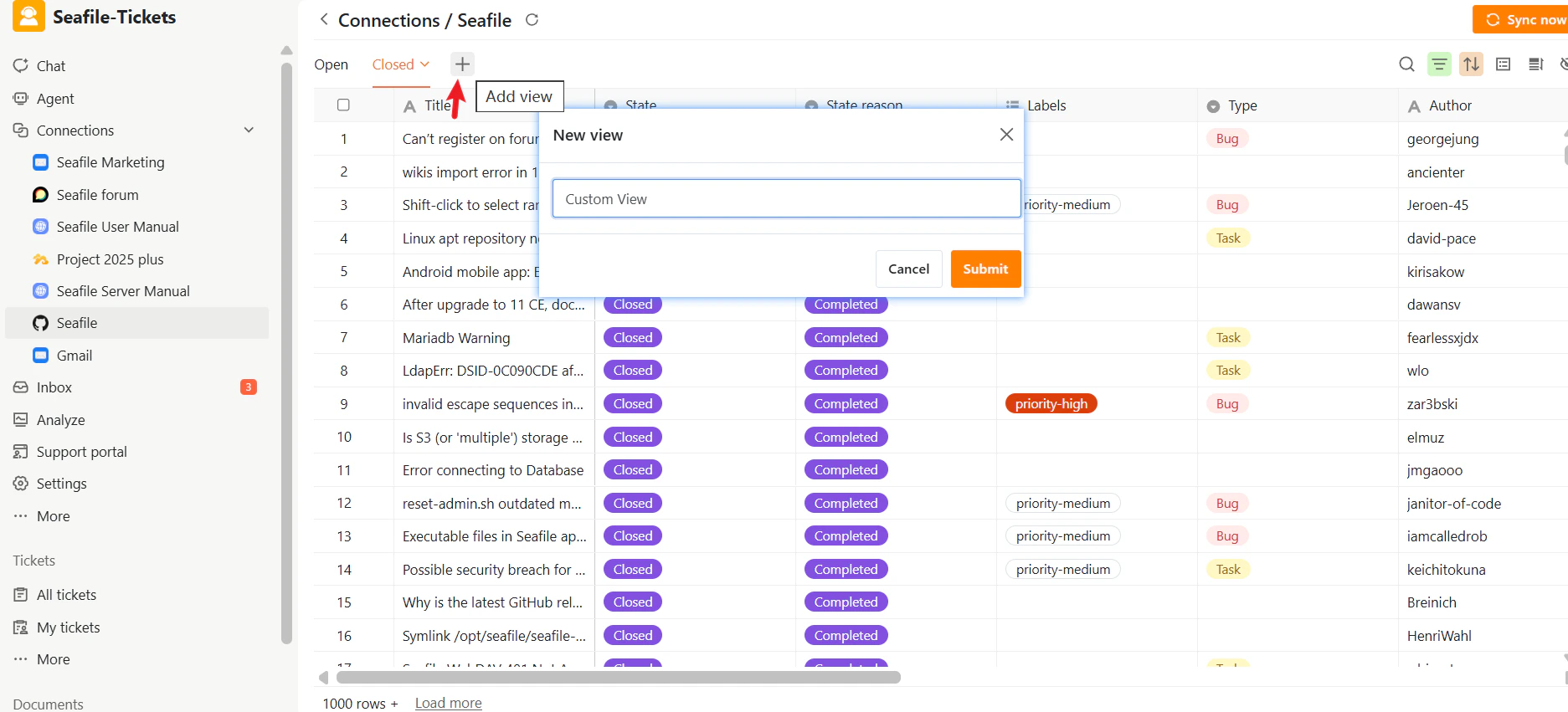 The new view appears as a tab in the view panel. Each view saves its own filters, sorting, and grouping rules independently without affecting the underlying issues. You can then use the toolbar icons in the top-right corner to customize how issues are displayed in that view.
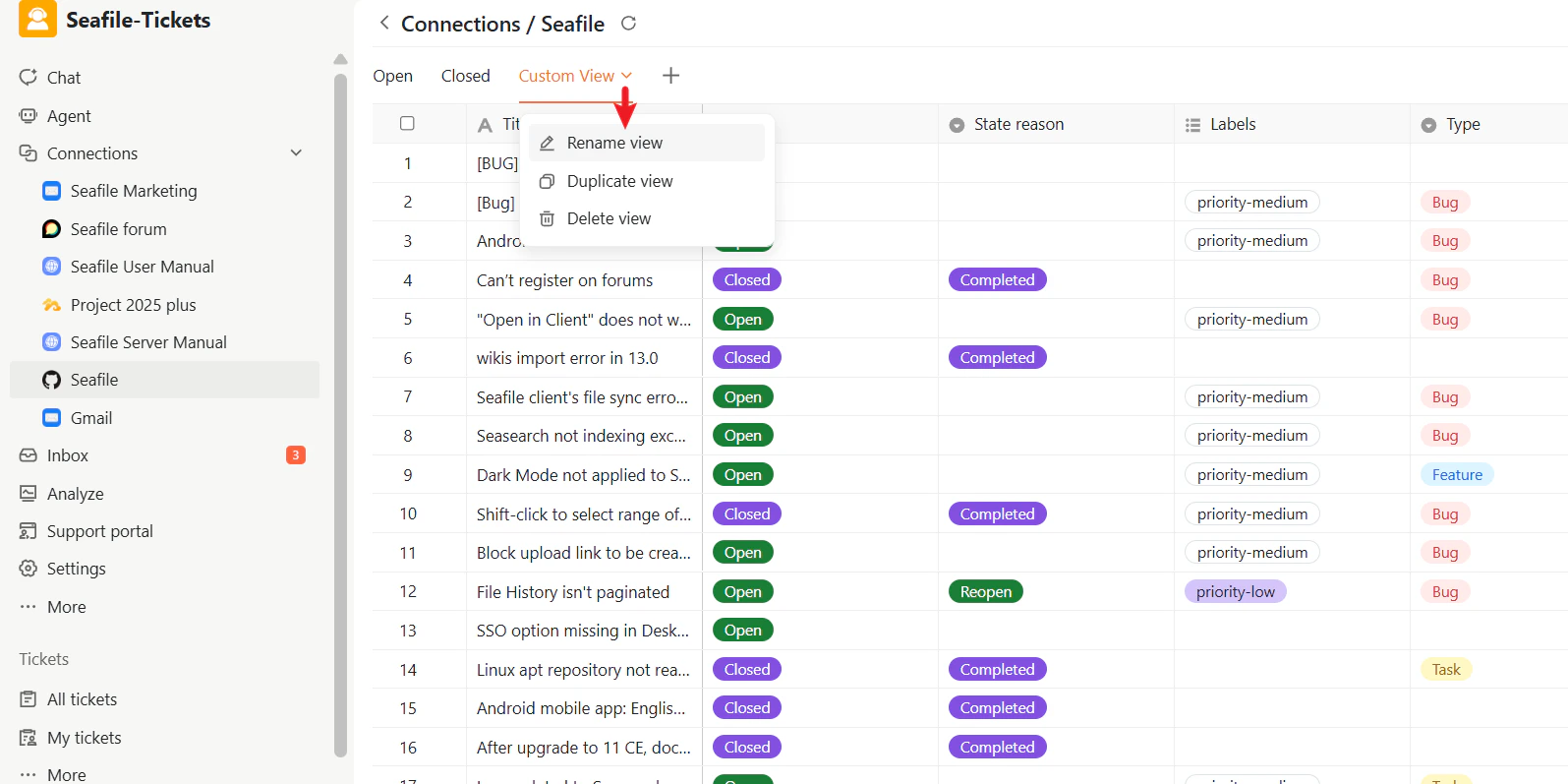
 To manage a view, click the dropdown arrow next to the active view's name. You can then rename, duplicate, or delete the view.
 ## Issue Operations
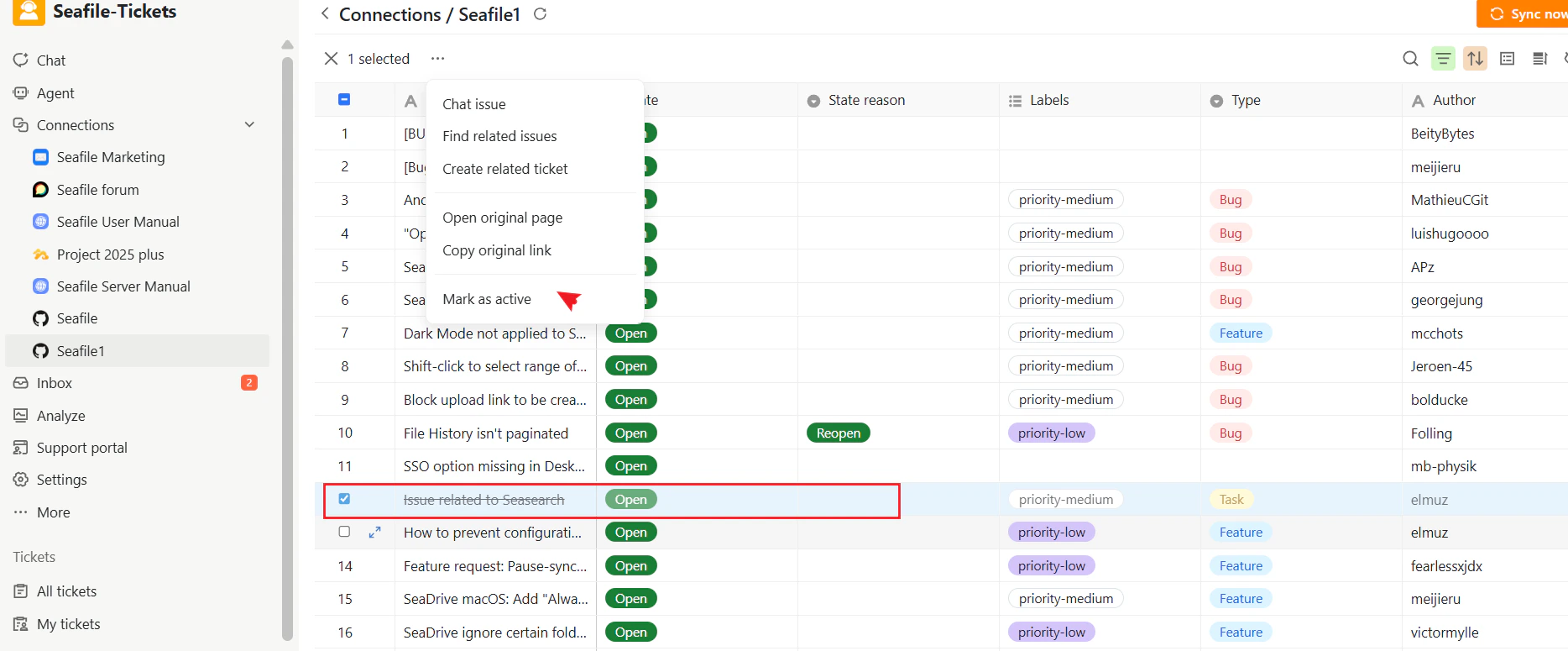
SeaTicket provides several powerful actions you can perform directly from the issue list. Select one or more issues by checking the box next to them, and a toolbar will appear with the following options:
### Expand Row
View the complete issue discussion including all comments and activity without leaving SeaTicket.
## Issue Operations
SeaTicket provides several powerful actions you can perform directly from the issue list. Select one or more issues by checking the box next to them, and a toolbar will appear with the following options:
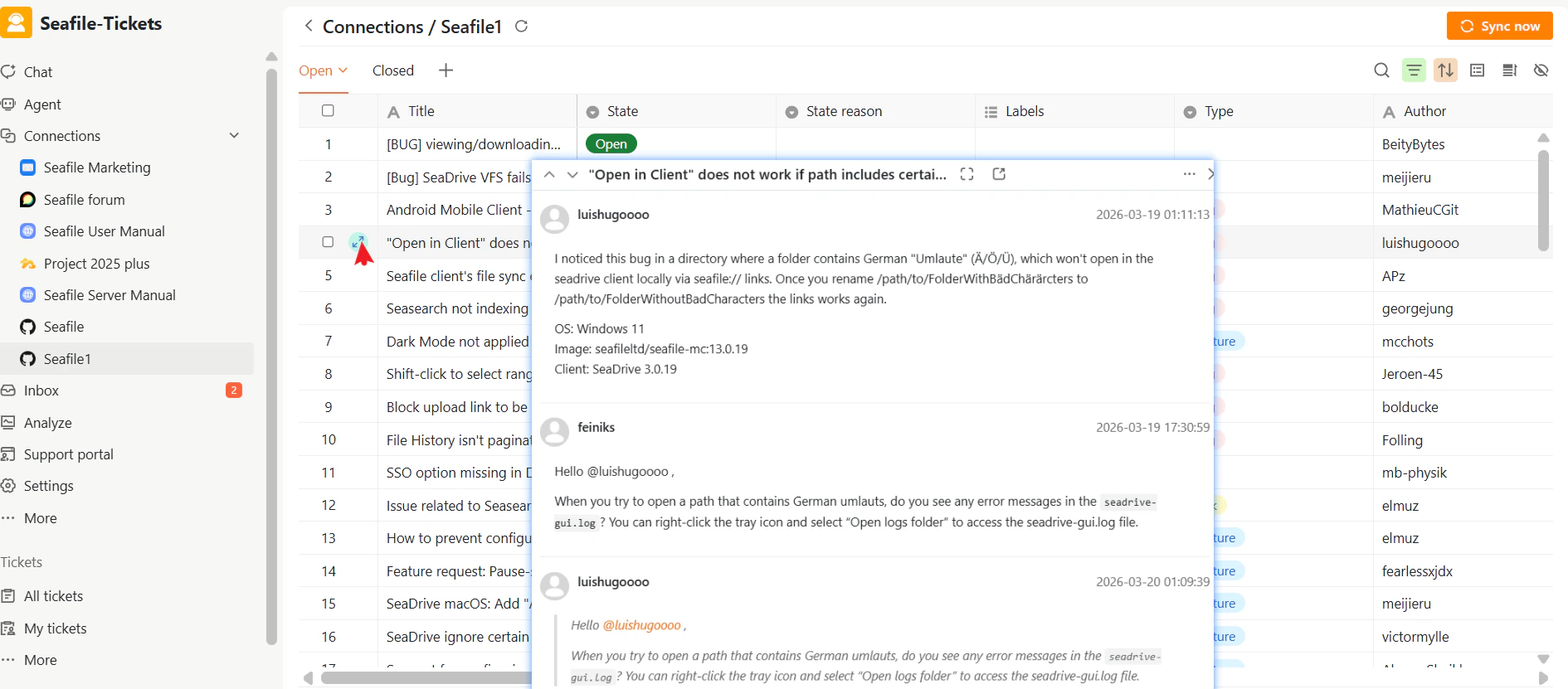
### Expand Row
View the complete issue discussion including all comments and activity without leaving SeaTicket.
 ### AI Chat Issue
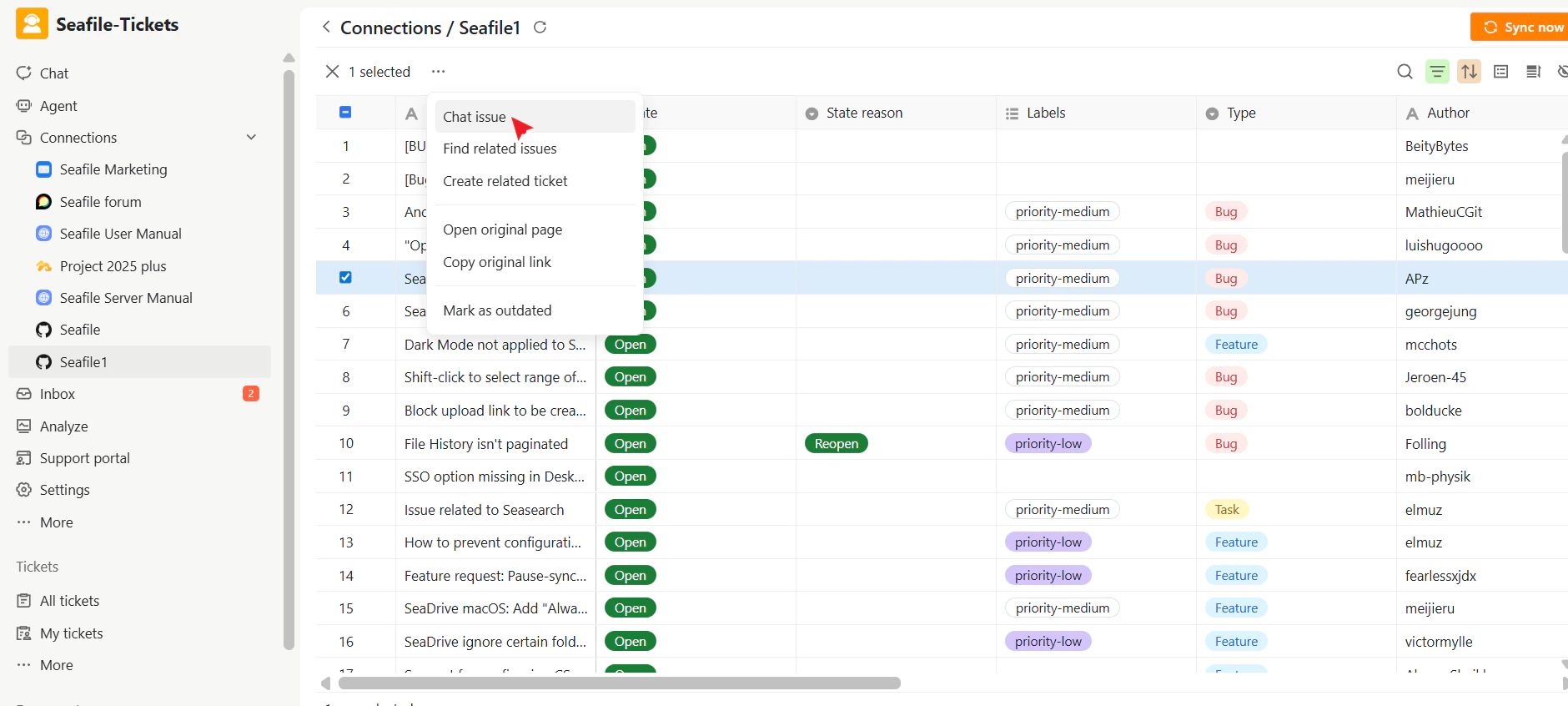
When you select an issue and click **Chat Issue**, the system starts an AI-powered conversation that helps you understand the issue faster, summarize key points, and explore possible solutions.
### AI Chat Issue
When you select an issue and click **Chat Issue**, the system starts an AI-powered conversation that helps you understand the issue faster, summarize key points, and explore possible solutions.
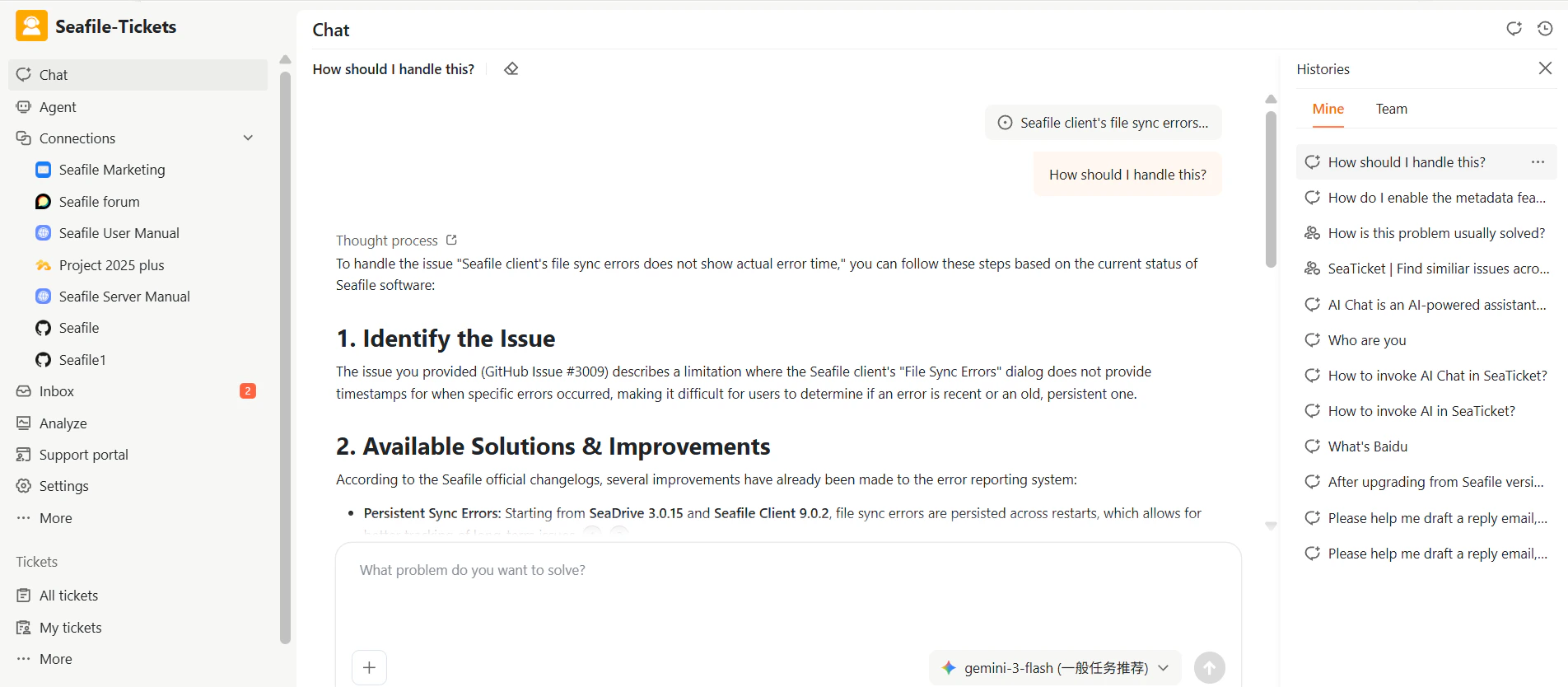
 The AI generates a structured response that includes:
* **Issue Identification** – A clear summary of the problem.
* **Available Solutions & Improvements** – References to relevant documentation, change logs, or known fixes.
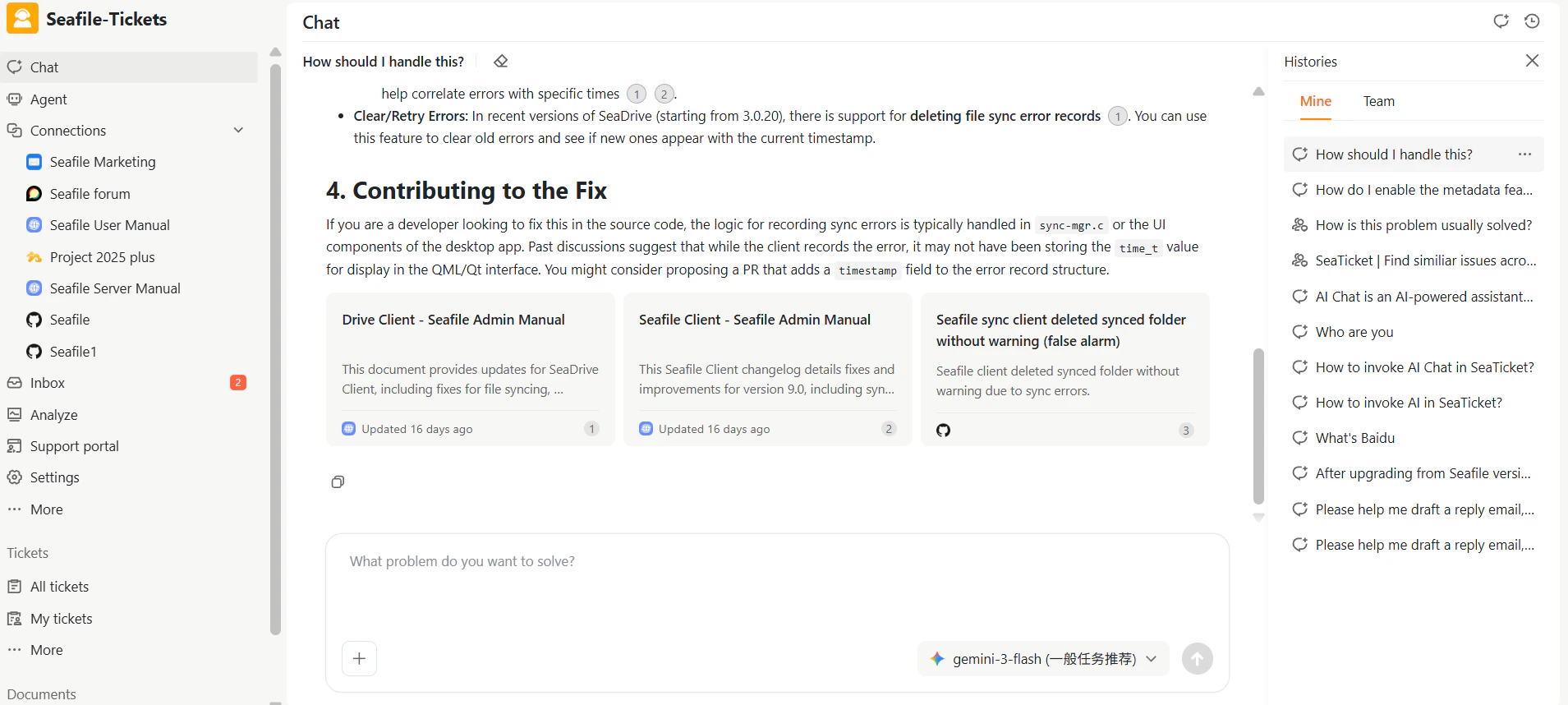
* **Contributing to the Fix** – For developer-focused issues, suggestions for potential code-level fixes or areas in the source code to investigate.
* **Relevant Resources** – Links to related documents or other issues that provide additional context.
The response is shown in the Chat panel, where you can continue the conversation by asking follow-up questions in the input field at the bottom.
The AI generates a structured response that includes:
* **Issue Identification** – A clear summary of the problem.
* **Available Solutions & Improvements** – References to relevant documentation, change logs, or known fixes.
* **Contributing to the Fix** – For developer-focused issues, suggestions for potential code-level fixes or areas in the source code to investigate.
* **Relevant Resources** – Links to related documents or other issues that provide additional context.
The response is shown in the Chat panel, where you can continue the conversation by asking follow-up questions in the input field at the bottom.
 ### Find Related Issues
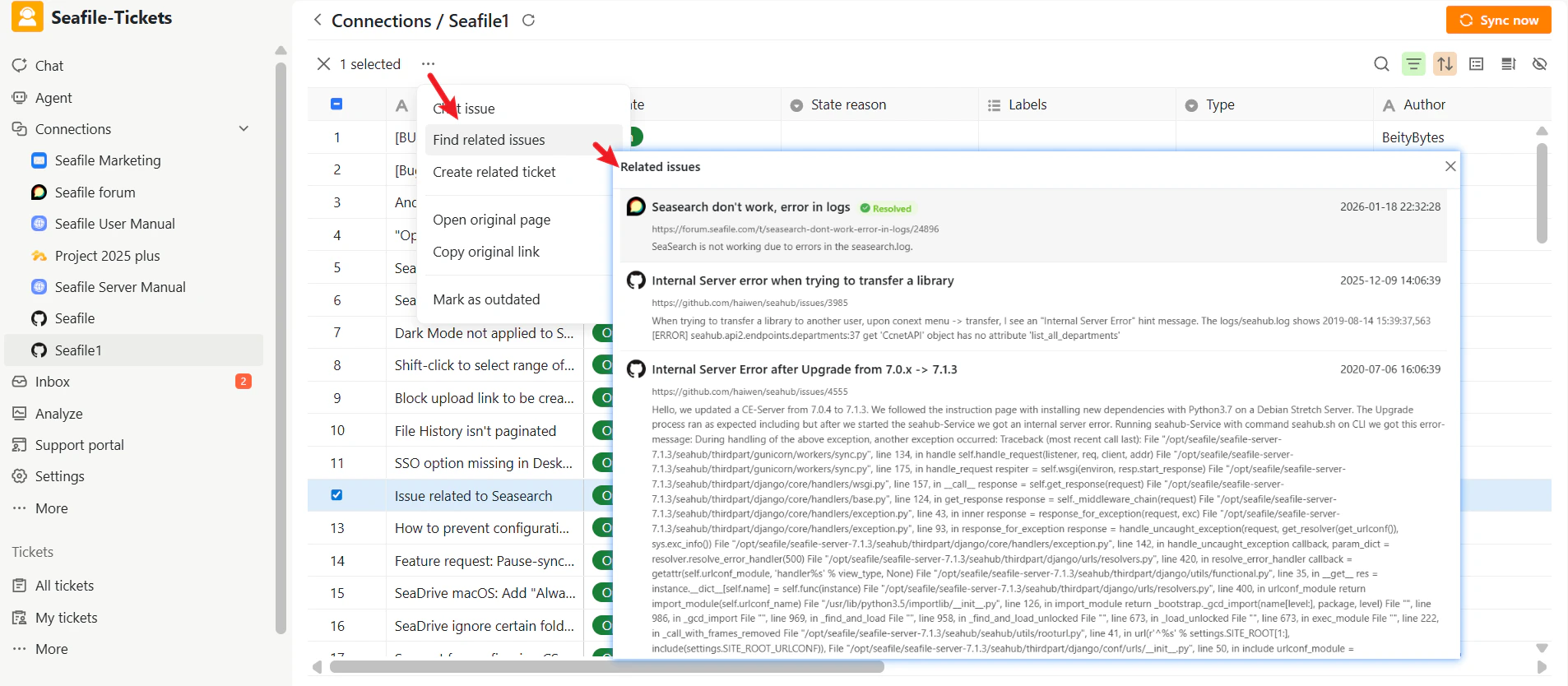
This feature helps you avoid duplicate work and find valuable context. When you click **Find Related Issues**, SeaTicket AI searches across all connected channels (such as GitHub and forums) for similar topics.
A pop-up window displays a list of related issues, including their titles, brief descriptions, creation dates, and links to the original discussions or resources. This helps you identify whether a bug has been reported elsewhere or if a feature request already exists.
Click any issue to view detailed information, including solutions, workarounds, and additional insights.
### Find Related Issues
This feature helps you avoid duplicate work and find valuable context. When you click **Find Related Issues**, SeaTicket AI searches across all connected channels (such as GitHub and forums) for similar topics.
A pop-up window displays a list of related issues, including their titles, brief descriptions, creation dates, and links to the original discussions or resources. This helps you identify whether a bug has been reported elsewhere or if a feature request already exists.
Click any issue to view detailed information, including solutions, workarounds, and additional insights.
 ### Create Related Ticket
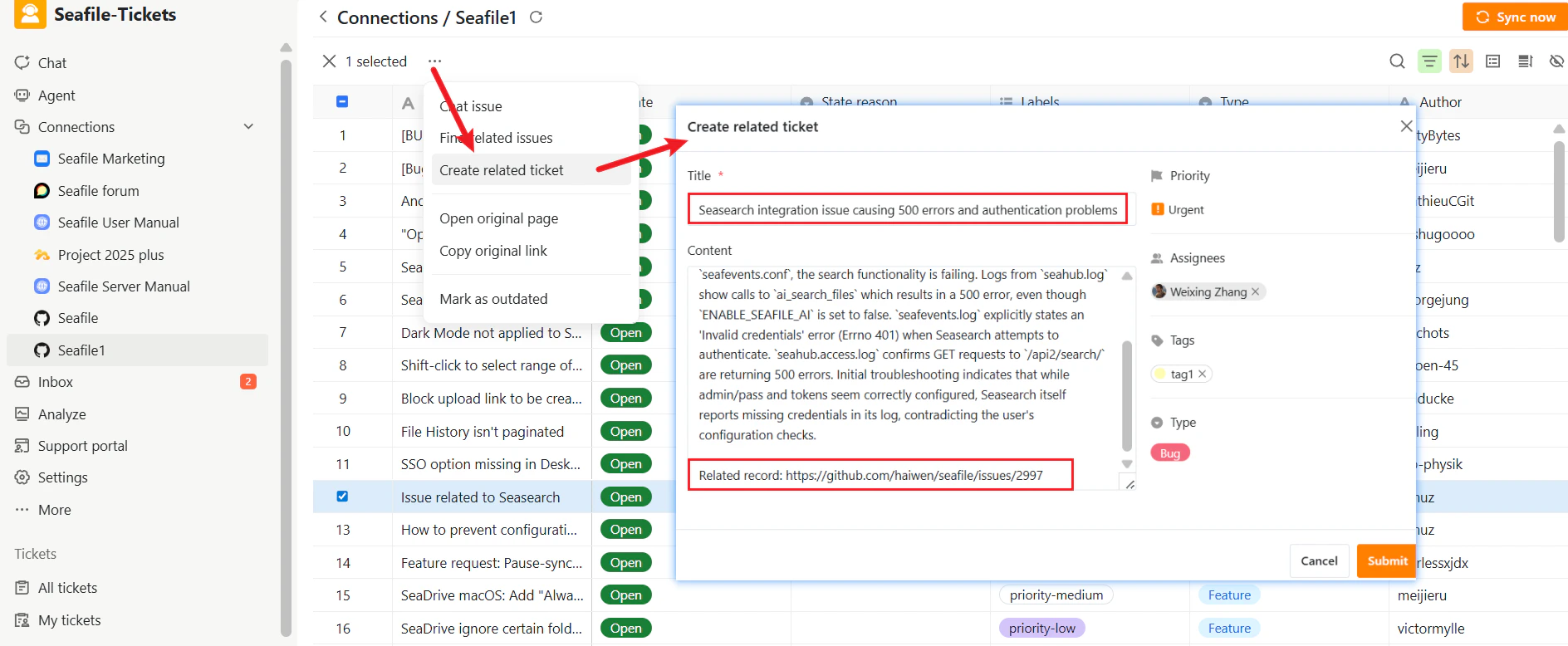
This is the core workflow for turning an external report into an internal task. If a synced GitHub issue requires action from your development or product team, you can convert it into a SeaTicket ticket.
To do this:
1. Select the issue you want to convert.
2. Click **Create Related Ticket**.
On the ticket creation page, AI will assist you by:
* Generating an appropriate ticket title
* Summarizing the key points of the issue
* Adding a link to the original issue for reference
You can then assign it to a team member, set a priority, add tags, and submit it to your internal ticketing workflow.
### Create Related Ticket
This is the core workflow for turning an external report into an internal task. If a synced GitHub issue requires action from your development or product team, you can convert it into a SeaTicket ticket.
To do this:
1. Select the issue you want to convert.
2. Click **Create Related Ticket**.
On the ticket creation page, AI will assist you by:
* Generating an appropriate ticket title
* Summarizing the key points of the issue
* Adding a link to the original issue for reference
You can then assign it to a team member, set a priority, add tags, and submit it to your internal ticketing workflow.
 ### Open Original Page
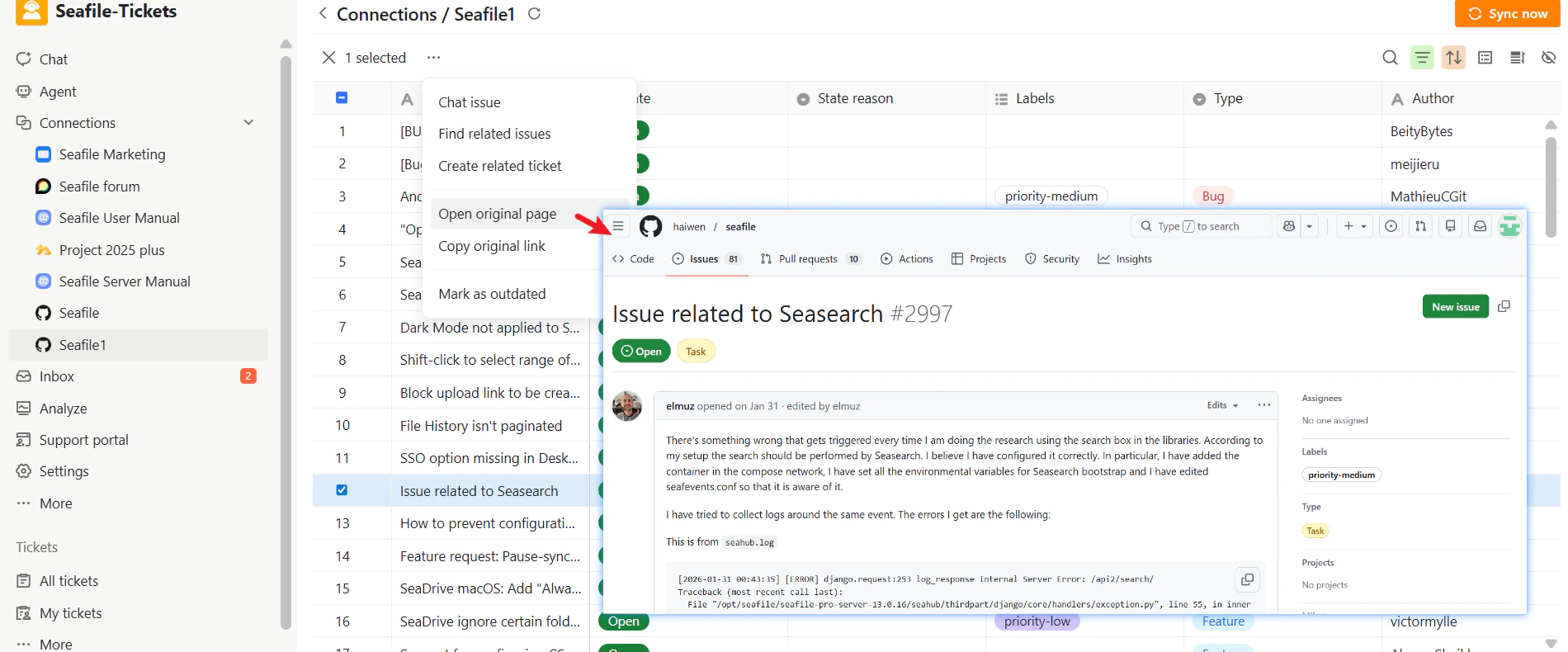
This action opens the issue on its original platform (for example, GitHub), allowing you to view or interact with it in its native environment.
### Open Original Page
This action opens the issue on its original platform (for example, GitHub), allowing you to view or interact with it in its native environment.
 ### Copy Original Link
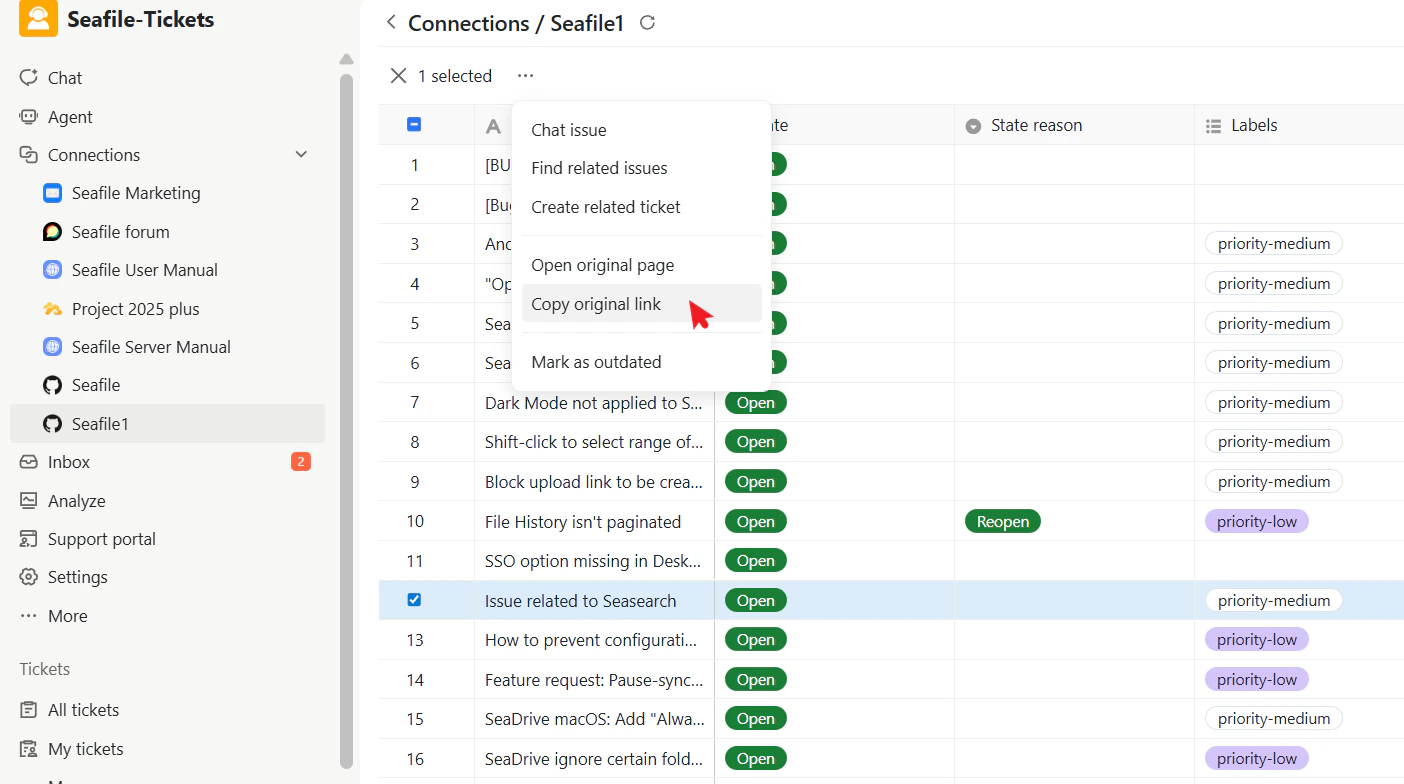
Copies the URL of the GitHub issue to your clipboard so you can easily share it in chats or documents.
### Copy Original Link
Copies the URL of the GitHub issue to your clipboard so you can easily share it in chats or documents.
 ### Mark as Outdated
If a synced issue is no longer relevant (for example, it was fixed in a newer version not yet reflected in GitHub), you can mark it as "outdated." The issue will become grayed out in the list, visually indicating that it does not require immediate attention.
This helps keep active issue lists clean and focused.
You can reactivate an outdated issue at any time when it becomes relevant again, restoring it to the normal active state.
### Mark as Outdated
If a synced issue is no longer relevant (for example, it was fixed in a newer version not yet reflected in GitHub), you can mark it as "outdated." The issue will become grayed out in the list, visually indicating that it does not require immediate attention.
This helps keep active issue lists clean and focused.
You can reactivate an outdated issue at any time when it becomes relevant again, restoring it to the normal active state.