> ## Documentation Index
> Fetch the complete documentation index at: https://user-docs.seaticket.ai/llms.txt
> Use this file to discover all available pages before exploring further.
# Organizing Tickets with Views
Views let you control how tickets are grouped and displayed in the ticket list. Views do not change the tickets themselves — only how they appear.
Two default views are provided in both All Tickets and My Tickets:
* **Open** — shows all active tickets
* **Closed** — shows all resolved tickets
Both default views can be customized. Note that the Open and Closed default views cannot be deleted, as they are required for the core ticket workflow.
## Customizing a View
You can customize any view using the tools in the top-right corner of the ticket list.
### Filtering
Filtering lets you display only tickets that match specific conditions.
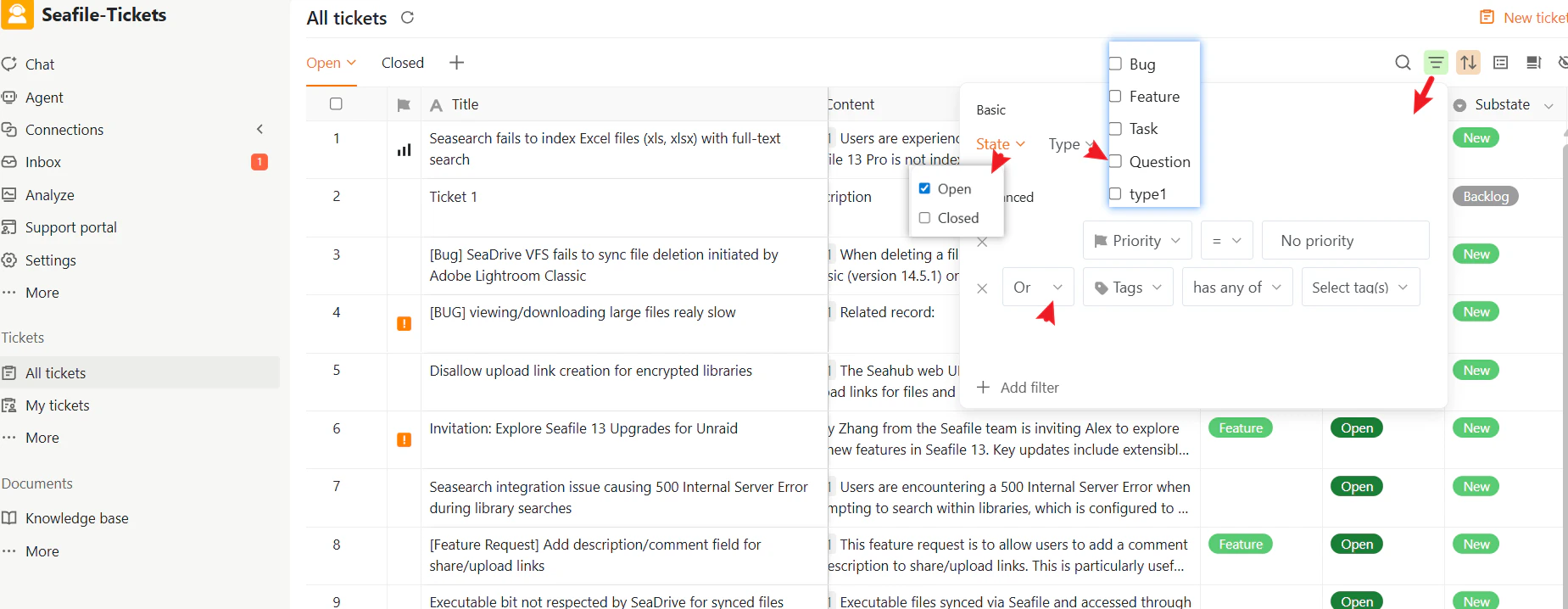
Click the **Filter** icon in the top-right corner to open the filter panel.
* **Basic filters** — Filter by State (Open / Closed) or Type (Bug, Feature, Task)
* **Advanced filters** — Build detailed conditions using attributes such as Tags or Substate, combined with AND / OR logic
 ### Sorting
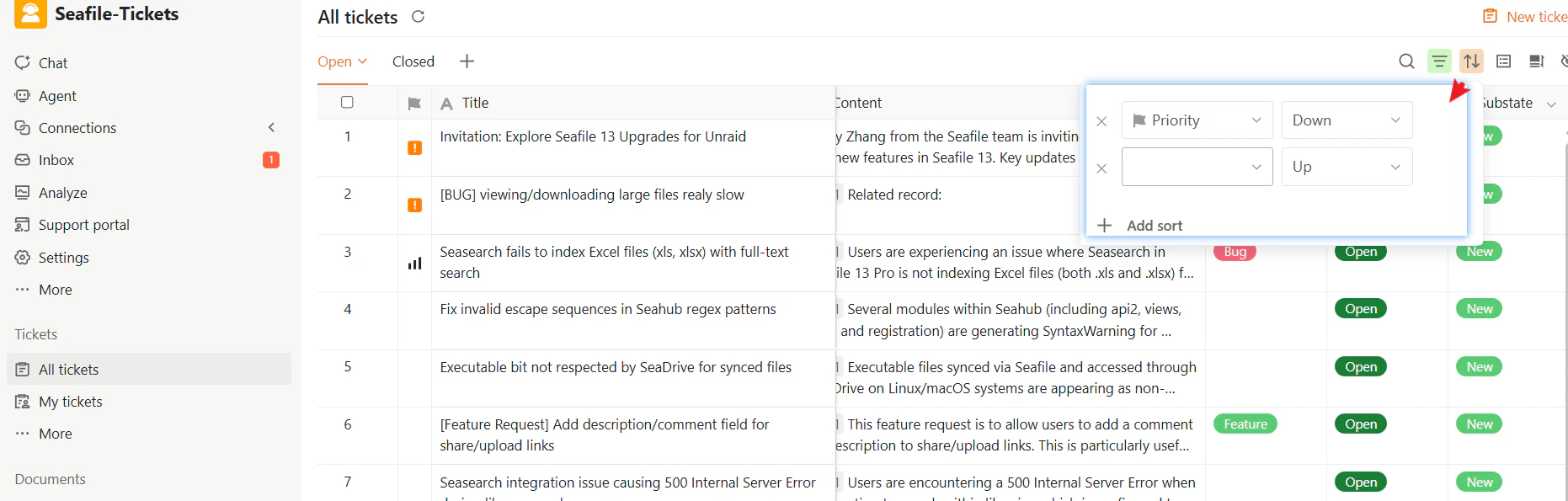
Click the **Sort** icon in the top-right corner to control the order tickets appear in.
* Sort by fields such as Created Time, Priority, or Due Date
* Choose ascending or descending order
* Add multiple sorting rules for layered sorting
### Sorting
Click the **Sort** icon in the top-right corner to control the order tickets appear in.
* Sort by fields such as Created Time, Priority, or Due Date
* Choose ascending or descending order
* Add multiple sorting rules for layered sorting
 ### Grouping
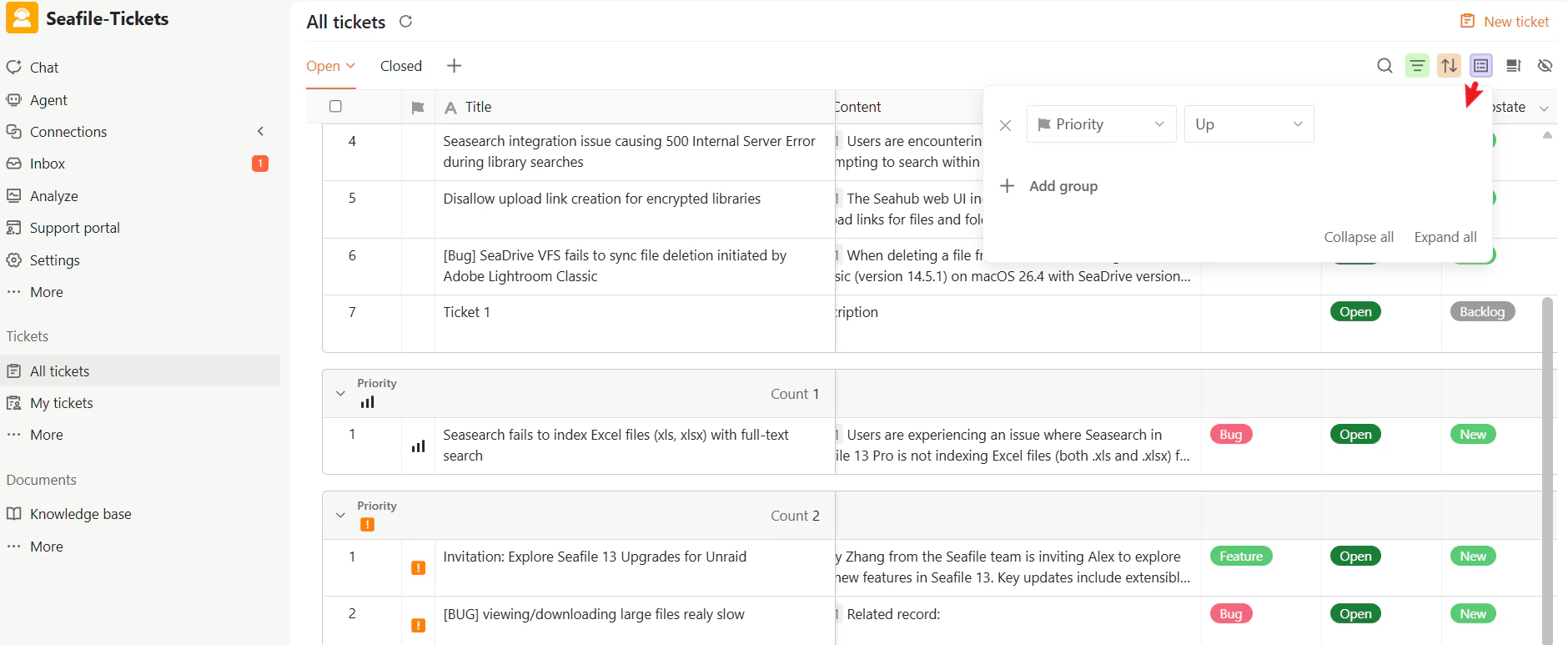
Click the **Group** icon in the top-right corner to organize tickets into visual sections.
* Group by fields such as Due Date, Priority, or Type
* Add multiple grouping rules
* Reorder or remove grouping rules
* Expand or collapse all groups at once
### Grouping
Click the **Group** icon in the top-right corner to organize tickets into visual sections.
* Group by fields such as Due Date, Priority, or Type
* Add multiple grouping rules
* Reorder or remove grouping rules
* Expand or collapse all groups at once
 ### Column Visibility
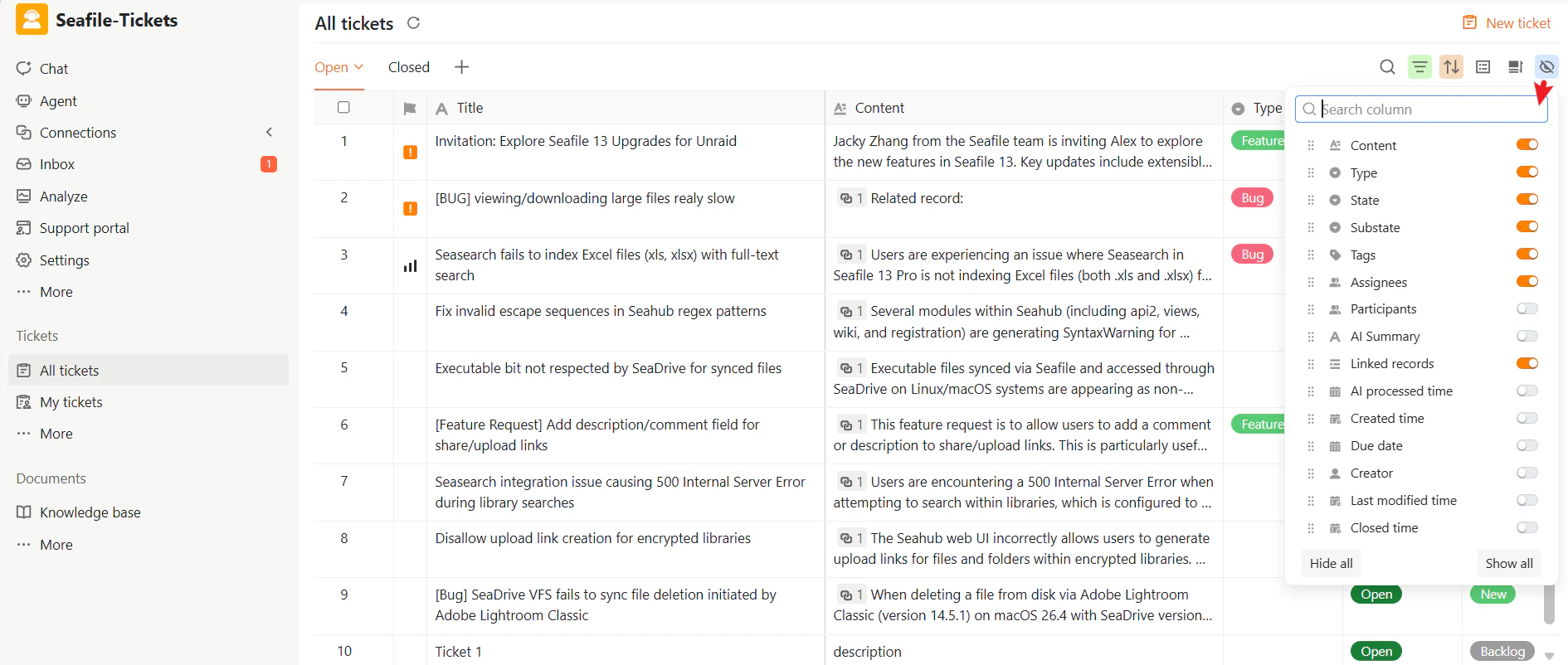
Click the **Hidden columns** icon to show or hide attribute columns. This keeps the interface clean and focused on what matters.
### Column Visibility
Click the **Hidden columns** icon to show or hide attribute columns. This keeps the interface clean and focused on what matters.
 ### Row Height
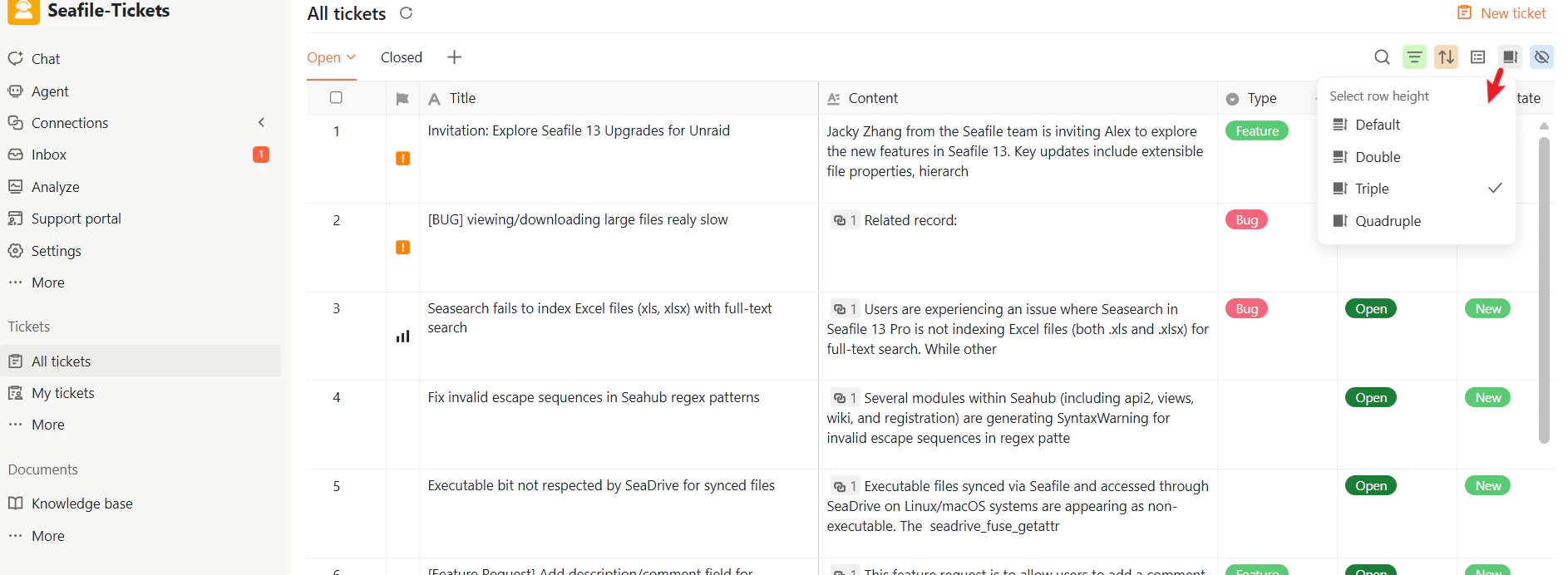
Click the **Row Height** icon and choose Default, Double, Triple, or Quadruple to adjust how compact or expanded each row appears.
### Row Height
Click the **Row Height** icon and choose Default, Double, Triple, or Quadruple to adjust how compact or expanded each row appears.
 ## Creating Custom Views
Any team member can create additional custom views in All Tickets to organize tickets in ways that suit their workflow.
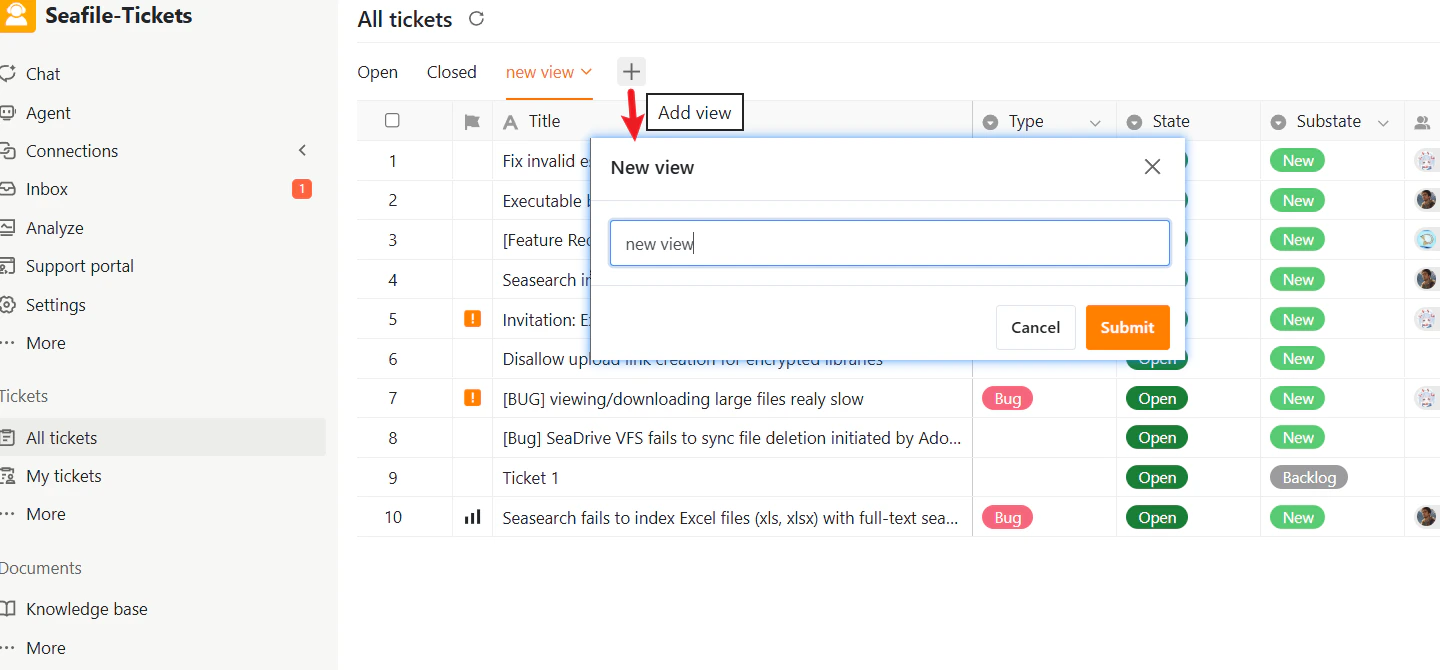
To create a new view:
1. Go to **All Tickets**.
2. Click the **+** tab.
3. Enter a descriptive name in the dialog.
4. Click **Submit**.
Each view saves its own filters, sorting, grouping, and column settings independently.
## Creating Custom Views
Any team member can create additional custom views in All Tickets to organize tickets in ways that suit their workflow.
To create a new view:
1. Go to **All Tickets**.
2. Click the **+** tab.
3. Enter a descriptive name in the dialog.
4. Click **Submit**.
Each view saves its own filters, sorting, grouping, and column settings independently.
 ### Manage Existing Views
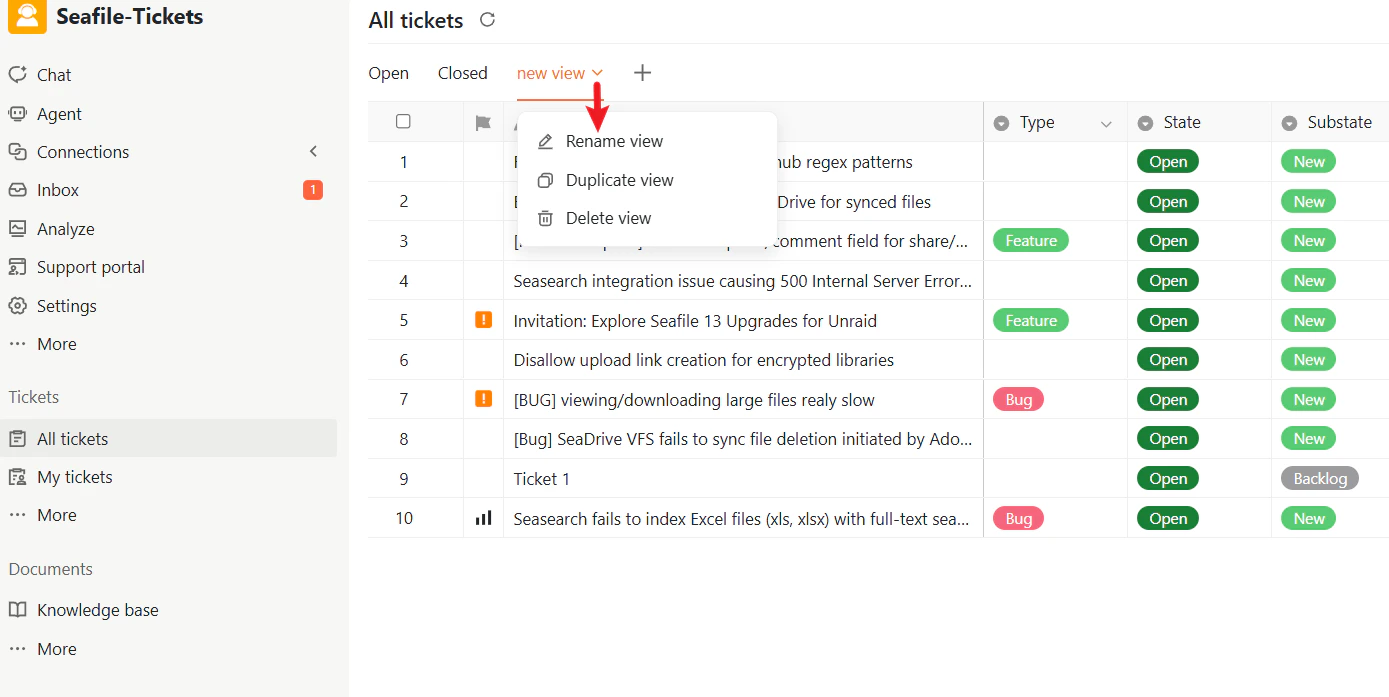
To manage a view, click the **∨** icon next to the view name. You can rename, duplicate, or delete it.
> **Note:** The default Open and Closed views can be customized but cannot be deleted.
### Manage Existing Views
To manage a view, click the **∨** icon next to the view name. You can rename, duplicate, or delete it.
> **Note:** The default Open and Closed views can be customized but cannot be deleted.