> ## Documentation Index
> Fetch the complete documentation index at: https://user-docs.seaticket.ai/llms.txt
> Use this file to discover all available pages before exploring further.
# Search with AI
SeaTicket Search lets you search across all connected sources—tickets, forums, knowledge bases, and external platforms—using keyword or semantic search.
## Accessing the Search Feature
To access Search:
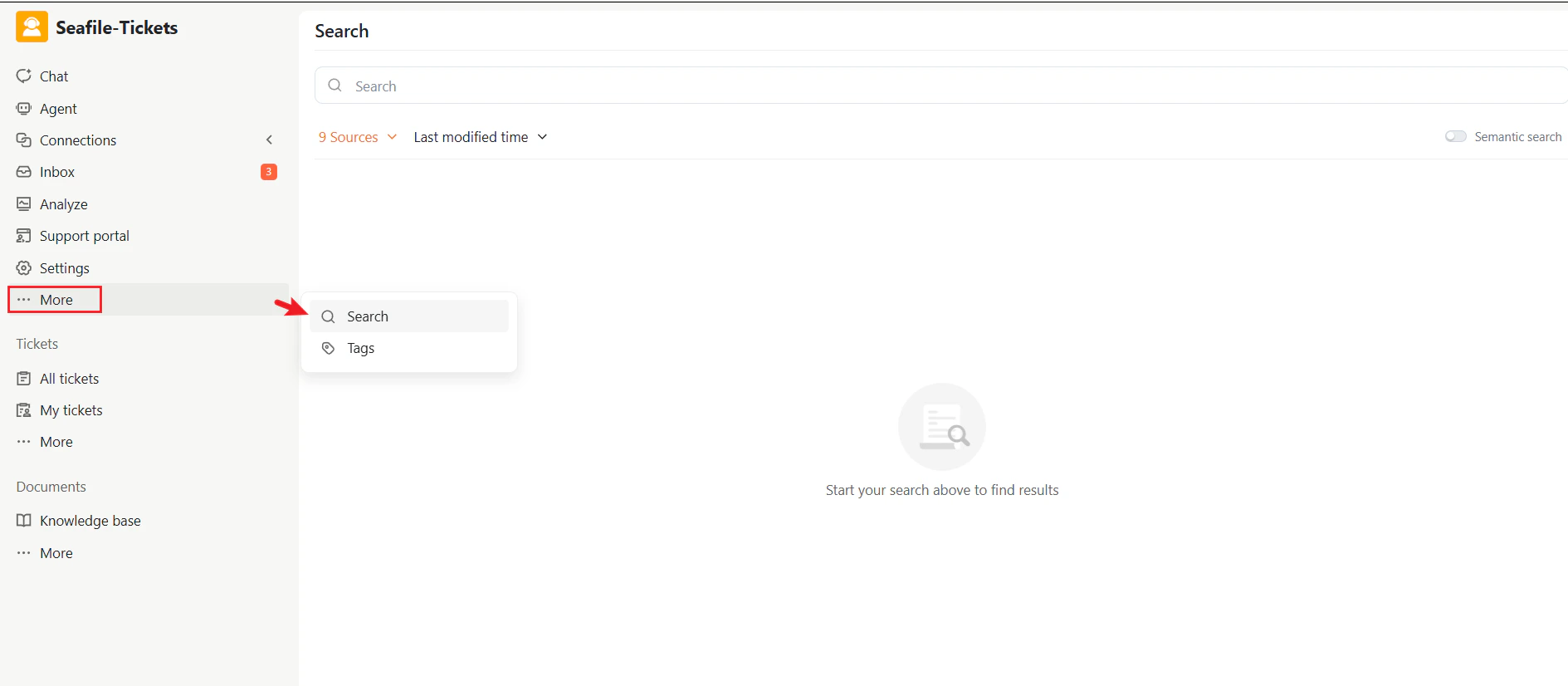
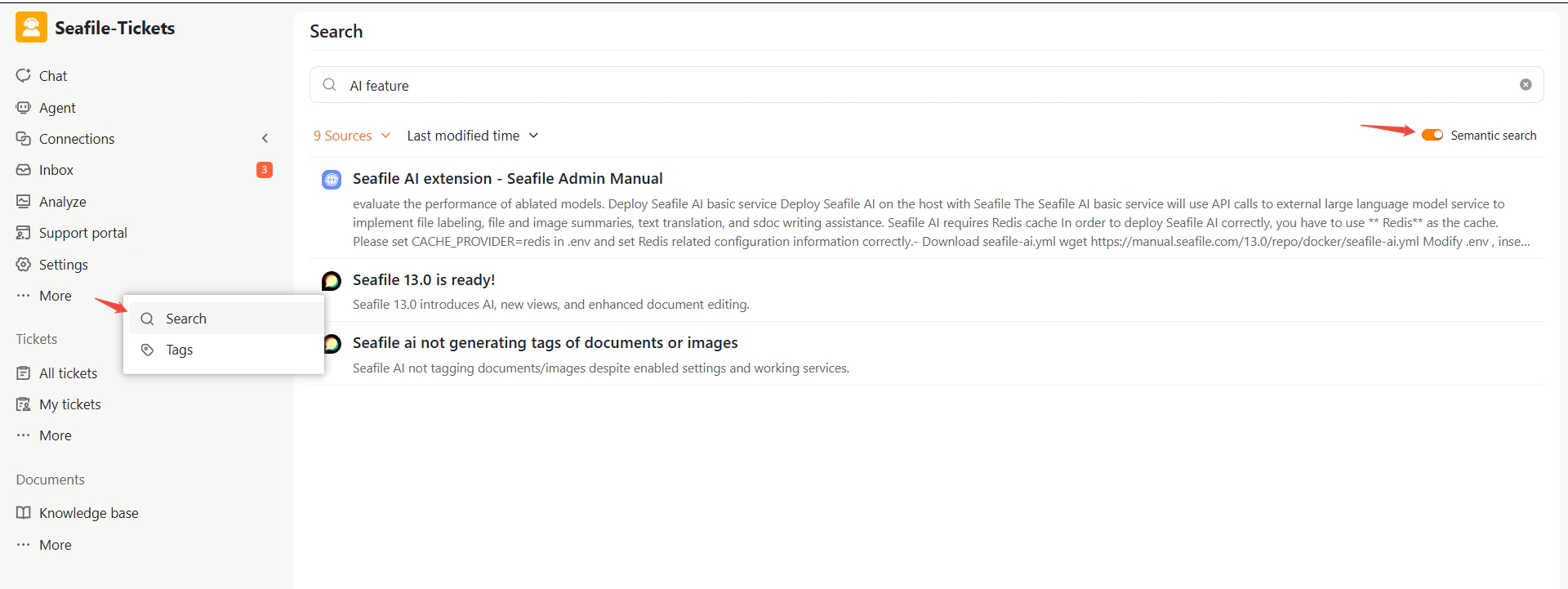
1. In the left navigation panel, click **More** → **Search**.
2. The Search interface displays a text input field, filter options, and result areas.
 ## How to Search
### Enter Keywords
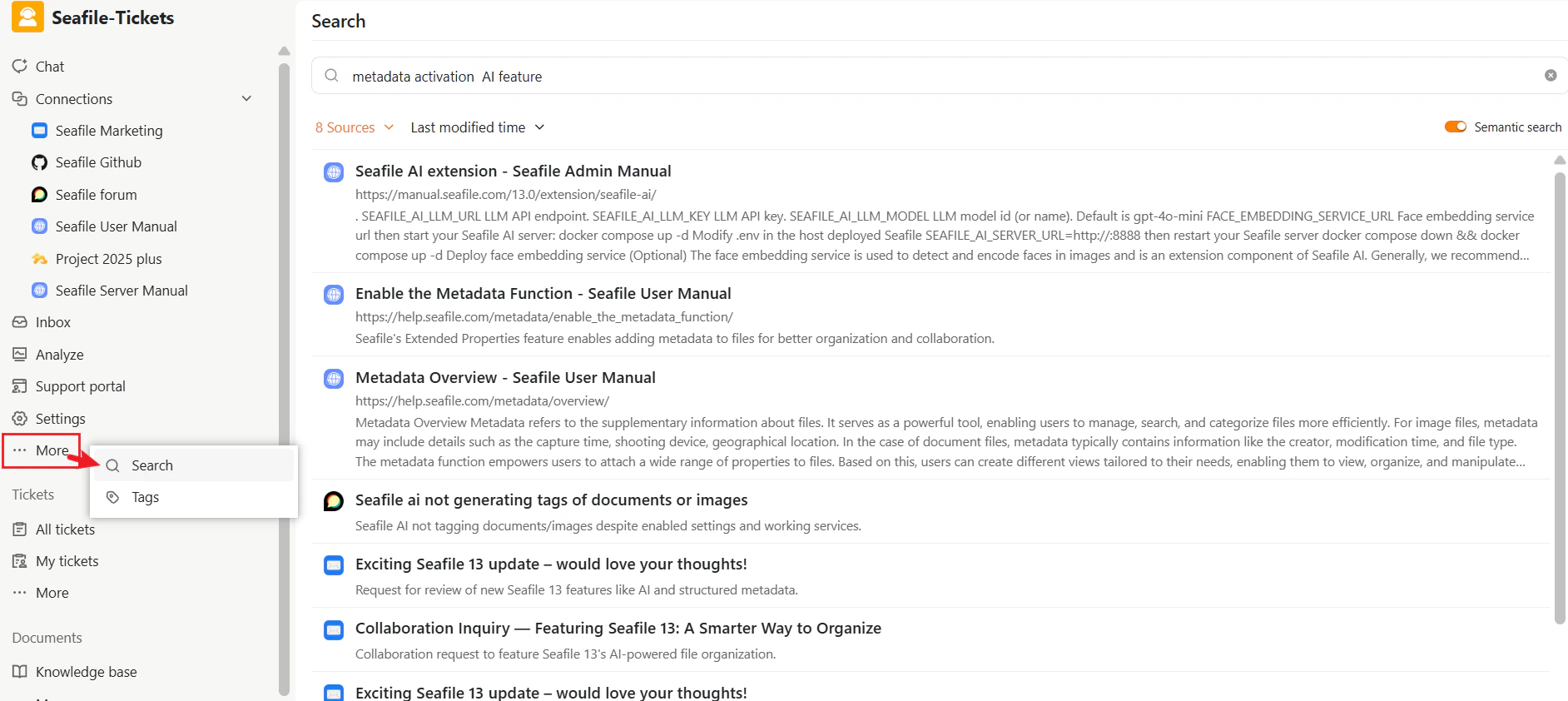
1. In the search input at the top, type what you want to find—for example, "metadata activation" or "AI feature".
2. The system returns matching documents, tickets, and forum content.
## How to Search
### Enter Keywords
1. In the search input at the top, type what you want to find—for example, "metadata activation" or "AI feature".
2. The system returns matching documents, tickets, and forum content.
 ### Select Sources
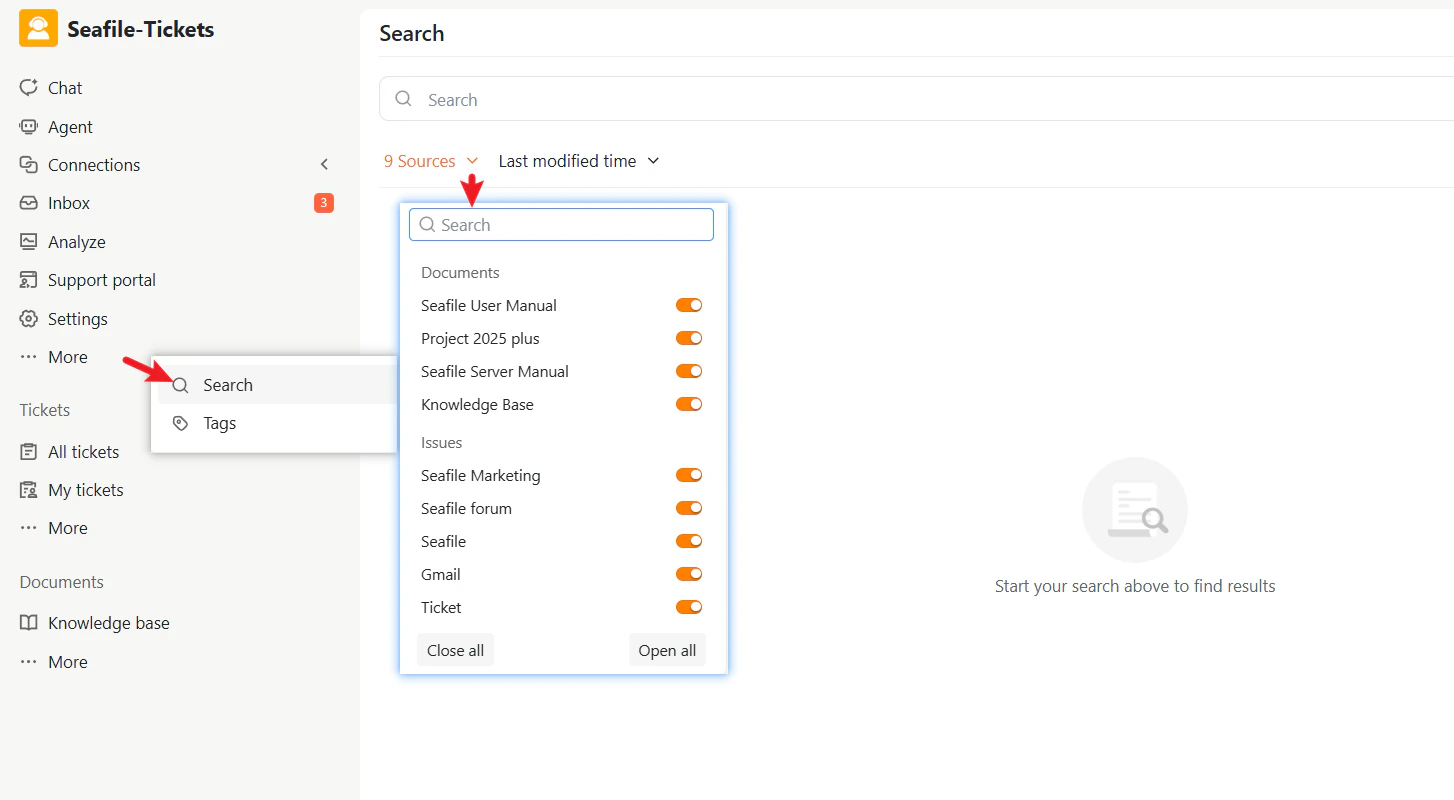
Search retrieves results from multiple sources connected to SeaTicket. Typical sources include:
* Document libraries or knowledge bases (Seafile libraries, knowledge bases, project repositories)
* External discussion or issue sources (GitHub repositories, forums, email threads)
* Tickets in SeaTicket
Available sources depend on connections configured by your administrator. All sources are enabled by default. Use the toggle switches to enable or disable specific sources and narrow your search.
### Select Sources
Search retrieves results from multiple sources connected to SeaTicket. Typical sources include:
* Document libraries or knowledge bases (Seafile libraries, knowledge bases, project repositories)
* External discussion or issue sources (GitHub repositories, forums, email threads)
* Tickets in SeaTicket
Available sources depend on connections configured by your administrator. All sources are enabled by default. Use the toggle switches to enable or disable specific sources and narrow your search.
 ### Filter by Time
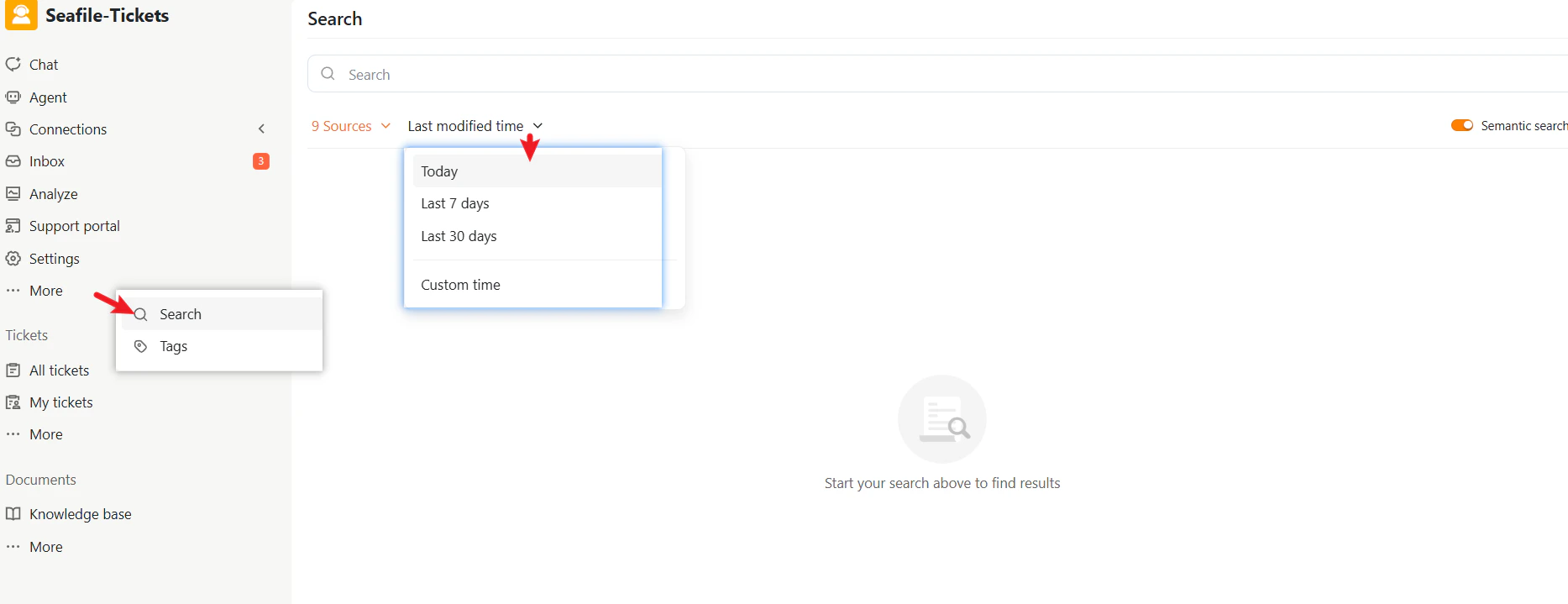
Click **Last modified time** to choose a time range:
* Today
* Last 7 days
* Last 30 days
* Custom time
### Filter by Time
Click **Last modified time** to choose a time range:
* Today
* Last 7 days
* Last 30 days
* Custom time
 ### Enable Semantic Search
Semantic search improves result relevance by understanding the meaning of your query, not just keywords.
To enable semantic search:
1. Locate the **Semantic search** toggle in the top-right corner of the Search interface.
2. Turn it on (orange) to enable semantic search, or off (gray) to use keyword-based search.
When enabled, SeaTicket uses AI to interpret context, synonyms, and related concepts for more accurate results. This is especially useful for complex questions or natural language queries.
### Enable Semantic Search
Semantic search improves result relevance by understanding the meaning of your query, not just keywords.
To enable semantic search:
1. Locate the **Semantic search** toggle in the top-right corner of the Search interface.
2. Turn it on (orange) to enable semantic search, or off (gray) to use keyword-based search.
When enabled, SeaTicket uses AI to interpret context, synonyms, and related concepts for more accurate results. This is especially useful for complex questions or natural language queries.
 ## Search Results
After executing a search, results appear in a list. Each result includes:
* A title with a source indicator (for example, "Metadata Server - Seafile Admin Manual")
* A brief summary or excerpt of the content
* A link to the original source (document, ticket, forum post, etc.)
## Search Results
After executing a search, results appear in a list. Each result includes:
* A title with a source indicator (for example, "Metadata Server - Seafile Admin Manual")
* A brief summary or excerpt of the content
* A link to the original source (document, ticket, forum post, etc.)
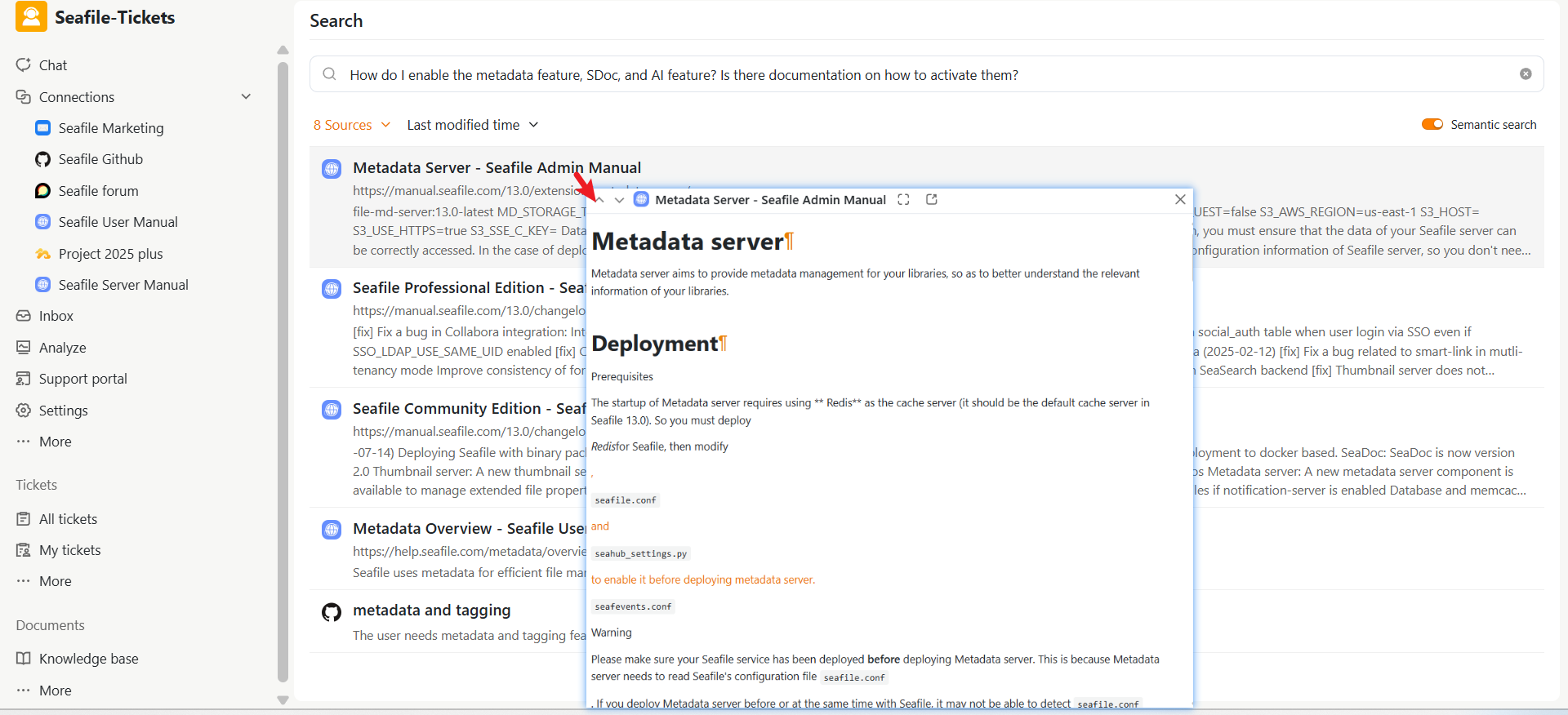
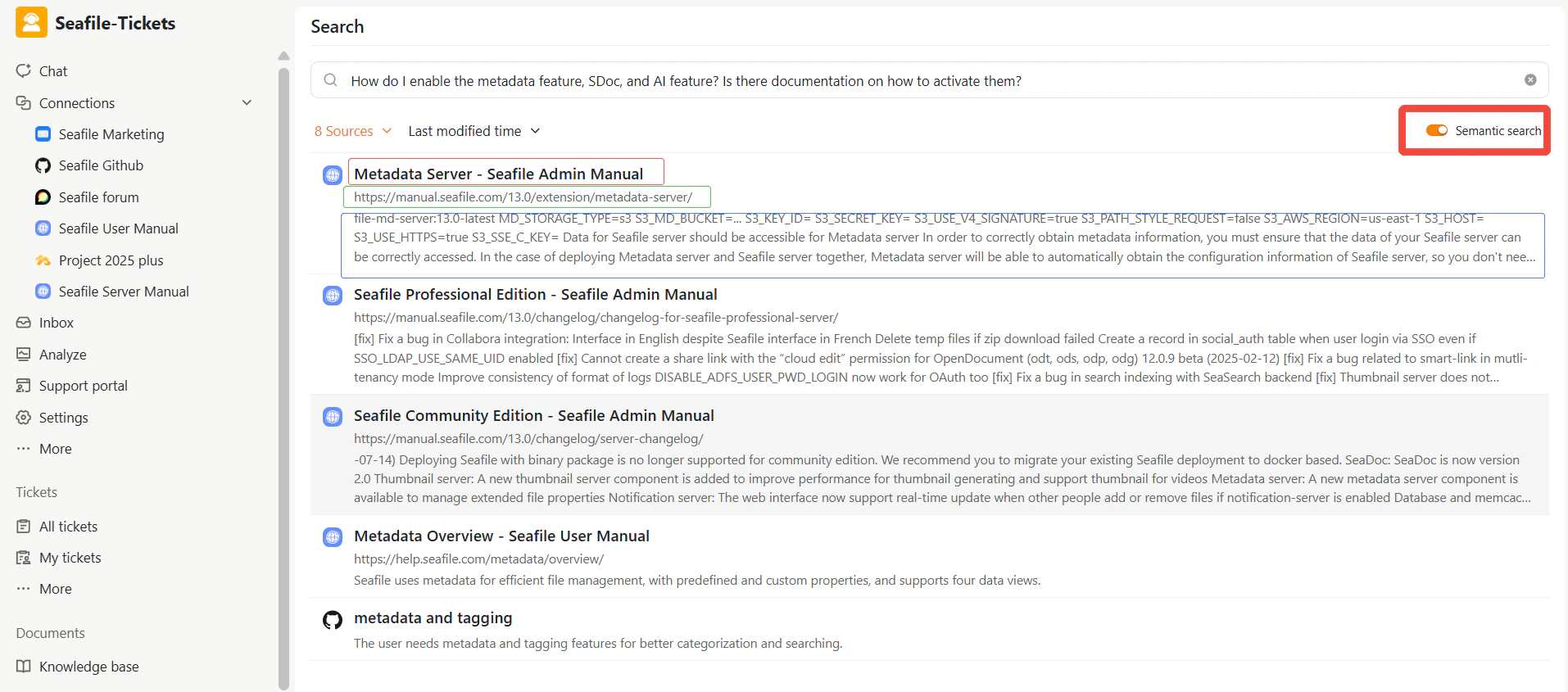 Click the title to open the full document or ticket. When Semantic Search is enabled, the most relevant results appear at the top.
 **If no results appear**, try broadening your query, disabling source filters, or checking that the relevant source is connected.