> ## Documentation Index
> Fetch the complete documentation index at: https://user-docs.seaticket.ai/llms.txt
> Use this file to discover all available pages before exploring further.
# Viewing and Tracking Your Issues
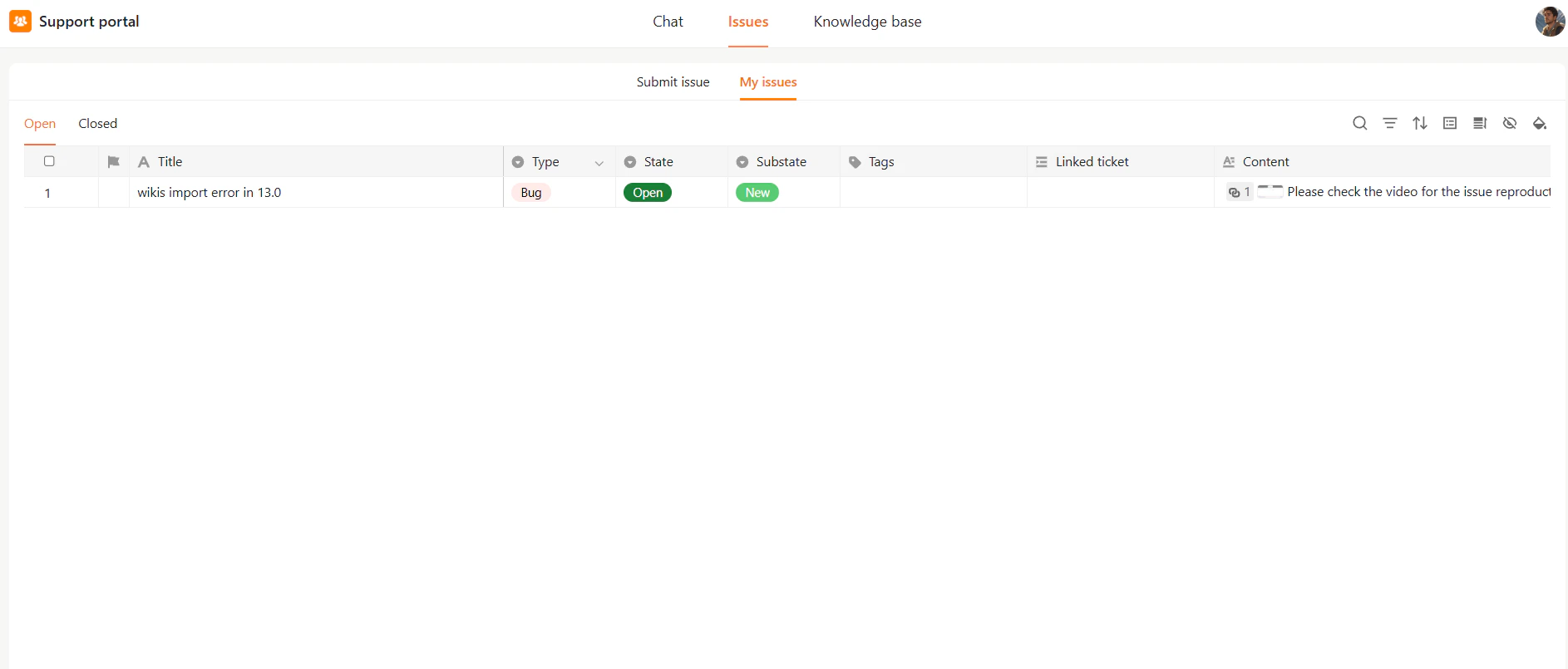
To view all your issues, go to the **My Issues** section.
The issue list displays key information such as the issue title, type, status, substatus, tags, linked tickets, and a preview of the issue content.
You can switch between:
* **Open** – Active issues that are still being processed
* **Closed** – Completed or resolved issues
Use the toolbar to search, filter, sort, or customize the issue list view.
 ## Open an Issue
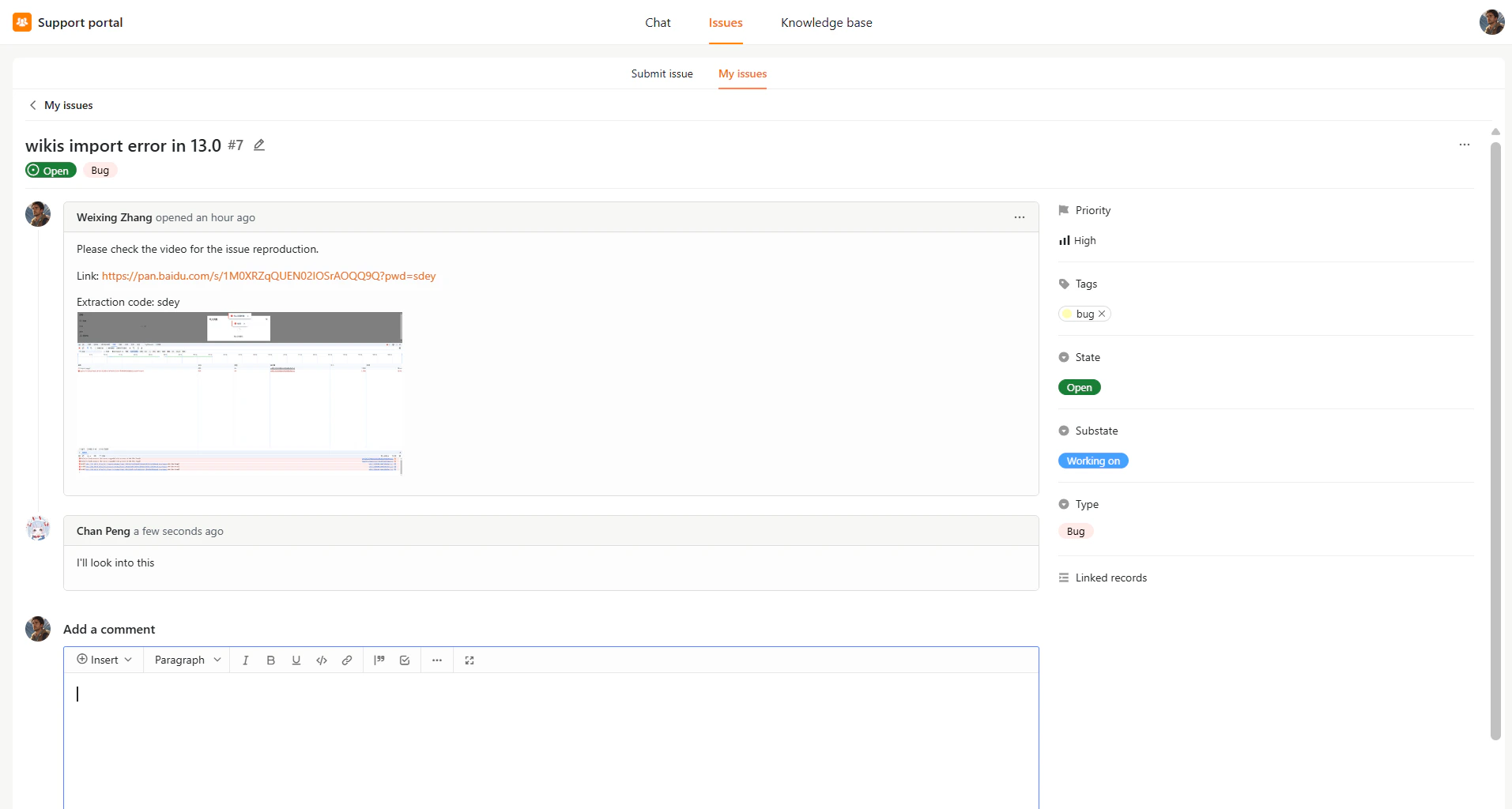
To view issue details, click the issue title from the list.
The issue detail page allows you to:
* View the issue description and attachments
* Check the current issue status
* Review comments and replies from the support team
## Open an Issue
To view issue details, click the issue title from the list.
The issue detail page allows you to:
* View the issue description and attachments
* Check the current issue status
* Review comments and replies from the support team
 ## Add Comments and Attachments
You can continue the discussion by adding comments to the issue.
To add a comment:
1. Open the issue.
2. Enter your message in the comment editor.
3. Optionally attach files.
4. Click **Comment**.
New comments are visible to the support team and become part of the issue history.
## Add Comments and Attachments
You can continue the discussion by adding comments to the issue.
To add a comment:
1. Open the issue.
2. Enter your message in the comment editor.
3. Optionally attach files.
4. Click **Comment**.
New comments are visible to the support team and become part of the issue history.
 ## Close an Issue
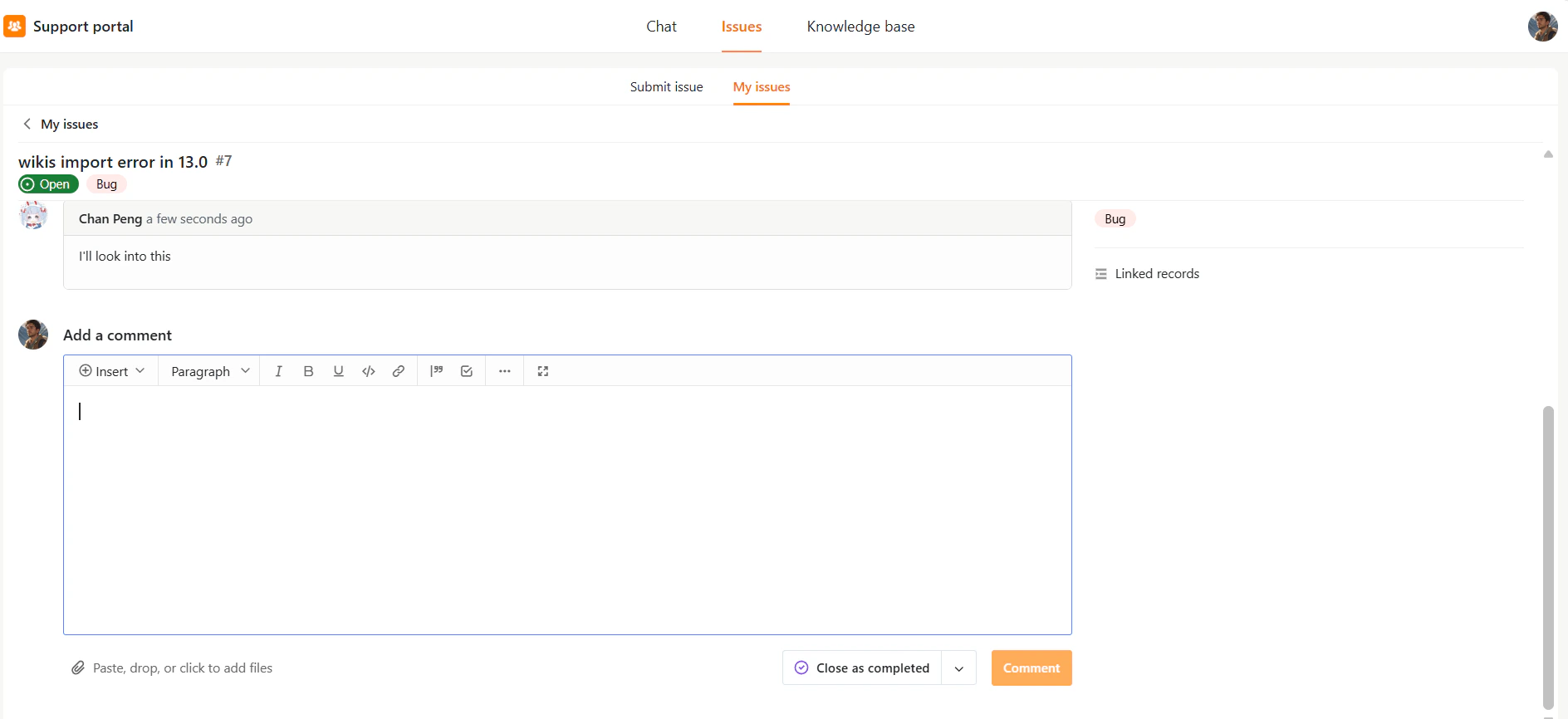
If the issue has been resolved, you can close it directly from the issue detail page.
To close an issue:
1. Open the issue.
2. Click **Close as completed**, or change the issue **State** to **Closed**.
Closed issues are moved to the **Closed** view under **My issues**.
## Close an Issue
If the issue has been resolved, you can close it directly from the issue detail page.
To close an issue:
1. Open the issue.
2. Click **Close as completed**, or change the issue **State** to **Closed**.
Closed issues are moved to the **Closed** view under **My issues**.