> ## Documentation Index
> Fetch the complete documentation index at: https://user-docs.seaticket.ai/llms.txt
> Use this file to discover all available pages before exploring further.
# Email
The **Email connection** allows you to connect external mailboxes and sync emails into SeaTicket.
This guide uses Gmail as an example.
## Before You Start
Ensure you have the following:
* An app password if required by your provider (recommended for Gmail)
## Creating an Email Connection
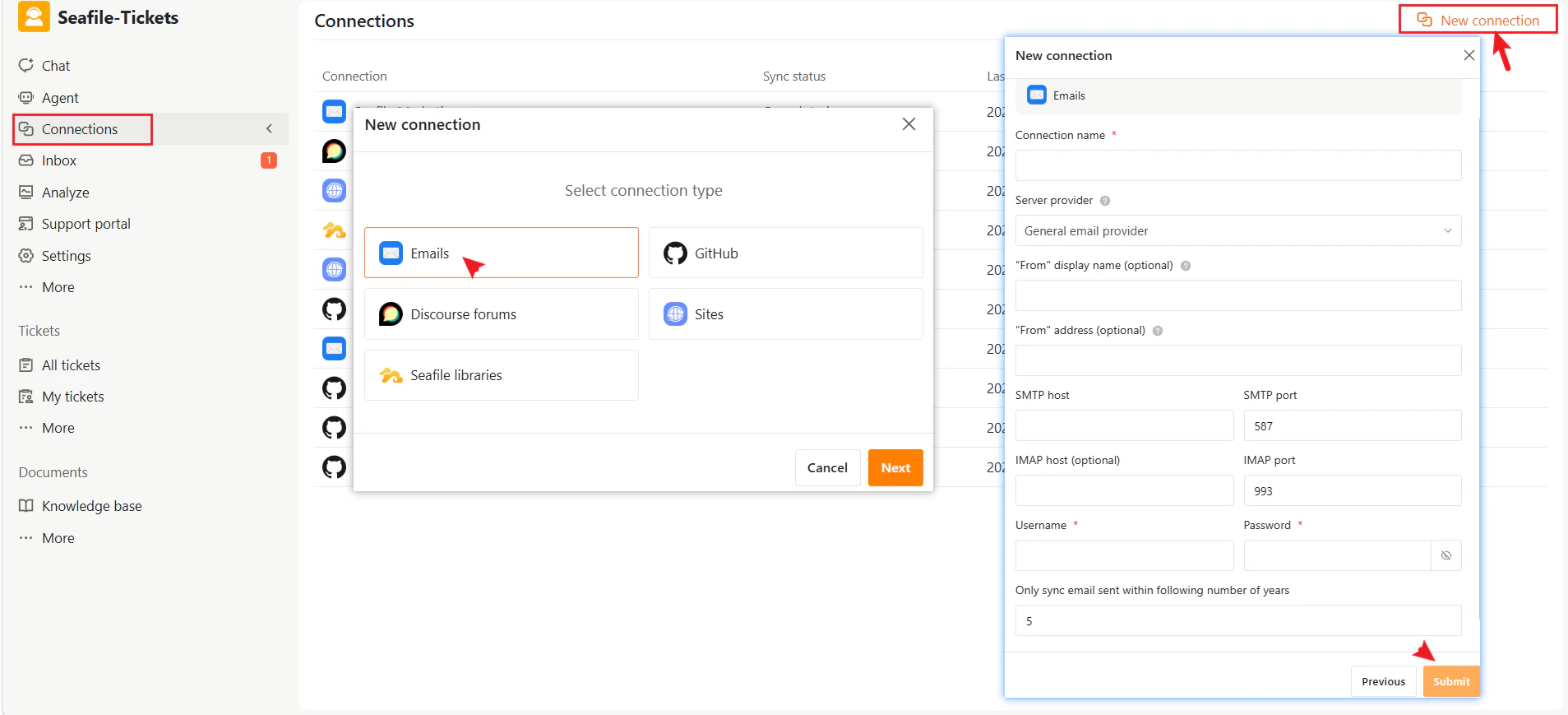
1. Go to **Connections** in the left sidebar.
2. Click **+ New Connection**.
3. Select **Emails** as the connection type.
4. Click **Next**.
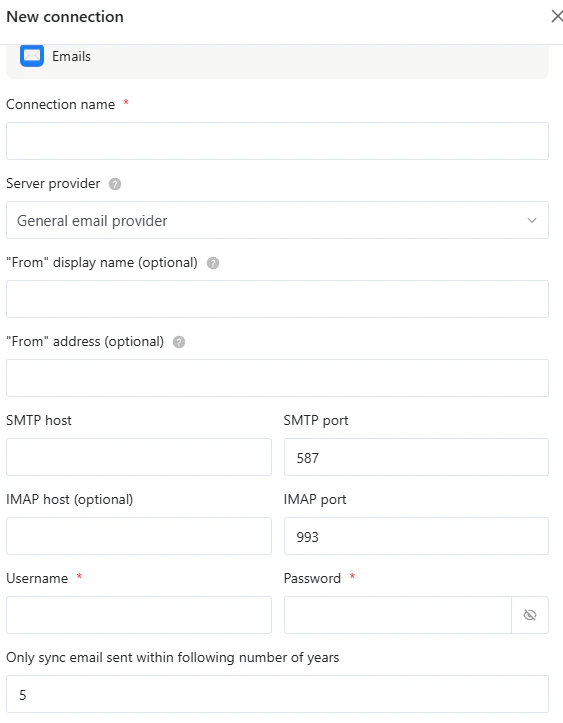
5. Enter the required configuration details.
6. Click **Submit** to complete the setup.
### Basic Information
* **Connection name**\
A name to identify this connection (for example, *Gmail Support Inbox*).
* **Server provider**\
Select the appropriate authentication mode for your email provider.
* **From display name** *(optional)*\
The sender name displayed in outgoing emails.
* **From address** *(optional)*\
The email address used as the sender.
### Server Settings
* **SMTP host**\
Example: `smtp.gmail.com`
* **IMAP host** *(optional)*\
Example: `imap.gmail.com`
### Authentication
* **Username**\
Your full email address.
* **Password**\
Your Gmail App Password.\
[Refer to Google's official guide for instructions on generating an app password](https://support.google.com/accounts/answer/185833?hl=en).
### Sync Settings
* **Only sync emails sent within the following number of years**\
Limits how far back SeaTicket retrieves historical emails.
 ## After Connection
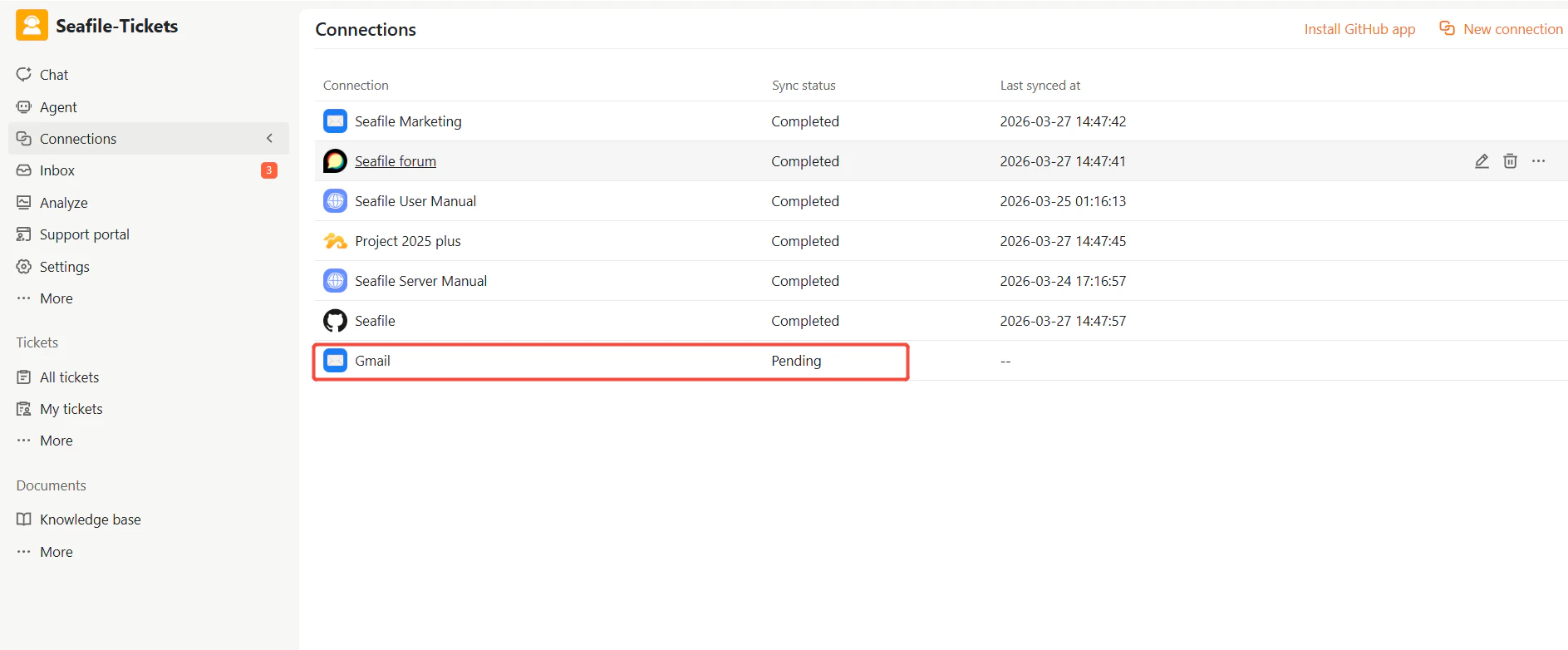
Once the connection is created:
* SeaTicket starts syncing emails automatically
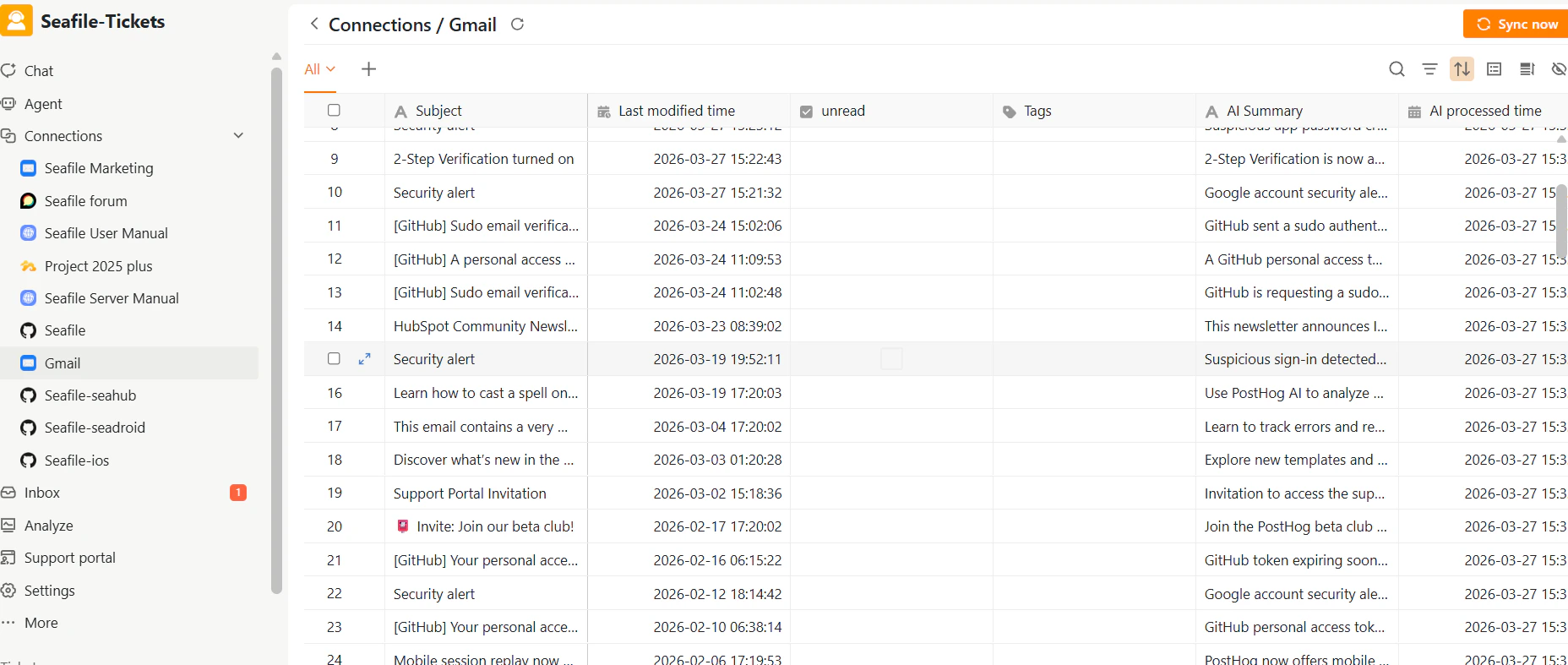
* Emails are displayed in a list view
* New emails continue to sync based on the connection settings
## After Connection
Once the connection is created:
* SeaTicket starts syncing emails automatically
* Emails are displayed in a list view
* New emails continue to sync based on the connection settings
 ## Synced Email Data
For each email, SeaTicket records:
* Subject
* Last modified time
* Unread status
AI-generated summaries are also available for each email:
* AI summary
* AI processed time
Emails are automatically synced every 1 hour.
Initial synchronization may take time depending on mailbox size
Ensure your email provider allows IMAP/SMTP access
If synchronization fails, check authentication settings or server configuration
## Viewing Details
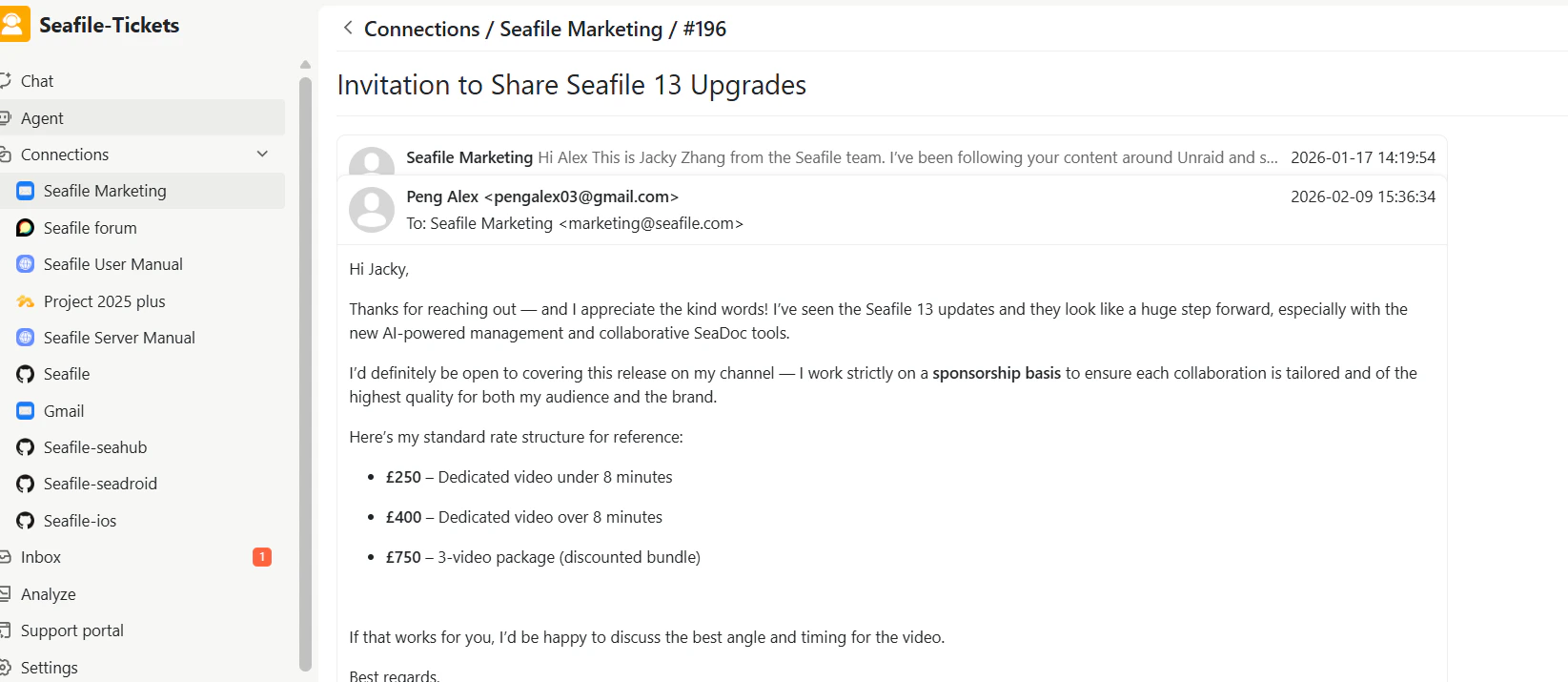
After data has been synced, click on an item's title to view its full content.
**Emails**: View the complete email thread, including all replies and conversation history.
## Synced Email Data
For each email, SeaTicket records:
* Subject
* Last modified time
* Unread status
AI-generated summaries are also available for each email:
* AI summary
* AI processed time
Emails are automatically synced every 1 hour.
Initial synchronization may take time depending on mailbox size
Ensure your email provider allows IMAP/SMTP access
If synchronization fails, check authentication settings or server configuration
## Viewing Details
After data has been synced, click on an item's title to view its full content.
**Emails**: View the complete email thread, including all replies and conversation history.