- Log in to your SeaTicket account and open a project.
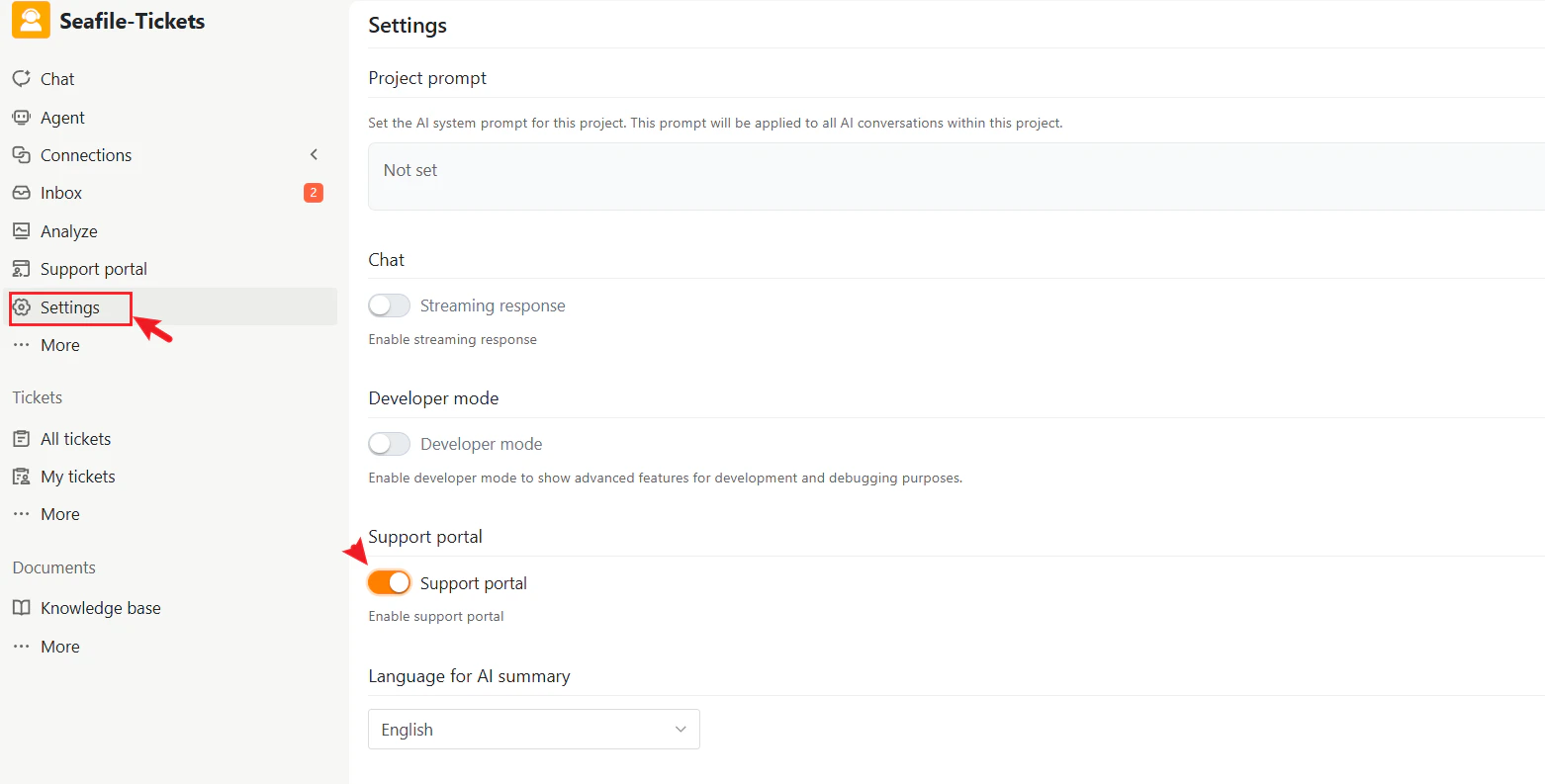
- In the left sidebar, go to Settings → Support portal and enable it.
- Once enabled, the Support Portal appears in the sidebar menu.
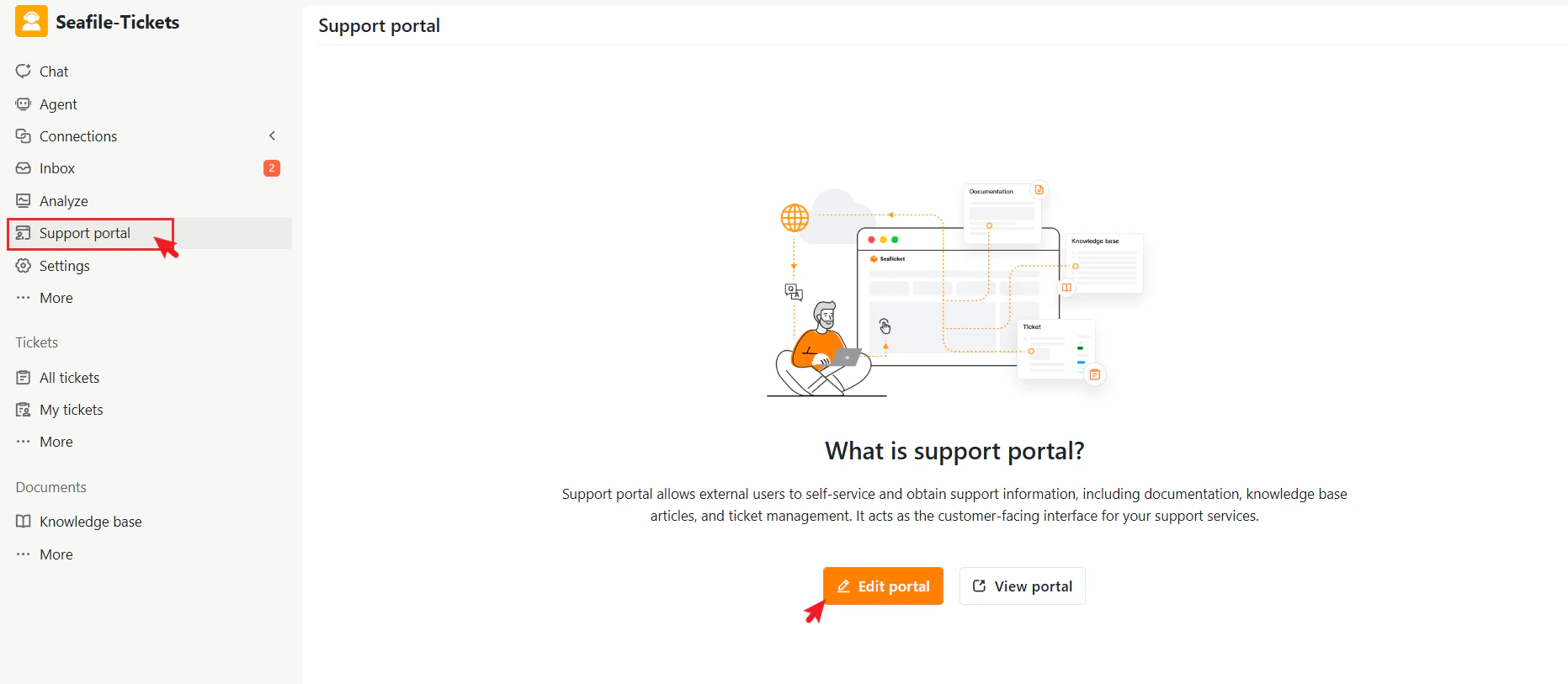
- Click Support Portal in the sidebar to access it.
- Click Edit Portal to configure the portal settings.
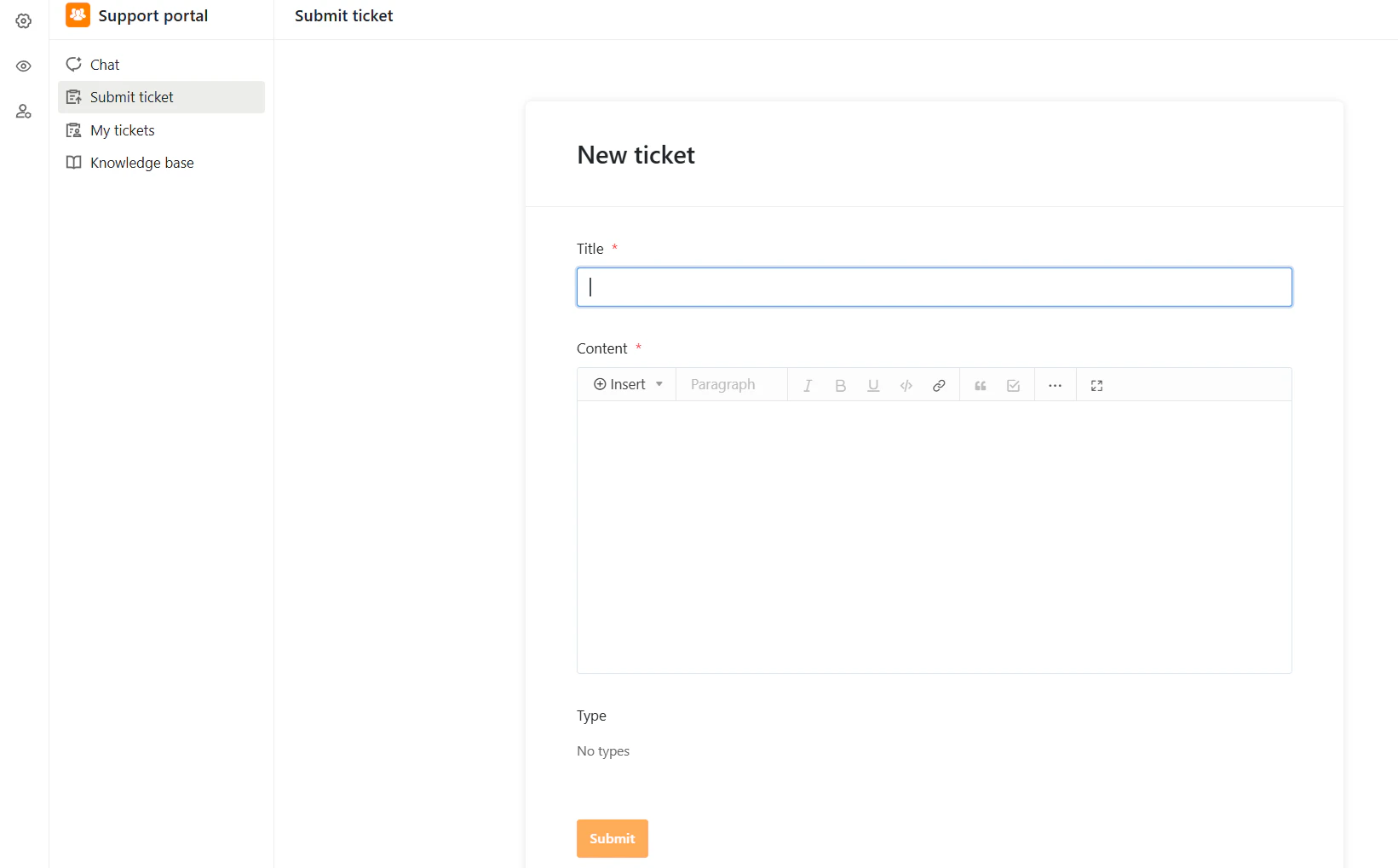
Setting up the External Portal
Once on the External Portal configuration page, use the Settings panel (visible on the right) to customize the portal:- Open access — Control whether users must sign in to access the portal.
- Portal settings — Configure how content and AI responses are displayed, including Knowledge Base visibility and AI data sources.
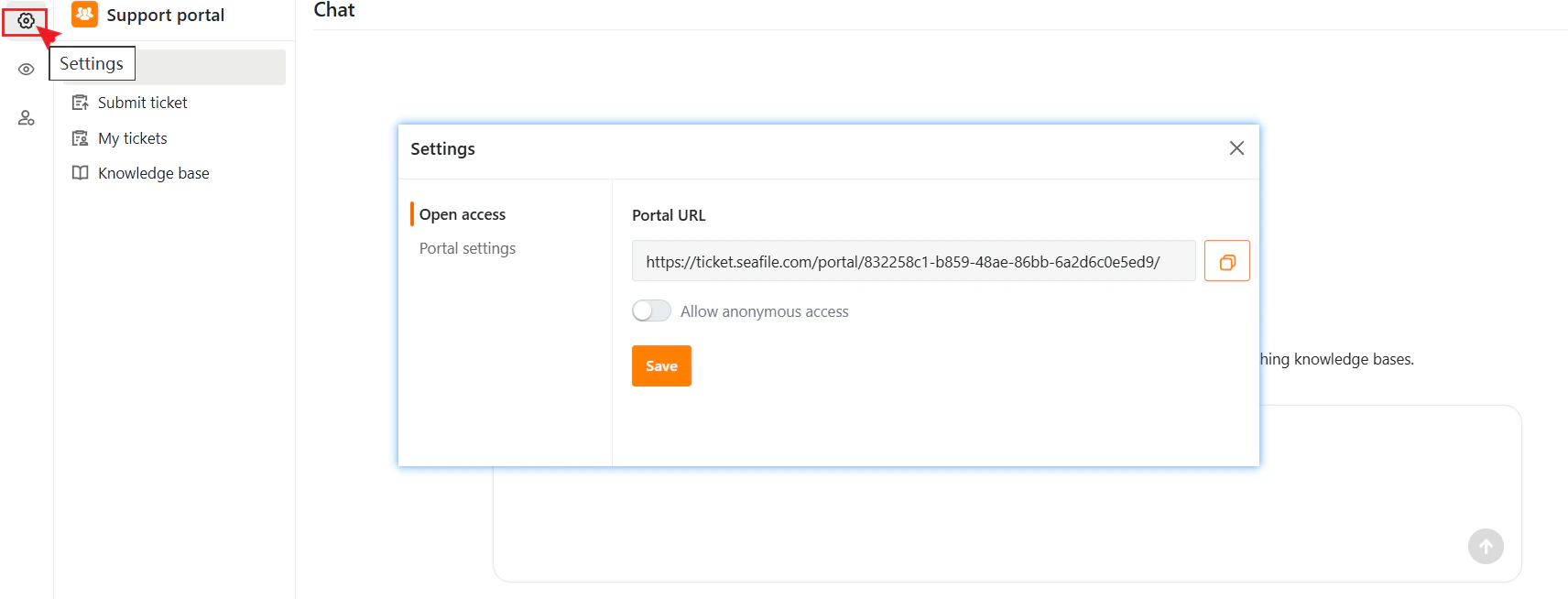
Portal URL
A unique portal URL enables external access. Share this link with customers or publish it on your website so they can submit tickets, view knowledge bases, or check ticket status.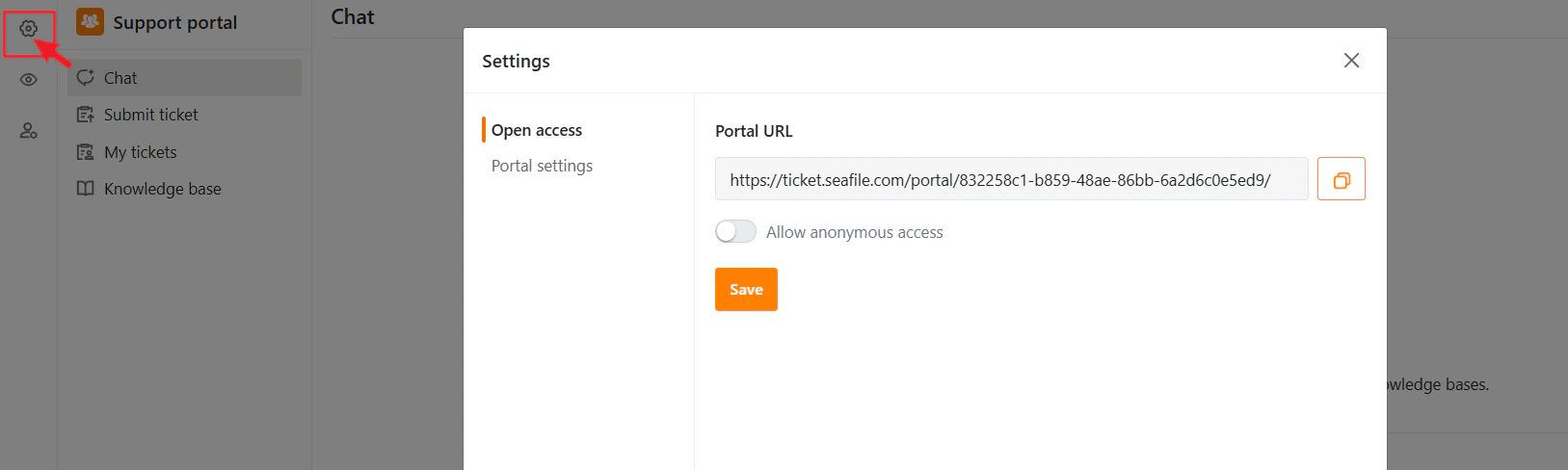
Allow Anonymous Access
Enable this option to let users access the portal without signing in. When disabled, only users with a SeaTicket account can access the portal.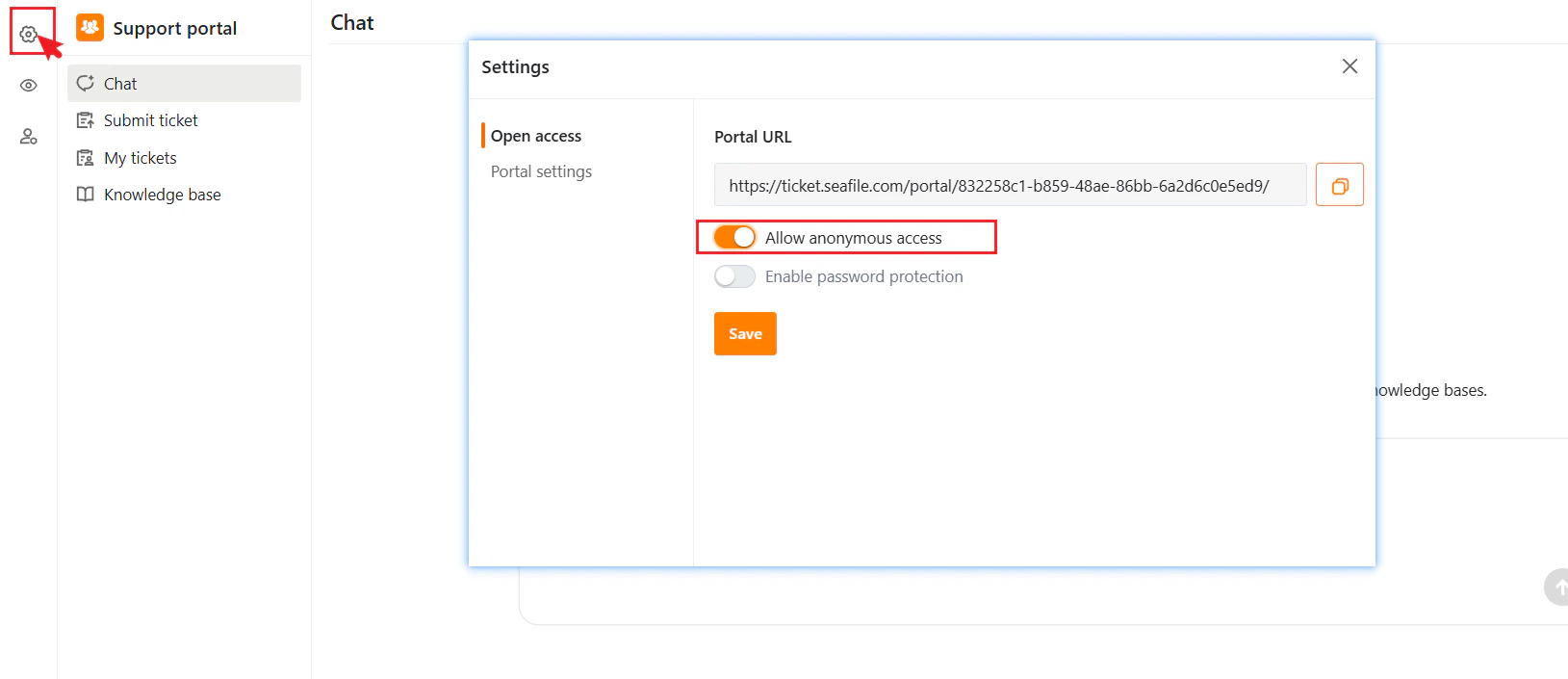
Enable Password Protection
Password protection secures the portal (available only when Allow Anonymous Access is enabled). Once enabled, users must enter a password before accessing the portal.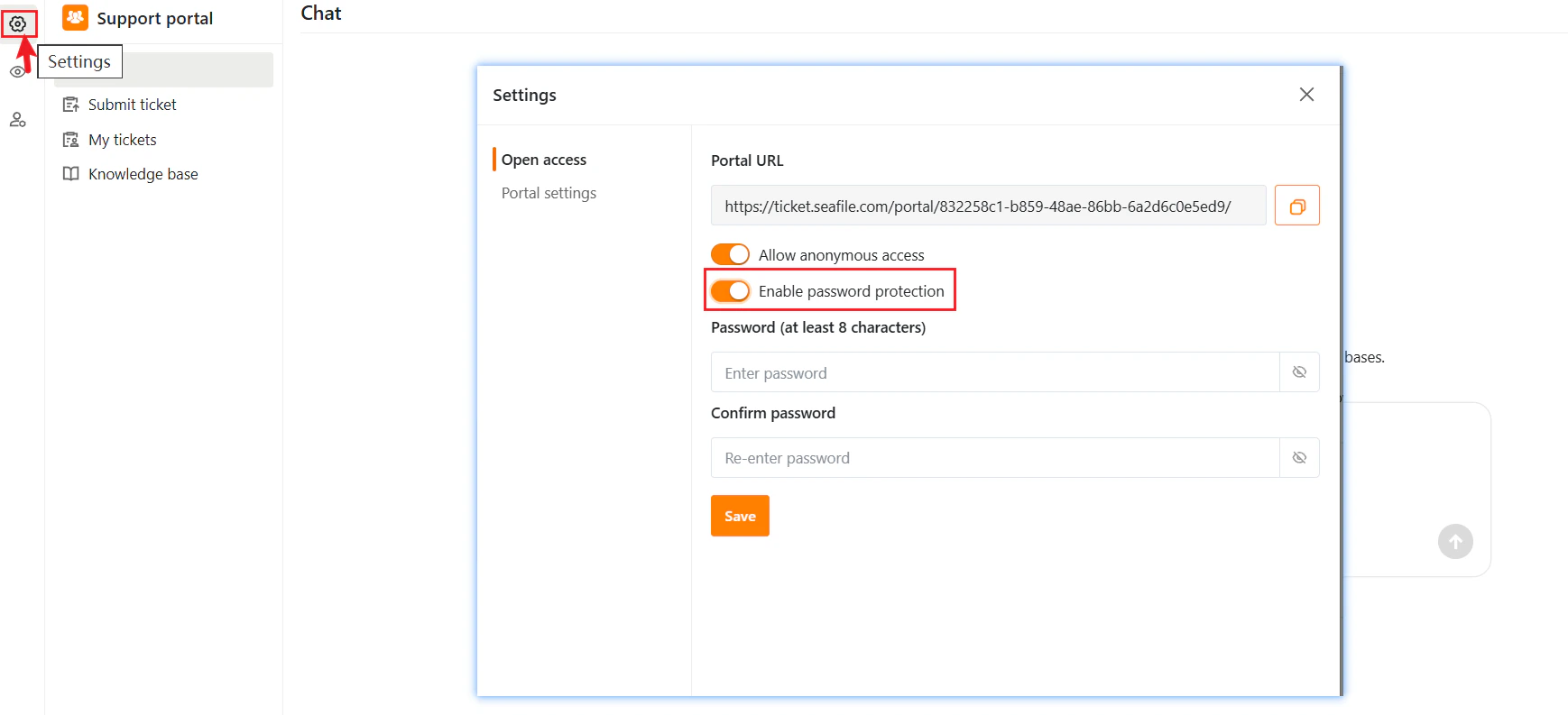
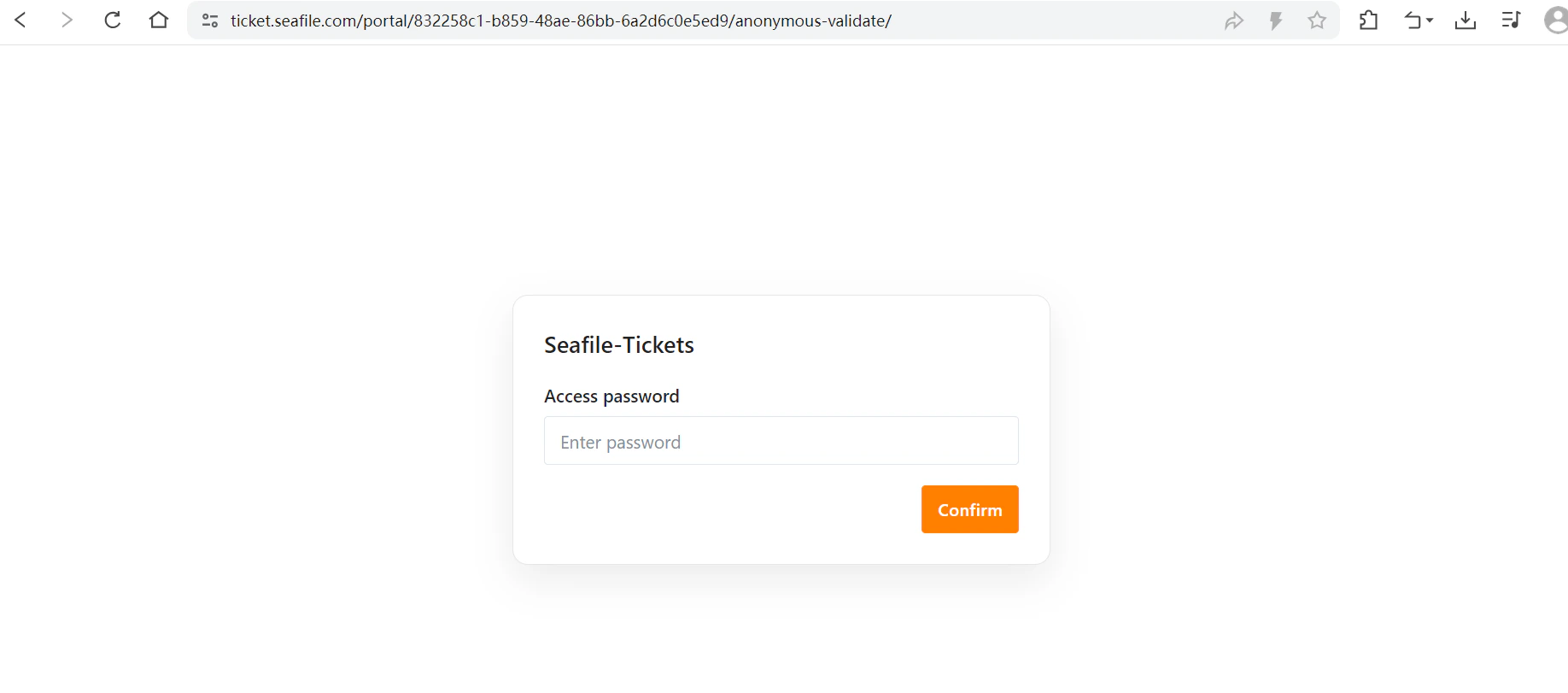
Show Knowledge Base
Control whether the Knowledge Base is visible in the portal. When enabled, users can view the knowledge base directly from the portal.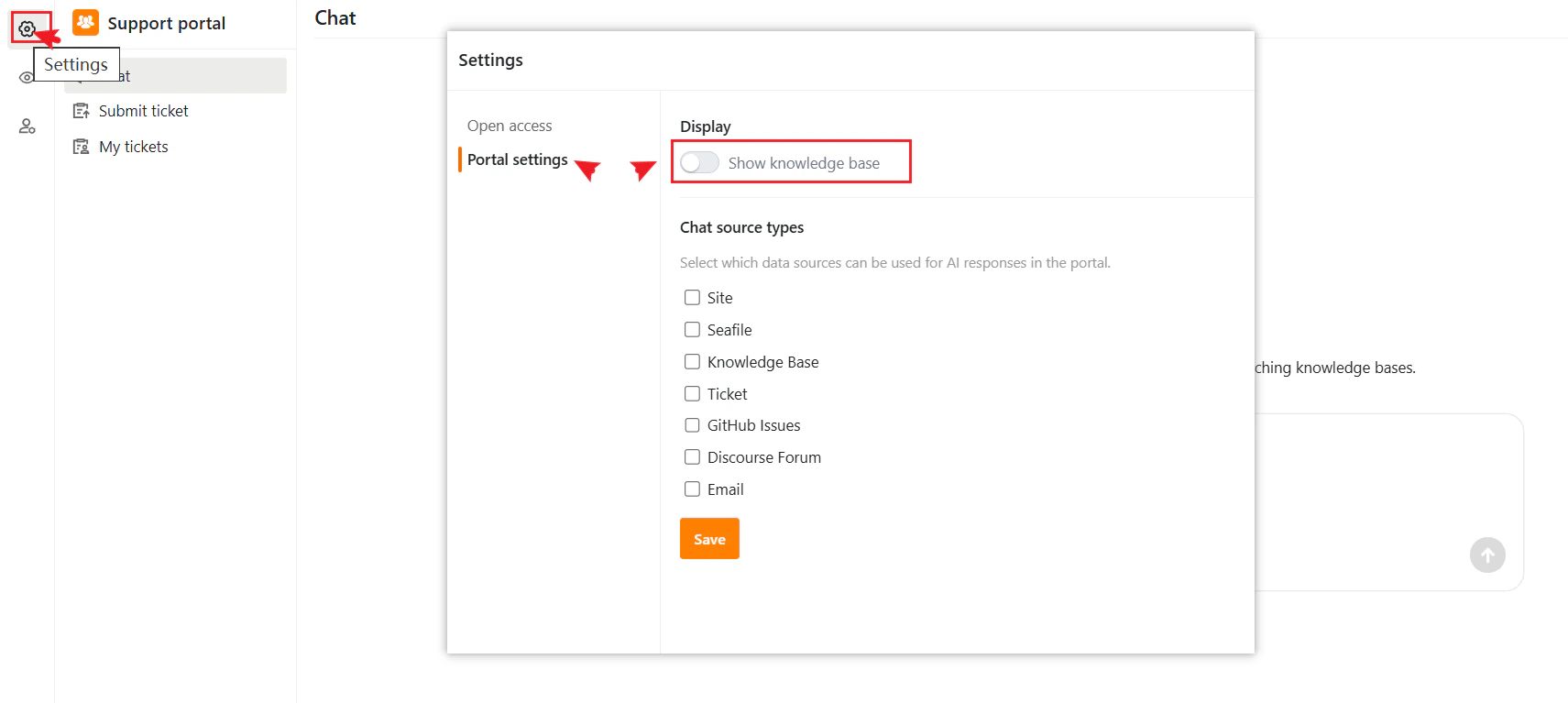
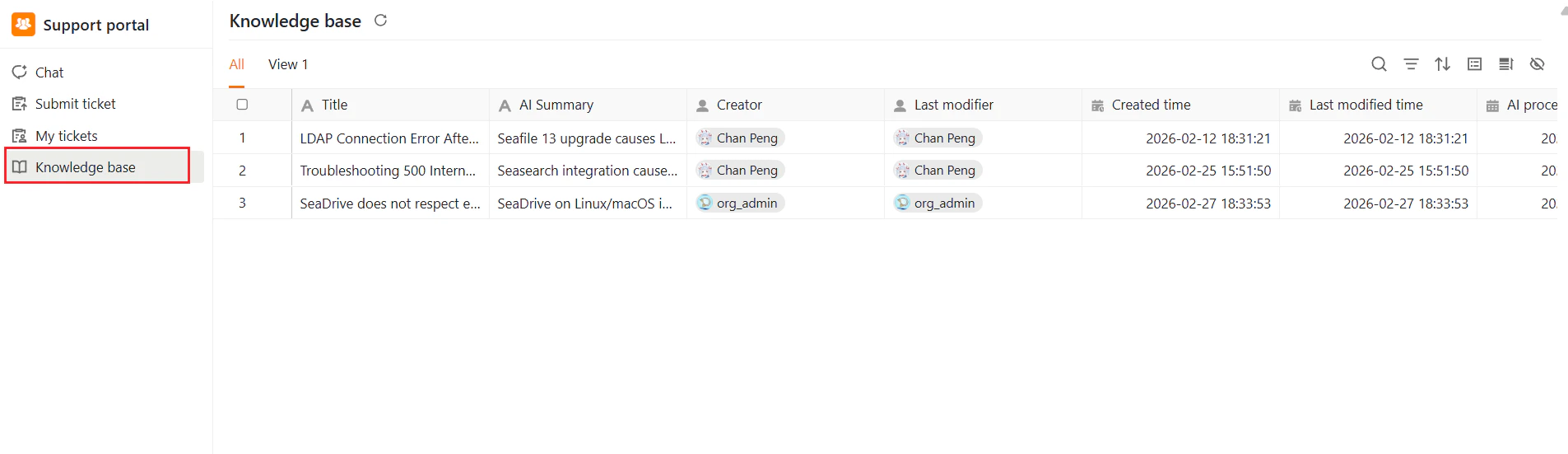
Chat Source Configuration
Define which data sources the AI Chat uses to generate responses. Available sources include websites, Seafile libraries, knowledge bases, tickets, GitHub issues, Discourse forums, and email. Selecting appropriate sources lets you control the quality and scope of the AI’s answers.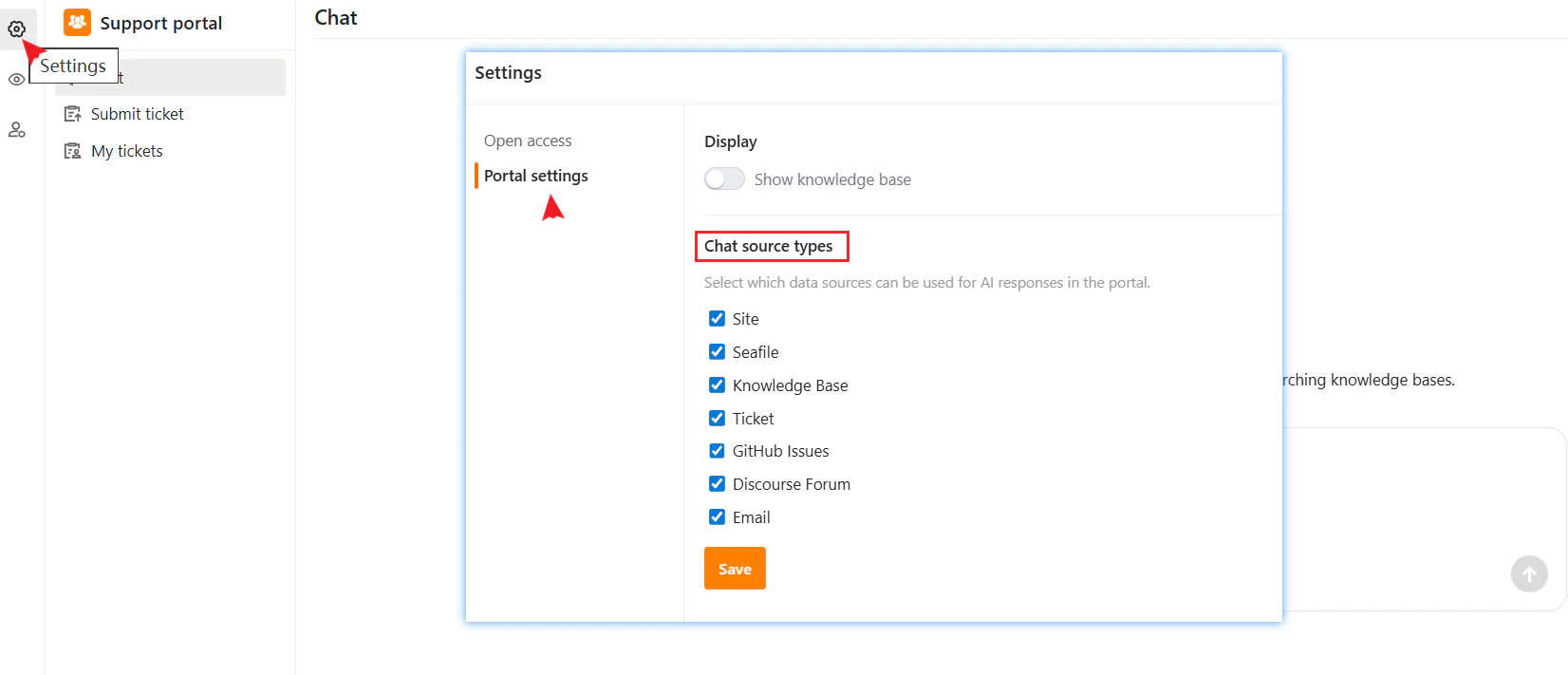
User Management
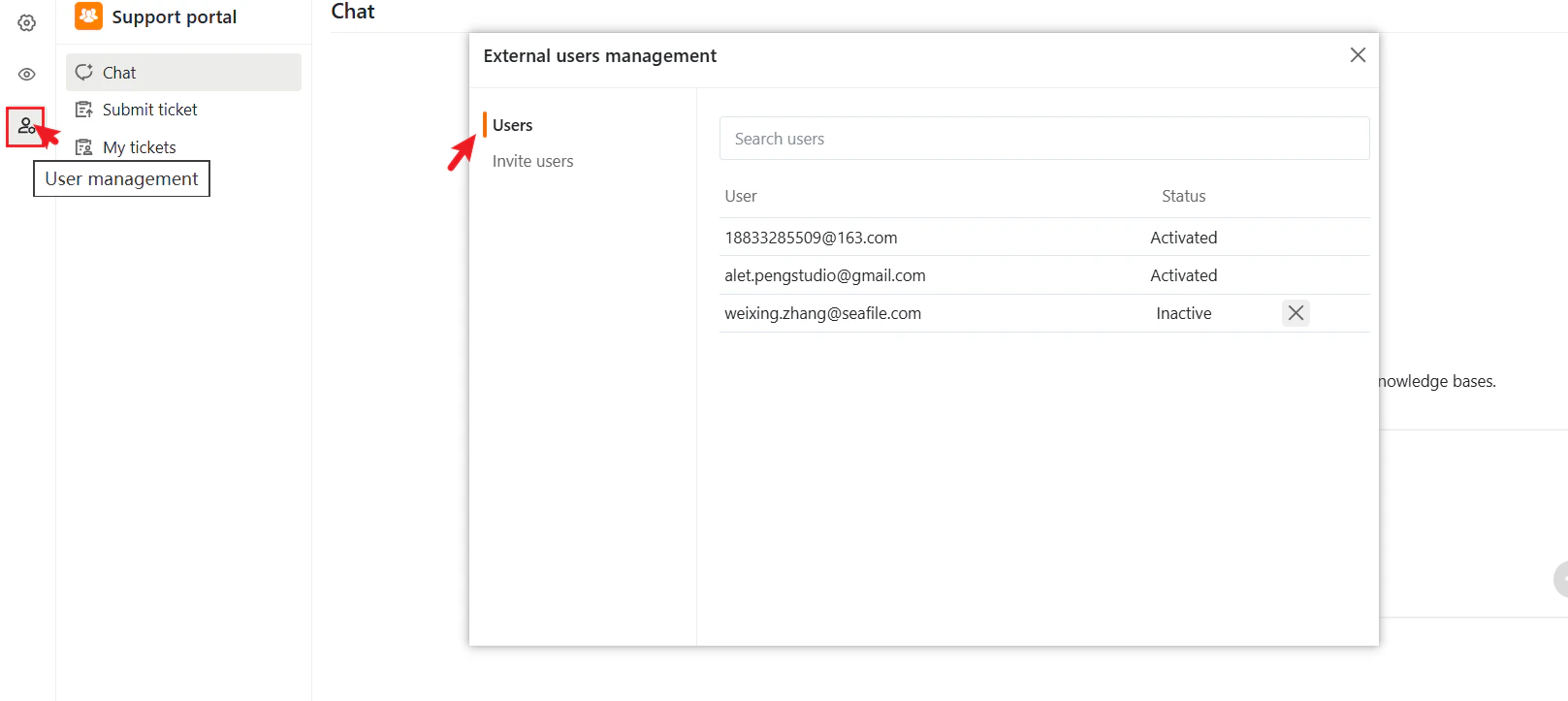
The External Users Management panel allows administrators to manage external user access, including viewing user status and inviting new users.Users Tab
The Users tab displays a list of all external users with the following information:- User: Email address of the external user
- Status: Current account status
- Activated: User has access and can log in
- Inactive: User has not activated their account or access has been disabled
- Search Users: Use the search bar to quickly find users by email.
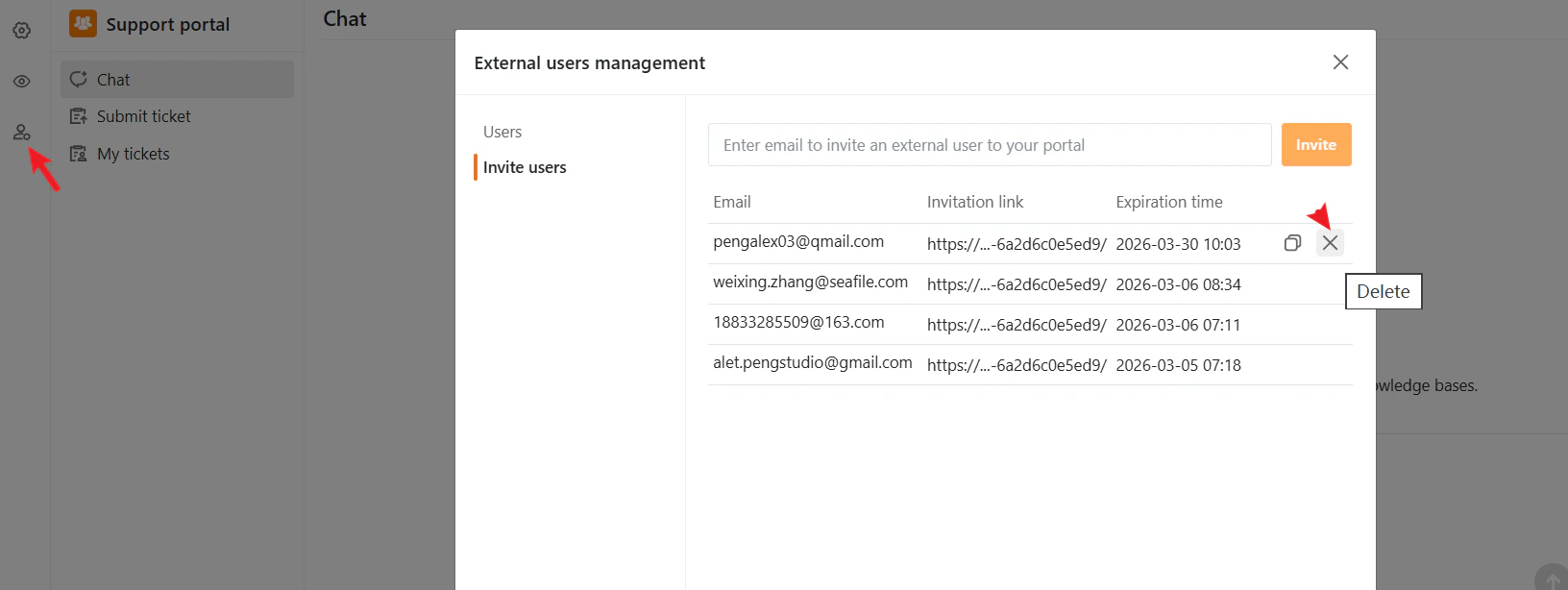
- Remove User: Click the X icon next to a user to delete or revoke access.
Invite New Users
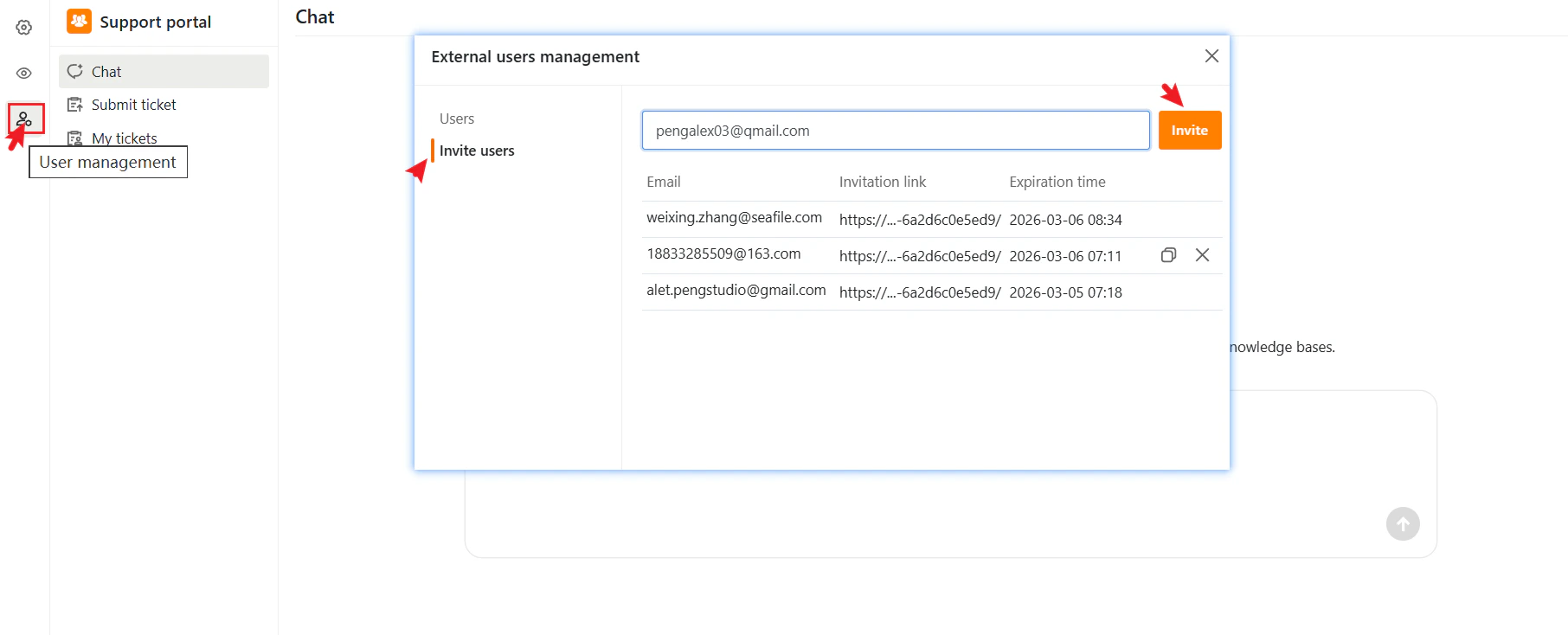
In addition to the Portal URL, you can invite specific users to temporarily join your External Support Portal via email invitations. Steps to invite a new user:- Go to User management in the left navigation bar.
- Select the Invitation users tab.
- Enter the user’s email address in the Email field.
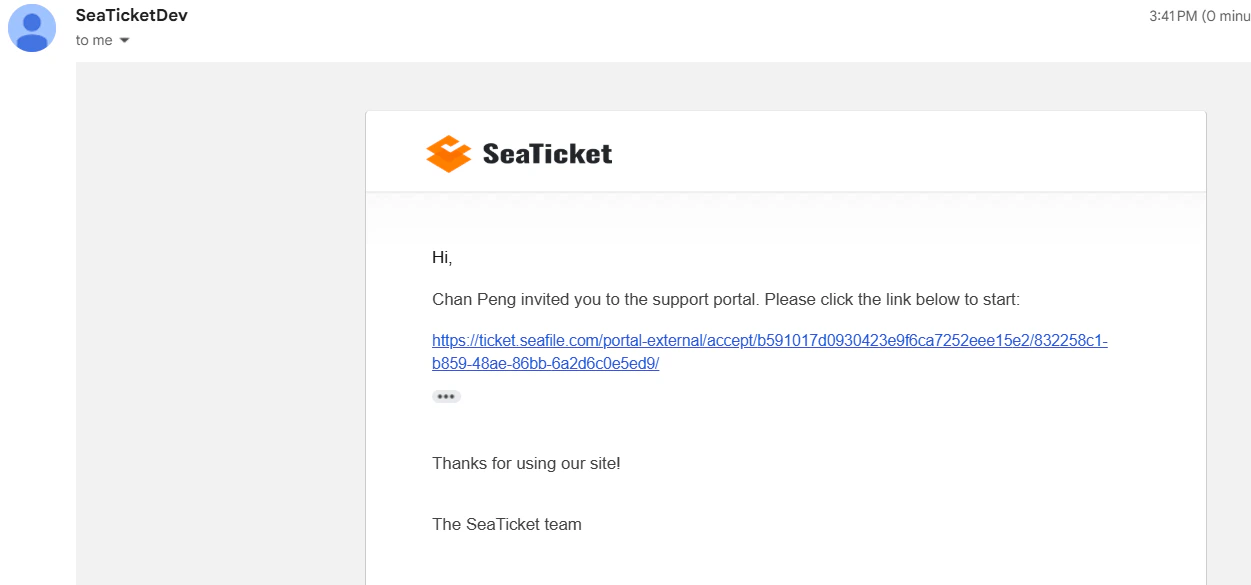
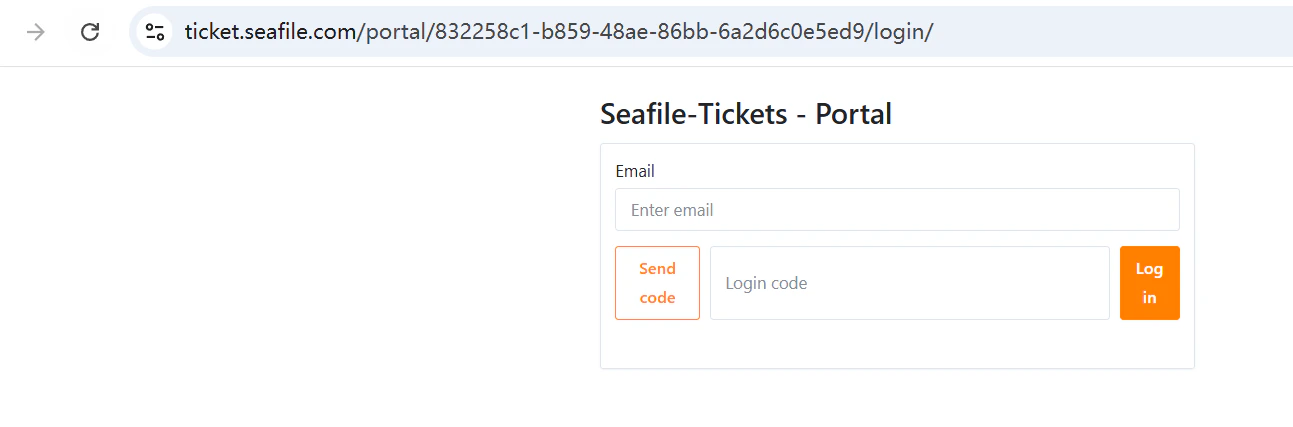
- Click Invite to create a unique invitation link.