Accessing the Search
eature
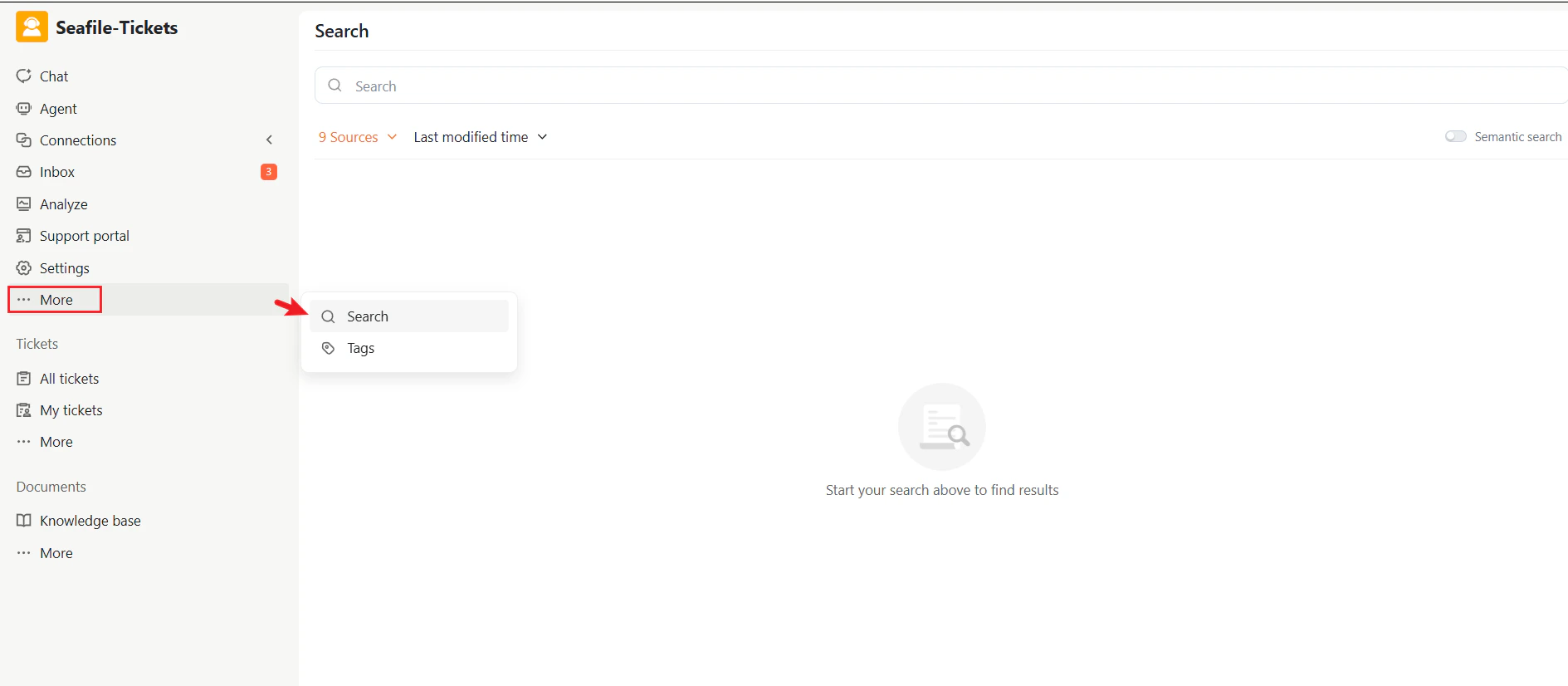
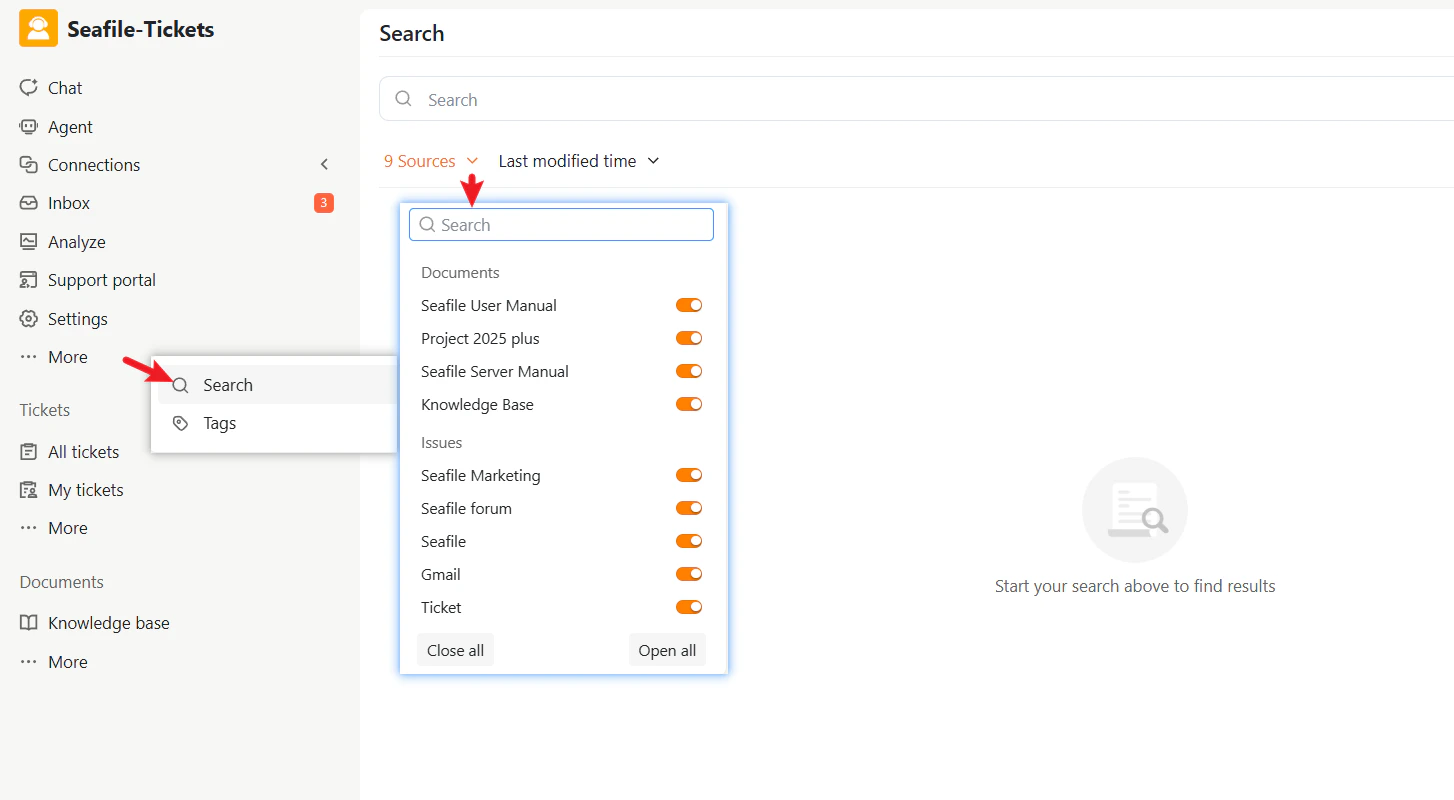
To access the Search feature:- In the left navigation panel, click More → Search.
- The Search interface displays a text input field, filter options, and result areas.
How to Search
Enter Keywords
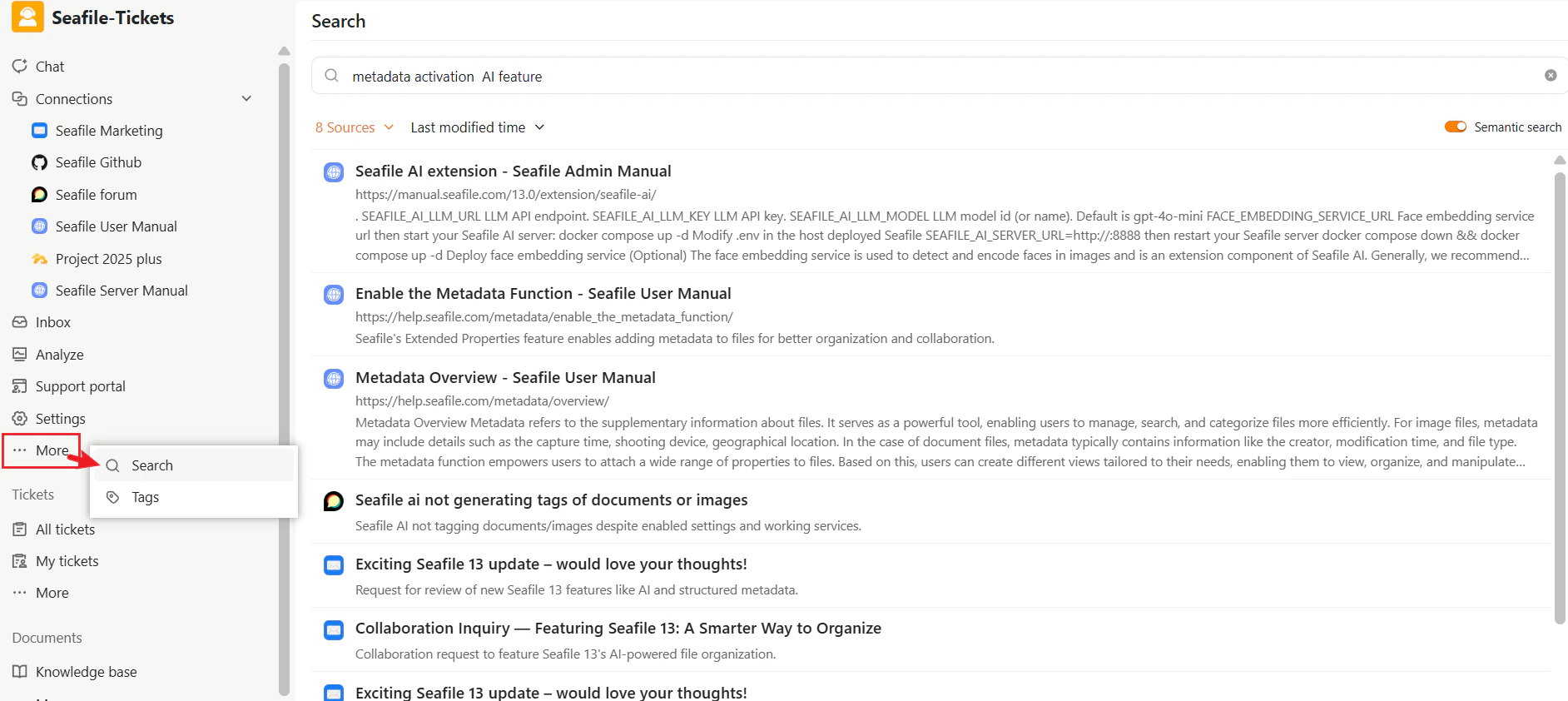
- In the search input at the top, type what you want to find—for example: “metadata activation” or “AI feature”.
- The system returns matching documents, tickets, and forum content.
Select Sources
Search retrieves results from multiple sources connected to SeaTicket. Typical sources include:- Document libraries or knowledge bases (Seafile libraries, knowledge bases, or project repositories)
- External discussion or issue sources (GitHub repositories, forums, or email threads)
- Tickets in SeaTicket
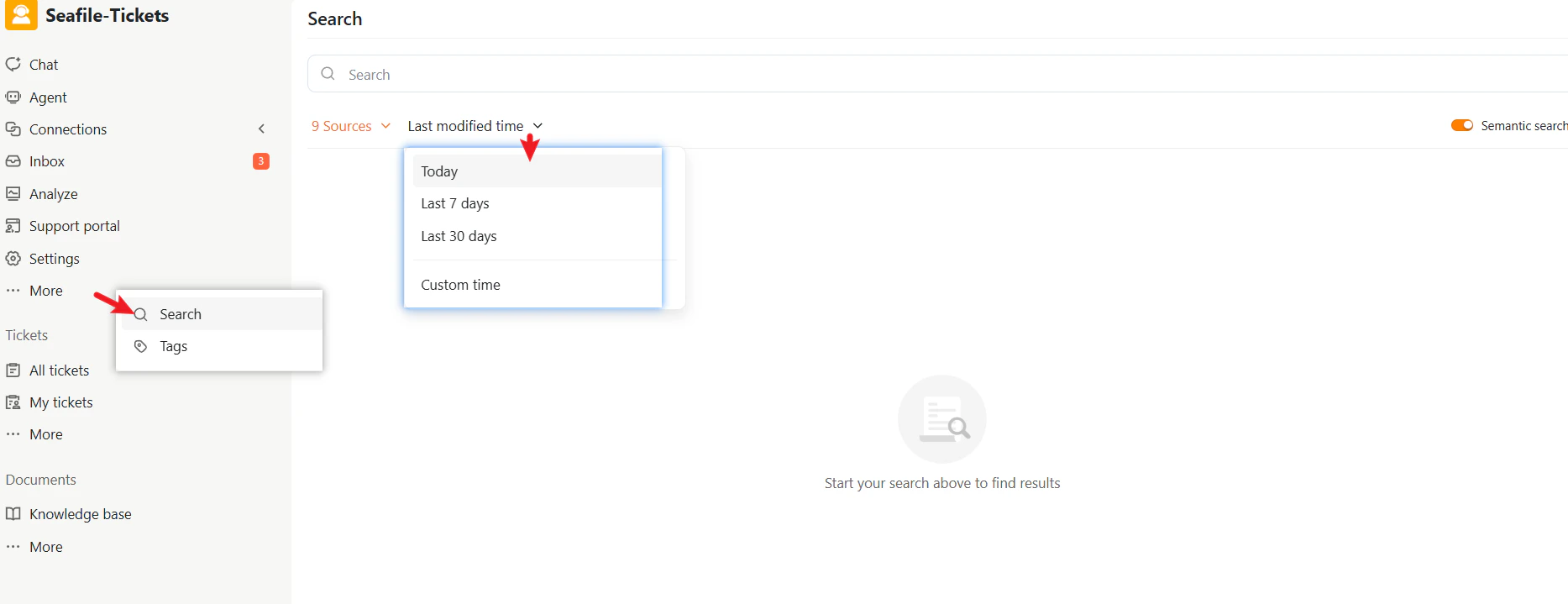
Filter by Time
Click Last modified time to choose a time range:- Today
- Last 7 days
- Last 30 days
- Custom time
Enable Semantic Search
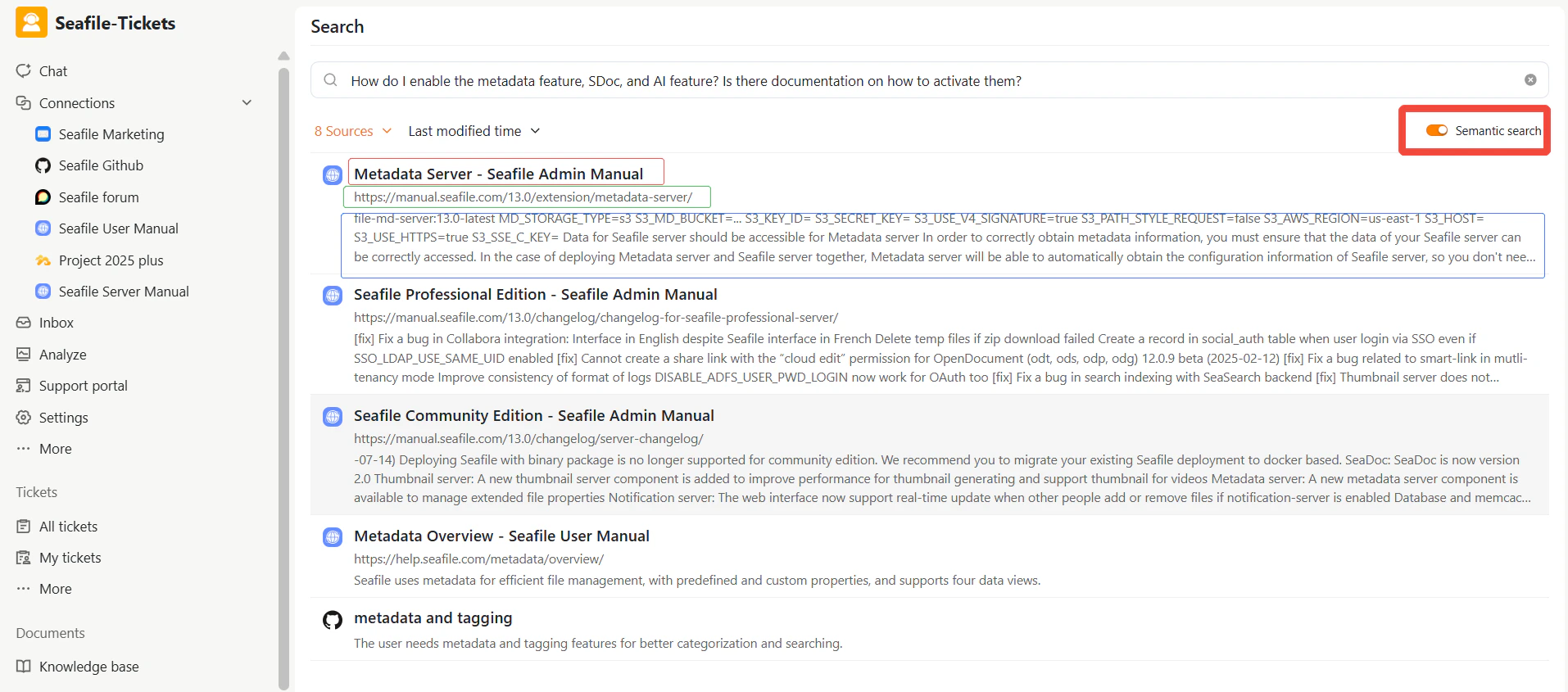
Semantic search improves result relevance by understanding the meaning of your query, not just matching keywords. To enable semantic search:- Locate the Semantic search toggle in the top-right corner of the Search interface.
- Turn it on (orange) to enable semantic search, or off (gray) to use keyword-based search.
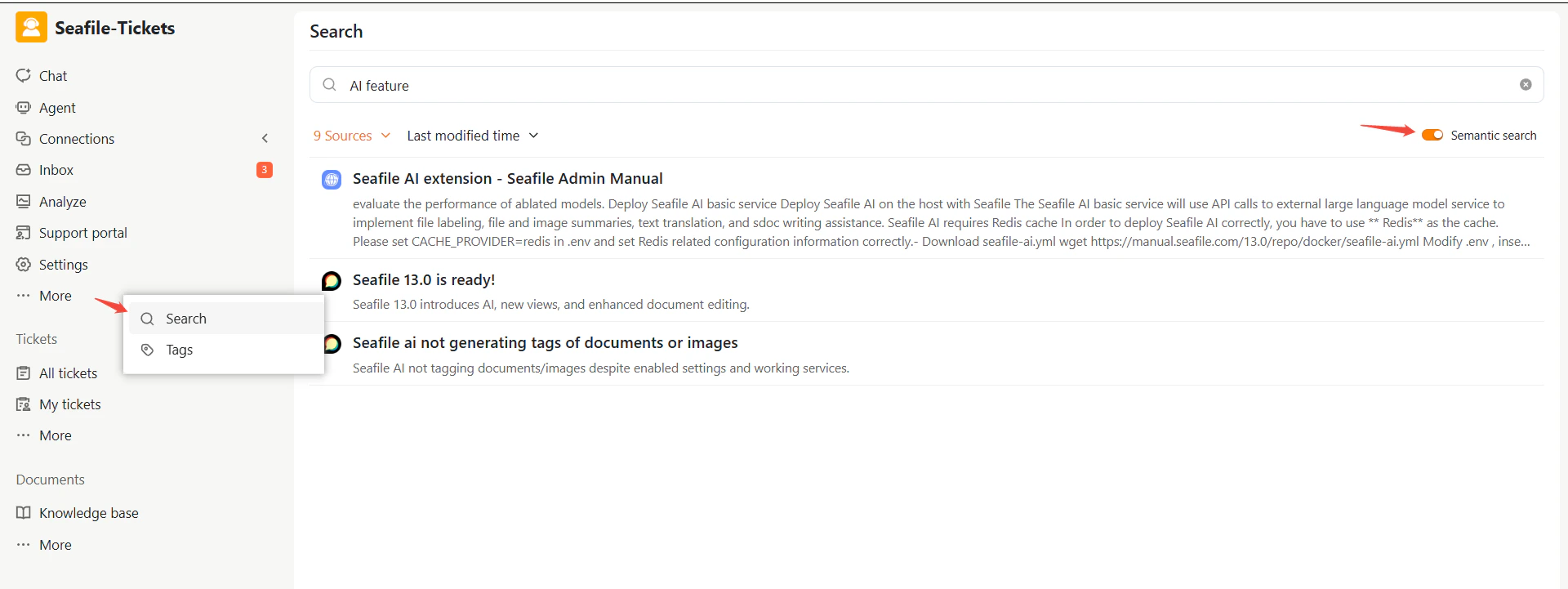
Search Results
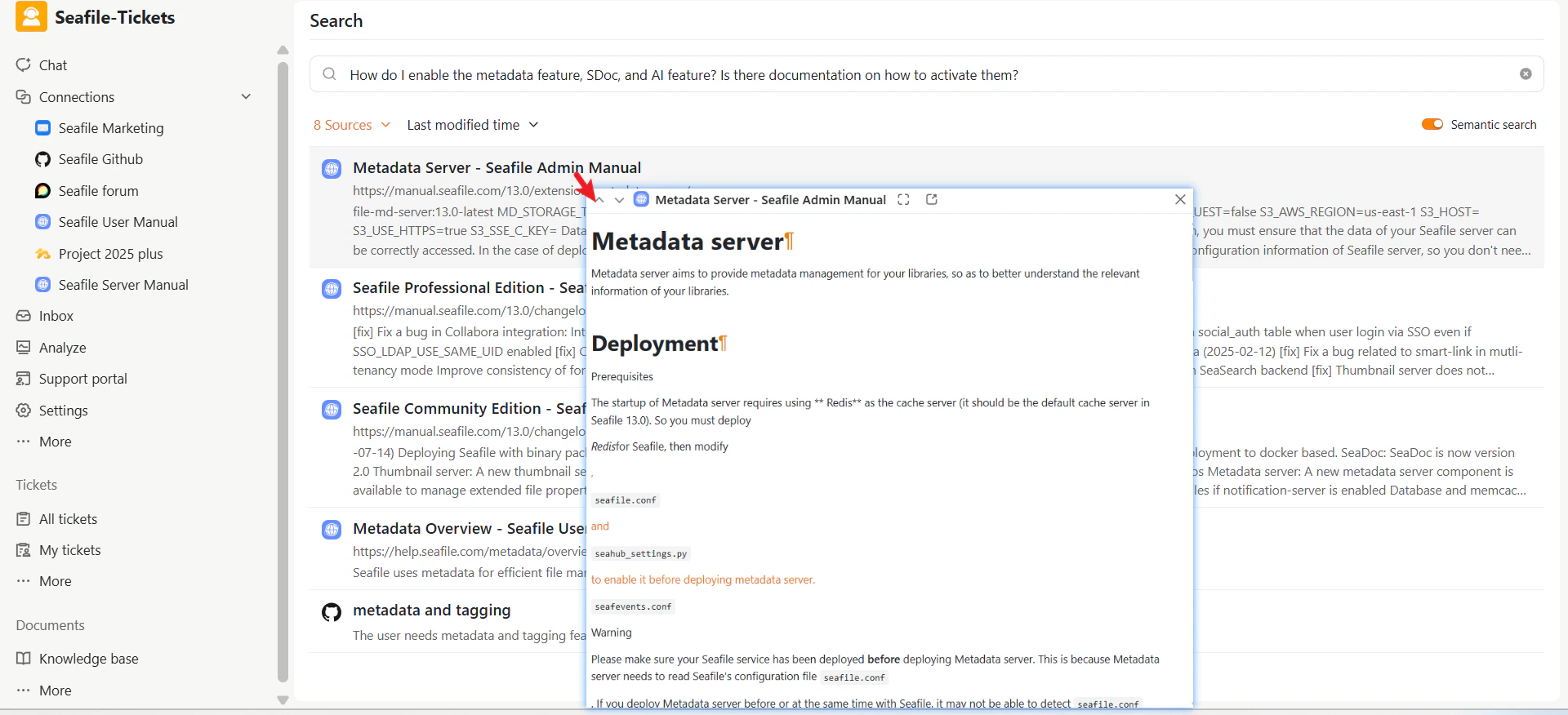
After executing a search, results appear in a list. Each result includes:- A title with a source indicator (for example, “Metadata Server - Seafile Admin Manual”)
- A brief summary or excerpt of the content
- A link to the original source (document, ticket, forum post, etc.)