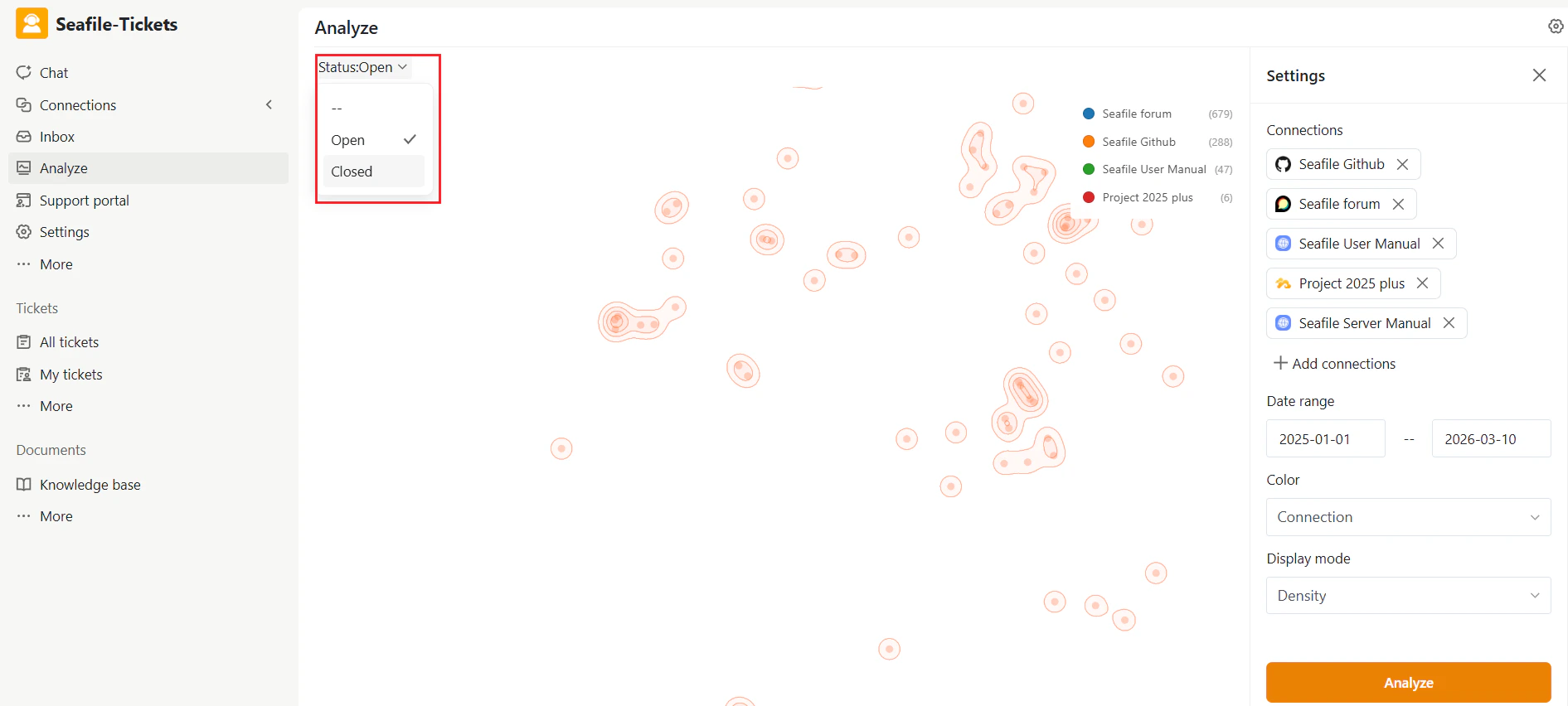
Accessing Analyze
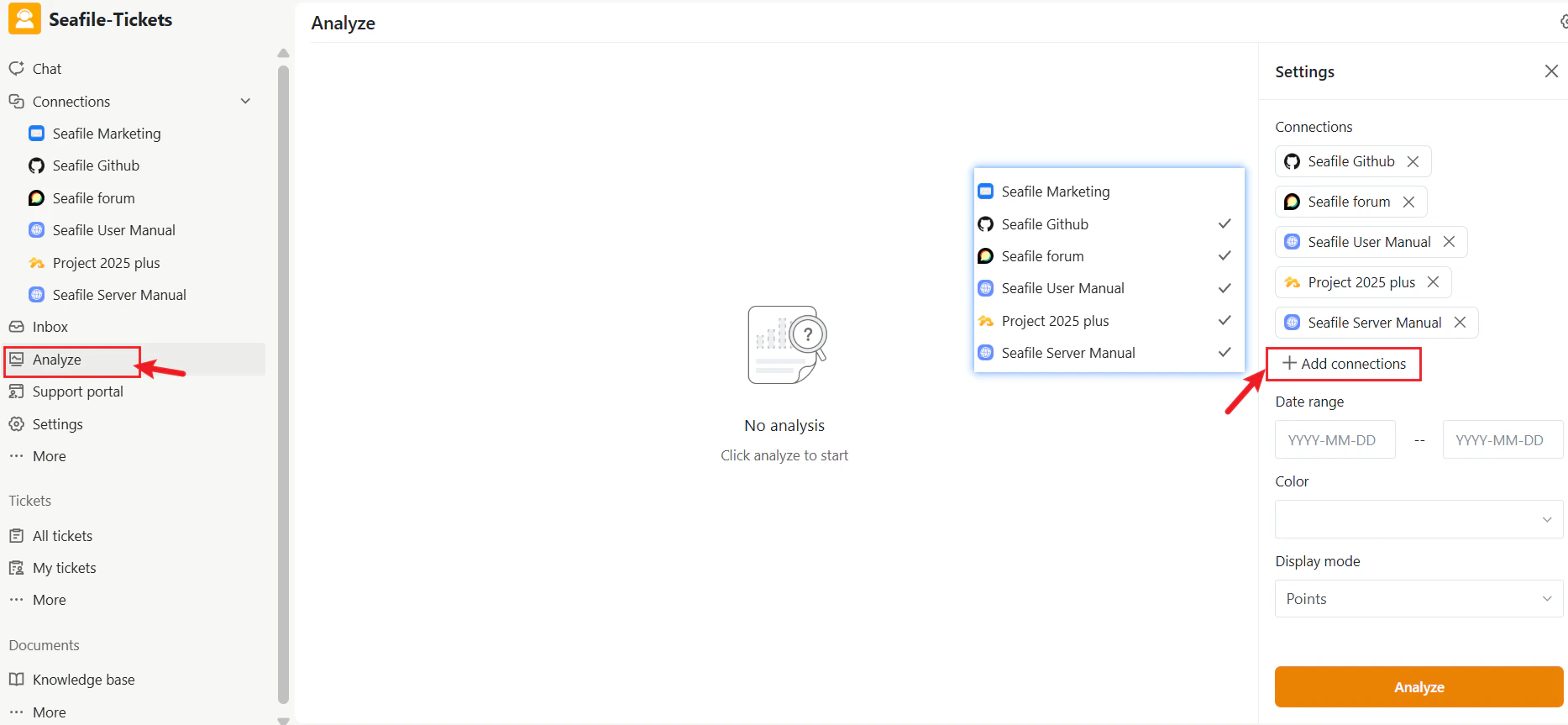
- Enter the project workspace.
- In the left navigation menu, click Analyze.
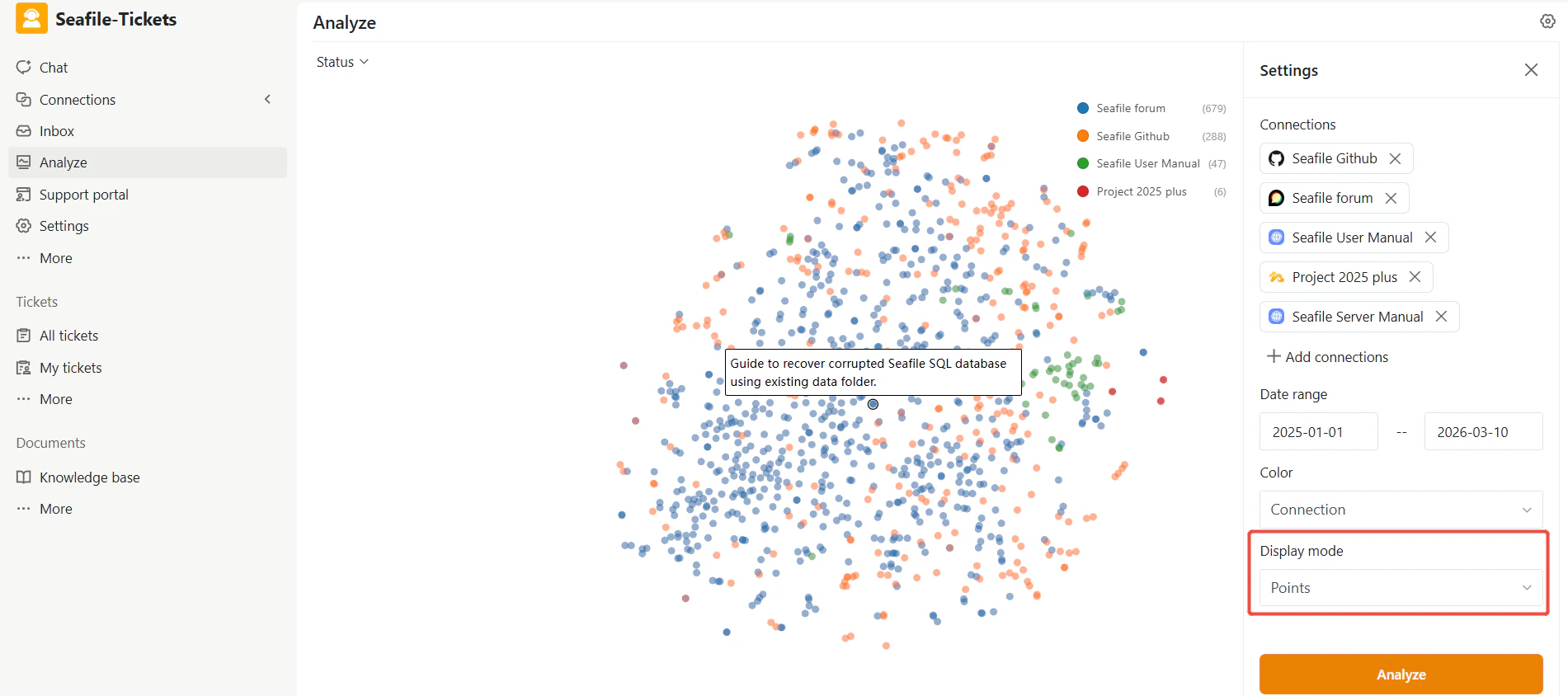
- Topic Map (center) — displays the analyzed data
- Settings panel (right) — lets you filter and adjust how data appears
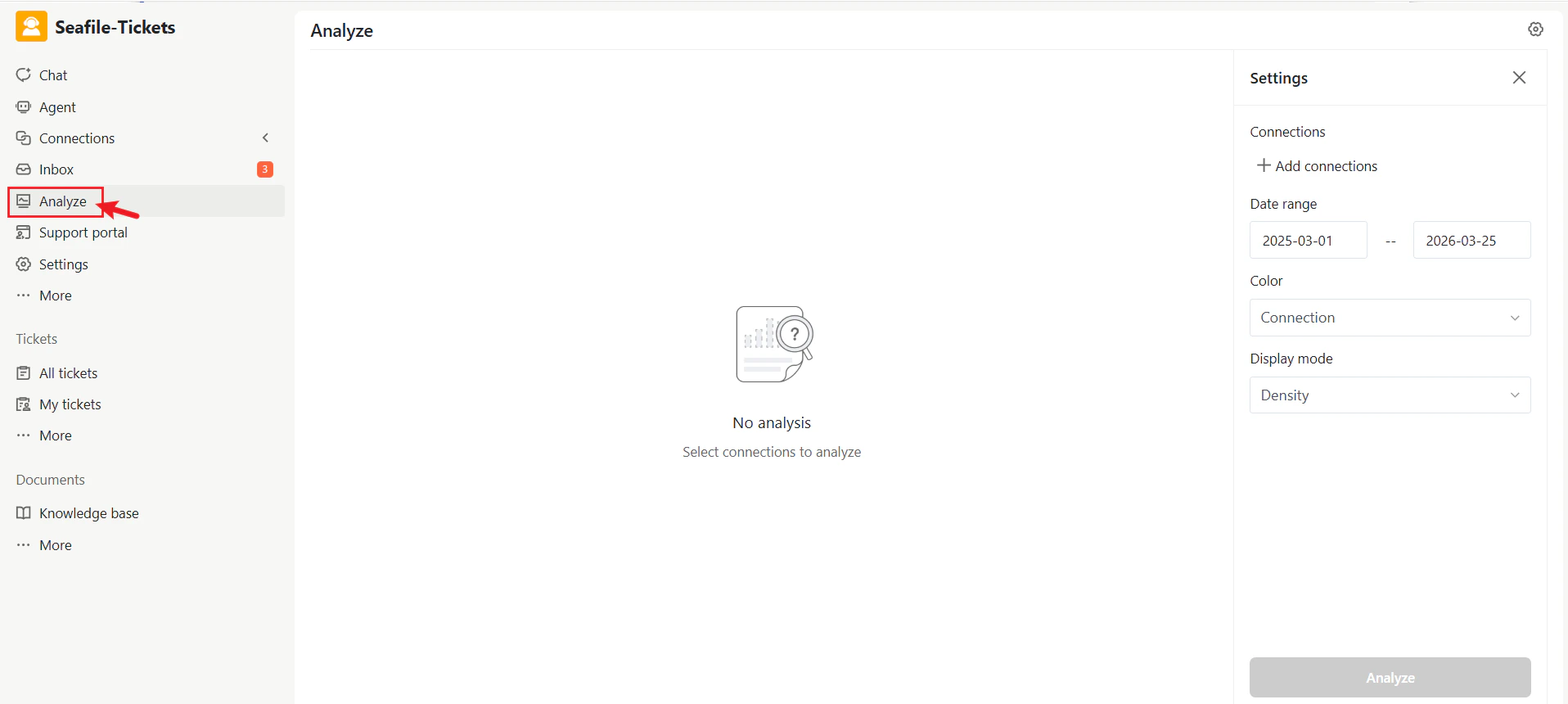
Topic Map
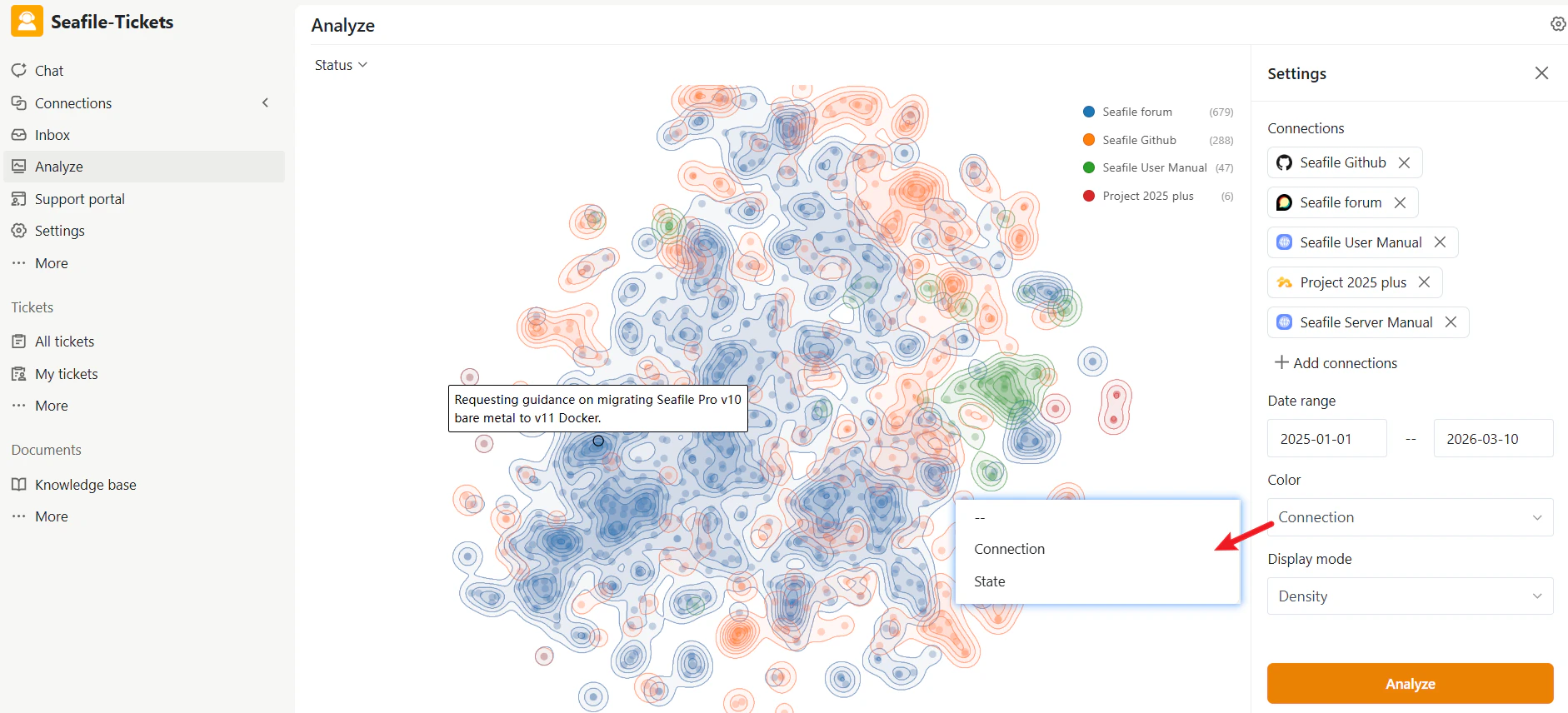
The topic map is the central visualization for exploring support conversations. Each item in the dataset appears as a point on the map. Items with similar content cluster together, representing common topics. Depending on the display mode, you’ll see:- Individual points representing issues
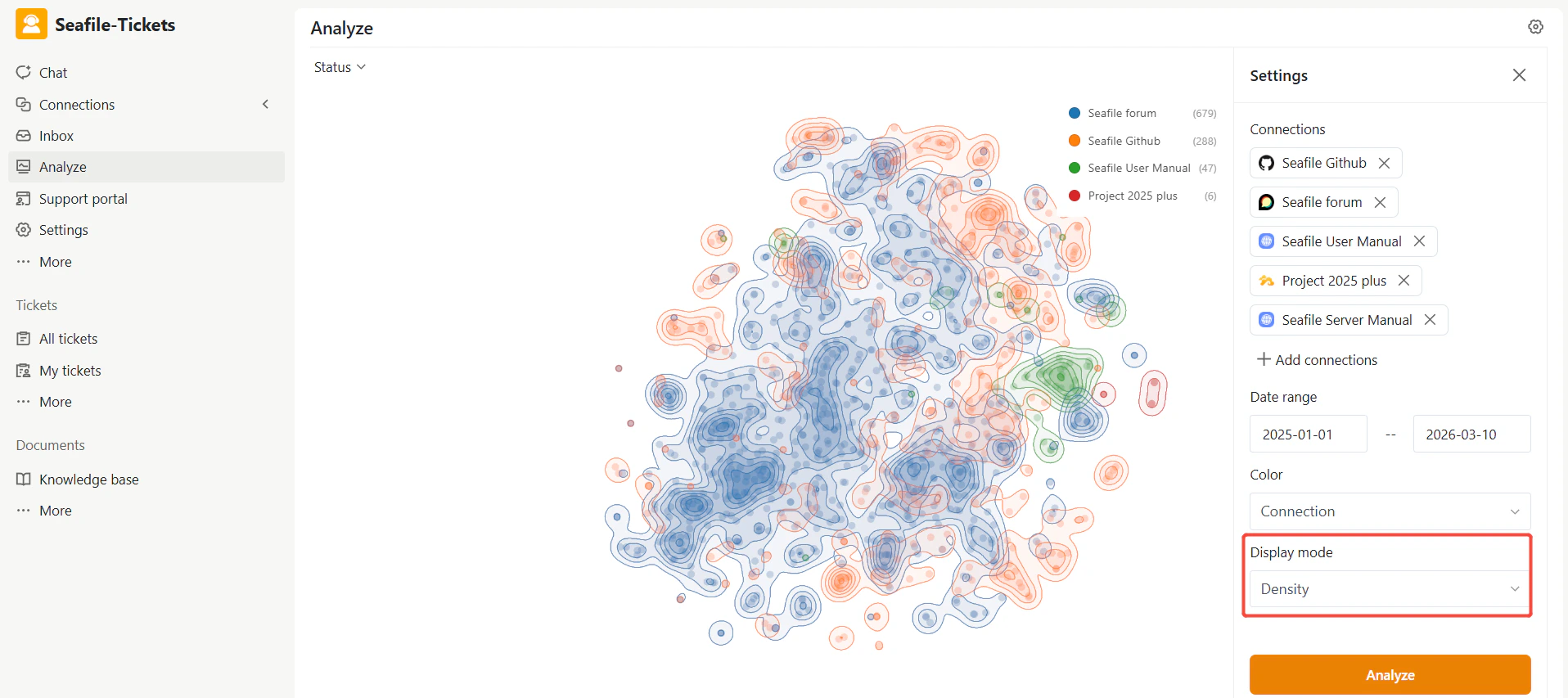
- Density contours highlighting areas with many similar issues
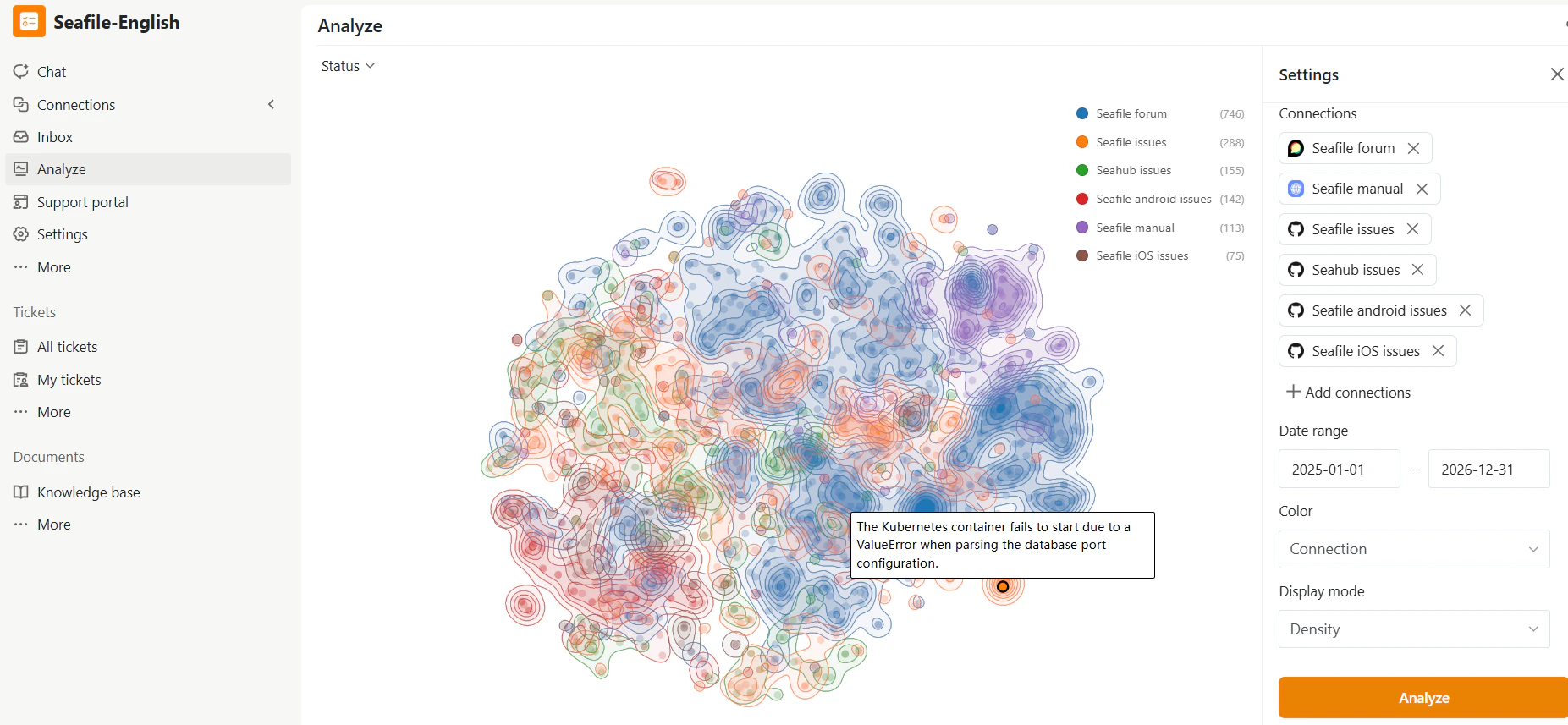
Settings Panel
The Settings panel controls what data appears on the map and how it displays. Changes take effect after you click Analyze.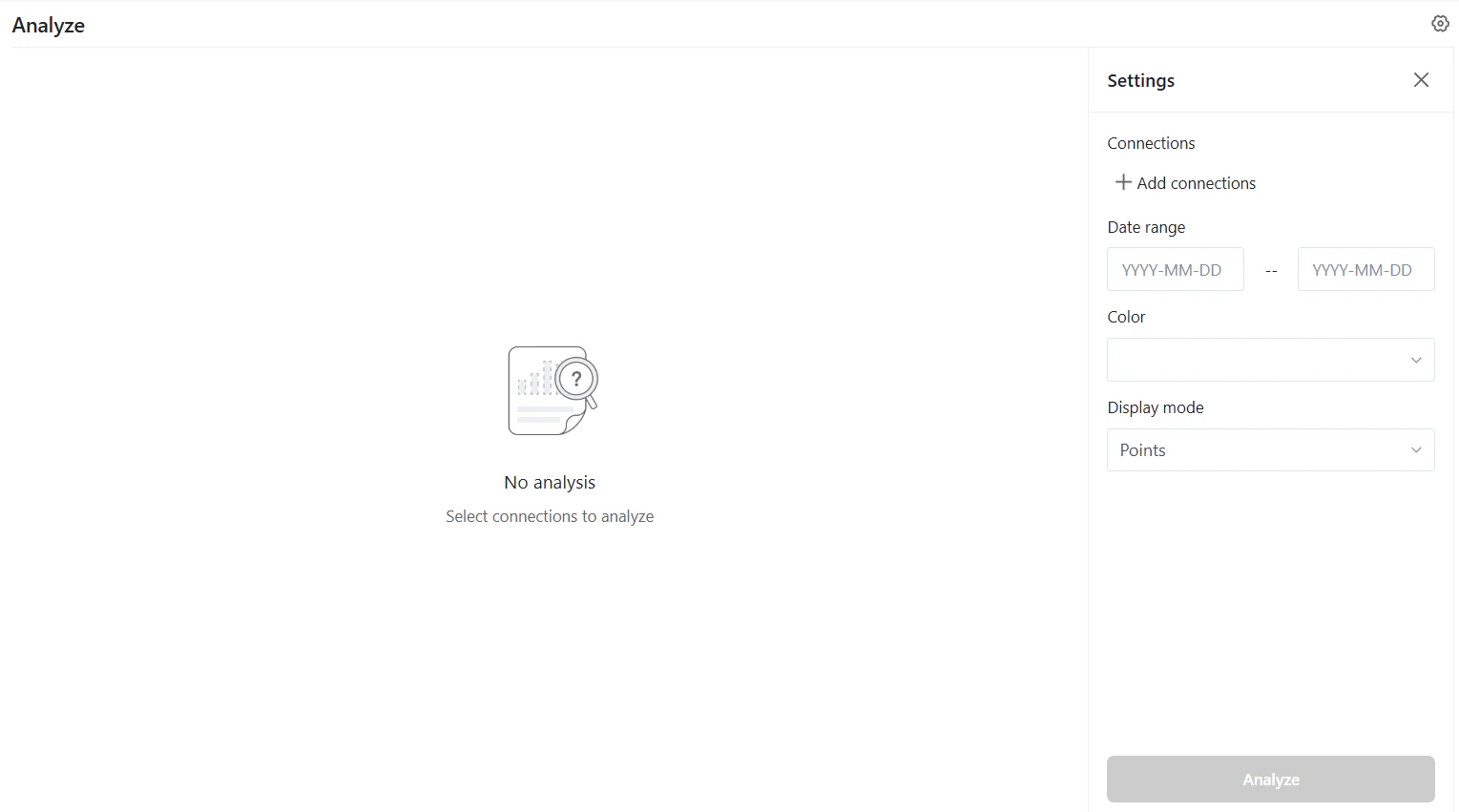
Connections
Connections determine which sources are included in the analysis. Examples include:- Forum discussions
- GitHub issues
- Product documentation
- Open the Connections section.
- Select the sources you want to include.
- Remove a source by clicking the × icon next to it.
- Click Add connections to include additional sources.
Date Range
The Date range filter limits the analysis to items created within a specific period. Use this to:- Analyze feedback for a particular release cycle
- Investigate recent support activity

Color
The Color option determines how items are visually grouped on the map. Common options include:- Connection — Each data source appears in a different color, helping you see how topics are distributed across sources like forums and GitHub.
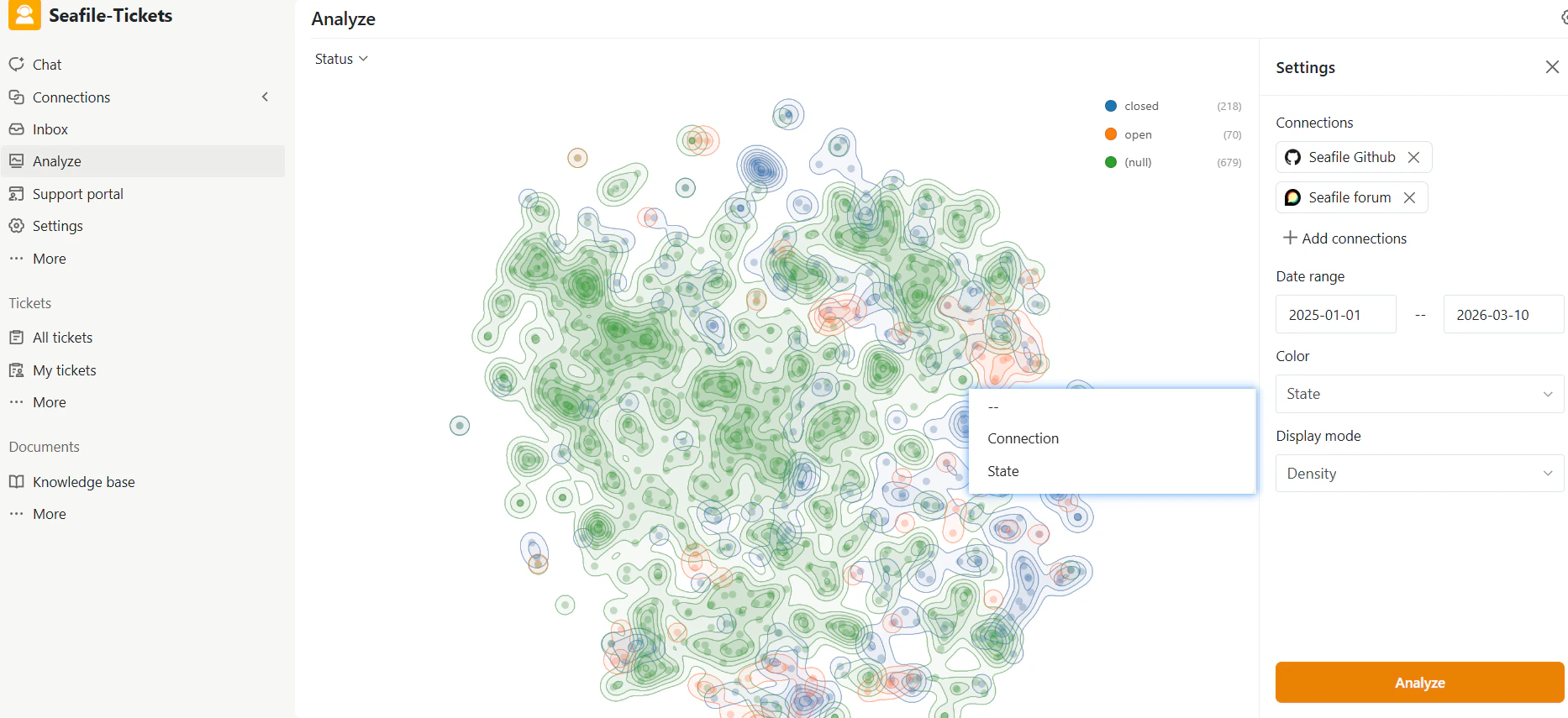
- State — Items are colored by status (Open, Closed, etc.), letting you quickly identify clusters of unresolved issues.
Display Mode
The Display mode controls how the topic map renders. Two options are available:- Density — Shows a heatmap-like visualization highlighting areas where many related items concentrate. Use this to quickly identify major topic clusters.
- Points — Displays each item as an individual point. Use this when exploring specific issues or discussions.
Status Filter
The Status filter at the top of the page lets you focus on items with a specific state. Available options typically include:- Open — Items that are still unresolved
- Closed — Resolved or completed items