

Getting Started
- Click Chat in the left navigation menu.
- Enter your question or issue in the message box at the bottom.
- Press Enter or click the send icon to submit your message.
- The system returns a response based on available data sources.
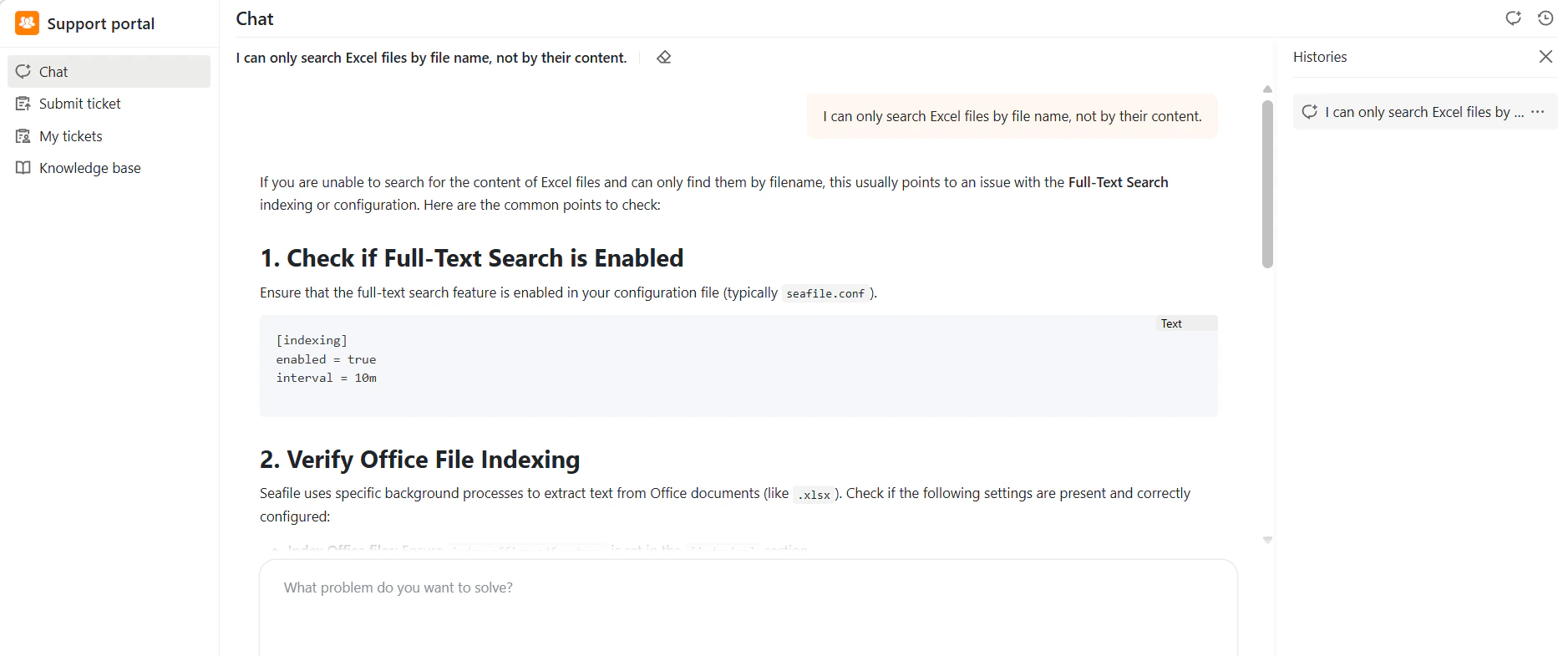
Chat Interface Overview
Once you open Chat, you’ll see:- Message area – Your conversation with the system
- Input box – Where you type your questions
- Histories panel (right side) – Your previous conversations
Tips for Better Results
- Ask clear, specific questions for more accurate answers
- Include relevant keywords like file names, error messages, or feature names
What Chat Can Do
- Generate responses based on configured data sources (knowledge bases, files, or tickets)
- Help with simple and complex questions through relevant information, guidance, or troubleshooting
- Escalate to ticket submission when further action is needed