
Before You Start
Ensure you have the following:- An App Password generated from your email provider. This is required instead of your regular account password. Refer to official guide of your email provider for instructions on generating an app password.
Creating an Email Connection
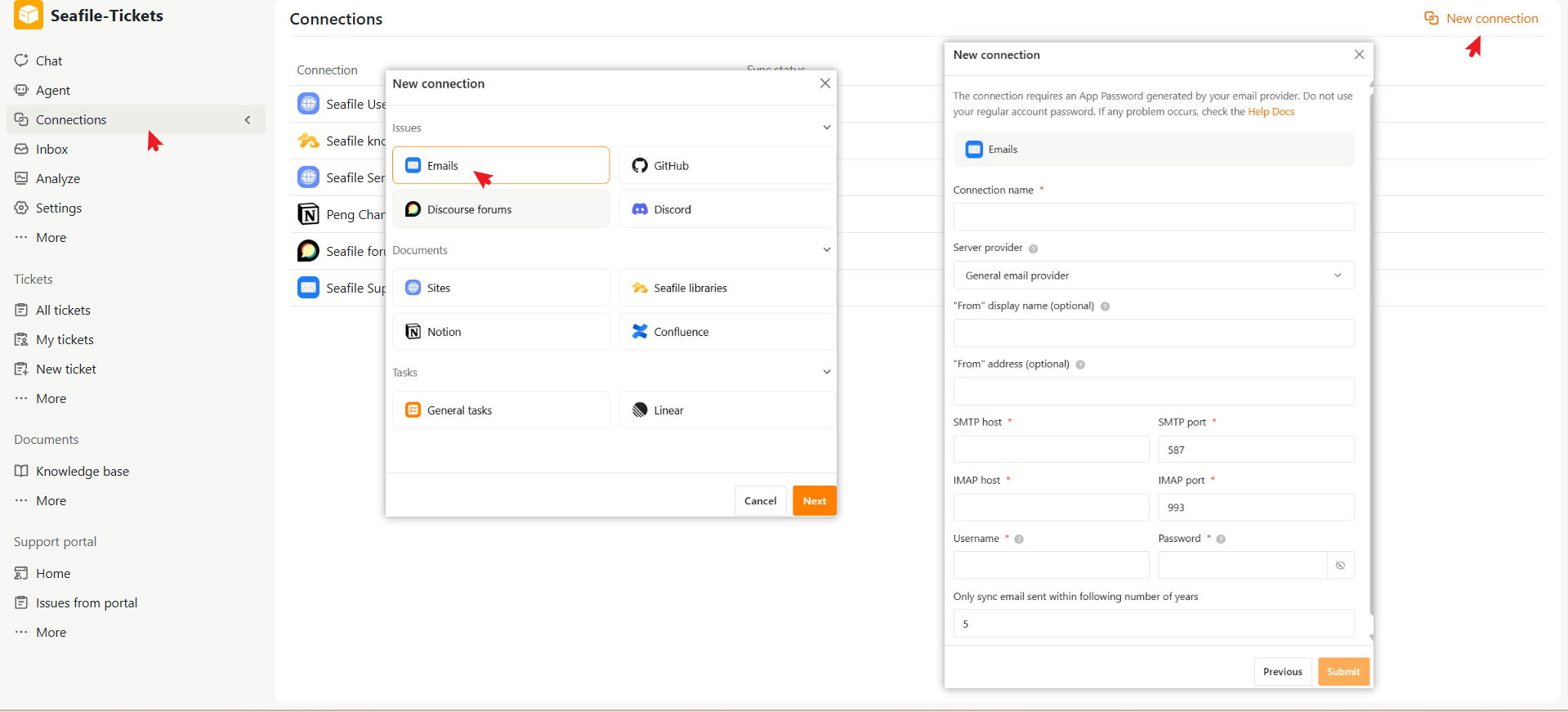
- Open a project in SeaTicket.
- Go to Connections from the left navigation menu.
- Click New connection in the top-right corner.
- Select Email under Issues, then click Next.
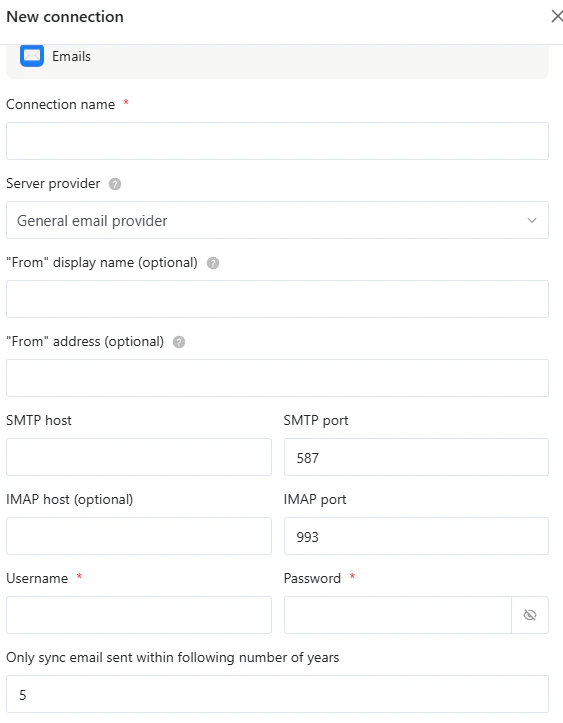
- Fill in the configuration fields:
Server Settings
Authentication
Sync Settings
- Click Submit to complete the setup
After the Connection is Created
Once created, the connection appears on the Connections page. The sync status will show as Pending while SeaTicket performs the initial synchronization. Once complete, the status updates to Completed and the last synced time is recorded.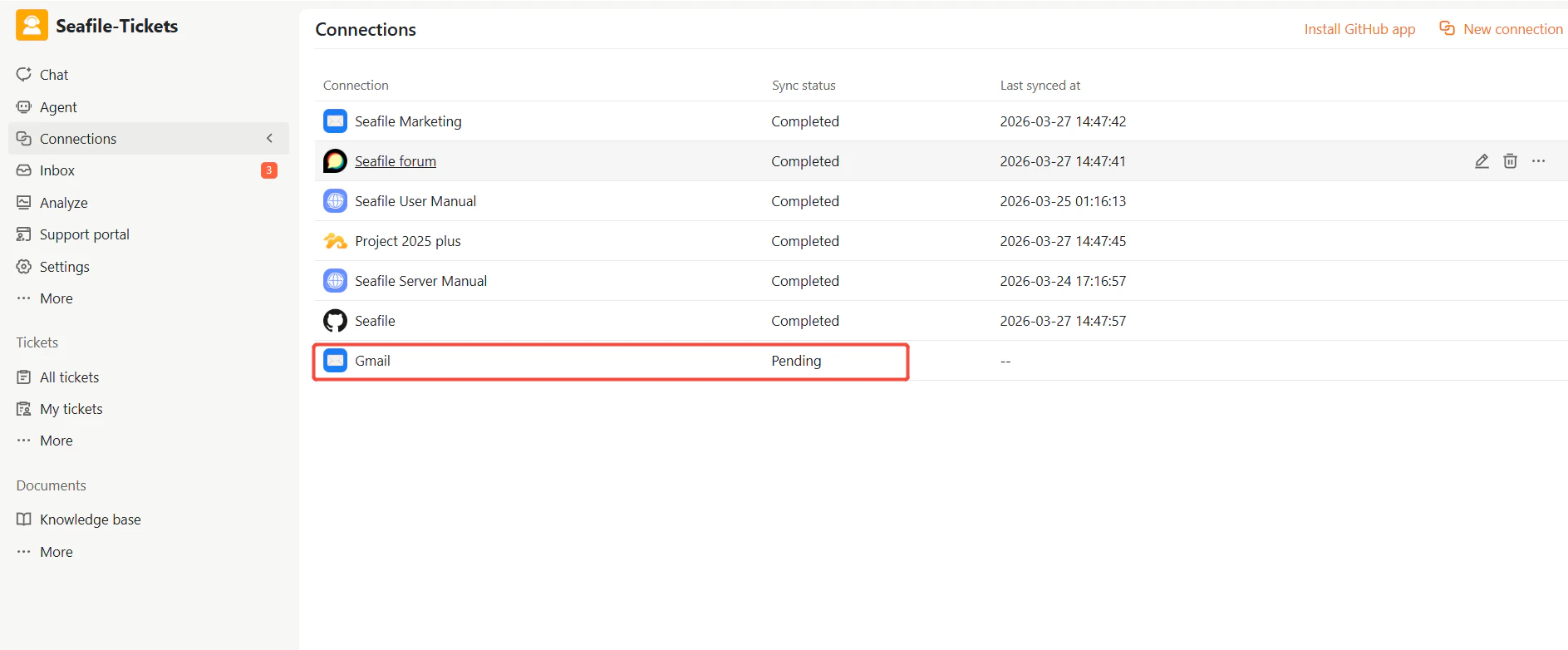
- Emails are automatically synced every 1 hour.
- Initial synchronization may take time depending on mailbox size
- Ensure your email provider allows IMAP/SMTP access
- If synchronization fails, check authentication settings or server configuration
Viewing Synced Emails
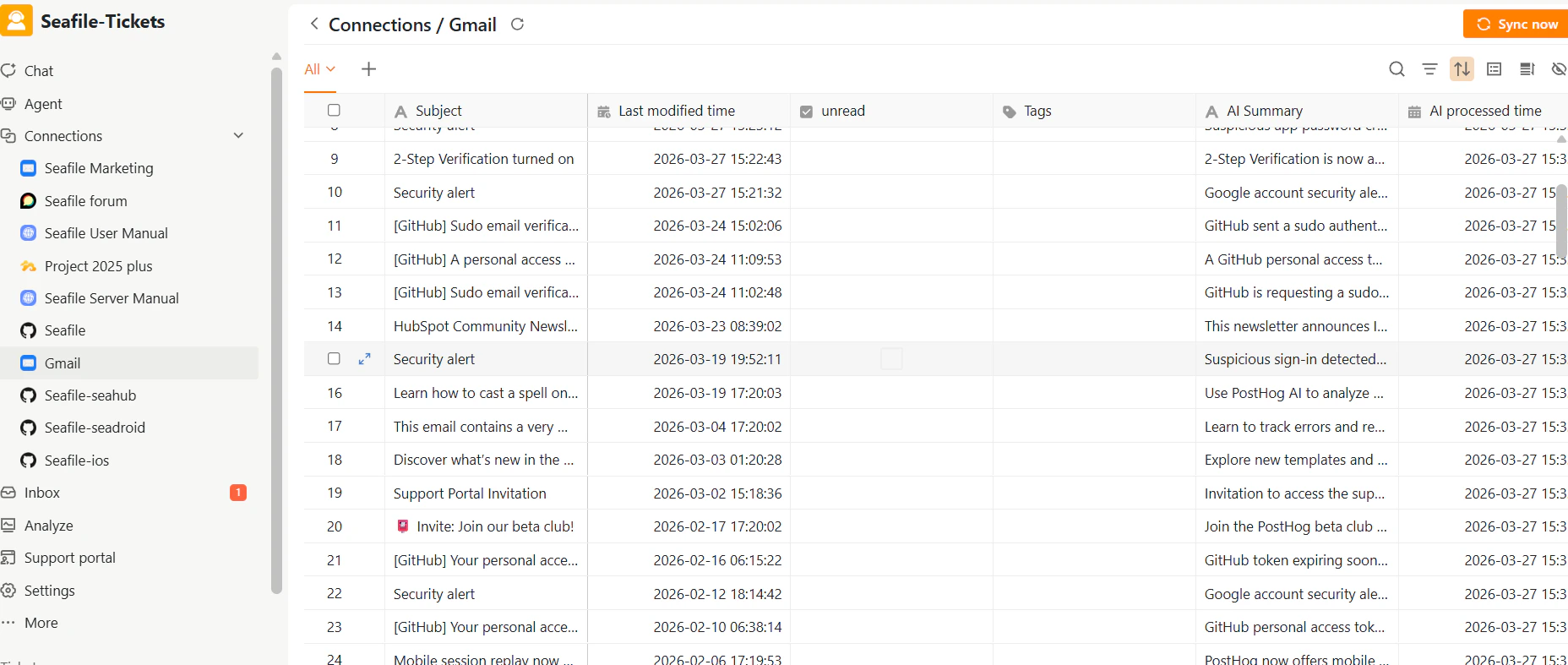
Once synced, emails appear in a list view under the connection. For each email, SeaTicket records the subject, last modified time, and unread status. SeaTicket also automatically generates an AI summary and records when that processing was completed.