
- Sync internal documentation
- Access team knowledge stored in Notion
- Keep Notion content available inside SeaTicket
Before You Start
Make sure you have the following before creating a connection:- A Notion integration token (API key)
- Permission to create integrations (workspace owner or admin)
- Access granted to the pages or databases you want to sync
- Read access to content enabled for the integration
Creating a Notion Connection
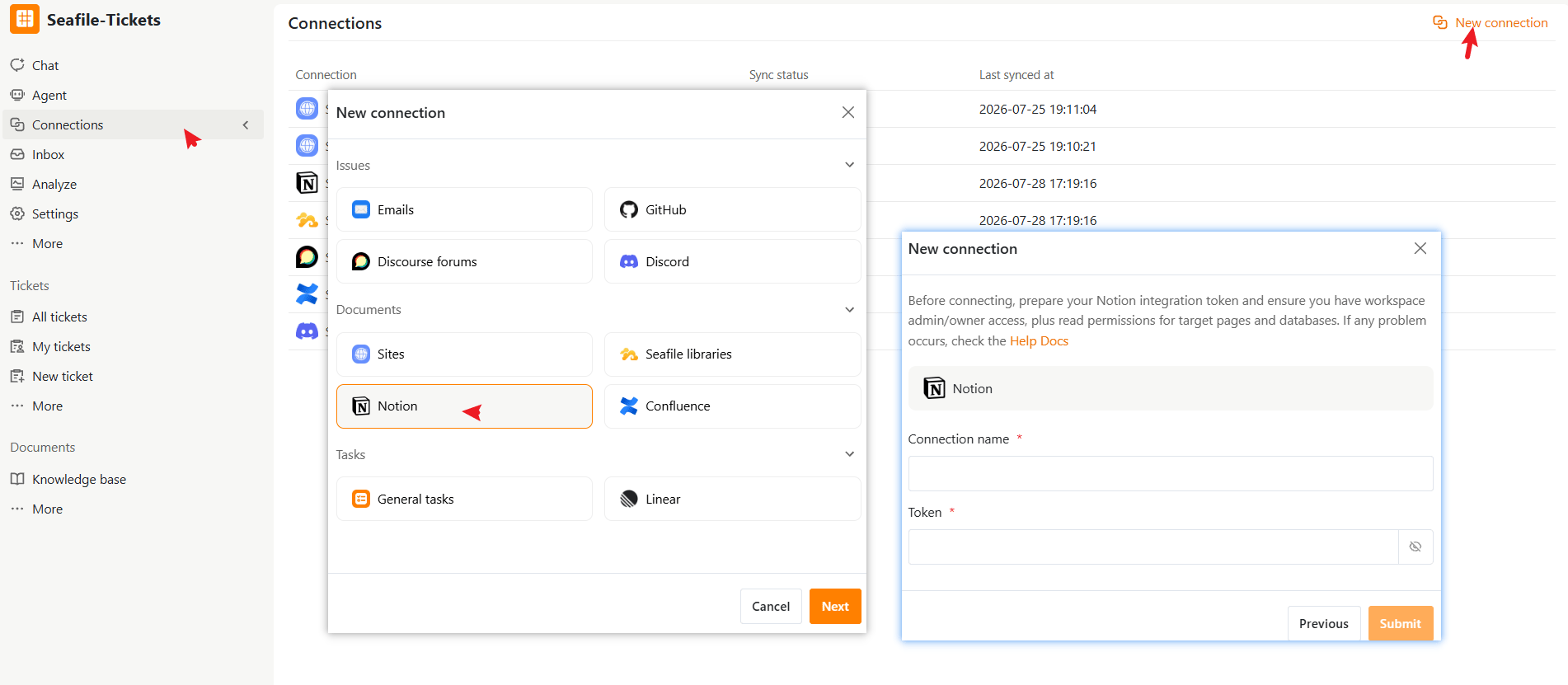
- Open a project in SeaTicket.
- Go to Connections from the left navigation menu.
- Click New connection in the top-right corner.
- Select Notion under Documents, then click Next.
- Enter the required information:
- Click Submit to complete the setup
After the Connection is Created:
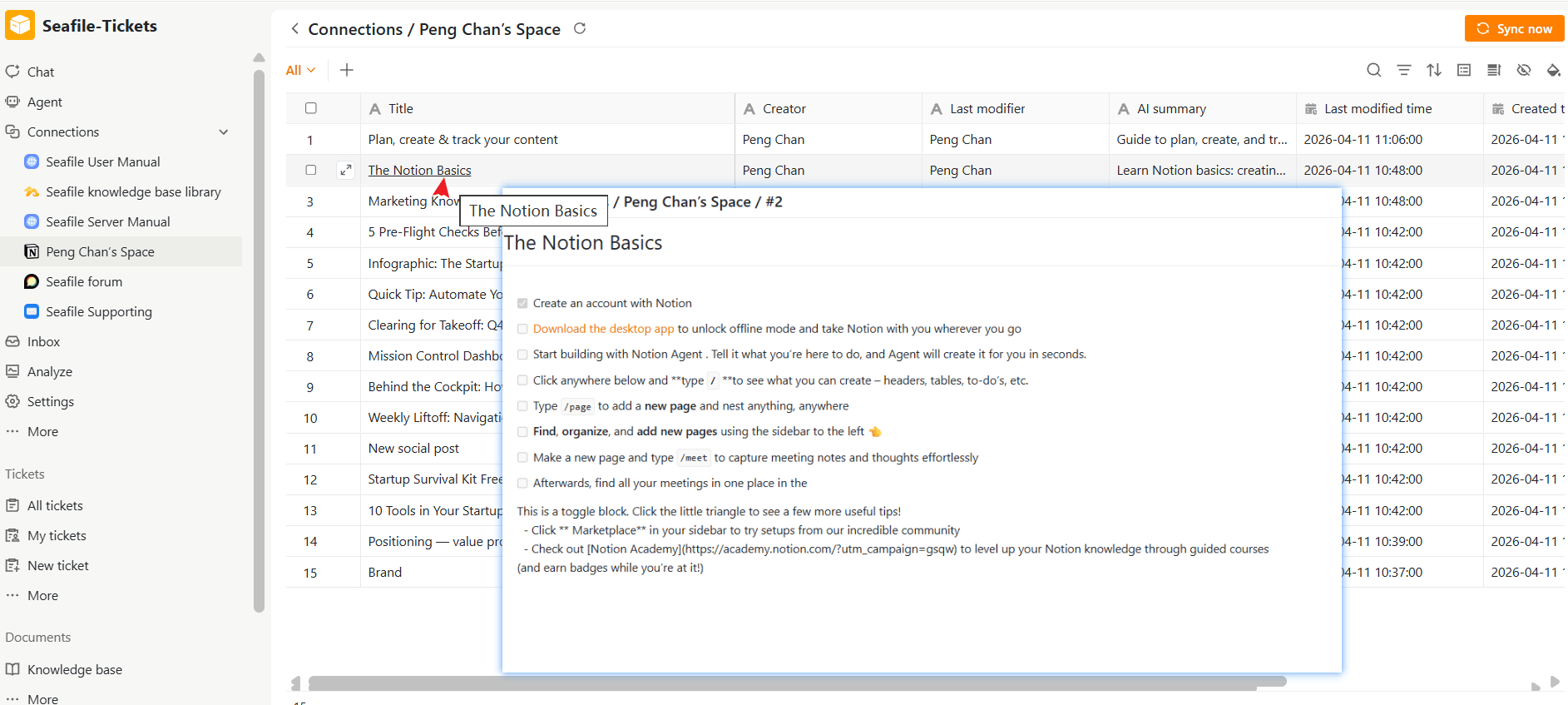
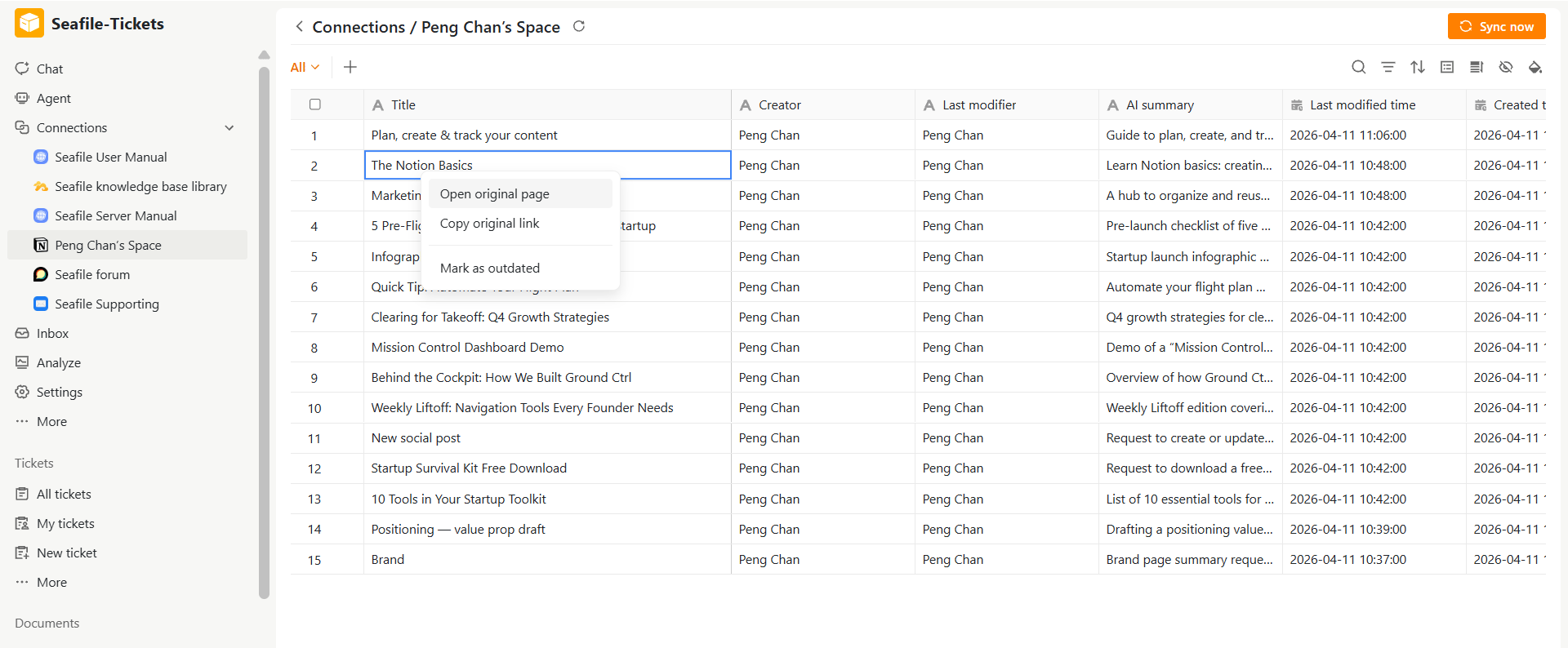
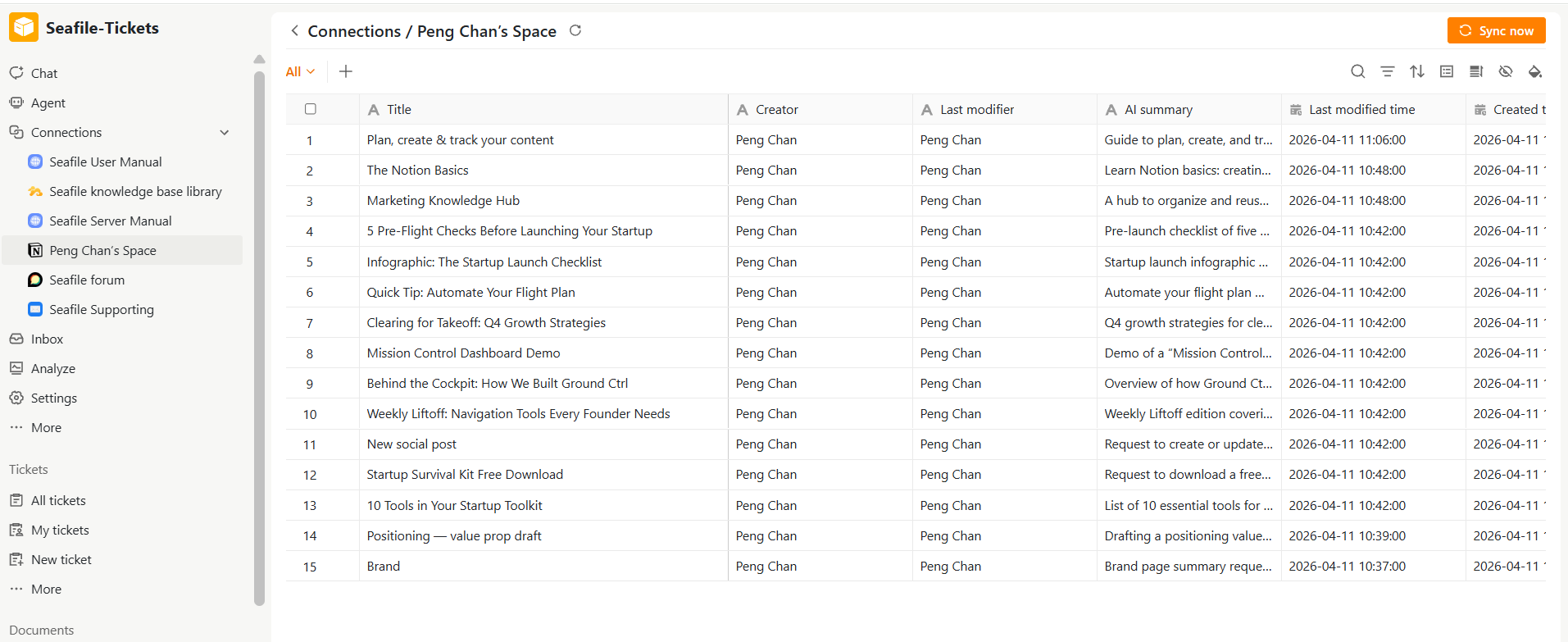
Once connected, SeaTicket syncs content from your Notion workspace, including pages and databases the integration can access. Synced content appears under the connection in the left sidebar. Updates are automatically synced once per day For each item, Seaticket records:- Page title
- Last modified time
- AI summary and AI processed time — automatically generated for each page
Viewing Page Details
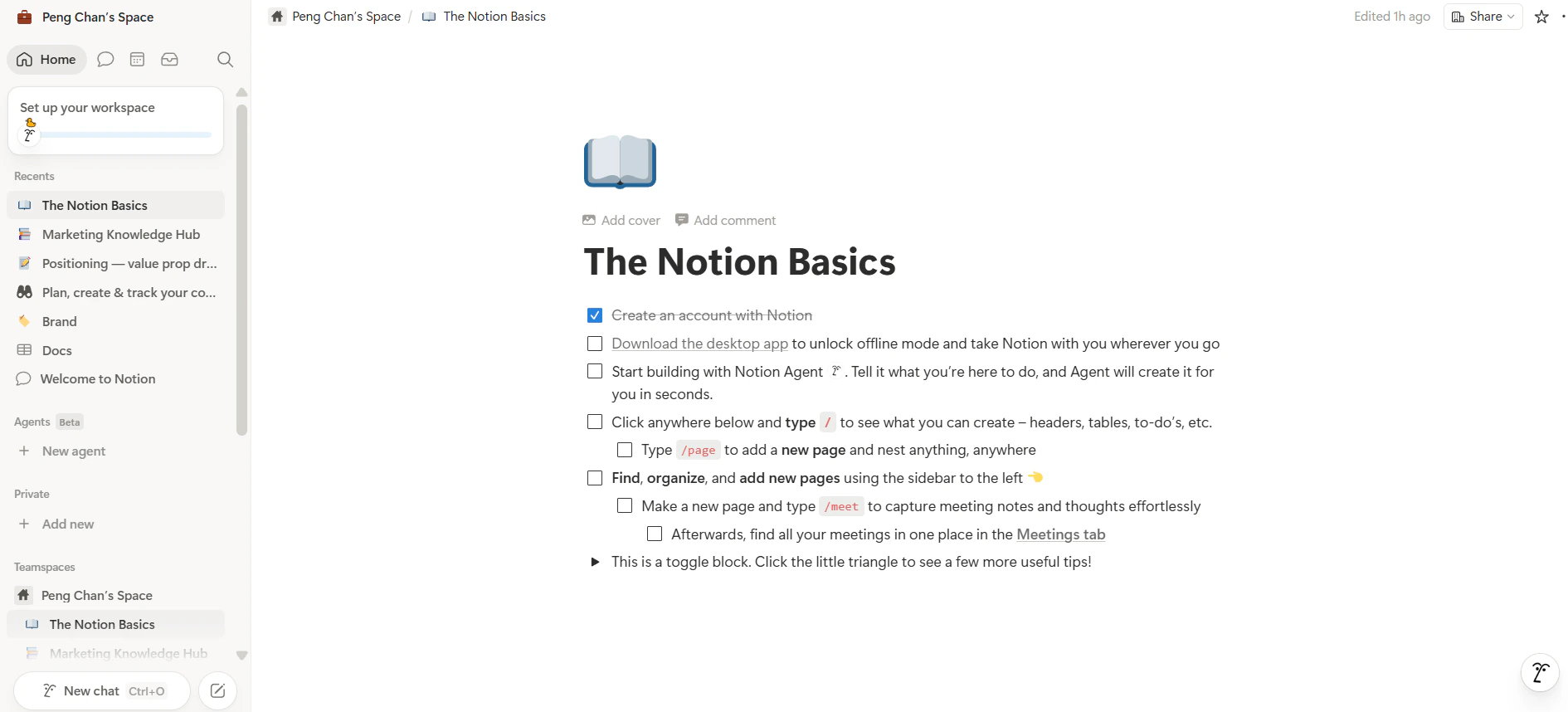
After data has been synced, click any page title to view the full-page content inside SeaTicket.