
Before you Start
Before creating a Linear connection, ensure that:- You have access to the target Linear workspace.
- You have permission to authorize third-party applications in Linear.
Creating a Linear connection
Step 1. Select Linear connection
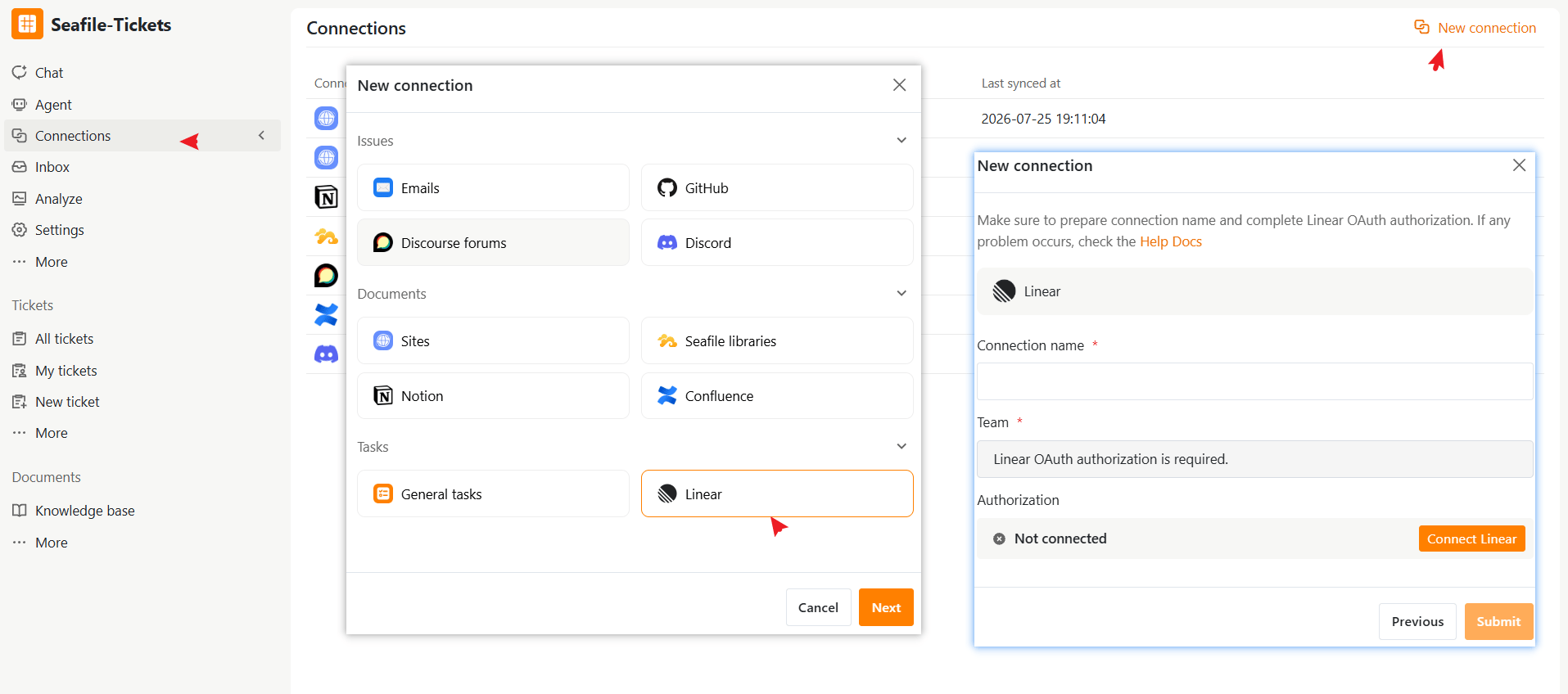
- Open a project in SeaTicket.
- Go to Connections from the left navigation menu.
- Click New connection in the top-right corner.
- Select Linear under Tasks, then click Next.
Step 2. Authorize Linear
- Click Connect Linear.
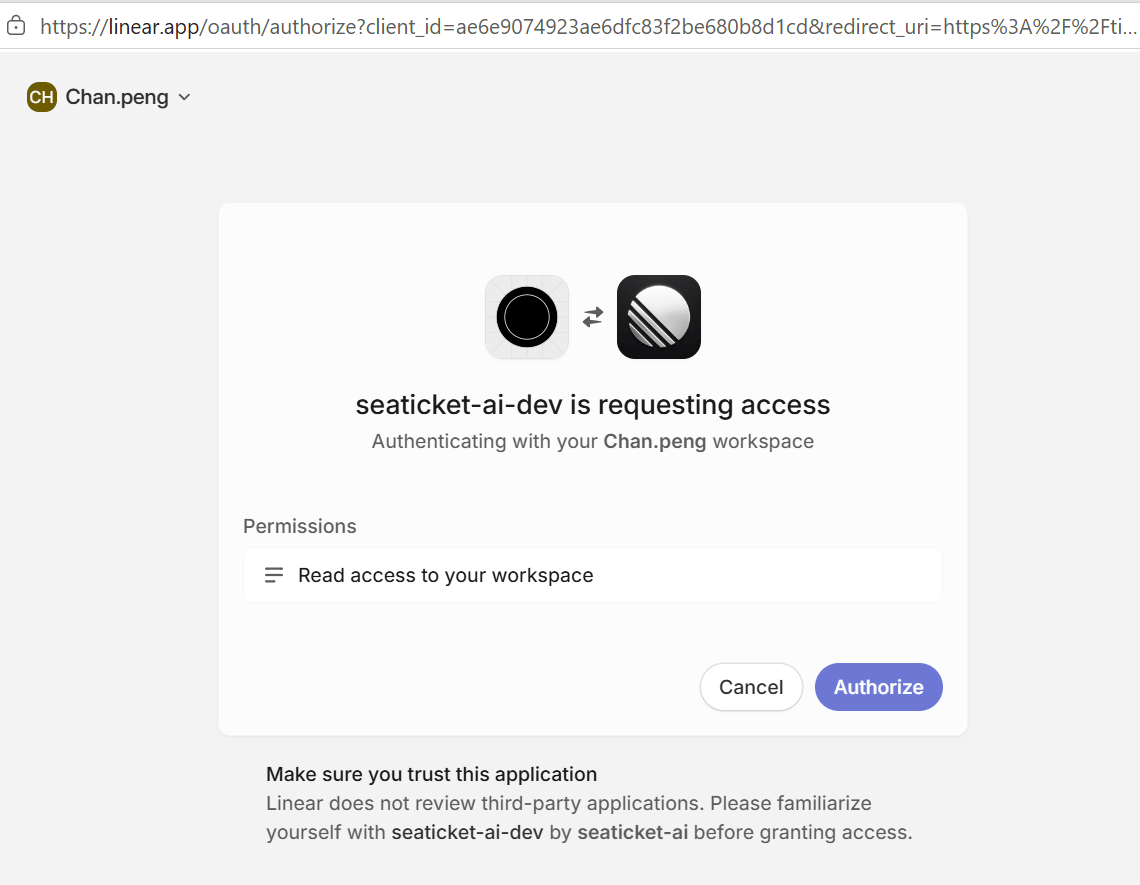
- You will be redirected to the Linear authorization page.
- Review the requested permissions,
- Click Authorize to grant SeaTicket access to your Linear workspace
- After authorization is complete, you will be redirected back to SeaTicket.
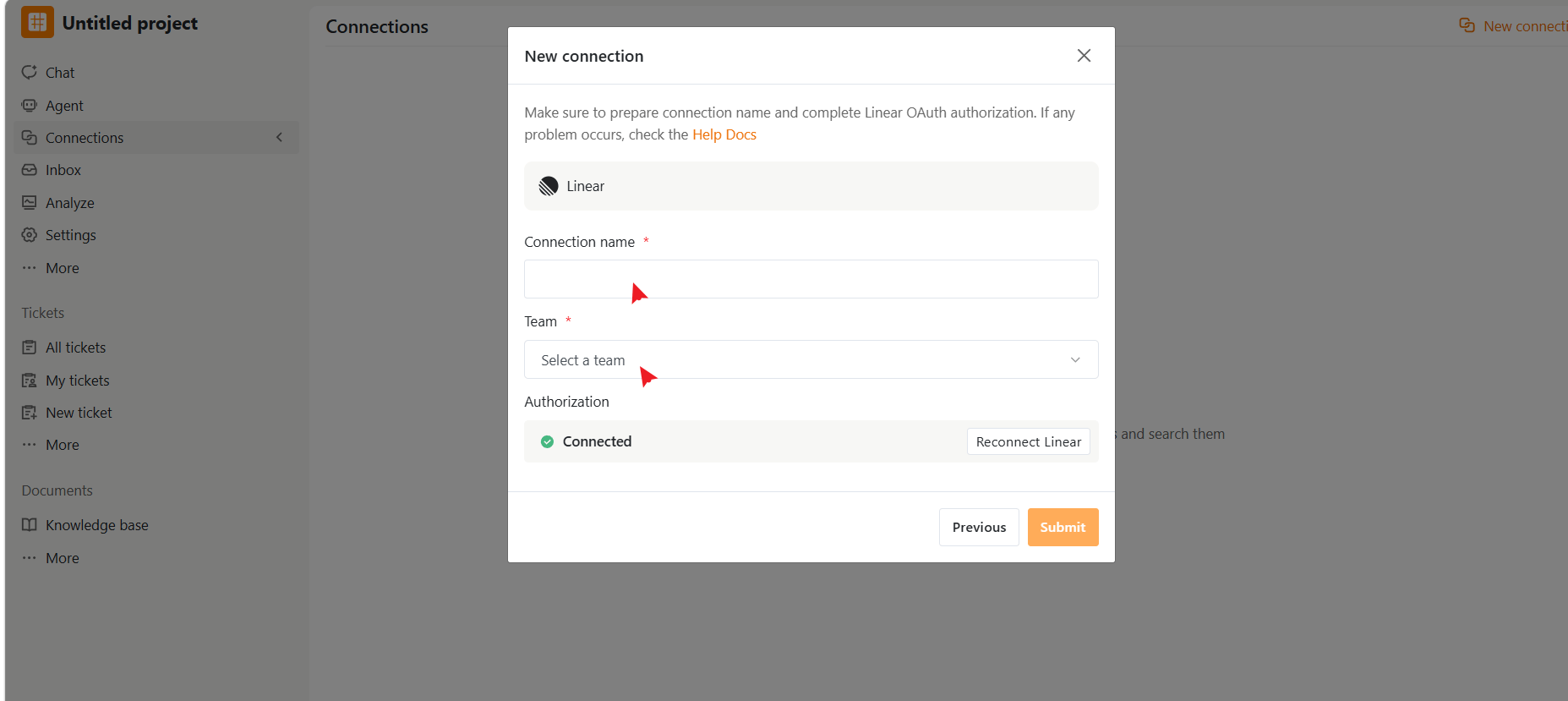
The authorization status should change to Connected.
Step 3. Configure the connection
Fill in the required fields.
Click Submit to create the connection
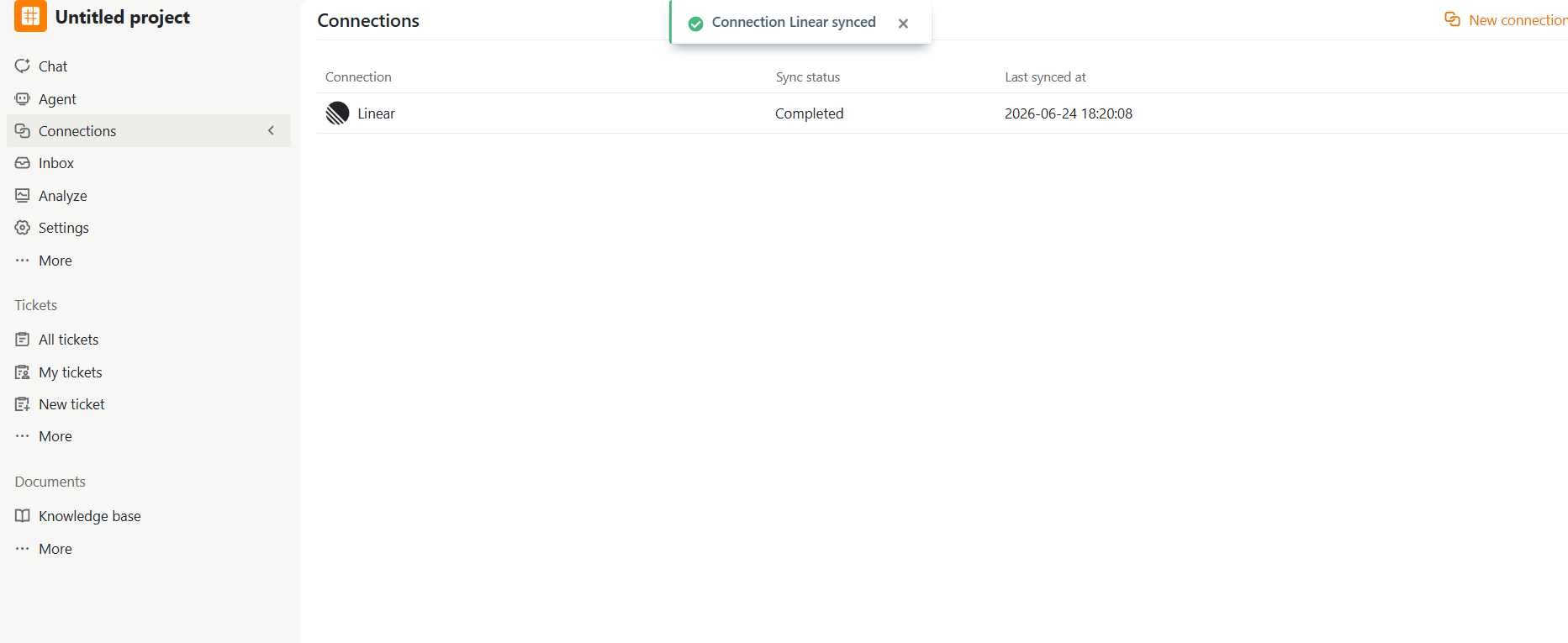
After the Connection is Created
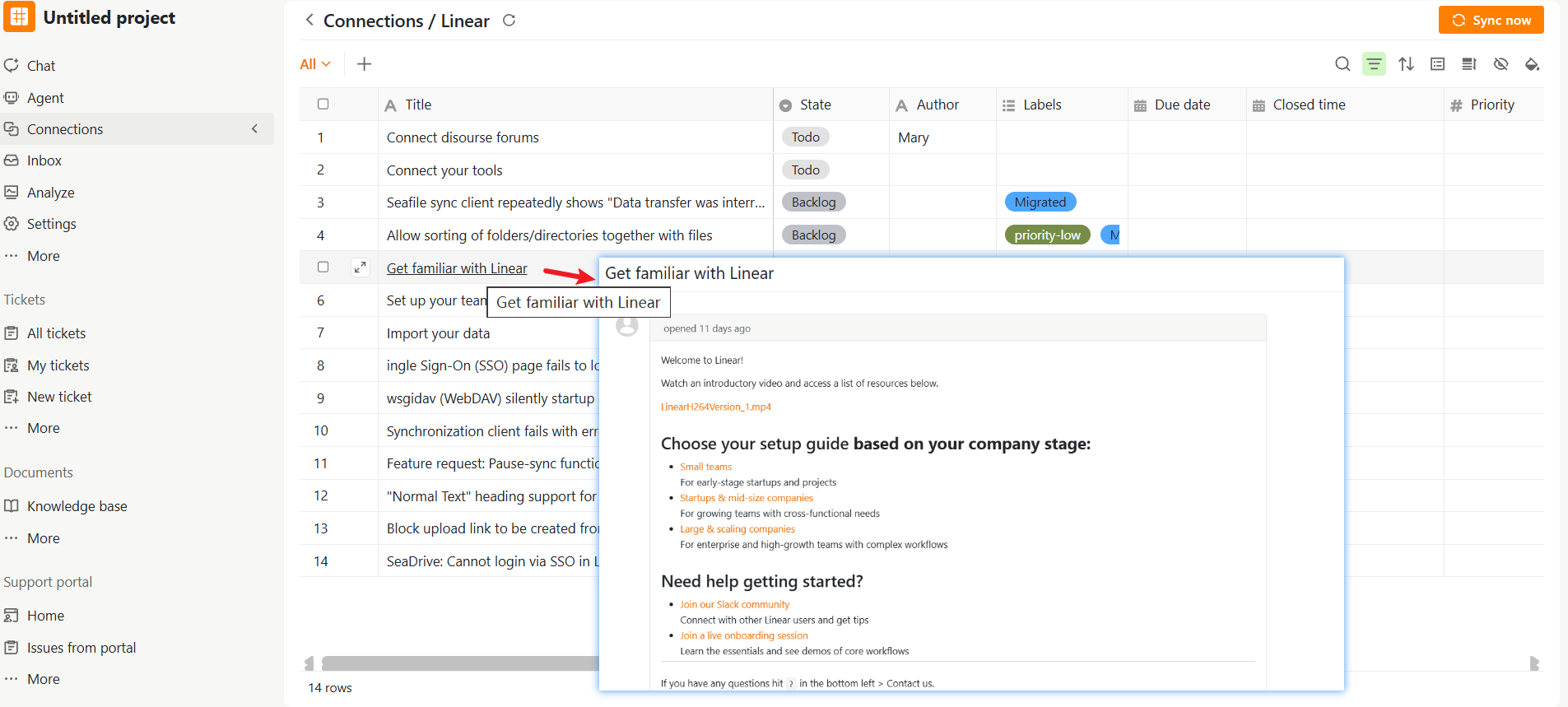
After the connection is created, it appears in the Connections list. Select the connection to view the synced issues. The synced issues are displayed in a table. Depending on the available data in Linear, the table includes:- Title
- State
- Author
- Labels
- Due date
- Created time
- Last modified time
- Closed time
- Priority
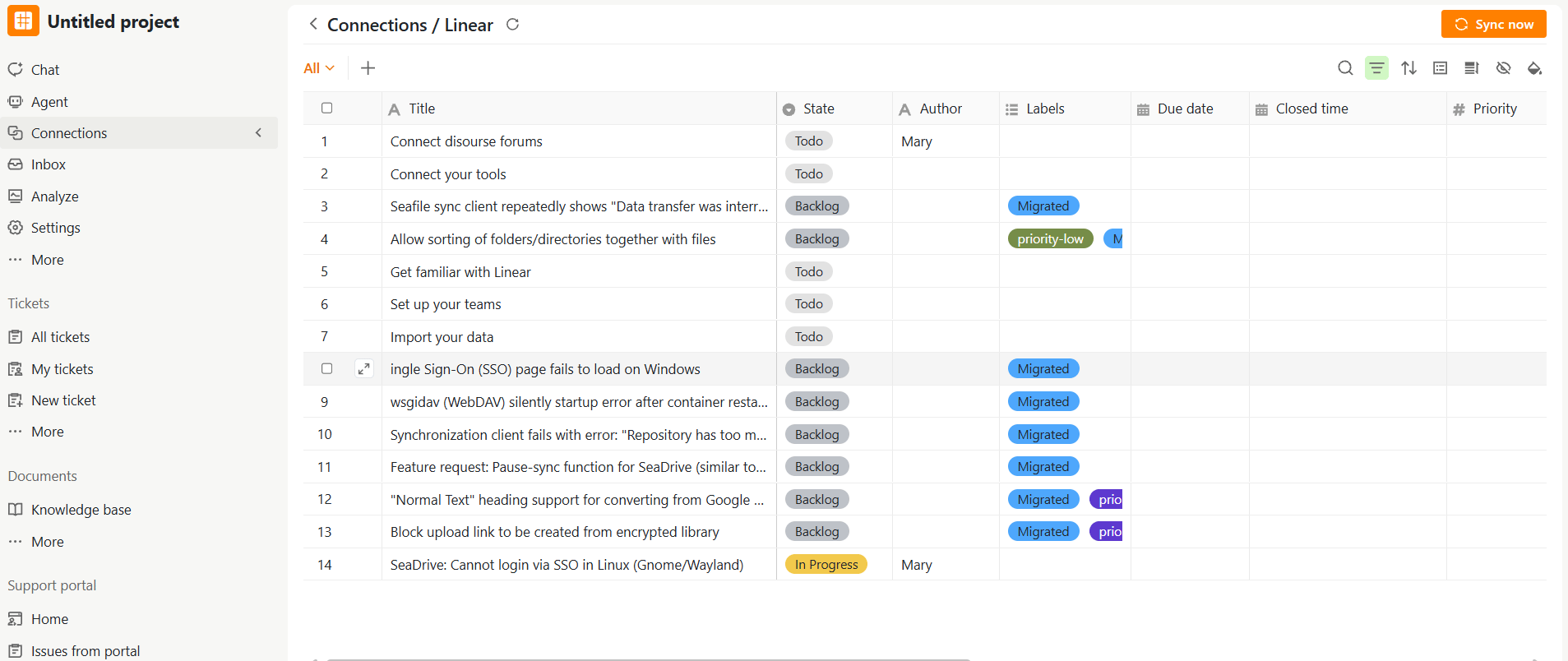
Viewing Details
Once synced, click an issue title to view the complete issue in SeaTicket, including all comments.