
Before You Start
Ensure you have:- A GitHub account with admin or owner permissions for the organization or repository you want to connect.
Creating a GitHub Connection
Step 1 — Install the GitHub App
- Open a project in SeaTicket.
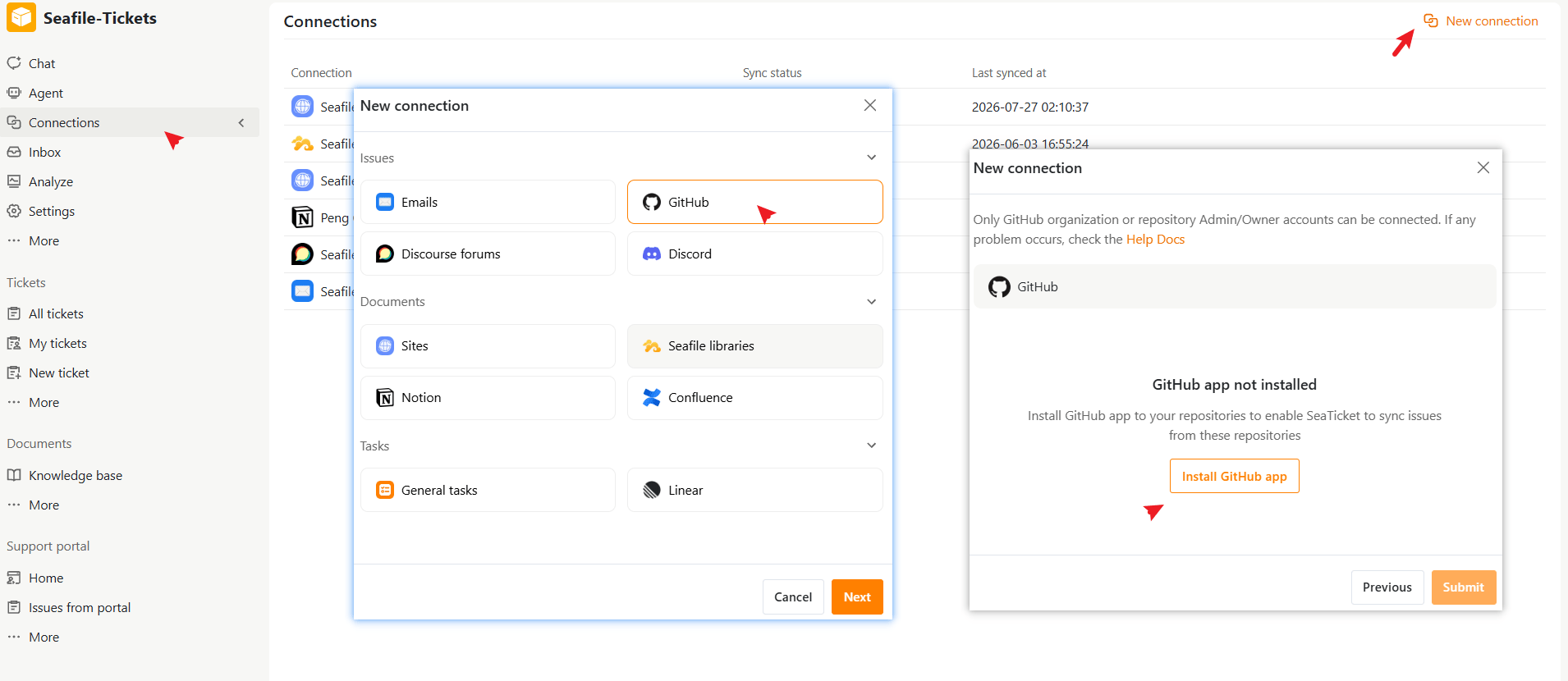
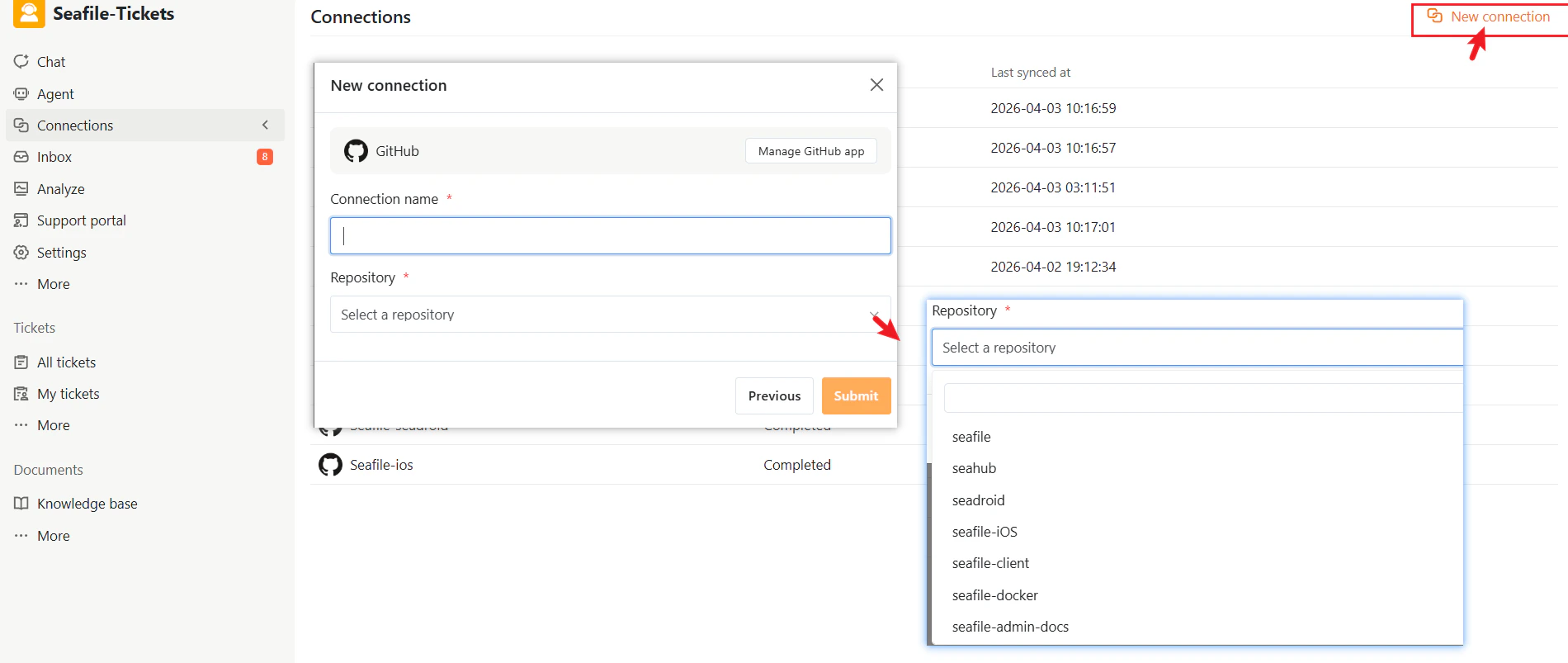
- Go to Connections from the left navigation menu.
- Click New connection in the top-right corner.
- Select GitHub under Issues, then click Next.
- Click Install GitHub App. You’ll be redirected to GitHub.
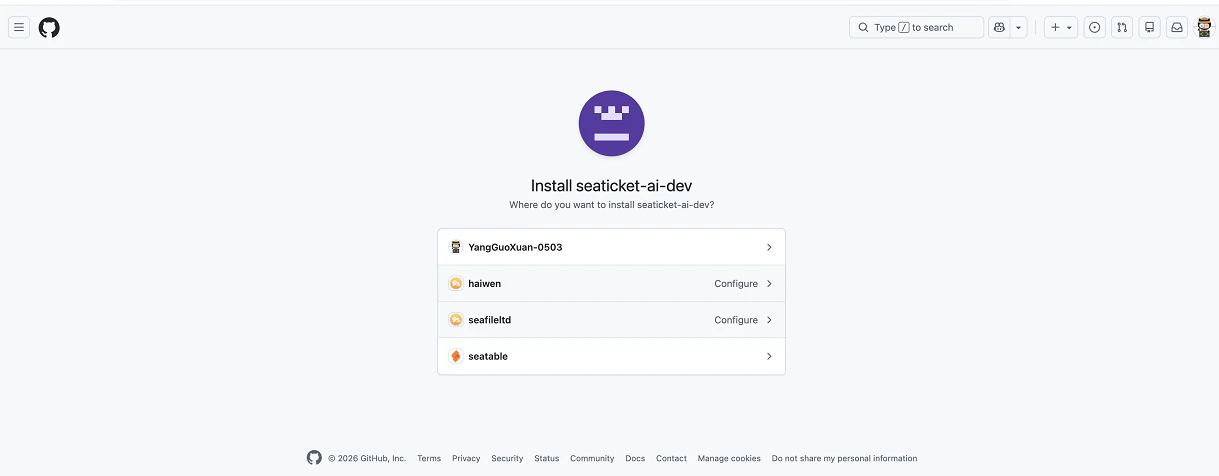
- On GitHub, select the organization or personal account that hosts your repository.
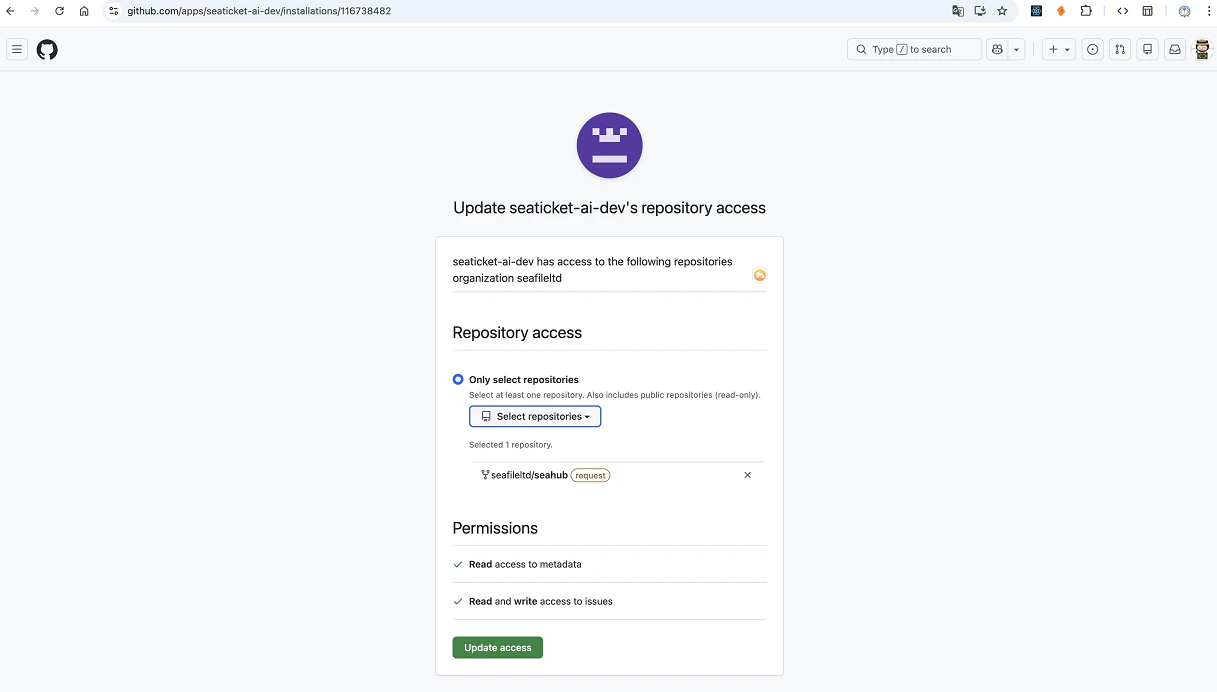
- Under Repository access, select Only select repositories and choose the specific repositories SeaTicket should have access to.
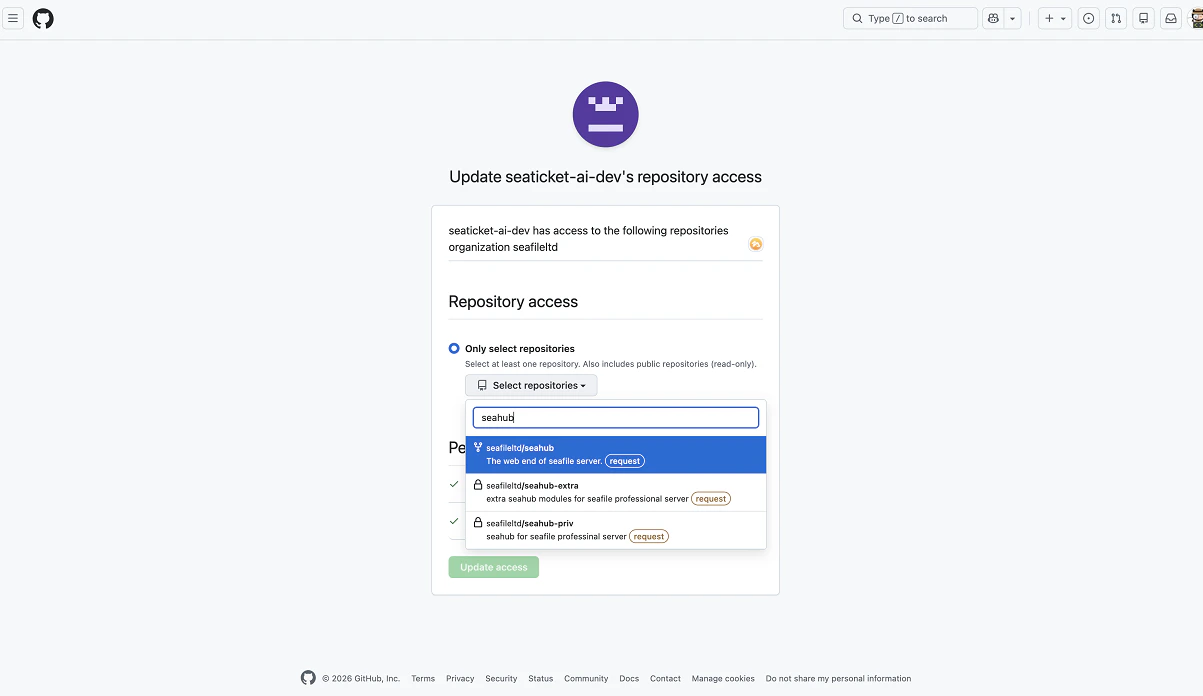
- Review the requested permissions — SeaTicket requires Read access to metadata and Read and write access to issues.
- Click Update access to finalize the authorization
Step 2 — Configure the Connection in SeaTicket
After authorizing on GitHub, you are returned to SeaTicket automatically.- Enter a descriptive Connection name.
- Select the Repository you just authorized from the dropdown.
- Click Submit to complete the setup.
After the Connection is Created
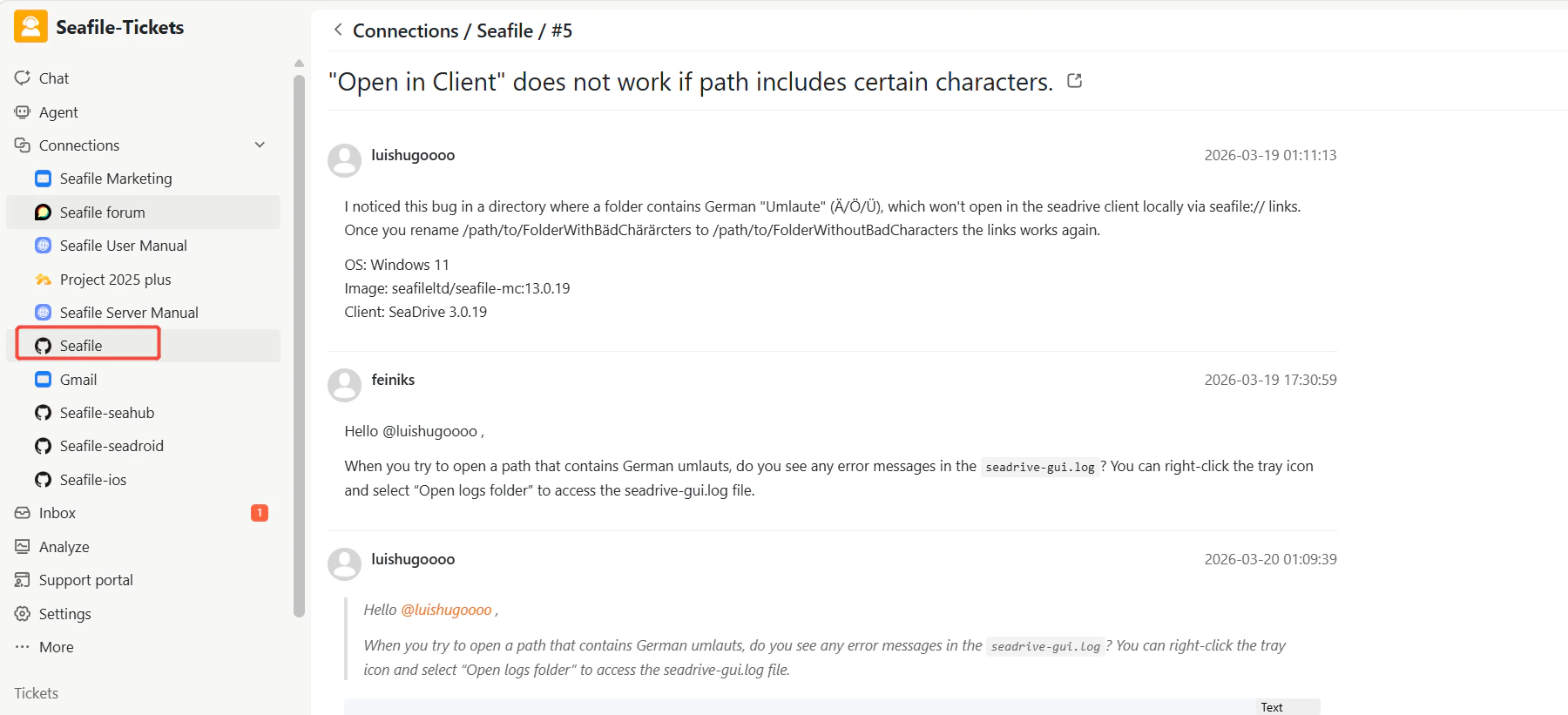
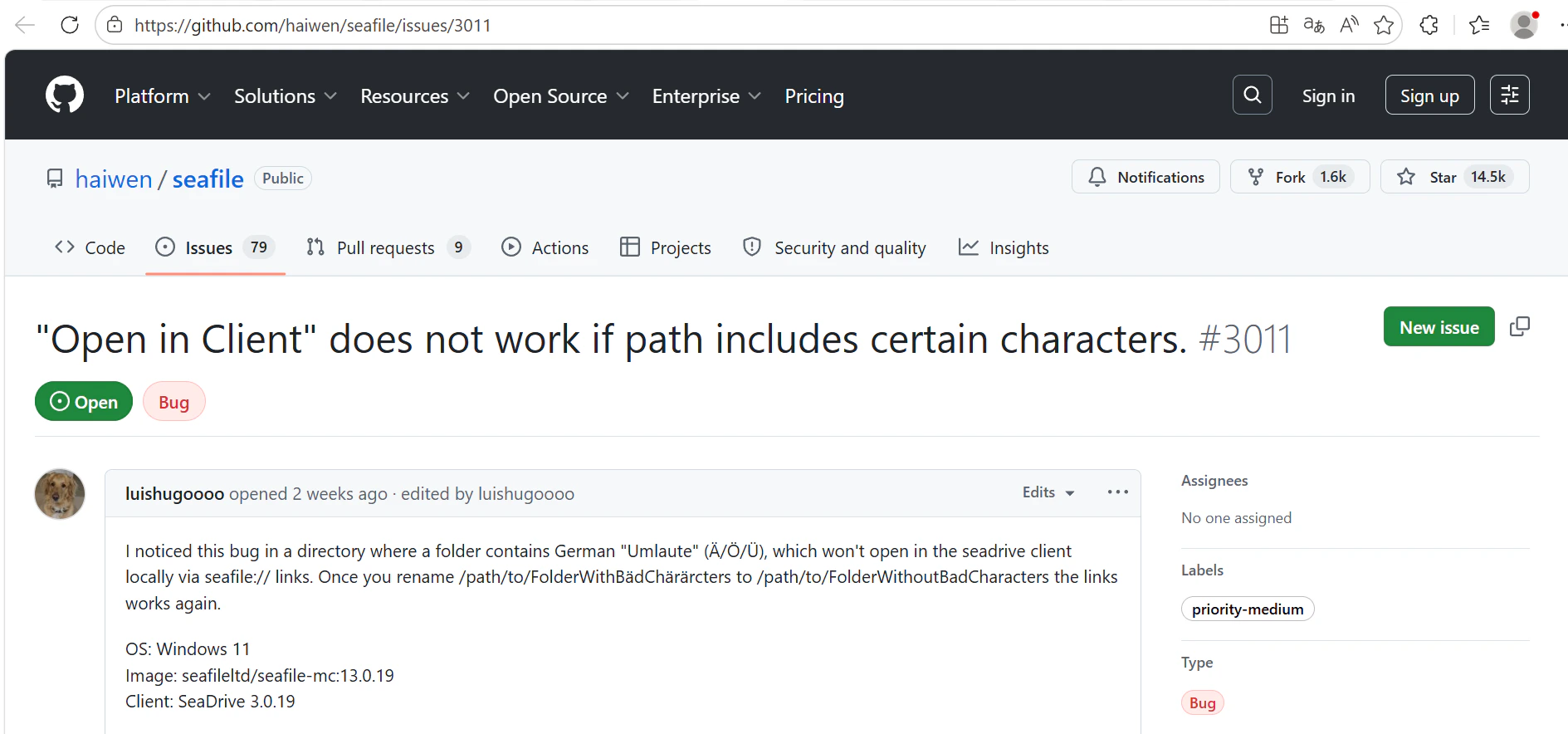
Once connected, SeaTicket automatically syncs GitHub Issues, which appear in a list view under the connection in the left sidebar, organized into Open and Closed tabs.- Issues are displayed in a list view
- Updates are synced automatically every 1 hour Updates sync every hour.
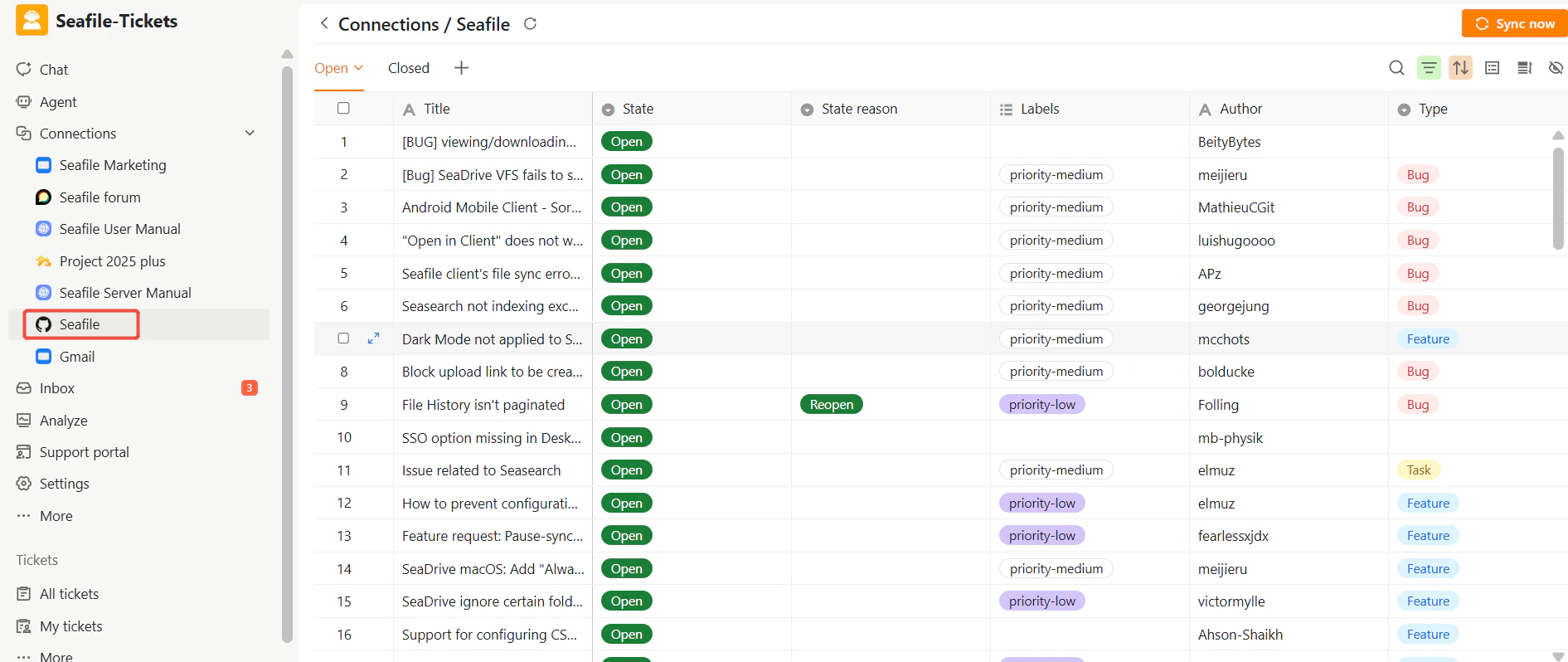
- Title
- State (Open / Closed) and State reason
- Labels
- Author
- Created time, Last modified time, and Closed time
- Total comments including all discussion threads
- AI Summary and AI Processed time — automatically generated for each issue
Viewing Details
After data has been synced, click any issue title to open the full issue view inside SeaTicket, including all comments and discussion history in chronological order.