
Viewing Synced Issues
To view synced issues from a connection, select it from the Connections section in the left sidebar. Each issue appears as a structured item with fields such as title, status, labels, author, and timestamps.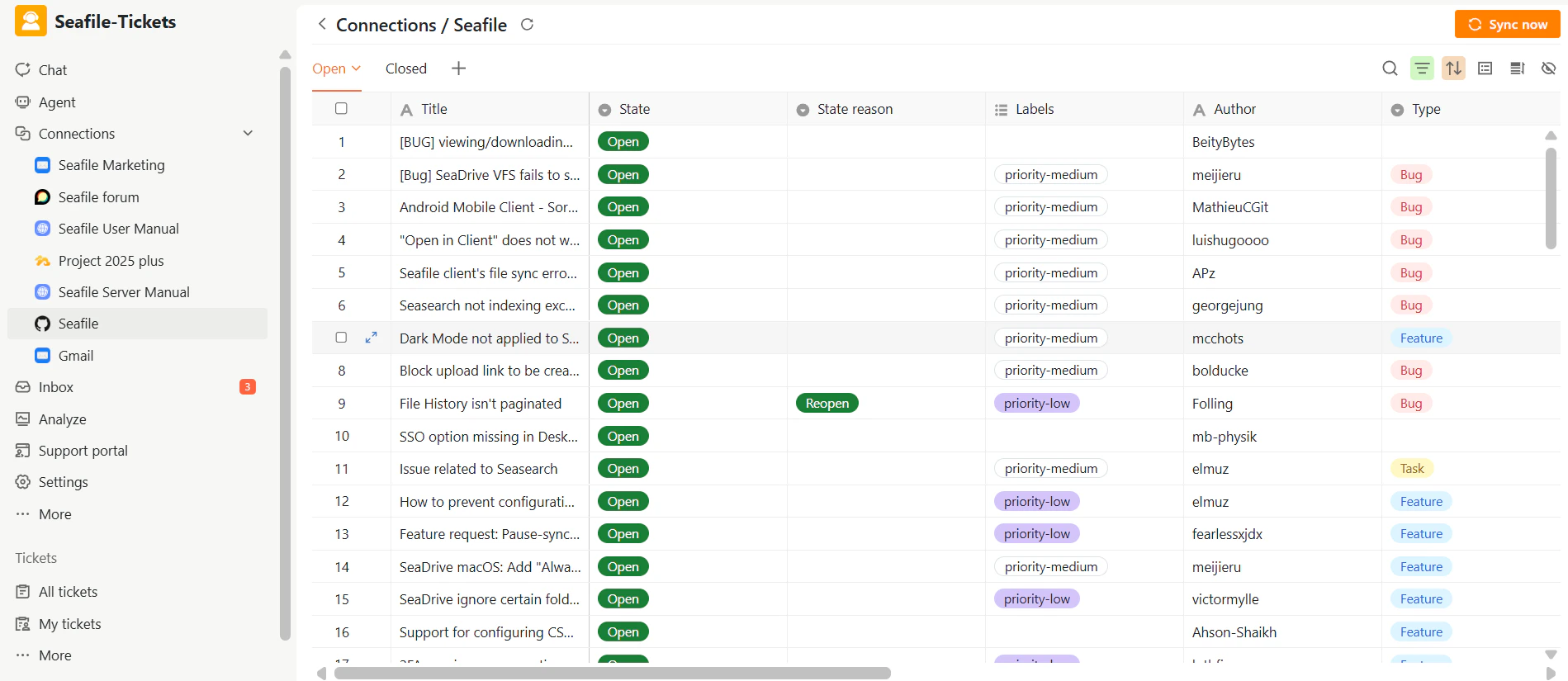
Customizing the Issue View
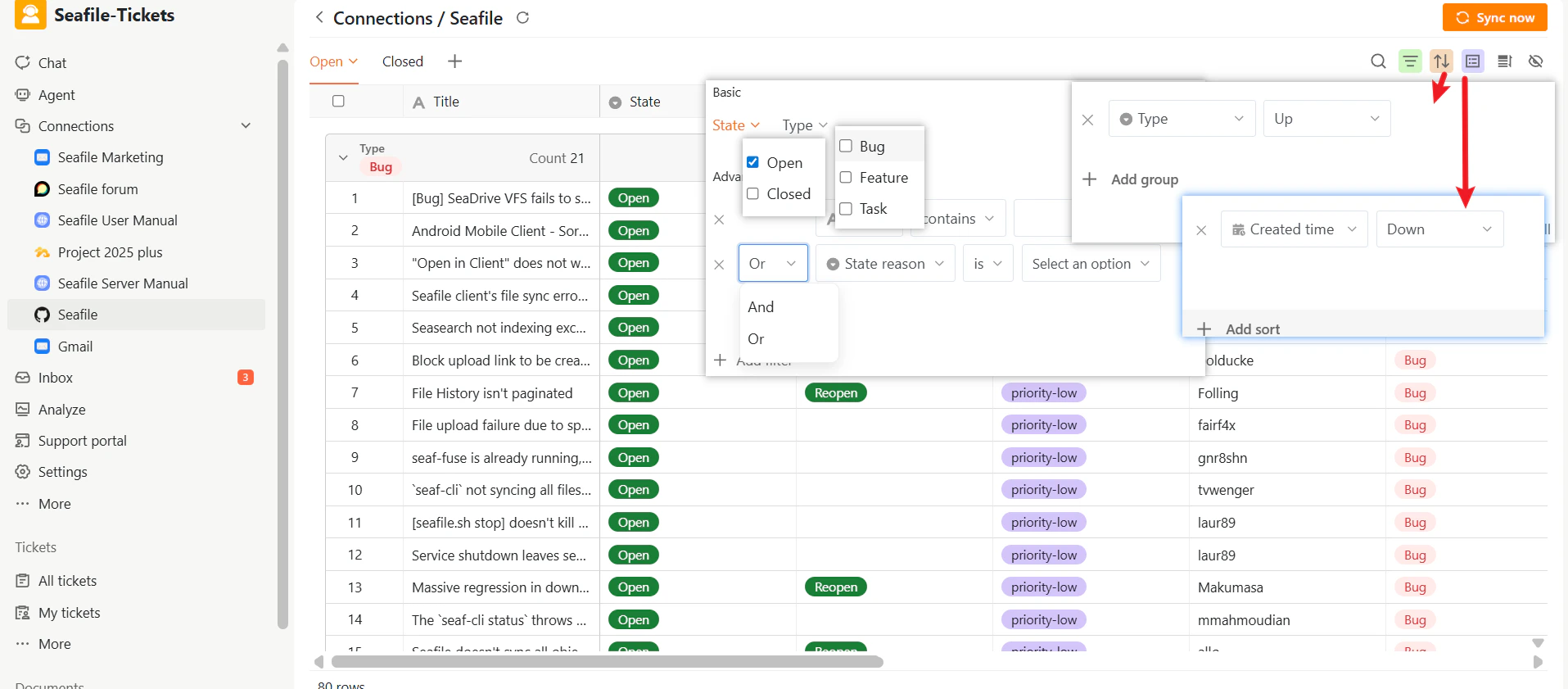
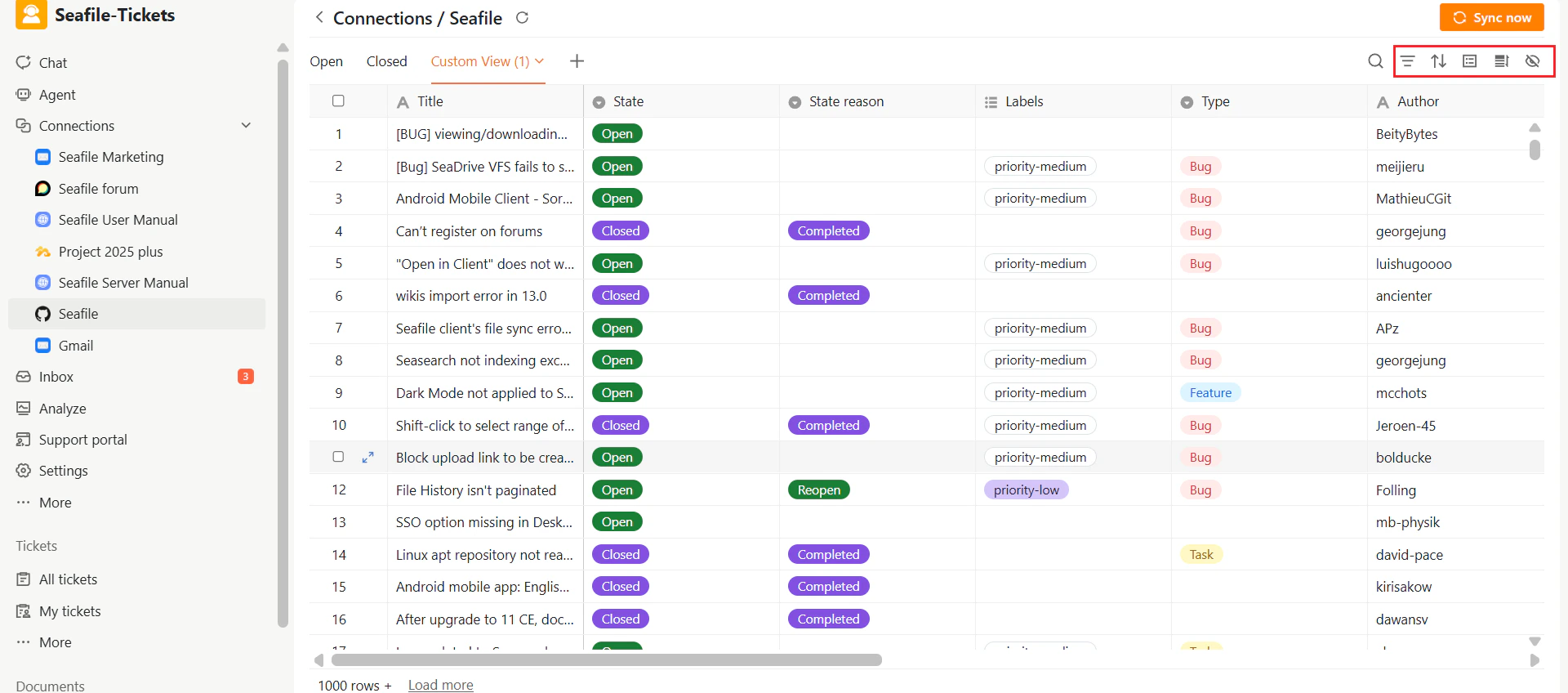
Within the view panel, you can customize how issues are displayed to match your workflow:- Filters – Narrow down the issue list based on specific conditions.
- Basic filters: Filter by State (Open / Closed) and Type (Bug / Feature / Task).
- Advanced filters: Create custom filters using additional fields.
- Multiple filter conditions can be combined using AND / OR logic.
- Sorting – Order issues by fields such as creation time or last modified time.
- Grouping – Group issues by attributes like labels or creation date.
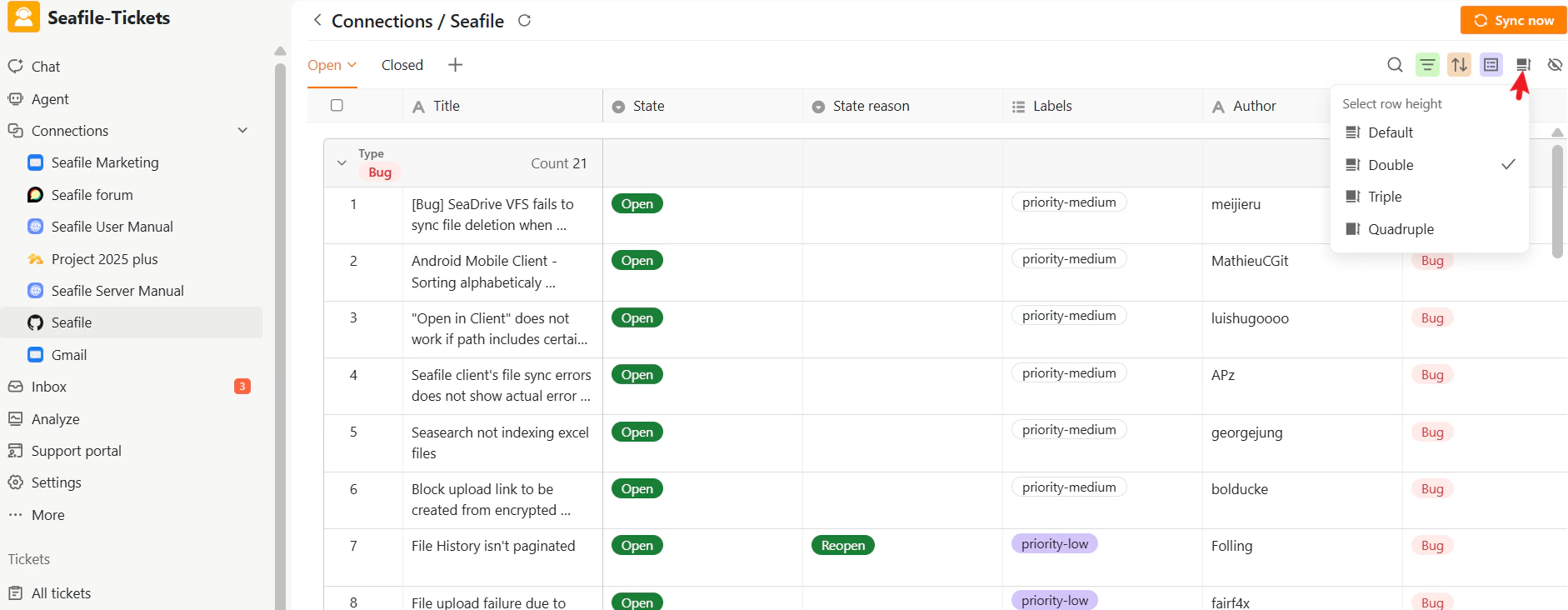
- Column visibility – Show or hide columns to display only the information you need.
Creating and Managing Views
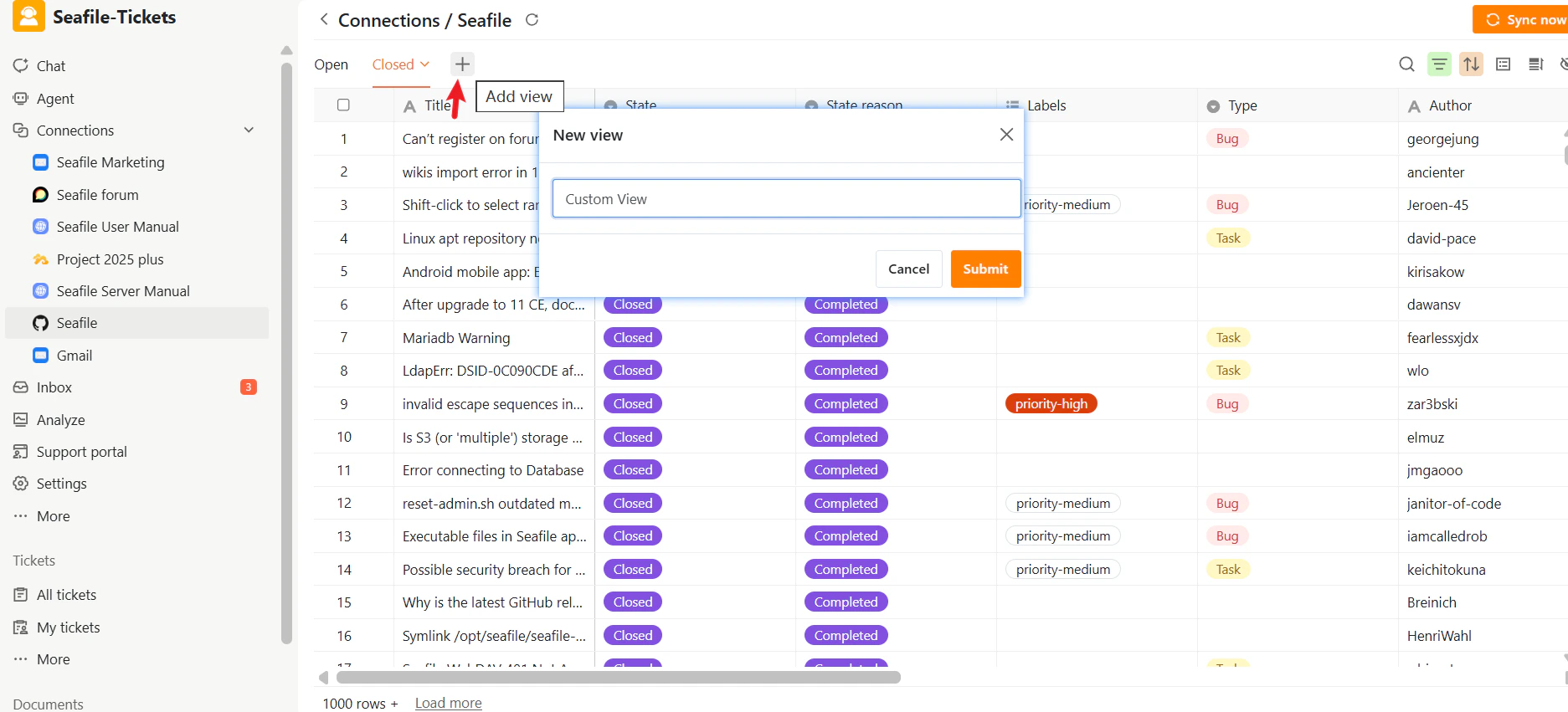
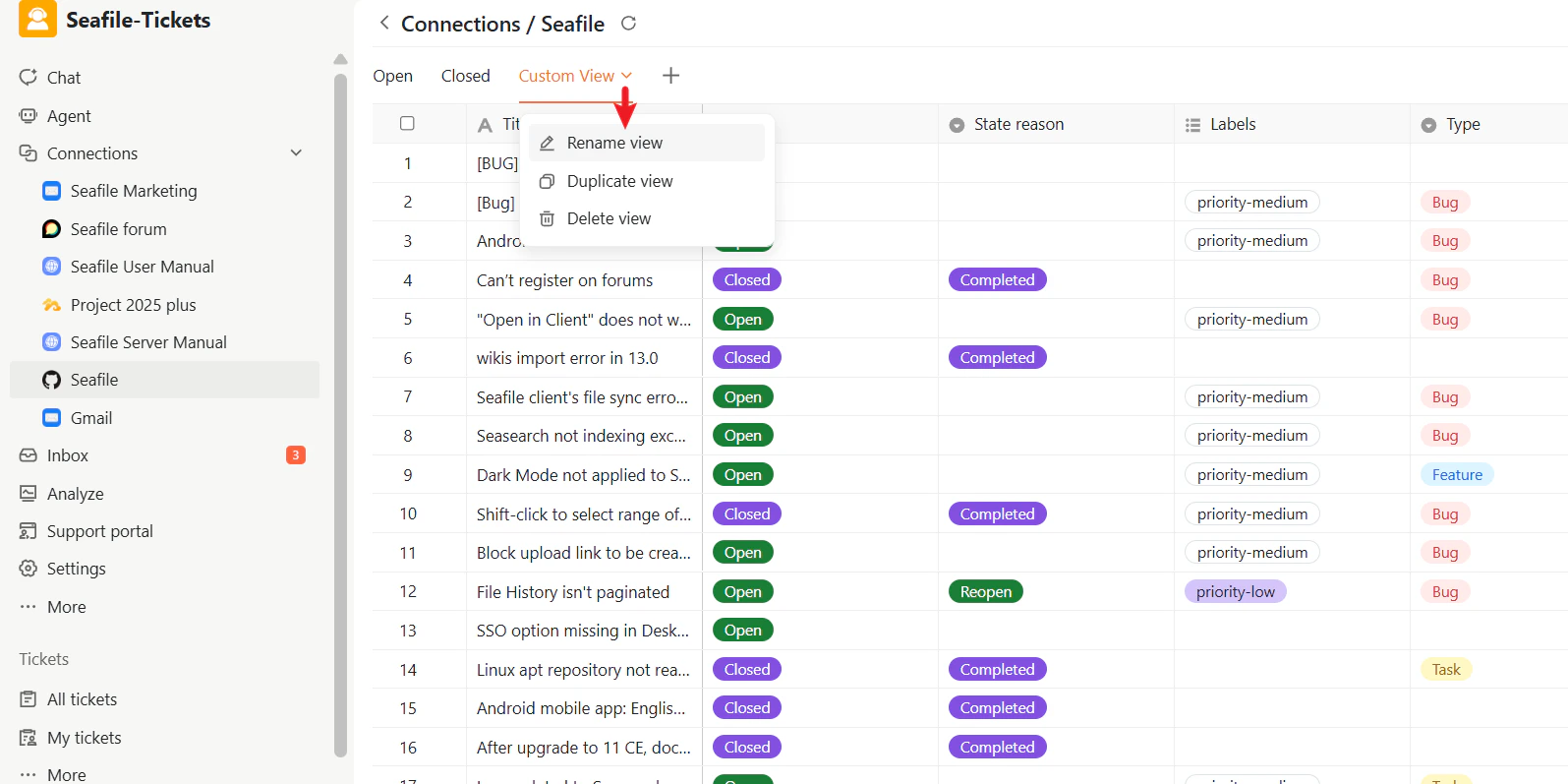
SeaTicket allows you to save multiple views so you can switch between different ways of looking at the same issues. To create a new view:- Click the + tab in the view panel.
- Enter a descriptive name in the dialog.
- Click Submit.
Issue Operations
SeaTicket provides several powerful actions you can perform directly from the issue list. Select one or more issues by checking the box next to them, and a toolbar will appear with the following options:Expand Row
View the complete issue discussion including all comments and activity without leaving SeaTicket.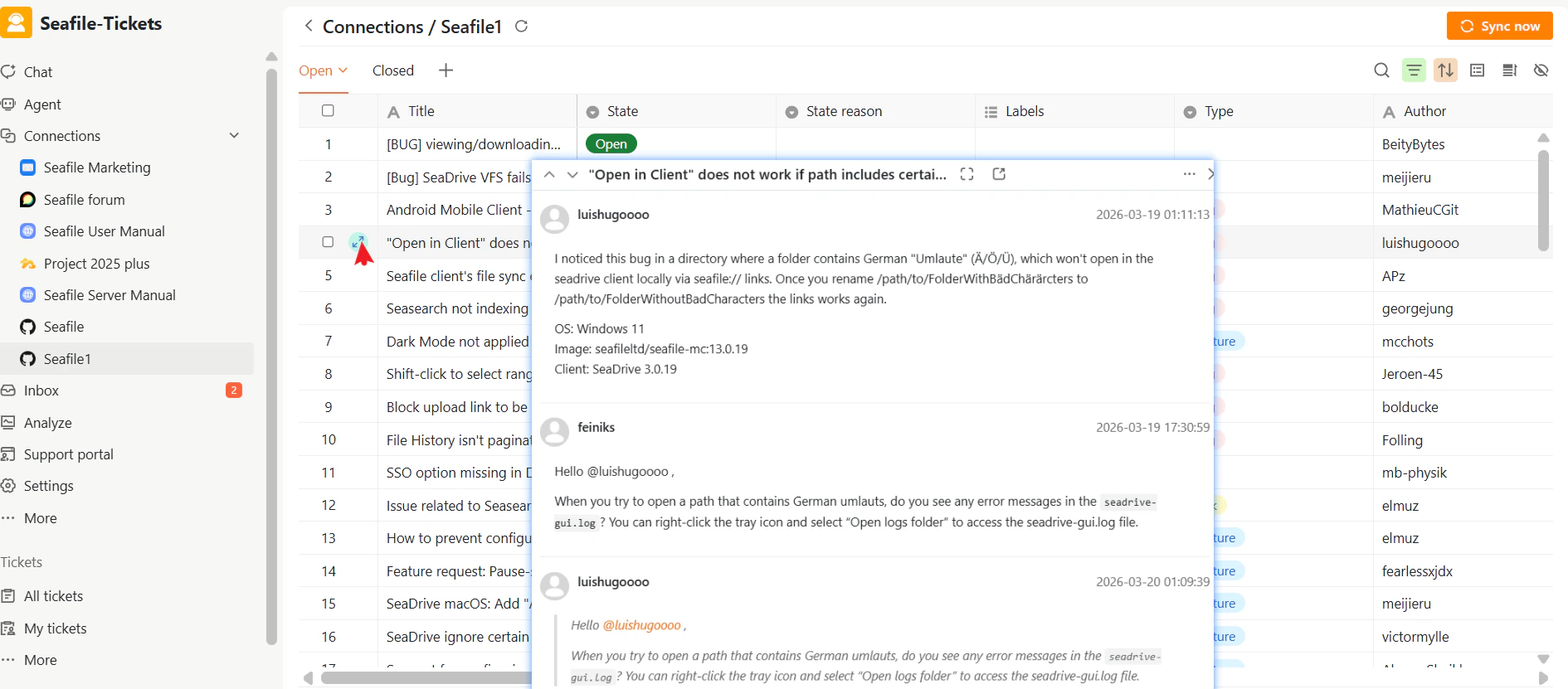
AI Chat Issue
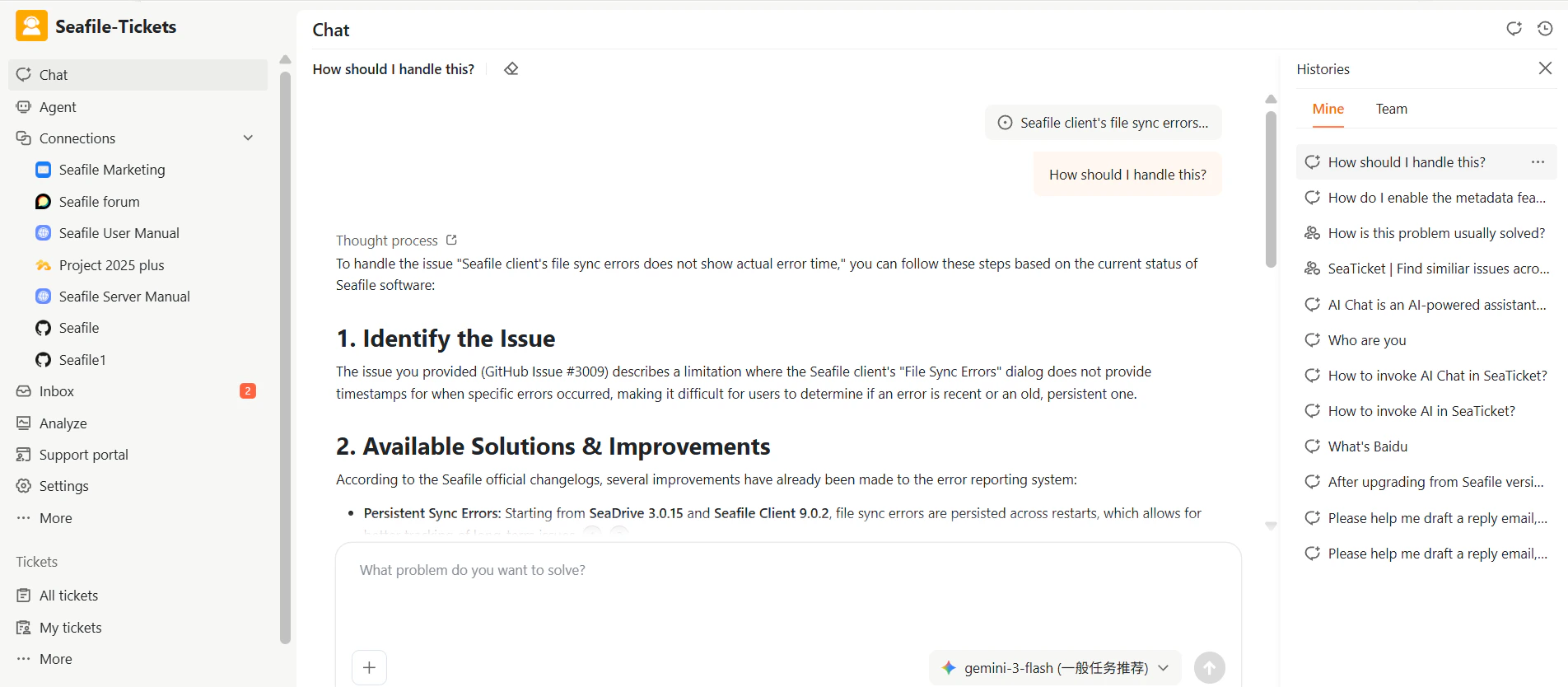
When you select an issue and click Chat Issue, the system starts an AI-powered conversation that helps you understand the issue faster, summarize key points, and explore possible solutions.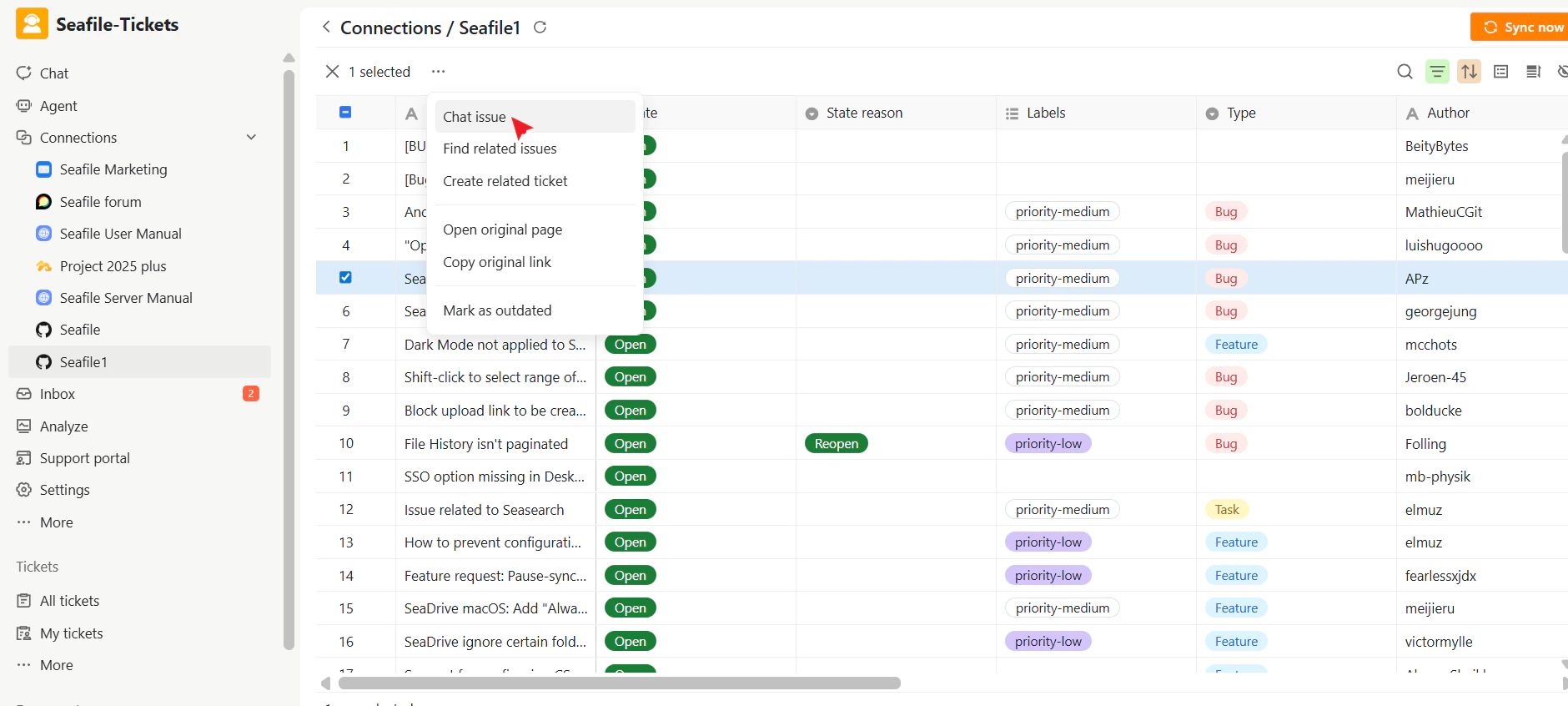
- Issue Identification – A clear summary of the problem.
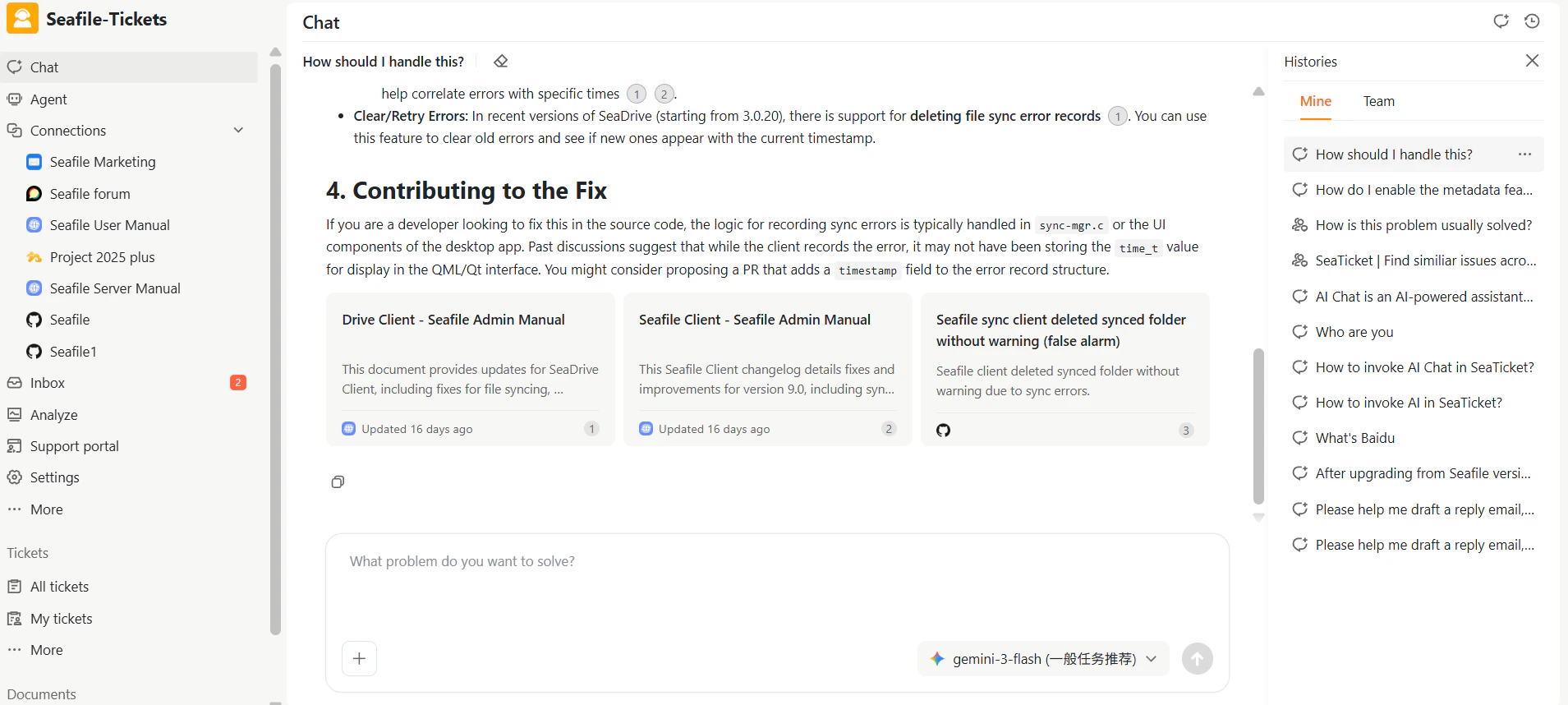
- Available Solutions & Improvements – References to relevant documentation, change logs, or known fixes.
- Contributing to the Fix – For developer-focused issues, suggestions for potential code-level fixes or areas in the source code to investigate.
- Relevant Resources – Links to related documents or other issues that provide additional context.
Find Related Issues
This feature helps you avoid duplicate work and find valuable context. When you click Find Related Issues, SeaTicket AI searches across all connected channels (such as GitHub and forums) for similar topics. A pop-up window displays a list of related issues, including their titles, brief descriptions, creation dates, and links to the original discussions or resources. This helps you identify whether a bug has been reported elsewhere or if a feature request already exists. Click any issue to view detailed information, including solutions, workarounds, and additional insights.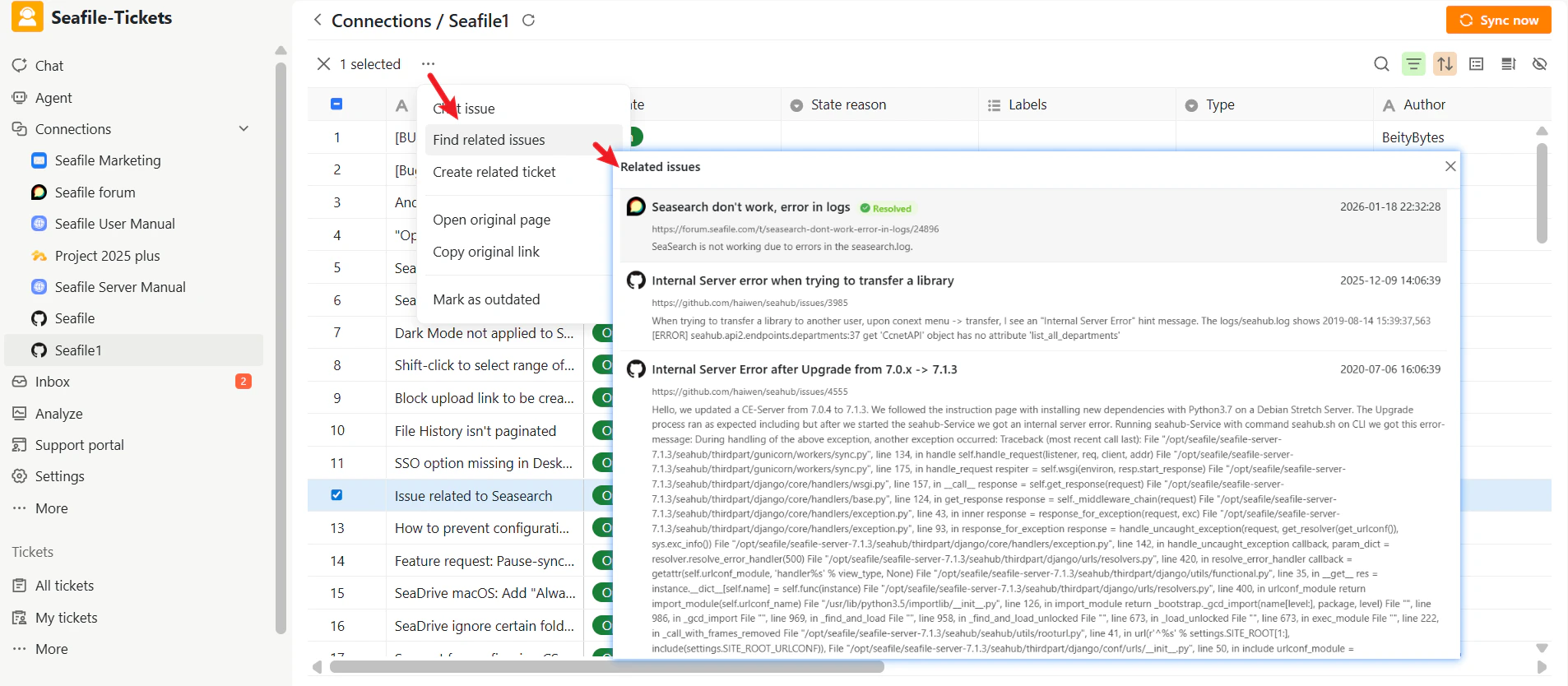
Create Related Ticket
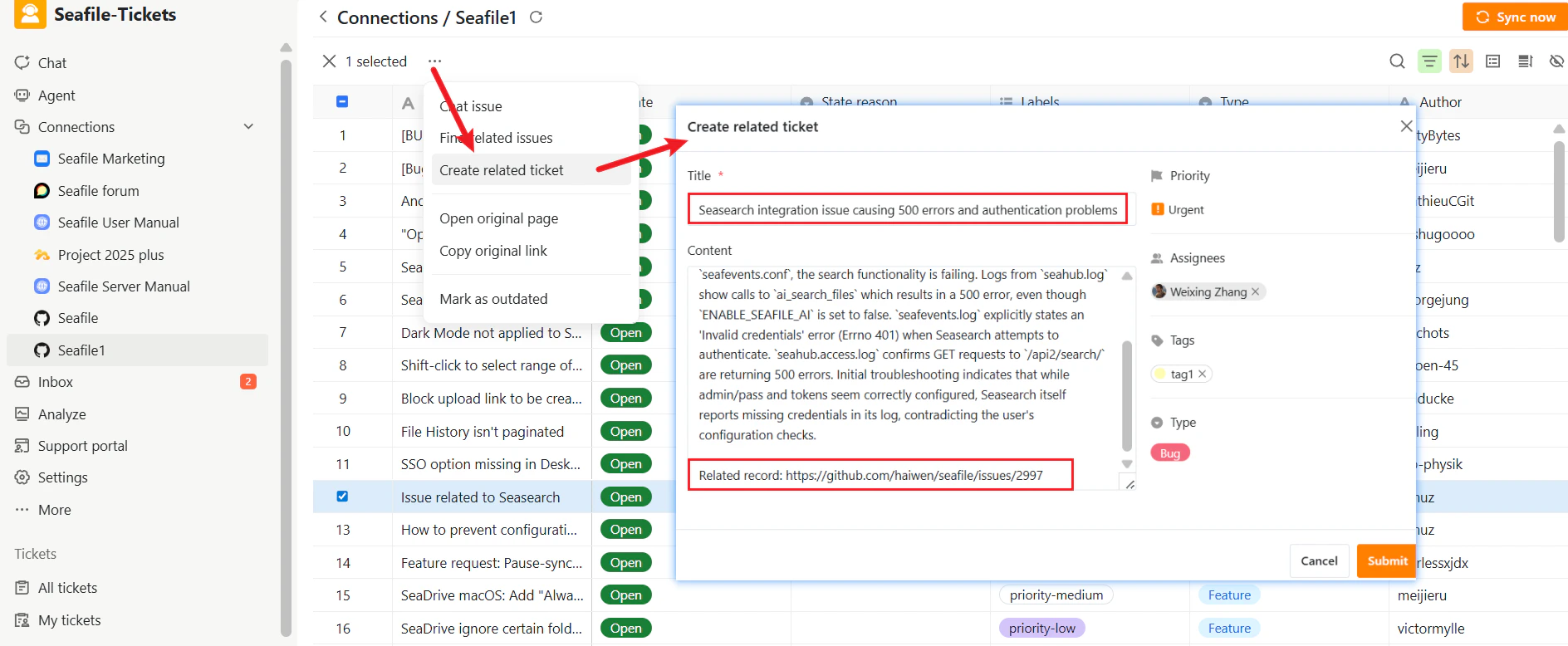
This is the core workflow for turning an external report into an internal task. If a synced GitHub issue requires action from your development or product team, you can convert it into a SeaTicket ticket. To do this:- Select the issue you want to convert.
- Click Create Related Ticket.
- Generating an appropriate ticket title
- Summarizing the key points of the issue
- Adding a link to the original issue for reference
Open Original Page
This action opens the issue on its original platform (for example, GitHub), allowing you to view or interact with it in its native environment.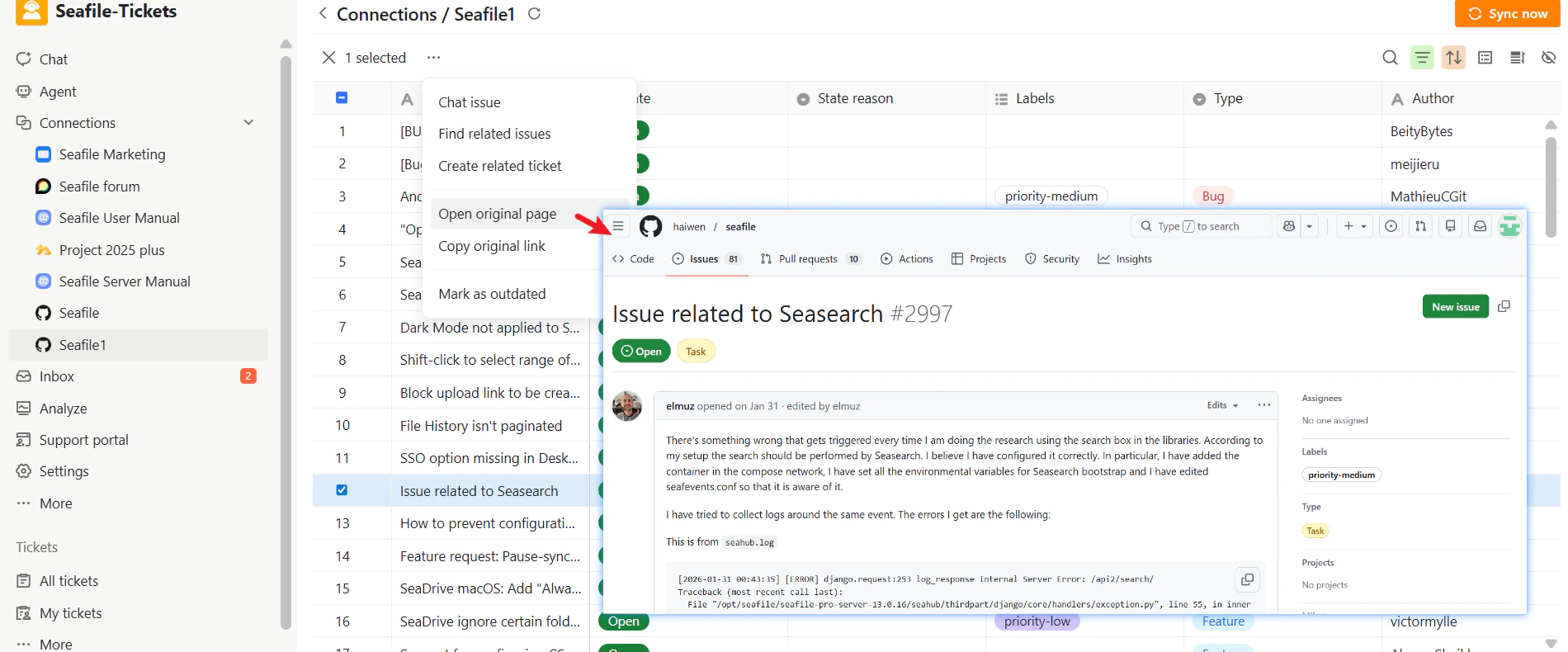
Copy Original Link
Copies the URL of the GitHub issue to your clipboard so you can easily share it in chats or documents.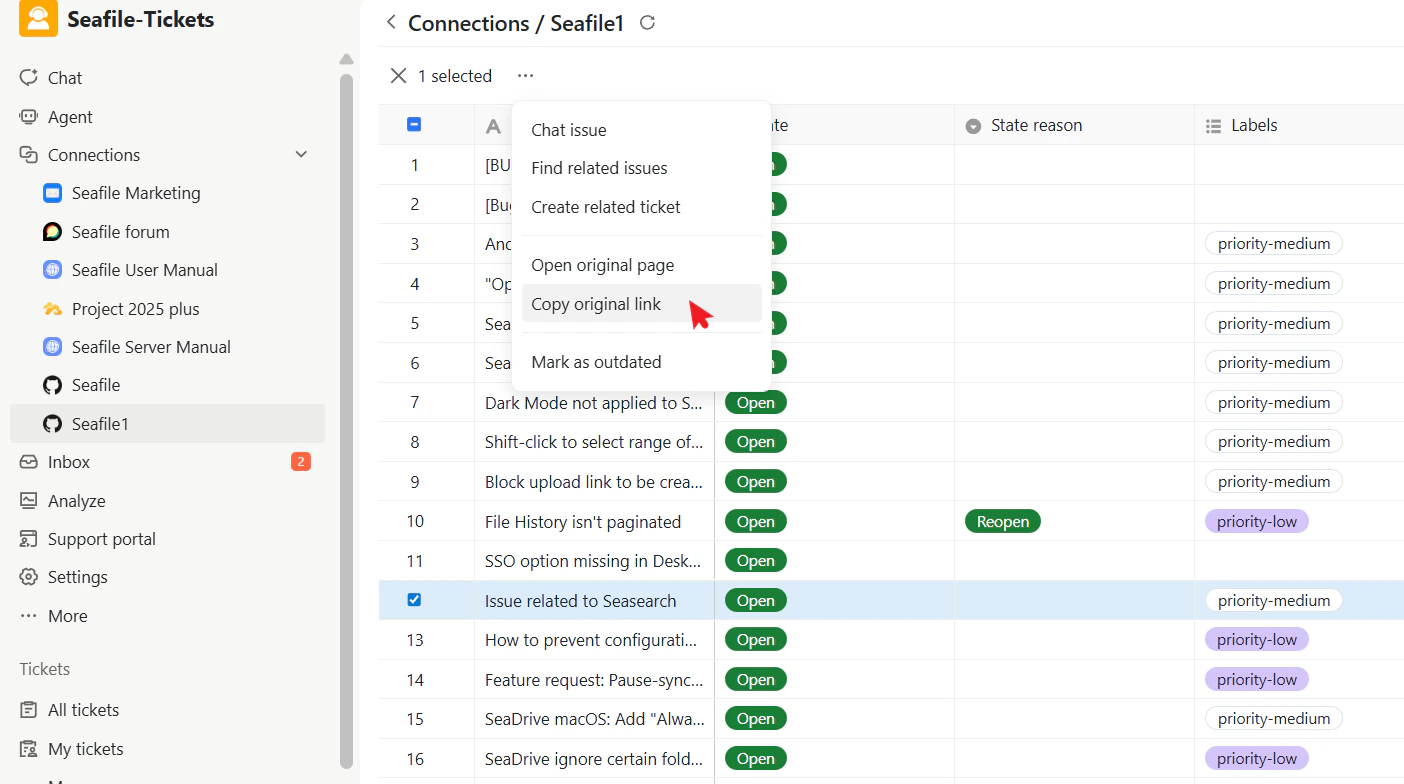
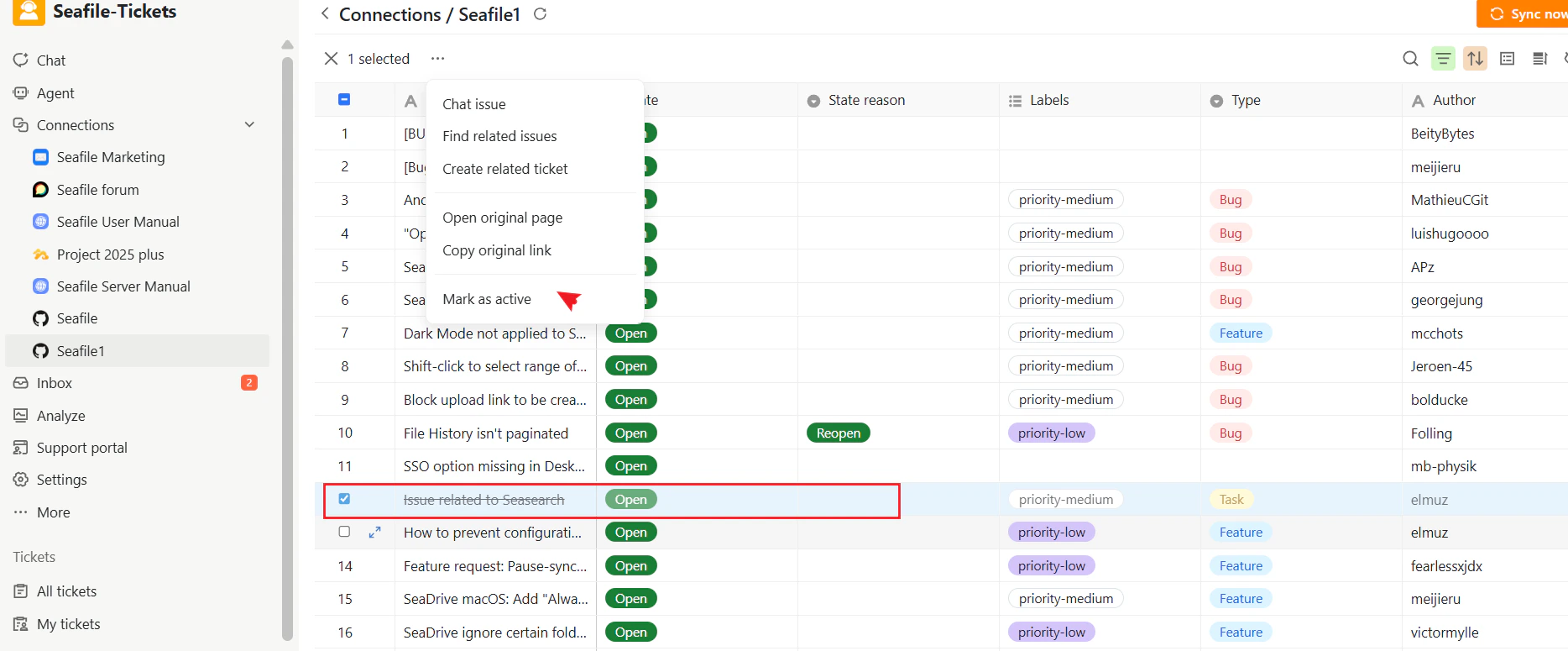
Mark as Outdated
If a synced issue is no longer relevant (for example, it was fixed in a newer version not yet reflected in GitHub), you can mark it as “outdated.” The issue will become grayed out in the list, visually indicating that it does not require immediate attention. This helps keep active issue lists clean and focused. You can reactivate an outdated issue at any time when it becomes relevant again, restoring it to the normal active state.