Ticket List Operations
Basic Operations
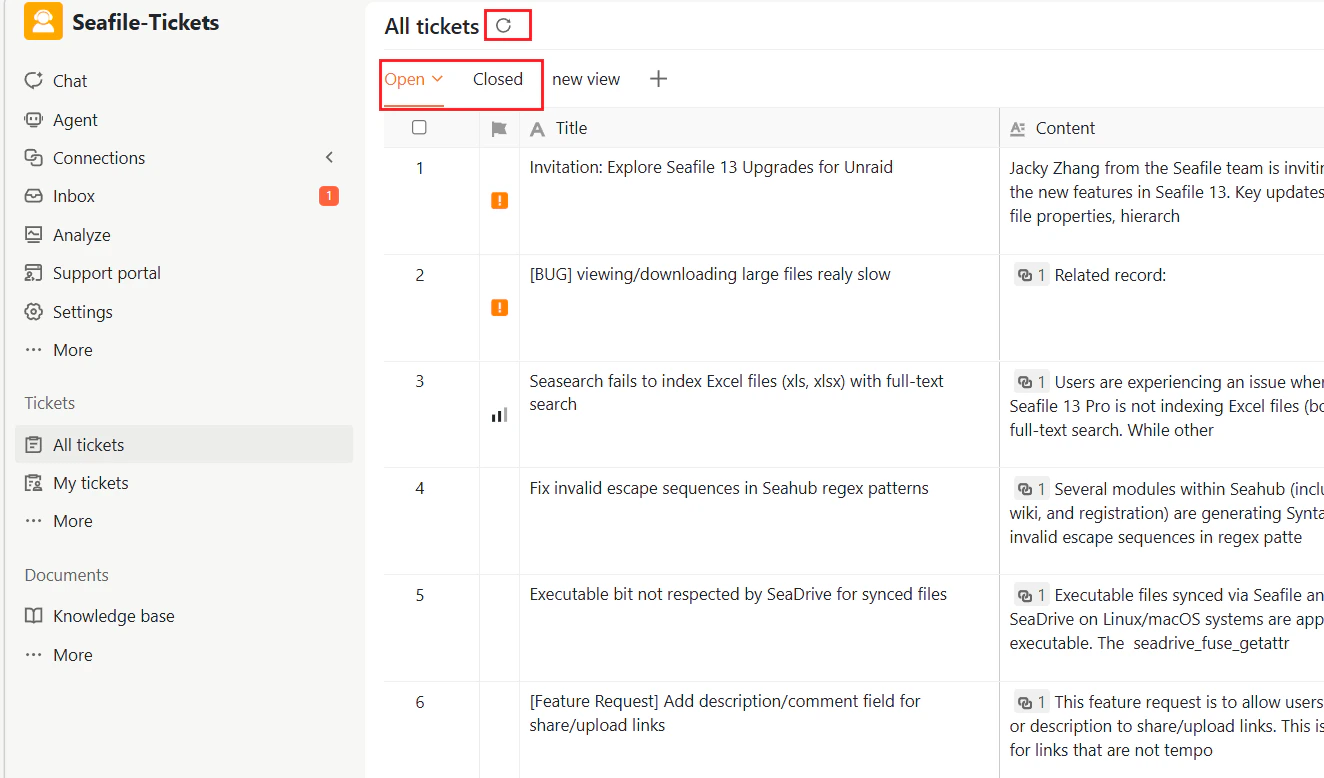
- Click a ticket title to open it.
- Use the checkbox to select one or multiple tickets.
- Switch between the Open and Closed tabs to filter tickets.
- Click the refresh icon to reload the list.

Right-click Operations
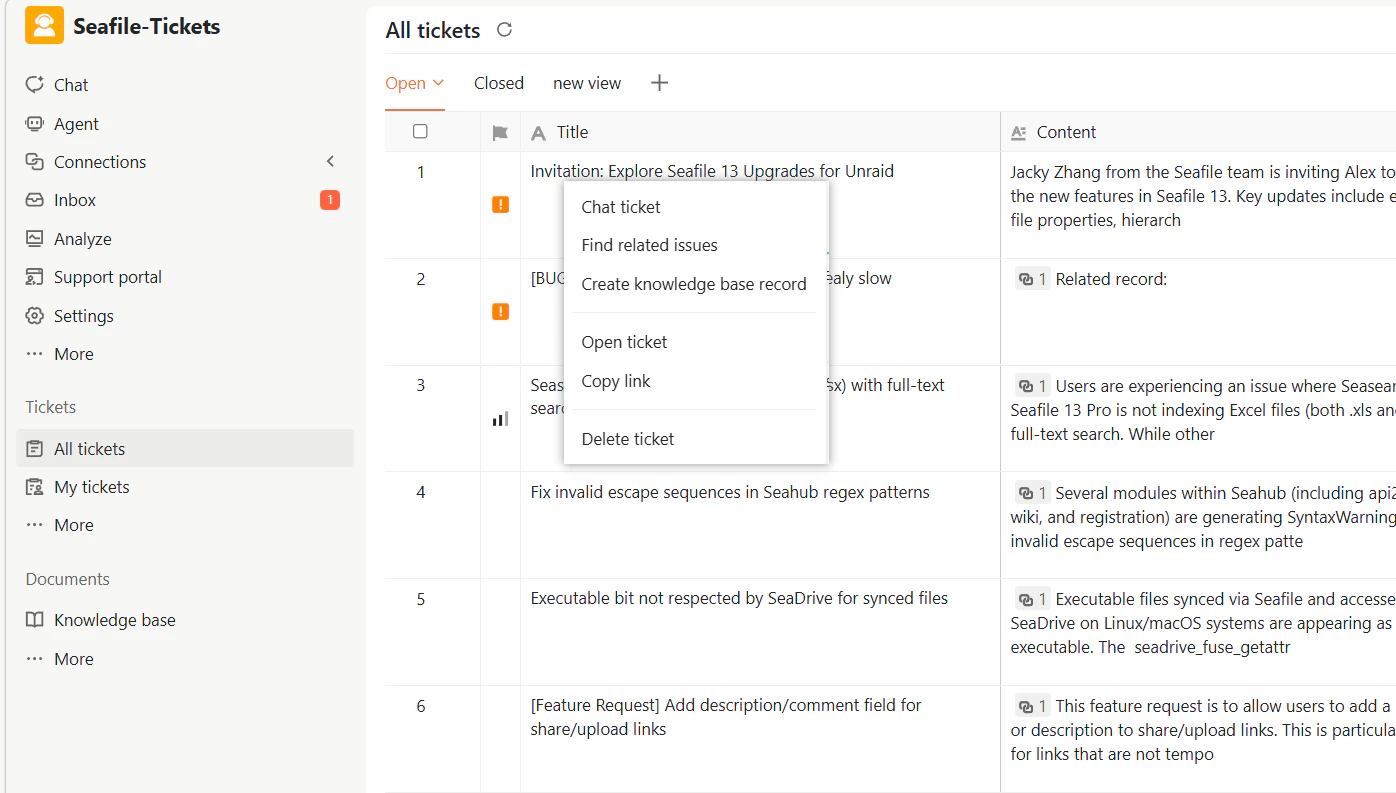
Right-click a ticket in the list to access additional actions:| Action | Description |
|---|---|
| Chat ticket | Starts an AI-assisted chat session with the selected ticket as context to help you analyze the issue, summarize key points, draft replies, and provide suggestions |
| Find related issues | Displays external issues and discussions that may be related to the selected ticket |
| Create knowledge base record | Automatically summarizes the ticket and generates a structured knowledge record for review and editing |
| Open ticket | Opens the ticket details page |
| Copy link | Copies the unique URL of the ticket for sharing with team members |
| Delete ticket | Deletes the ticket. Deleted tickets can be restored from Trash |


Bulk Operations
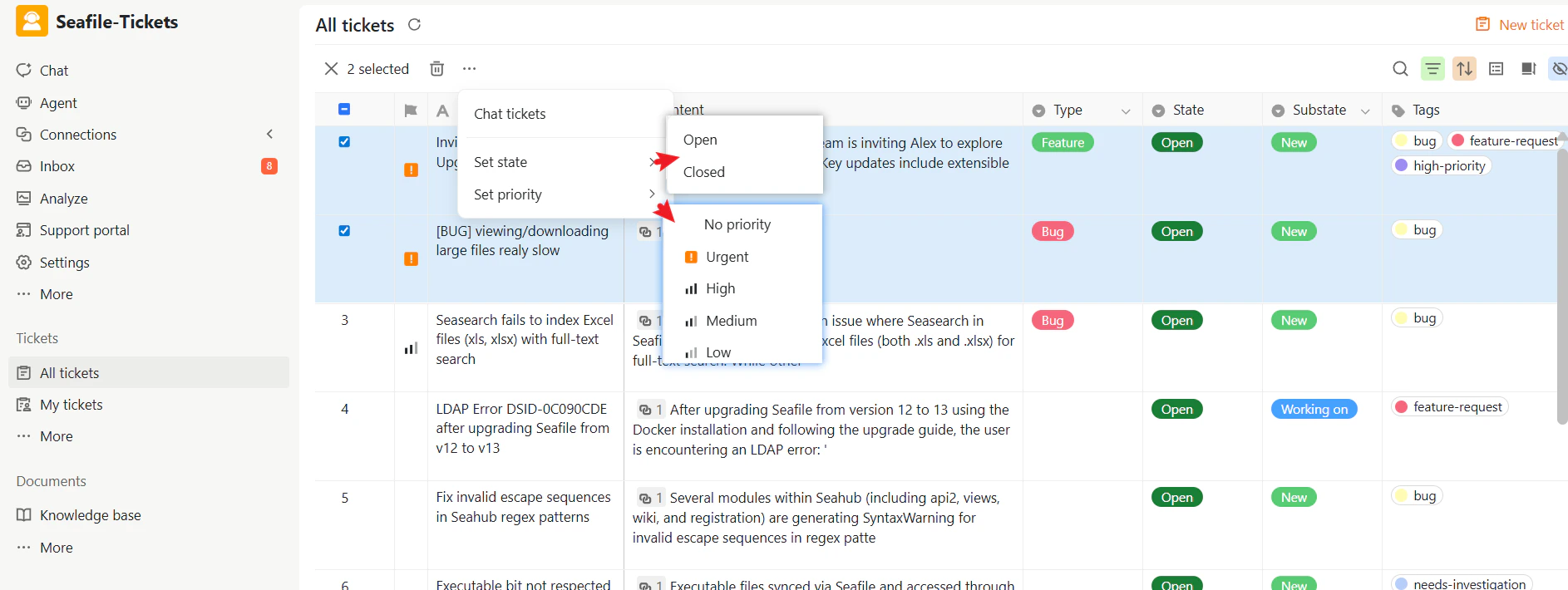
When multiple tickets are selected, you can:| Action | Description |
|---|---|
| Delete | Deletes all selected tickets at once |
| Set state | Updates the state of all selected tickets |
| Set priority | Changes the priority of all selected tickets |
| Chat ticket | Starts an AI-assisted chat session with all selected tickets as combined context, helping you identify patterns and common themes across multiple issues |

Restoring Deleted Ticket
Deleted tickets are moved to the Trash rather than being permanently removed. To restore deleted tickets:- In the Tickets section, click More → Trash.
- Select one or more tickets.
- Click Restore to return them to their original position in the ticket list.
.png?fit=max&auto=format&n=WcHiqSPczPbRTQJs&q=85&s=4d4d2c5967a90ecb1e0c674c43cfd457)