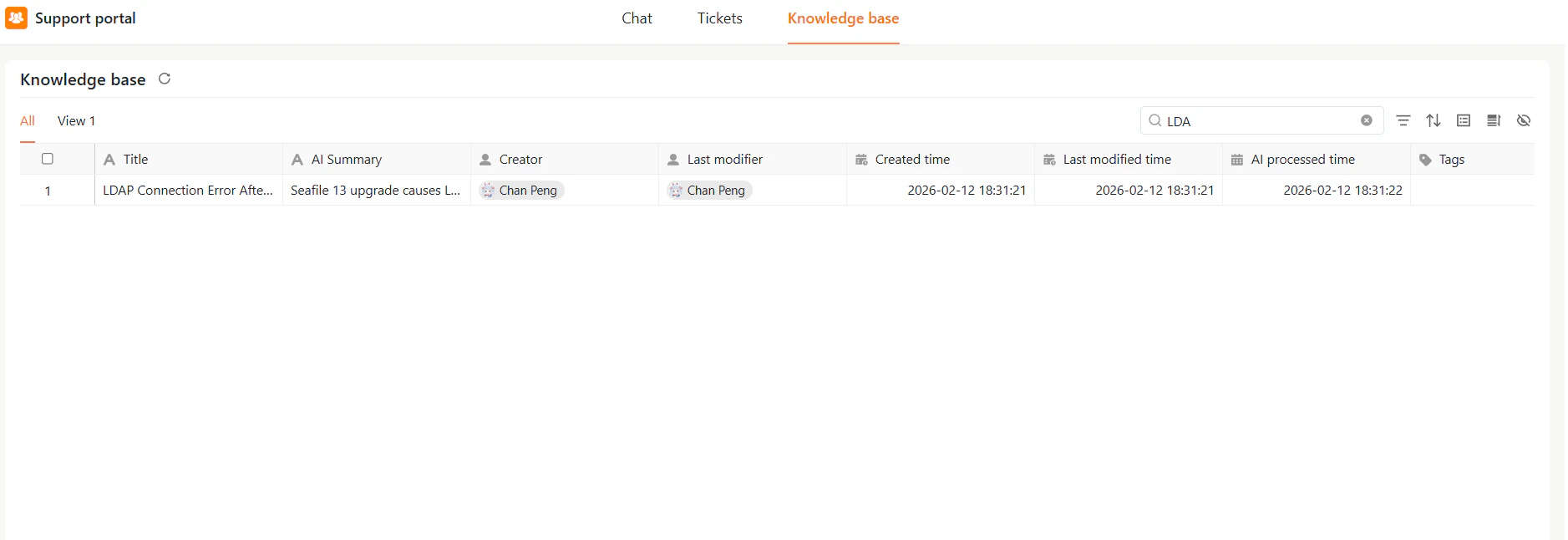

Filtering
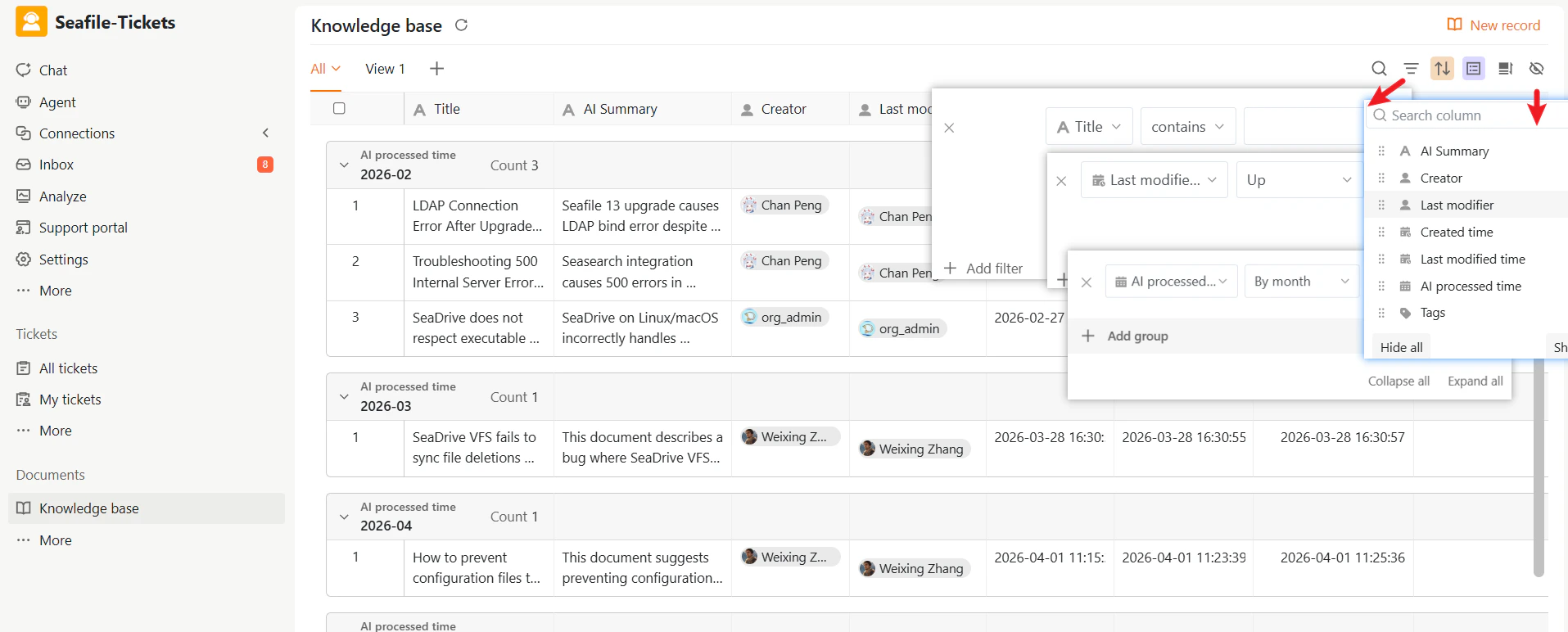
Narrow down records based on specific criteria such as tags, creators, or time ranges. To apply a filter:- Click Filter in the toolbar
- Add one or more conditions
Sorting and Grouping
Customize how records are displayed by sorting and grouping them.Sorting
To sort records:- Click the Sort button in the toolbar
- Choose a field (for example, Created time or Last modified time)
- Select ascending or descending order
- Finding recently updated records
- Reviewing newly created records
- Auditing older content
Grouping
To group records:- Click the Group button in the toolbar
- Select a field (for example, Tags or Creator)
Show or Hide Columns
Customize what information is visible in your table.- Click the column settings icon in the toolbar
- Toggle fields on or off
Custom Views
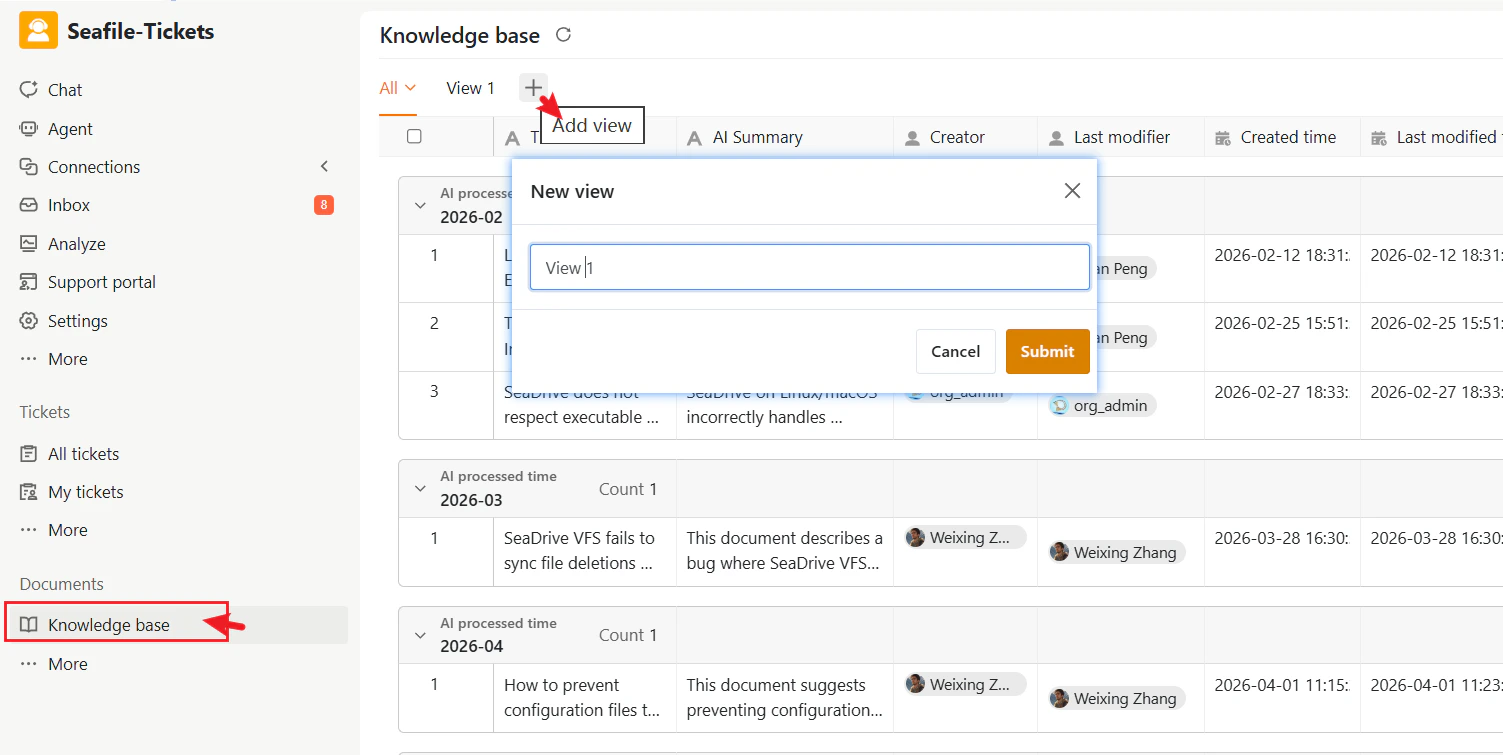
Custom Views let you create different perspectives on the same set of records. A view only changes how records are displayed—it does not modify the underlying data.Create a New View
- Click the + next to the current view name
- Apply filters, sorting, or grouping as needed
- The view saves automatically. You can rename it by clicking the view name.
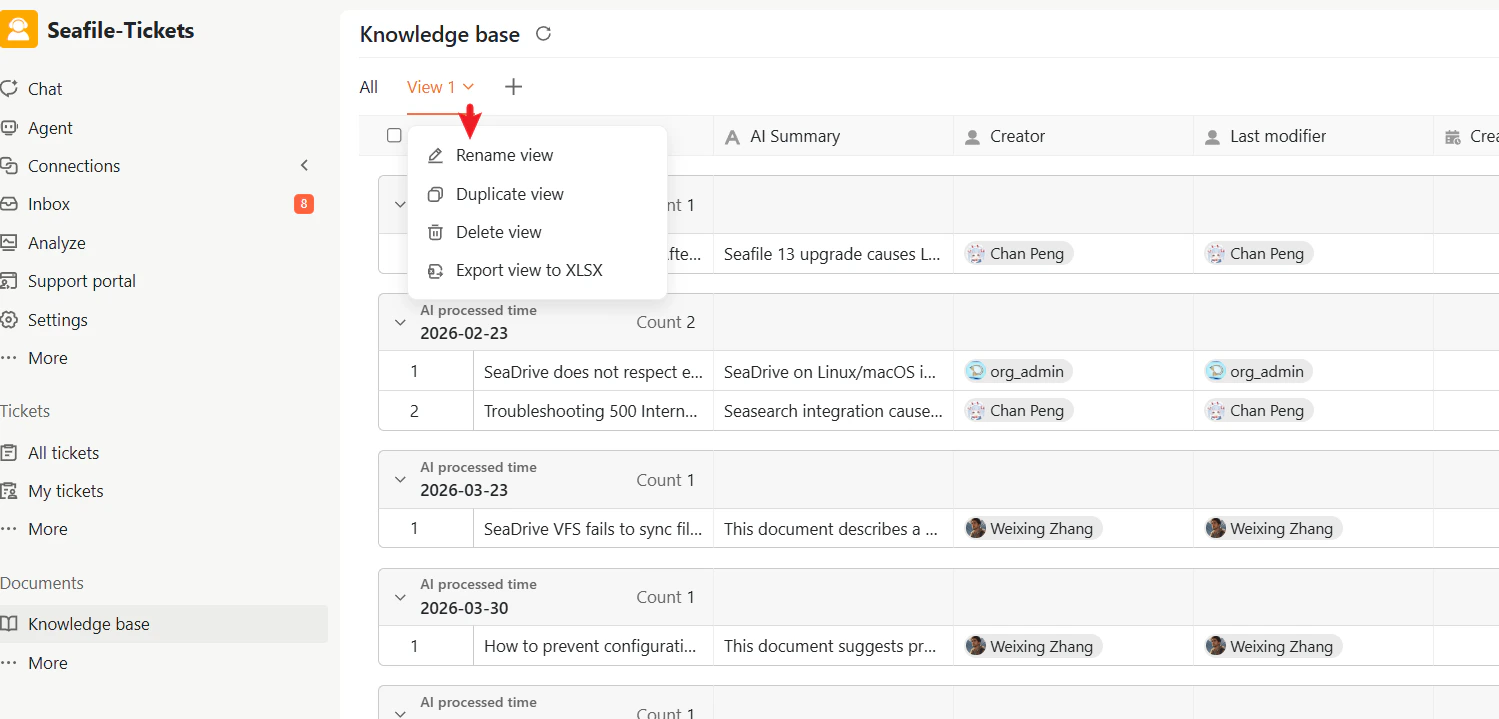
Manage a View
Click the dropdown next to the view name to:- Rename the view
- Duplicate the view
- Delete the view
- Export as XLSX
Using Knowledge Records Across SeaTicket
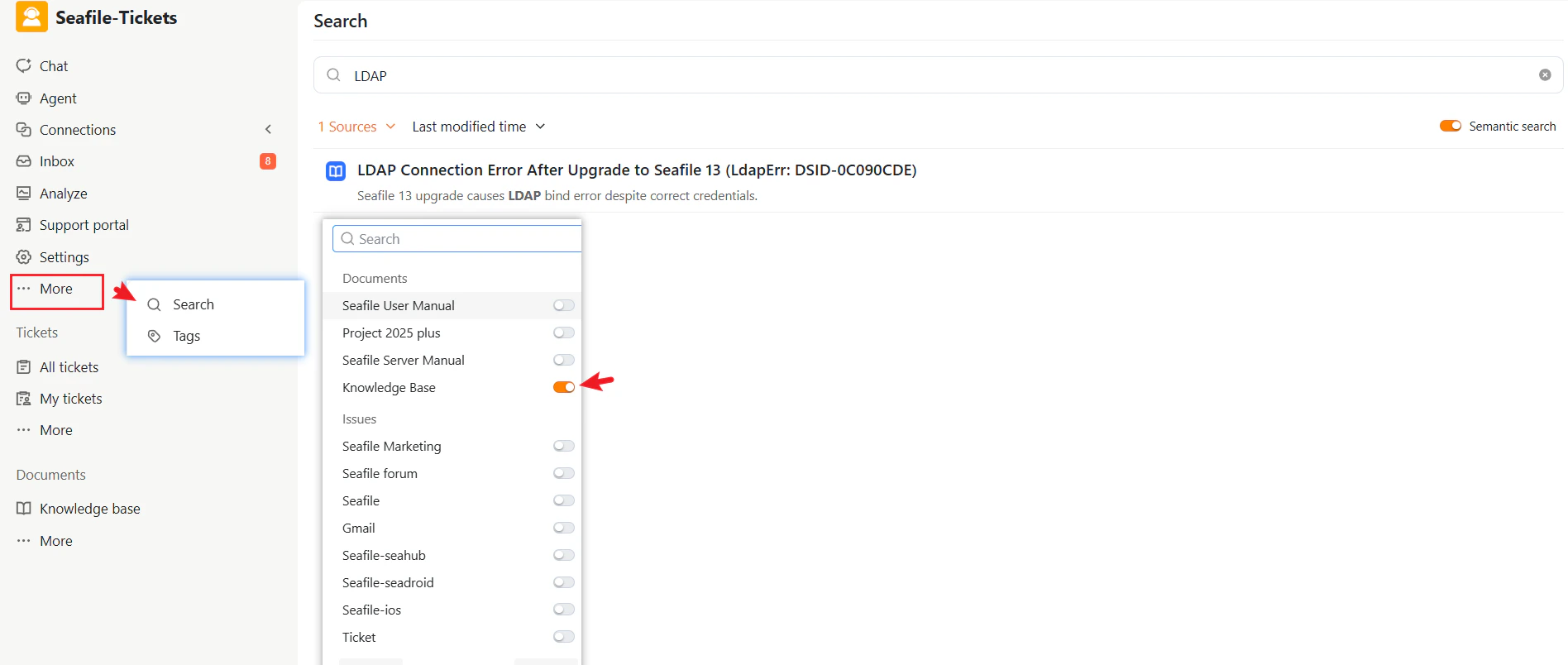
Knowledge records are integrated throughout SeaTicket, not isolated as standalone documents.AI-Powered Search
Responders can search the Knowledge Base directly from the search interface using:- Keywords
- Natural language questions
AI Chat Assistance
Knowledge records are also available through AI chat assistance. Responders can ask questions in the chat interface and receive answers generated from existing knowledge records, allowing them to retrieve guidance without manually browsing the Knowledge Base. When relevant content exists, the AI references those records to generate responses.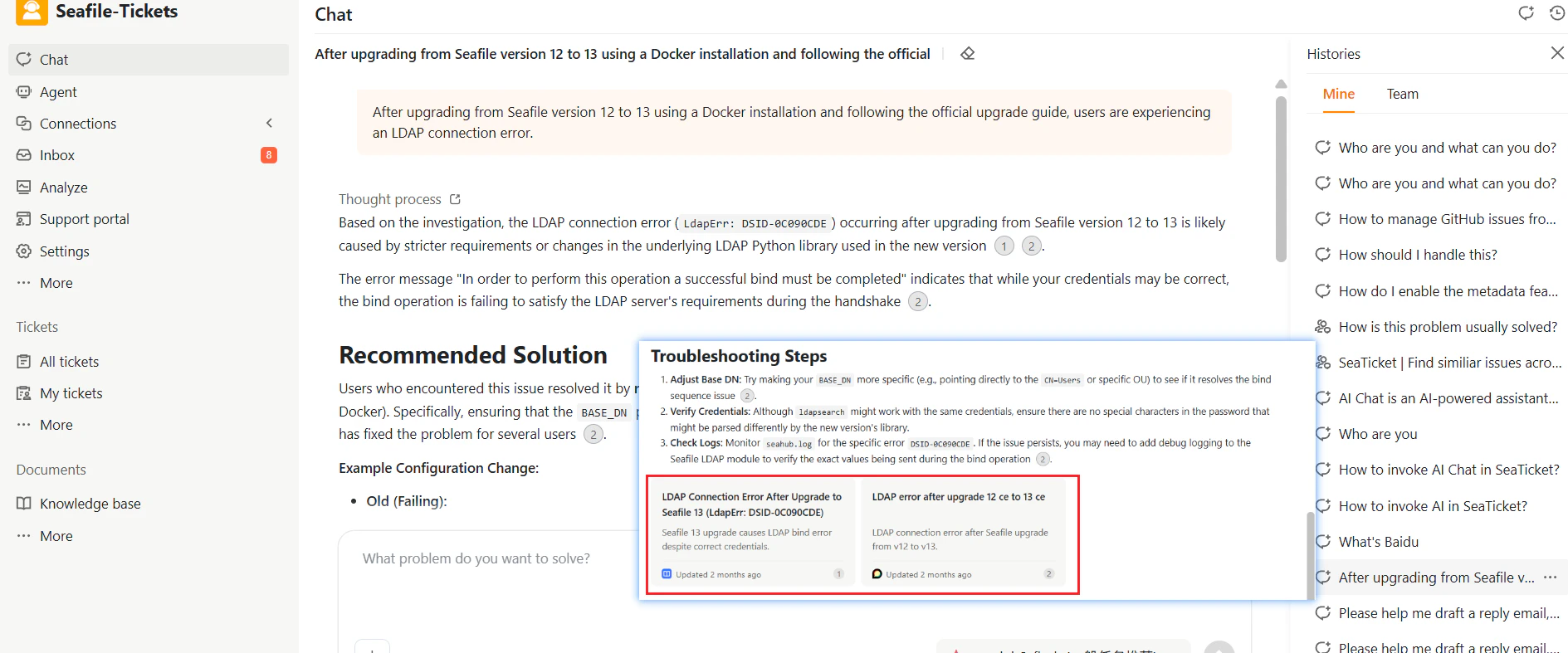
External Portal
Knowledge records can be published to the External Portal by enabling the Show Knowledge Base option in the portal settings. Once enabled, customers can browse knowledge records by grouping and search for answers directly. For full setup instructions, see Portal Access & General Settings This enables users to find solutions independently and helps reduce repetitive support requests.