
Create a Project
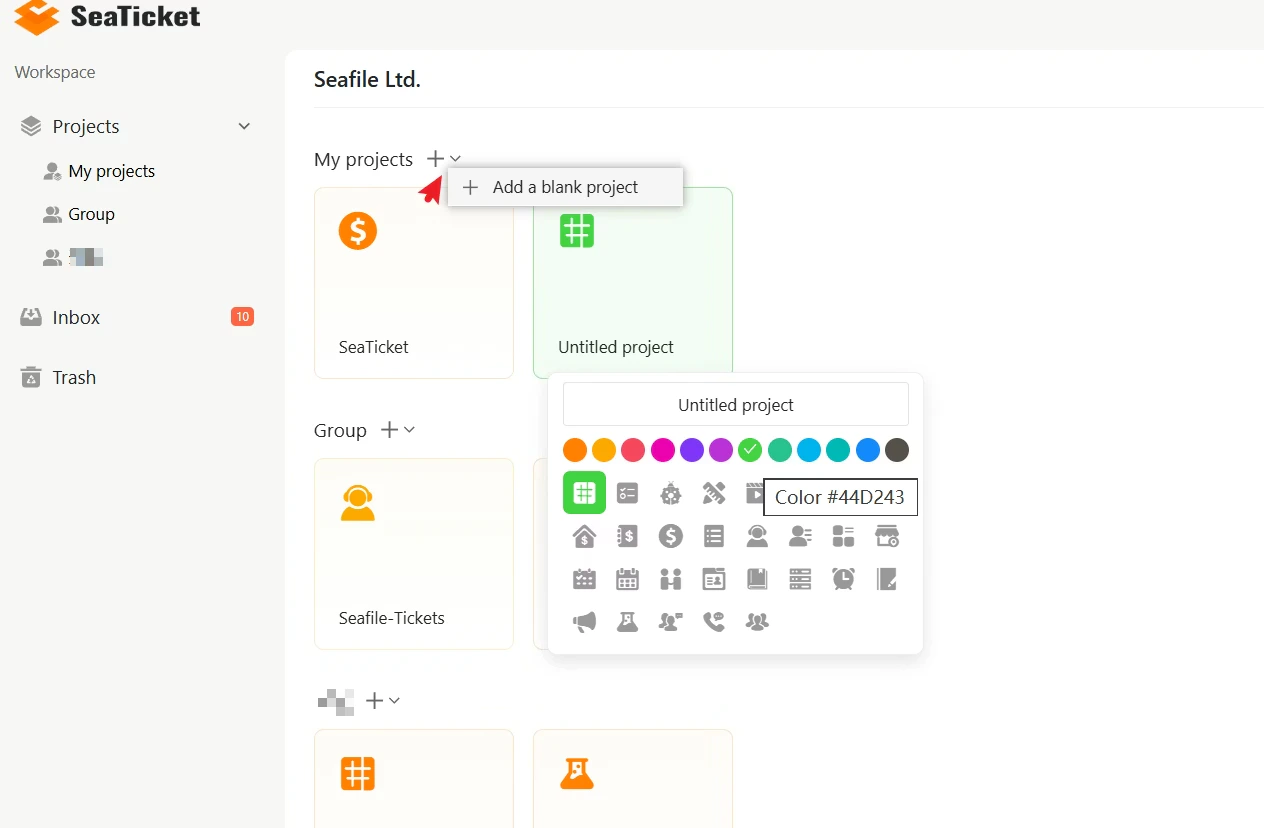
To create a new project:- Navigate to the Projects section in the main sidebar.
- Click the + button next to My projects or a Group name.
- Enter a unique project name.
- Select an icon or choose a theme color to visually represent your project.
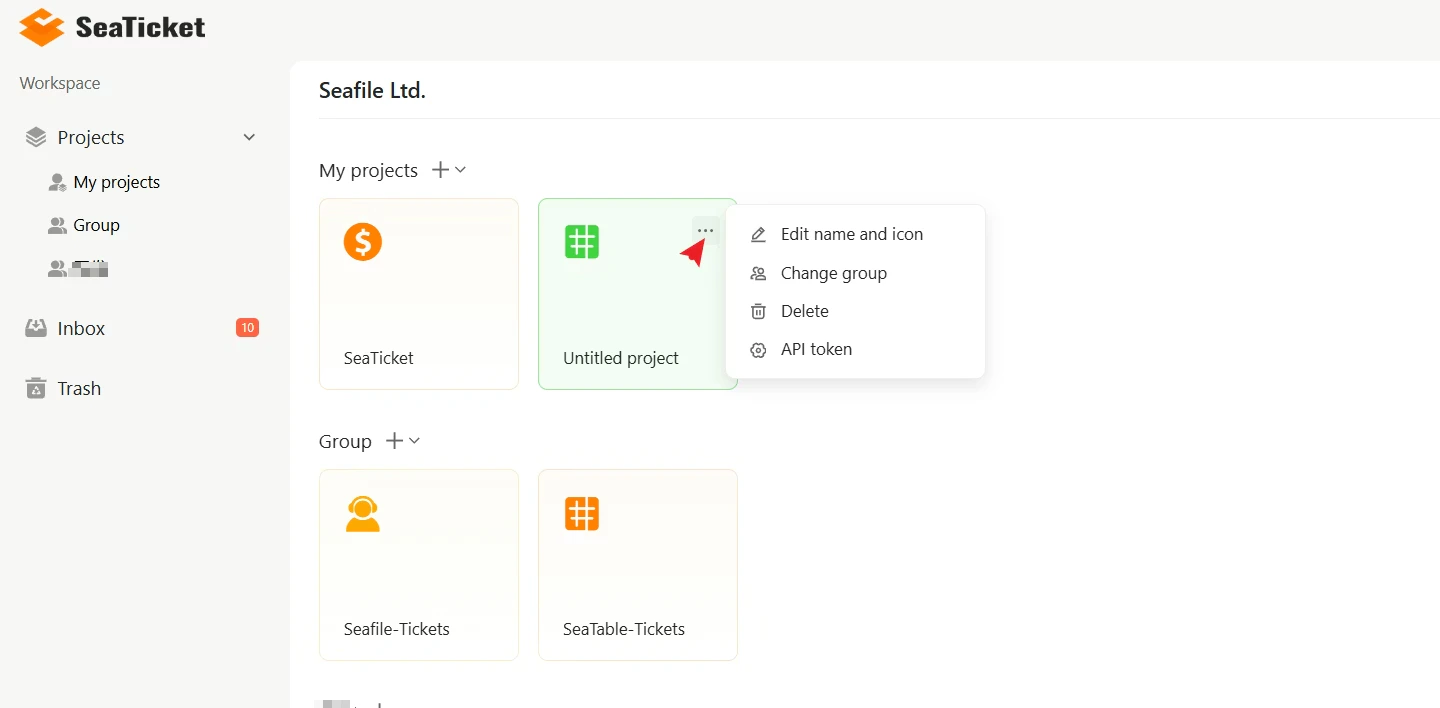
Project Actions
Every project card provides quick access to management actions. To use them:- Hover over the project card.
- Click the ⋯ menu to access the following options:
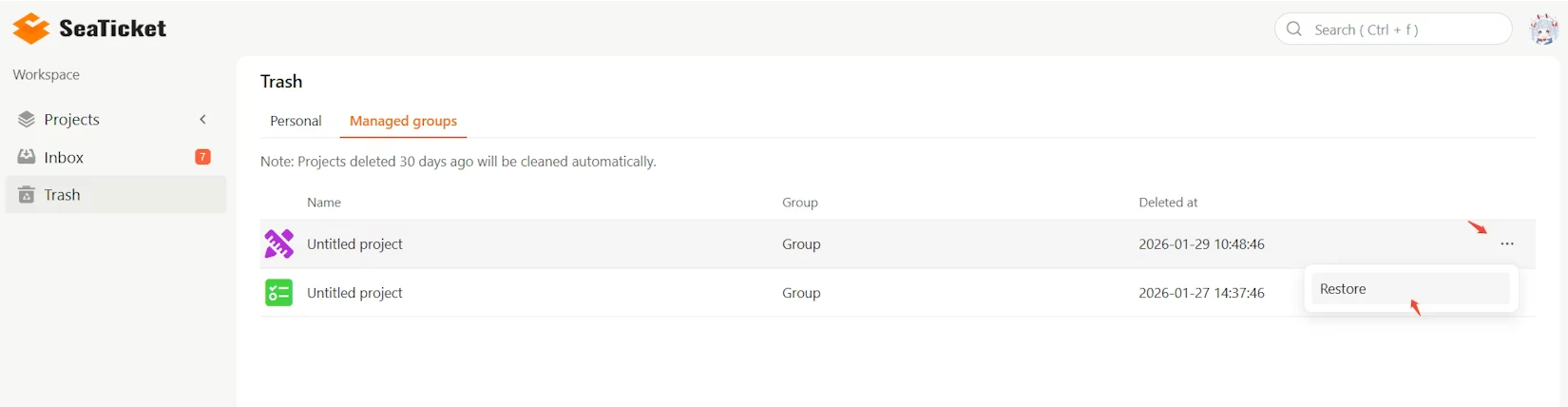
Trash
When a project is deleted, it is moved to the Trash rather than being permanently removed. You can restore deleted projects from here at any time within 30 days.Note: Projects that have been in the Trash for more than 30 days are automatically and permanently deleted.To access the Trash:
- Click Trash in the main sidebar.
- Select the Personal tab to see deleted personal projects, or the Managed groups tab to see deleted group projects.
- Click the ⋯ menu next to the project you want to recover.
- Click Restore.