
Issue List
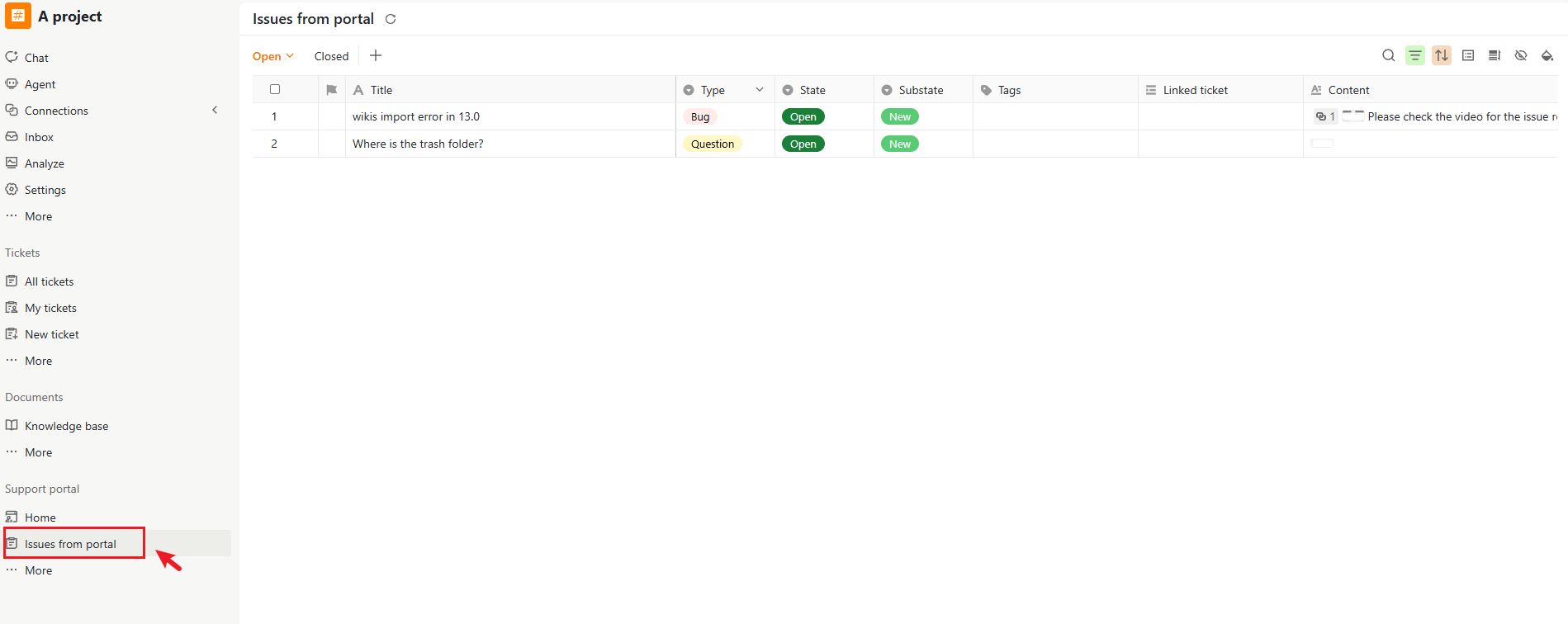
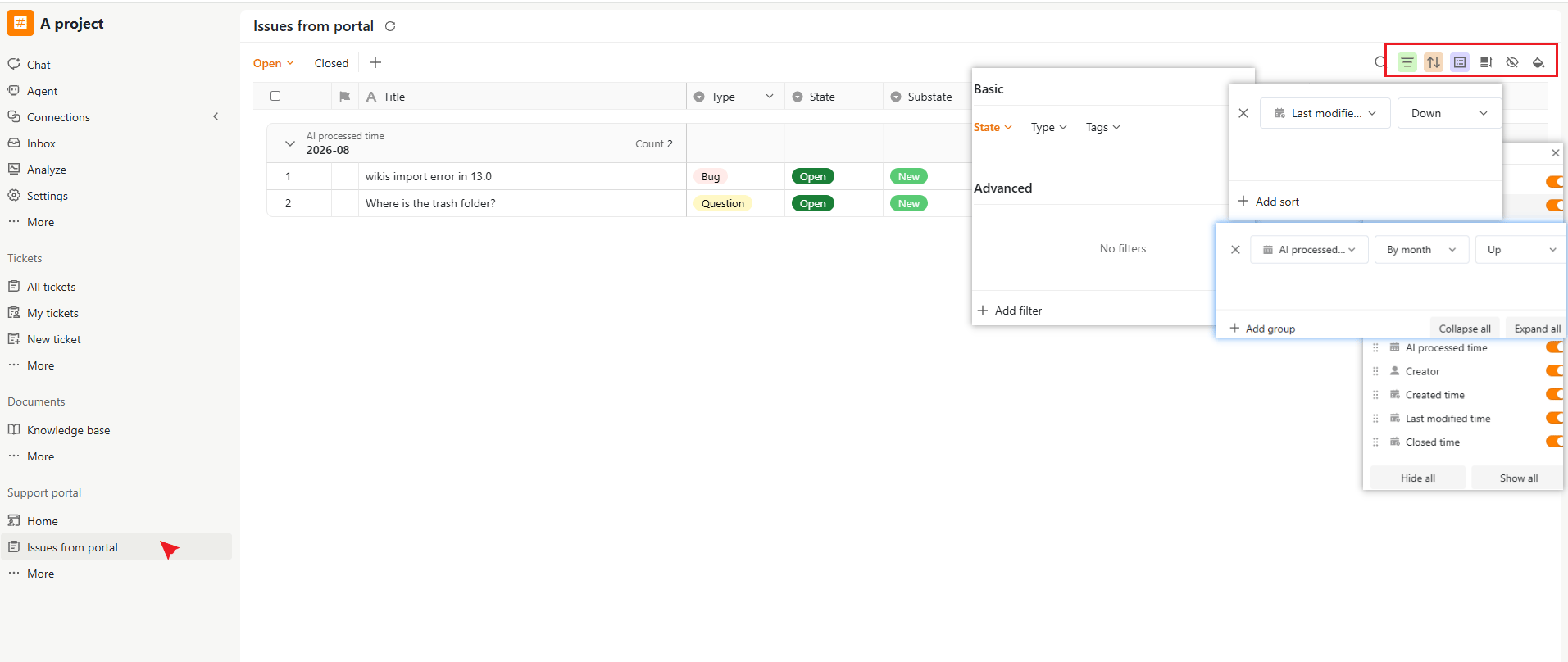
The issue list provides an overview of all portal issues, including:- Title – The issue subject.
- Type – Issue category, such as Bug or Question.
- State – Current issue status (e.g., Open, Closed).
- Substate – Detailed workflow status (e.g., New, In Progress).
- Tags – Labels added for categorization or workflow tracking
- Linked ticket – Internal ticket associated with the issue.
- Content – A preview of the issue description.
- User information – The issue creator and related user details.
- Timestamps – Created time, last modified time, AI processed time, and closed time.
- AI-generated information – AI summaries and related processing results
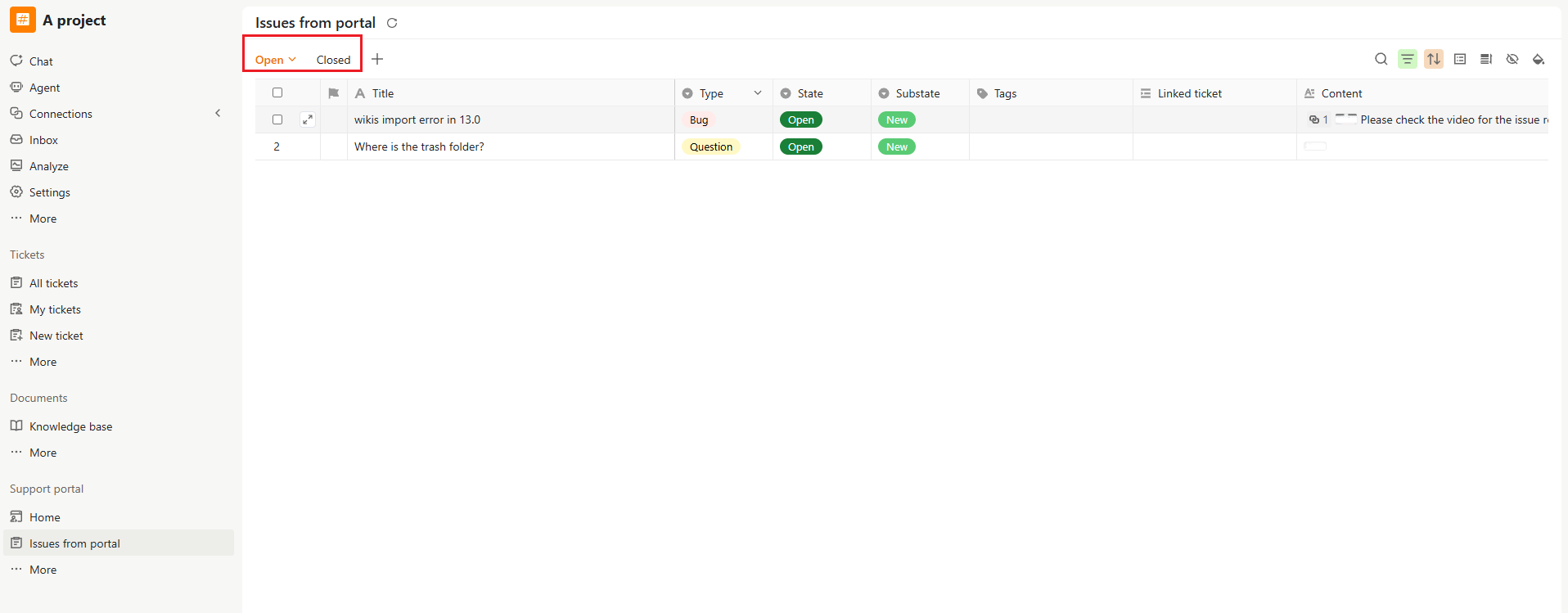
- Open – Active issues.
- Closed – Resolved or completed issues.
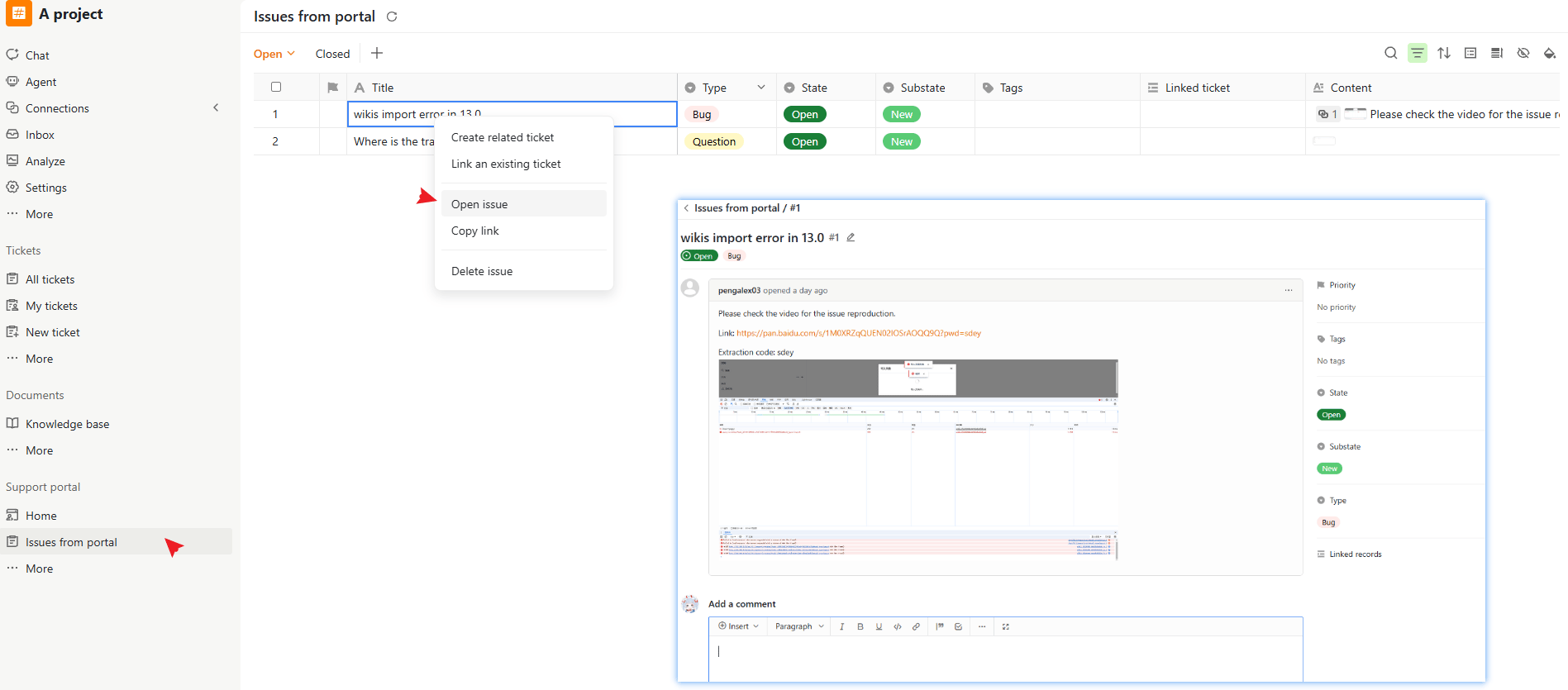
Open an Issue
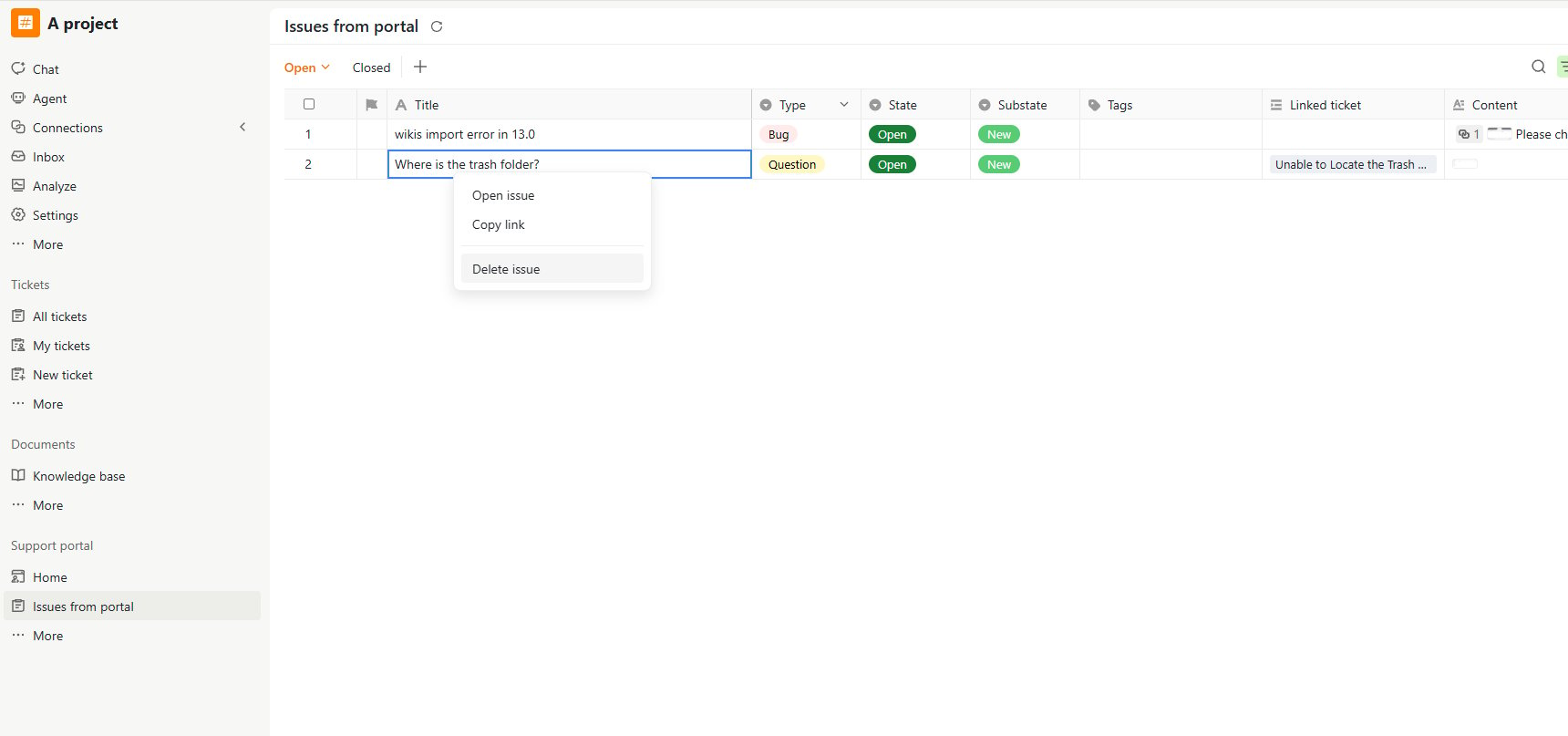
Click the issue title, or right-click the issue and select Open issue, to open the issue detail page. The issue detail page allows you to:- View the issue title and description
- Review comments and replies
- Add comments and attachments
- Track issue status
- View linked tickets and related records
Reply to an Issue
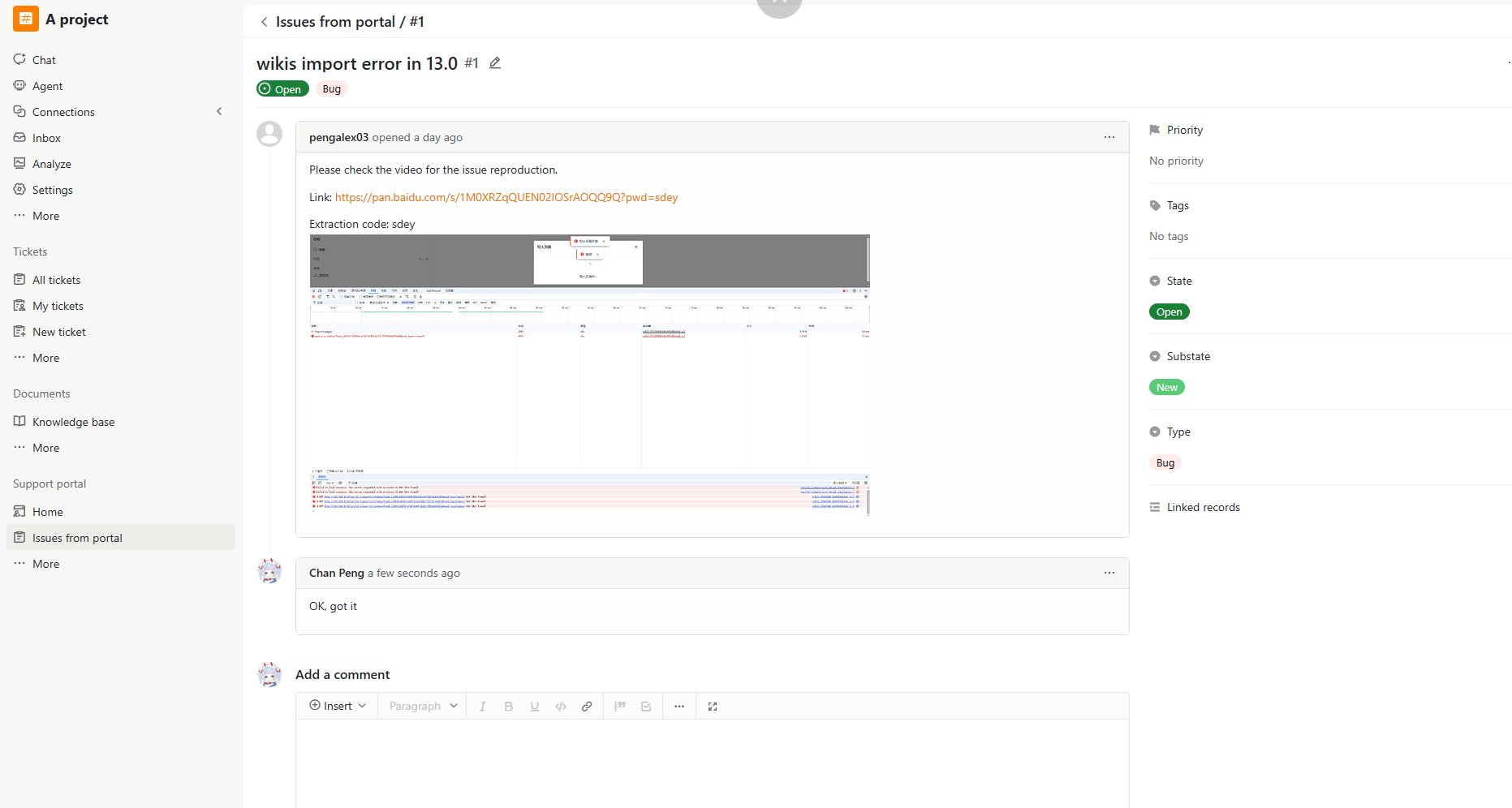
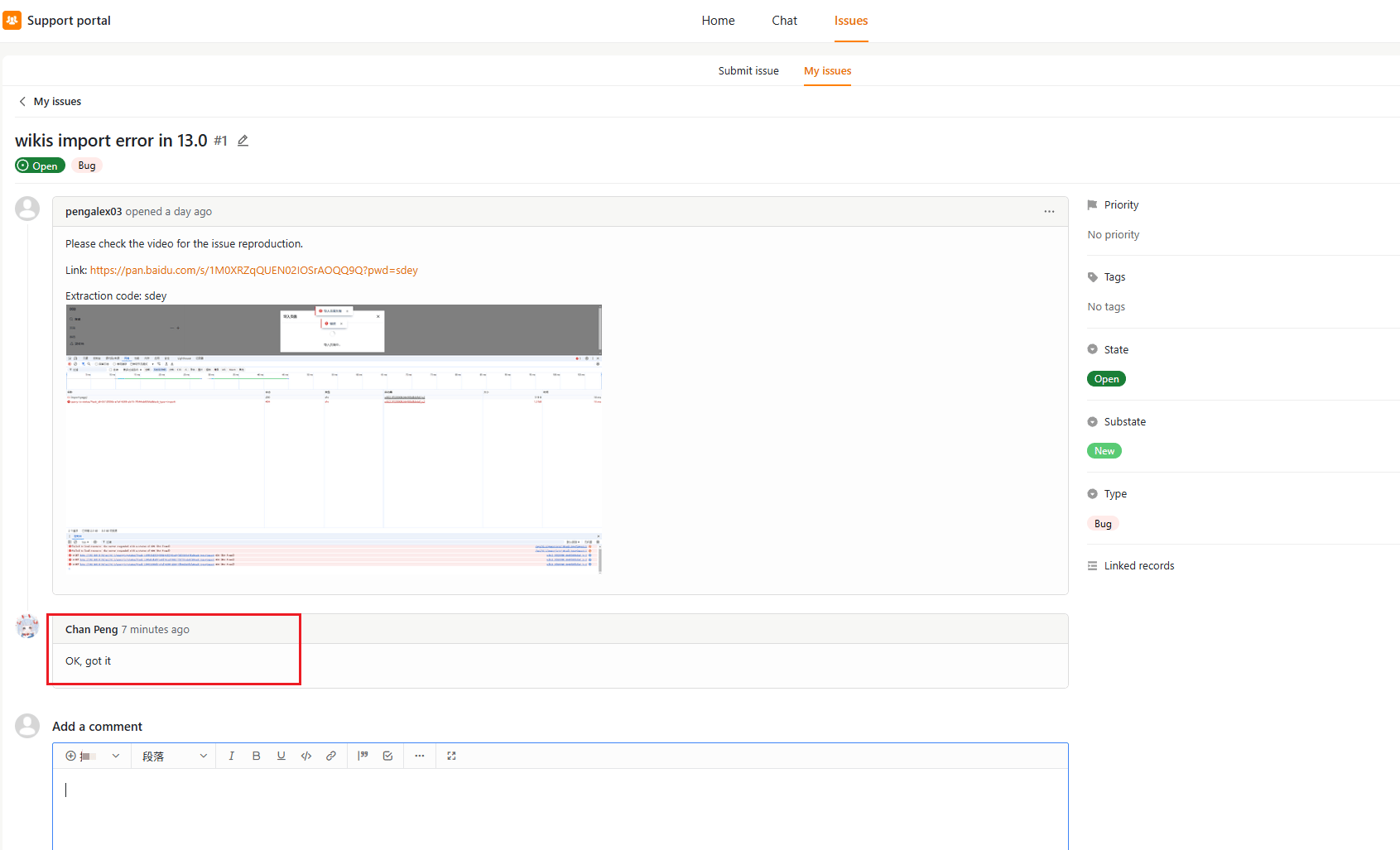
Support members can communicate directly with external users through comments. To add a reply:- Open the issue.
- Enter your response in the Add a comment editor.
- Optionally attach files.
- Click Comment.
Close an Issue
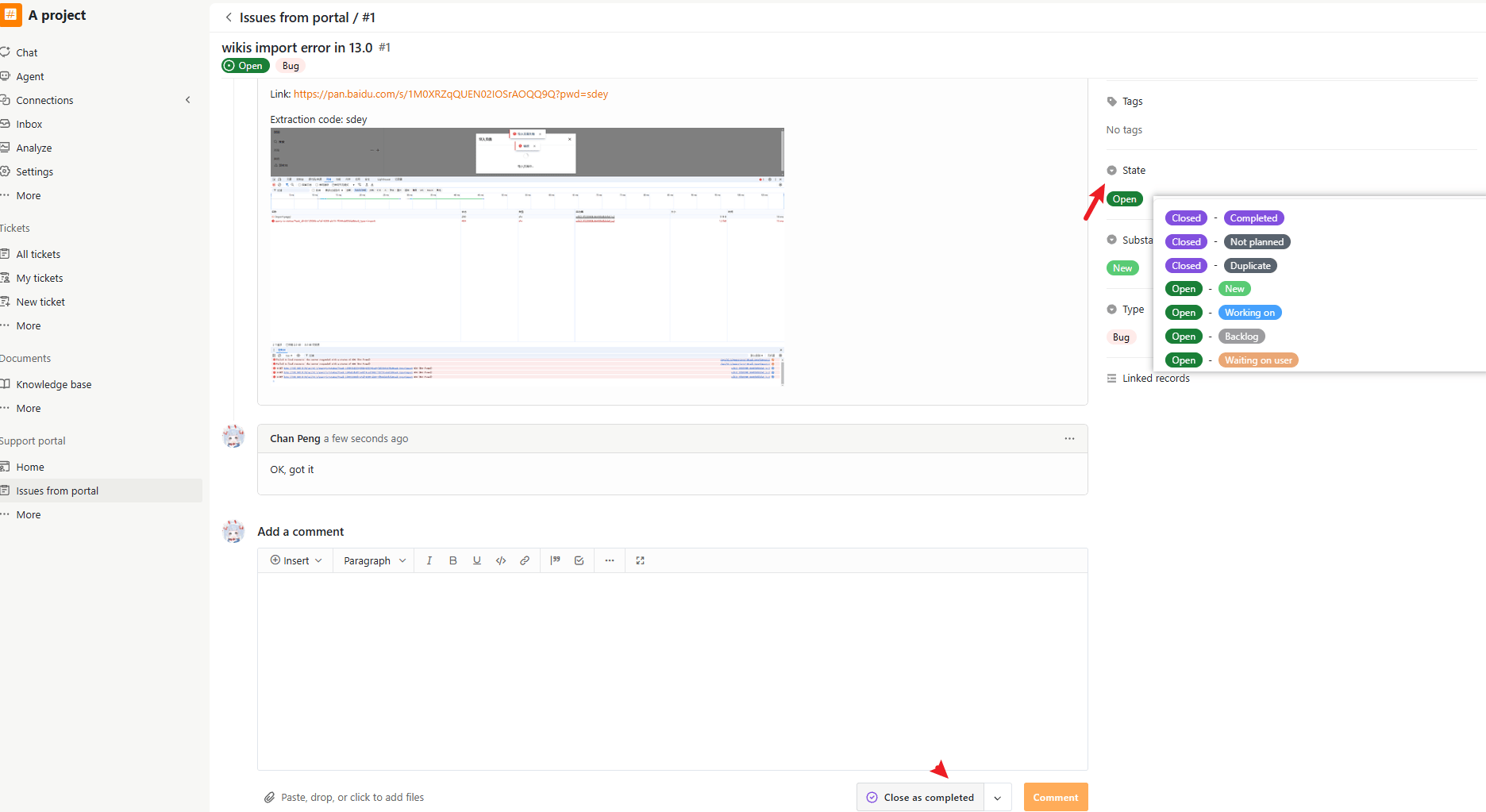
Issues can be closed in either of the following ways:- Click Close as completed when adding a comment, or
- Update the issue State to Closed from the issue detail page.
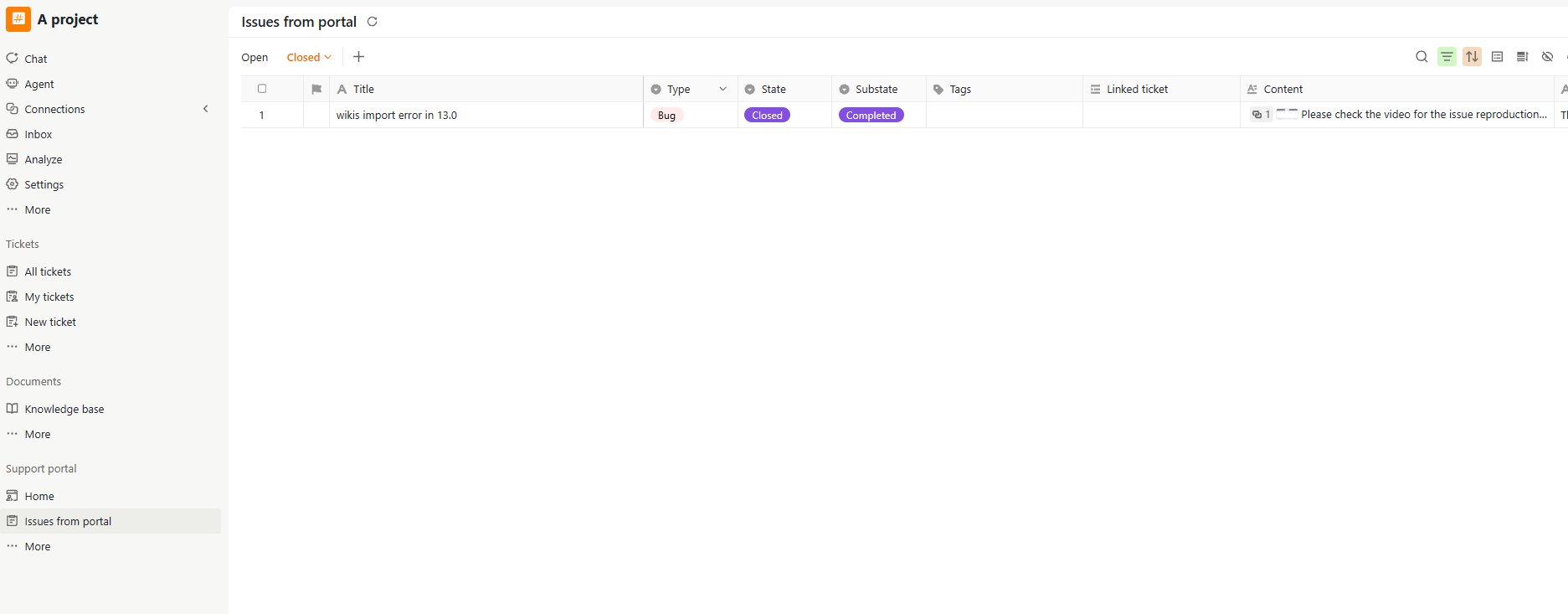
- Team members can view it in Issues from Portal → Closed.
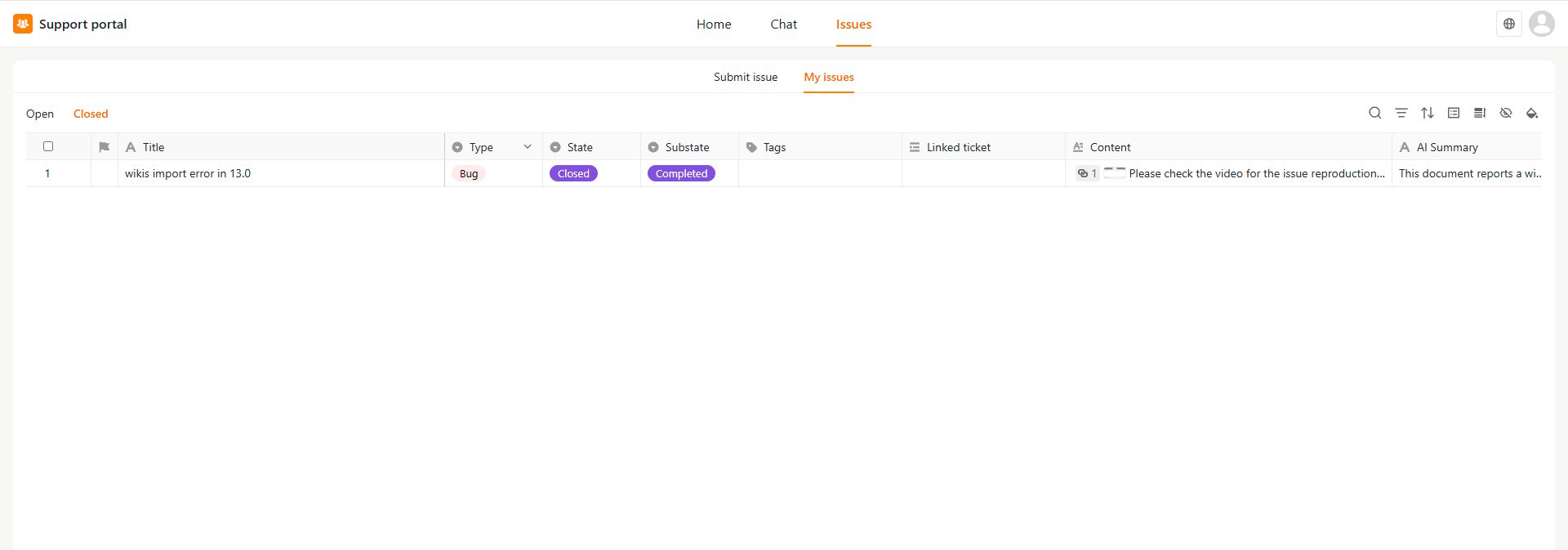
- External users can view it in My Issues → Closed in the External Support Portal.
Link an Issue to an Internal Ticket
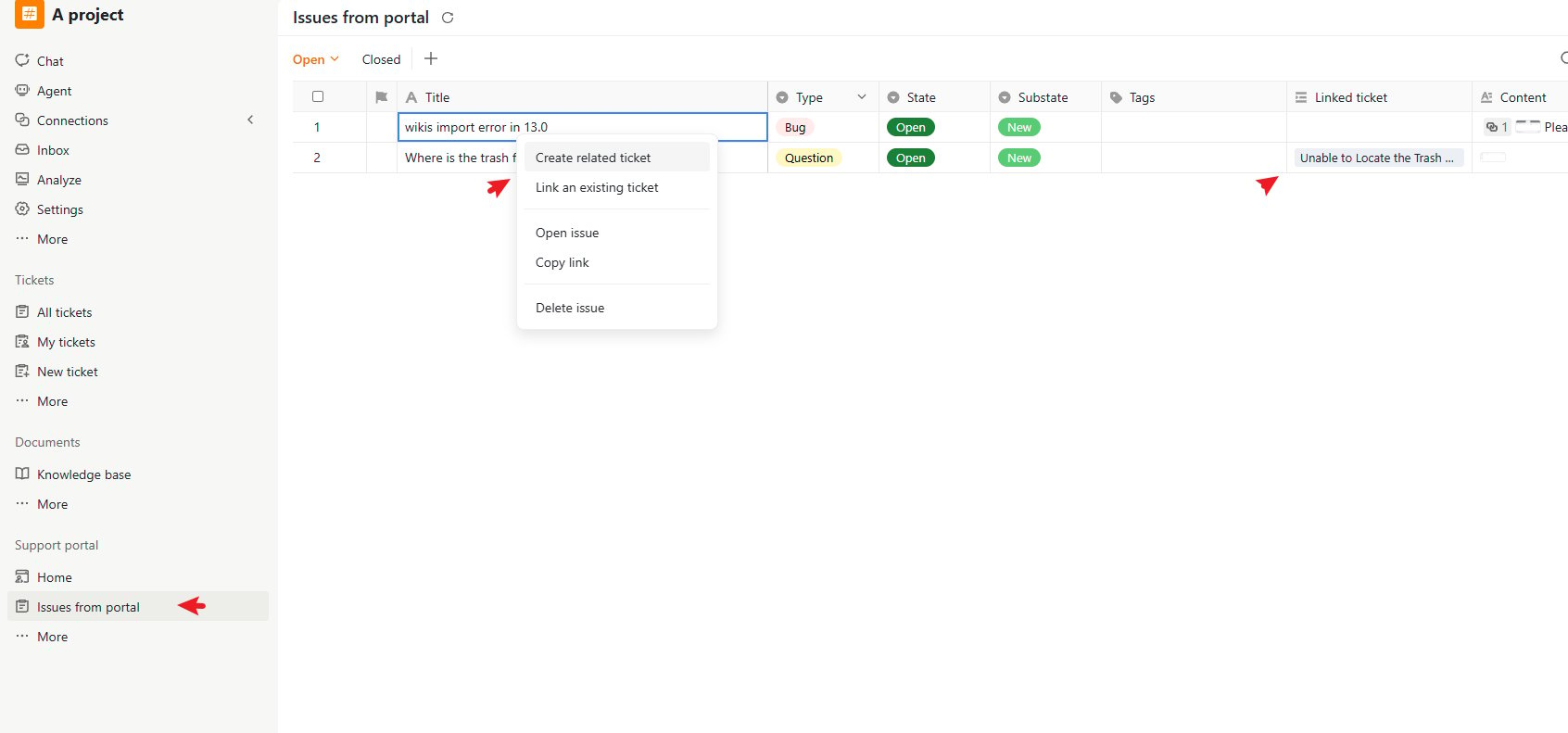
Portal issues can be connected to internal tickets for tracking and escalation. To link an issue:- Open the issue menu from the issue list.
- Select one of the following:
- Create related ticket – Create a new internal ticket linked to the issue.
- Link an existing ticket – Associate the issue with an existing internal ticket.
Additional Actions
From the issue action menu, you can also:- Copy link – Copy the issue URL for sharing.
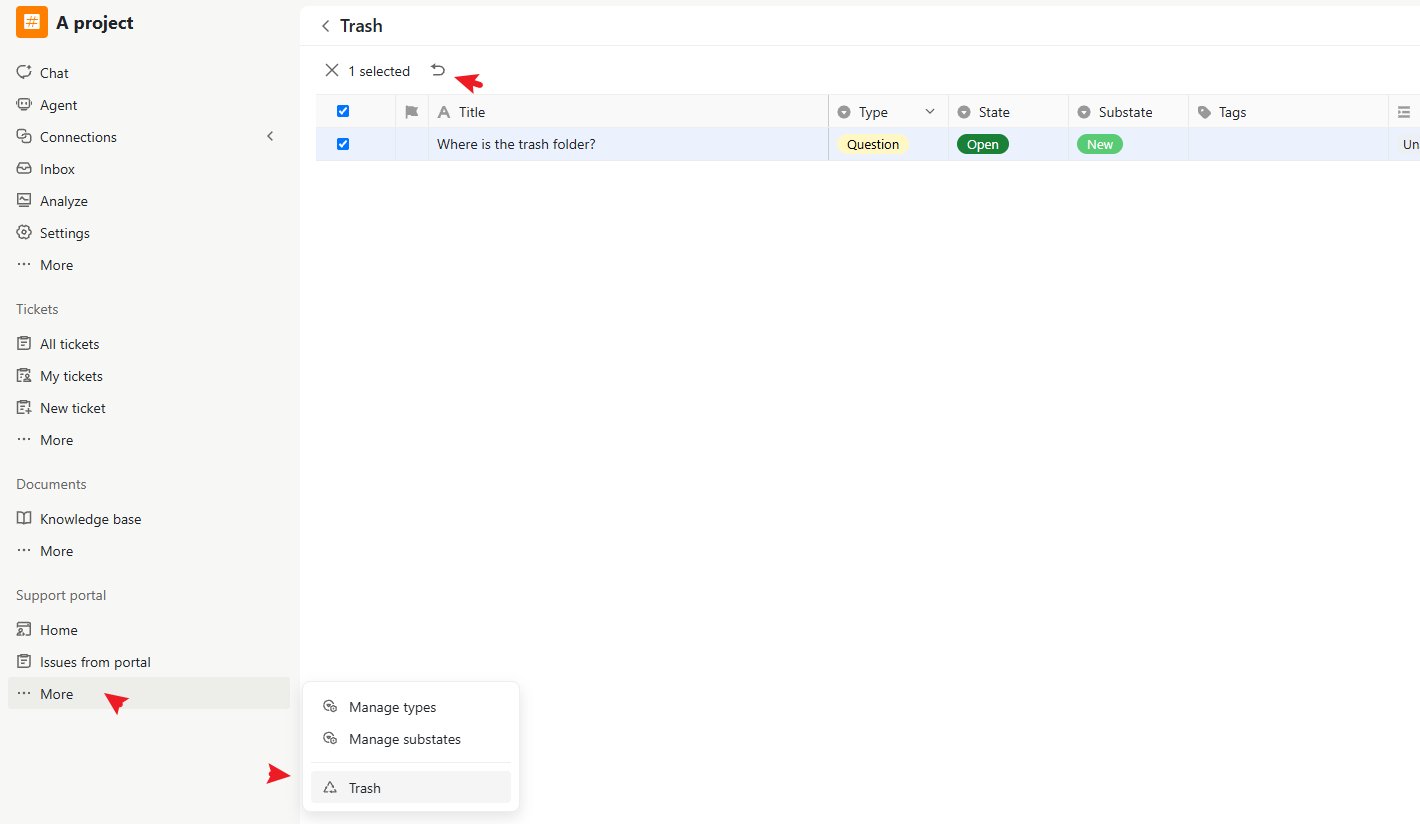
- Delete issue – Remove the issue