
What You Can Do with AI Chat
AI Chat supports your daily work with these core capabilities:Answer Questions with Context
AI Chat understands the content of your tickets, issues, and documents, and can answer questions like:- What is happening in this issue?
- What is the root cause?
- What should I check first?
Troubleshoot Problems
AI Chat helps you diagnose technical or workflow issues by:- Analyzing error messages and logs
- Suggesting possible causes
- Recommending next troubleshooting steps
Search Documentation and Past Issues
AI Chat automatically:- Retrieves relevant documentation
- References similar historical issues
- Provides supporting context and insights
Build Knowledge for Your Team
Turn useful conversations into reusable knowledge by:- Saving solutions as knowledge records
- Sharing insights with your team
- Reducing repeated problem-solving
How AI Chat Works
AI Chat generates responses by combining:- Current ticket or issue context
- Attached documents and knowledge base content
- Historical issues and discussions
- Connected external or internal sources
Customizing AI Behavior with a Project Prompt
You can provide the AI with background information about your project, so it responds with better context across all conversations. To set a Project Prompt:- Go to Settings in your SeaTicket project
- Locate the Project prompt section
- Click Edit
- Enter background information about your project — for example, your product description, project context, or terminology the AI should be aware of
- Click Submit
.png?fit=max&auto=format&n=WcHiqSPczPbRTQJs&q=85&s=f4f7a642bc4ab537ae583a5606509af9)
- Describe what your product or service does
- Include key terms or abbreviations your team uses
- Mention the type of issues or tickets your team typically handles
Ways to Start AI Chat
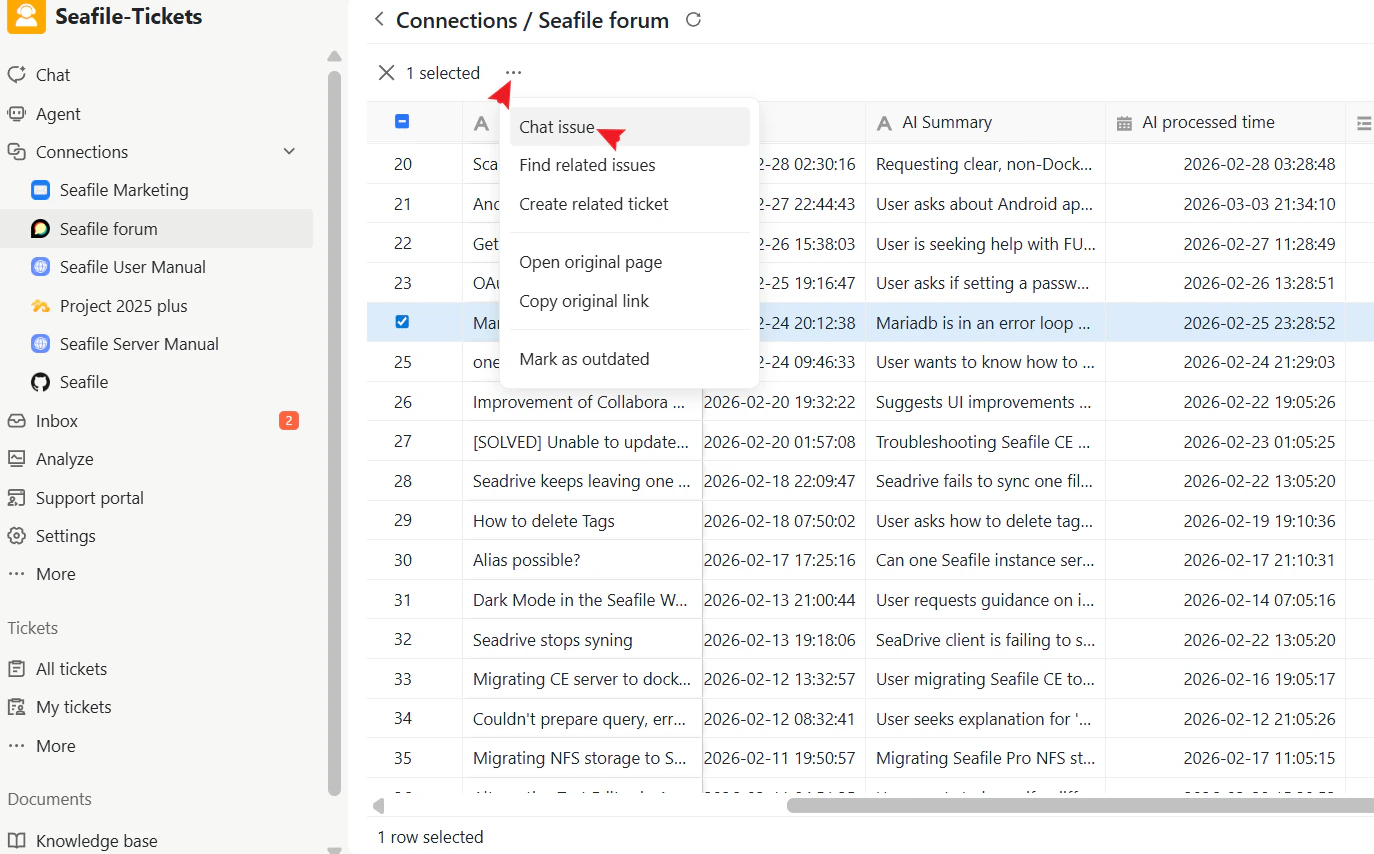
You can start AI Chat from either a ticket or an external issue.Start from an Issue
- Go to Connections
- Open a connected source (for example, GitHub)
- Select an issue
- Right-click the issue
- Choose Chat issue
- What is the root cause?
- Has this been solved before?
- Summarize the discussion
Start from a Ticket
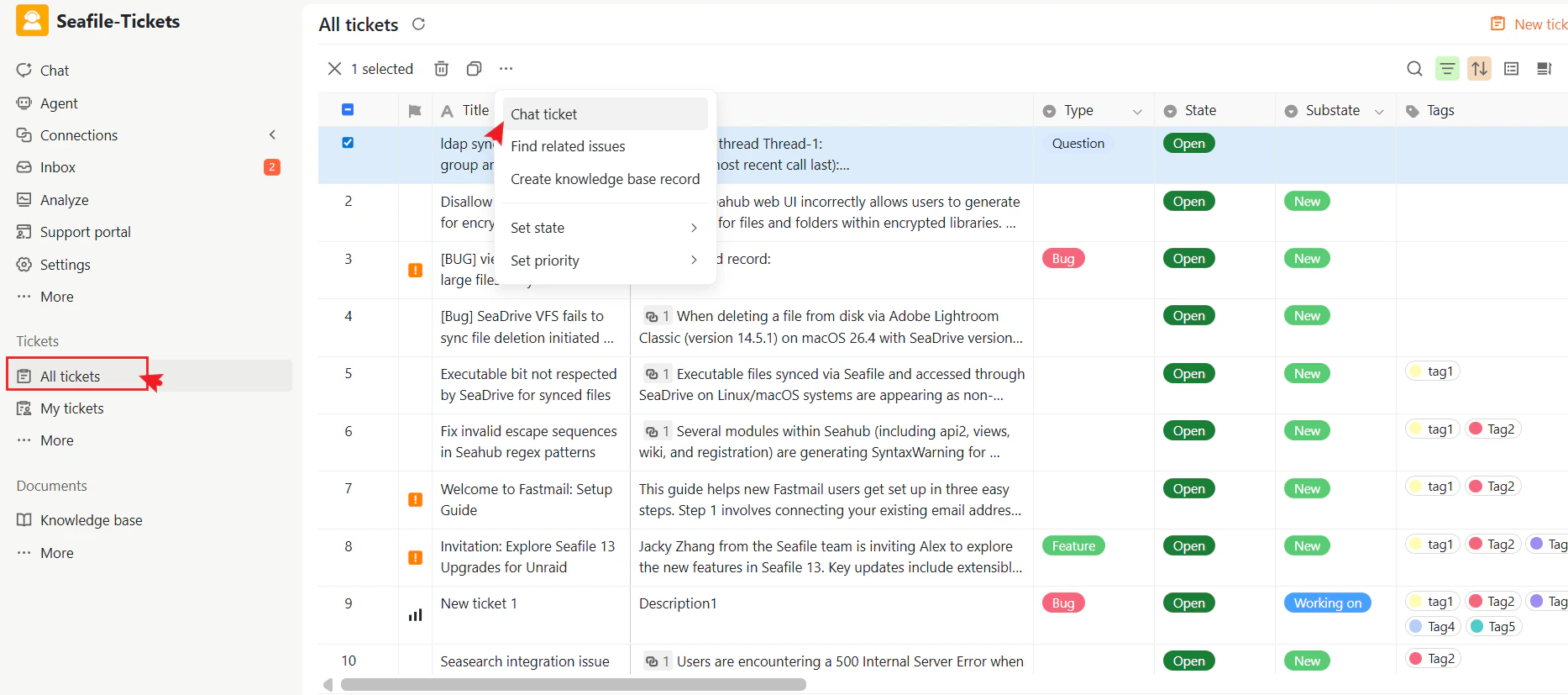
- Go to the Ticket list (All tickets or My tickets)
- Select a ticket
- Right-click the ticket
- Choose Chat ticket
- How is this problem usually solved?
- Summarize the issue
- What should I check first?
Using the Chat Interface
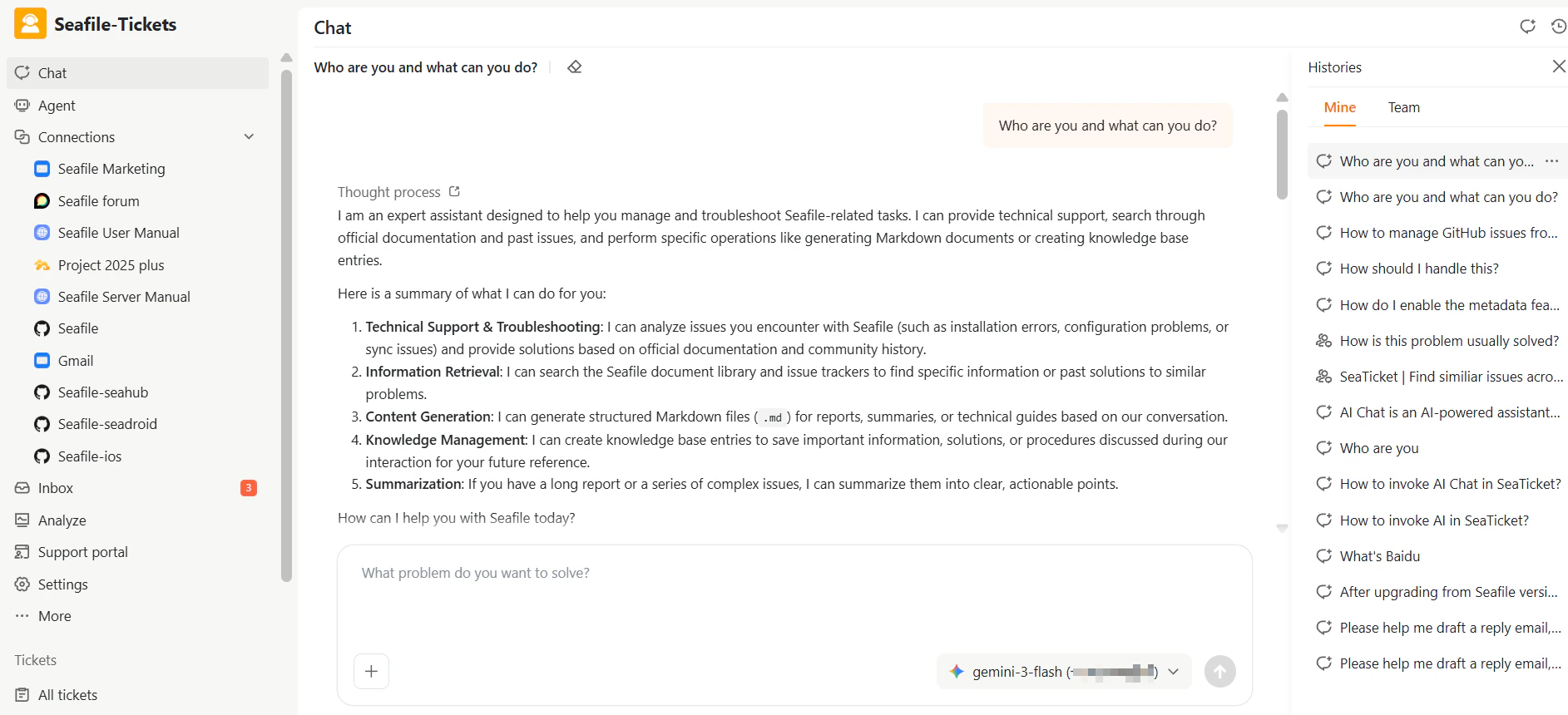
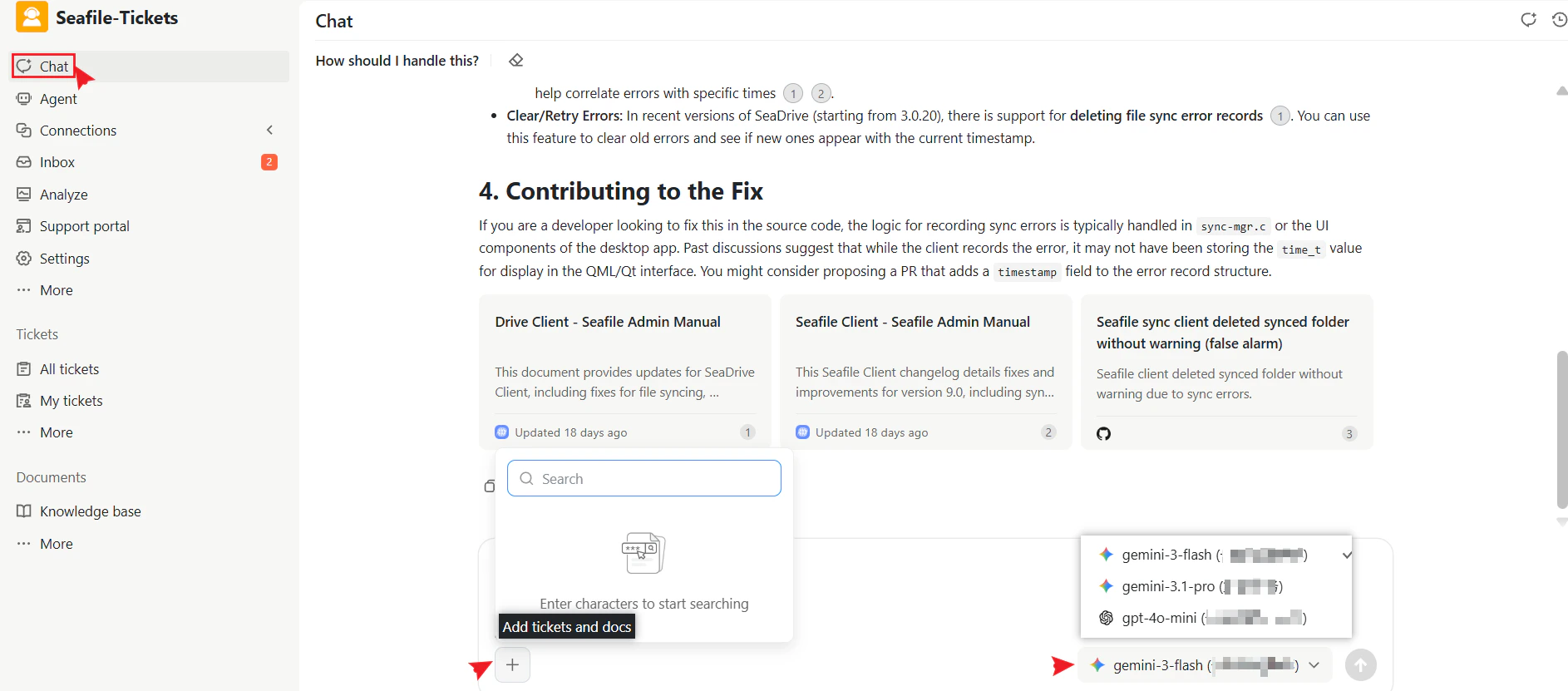
After you start a chat, you’ll see the Chat page with these key elements:- Chat Panel — Ask questions and read responses. The AI generates answers based on your ticket or issue content. You can ask follow-up questions, and the AI maintains the conversation thread.
- Add Tickets and Docs — Attach relevant tickets or knowledge base articles as context so the AI can analyze them.
- Model Selection — Choose an AI model based on task complexity:
gemini-3-flashorgemini-3.1-profor general Q&A and fast responsesgpt-4o-minifor complex analysis and multi-step reasoning
Generating and Using Documents
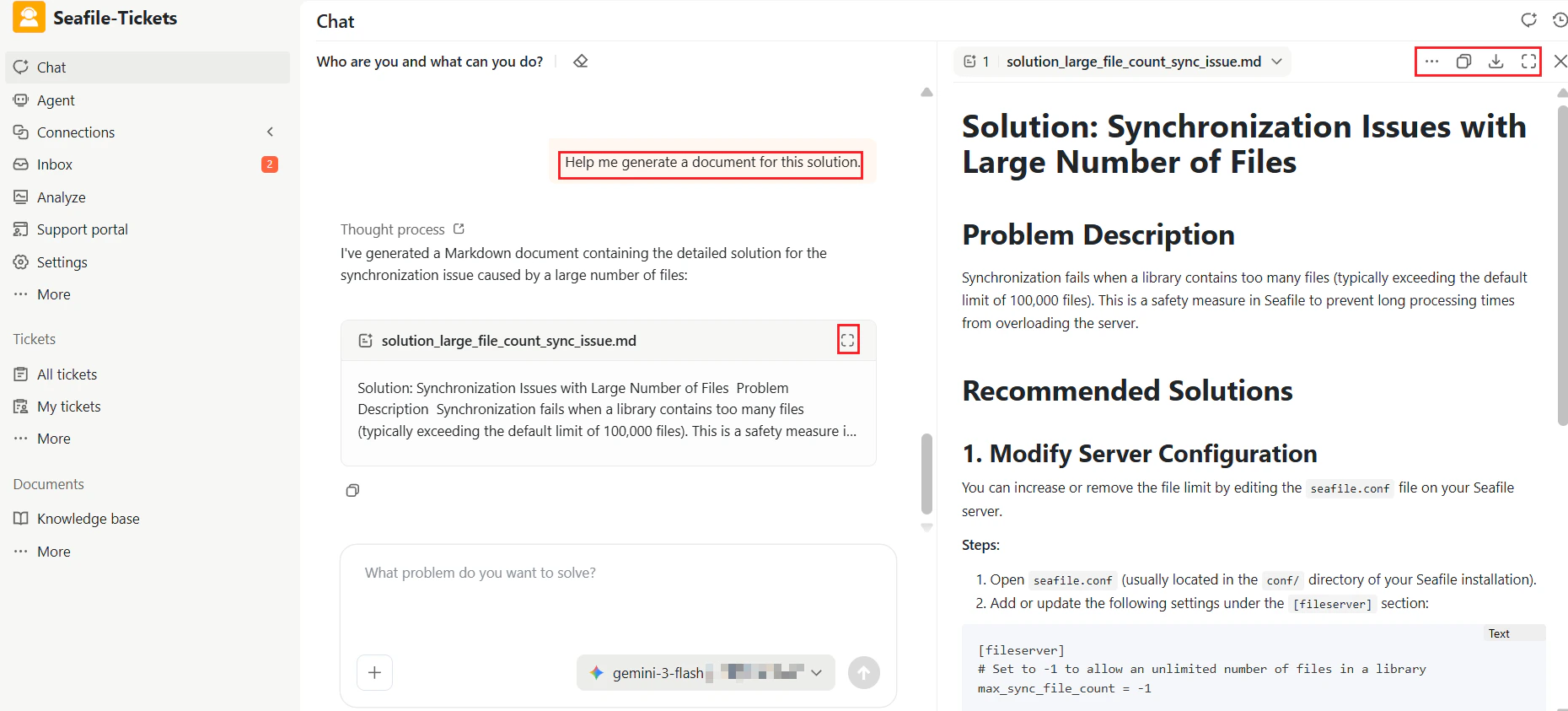
During a conversation, AI Chat can generate structured Markdown files that you can:- Preview
- Copy
- Download
- Save for future reference
Managing Chat History
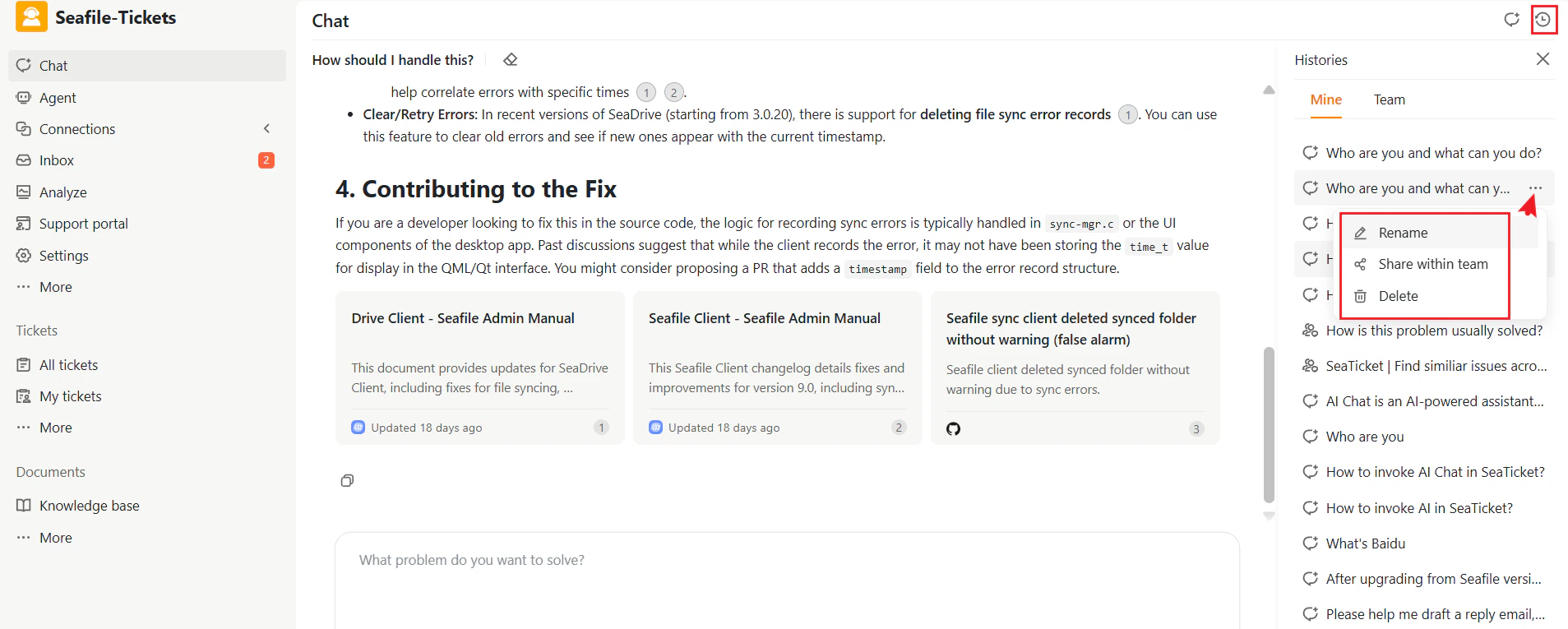
All chats are automatically saved in your Mine or Team histories. For each chat, you can:- Rename — Update the chat title for easy reference
- Share within team — Allow colleagues to view and use the AI discussion
- Delete — Remove a chat from history if no longer needed