

Managing Ticket Types
Ticket Types help you classify and organize tickets in a clear and consistent way. Common types include Bug, Feature, Question, and Task. Using types enables your team to quickly understand what each ticket is about and manage large volumes of tickets more efficiently.Accessing Ticket Type Management
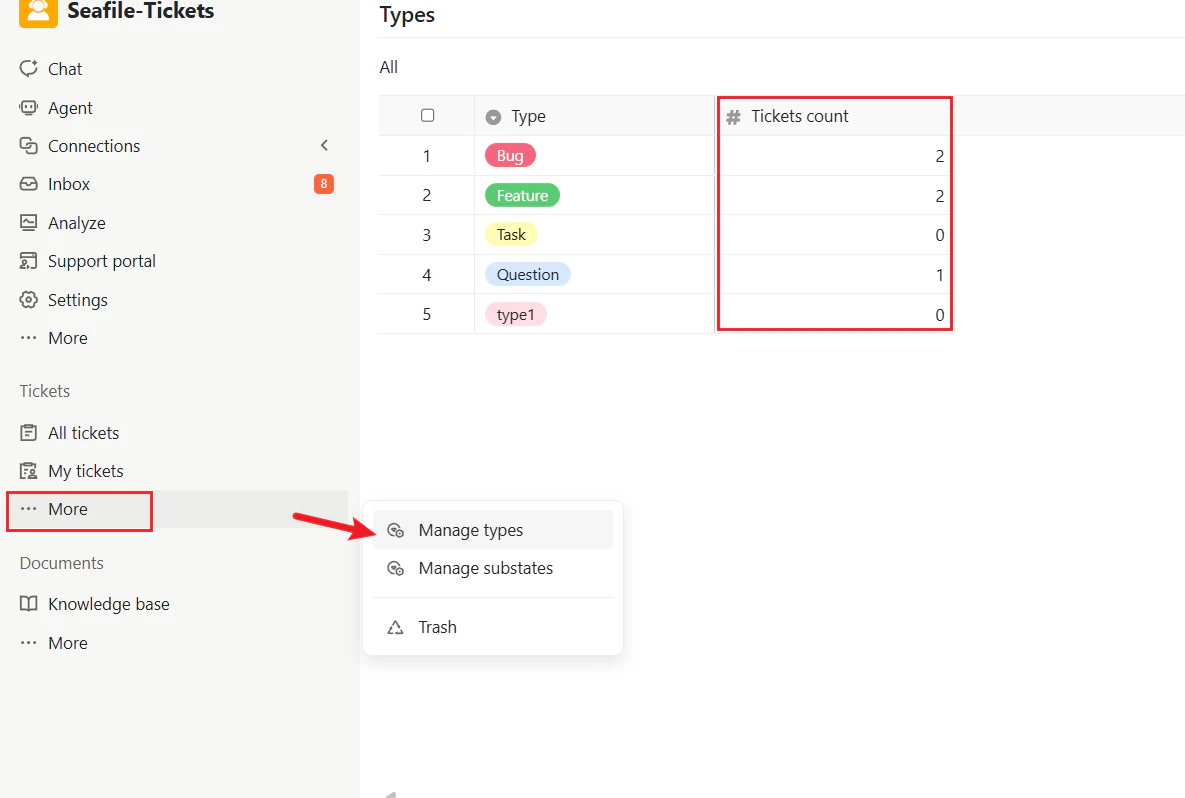
To manage ticket types:- Log in to the SeaTicket project workspace
- In the left navigation menu, click More under the Tickets section
- Select Manage types
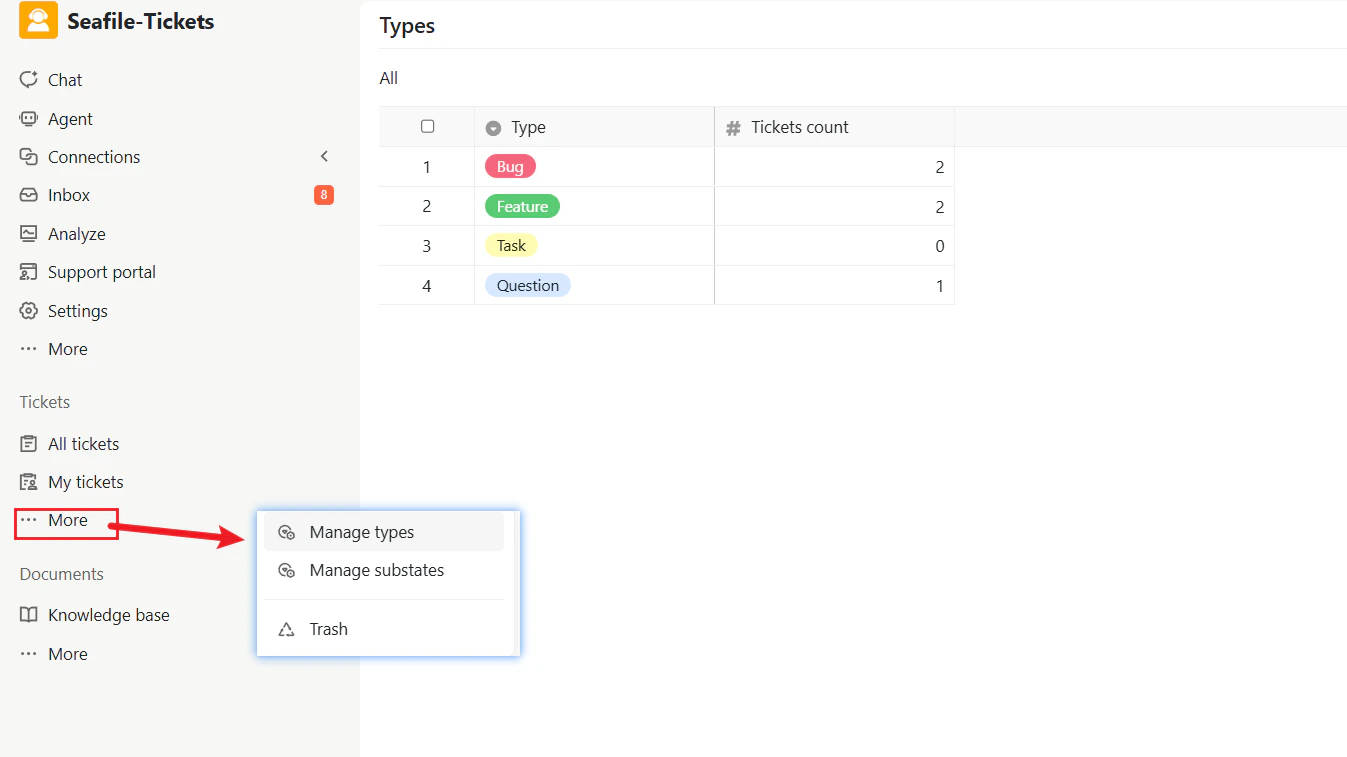
Creating and Deleting a Ticket Type
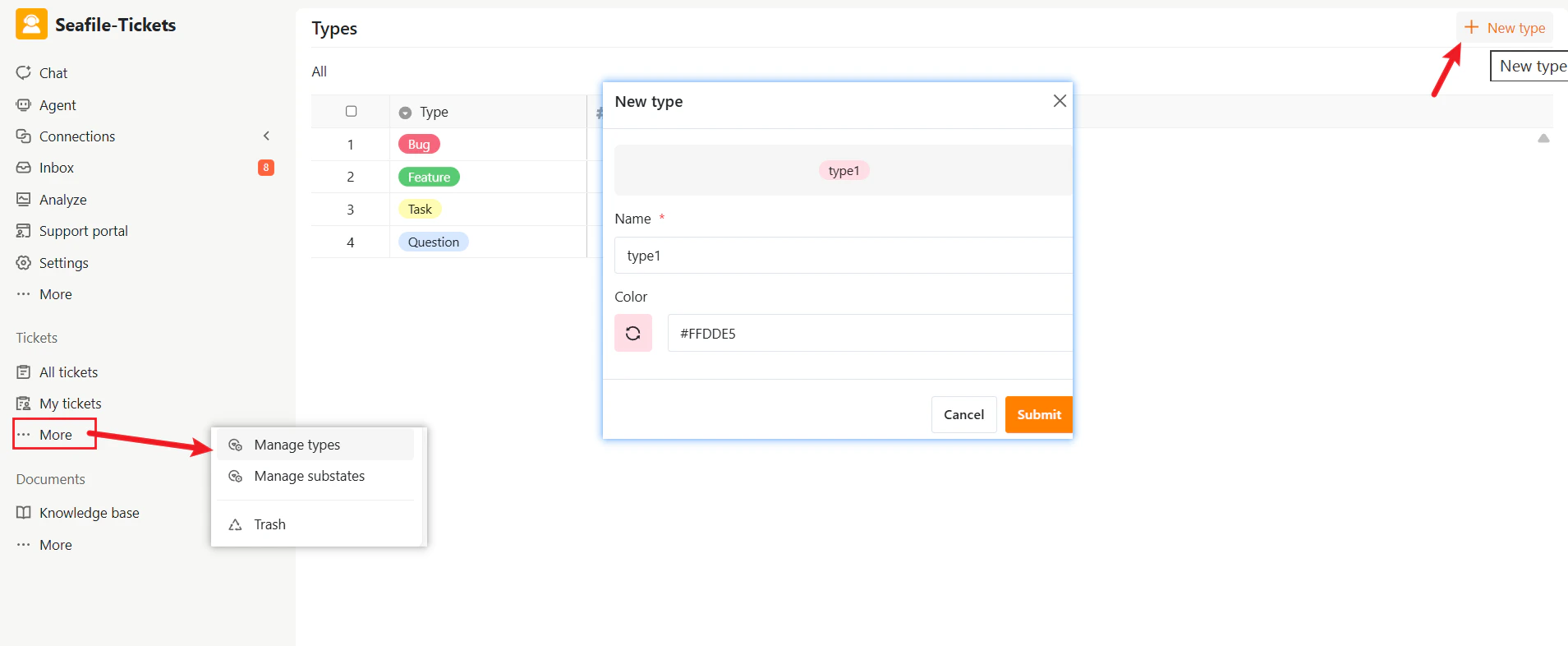
Admins can create a set of ticket types that responders can manually select when customers create new tickets or when handling existing ones. To create a type:- Go to the Types management page
- Click + New type in the top-right corner
- In the pop-up window, provide the following information:
- Name – The type name (e.g., Bug, Task, Feature)
- Color – A color label for visual identification
- Click Submit to save the new type
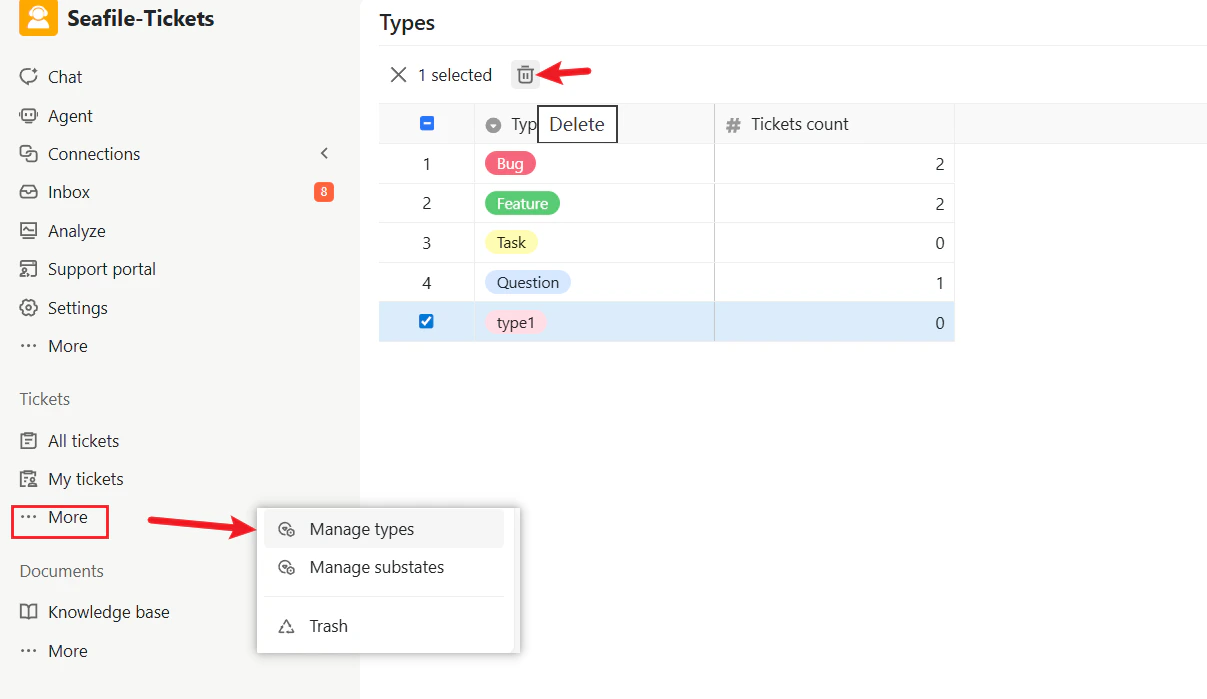
- Select one or more types from the list
- Click the Delete (trash) icon at the top
Assigning a Type to a Ticket
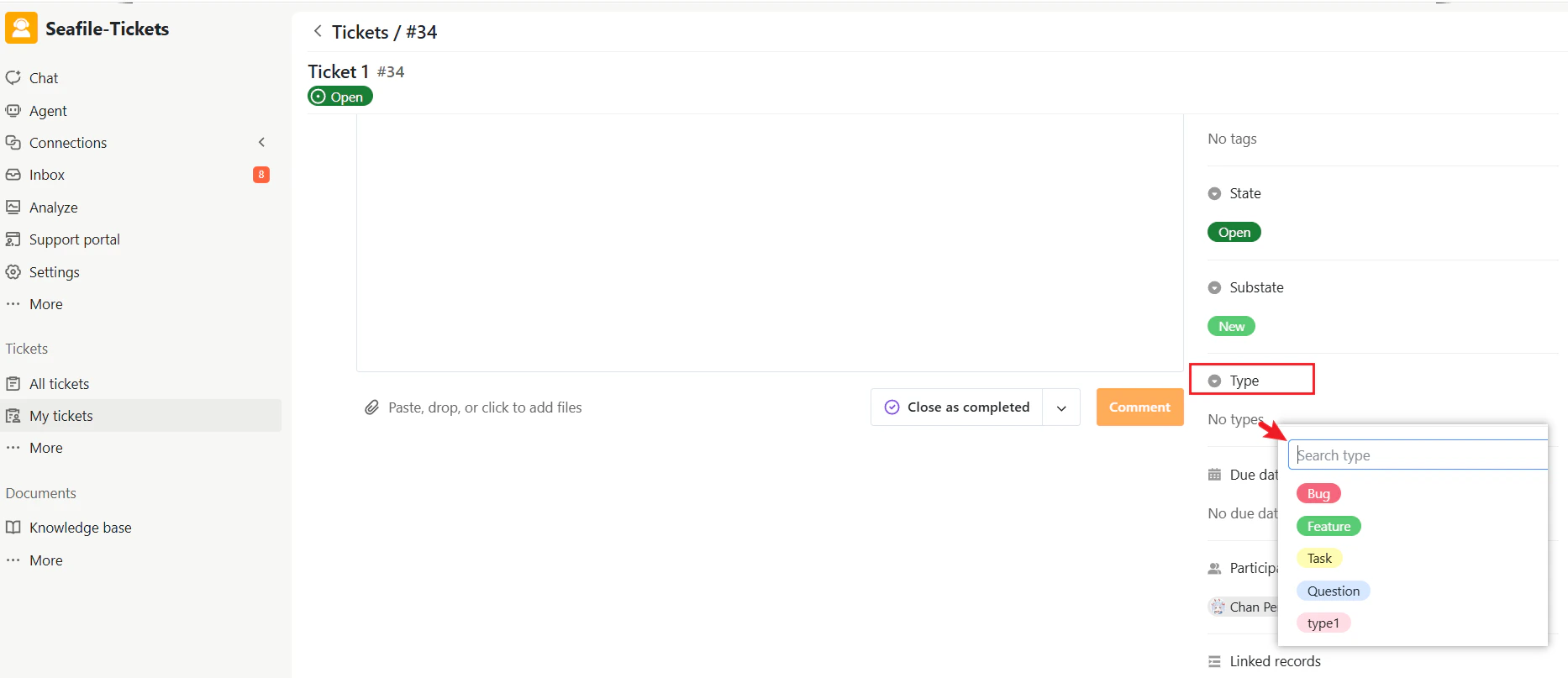
Each ticket can be assigned one type. In the ticket view or on the ticket details page, click the Type field and choose a type from the list. The selected type will be displayed as a colored label on the ticket.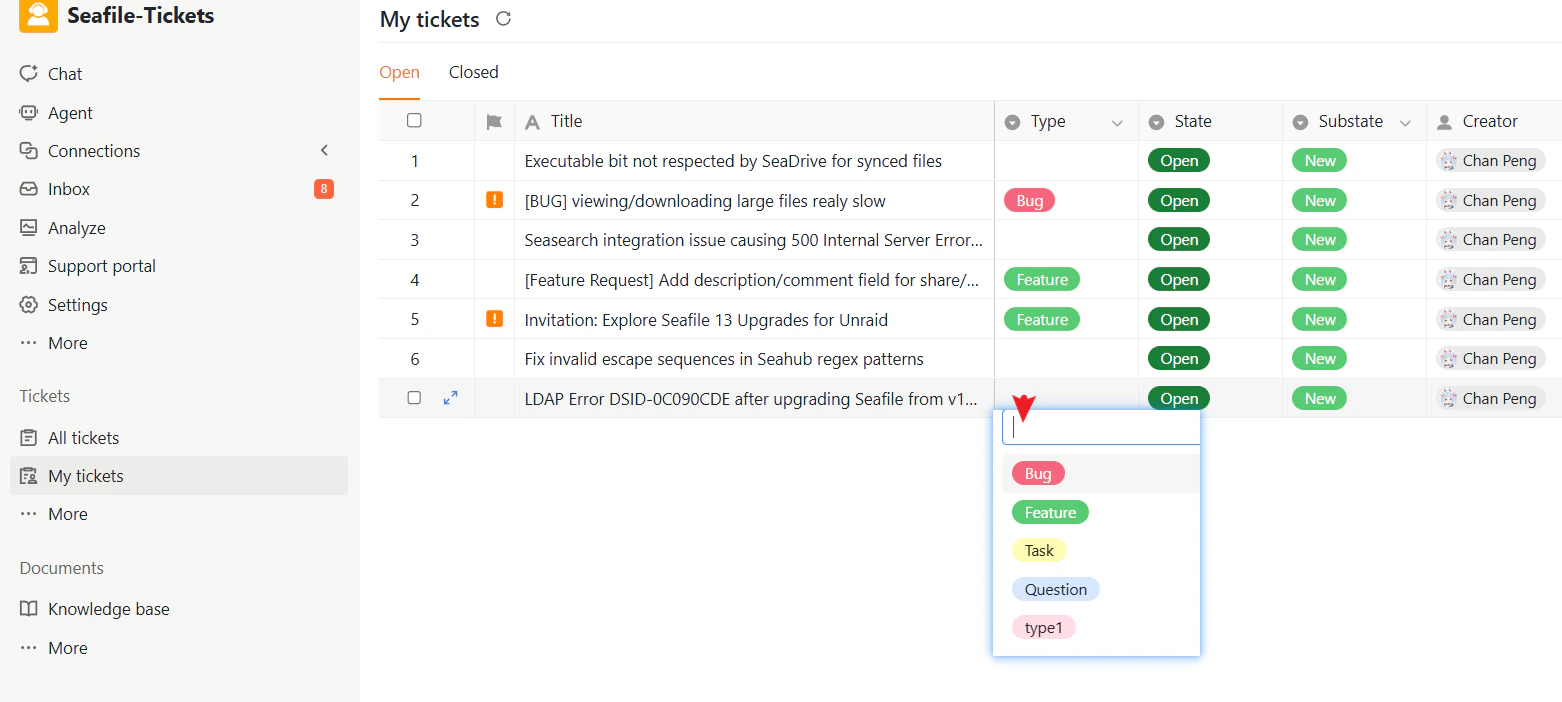
Filtering Tickets by Type
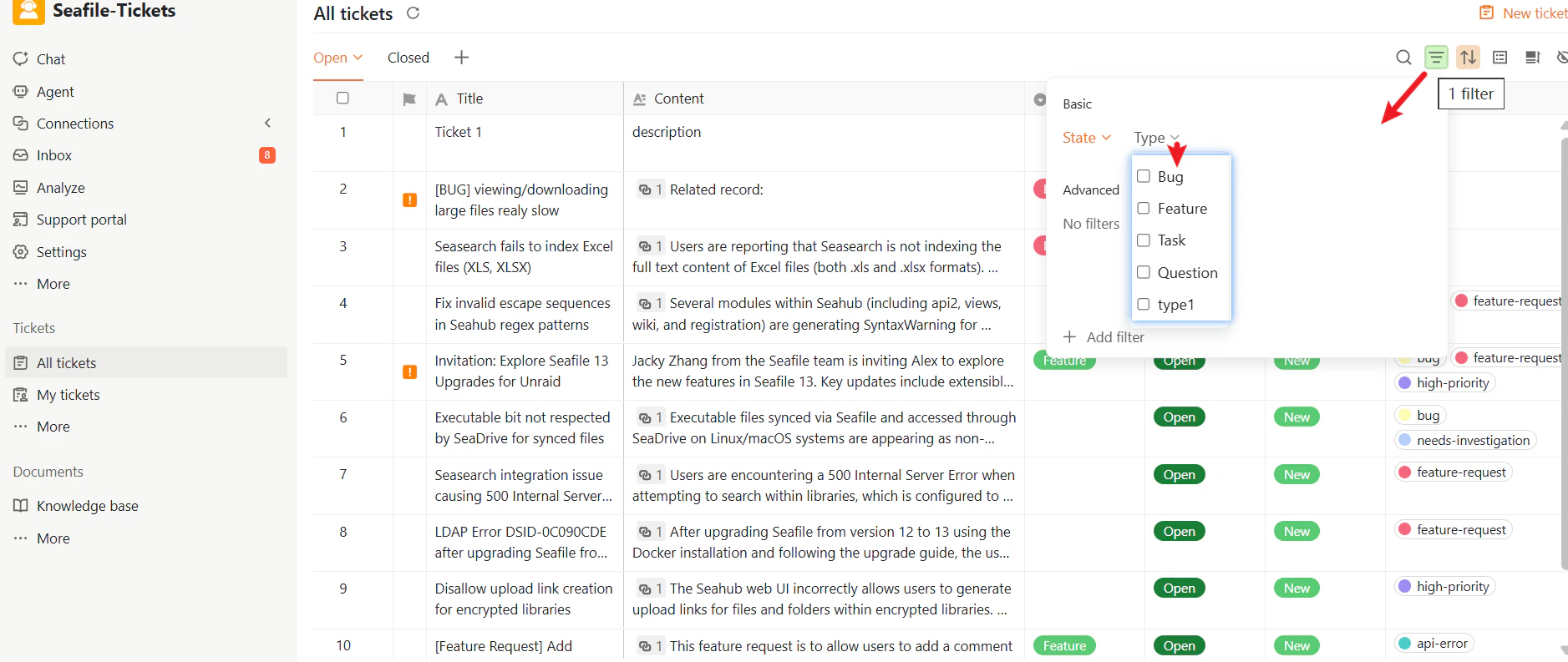
Ticket Types can be used as a filtering condition to quickly locate specific categories of tickets.- Open the ticket list (All tickets or My tickets)
- Open the filter options and find the Type filter
- Select one or more ticket types
Organizing Tickets by Type
In the ticket view, Ticket Types can be used for deeper organization:- Sort or group by Type to keep similar tickets together
- Combine Type with other filters to create more specific views
- Type = Bug and State = Open
- Type = Feature and Substate = Backlog
- All open bugs
- Feature requests waiting for review
Ticket Type Statistics
The Types page provides an overview of how many tickets belong to each type. Ticket type statistics help teams:- Identify the most frequent support categories
- Monitor product stability
- Understand customer demand
Managing Ticket Substates
SeaTicket provides a standard set of ticket substates to help you manage your workflow. The system includes several built-in substates by default:Creating and Deleting a Substate
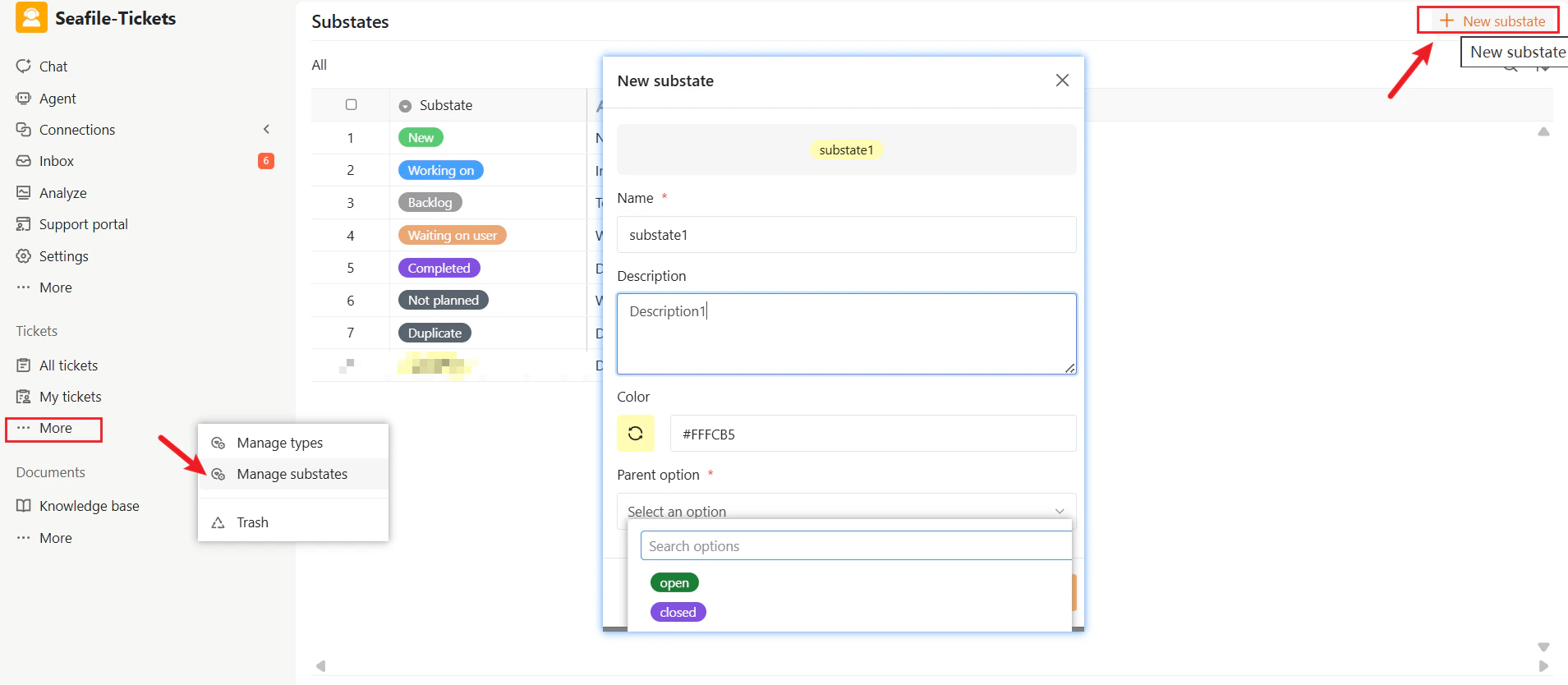
Besides the built-in substates, admins can create custom substates to better describe the actual working stage of a ticket. To create a new substate:- Go to the SeaTicket project workspace
- In the sidebar under the Tickets section, click More, then select Manage substates
- Click + New substate
- Name – The label shown to users
- Description – What this substate means
- Color – For visual identification
- Parent option – Whether it belongs to Open or Closed
- Select one or more substates from the list
- Click the Delete (trash) icon at the top
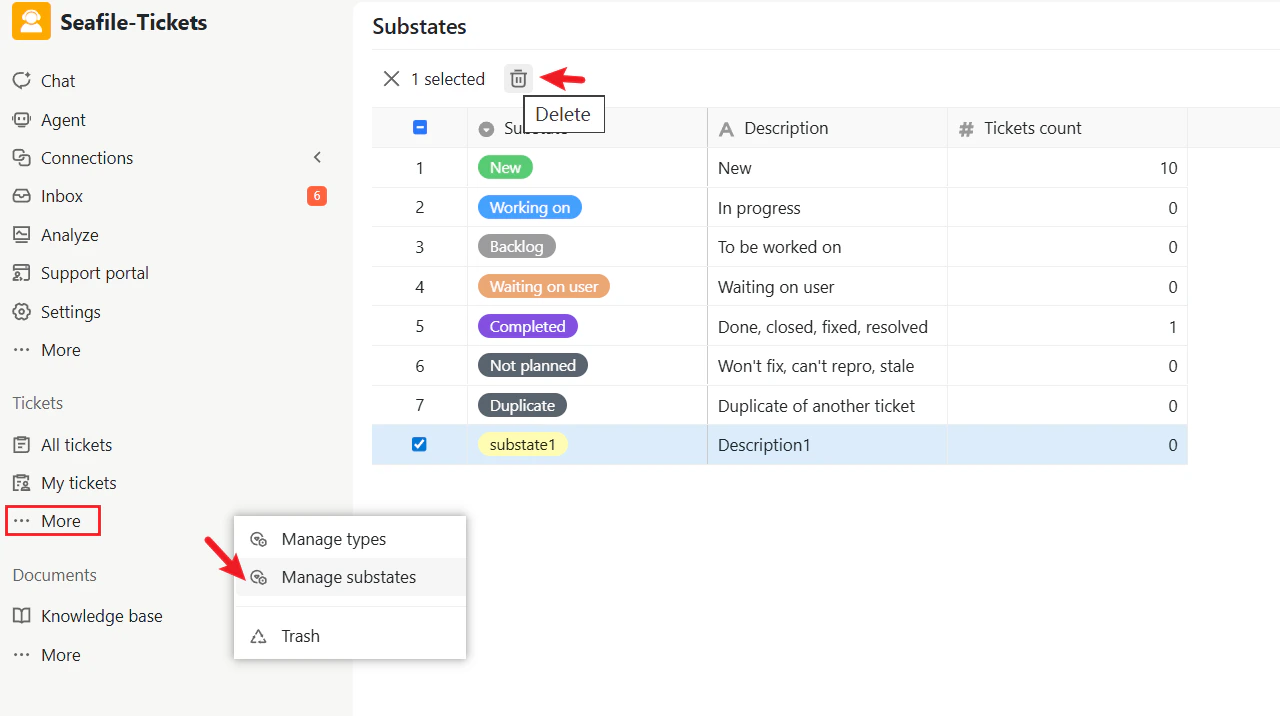
Assigning a Substate to a Ticket
For each ticket, you can select a substate directly in the ticket list or ticket detail page.- First, select whether the ticket belongs to Open or Closed
- Then, choose the substate within that category
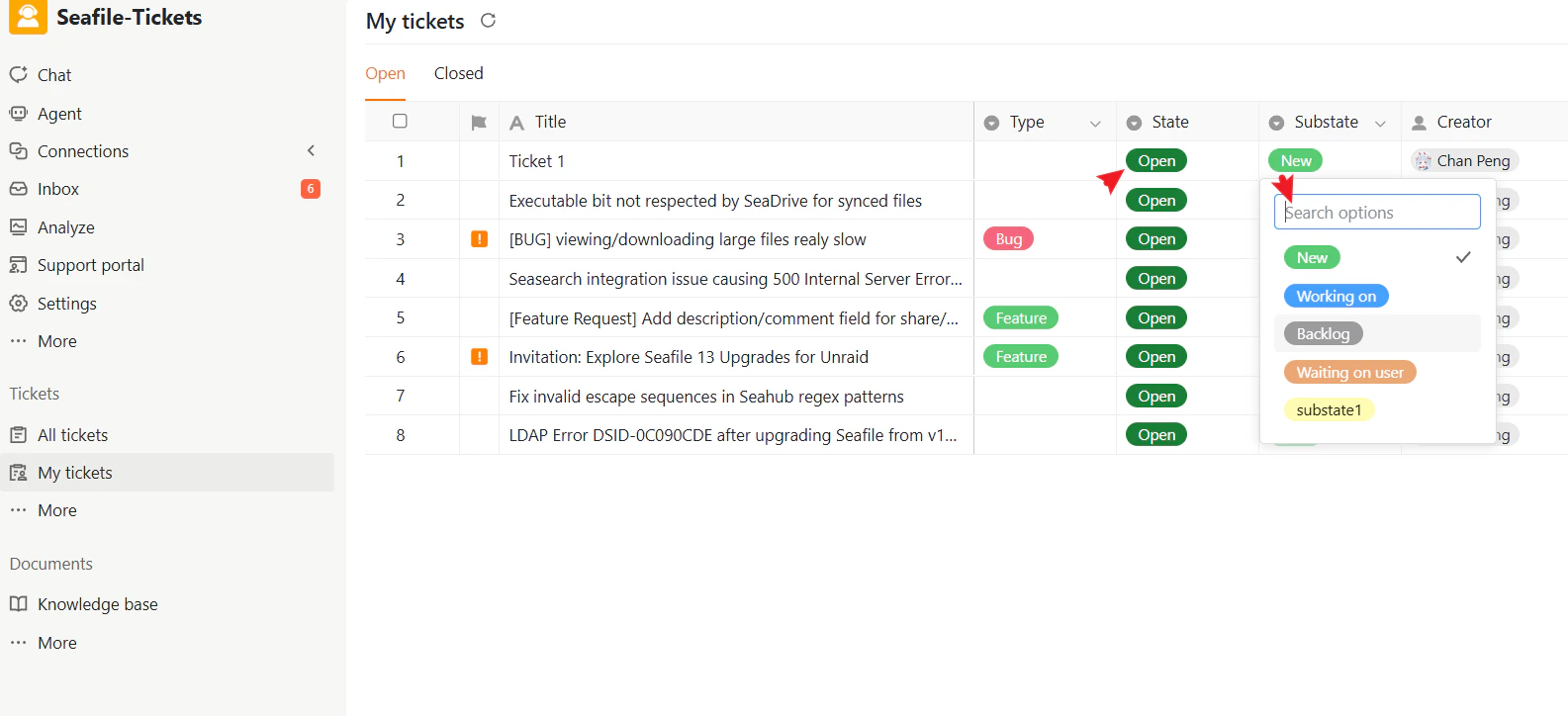
Filtering Tickets by Substate
You can use substates to quickly search for and filter tickets. To filter tickets by substate:- Open the ticket list (All tickets or My tickets)
- Click the Filter icon in the top-right corner
- In the filter panel, select Substate
- Choose one or more substates from the list
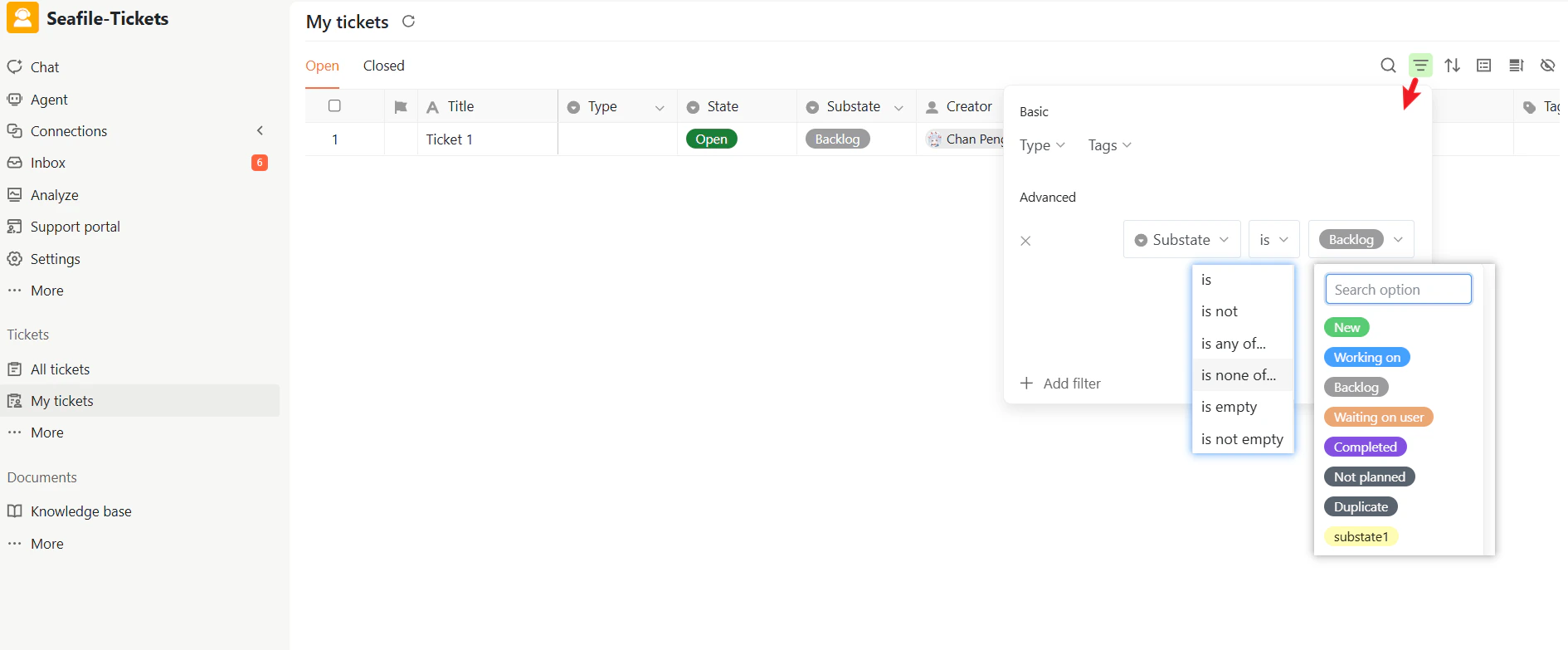
Organizing Tickets by Substate
Substates support sorting and grouping, allowing you to organize tickets by their working stages and get a clearer overview of progress. To organize tickets by substate:- Open the ticket list (All tickets or My tickets)
- Click the View options icon in the top-right corner
- Choose Substate as the grouping or sorting field
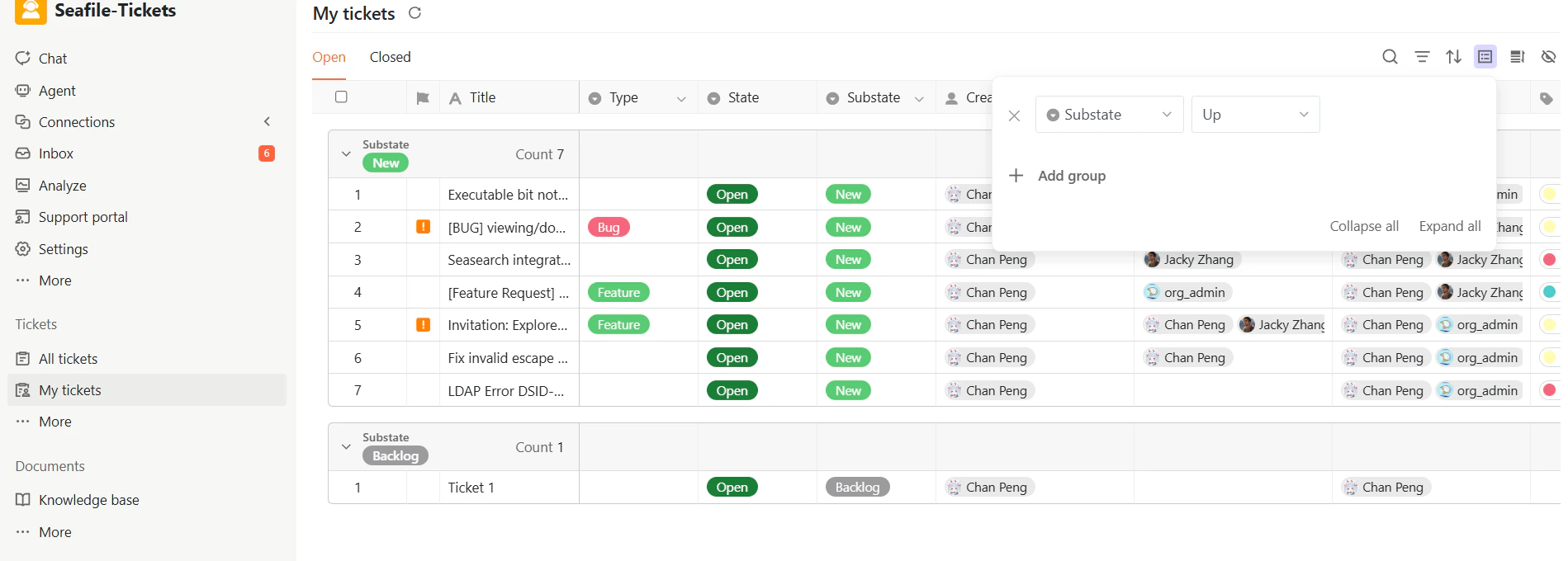
Substate Statistics
The Substate statistics panel displays the number of tickets in each working stage, giving you quick visibility into workload distribution and workflow health.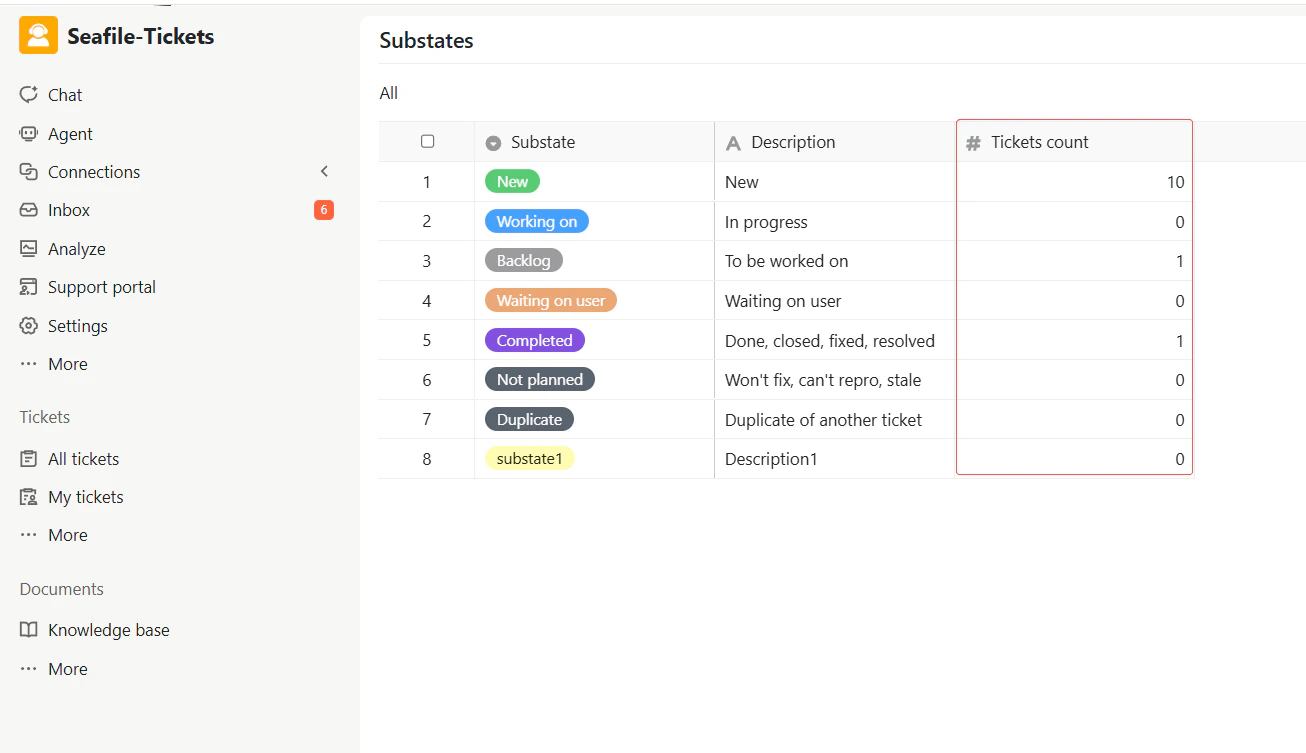
Managing Tags
Tags are keywords or short phrases that add context to tickets. They help you categorize and organize tickets by topic, priority, product, issue type, or any other criteria that supports your workflow. Tags make it easier to:- Classify tickets consistently
- Search and filter tickets quickly
- Identify patterns and trends
- Keep your workflow organized
Creating and Deleting Tags
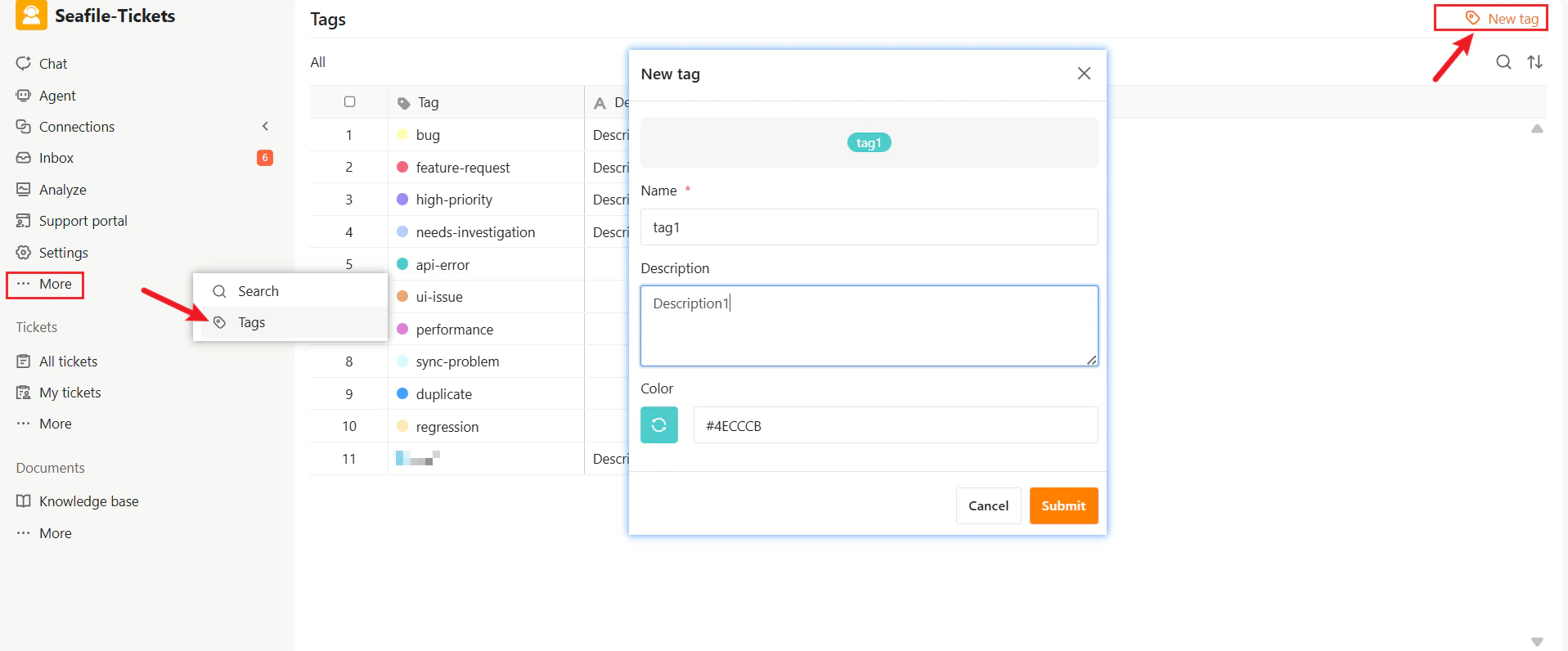
To keep tagging consistent, create a preset tag library that responders can select from when working on tickets. To create a tag:- Navigate to the Tags section by clicking More in the left sidebar
- Click + New tag in the top-right corner
- In the pop-up window, fill in the following details:
- Name – The tag name
- Description – A short explanation of when to use this tag
- Color – A color label for visual identification
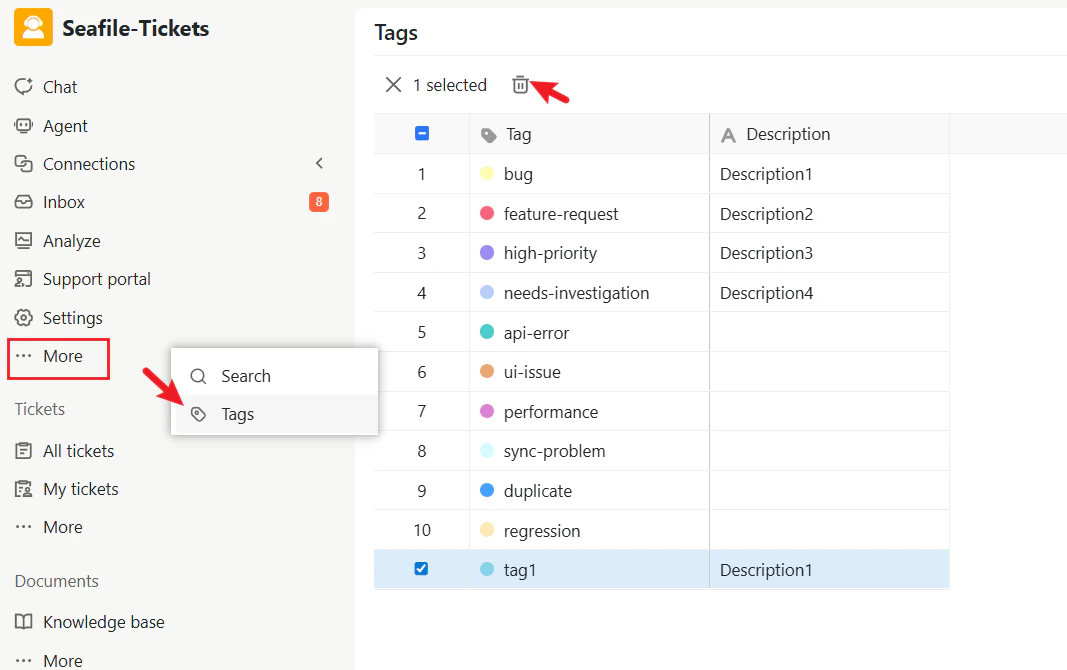
- Select one or more tags from the list
- Click the Delete (trash) icon at the top
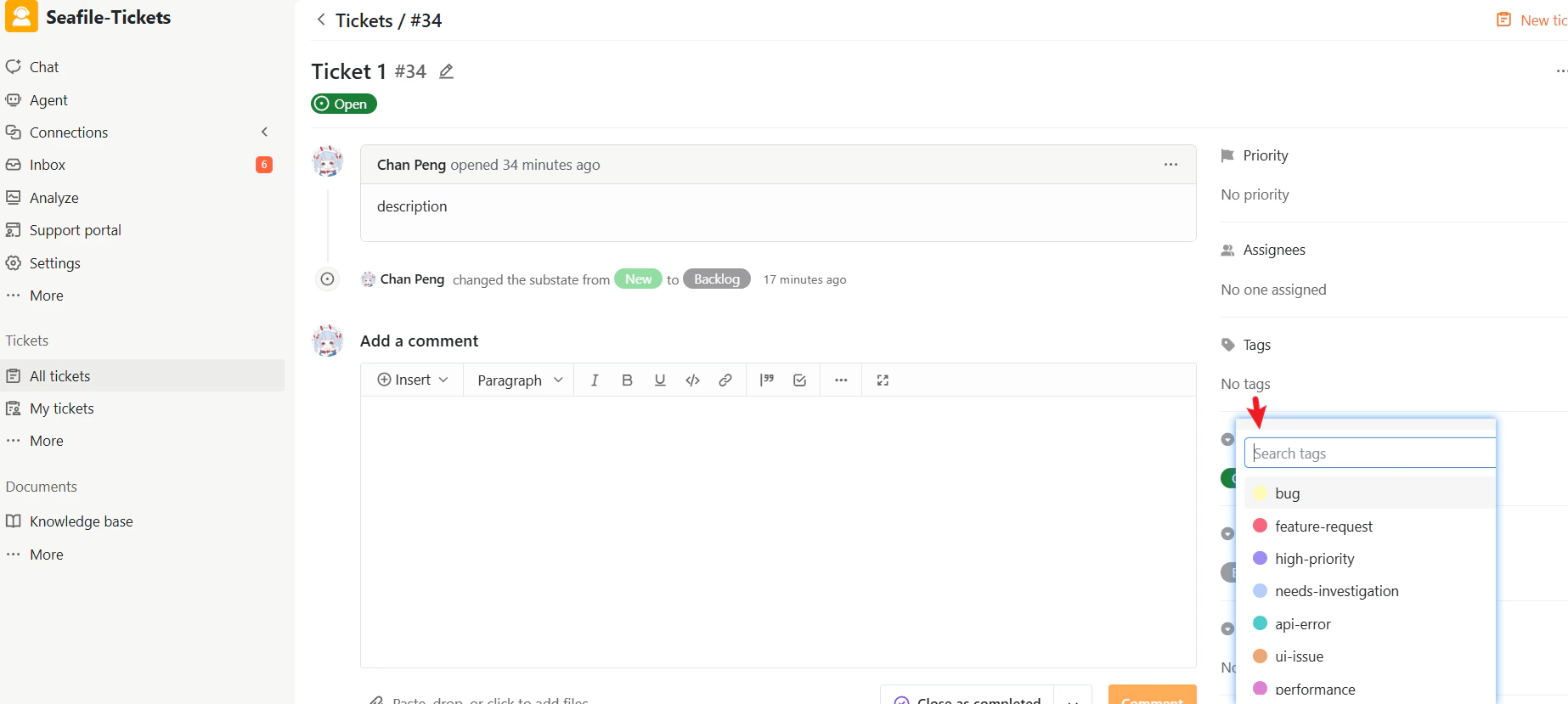
Adding Tags to Tickets
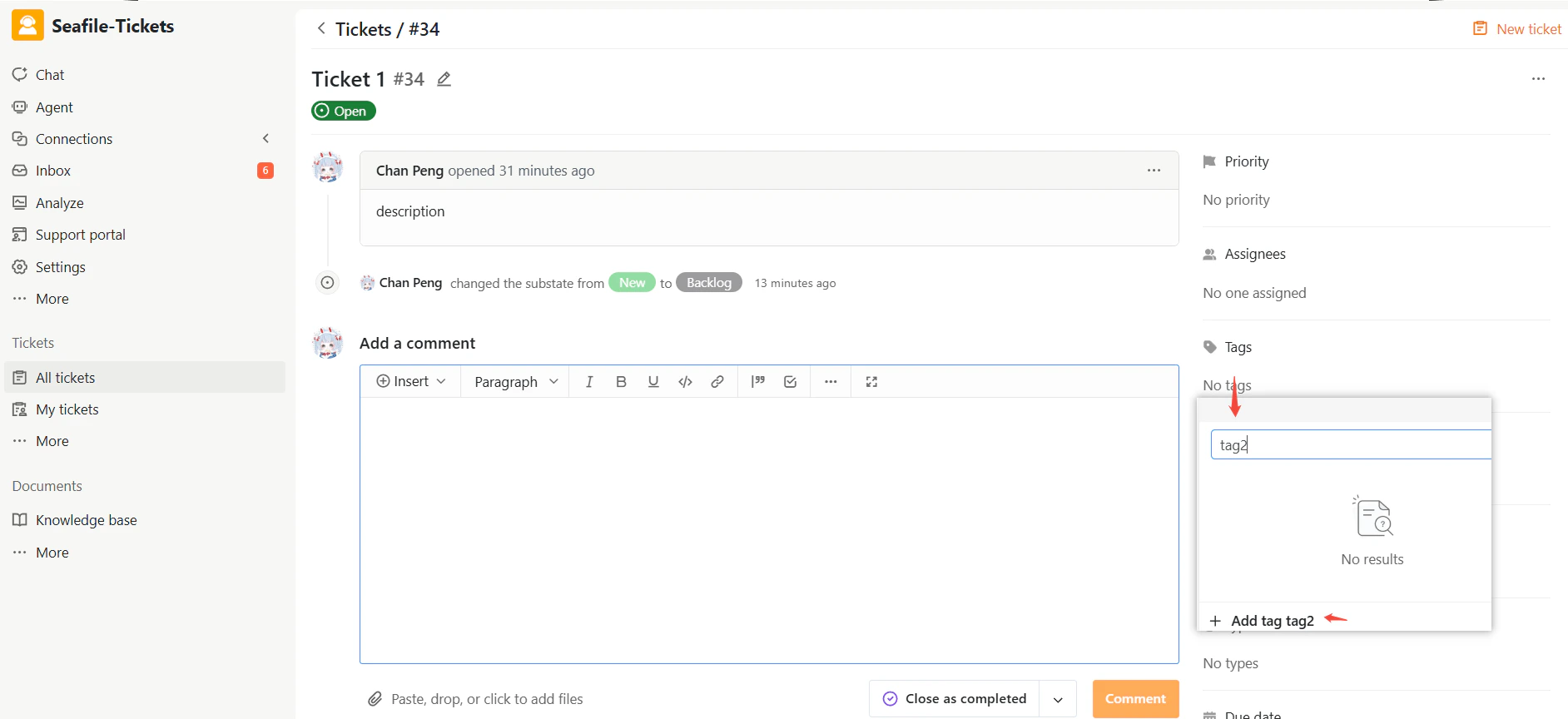
Responders can manually add tags to tickets from either the ticket view or the ticket details page.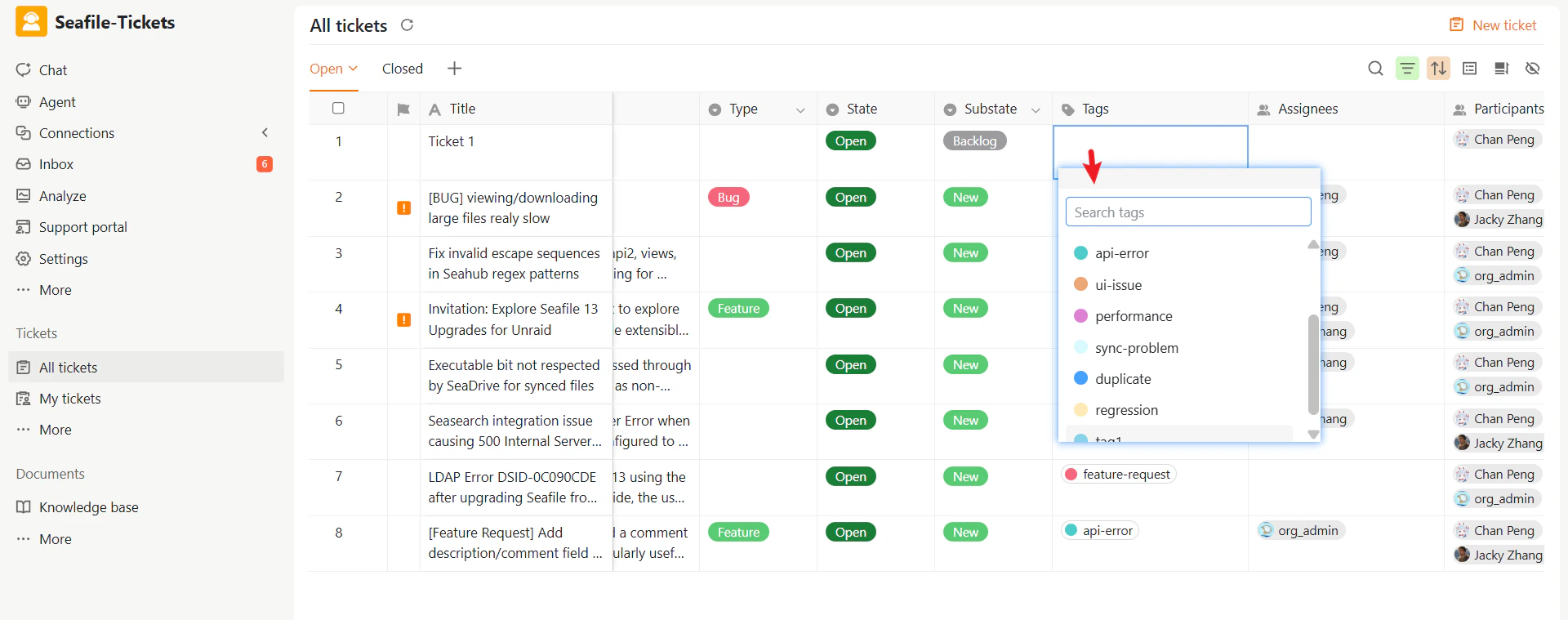
Filtering Tickets by Tags
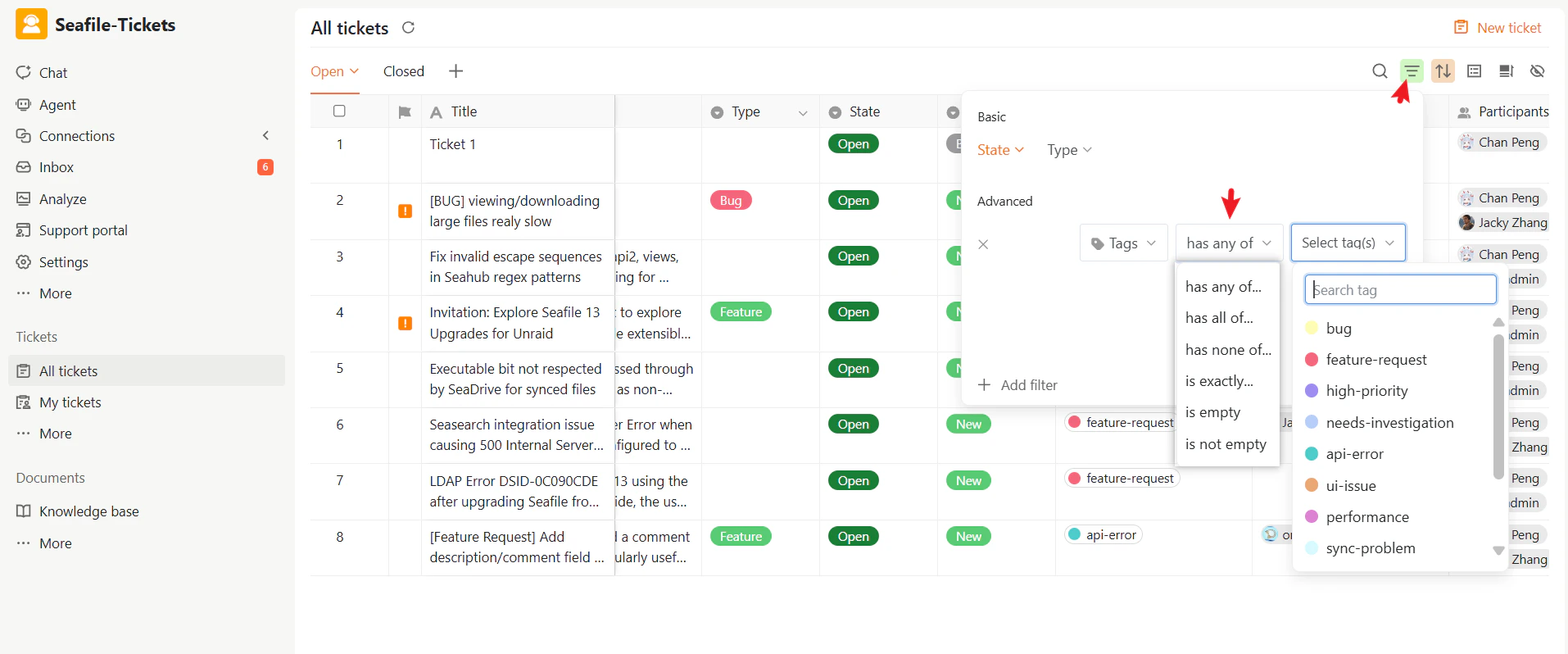
You can add tags as filter conditions to quickly view all tickets that contain specific tags.- In the ticket view, click the Filter icon
- Add a Tags condition and select one or more tags
- Apply the filter
Organizing Tickets by Tags
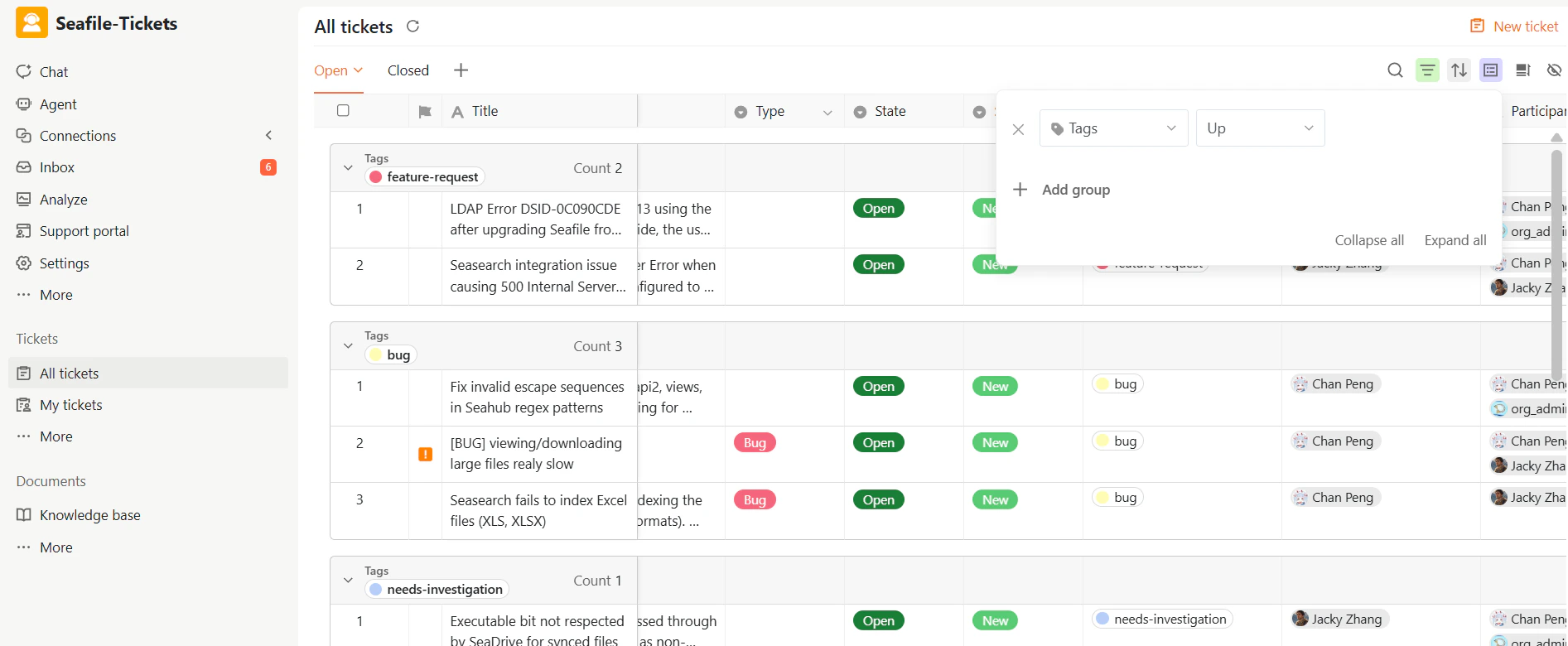
In addition to filtering, tags help you visually organize your ticket list. To group or sort by tags:- In the ticket view, click the View Options icon in the top-right corner
- Choose Tags as the grouping or sorting field
Best Practices for Tag Management
To keep your tagging system effective:- Keep tag names short and consistent
- Avoid creating duplicate or overly similar tags
- Use descriptions to clarify intended usage
- Periodically review and clean up unused tags