
Open the Editor
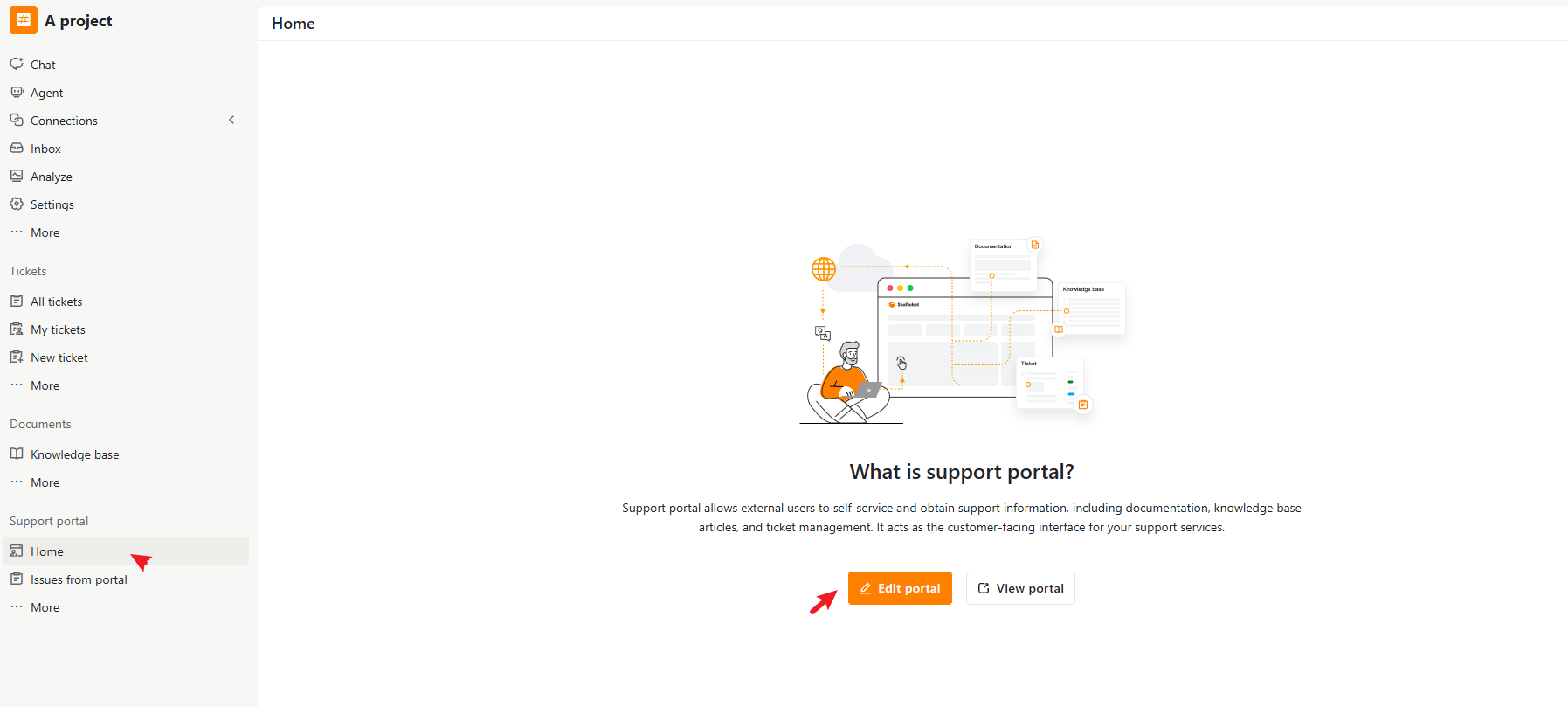
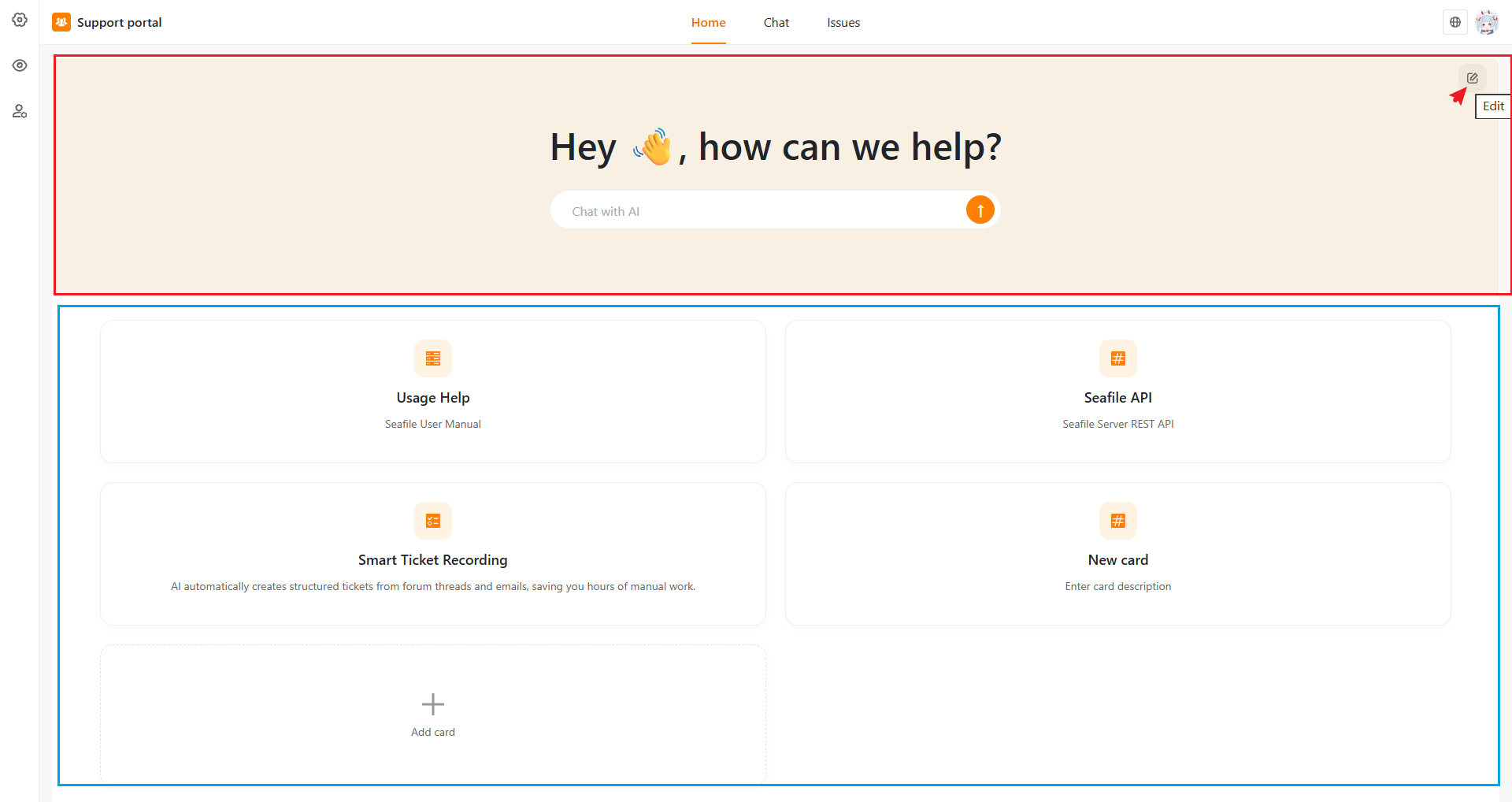
Go to Support portal > Home > Edit portal, then click the pencil icon on the page to open the editing panels. The page is made up of two parts:- A hero section at the top (heading, description, and the AI chat box)
- A cards section below it (a grid of shortcut cards you define)
Hero Section
Click Edit on the hero banner to open Page settings, where you can set: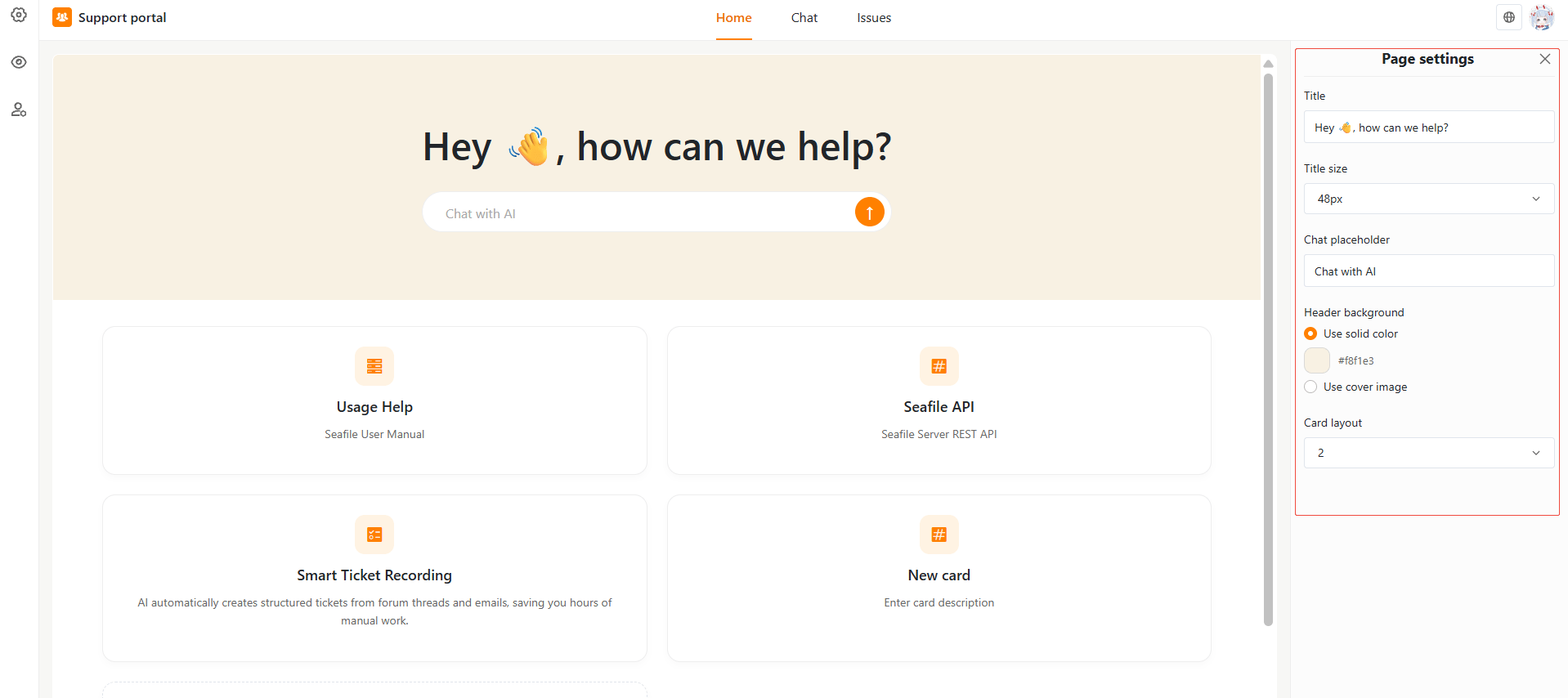
Cards Section
Cards are the shortcut tiles that appear below the hero banner — typically used to link out to documentation, API references, or other resources.- Card layout controls how many cards appear per row (2 to 6).
- Click Add card to create a new card. New cards start with placeholder text so you can edit them in place rather than starting from a blank card.
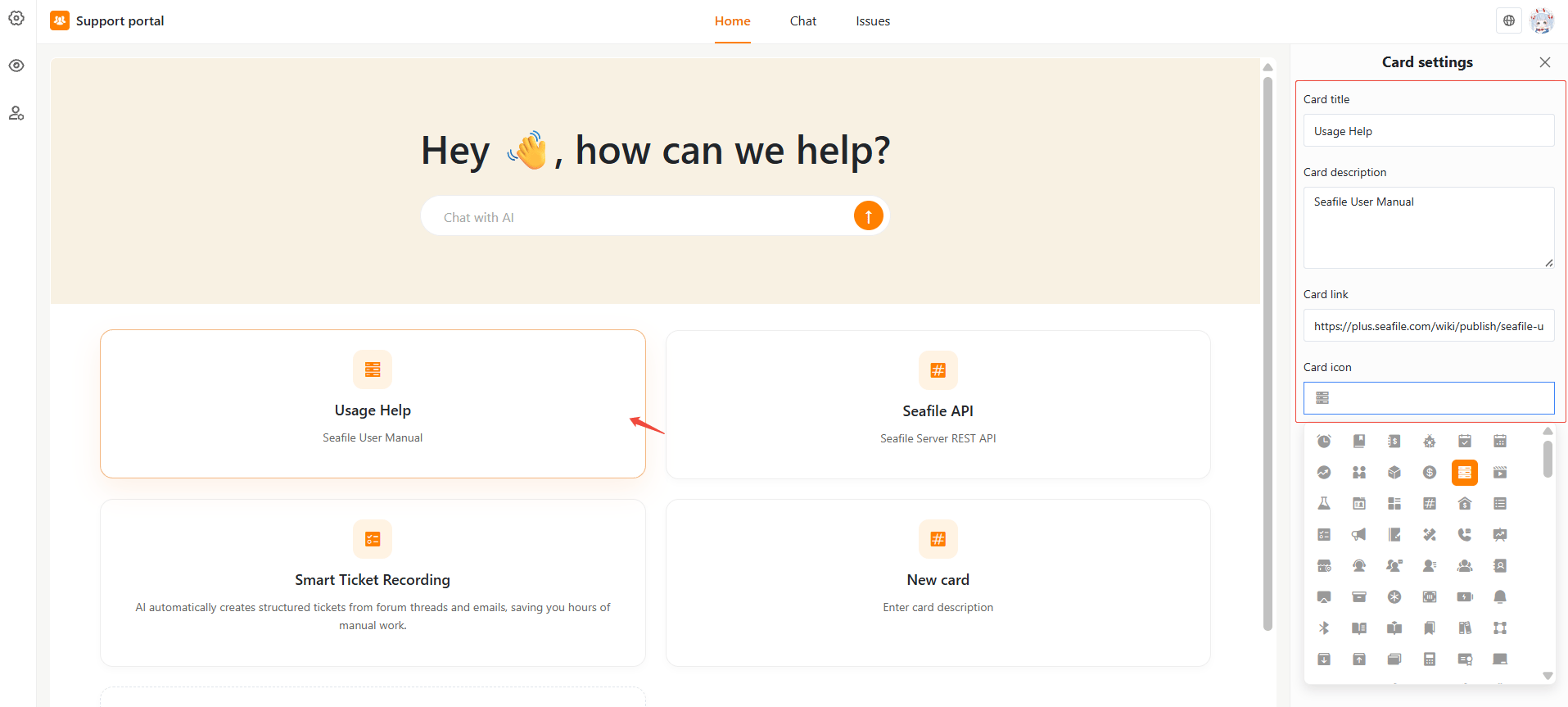
- Click an card to open Card settings, where you can set:
- Card title
- Card description
- Card link — the URL the card opens when clicked
- Card icon — pick an icon from the built-in icon picker
Language Settings
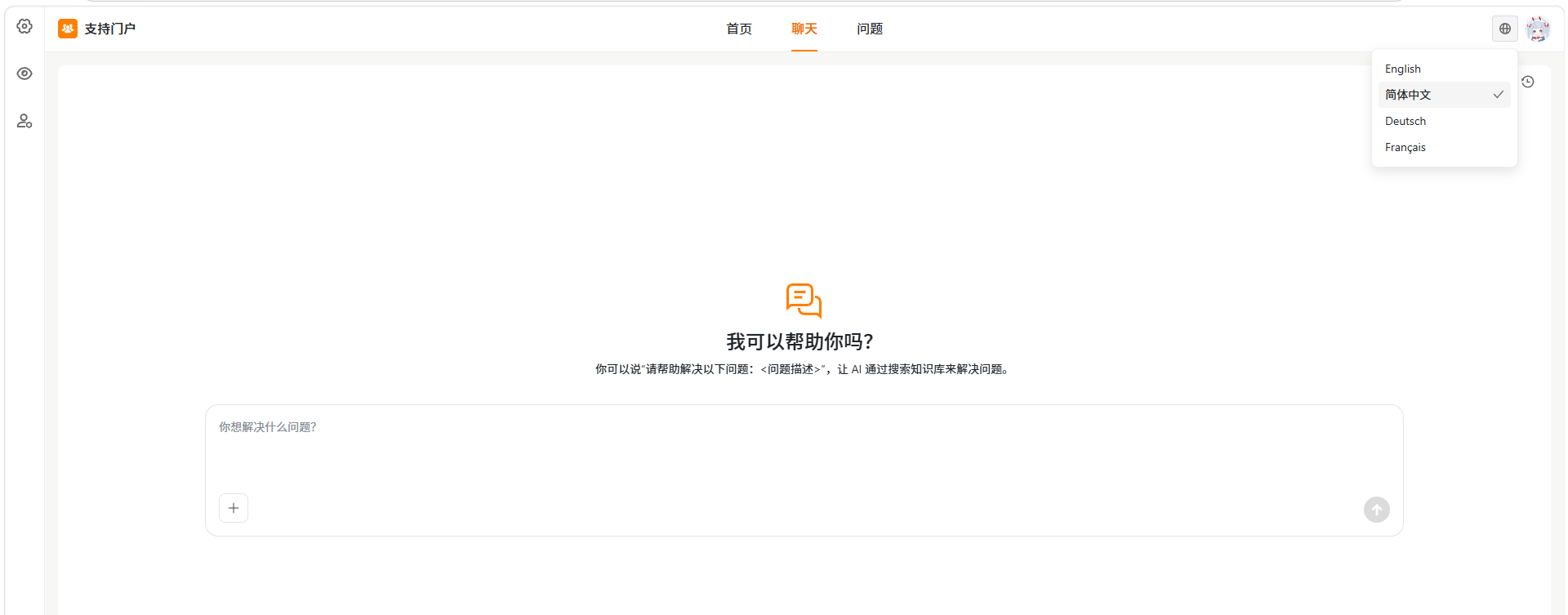
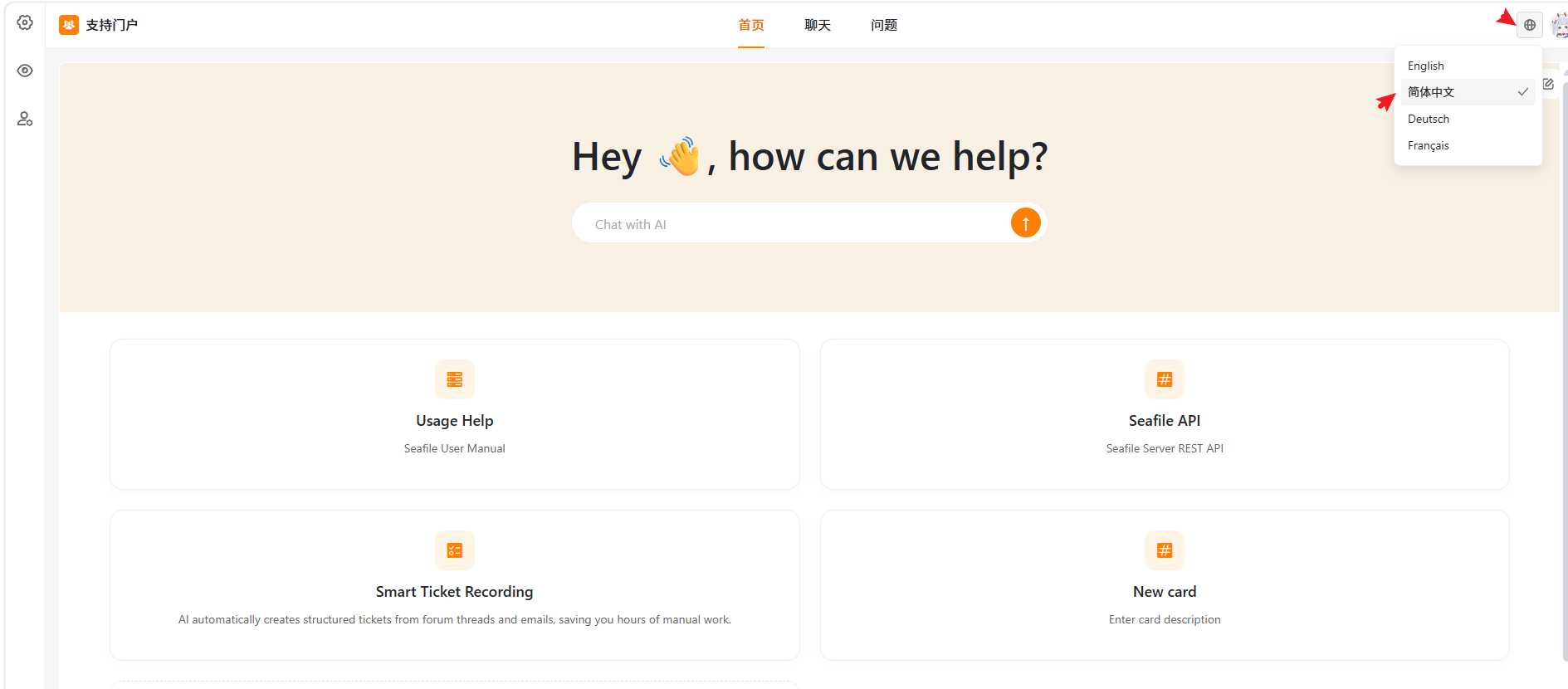
The portal supports multiple interface languages. External users can switch the portal language from the language menu in the top-right corner. The available languages may include:- English
- 简体中文
- Deutsch
- Français