

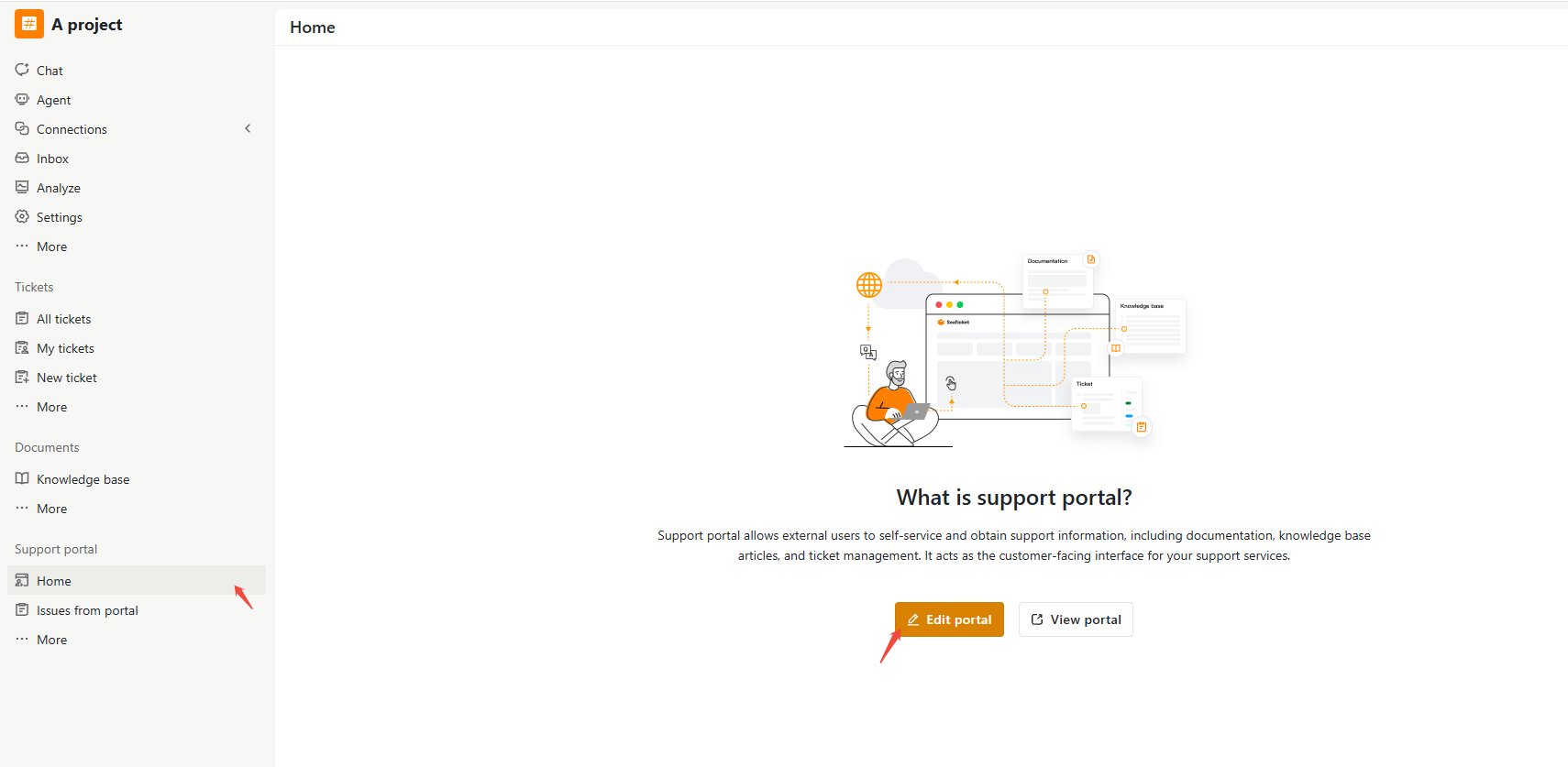
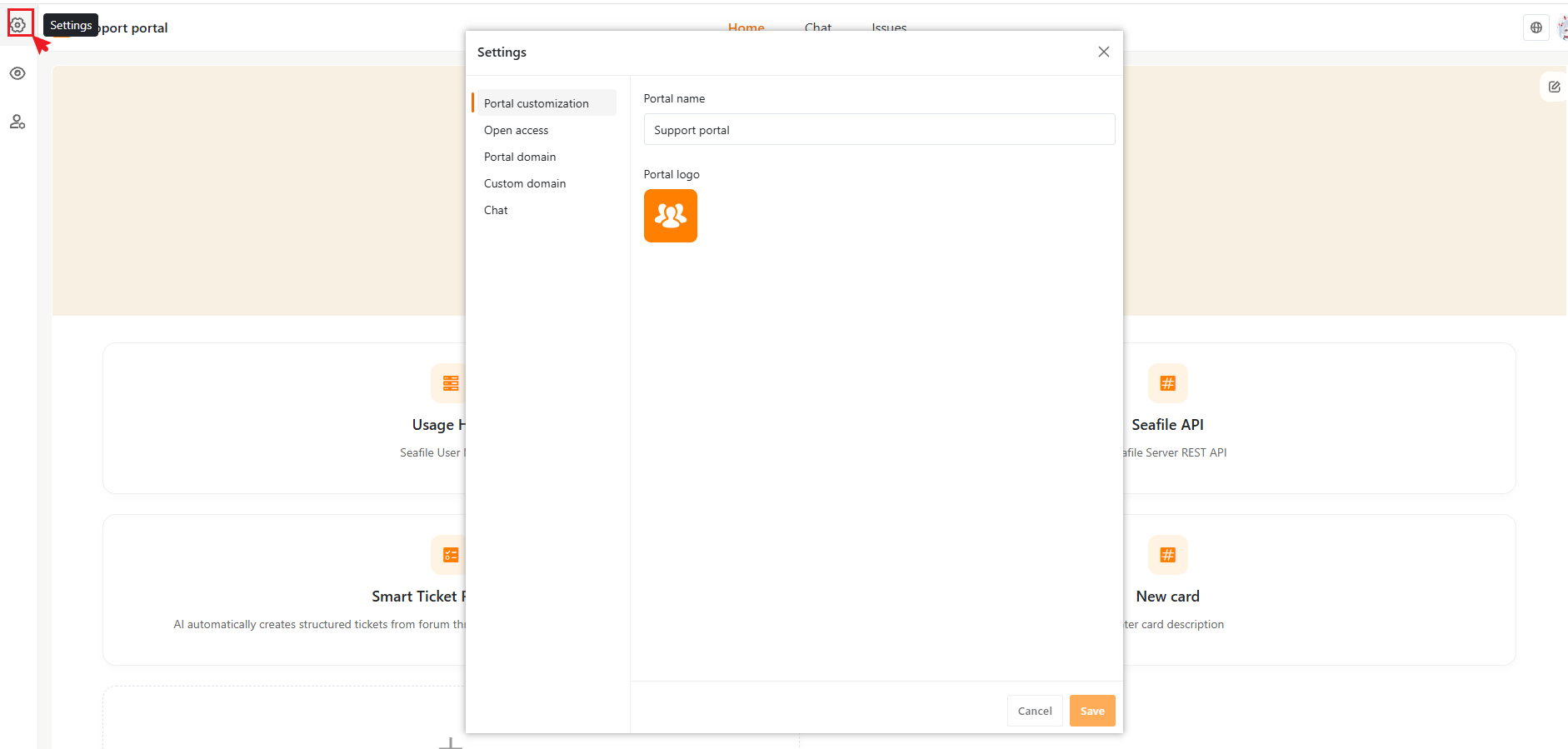
Portal Customization
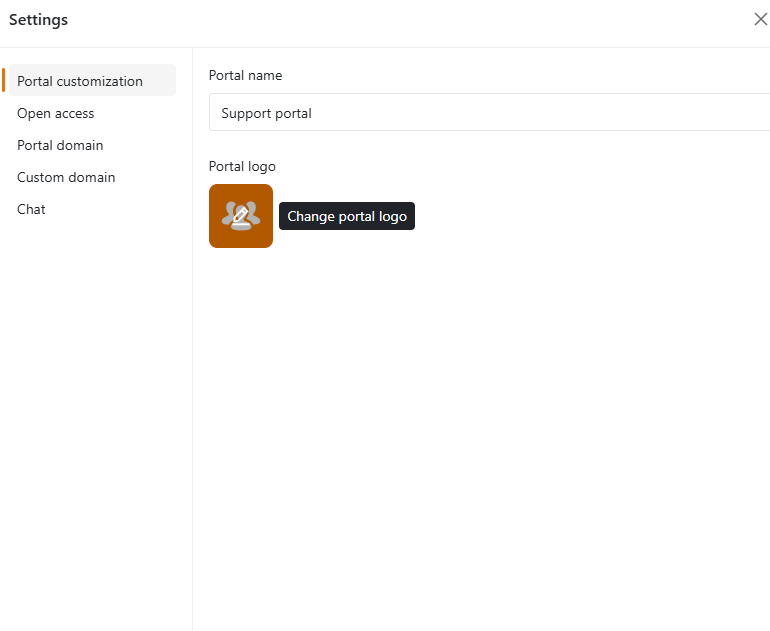
you can:- Change the portal name
- Upload or replace the portal logo
Open Access
This tab shows your current portal URL — a unique link you can share with customers or publish on your website so they can use the portal, with buttons to copy it or open it in a new tab. It also controls whether users must sign in to access the portal.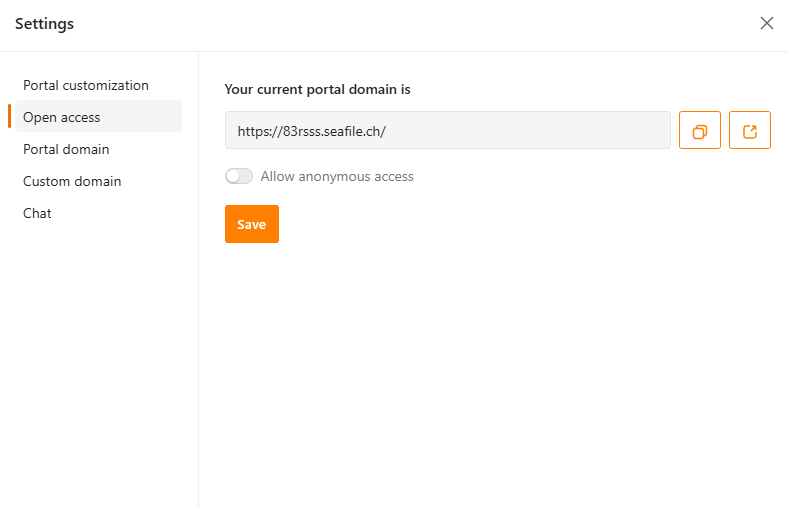
- Logged-in users (with a SeaTicket account) can access full features, including Chat and issue submission.
- Anonymous users can access limited features, browse the Home page (and whatever resources it links to) and use Chat, but they can’t submit or track issues
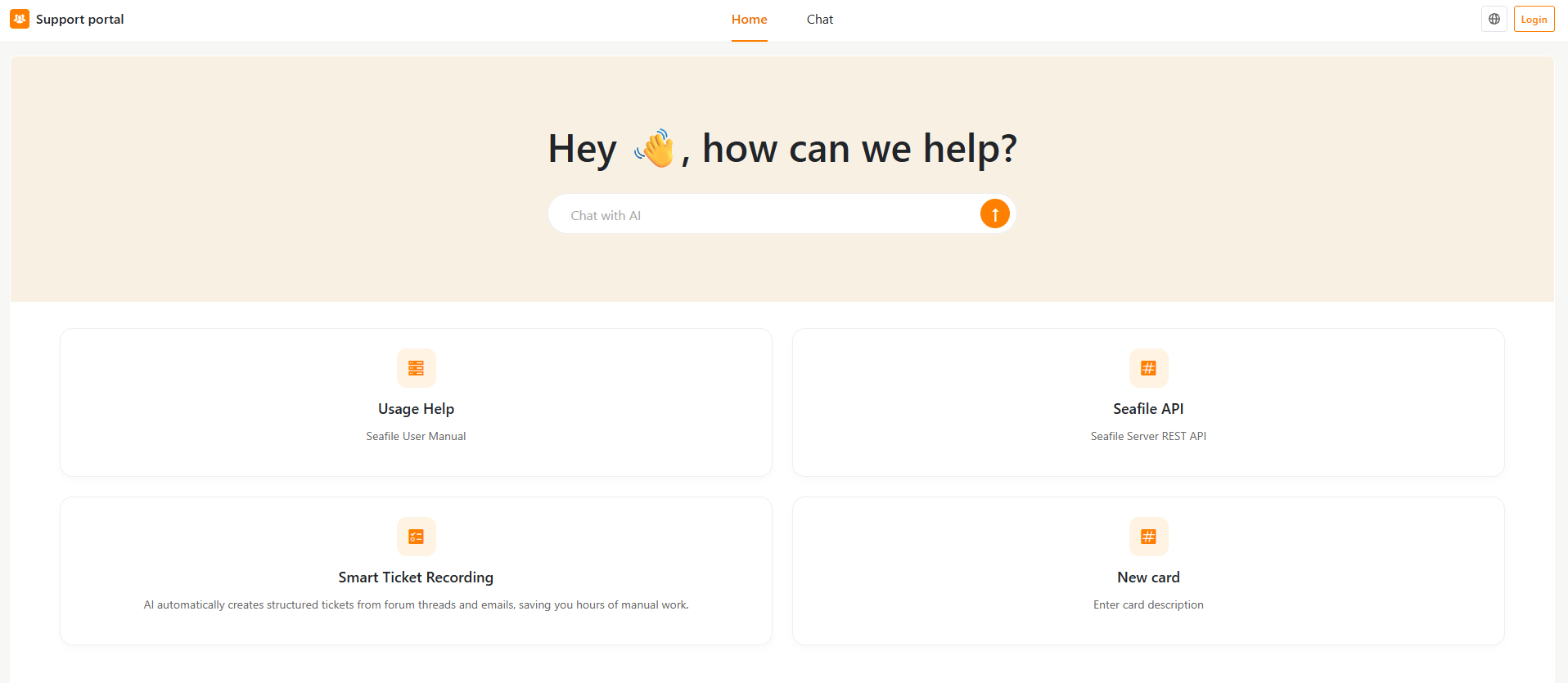
Anonymous Access
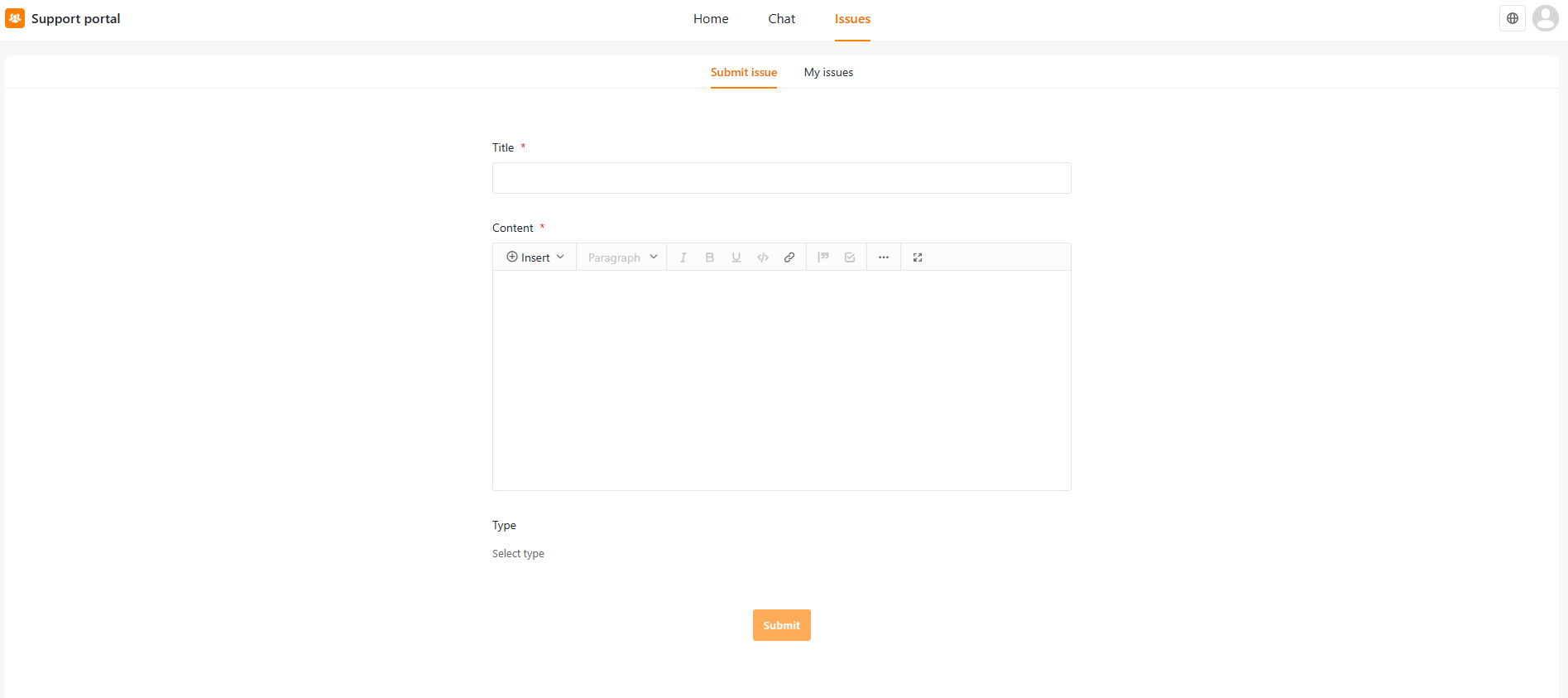
Signed In
Allow Anonymous Access
Enable this option to let users access the portal without signing in.Anonymous users have limited access to portal features. When disabled, only users who are logged in — either with a SeaTicket account or through an invitation link — can access the portal at all.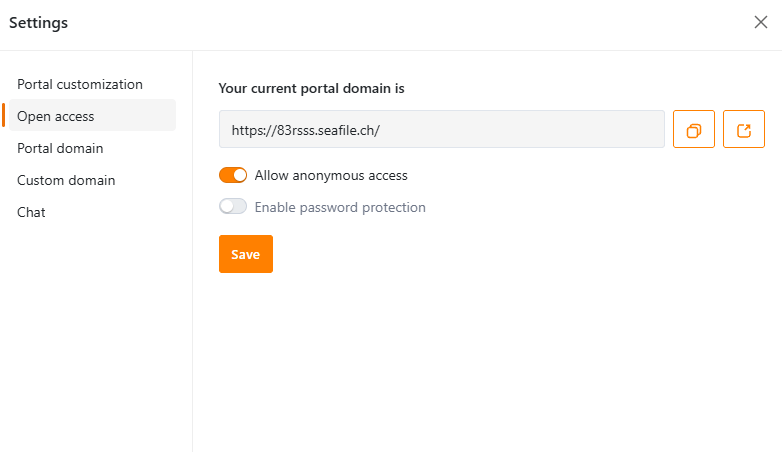
Enable Password Protection
Available only when Allow Anonymous Access is enabled. Once activated, users must enter a password before accessing the portal.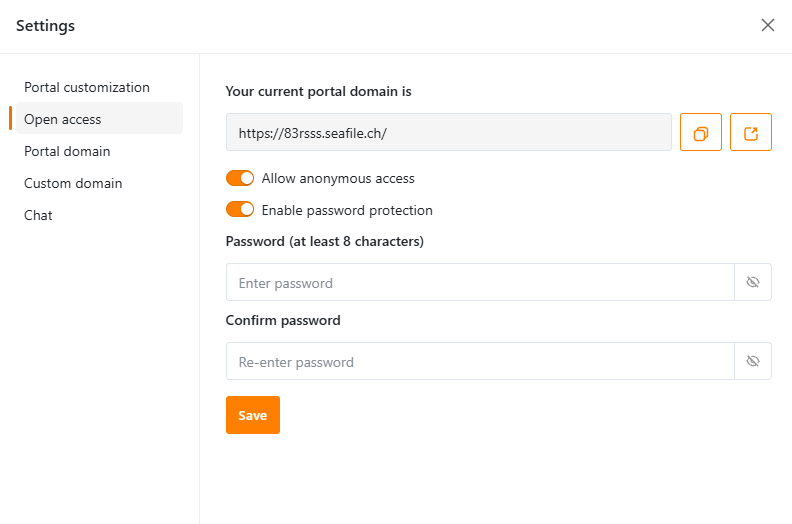
Continue with Setting Up Portal Domain and Custom Domain if you want a branded URL, or skip ahead to Configuring Chat Sources.