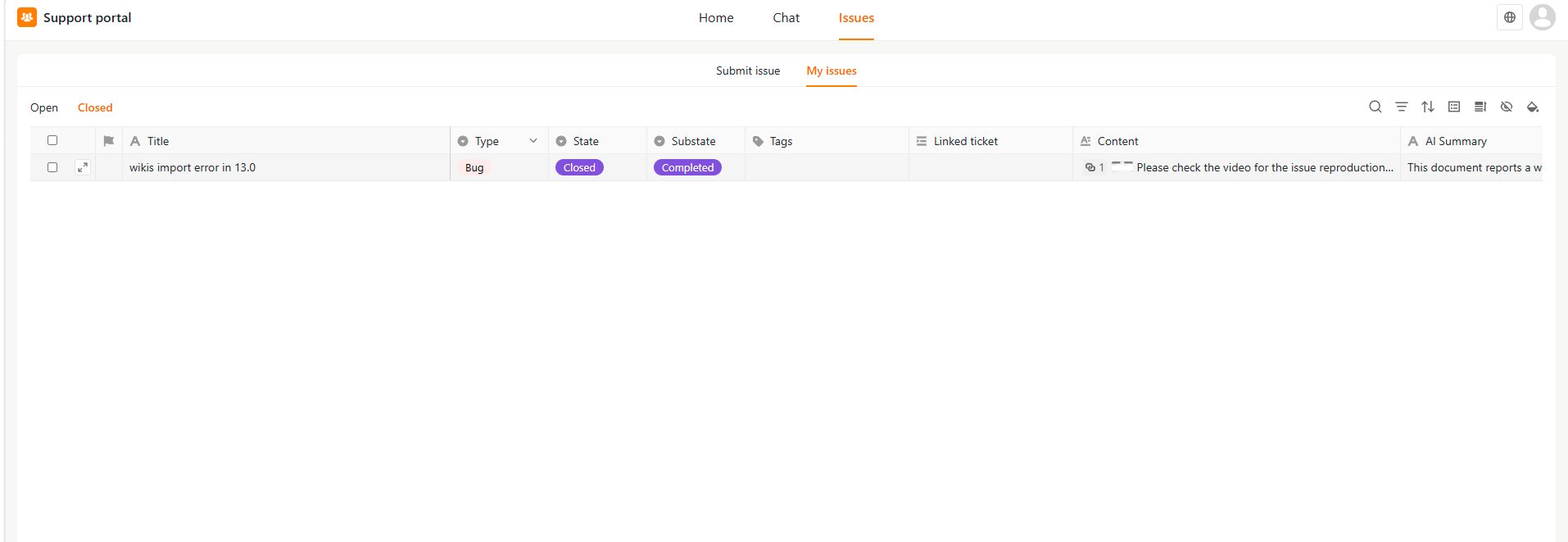

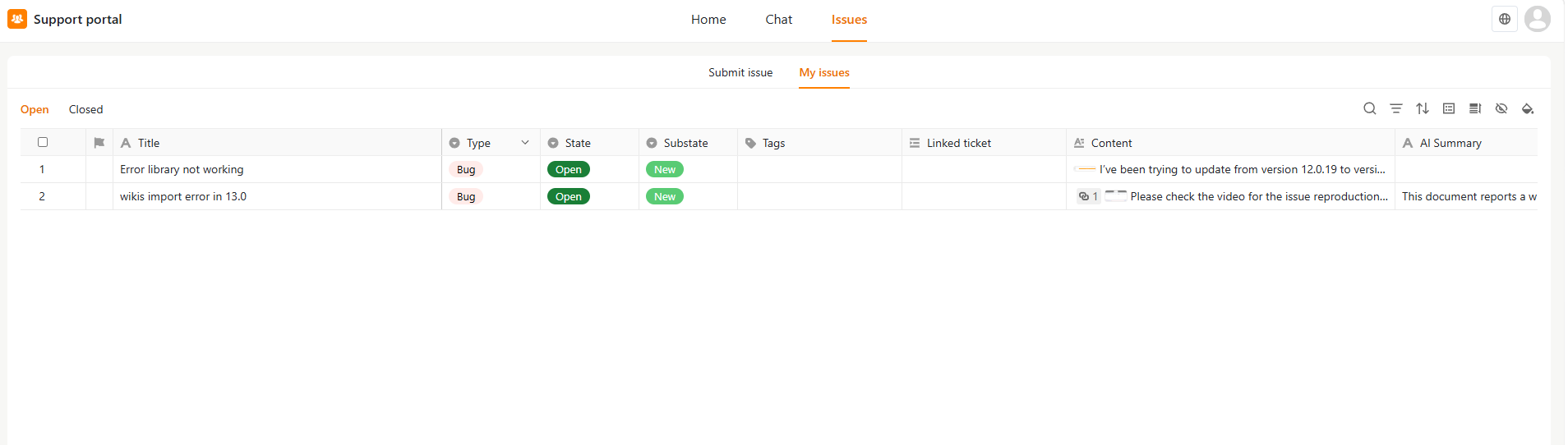
- Open – Active issues that are still being processed
- Closed – Completed or resolved issues
Open an Issue
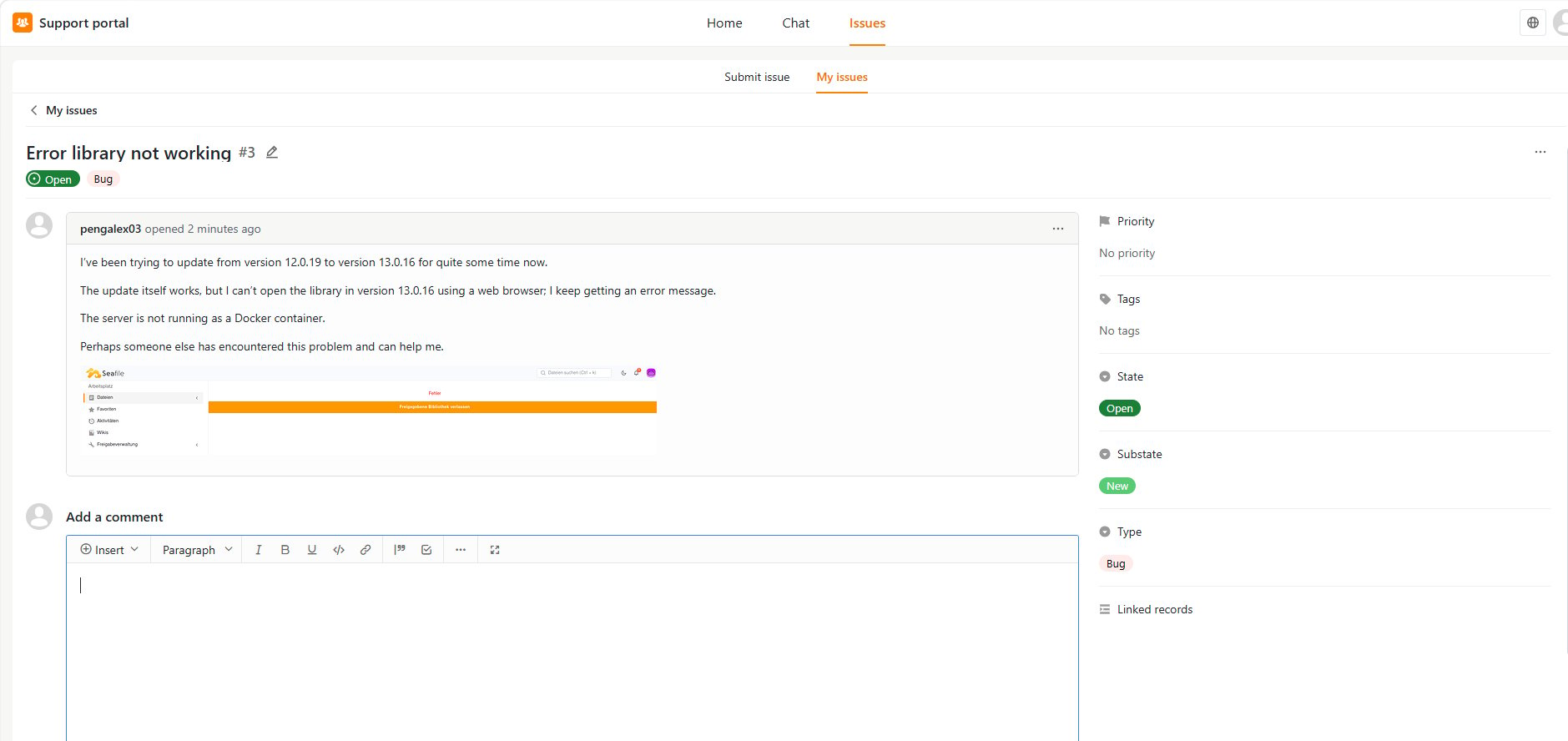
To view issue details, click the issue title from the list. The issue detail page allows you to:- View the issue description and attachments
- Check the current issue status
- Review comments and replies from the support team
Add Comments and Attachments
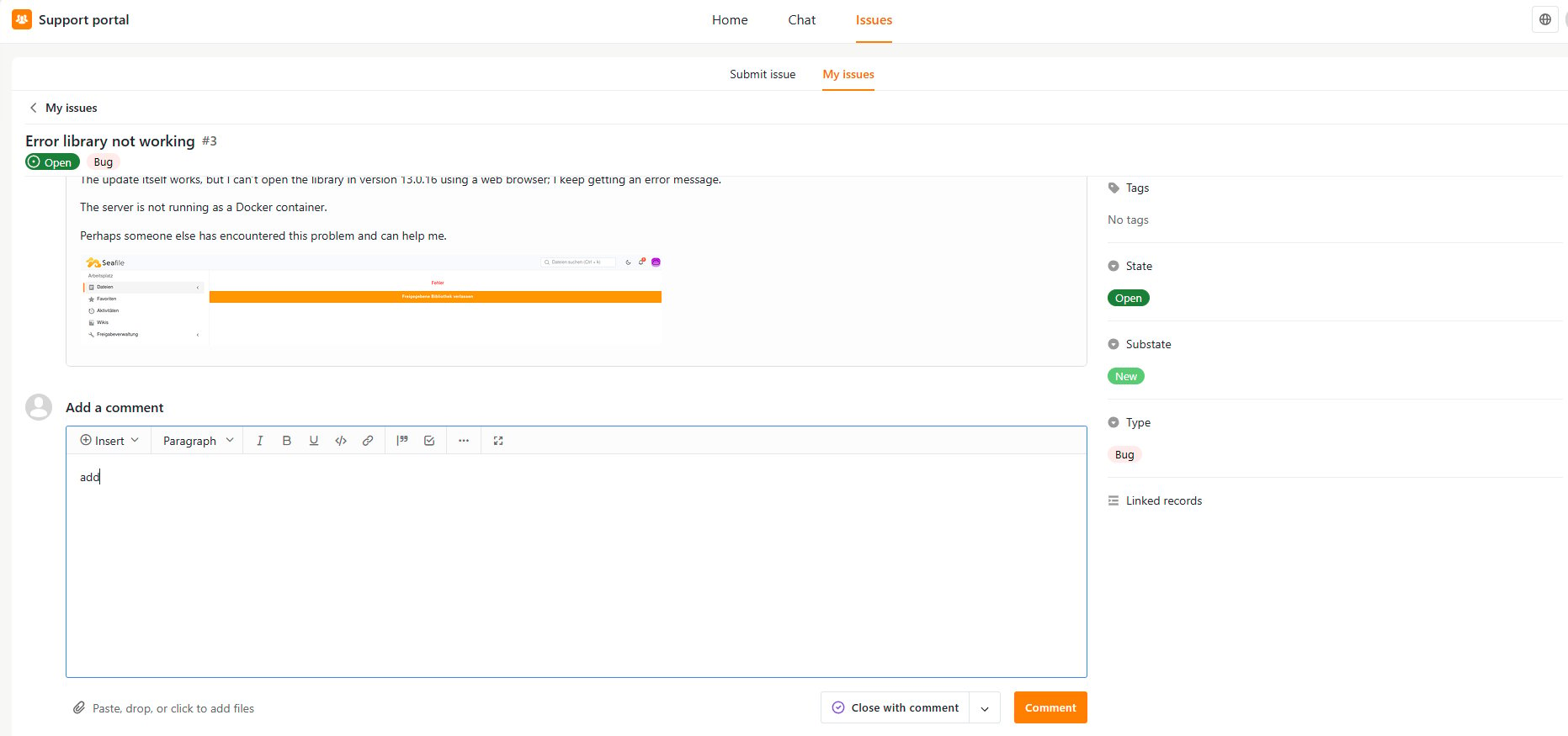
You can continue the discussion by adding comments to the issue. To add a comment:- Open the issue.
- Enter your message in the comment editor.
- Optionally attach files.
- Click Comment.
Close an Issue
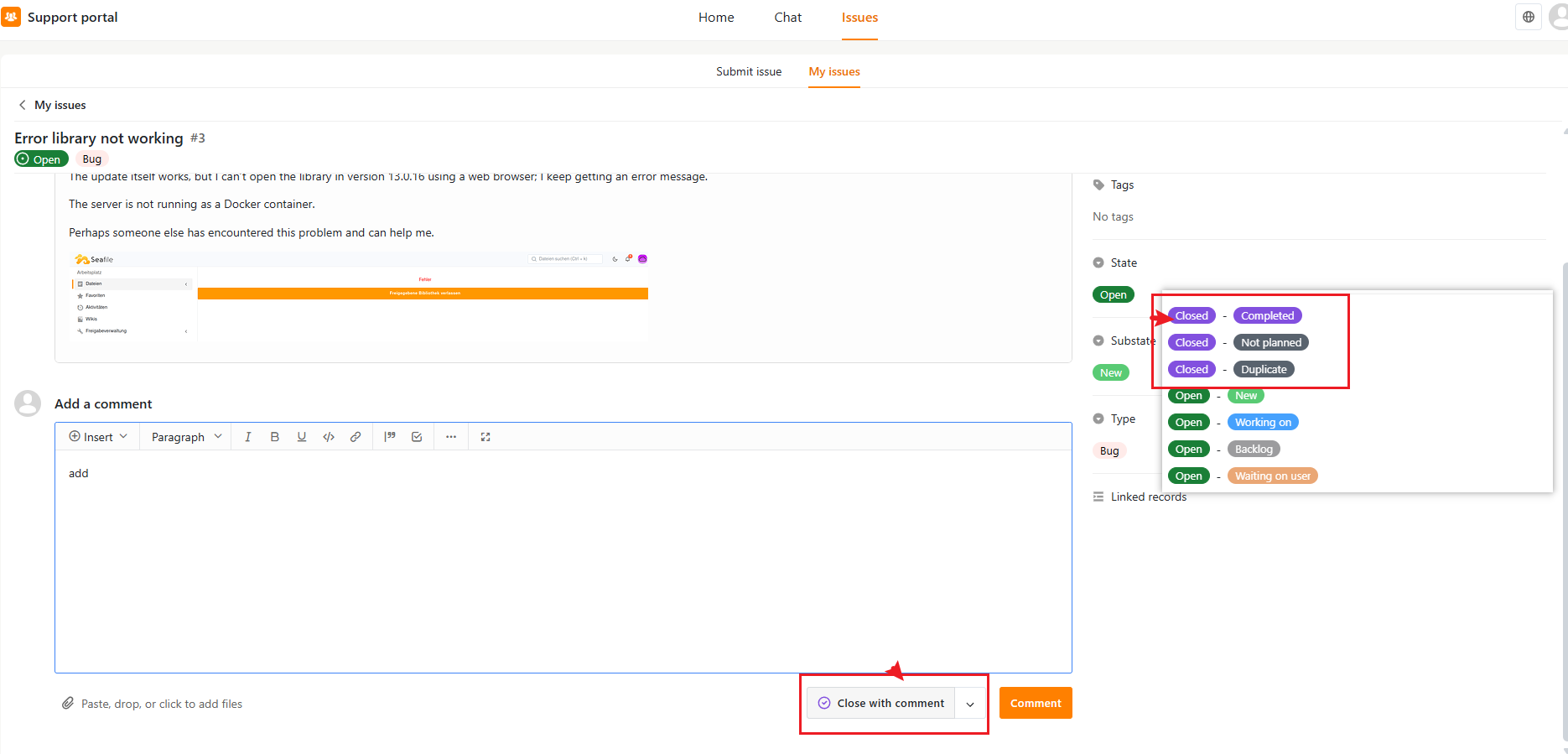
If the issue has been resolved, you can close it directly from the issue detail page. To close an issue:- Open the issue.
- Click Close as completed, or change the issue State to Closed.